Organize and filter(组织与筛选)
For large analyses with many nodes, graph mode provides several ways to control which nodes are visible so you can focus on a specific area of your analysis.
Hide nodes
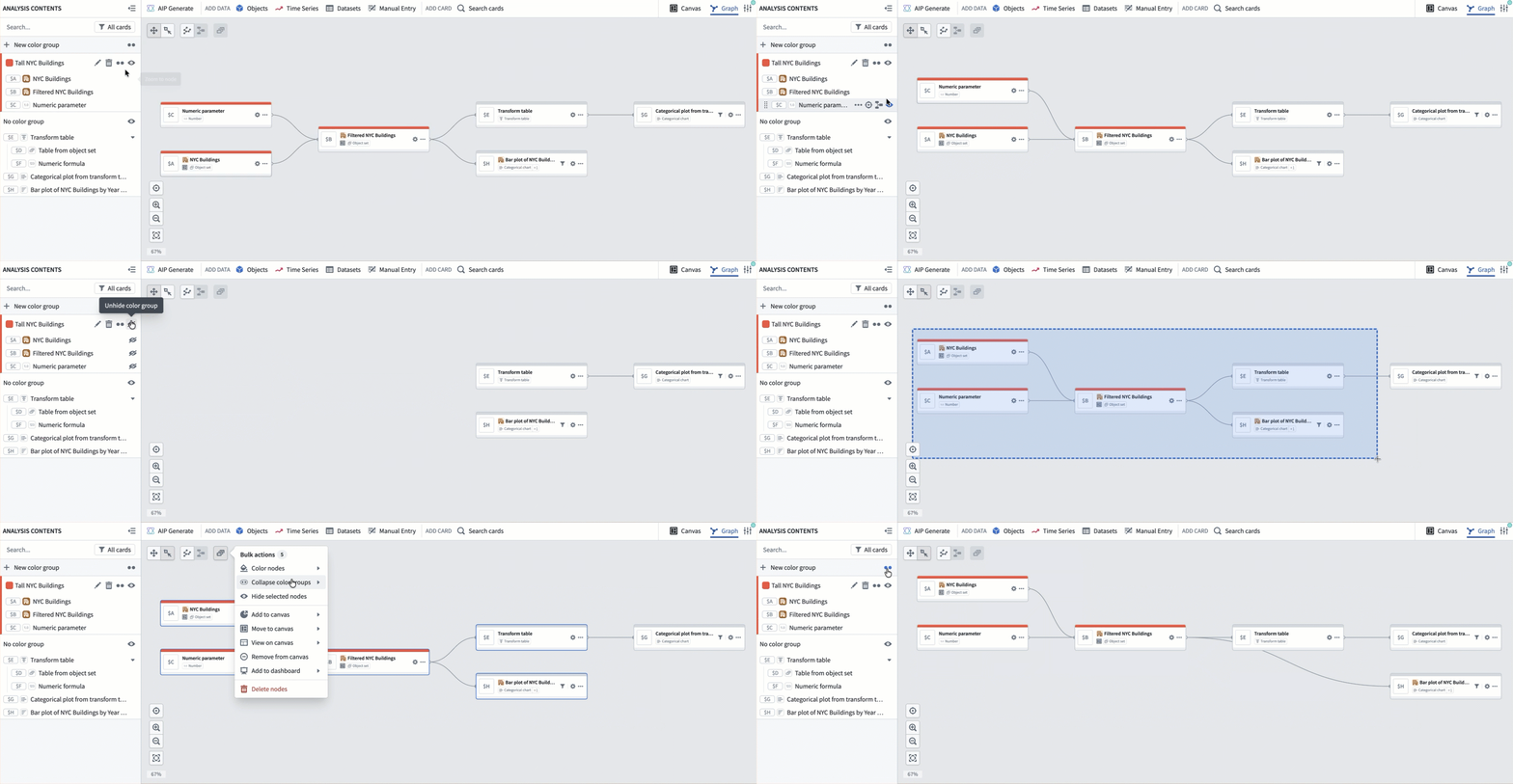
You can hide individual nodes or groups of nodes to reduce visual clutter in the graph. Hidden nodes are not deleted from the analysis and can be made visible again at any time.
To hide a node, select the eye icon that shows when hovering on the card in the Analysis Contents panel and select Hide. To hide multiple nodes, drag to select them on the graph and then select Hide selected nodes from the bulk actions menu.
You can also hide entire color groups from the color legend in the Analysis Contents panel using the eye icon.
To show hidden nodes, use the Analysis Contents panel to find and reveal them.
Filter nodes
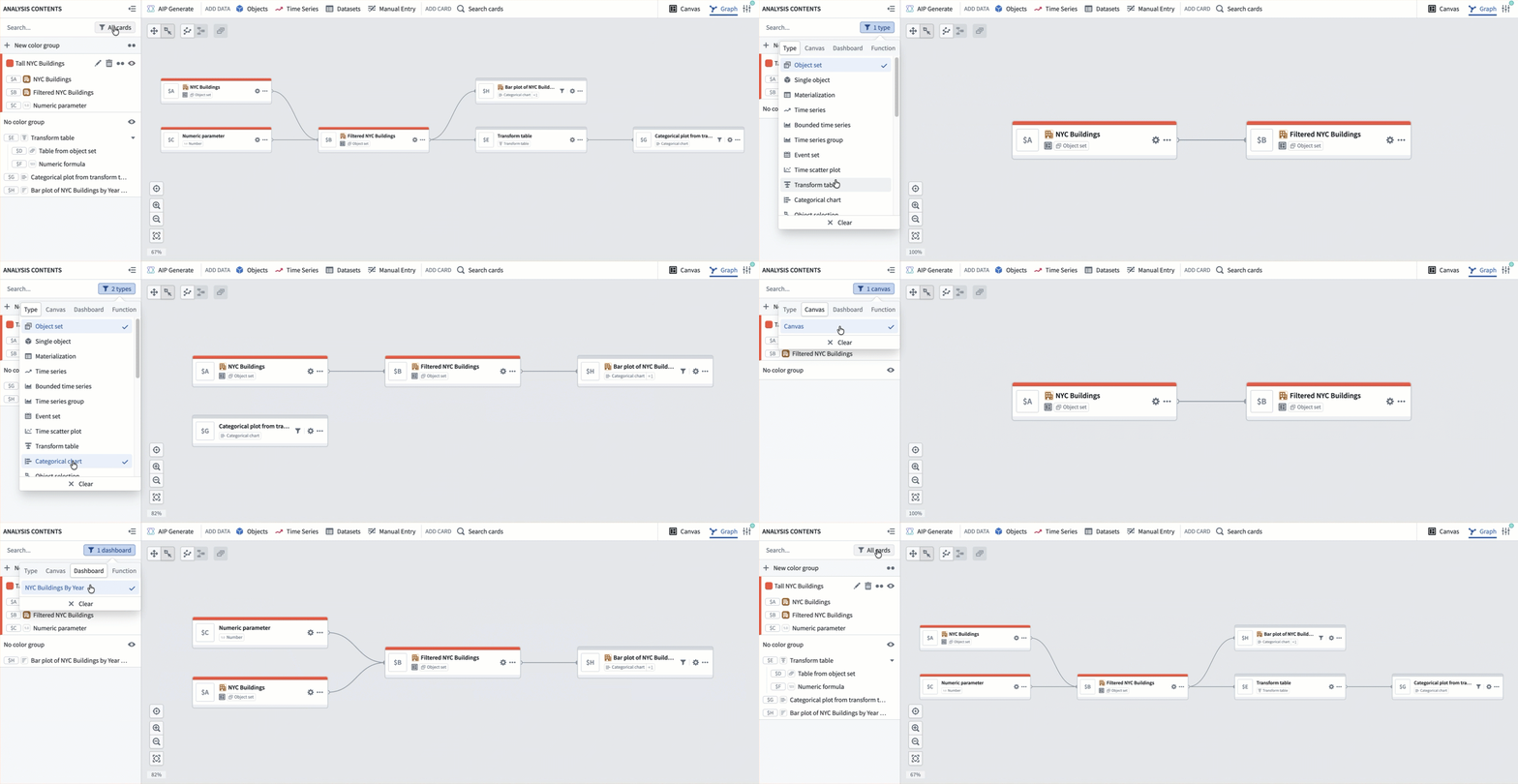
The Analysis Contents panel includes filters to control which nodes are visible in the graph. You can filter by:
- Node type: Show only specific types of cards, such as object sets, charts, or transform tables.
- Canvas: Show only nodes that are present on a specific canvas.
- Dashboard: Show only nodes associated with a particular dashboard.
- Function: Show only nodes related to a specific visual function.
Nodes that do not match the active filter are hidden from the graph but remain part of the analysis.
Dependency view
When you need to trace a single card's lineage, you can narrow the graph to show only that card and its upstream and downstream dependencies.
To enter a dependency view, right-click a node and select View dependencies, or select View dependencies in graph from the card's More actions menu in the Analysis Contents panel.
To return to the full graph, select the Exit dependency view button.
For more details, review the dependency view section in the graph mode documentation.
中文翻译
组织与筛选
对于包含大量节点的大型分析,图谱模式提供了多种控制节点可见性的方式,帮助您聚焦于分析的特定区域。
隐藏节点
您可以隐藏单个或成组节点,以减少图谱中的视觉杂乱。隐藏的节点并未从分析中删除,可随时重新显示。
要隐藏节点,请在分析内容面板中悬停卡片时出现的眼睛图标上选择隐藏。如需隐藏多个节点,可在图谱上拖拽选中它们,然后从批量操作菜单中选择隐藏选中节点。
您还可以通过分析内容面板中的颜色图例,使用眼睛图标隐藏整个颜色分组。
要显示隐藏的节点,请使用分析内容面板查找并恢复它们。
筛选节点
分析内容面板包含筛选器,用于控制图谱中哪些节点可见。您可以按以下条件筛选:
- 节点类型: 仅显示特定类型的卡片,如对象集、图表或转换表。
- 画布: 仅显示特定画布上的节点。
- 仪表盘: 仅显示与特定仪表盘关联的节点。
- 函数: 仅显示与特定可视化函数相关的节点。
不符合当前筛选条件的节点会从图谱中隐藏,但仍属于分析的一部分。
依赖关系视图
当您需要追溯单个卡片的沿袭关系时,可以将图谱缩小为仅显示该卡片及其上游和下游依赖项。
要进入依赖关系视图,请右键单击节点并选择查看依赖关系,或在分析内容面板中从卡片的更多操作菜单中选择在图谱中查看依赖关系。
要返回完整图谱,请选择退出依赖关系视图按钮。
更多详情,请参阅图谱模式文档中的依赖关系视图章节。