Filter transform table(筛选转换表(Filter transform table))
Keep or remove transform table rows that match any or all conditions based on column values and data in your analysis.
Conditions can be defined either using formulas or a visual editor. To add a condition, select + Add filter.
Filter using a visual editor
To configure a condition, select a column. Supported columns types are string, date, number, and Boolean.
Once a column is selected, select the comparison operator to configure the condition. Each column type offers a different set of comparison operators:
- String: Starts with, ends with, contains, does not contain, is, is not, string to Boolean (to be used when a String column contains true or false values)
- Date: Before, on or before, after, on or after, between (inclusive), on, not on
- Number: Greater than, greater than or equal to, less than, less than or equal to, equal to, not equal to
- Boolean: Is, is not
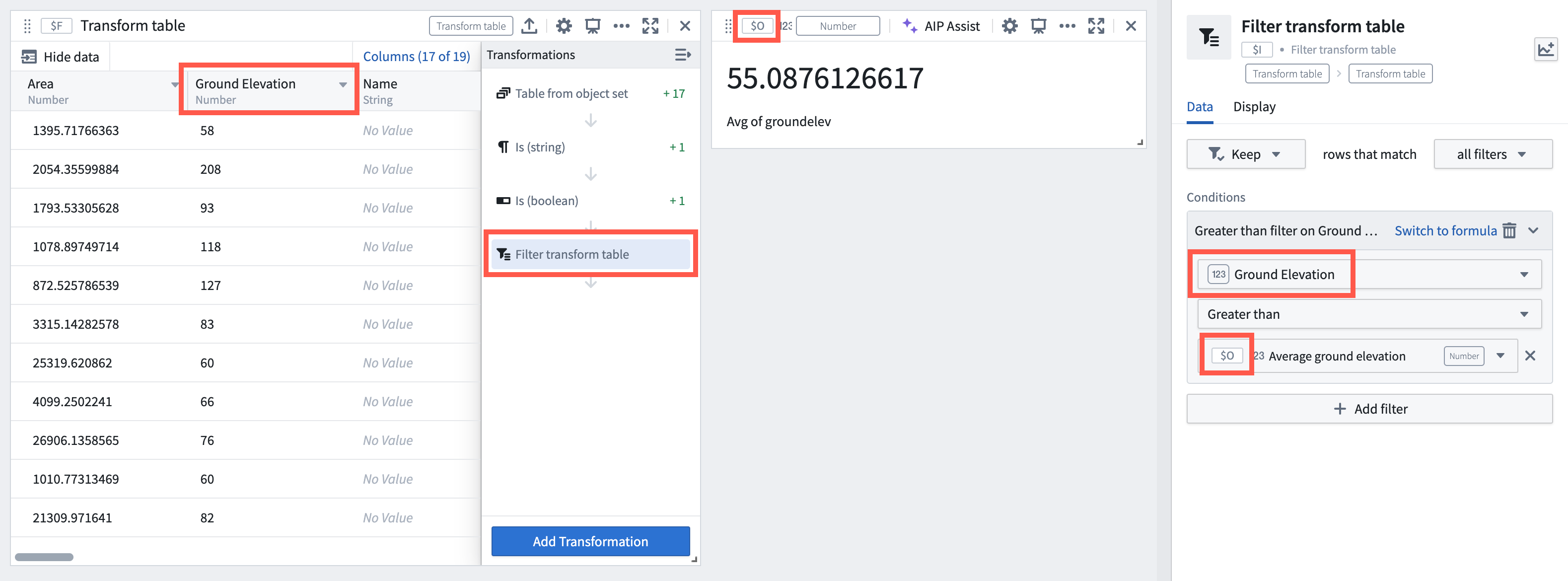
The image below shows a condition configuration for a greater than comparison operator, comparing a number column "Ground Elevation" with the average value of that column computed by a numeric aggregation.
Filter using a formula
To configure a condition, specify a formula returning a Boolean (true/false). The formulas can take columns as input, referencing them with @ (for example,@column > 0). You can also use data in your analysis referencing their global identifiers $XY (for example, @column > $A where $A is a numeric parameter in your analysis).
Note that string types are not supported in formulas. To filter on string column type, use the visual editor.
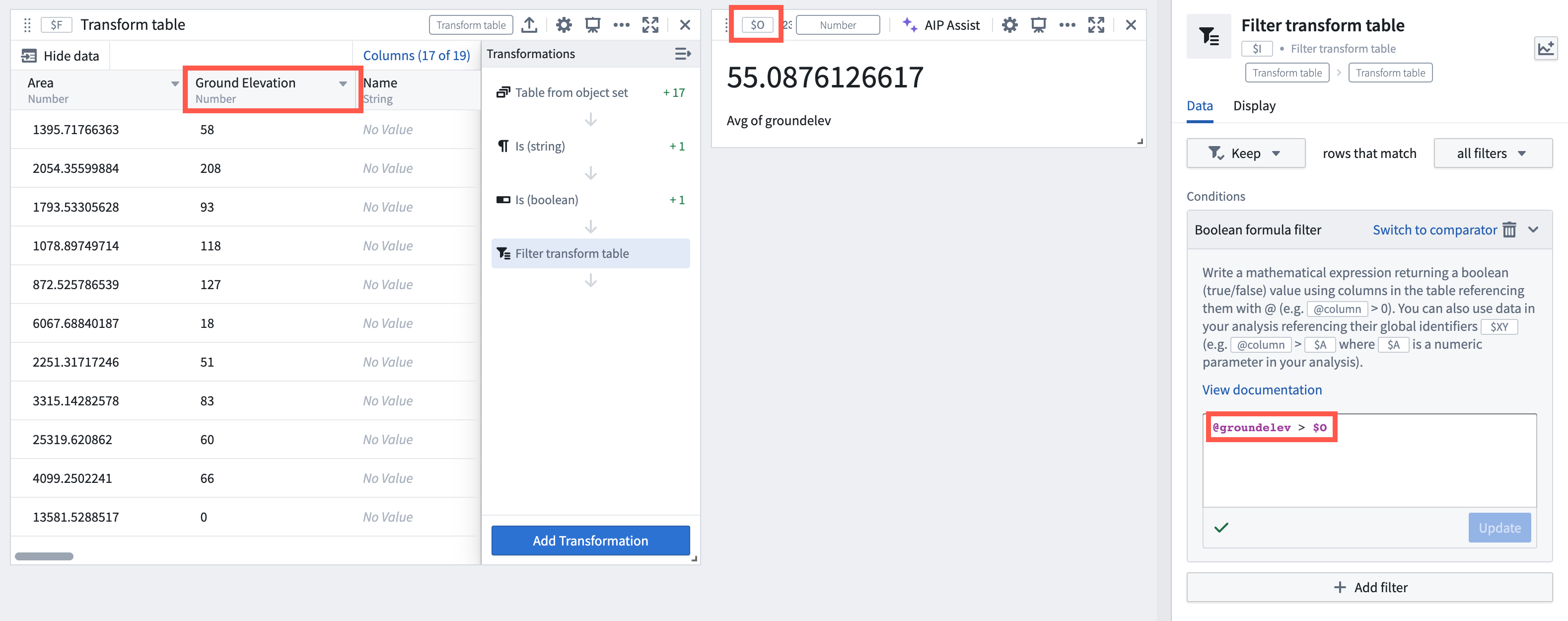
The image below shows the same condition as the one configured above using the visual editor, but is alternatively using a formula. It uses the greater than comparison operator, comparing a number column "Ground Elevation" called groundelev with the average value of that column computed by a numeric aggregation with a global identifier $O.
Input type
Transform table
Output type
Transform table
Usage information
| Functionality | Availability |
|---|---|
| Standard Quiver card | Unsupported |
| Transform table transform | Supported |
中文翻译
筛选转换表(Filter transform table)
根据分析中列值与数据,保留或移除满足任意或全部条件的转换表行。
条件可通过公式或可视化编辑器定义。要添加条件,请选择 + 添加筛选(+ Add filter)。
使用可视化编辑器筛选
配置条件时,需先选择列。支持的列类型包括字符串(string)、日期(date)、数字(number)和布尔值(Boolean)。
选定列后,选择比较运算符(comparison operator)以配置条件。每种列类型提供不同的比较运算符集合:
- 字符串(String): 开头是、结尾是、包含、不包含、等于、不等于、字符串转布尔值(当字符串列包含 true 或 false 值时使用)
- 日期(Date): 早于、早于或等于、晚于、晚于或等于、介于(含边界)、等于、不等于
- 数字(Number): 大于、大于或等于、小于、小于或等于、等于、不等于
- 布尔值(Boolean): 等于、不等于
下图展示了一个使用 大于 比较运算符的条件配置,将数字列"地面高程"与该列通过数值聚合计算的平均值进行比较。
使用公式筛选
配置条件时,需指定一个返回布尔值(true/false)的公式。公式可将列作为输入,并使用 @ 引用(例如 @column > 0)。您也可以使用分析中的数据,通过其全局标识符 $XY 引用(例如 @column > $A,其中 $A 是分析中的数值参数)。
请注意,公式中不支持字符串类型。如需对字符串列类型进行筛选,请使用可视化编辑器。
下图展示了与上述可视化编辑器配置相同的条件,但此处改用公式实现。它使用 大于 比较运算符,将名为 groundelev 的数字列"地面高程"与通过全局标识符 $O 的数值聚合计算出的该列平均值进行比较。
输入类型
转换表(Transform table)
输出类型
转换表(Transform table)
使用信息
| 功能 | 可用性 |
|---|---|
| 标准 Quiver 卡片 | 不支持 |
| 转换表转换 | 支持 |