Time series property(时间序列属性 (Time series property))
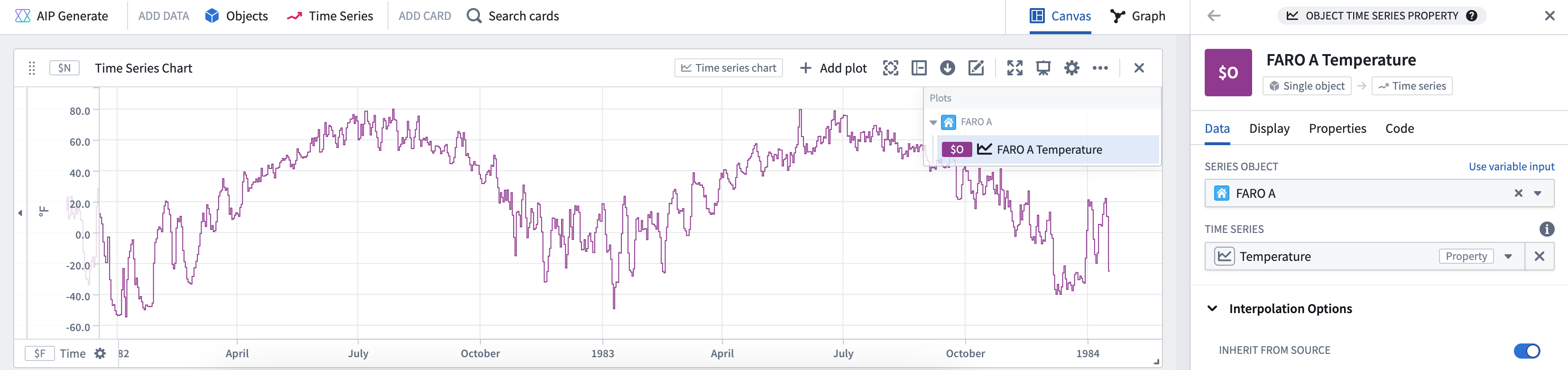
Get a time series property or linked sensor associated with an object. To add a linked sensor, follow the steps below:
1. Select a root object type (for example: Weather Station).
2. Select a specific object instance (for example: FARO A).
3. Select a time series property or sensor from the dropdown showing available sensors. Once a sensor is selected it is rendered as a time series plot.
Input type
Object
Output type
Time series
Example
Usage information
| Functionality | Availability |
|---|---|
| Standard Quiver card | Supported |
| Transform table transform | Supported* |
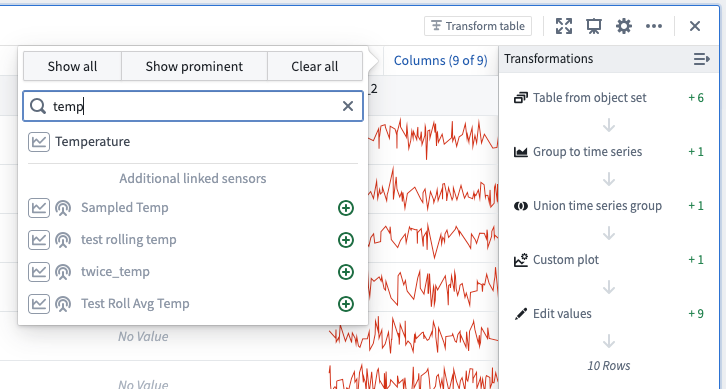
* In the transform table, time series properties are added as columns by default. However, you can also use the linked time series sensor transform to add a time series sensor object type (a time series attached to a root object). You can also use the Columns button in the upper-right corner of the table to add time series properties or sensors.
中文翻译
时间序列属性 (Time series property)
获取与对象关联的时间序列属性或链接传感器。要添加链接传感器,请按以下步骤操作:
1. 选择一个根对象类型(例如:Weather Station)。
2. 选择一个具体的对象实例(例如:FARO A)。
3. 从显示可用传感器的下拉菜单中选择一个时间序列属性或传感器。选定传感器后,它将呈现为时间序列图。
输入类型 (Input type)
对象 (Object)
输出类型 (Output type)
时间序列 (Time series)
示例
使用信息
| 功能 | 可用性 |
|---|---|
| 标准 Quiver 卡片 | 支持 |
| 转换表转换 | 支持* |
* 在转换表中,时间序列属性默认作为列添加。不过,您也可以使用 链接时间序列传感器 (linked time series sensor) 转换来添加时间序列传感器对象类型(即附加到根对象上的时间序列)。此外,您还可以使用表格右上角的 列 (Columns) 按钮来添加时间序列属性或传感器。