Objects cards(对象卡片)
Back to: Index of cards
The following cards return object sets:
- Code function object set
- Cross filter
- Defined by property
- Filter object set
- Import saved object set
- Set math
- Status filter
- Switch to linked object set
The following cards return a single object:
The following cards accept single objects as input and output object properties:
Select the Show data and Hide data buttons to switch between the results view and the card configuration view.
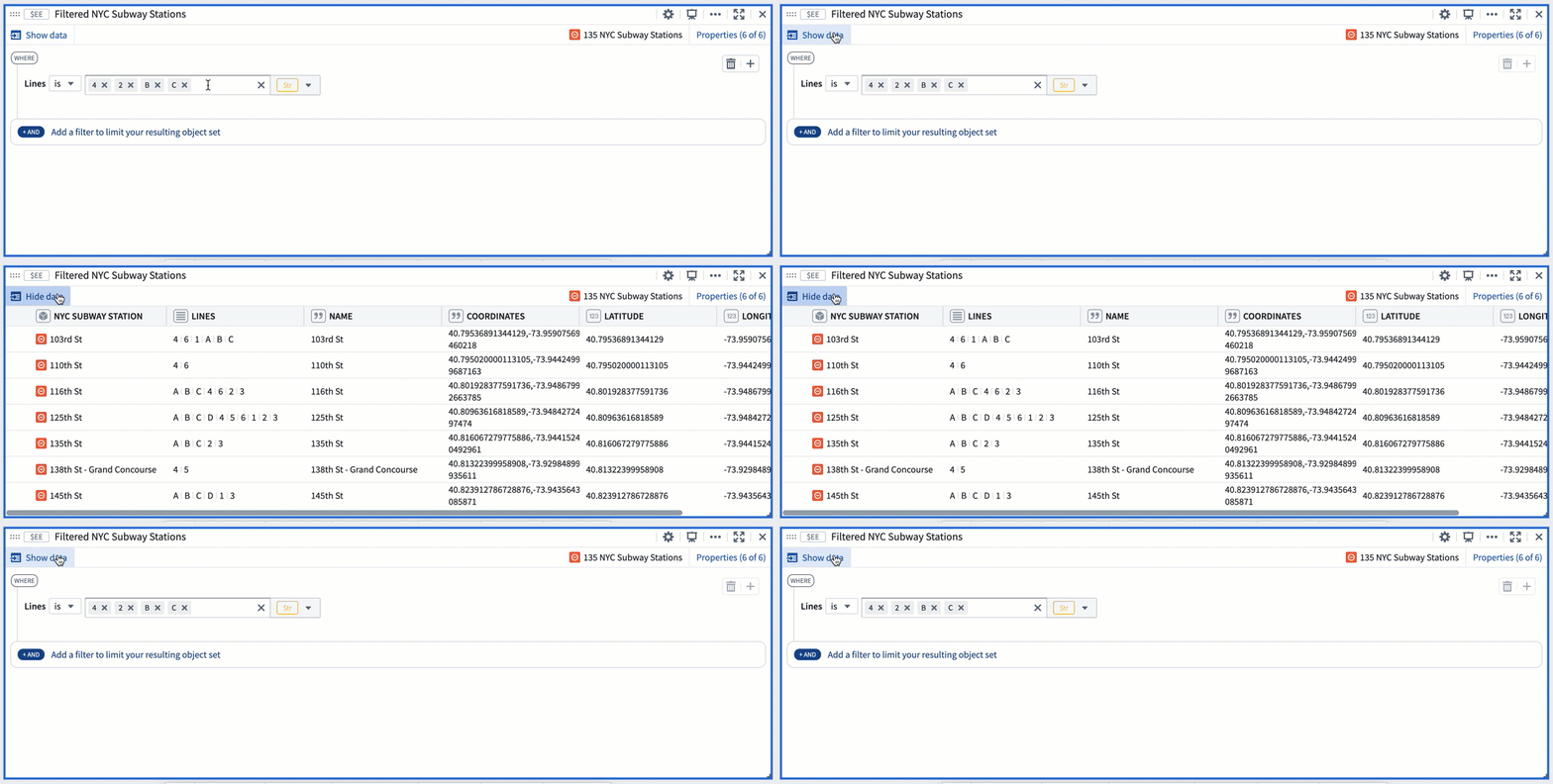
Learn more about adding data to Quiver.
Browsing object set properties and linked sensors
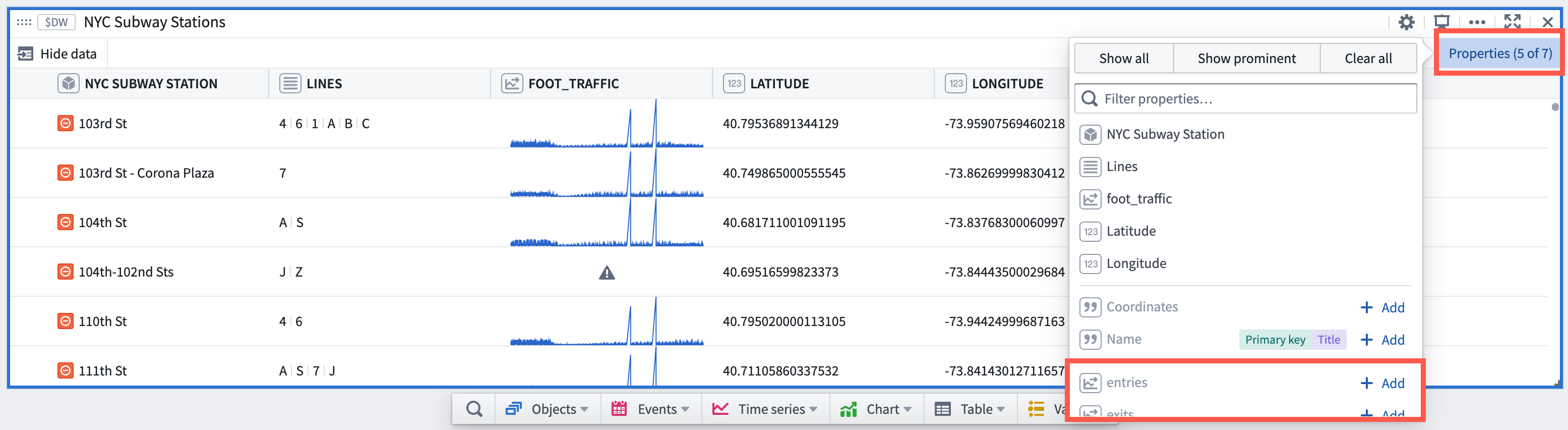
Object properties and available linked sensors can be added and removed directly from the card header by selecting Properties from the top right corner. This simplifies the discovery of time series data stored on the object as a time series property or on linked objects as sensors. Adding or removing properties will add or remove columns from the object set card table view.
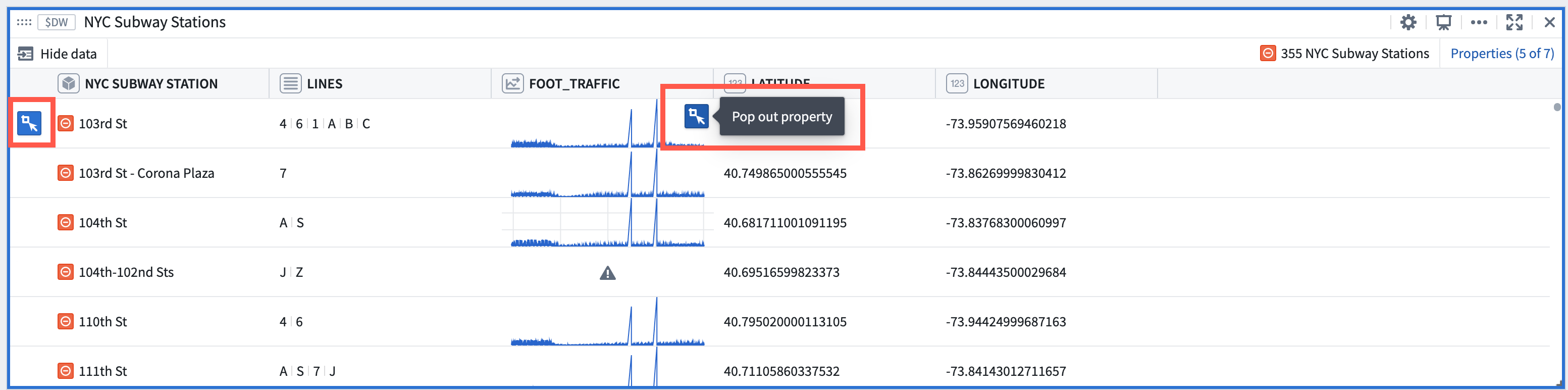
Object set rows (individual objects in the object set) can be popped out as object view cards, and all properties values (cells in the table) can be popped out as either a time series plot or an object property (metric) card. This pop out action shortens the process to drill down from an object set of many objects to a specific time series plot or property metric on a single object.
中文翻译
对象卡片
返回至:卡片索引
以下卡片返回对象集(object set):
以下卡片返回单个对象:
以下卡片接受单个对象作为输入,并输出对象属性:
选择 显示数据 和 隐藏数据 按钮,可在结果视图和卡片配置视图之间切换。
了解更多关于向 Quiver 添加数据 的信息。
浏览对象集属性和链接传感器
对象属性和可用的链接传感器可以直接从卡片标题栏中通过选择右上角的 属性 进行添加或移除。这简化了发现存储在对象上的时间序列数据(作为时间序列属性)或链接对象上的传感器数据的过程。添加或移除属性将相应地增加或减少对象集卡片表格视图中的列数。
对象集中的行(即对象集中的单个对象)可以弹出为 对象视图 卡片,所有属性值(表格中的单元格)可以弹出为时间序列图或对象属性(指标)卡片。这种弹出操作简化了从包含多个对象的对象集向下钻取到单个对象上特定时间序列图或属性指标的过程。