Parameters(参数(Parameters))
Parameters let a user manually input values to dynamically change data in an analysis. Parameters can be used in any card that takes the parameter’s output type as input.
Each parameter has a specific type (for example: numeric, string, date/time, a single object, or a numeric range). The input to a parameter card is usually a user-entered value. In the case of the property value select parameter, the user can pick a value from a dropdown based on values of a chosen object set property.
Parameter cards can be added to an analysis from the parameter panel, by searching for cards with the search bar (via the Search cards button in the top menu), or they can be created inline from many editors.
All parameter cards existing in an analysis are referenced in the parameters panel on the left. From there, you can change parameter values to see how downstream cards in the analysis look with different values. You can also identify which cards are using each parameter.
Learn more about how to parameterize an analysis on the Palantir Developers YouTube channel. ↗
- The parameters panel
- List of parameters
- Add a parameter
- Add a parameter using card search
- Add a parameter from the parameters panel
- Add a parameter when configuring another card
- Example: Use parameters to dynamically filter object sets
The parameters panel
The parameters panel can be found in the left sidebar, under the variable icon ( ), and is a unified location for managing parameters in your analysis.
The panel allows you to:
- Create new parameters
- Delete unused parameters
- See all parameters from your analysis in a single place.
- Change parameter values and observe changes in your analysis.
- Configure parameters (such as changing the label, placeholder value, and so on).
- See in which cards a given parameter is used. Some parameter types have additional details and controls relating to their use with time series. This is indicated by an extra section next to the number of cards that use the parameter. The number in the additional section represents how many plots are contained in the time series charts where the parameter is used. Learn more about additional controls on date/time range parameters.
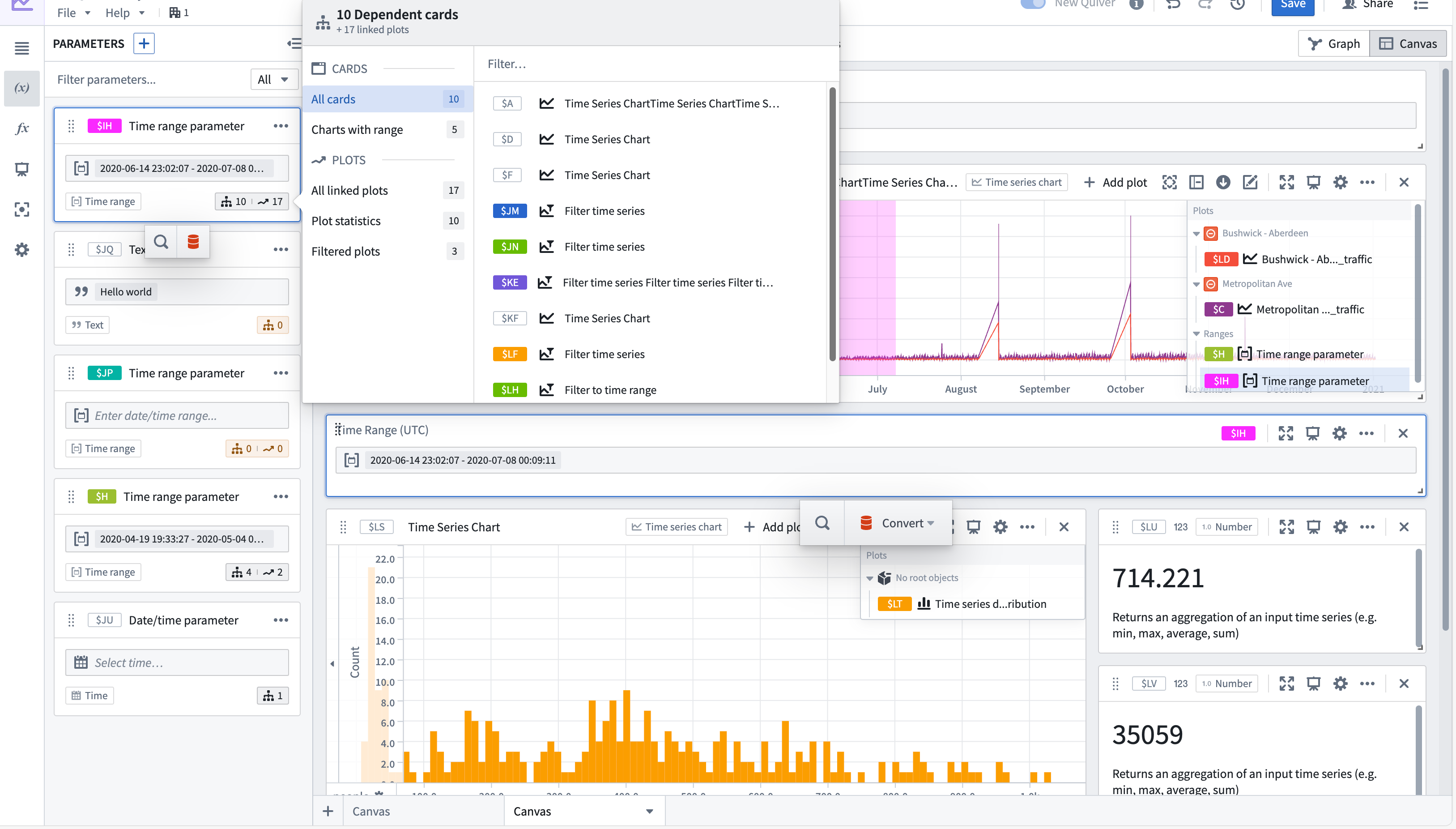
List of parameters
Below is the full list of parameters available in Quiver:
- Numeric parameter
- String parameter
- Boolean parameter
- Date/time parameter
- Duration unit parameter
- Time range parameter
- Numeric range parameter
- Object selector
- Property value select parameter
- String selector
- Transform table row selector
- String array parameter
- X/Y range parameter
- Action button
Add a parameter
You can add a parameter card by one of several ways:
- Add a parameter from the parameters panel.
- Add a parameter by searching for cards.
- Add a parameter when configuring the card that takes the parameter as input.
See below for step-by-step instructions for each of the ways listed above.
Add a parameter from the parameters panel
To add a parameter from the parameters panel:
- Open the parameters panel by selecting the variable icon () in the left sidebar.
- Select the + button in the panel header.
- Select the desired parameter.

Add a parameter using card search
To add a parameter card by searching for it:
- Open the search bar by selecting Search cards in the top menu bar.
- Search for “parameter” to see all the parameter cards.
- Select the desired parameter type.

Add a parameter when configuring another card
When configuring a card input that you wish to parameterize, you can add a parameter directly from the card editor. For example, the image below shows how you can configure the substring card to take a string parameter as the input string.
To add a parameter from a card configuration editor:
- Open the card configuration editor of the target card by selecting the configure icon (
 ) in the card header.
 - Select the Use variable input button to parameterize a configuration value.
- Select Create new parameter from the input dropdown.

Example: Use parameters to dynamically filter object sets
In the analysis below, we have created a bar plot and two numerical aggregations that both read from the Filter Transactions object set. Let’s run through how to control the filtering of objects in the object set using parameters and watch the bar plot and numeric aggregations update accordingly.
To begin, we can add a property filter for Retailer Name. Next, create a new property value select parameter to control this value. You can create the parameter by selecting the Use variable input button next to the filter input box and then Create new parameter. This will both add the new parameter card to your analysis and set it to control the filter.
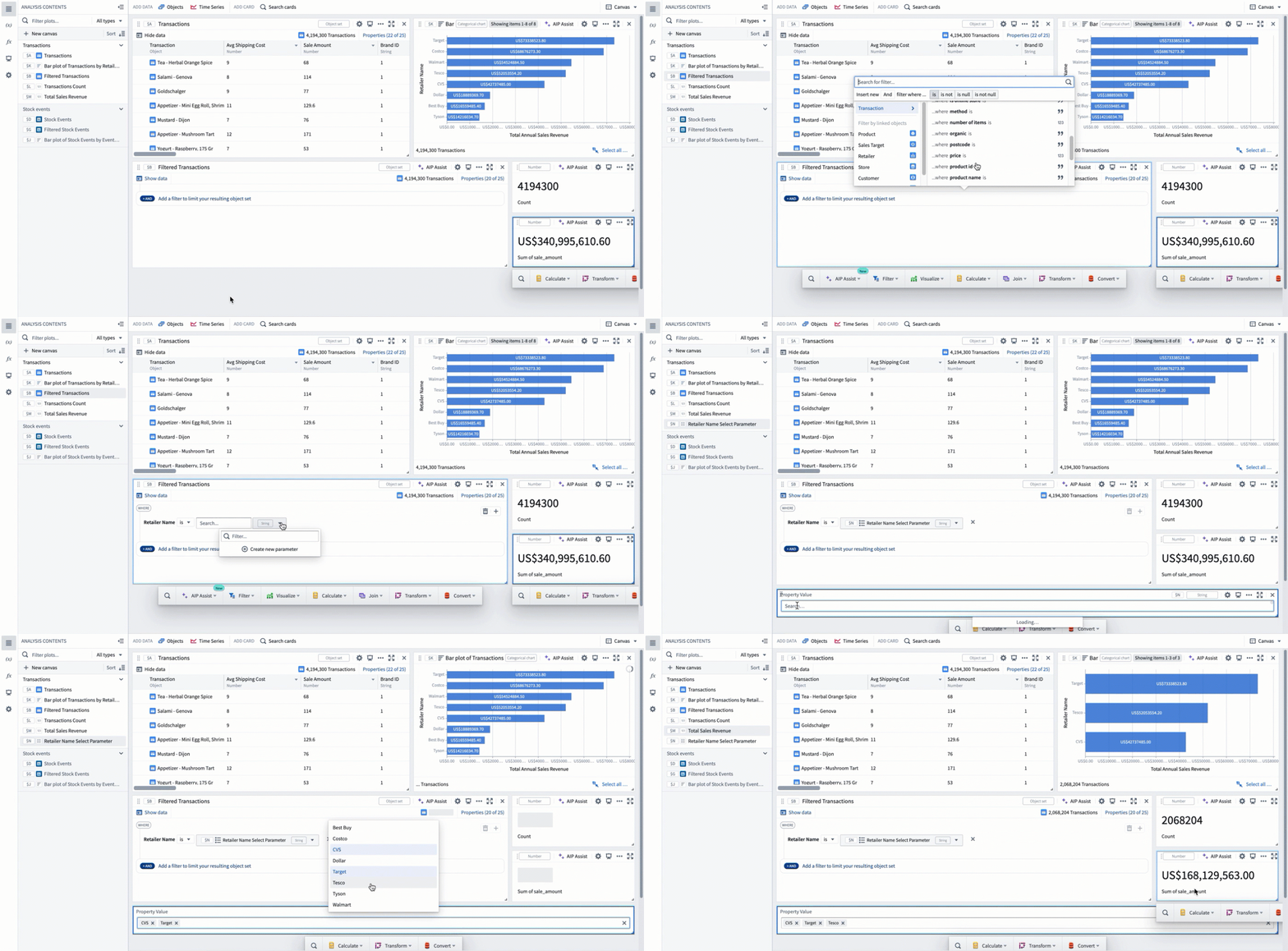
Only parameters that are the same type as the property being configured can be selected from the parameter dropdown. For example, the parameter added above of type string does not show up when trying to filter a property of type number.
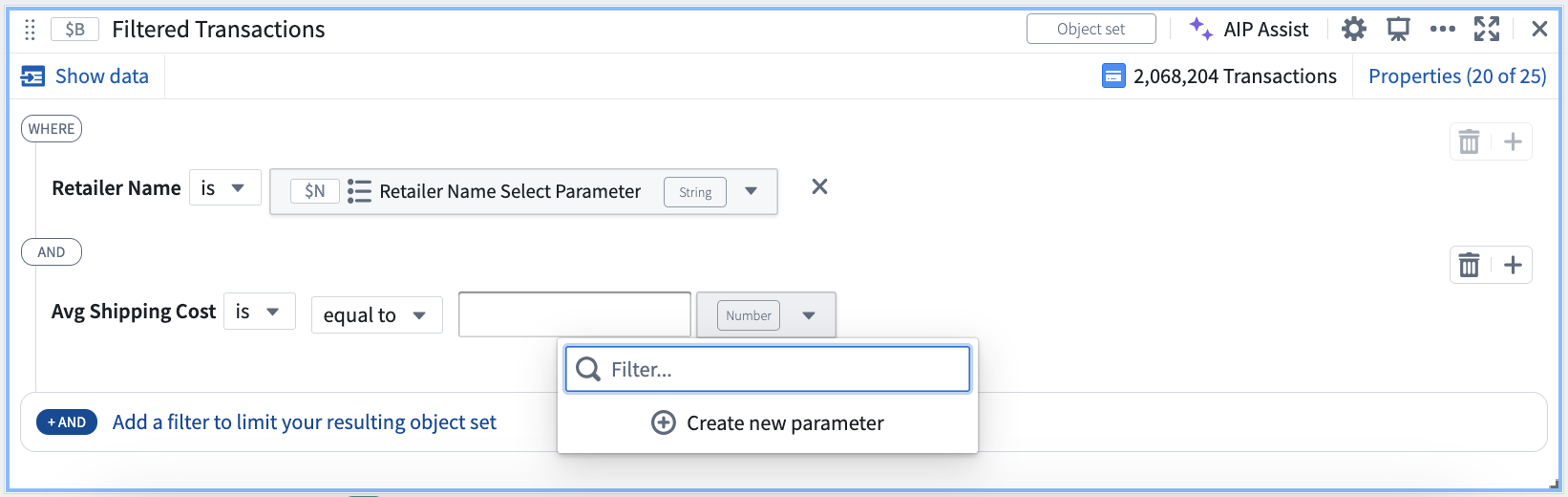
You can see what type a property is in the Add filter menu on the right side, as well as after selecting a property when configuring its variable input.


中文翻译
参数(Parameters)
参数(Parameters) 允许用户手动输入数值,从而动态改变分析中的数据。任何接受参数输出类型作为输入的卡片均可使用参数。
每个参数都有特定的类型(例如:数值、字符串、日期/时间、单个对象或数值范围)。参数卡片的输入通常由用户输入值。对于属性值选择参数(property value select parameter),用户可以从基于所选对象集属性值的下拉菜单中选择一个值。
参数卡片可以通过参数面板(parameter panel)添加到分析中,也可以通过搜索栏(使用顶部菜单中的搜索卡片按钮)搜索卡片来添加,或者在许多编辑器中直接内联创建。
分析中存在的所有参数卡片都会在左侧的参数面板中列出。您可以在该面板中更改参数值,以查看分析中下游卡片在不同参数值下的表现。您还可以识别哪些卡片使用了每个参数。
在 Palantir Developers YouTube 频道上了解更多关于如何参数化分析的内容。↗
参数面板
参数面板位于左侧边栏的变量图标()下,是管理分析中参数的统一位置。
该面板允许您:
- 创建新参数
- 删除未使用的参数
- 在一个位置查看分析中的所有参数。
- 更改参数值并观察分析中的变化。
- 配置参数(例如更改标签、占位符值等)。
- 查看给定参数在哪些卡片中被使用。某些参数类型具有与时间序列使用相关的额外详细信息和控件。这通过使用该参数的卡片数量旁边的额外部分来指示。额外部分中的数字表示使用该参数的时间序列图表中包含的绘图数量。了解更多关于日期/时间范围参数的额外控件。
参数列表
以下是 Quiver 中可用的完整参数列表:
- 数值参数(Numeric parameter)
- 字符串参数(String parameter)
- 布尔参数(Boolean parameter)
- 日期/时间参数(Date/time parameter)
- 持续时间单位参数(Duration unit parameter)
- 时间范围参数(Time range parameter)
- 数值范围参数(Numeric range parameter)
- 对象选择器(Object selector)
- 属性值选择参数(Property value select parameter)
- 字符串选择器(String selector)
- 转换表行选择器(Transform table row selector)
- 字符串数组参数(String array parameter)
- X/Y 范围参数(X/Y range parameter)
- 操作按钮(Action button)
添加参数
您可以通过以下几种方式之一添加参数卡片:
- 从参数面板添加参数。
- 通过搜索卡片添加参数。
- 在配置接受参数作为输入的卡片时添加参数。
请参阅下方针对上述每种方式的逐步说明。
从参数面板添加参数
要从参数面板添加参数:
- 通过选择左侧边栏中的变量图标()打开参数面板。
- 选择面板标题中的 + 按钮。
- 选择所需的参数。
通过卡片搜索添加参数
要通过搜索添加参数卡片:
- 通过选择顶部菜单栏中的搜索卡片打开搜索栏。
- 搜索“parameter”以查看所有参数卡片。
- 选择所需的参数类型。
在配置其他卡片时添加参数
在配置希望参数化的卡片输入时,您可以直接从卡片编辑器中添加参数。例如,下图展示了如何配置子字符串(substring)卡片,使其接受一个字符串参数作为输入字符串。
要从卡片配置编辑器添加参数:
- 通过选择卡片标题中的配置图标()打开目标卡片的配置编辑器。
- 选择使用变量输入按钮以参数化配置值。
- 从输入下拉菜单中选择创建新参数。
示例:使用参数动态筛选对象集
在下面的分析中,我们创建了一个条形图(bar plot)和两个数值聚合(numerical aggregations),它们都从筛选交易对象集中读取数据。让我们逐步了解如何使用参数控制对象集中对象的筛选,并观察条形图和数值聚合相应地更新。
首先,我们可以为零售商名称添加一个属性筛选器。接下来,创建一个新的属性值选择参数(property value select parameter)来控制该值。您可以通过选择筛选输入框旁边的使用变量输入按钮,然后选择创建新参数来创建参数。这会将新的参数卡片添加到您的分析中,并将其设置为控制筛选器。
只有与正在配置的属性类型相同的参数才能从参数下拉菜单中选择。例如,上面添加的类型为string的参数在尝试筛选类型为number的属性时不会显示。
您可以在右侧的添加筛选器菜单中查看属性的类型,也可以在配置其变量输入时选择属性后查看。