Vega Plots(Vega 图表(Vega Plots))
Quiver allows users to create fully customizable and interactive visualizations using the Vega or Vega-Lite libraries. Review Vega ↗ and Vega-Lite ↗ documentation for inspiration and examples.
What is Vega?
Vega and Vega-Lite allow you to create, save, and share interactive visualization designs in the form of a concise JSON spec that describes the appearance and behavior of a visualization. Vega supports a variety of visualization designs, such as:
- Data loading ↗ and transformation ↗
- Scales ↗
- Map projections ↗
- Axes ↗
- Legends ↗
- Graphical marks ↗ such as rectangles, lines, plotting symbols, etc.
Vega-Lite is a higher-level language built on top of Vega that provides a more concise and convenient way to author common visualizations. We suggest starting with Vega-Lite, since Vega-Lite syntax is easier to read, write, and debug than Vega. If Vega-Lite's options are insufficient, consider using Vega instead.
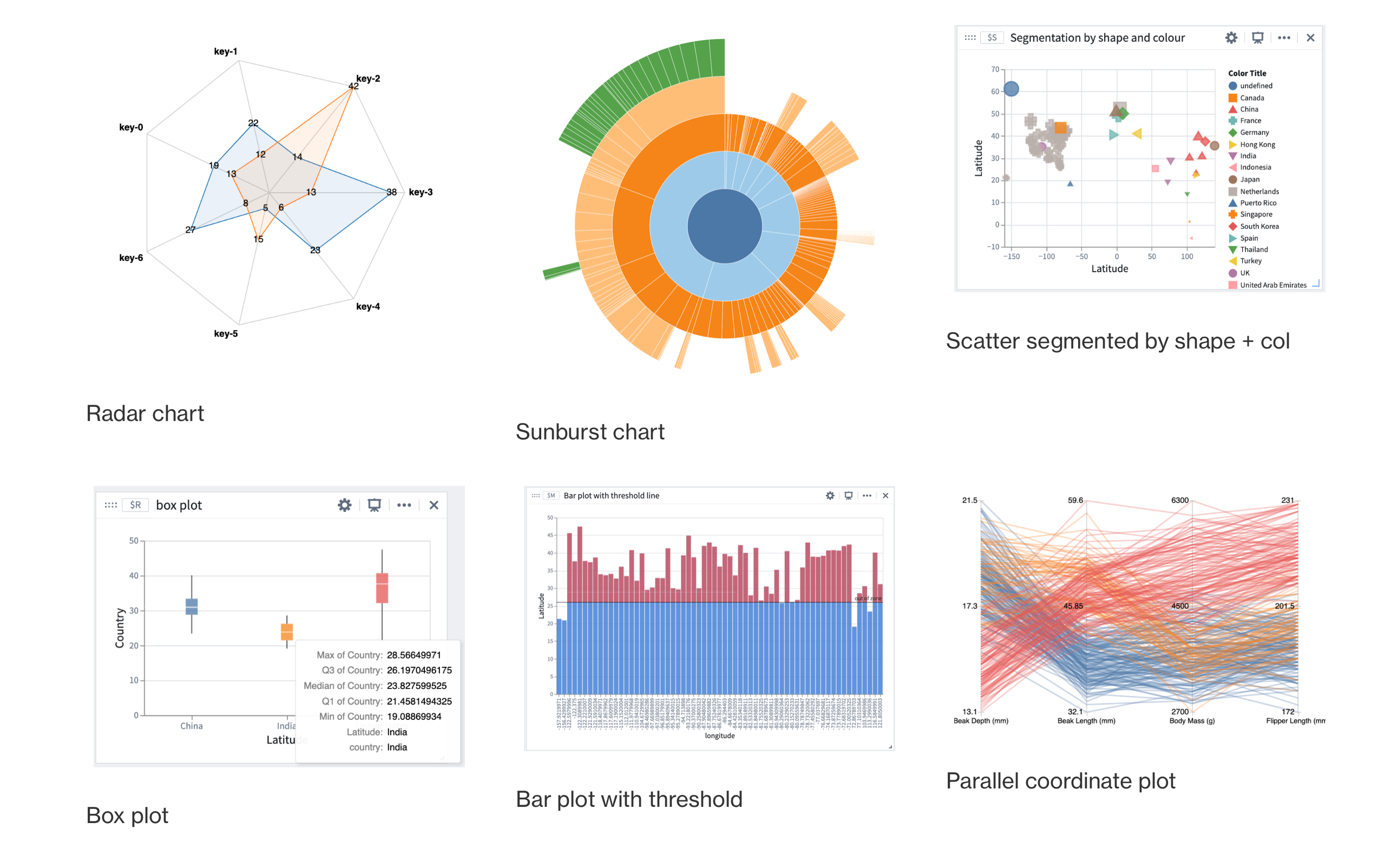
Several examples built with Vega and Vega-Lite can be seen in the image below:
Configure a Vega plot
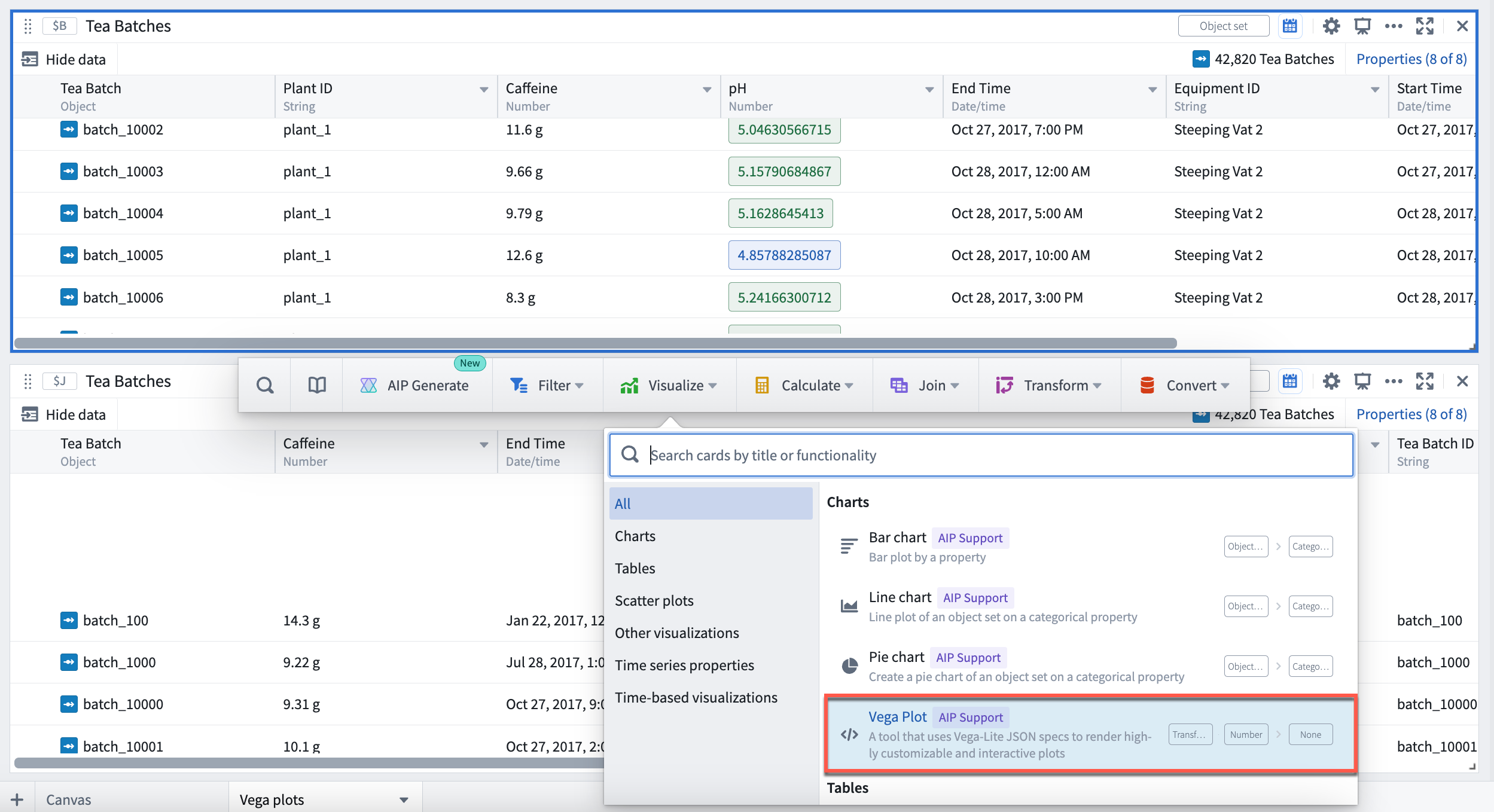
To configure a Vega plot, hover over the desired card, select Visualize and navigate to (or search for) Vega plot in the dropdown menu. Select Vega plot to open the configuration menu.
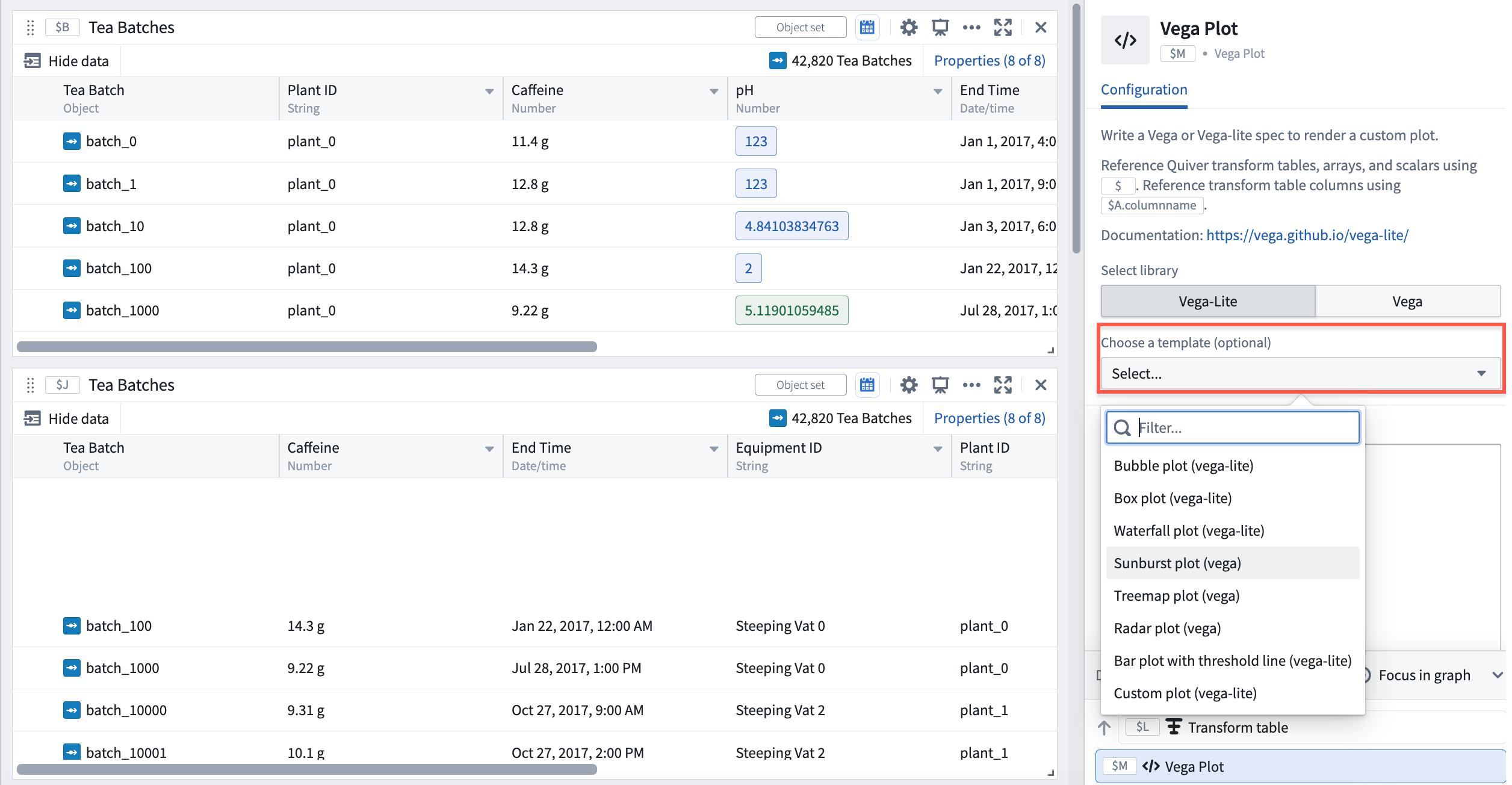
Within the editor menu, choose to configure either a Vega plot or a Vega-Lite plot. Templates for common visualizations, including bubble plots, box plots, sunburst plots and more, are provided in the Choose a template dropdown menu, as pictured below.
Once you have selected your Vega plot template, you will be prompted to fill in parameters relevant to the plot you have selected by mapping them to columns of the transform table data source.
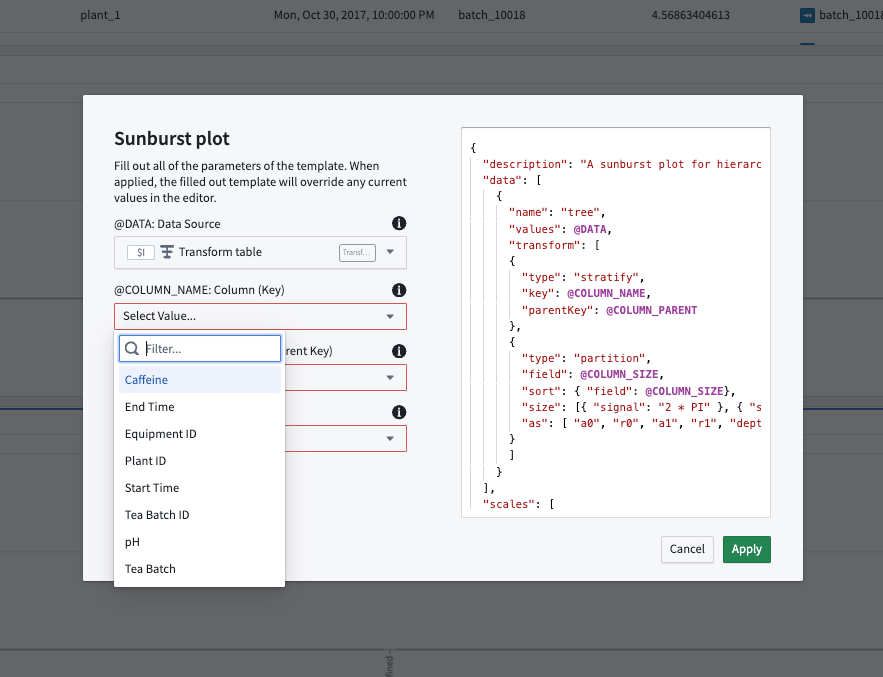
After filling in the template parameters, select Apply to generate your Vega plot. Note that:
- Wherever fields are left blank, the parameter name is used as default.
- A filled-in template overrides any current values in the editor.
Configure data inputs
Vega plots accept the following data inputs:
- Transform tables: Any transform table can be used as an input to a Vega plot. When adding a Vega plot from an object set, a backing transform table is also automatically added to the Analysis Contents panel (but not the Canvas).
- Arrays: Arrays are parsed as a transform table with a single column named
ARRAY_VALUES.
In the data section, you can reference tabular data in the form of a transform table or array by its global ID (such as $A) in the following format:
{
    "data": { "values": $A }
    ...
}
For instance, if table $A is a table with two columns, name and id, the data will resolve into a spec that looks like this:
{
    "data": {
        "values": {
            { "name": "a", "id": 1},
            { "name": "b", "id": 2},
            { "name": "c", "id": 3}
        }
    }
}
To reference specific columns in a transform table, use the syntax $A.column_name. This expression gets resolved into the column's ID as a string.
{
    "encoding": {
        "x": {
            "field": $A.column_x,
            "type": "quantitative",
        }
    }
    ...
}
Use variables from the analysis
You can also reference value types (such as numeric metric cards) in a Vega plot. For instance, to set a threshold line at a certain value using a numeric metric card, reference that value using the metric card's global ID.
"encoding": {
    "y": { "datum": $C }
}
...
Preview resolved Vega specification
You can debug issues with Vega plot configurations by looking at the resolved Vega specification. Select Preview to view the resolved Vega.
:::callout{theme="neutral"} Note that resolved Vega specifications may be slow to load as they will contain all the data points from data inputs referenced within. :::
Embed a Vega plot in other applications
The Vega editor contains two useful settings for embedding a Vega plot in Workshop using Quiver dashboards:
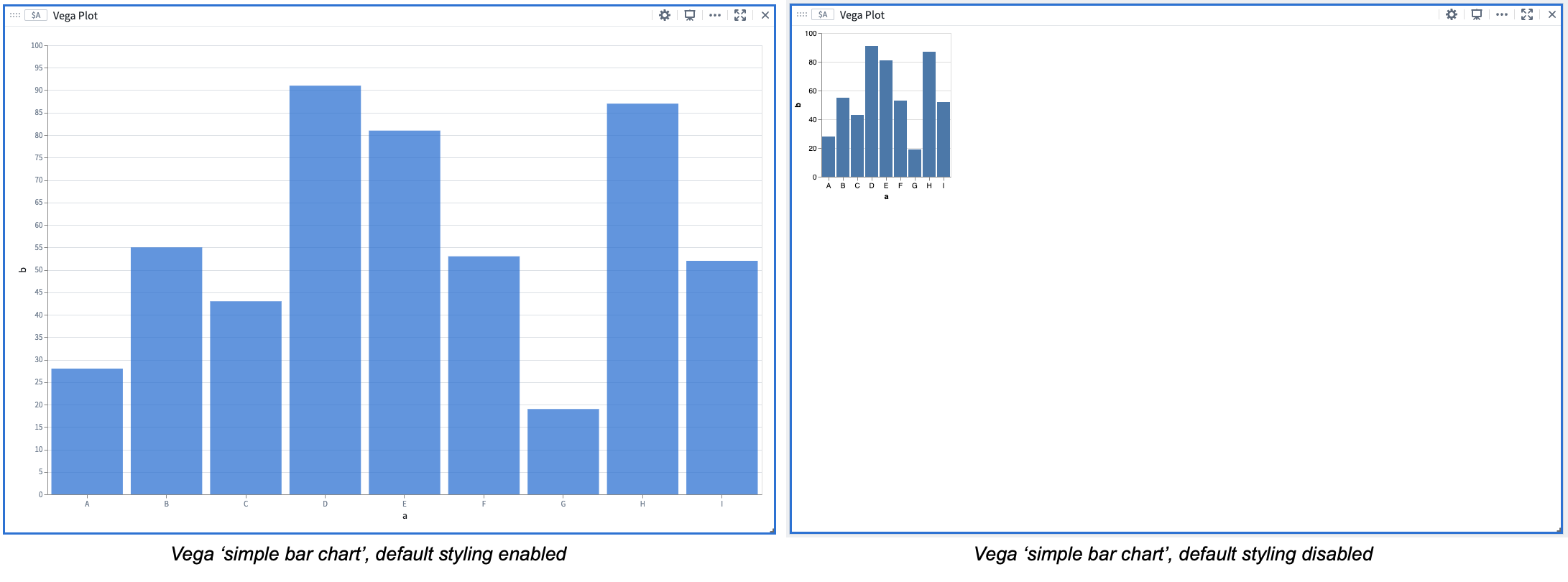
- Autoscale plot: When Autoscale plot is enabled, your Vega plot will automatically adjust to the card dimensions, based on the data provided.
- Default styling: Inject some auto sizing and styling configurations to the Vega specification to make the plot appearance match the Quiver cards style. When disabled, the Vega visualization will match that on the public Vega website.
Using AIP to configure Vega plots
AIP can help generate Vega plot configurations using only the description of your desired plot, or plot modification, in natural language. Users can simply describe the plot they wish to create or modify and AIP will make suggestions based on the prompt, helping to simplify Vega plot configuration in JSON, which can be prone to error.
Describe the desired Vega plot
To use AIP, select AIP Configure in the upper right of the Vega plot card. Then, provide a prompt, select Configure, and review the suggestion generated by AIP. To accept a suggestion, select Apply. If you would like AIP to make an alternative suggestion, edit your prompt and then select Reconfigure.
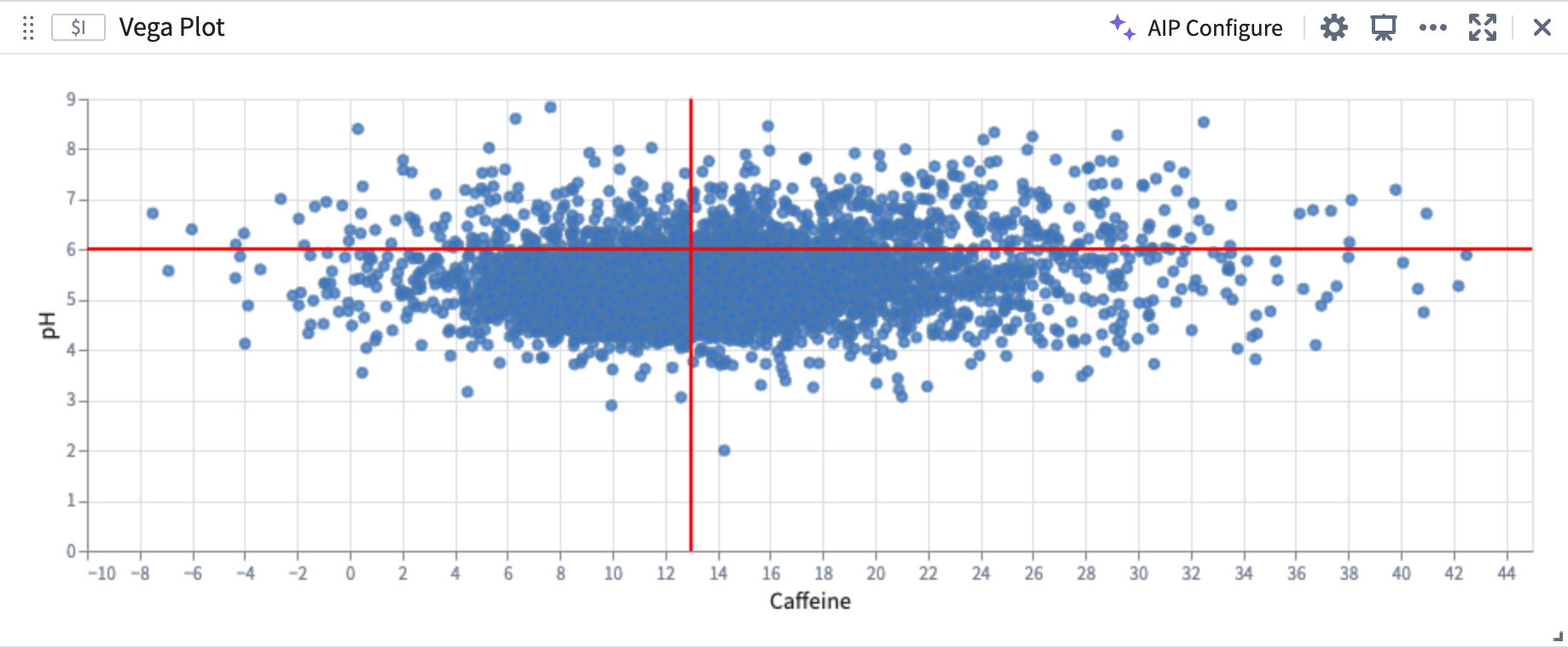
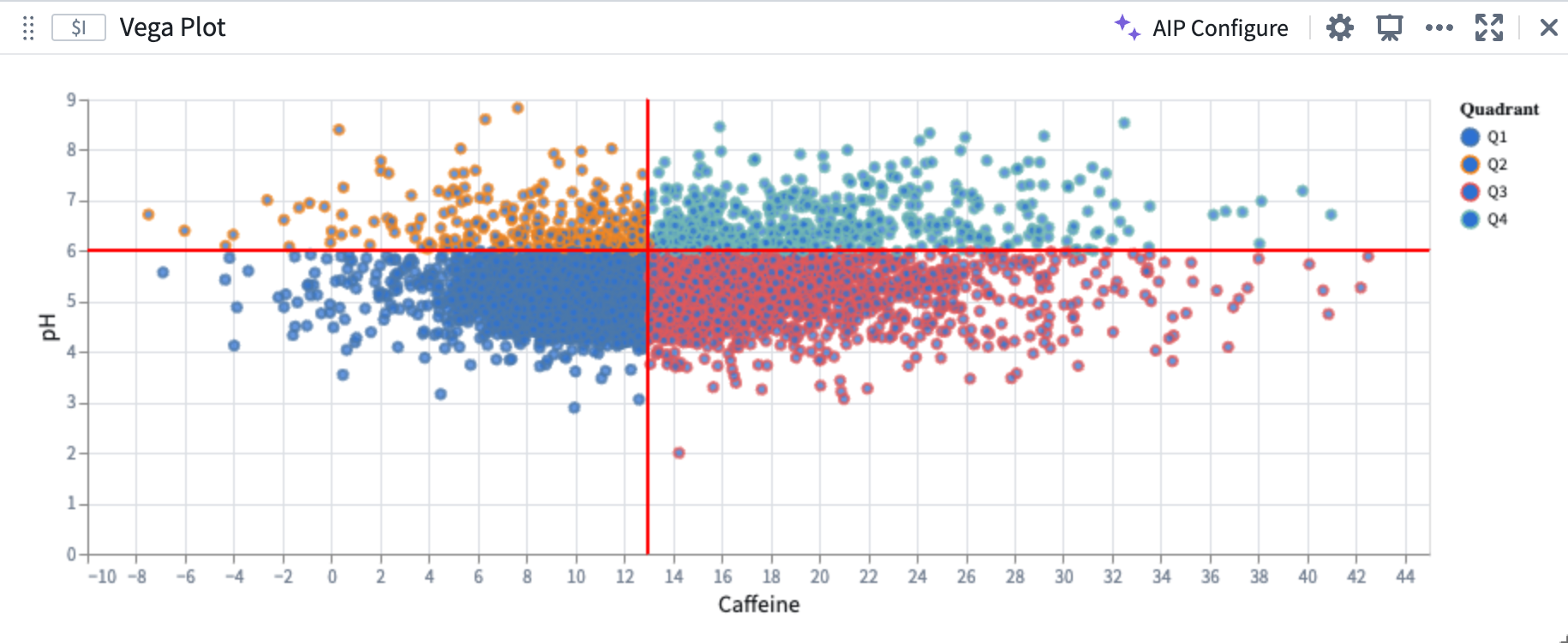
In the example below, the user prompts AIP with: “Show ph vs caffeine on a scatter plot and draw a red line at 13 on the x axis and at 6 on the y axis”. AIP uses the prompt to suggest the configuration of a plot which contains the two numerical properties of interest (caffeine and pH levels).
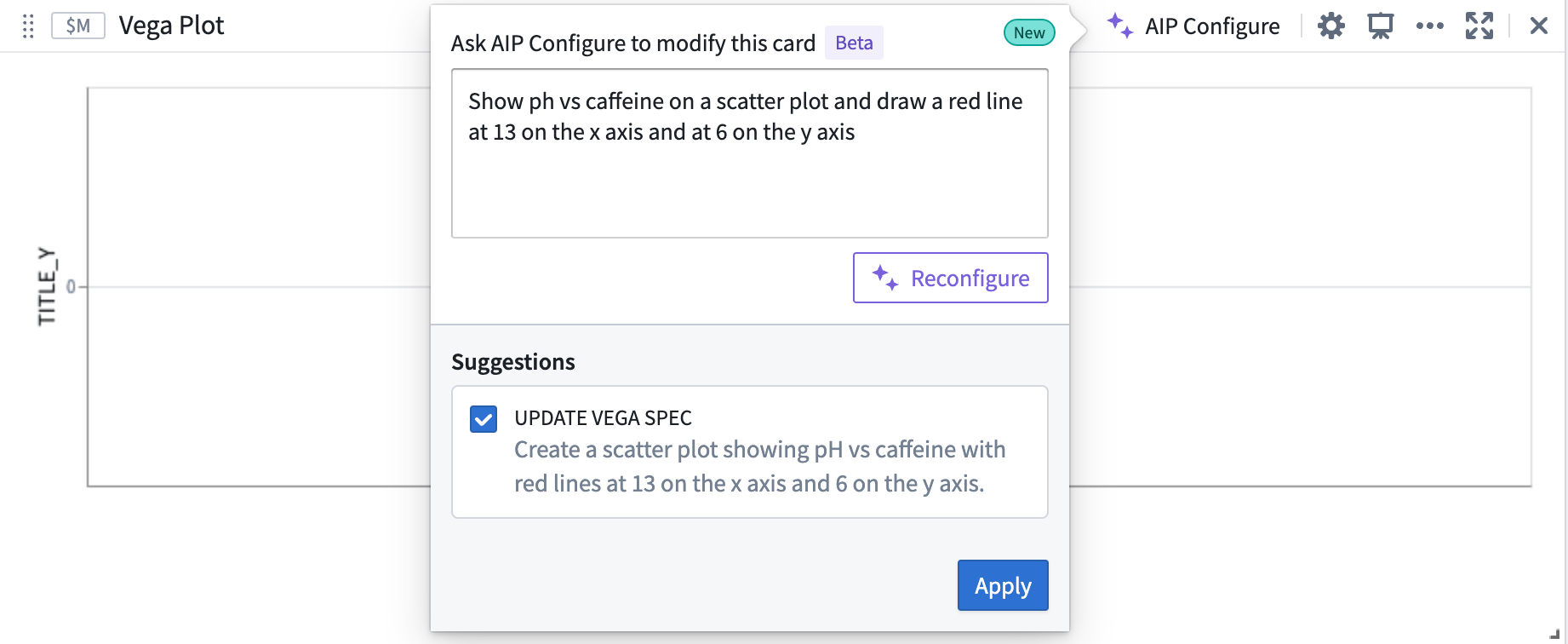
To accept AIP’s proposed update, select Apply. The Vega plot will render a visualization based on the updated Vega specification.
Build on top of existing plots
AIP can recognize and differentiate abstract ideas contained within your prompt and use this information to help generate or modify Vega plots. For example, AIP can use references to the characteristics of previously generated plots, allowing you to “build on top of" your existing plots.
In the image below, the user provides the prompt: “The two lines on the plot split the points into 4 quadrants. Color each quadrant a different color.” AIP recognizes that the areas defined by the vertical and horizontal lines are quadrants, even though the current plot configuration does not contain any definition or configuration of quadrants.
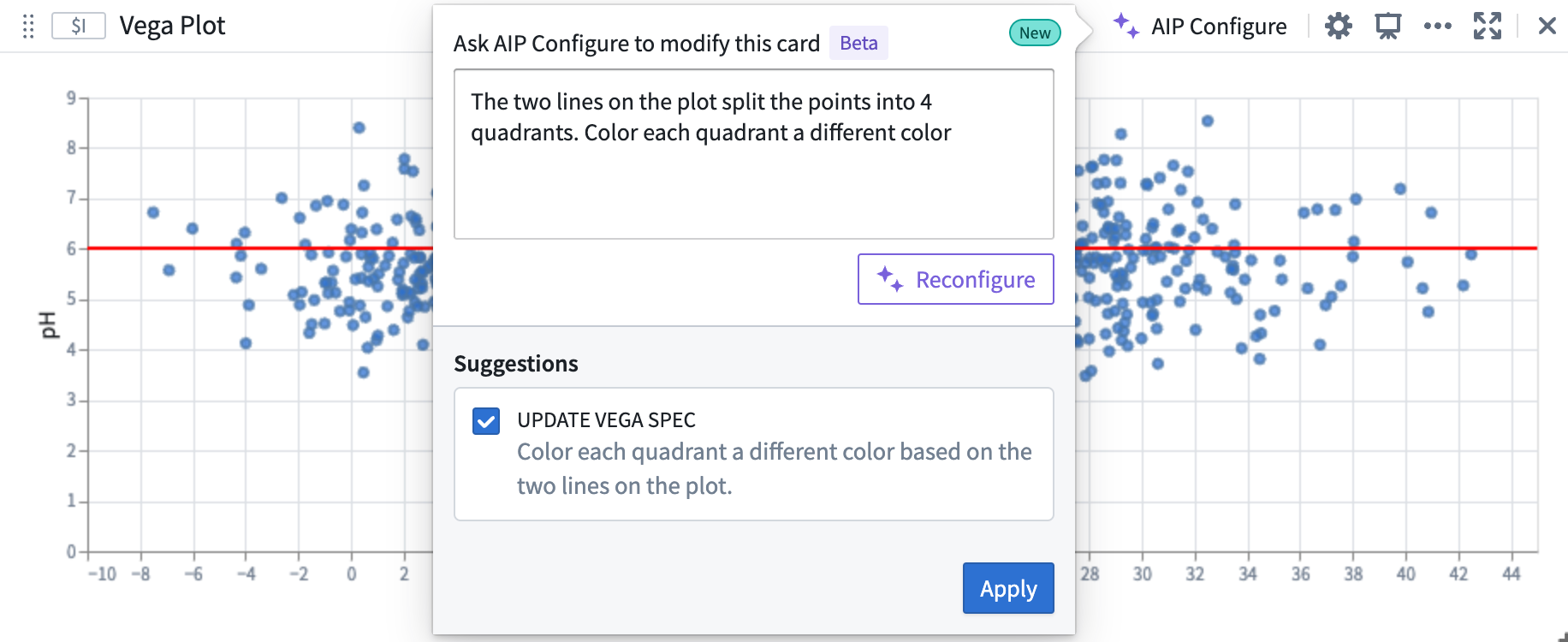
AIP accurately generates the desired plot, aligned to the user prompt, which builds off of the initial plot.
Create Vega plots using AIP Generate
Quiver analysis graphs produced using AIP can include Vega plots. To instruct AIP to produce a Vega plot rather than native Quiver visualizations, such as line or scatter plots, make explicit in your prompt that AIP should return a “Vega plot.” For example, an accurate prompt could be: “Show caffeine vs ph on a scatter plot using a vega plot.”
Note: AIP feature availability is subject to change and may differ between customers.
Vega-Lite selection
Configure selection for Vega-Lite plots
Vega-Lite selection is a powerful and highly customizable feature for building interactive visualizations. The Vega-Lite library has built-in support for selection ↗, and Vega-Lite plots in Quiver can be configured to output selections as a transform table. Users can leverage selection data to parameterize downstream cards, construct drill-down workflows, and continue analysis. The behavior of Vega-Lite selections differ from object set plot selections and require additional steps for setup.
Vega-Lite enables users to interact with charts through two types of selection ↗:
- Point selection: Select a single point, or hold shift to select multiple points on the canvas.
- Interval selection: Drag to select a bounded rectangular region on the canvas.
:::callout{theme="neutral"} Not all Vega-Lite plot types support selection. See the FAQ section below for more details. :::
To output the plot selection data as a transform table, perform the following steps:
-
Open the Vega plot card’s configuration panel, and scroll to Selection Options. Then, toggle on Enable output point selections as transform table and/or Enable output interval selections as transform table.
-
In the Vega plot’s JSON editor, add a selection parameter to the
paramsfield. Review the Vega plot documentation for more on selection parameters. - The parameter must be named
quiverDefaultClickfor point selections, orquiverDefaultBrushfor interval selections. - Set the
typeproperty topointforquiverDefaultClick, orintervalforquiverDefaultBrush. -
Specify one or more encodings ↗ in the
encodingsproperty. These are the fields that you wish to select over, such asx,y, orcolor. Encodings determine how values are selected and what information is output.
-
Once a selection is made, a card footer with selection data will appear. Select Output Selection to output the selection data as a transform table. Alternatively, use the Vega plot’s next actions menu and select Convert > New Transform Table.
-
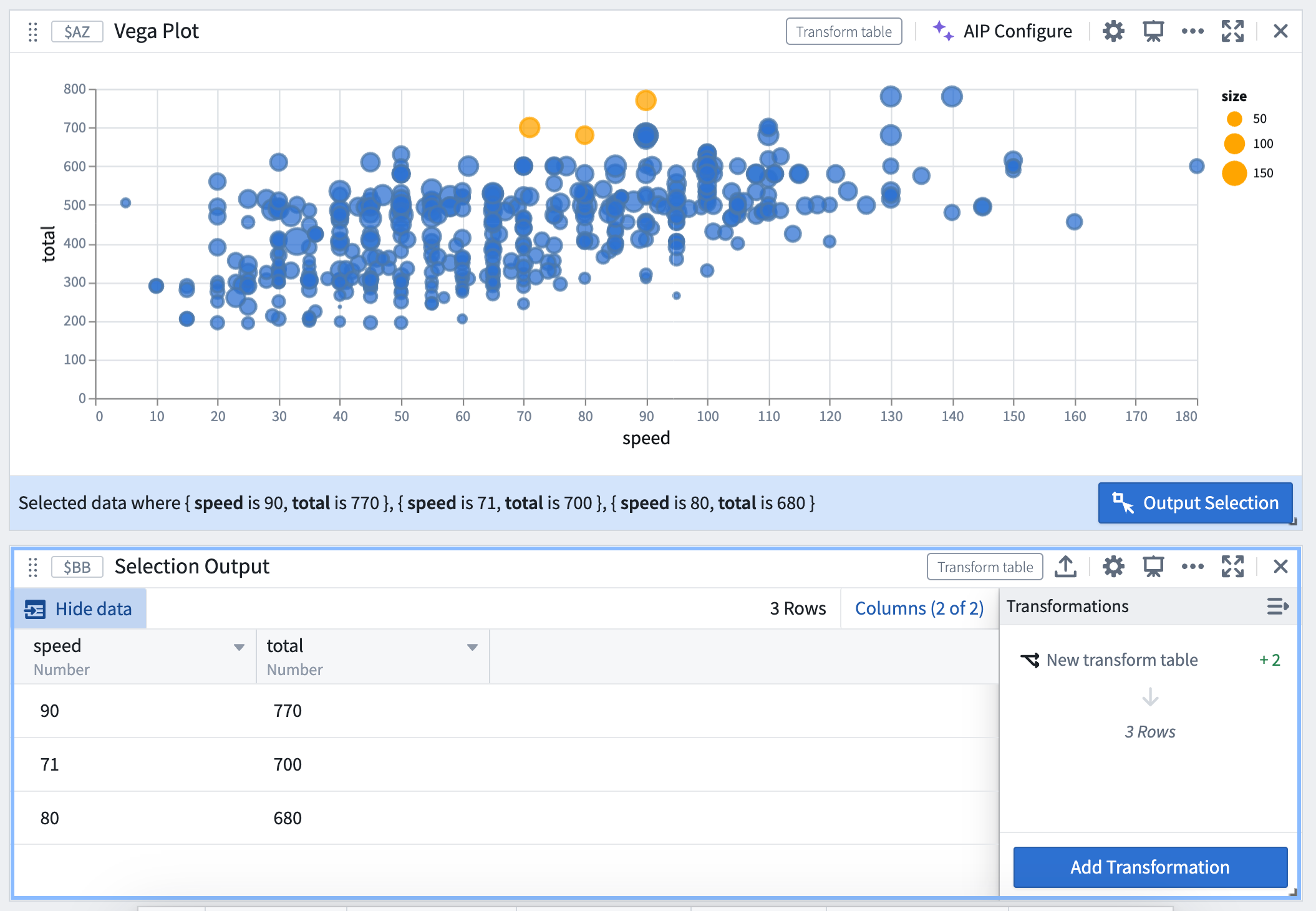
Point selections are output as a table of encoding fields and values, where each column corresponds to a field, and each row represents a selected point.
-
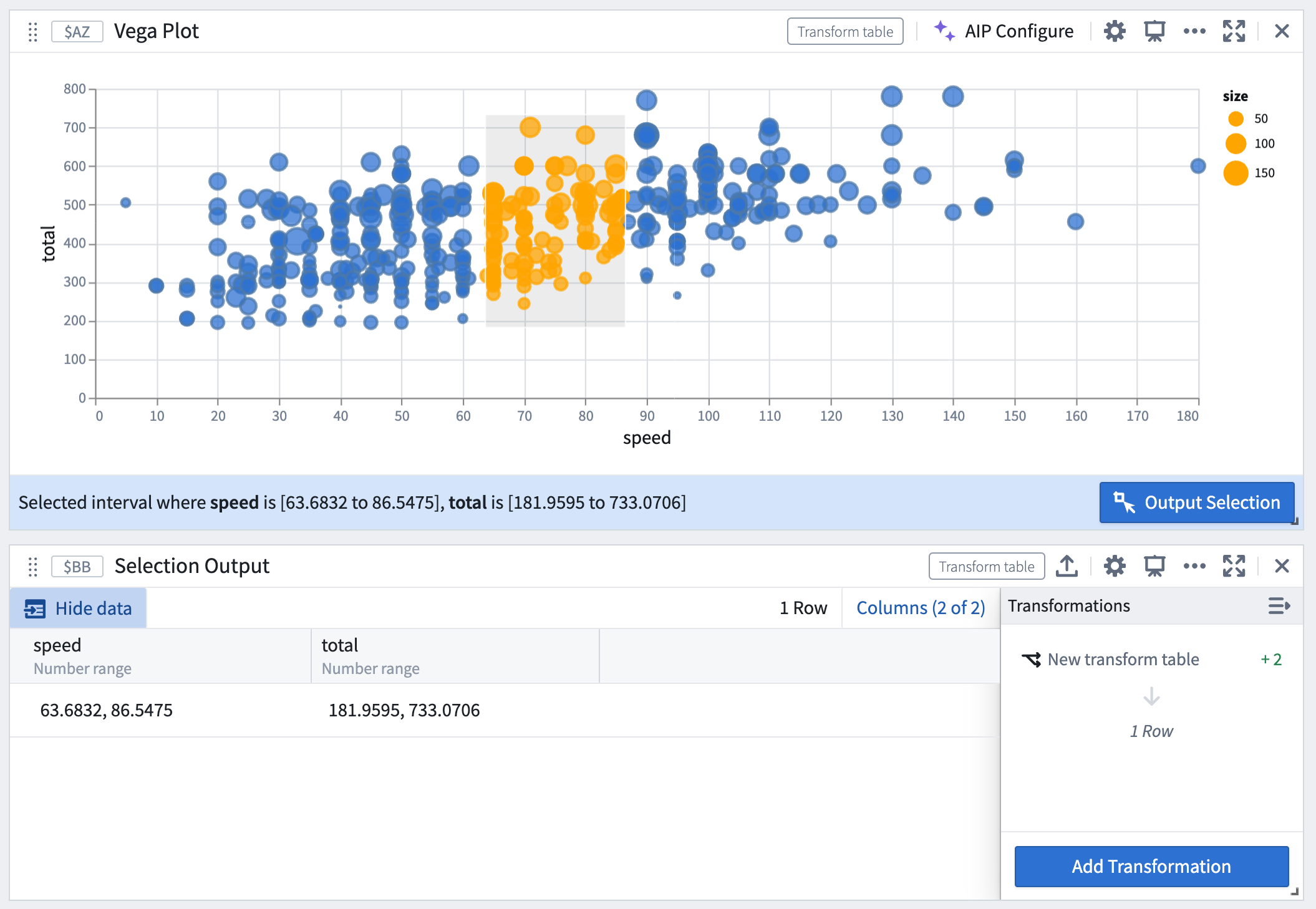
Interval selections are output as a range (minimum, maximum) of the interval’s bounds if the field is continuous, or as an array of values if the field is discrete.
:::callout{theme="neutral"} Unlike object set plots, where selection is a drill-down operation that outputs a filtered object set, Vega plots cannot automatically filter the input data based on the current selection. Instead, Vega plots will output the selected values of the given encodings, and these outputs can be used to manually construct a filter on the input table. For more information, review the section on constructing a drill-down workflow. :::
Examples of customized selection parameters
Refer to the provided Vega plot templates for additional examples of selection setups in common visualizations, such as bubble plots and heat grids. These templates can be found under the Choose a template dropdown menu in the configuration editor.
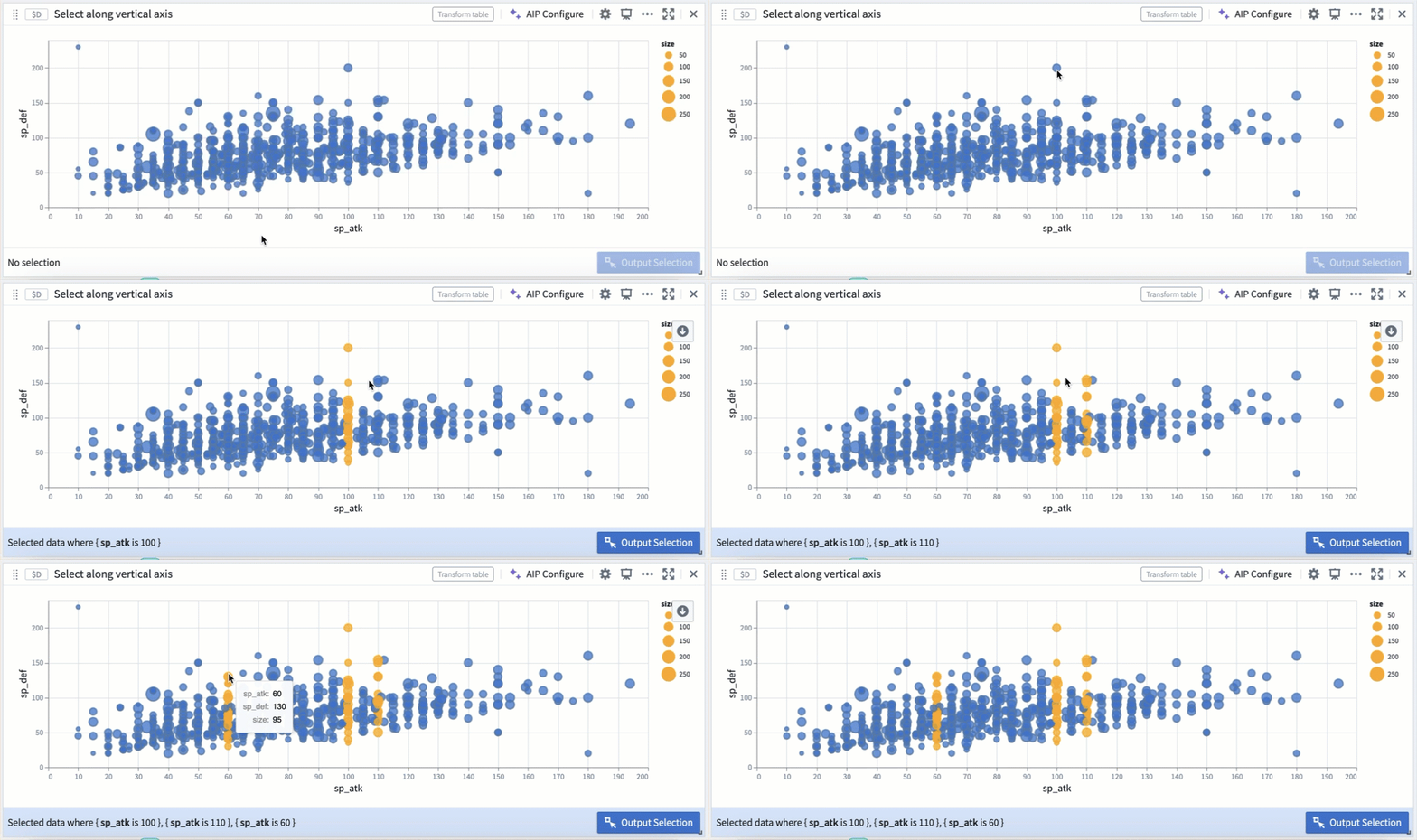
Examples of point selection parameters
...
"params": [
  {
    "name": "quiverDefaultClick", // Define point selection parameter
    "select": {
      "type": "point",
      "encodings": ["x"] // Select all points with the same "x" value
    }
  }
],
"encodings": [
  "x": ...
  "y": ...
  "color": {
    "condition": [
      {
        "param": "quiverDefaultClick",
        "empty": false,
        "value": "orange" // Conditionally color selected points
      }
    ]
  },
]
...
"params": [
  {
    "name": "quiverDefaultClick",
    "select": {
      "type": "point",
      "encodings": ["color"] // Select all data with the same "color" encoding
    }
  }
]
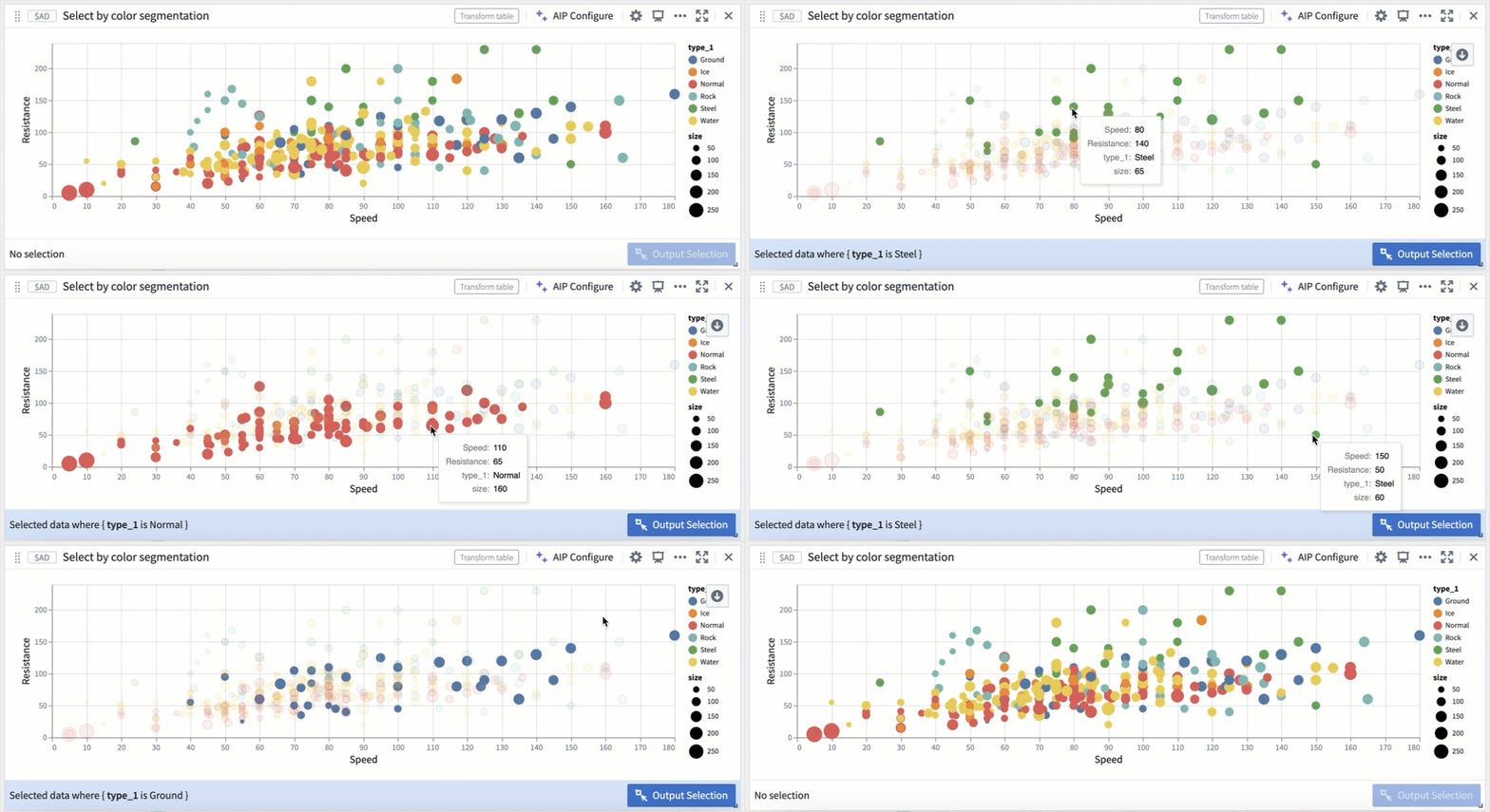
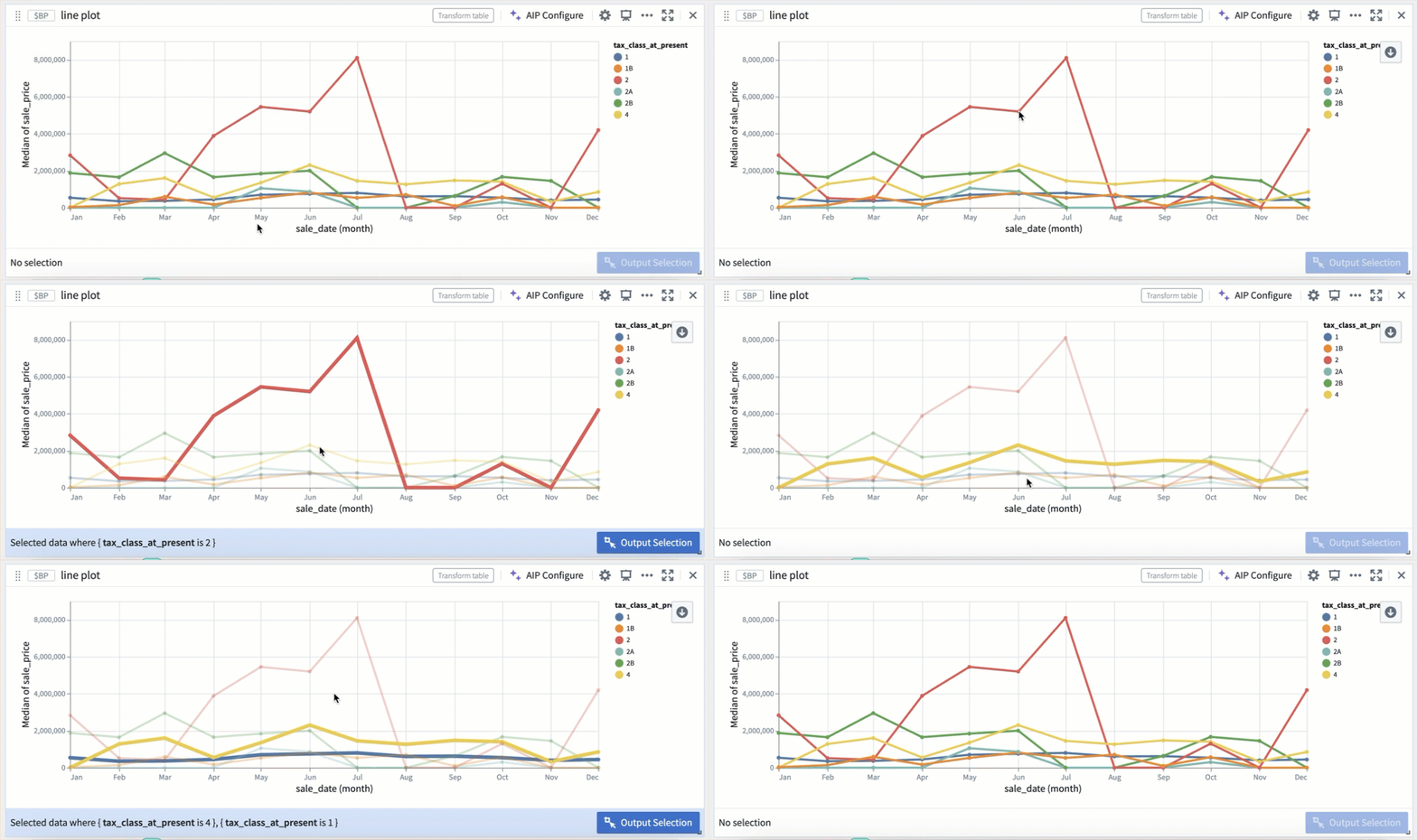
Examples of interval selection parameters
...
"params": [
  {
    "name": "quiverDefaultBrush",
    "select": {
      "type": "interval",
      "encodings": ["y"] // Restrict interval selection to the y-axis
    }
  }
]
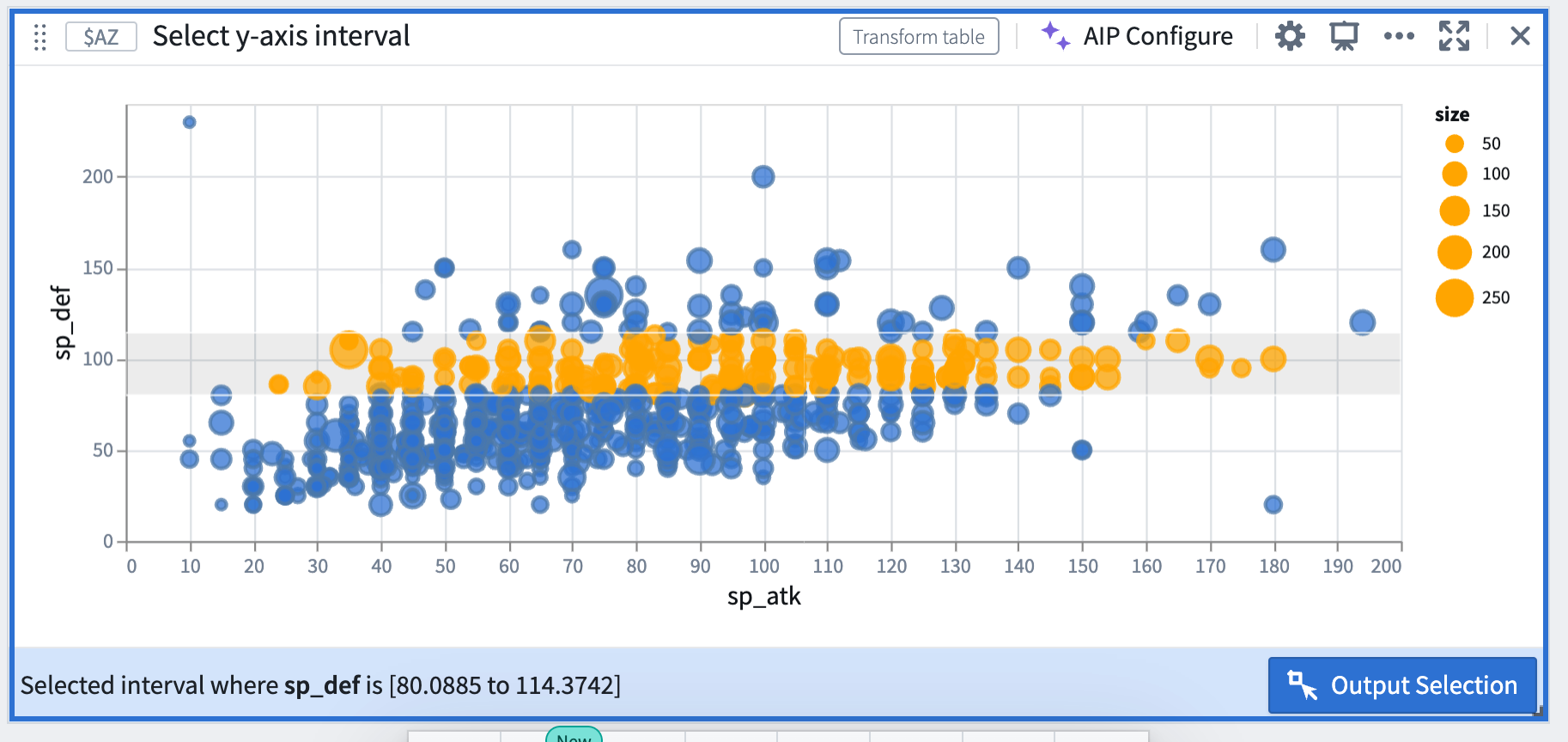
Construct a drill-down workflow
Selection data from Vega-Lite plots can be used to construct drill-down workflows, where chart selections act as a filter and users can continue analysis on a subset of data based on the upstream selection. The following steps describe how to construct drill-down workflows.
-
Set up selection parameters following the steps above, and output the current selection as a transform table.
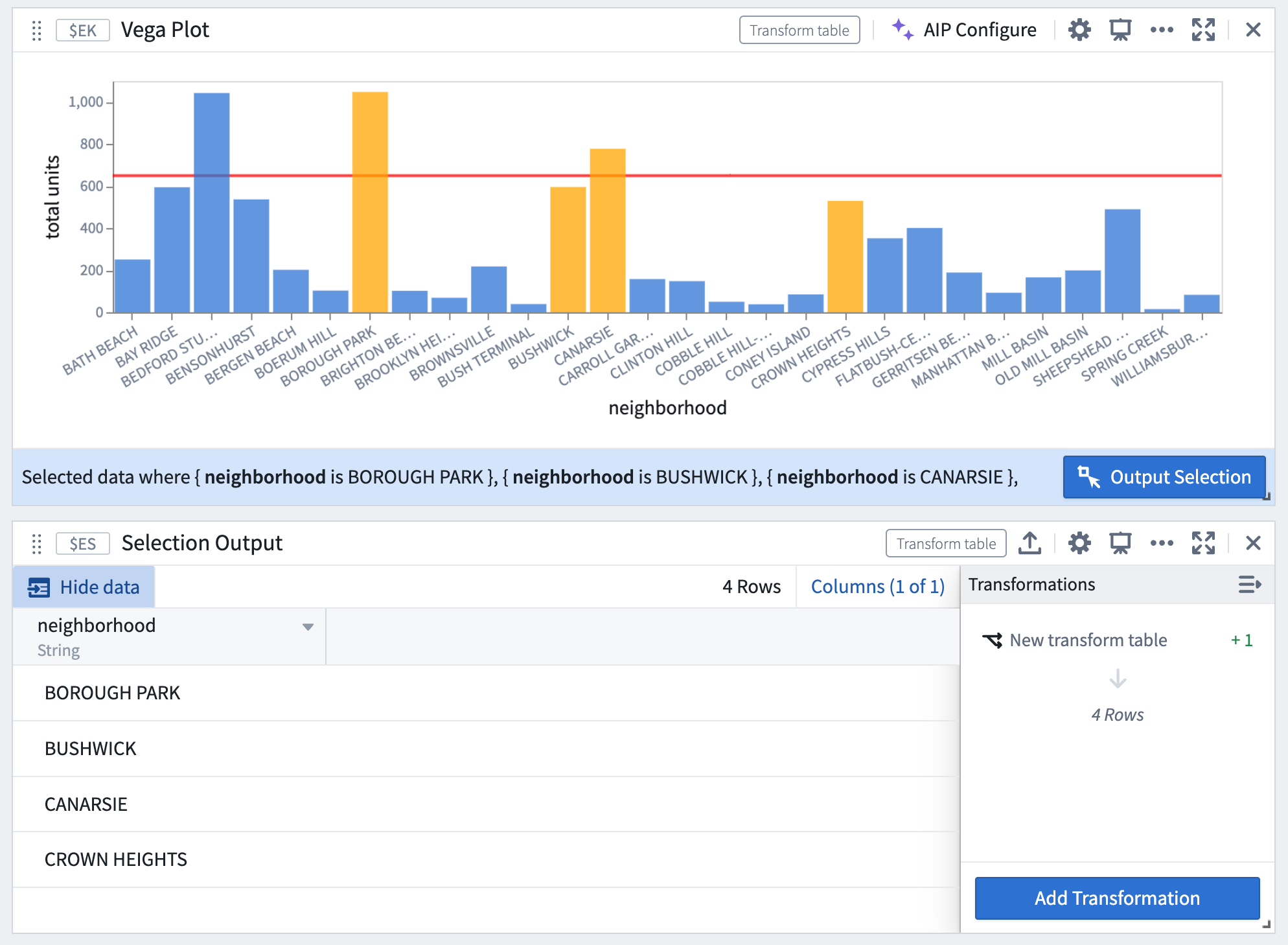
-
Select Pop out column as array to convert the property into an array.


- Filter a copy of the original transform table (or a copy of the root object set from which the transform table was derived), using the selected values as the filter parameter.

- The filtered table will now dynamically update based on the upstream chart selection.

FAQ and limitations
Can any type of Vega-Lite plot be configured for selection?
Not all Vega-Lite plot types support selection. Although Vega documentation does not provide an exhaustive list of supported plot types, the following is a non-comprehensive list:
- Supported: Bar plot, scatter plot, heat grid, line plot, pie chart (point selection only), waterfall plot (point selection only), geographic coordinate projection, GeoJSON map (point selection only)
- Not supported: Box plot, confidence interval plot
Can I define multiple selection parameters within a single chart specification?
Each plot is limited to one point selection parameter and one interval selection parameter that outputs data into Quiver. This is a limitation set by Quiver; while Vega permits the definition of multiple parameters as long as they have unique names, only those named quiverDefaultClick and quiverDefaultBrush will be output as a Quiver transform table.
I am unable to select a subset of an axis, even though added it to the list of encodings in the selection parameter. What is causing this?
Check whether the values on that axis are being aggregated within the Vega specification. Vega does not support selection over fields aggregated by Vega. For example, if the y encoding field includes an inline aggregation like the snippet below, users will not be able to select a subset of the y-axis.
"encodings": {
  "y": {
    "field": $C.field_y,
    "aggregate": "avg"
  },
  ...
}
To enable selection over the y-axis, aggregate the data in Quiver first (using pivot tables, for example) before passing it into Vega.
Why am I receiving an Invalid data selection error when I attempt to make a selection, even though the spec compiles?
Check the following:
- Ensure that all selection parameters have a non-empty
encodingsfield. Each parameter must specify one or more encodings to output selection information. - If it is an interval selection, check whether any of the encodings defined in the selection parameter are non-axis fields. Vega does not support interval selection over non-axis encoding fields like
color,shape, and so on. Removing these from the encodings array should resolve the error.
:::callout{theme="warning"} Vega-Lite ↗ documentation and the Vega editor ↗ can be helpful tools to test and debug Vega specs. However, you should not enter any sensitive information in the editor tool as we cannot guarantee data security outside of the Palantir platform. :::
中文翻译
Vega 图表(Vega Plots)
Quiver 允许用户使用 Vega 或 Vega-Lite 库创建完全可定制且可交互的可视化图表。请查阅 Vega ↗ 和 Vega-Lite ↗ 文档以获取灵感和示例。
什么是 Vega?
Vega 和 Vega-Lite 允许您以简洁的 JSON 规范(spec)形式创建、保存和共享交互式可视化设计,该规范描述了可视化的外观和行为。Vega 支持多种可视化设计,例如:
Vega-Lite 是构建在 Vega 之上的高级语言,提供了一种更简洁、更方便的方式来编写常见的可视化图表。我们建议从 Vega-Lite 开始,因为 Vega-Lite 语法比 Vega 更易于阅读、编写和调试。如果 Vega-Lite 的选项不够用,可以考虑改用 Vega。
下图展示了几个使用 Vega 和 Vega-Lite 构建的示例:
配置 Vega 图表
要配置 Vega 图表,请将鼠标悬停在所需卡片上,选择 可视化(Visualize),然后在下拉菜单中导航到(或搜索)Vega 图表(Vega plot)。选择 Vega 图表(Vega plot) 以打开配置菜单。
在编辑器菜单中,选择配置 Vega 图表或 Vega-Lite 图表。常见可视化图表的模板,包括气泡图、箱线图、旭日图等,可在 选择模板(Choose a template) 下拉菜单中找到,如下图所示。
选择 Vega 图表模板后,系统将提示您通过将参数映射到转换表(transform table)数据源的列来填写与所选图表相关的参数。
填写模板参数后,选择 应用(Apply) 以生成您的 Vega 图表。请注意:
- 任何留空的字段,其参数名称将用作默认值。
- 已填写的模板将覆盖编辑器中的任何当前值。
配置数据输入
Vega 图表接受以下数据输入:
- 转换表(Transform tables): 任何转换表都可用作 Vega 图表的输入。从对象集(object set)添加 Vega 图表时,一个支持的转换表也会自动添加到 分析内容(Analysis Contents) 面板(但不会添加到画布 Canvas)。
- 数组(Arrays): 数组被解析为只有一个名为
ARRAY_VALUES的列的转换表。
在数据部分,您可以通过其全局 ID(例如 $A)以如下格式引用转换表或数组形式的表格数据:
{
    "data": { "values": $A }
    ...
}
例如,如果表 $A 是一个包含两列 name 和 id 的表,数据将解析为如下所示的规范:
{
    "data": {
        "values": {
            { "name": "a", "id": 1},
            { "name": "b", "id": 2},
            { "name": "c", "id": 3}
        }
    }
}
要引用转换表中的特定列,请使用语法 $A.column_name。此表达式将被解析为该列的 ID(字符串形式)。
{
    "encoding": {
        "x": {
            "field": $A.column_x,
            "type": "quantitative",
        }
    }
    ...
}
使用分析中的变量
您还可以在 Vega 图表中引用 值类型(例如数值指标卡 numeric metric cards)。例如,要使用数值指标卡在特定值处设置阈值线,请使用该指标卡的全局 ID 引用该值。
"encoding": {
    "y": { "datum": $C }
}
...
预览解析后的 Vega 规范
您可以通过查看解析后的 Vega 规范来调试 Vega 图表配置的问题。选择 预览(Preview) 以查看解析后的 Vega。
:::callout{theme="neutral"} 请注意,解析后的 Vega 规范可能加载缓慢,因为它们将包含所引用的数据输入中的所有数据点。 :::
在其他应用程序中嵌入 Vega 图表
Vega 编辑器包含两个有用的设置,用于在使用 Quiver 仪表板的 Workshop 中嵌入 Vega 图表:
- 自动缩放图表(Autoscale plot): 启用自动缩放图表后,您的 Vega 图表将根据提供的数据自动调整到卡片尺寸。
- 默认样式(Default styling): 向 Vega 规范注入一些自动调整大小和样式配置,以使图表外观与 Quiver 卡片样式匹配。禁用时,Vega 可视化将匹配公共 Vega 网站上的样式。
使用 AIP 配置 Vega 图表
AIP 可以帮助仅通过用自然语言描述您想要的图表或图表修改来生成 Vega 图表配置。用户只需描述他们想要创建或修改的图表,AIP 就会根据提示提出建议,从而帮助简化容易出错的 JSON 格式的 Vega 图表配置。
描述所需的 Vega 图表
要使用 AIP,请选择 Vega 图表卡片右上角的 AIP 配置(AIP Configure)。然后,提供提示,选择 配置(Configure),并查看 AIP 生成的建议。要接受建议,请选择 应用(Apply)。如果您希望 AIP 提出替代建议,请编辑您的提示,然后选择 重新配置(Reconfigure)。
在下面的示例中,用户向 AIP 提示:“在散点图上显示 pH 值与咖啡因含量,并在 x 轴 13 处和 y 轴 6 处绘制一条红线”。AIP 使用该提示建议配置一个包含两个感兴趣的数值属性(咖啡因含量和 pH 值)的图表。
要接受 AIP 提出的更新,请选择 应用(Apply)。Vega 图表将根据更新后的 Vega 规范渲染可视化。
在现有图表基础上构建
AIP 可以识别并区分您提示中包含的抽象概念,并使用此信息来帮助生成或修改 Vega 图表。例如,AIP 可以使用对先前生成的图表特征的引用,允许您在现有图表的基础上“构建”。
在下图中,用户提供了提示:“图表上的两条线将点分成 4 个象限。为每个象限着色不同的颜色。” AIP 识别出由垂直线和水平线定义的区域是象限,即使当前图表配置不包含任何象限的定义或配置。
AIP 准确地生成了所需的图表,与用户提示保持一致,该图表建立在初始图表之上。
使用 AIP 生成创建 Vega 图表
使用 AIP 生成的 Quiver 分析图可以包含 Vega 图表。要指示 AIP 生成 Vega 图表而不是原生 Quiver 可视化(如折线图或散点图),请在提示中明确说明 AIP 应返回“Vega 图表”。例如,一个准确的提示可以是:“使用 vega 图表在散点图上显示咖啡因含量与 pH 值的关系。”
注意:AIP 功能的可用性可能会发生变化,并且可能因客户而异。
Vega-Lite 选择
为 Vega-Lite 图表配置选择
Vega-Lite 选择(selection)是一个强大且高度可定制的功能,用于构建交互式可视化。Vega-Lite 库内置了对 选择 ↗ 的支持,并且 Quiver 中的 Vega-Lite 图表可以配置为将选择输出为转换表。用户可以利用选择数据来参数化下游卡片、构建下钻工作流(drill-down workflows)并继续分析。Vega-Lite 选择的行为与对象集图表选择不同,需要额外的设置步骤。
Vega-Lite 使用户能够通过 两种选择类型 ↗ 与图表进行交互:
- 点(Point) 选择:选择单个点,或按住 Shift 键选择画布上的多个点。
- 区间(Interval) 选择:拖动以在画布上选择一个有边界的矩形区域。
:::callout{theme="neutral"} 并非所有 Vega-Lite 图表类型都支持选择。有关更多详细信息,请参阅下面的 FAQ 部分。 :::
要将图表选择数据输出为转换表,请执行以下步骤:
-
打开 Vega 图表卡片的配置面板,滚动到 选择选项(Selection Options)。然后,打开 启用将点选择输出为转换表(Enable output point selections as transform table) 和/或 启用将区间选择输出为转换表(Enable output interval selections as transform table)。
-
在 Vega 图表的 JSON 编辑器中,向
params字段添加一个选择参数。有关选择参数的更多信息,请查看 Vega 图表文档。- 对于点选择,参数必须命名为
quiverDefaultClick;对于区间选择,参数必须命名为quiverDefaultBrush。 - 对于
quiverDefaultClick,将type属性设置为point;对于quiverDefaultBrush,将type属性设置为interval。 - 在
encodings属性中指定一个或多个 编码 ↗。这些是您希望选择的字段,例如x、y或color。编码决定了如何选择值以及输出什么信息。
- 对于点选择,参数必须命名为
-
做出选择后,将出现一个带有选择数据的卡片页脚。选择 输出选择(Output Selection) 将选择数据输出为转换表。或者,使用 Vega 图表的下一步操作菜单,选择 转换(Convert) > 新建转换表(New Transform Table)。
-
点选择输出为编码字段和值的表格,其中每列对应一个字段,每行代表一个选中的点。
-
如果字段是连续的,区间选择输出为区间边界的范围(最小值,最大值);如果字段是离散的,则输出为值的数组。
-
:::callout{theme="neutral"} 与对象集图表(其中选择是一种下钻操作,输出过滤后的对象集)不同,Vega 图表无法根据当前选择自动过滤输入数据。相反,Vega 图表将输出给定编码的选定值,这些输出可用于手动构建输入表的过滤器。有关更多信息,请查看 构建下钻工作流 部分。 :::
自定义选择参数示例
请参考提供的 Vega 图表模板,了解常见可视化(如气泡图和热力图)中选择设置的更多示例。这些模板可以在配置编辑器的 选择模板(Choose a template) 下拉菜单中找到。
点选择参数示例
...
"params": [
  {
    "name": "quiverDefaultClick", // 定义点选择参数
    "select": {
      "type": "point",
      "encodings": ["x"] // 选择所有具有相同 "x" 值的点
    }
  }
],
"encodings": [
  "x": ...
  "y": ...
  "color": {
    "condition": [
      {
        "param": "quiverDefaultClick",
        "empty": false,
        "value": "orange" // 有条件地为选中的点着色
      }
    ]
  },
]
...
"params": [
  {
    "name": "quiverDefaultClick",
    "select": {
      "type": "point",
      "encodings": ["color"] // 选择所有具有相同 "color" 编码的数据
    }
  }
]
区间选择参数示例
...
"params": [
  {
    "name": "quiverDefaultBrush",
    "select": {
      "type": "interval",
      "encodings": ["y"] // 将区间选择限制在 y 轴
    }
  }
]
构建下钻工作流
来自 Vega-Lite 图表的选择数据可用于构建下钻工作流,其中图表选择充当过滤器,用户可以根据上游选择在数据子集上继续分析。以下步骤描述了如何构建下钻工作流。
-
按照上述步骤设置选择参数,并将当前选择输出为转换表。
-
选择 弹出列作为数组(Pop out column as array) 将属性转换为数组。
- 使用选定的值作为过滤器参数,过滤原始转换表的副本(或派生该转换表的根对象集的副本)。
- 过滤后的表格现在将根据上游图表选择动态更新。
常见问题解答与限制
是否任何类型的 Vega-Lite 图表都可以配置为支持选择?
并非所有 Vega-Lite 图表类型都支持选择。尽管 Vega 文档没有提供支持图表类型的详尽列表,但以下是非全面列表:
- 支持: 条形图、散点图、热力图、折线图、饼图(仅点选择)、瀑布图(仅点选择)、地理坐标投影、GeoJSON 地图(仅点选择)
- 不支持: 箱线图、置信区间图
我可以在单个图表规范中定义多个选择参数吗?
每个图表限制为一个点选择参数和一个区间选择参数,这些参数可以将数据输出到 Quiver。这是 Quiver 设置的限制;虽然 Vega 允许定义多个参数(只要它们具有唯一的名称),但只有名为 quiverDefaultClick 和 quiverDefaultBrush 的参数才会作为 Quiver 转换表输出。
我无法选择轴的一个子集,即使我已将其添加到选择参数的编码列表中。是什么原因导致的?
检查该轴上的值是否在 Vega 规范中被聚合。Vega 不支持对由 Vega 聚合的字段进行选择。例如,如果 y 编码字段包含如下代码片段所示的内联聚合,用户将无法选择 y 轴的一个子集。
"encodings": {
  "y": {
    "field": $C.field_y,
    "aggregate": "avg"
  },
  ...
}
要启用对 y 轴的选择,请先在 Quiver 中聚合数据(例如,使用数据透视表 pivot tables),然后再将其传递给 Vega。
为什么我在尝试进行选择时收到 无效的数据选择(Invalid data selection) 错误,即使规范已编译?
请检查以下内容:
- 确保所有选择参数都有一个非空的
encodings字段。每个参数必须指定一个或多个编码以输出选择信息。 - 如果是区间选择,请检查选择参数中定义的任何编码是否是非轴字段。Vega 不支持对非轴编码字段(如
color、shape等)进行区间选择。从编码数组中移除这些字段应该可以解决该错误。
:::callout{theme="warning"} Vega-Lite ↗ 文档和 Vega 编辑器 ↗ 是测试和调试 Vega 规范的有用工具。但是,您不应在编辑器工具中输入任何敏感信息,因为我们无法保证 Palantir 平台之外的数据安全。 :::