Add to a Notepad document(添加到 Notepad 文档)
There are two main ways to add a dashboard to a Notepad document: copy-pasting and embedding.
Copy-paste to Notepad from a dashboard
Cards on a dashboard can be copy-pasted into a Notepad document using the Copy for Notepad action.

Copying cells in which multiple parameters or metrics are bundled is not supported.
Embed a dashboard in a Notepad document
Embedding a Quiver dashboard in a Notepad document allows you to export the dashboard to PDF or print it. Embedding dashboards also allows you to lock data at a point in time.
Follow the steps below to add a dashboard to a Notepad document.
- Open the Notepad document.
- Select the + Widget button in the top bar.
- Choose Quiver dashboard.
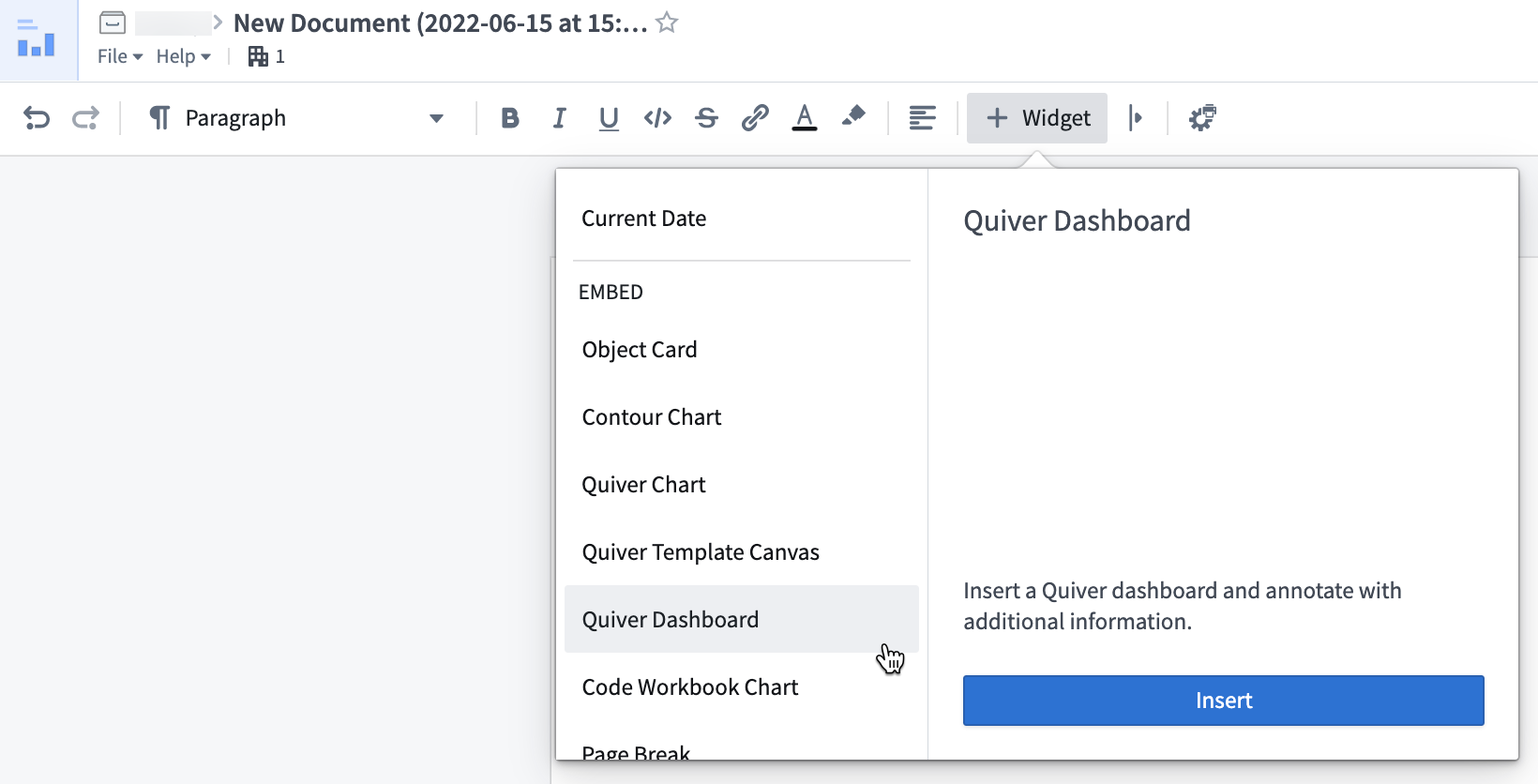
- In the configuration panel on the right, select the dashboard you want to embed.

- Select the version of the dashboard you want to insert, or toggle Auto-update if you’d like the latest version to always be shown.
- Finally, if your dashboard has inputs defined, the inputs will be displayed in the Dashboard inputs section. You can map the inputs to variables in your Notepad document with the mapping table below.
| Quiver input type | Notepad input type |
|---|---|
| Boolean | String |
| Number | String |
| String | String |
| Time | String, in ISO format |
| Time Range | String, ISO format - ISO format |
| Time Series | Not supported |
| Object | Object |
| Object Set | Object Set |
| String List | String: ["option_1","option_2"] |
In the example below, the dashboard has one object input that has been configured directly in the editor.

中文翻译
添加到 Notepad 文档
将仪表盘添加到 Notepad 文档主要有两种方式:复制粘贴和嵌入。
从仪表盘复制粘贴到 Notepad
仪表盘上的卡片可以通过 Copy for Notepad(为 Notepad 复制)操作复制粘贴到 Notepad 文档中。
不支持复制包含多个参数或指标捆绑的单元格。
在 Notepad 文档中嵌入仪表盘
将 Quiver 仪表盘嵌入到 Notepad 文档中,可以将仪表盘导出为 PDF 或打印。嵌入仪表盘还可以将数据锁定在某个时间点。
按照以下步骤将仪表盘添加到 Notepad 文档中。
- 打开 Notepad 文档。
- 选择顶部栏中的 + Widget(+ 组件)按钮。
- 选择 Quiver dashboard(Quiver 仪表盘)。
- 在右侧的配置面板中,选择要嵌入的仪表盘。
- 选择要插入的仪表盘版本,或者如果希望始终显示最新版本,请切换 Auto-update(自动更新)开关。
- 最后,如果仪表盘定义了输入项,这些输入项将显示在 Dashboard inputs(仪表盘输入)部分。您可以通过下方的映射表将输入项映射到 Notepad 文档中的变量。
| Quiver 输入类型 | Notepad 输入类型 |
|---|---|
| Boolean(布尔值) | String(字符串) |
| Number(数字) | String(字符串) |
| String(字符串) | String(字符串) |
| Time(时间) | String(字符串),ISO 格式 |
| Time Range(时间范围) | String(字符串),ISO 格式 - ISO 格式 |
| Time Series(时间序列) | 不支持 |
| Object(对象) | Object(对象) |
| Object Set(对象集) | Object Set(对象集) |
| String List(字符串列表) | String(字符串):["option_1","option_2"] |
在下面的示例中,仪表盘有一个已在编辑器中直接配置的对象输入。