Embed in a Workshop module(嵌入 Workshop 模块)
You can embed published Quiver dashboards in Workshop modules.
The main purpose of inputs and outputs is to pass data to and from an application where the dashboard is embedded. For example, charts in the embedded dashboard can update based on an object set selection in the application, or a Workshop metric card can highlight a value computed in the embedded dashboard.
In the example below, we filter the Workshop Aircraft object set for aircrafts with high priority maintenance issues.
The embedded Quiver dashboard automatically updates to show a bar plot of aircrafts by current location and a list of objects next to it. As we select only the aircrafts located in DFW and DEN from the bar plot, the Workshop metric card at the top updates accordingly to show the object count in the Quiver bar plot selection.
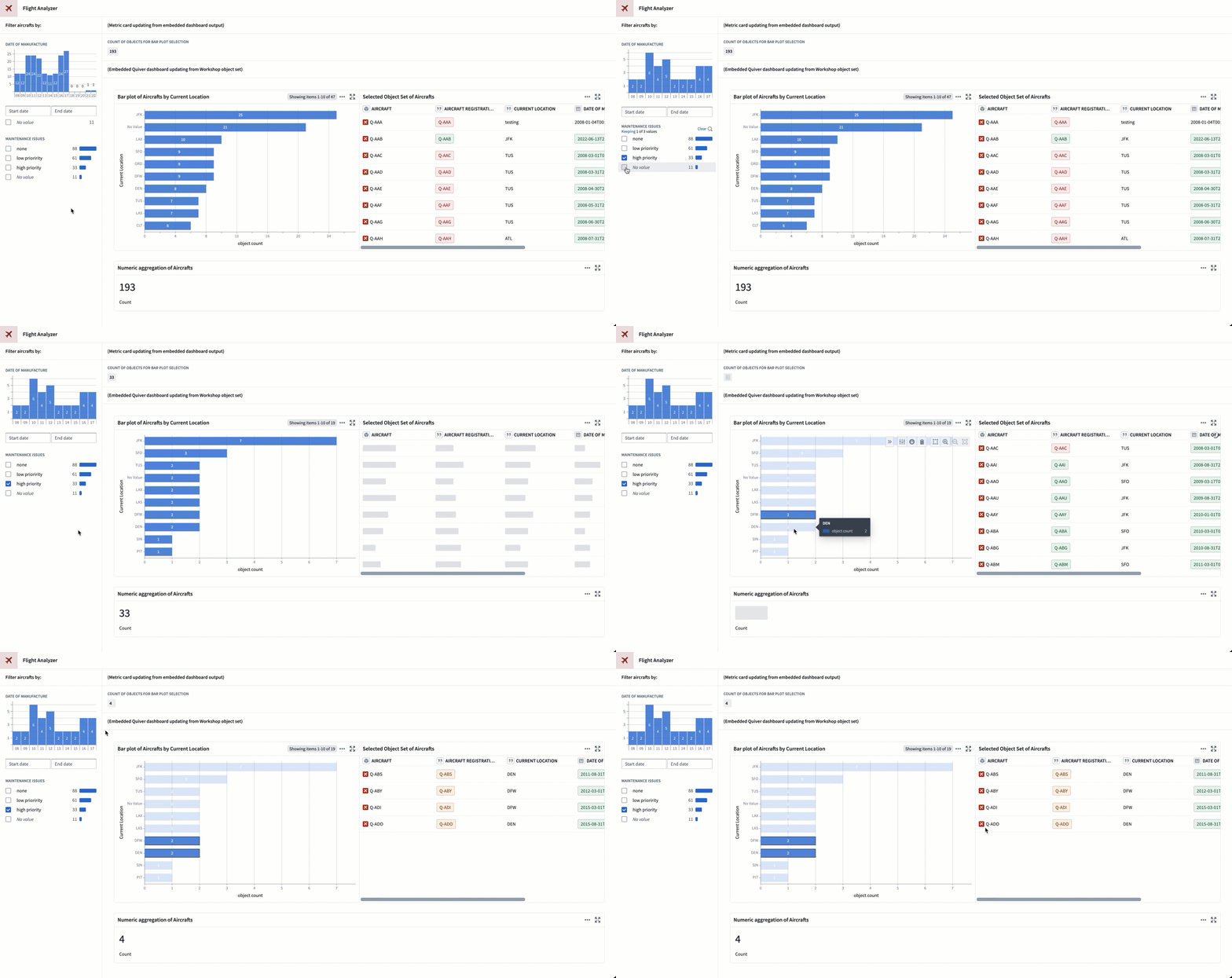
Embedding a dashboard
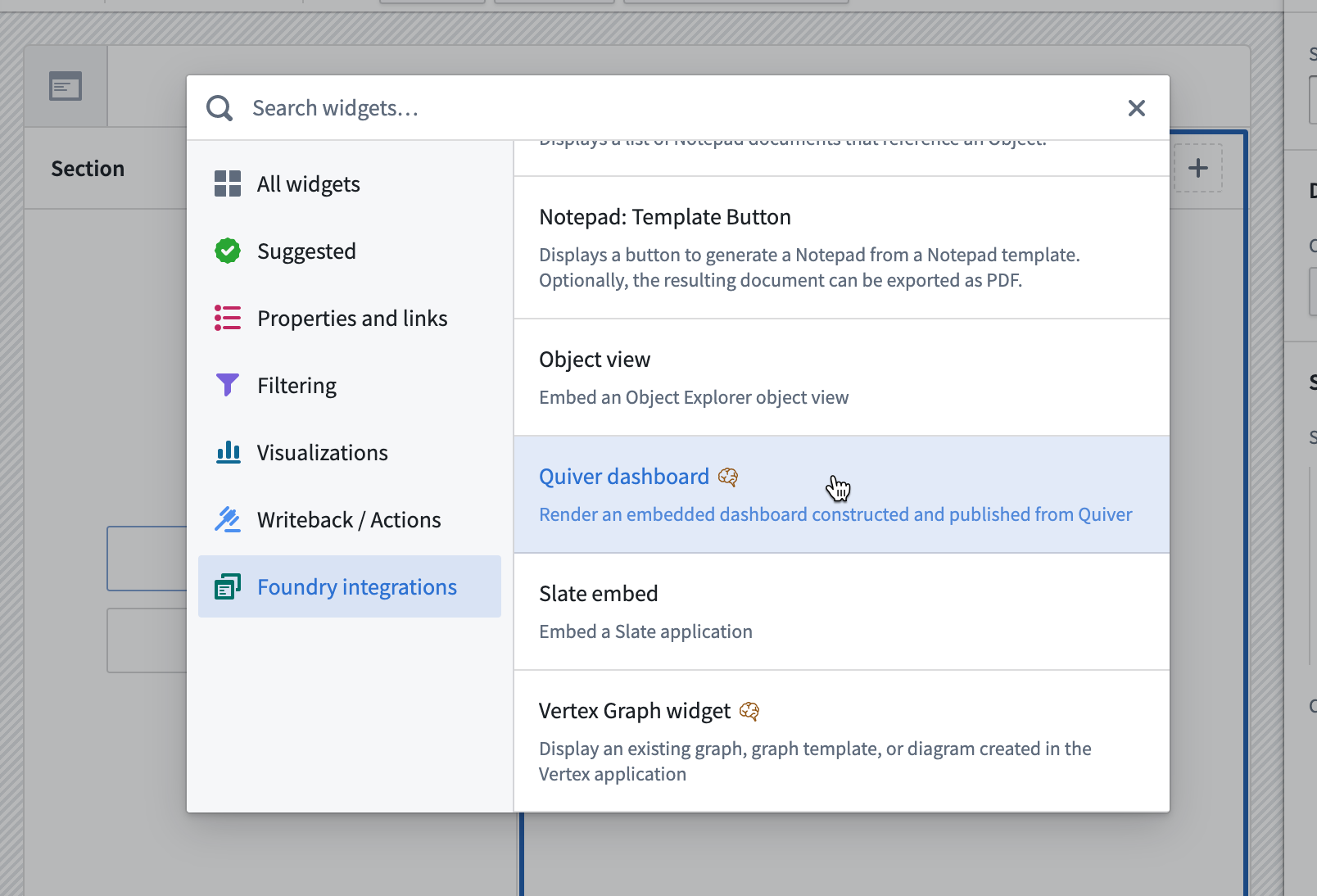
In Workshop, select Add widget, then choose Quiver dashboard from the menu.
In the widget editor, select the dashboard you want to embed. The list shows all the published dashboards to which you have access. Hover over the information tooltip next to each dashboard to get more information, or open it in a new tab.

Configuring inputs and outputs
You can define multiple inputs and outputs to your dashboard.
If the selected dashboard has inputs or outputs configured, Workshop will prompt you to map them to Workshop variables. Quiver dashboard inputs and outputs can be mapped to Workshop variables according to the following mapping table:
| Quiver data type | Workshop variable type |
|---|---|
| Boolean | Boolean |
| Number | Numeric |
| String | String |
| Time | Timestamp, Date |
| Time Range | String (because Workshop does not have a range variable type, pass the range start and range end as strings instead) |
| Time Series | Object (because Workshop does not have a time series variable type, pass the time series object instead) |
| Object | Object |
| Object Set | Object Set |
Finally, make sure you have the correct dashboard version selected. If you want the dashboard to automatically show the latest version, enable the Auto-update toggle.

中文翻译
嵌入 Workshop 模块
您可以将已发布的 Quiver 仪表板嵌入到 Workshop 模块中。
输入和输出的主要作用是在嵌入仪表板的应用程序之间传递数据。例如,嵌入仪表板中的图表可以根据应用程序中的对象集选择进行更新,或者 Workshop 指标卡可以高亮显示嵌入仪表板中计算出的数值。
在以下示例中,我们筛选 Workshop 中 Aircraft 对象集,仅保留存在 high priority 维护问题的飞机。嵌入的 Quiver 仪表板会自动更新,显示按当前位置分组的飞机柱状图以及旁边的对象列表。当我们在柱状图中仅选择位于 DFW 和 DEN 的飞机时,顶部的 Workshop 指标卡会相应更新,显示 Quiver 柱状图选择中的对象计数。
嵌入仪表板
在 Workshop 中,选择 添加组件,然后从菜单中选择 Quiver 仪表板。
在组件编辑器中,选择要嵌入的仪表板。列表中会显示您有权访问的所有已发布仪表板。将鼠标悬停在每个仪表板旁边的信息提示图标上可获取更多信息,或在新标签页中打开它。
配置输入和输出
您可以为仪表板定义多个输入和输出。
如果所选仪表板已配置输入或输出,Workshop 会提示您将其映射到 Workshop 变量。Quiver 仪表板的输入和输出可根据以下映射表映射到 Workshop 变量:
| Quiver 数据类型 | Workshop 变量类型 |
|---|---|
| 布尔值 (Boolean) | 布尔值 (Boolean) |
| 数值 (Number) | 数值 (Numeric) |
| 字符串 (String) | 字符串 (String) |
| 时间 (Time) | 时间戳 (Timestamp)、日期 (Date) |
| 时间范围 (Time Range) | 字符串 (String)(由于 Workshop 没有范围变量类型,请将 范围起始值 和 范围结束值 作为字符串传递) |
| 时间序列 (Time Series) | 对象 (Object)(由于 Workshop 没有时间序列变量类型,请传递时间序列对象) |
| 对象 (Object) | 对象 (Object) |
| 对象集 (Object Set) | 对象集 (Object Set) |
最后,请确保选择了正确的仪表板版本。如果您希望仪表板自动显示最新版本,请启用 自动更新 开关。