Filter object sets(筛选对象集)
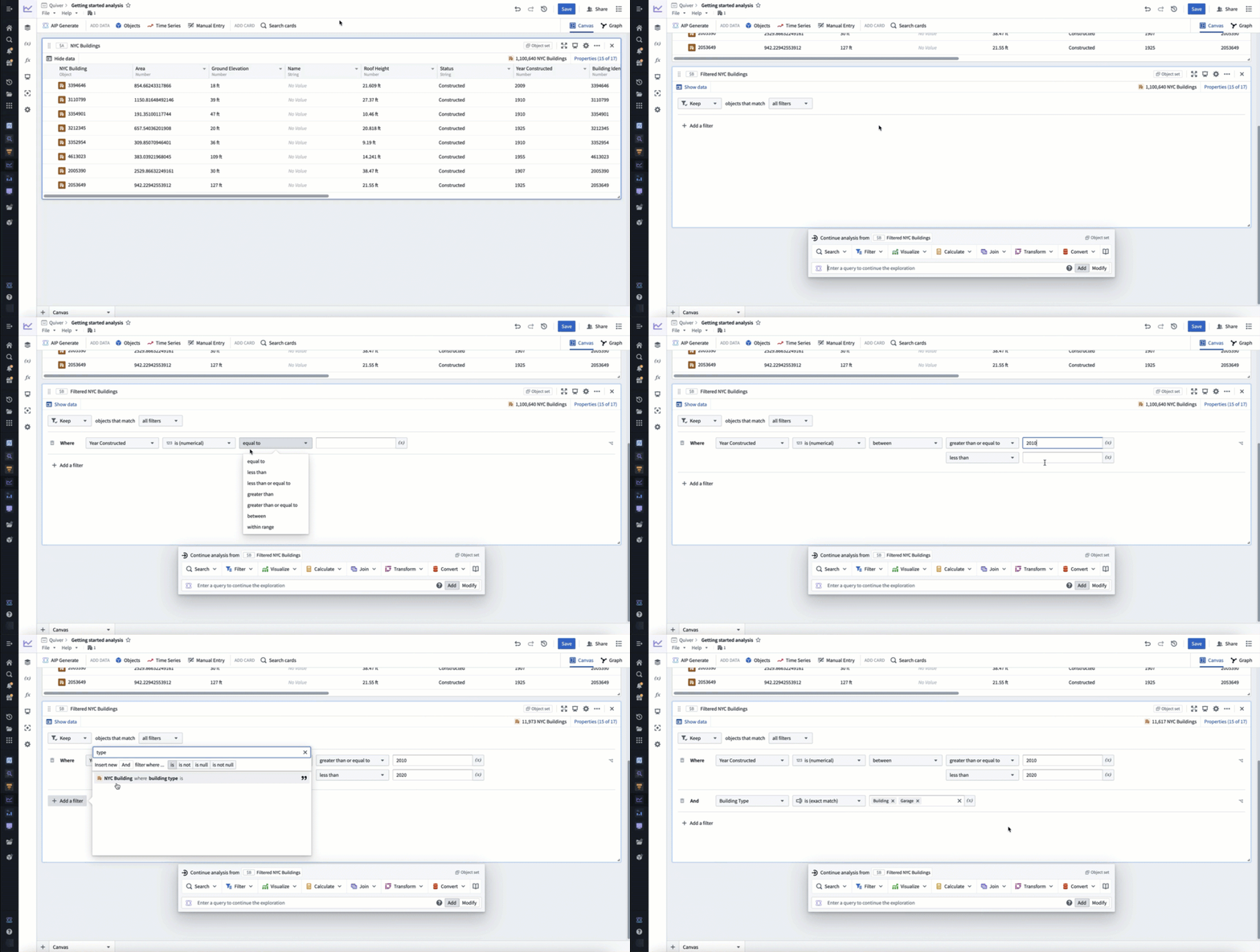
The most common way to filter objects in Quiver is to use the filter object set card. Hover over any object set card to display the next actions menu below the card. Then, select Filter > Filter object set to add the filter card.
The example below uses a filter to only include building objects constructed between 2010 and 2020 that are of type building or garage, resulting in a new object set of 11,617 buildings (out of 1,100,640 in the input object set).
You can also create a filter card for a specific property directly from the column headers in the object set card's table. To do this, open the dropdown menu on the right side of a property column header, and then hover over Add filter where.... Each property column header includes quick options for exact match and null filtering. Adding a filter this way adds a filter object set card with the selected property preconfigured.

Viewing filter results
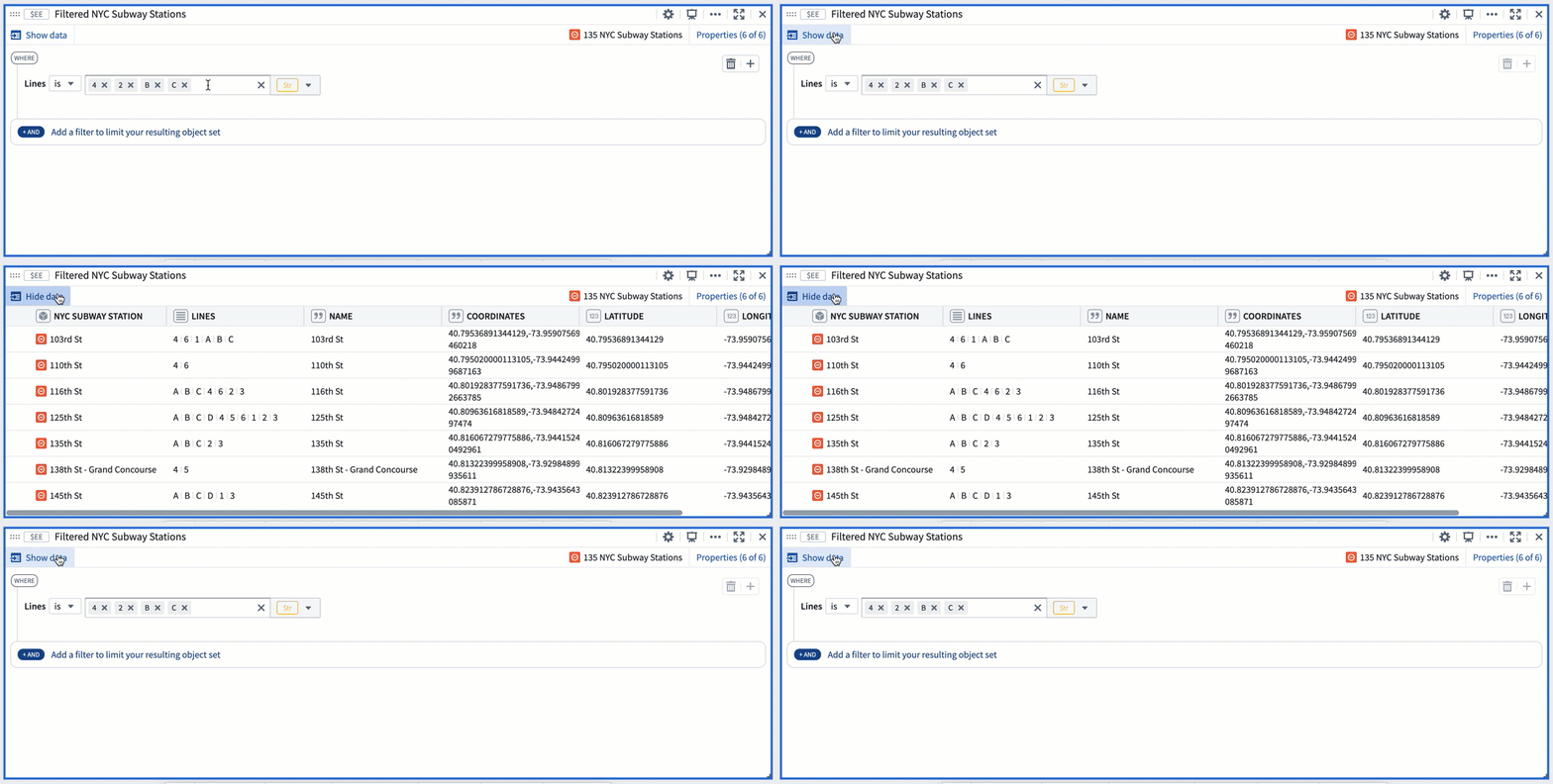
Select the Show/Hide data button to switch between the results view and the card configuration view.
Filtering on linked properties
The filter object set card also supports filtering by linked object properties. This is useful when your filter condition does not relate to a property of the object you're working with, but rather a property of an object to which it is linked.
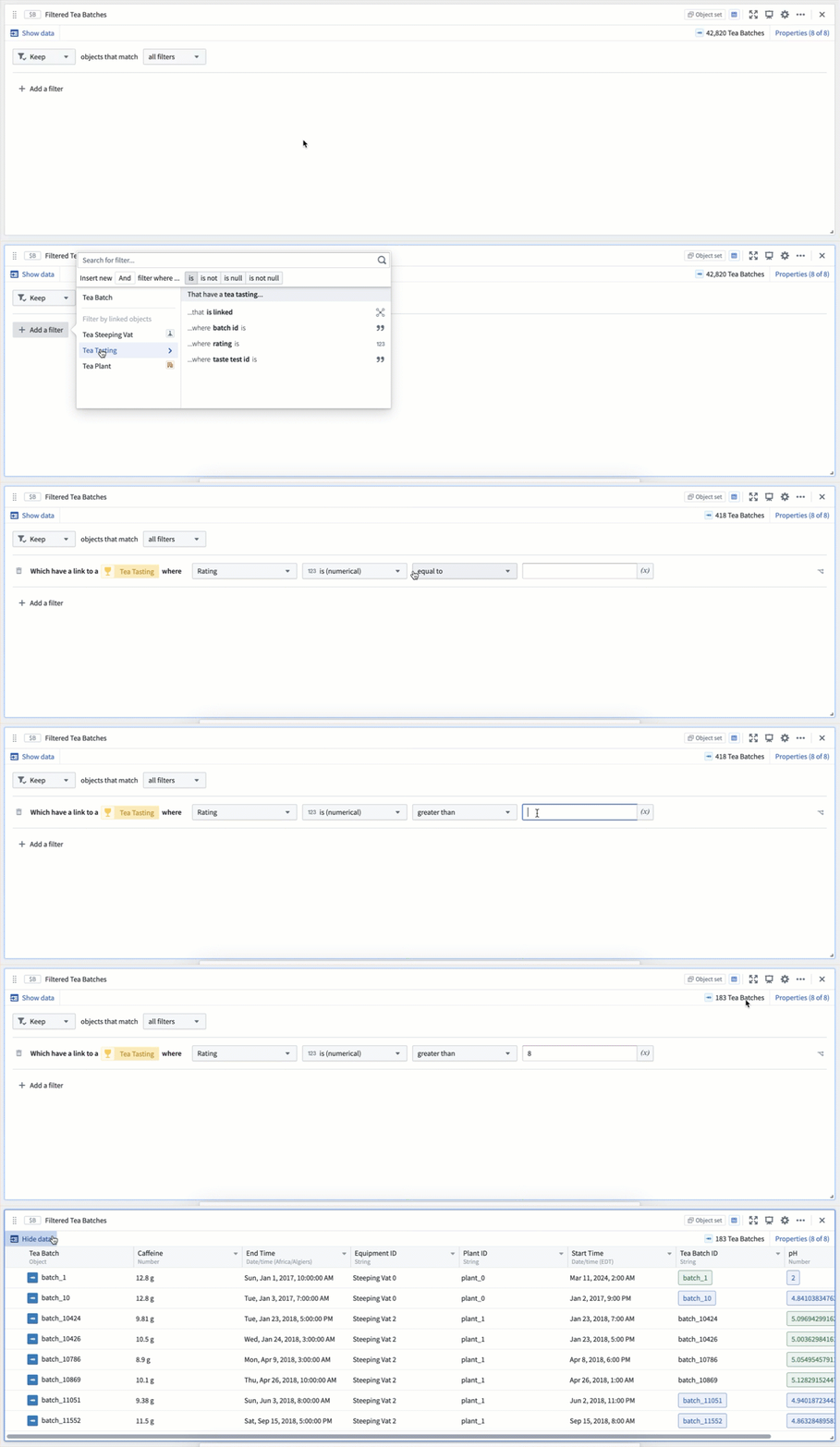
To add a linked property filter, when adding a filter select the linked object type from the Filter by linked objects list and then click the linked property to add it.
The example below filters an object set of Tea Batches. Each batch of tea is linked to a Tea Tasting object, which rates the batch on a scale of 1-10. In this example, we are looking for good batches, so you can filter to all Tea Batches linked to a Tea Tasting that had a rating greater than 8.
When filtering by linked properties, if the starting object set is under 100k, the scale is unlimited. If the starting object set is over 100k, the set of linked objects must be less than 10m.
Nesting filters
For advanced filtering workflows that require both AND and OR operators together, the filter card supports nesting filters. To do this, select the Insert Nested Filter button on the right side of a property filter. This will open a menu allowing you to select if the nested filter should use an AND or OR condition, and which property it should filter on. While filters can be nested indefinitely, for readability we suggest limiting the depth.
In the example below, our original filter includes building objects constructed between 2010 and 2020 that are of type skybridge. We want these to also include any skybridges constructed between 1990 and 2000, so we nest an OR condition on the year constructed filter.

Filtering on derived properties
If you would like to filter on a property that is derived locally in your analysis, you can do this with either a transform table, or a materialization. These two options have scale and performance tradeoffs, but both support deriving properties locally and then filtering on these derived properties.
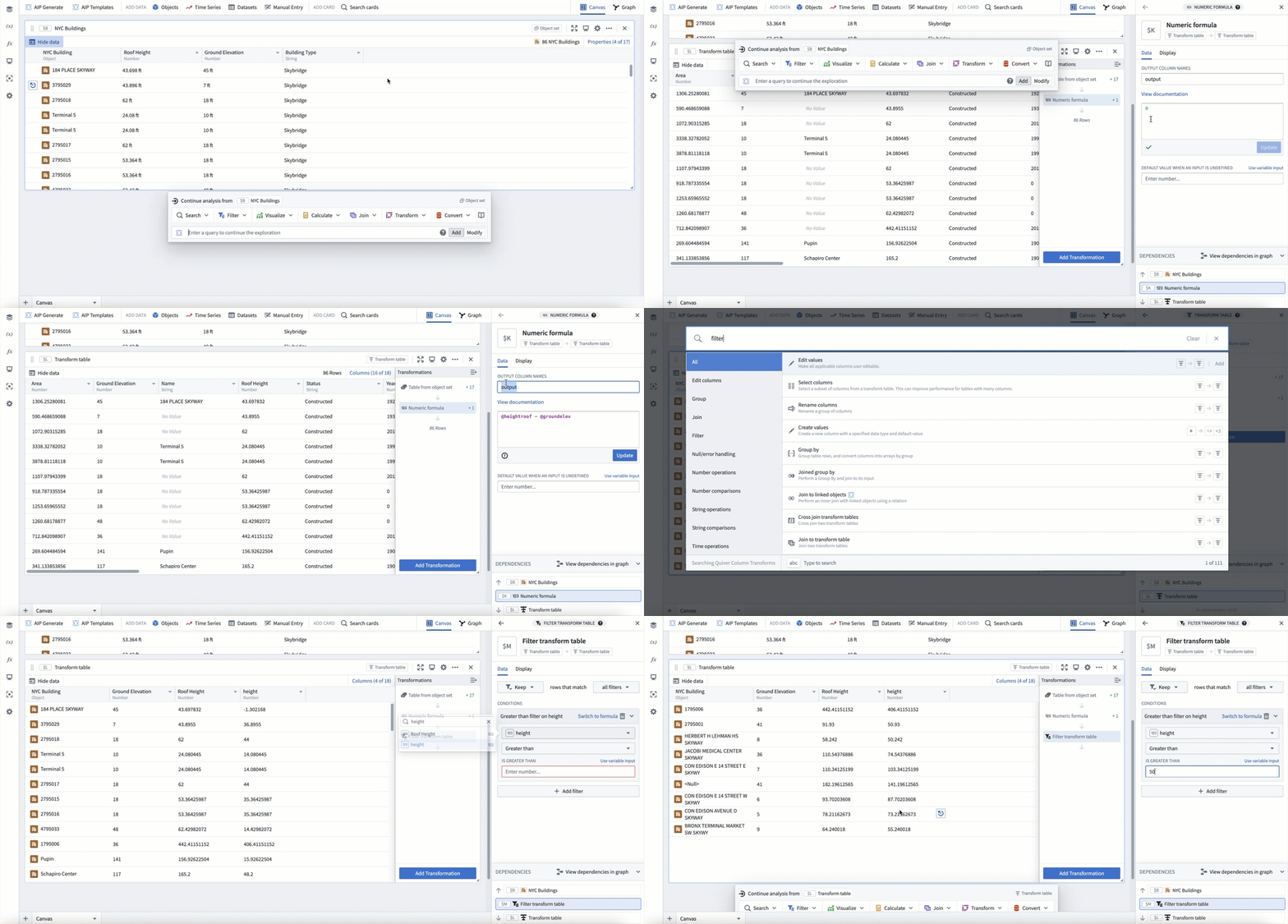
The example below uses the transform table to derive a new height property by subtracting a building's roof height from its ground elevation, then filters to where this new height property is greater than 50.
中文翻译
筛选对象集
在 Quiver 中筛选对象最常用的方法是使用筛选对象集卡片。将鼠标悬停在任何对象集卡片上,即可在卡片下方显示下一步操作菜单。然后选择 筛选 > 筛选对象集 以添加筛选卡片。
以下示例使用筛选条件仅包含 2010 年至 2020 年间建造的、类型为 building 或 garage 的建筑对象,最终生成包含 11,617 个建筑的新对象集(输入对象集共有 1,100,640 个建筑)。
您也可以直接从对象集卡片的表格列标题中为特定属性创建筛选卡片。操作方法如下:打开属性列标题右侧的下拉菜单,然后悬停在 添加筛选条件... 上。每个属性列标题都包含精确匹配和空值筛选的快捷选项。通过这种方式添加筛选,会自动创建一个已预配置所选属性的筛选对象集卡片。
查看筛选结果
选择 显示/隐藏数据 按钮,可在结果视图和卡片配置视图之间切换。
筛选关联属性
筛选对象集卡片还支持按关联对象属性进行筛选。当您的筛选条件与当前操作对象的属性无关,而是与其关联对象的属性相关时,此功能非常有用。
要添加关联属性筛选,请在添加筛选时从 按关联对象筛选 列表中选择关联对象类型,然后点击关联属性将其添加。
以下示例筛选的是茶叶批次对象集。每批茶叶都关联到一个茶叶品鉴对象,该对象按 1-10 分对批次进行评分。在此示例中,我们寻找优质批次,因此可以筛选出所有关联到评分大于 8 的茶叶品鉴对象的茶叶批次。
按关联属性筛选时,如果起始对象集小于 10 万,则规模不受限制。如果起始对象集超过 10 万,则关联对象集必须小于 1000 万。
嵌套筛选
对于需要同时使用 AND 和 OR 运算符的高级筛选工作流,筛选卡片支持嵌套筛选。操作方法如下:选择属性筛选右侧的 插入嵌套筛选 按钮。这将打开一个菜单,允许您选择嵌套筛选应使用 AND 还是 OR 条件,以及应筛选哪个属性。虽然筛选可以无限嵌套,但为了可读性,建议限制嵌套深度。
在以下示例中,我们的原始筛选包含 2010 年至 2020 年间建造的、类型为 skybridge 的建筑对象。我们希望这些对象也包含 1990 年至 2000 年间建造的所有 skybridge,因此我们在建造年份筛选上嵌套了一个 OR 条件。
筛选派生属性
如果您希望筛选在分析中本地派生的属性,可以通过转换表或物化来实现。这两种选项在规模和性能上各有取舍,但都支持本地派生属性,然后对这些派生属性进行筛选。
以下示例使用转换表通过从建筑的地面高程中减去屋顶高度来派生一个新的高度属性,然后筛选出这个新高度属性大于 50 的数据。