Add objects(添加对象)
Object types are a core element of the Ontology. Object types are the schema definition of a real-world entity or event. In the Ontology, an object is a single instance of an object type; an object corresponds to a single real-world entity or event. An object set - as contrasted to a single object - refers to a collection of multiple object instances; that is, an object set represents a group of real-world entities or events.
Quiver natively supports many different cards for filtering, transforming, and visualizing object data. The first step in analyzing object data is to add objects to an analysis.
This documentation describes several different ways of adding objects data to a Quiver analysis. Once you are comfortable adding objects, you can learn more about filtering and searching around to linked objects.
Add an object type
The simplest and most common way of adding objects data to a Quiver analysis is by adding all objects of a given object type. You can do this by selecting Add objects in the center of the screen. You can add additional object data at any time by selecting the Objects button in the Add data section of the analysis top bar.
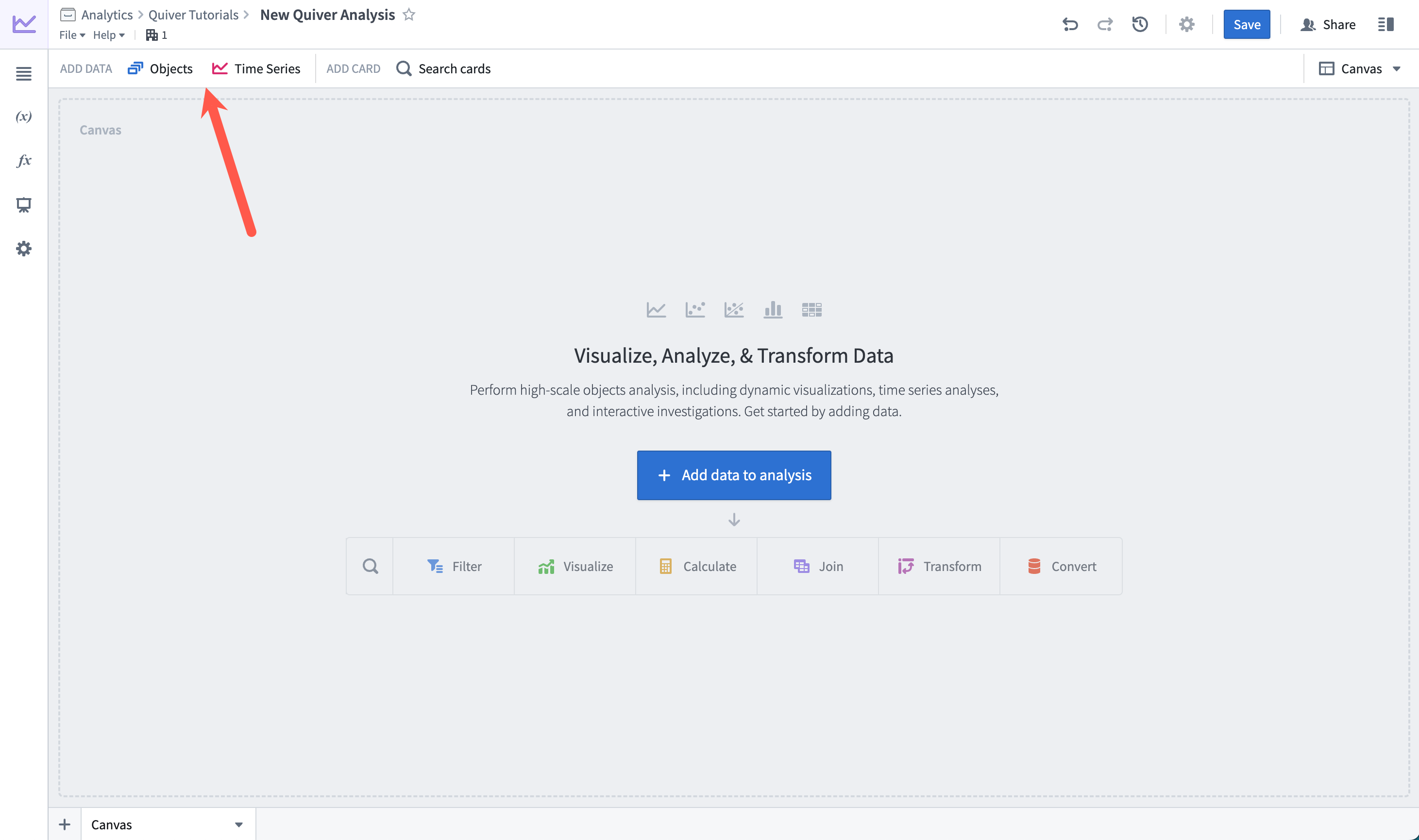
Selecting Add objects will open Quiver's search bar to explore the Ontology for object types. The object types search menu allows keyword searching over object types. On the left side, the search menu shows tabs for any object type groups, as well as a tab for prominent object types and time series object types.
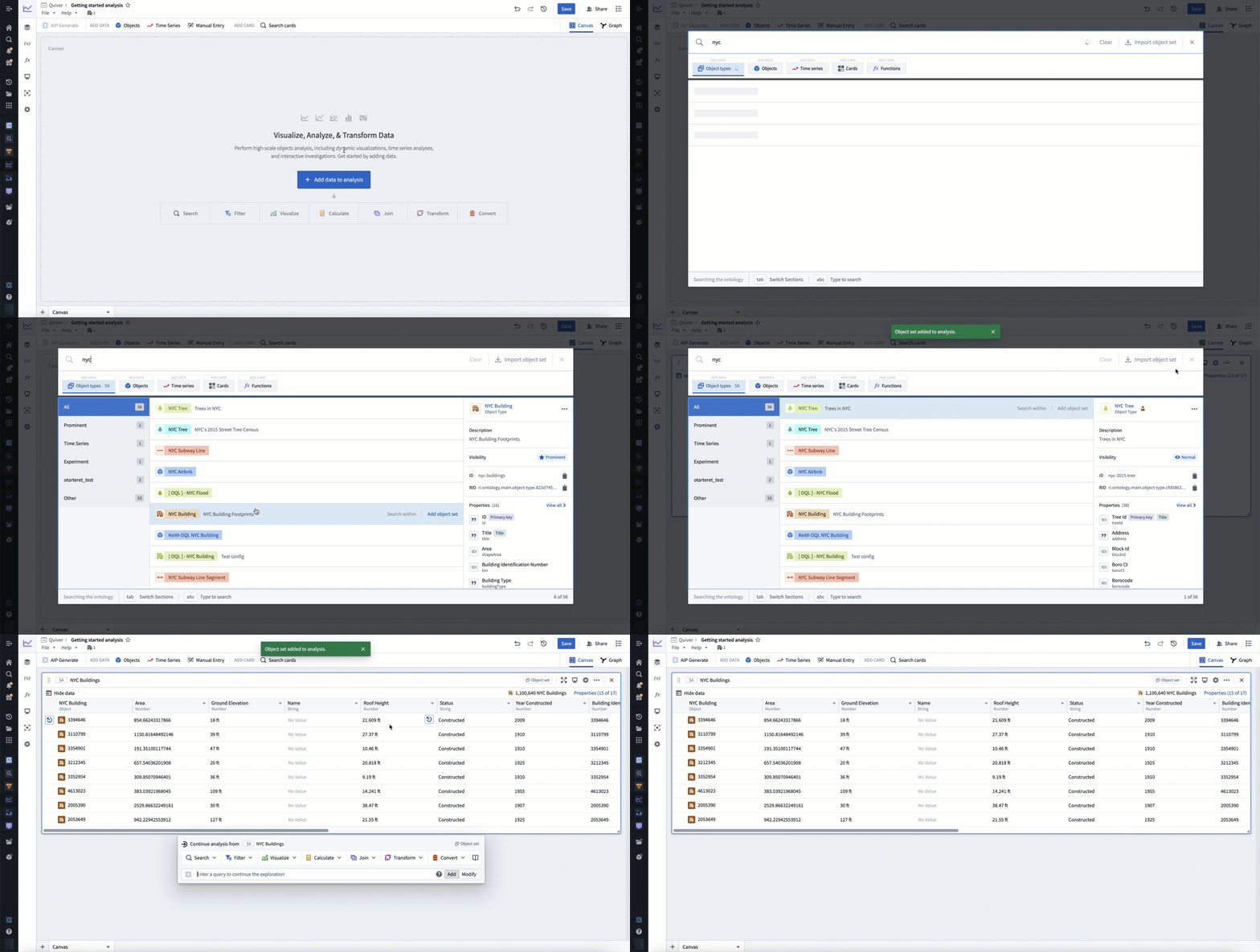
Select an object type to add it to your analysis. After adding your object type, select X in the top right corner to close the search bar. You should now have an object set card in your analysis, containing all objects of the selected type. The card added shows a table preview of the objects inside of the set and a count of all objects in the top right.
For example, the animation below shows a search for objects related to nyc before adding the NYC Buildings object type.
Add a single object
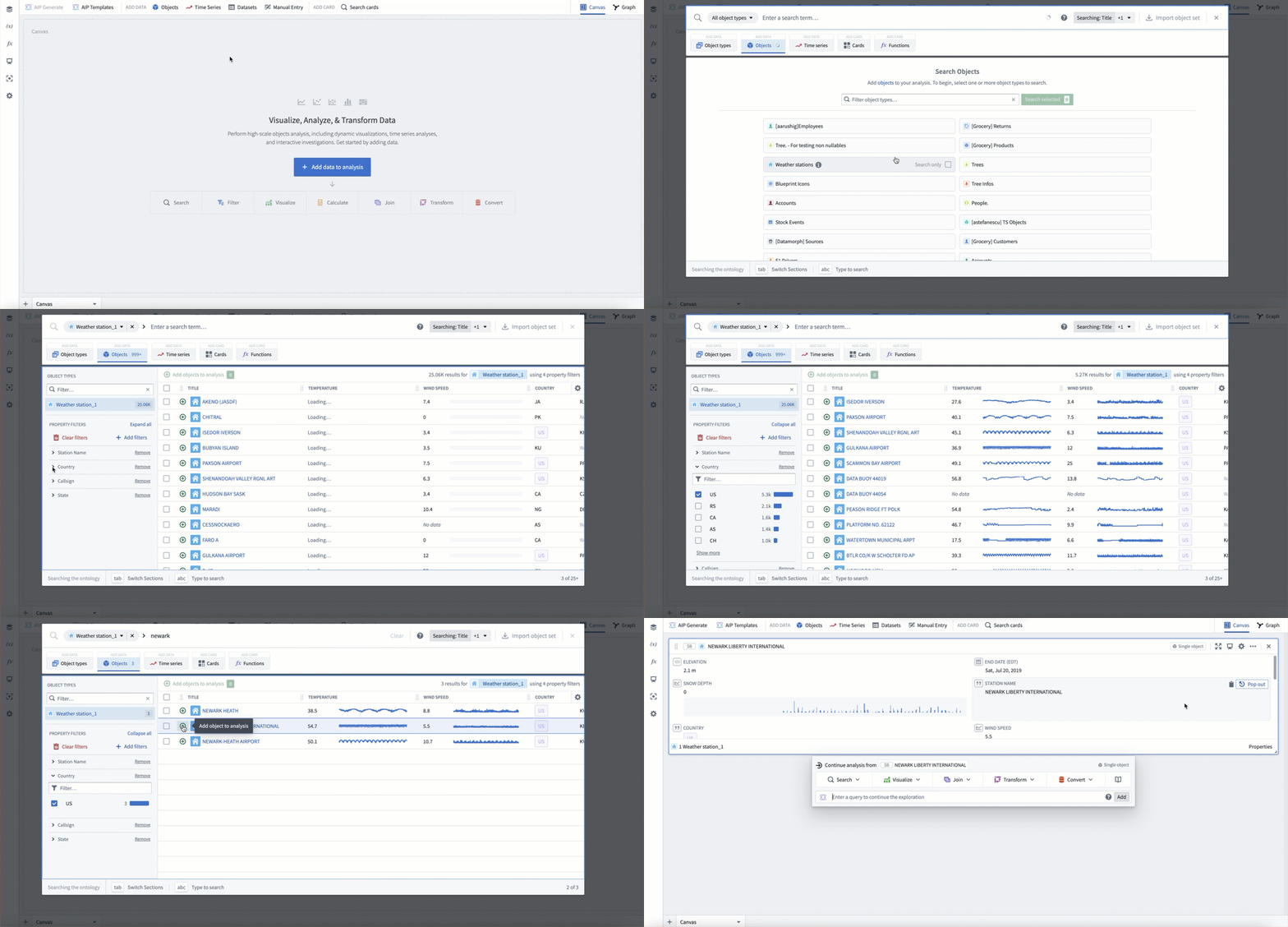
You can also add a single object to your analysis. To do this, after opening the object types search menu, at the top of the menu, switch to the Objects tab. On the Objects tab, you can search within specific object types for individual objects, either through property filters or a keyword. Selecting an object in the table of results will add the object to your analysis as a single object card.
The animation below provides an example of selecting the Weather stations object type, filtering to all objects where the country is equal to US, then filtering to newark and the Newark Liberty International object.
Open objects from Object Explorer
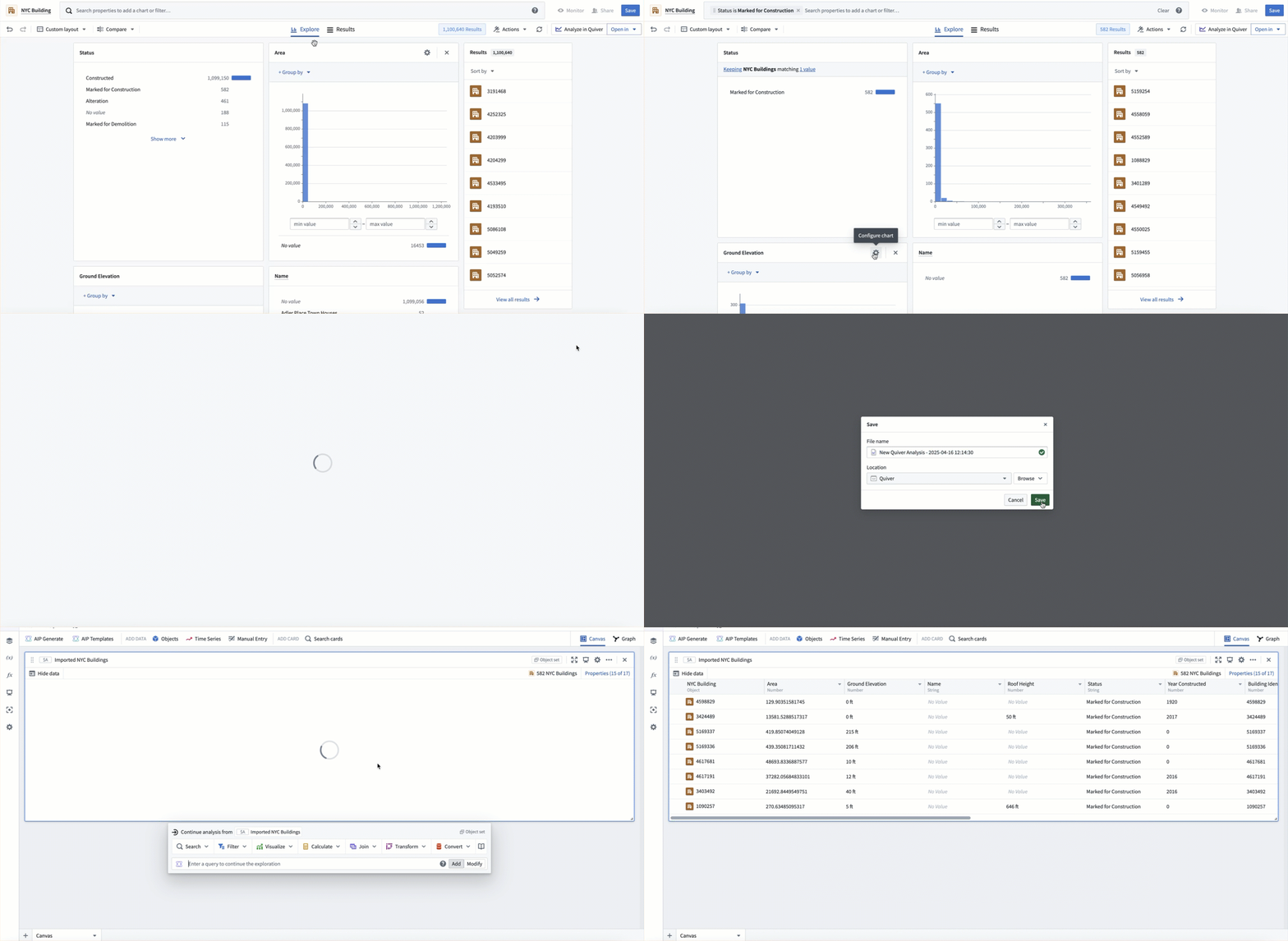
Object analysis often starts with an exploration in Object Explorer. If you have started your workflow in Object Explorer, you can seamlessly transition to Quiver by selecting the Analyze in Quiver button in the top right of the exploration. This will create a new Quiver analysis containing the objects from your exploration.
Import a saved object set
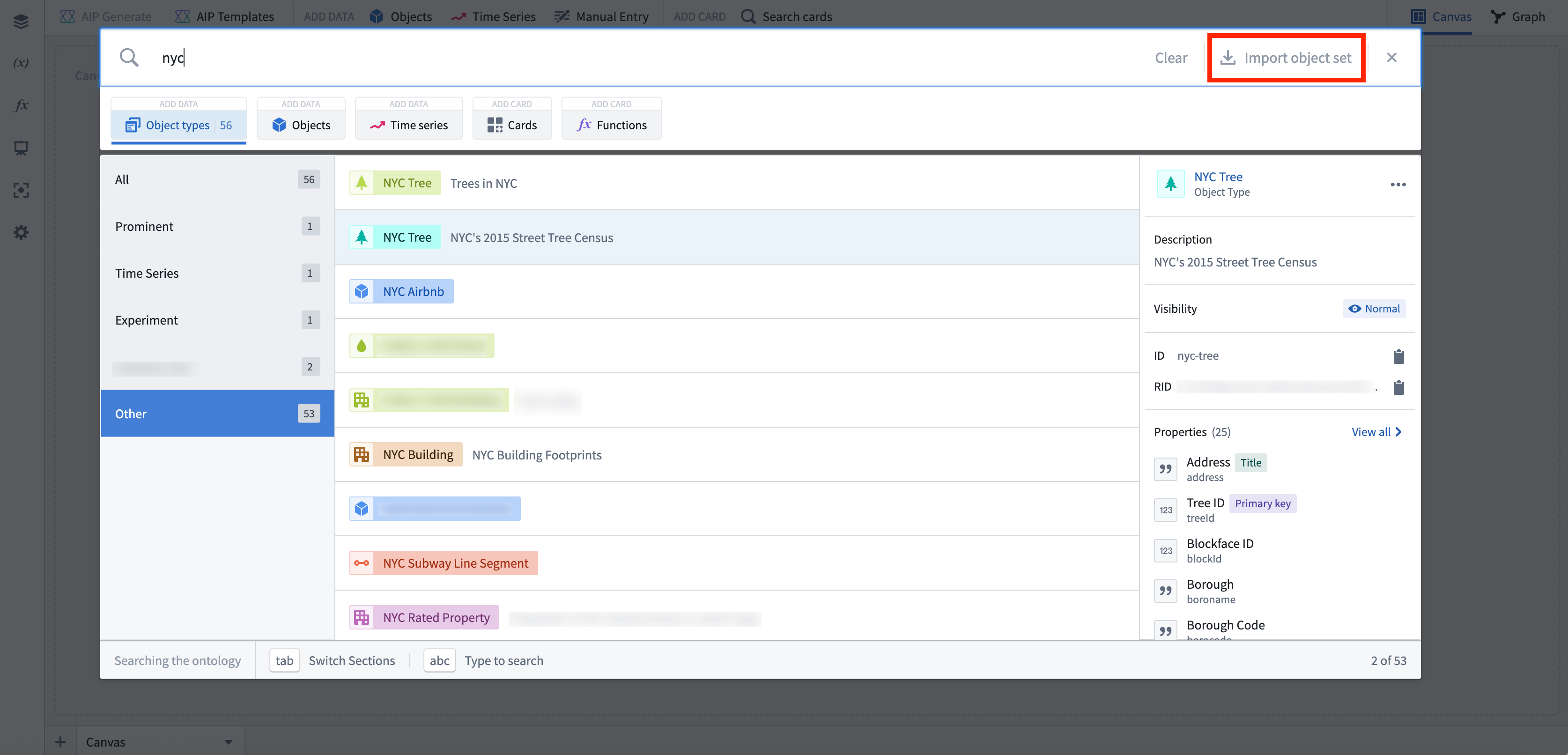
Another way of adding an object set to a Quiver analysis is by importing a saved object set. To do this, select the Import object set button in the top-right of the object types or objects search menu. This will open the file selector and allow you to select a saved object set to add to your analysis.
Preload objects using the URL
New analyses can also be preloaded with a defined object or object set using the URL. This can be done using the following endpoints:
- Object:
/quiver/views/load/object/<object_rid> - Object Set:
/quiver/views/load/object-set/<object_set_rid> - Object Type:
/quiver/view/load/object-type/<object_type_id>
中文翻译
添加对象
对象类型 是本体的核心要素。对象类型是对现实世界实体或事件的模式定义。在本体中,对象(object)是对象类型的单个实例,对应一个现实世界实体或事件。与单个对象相对,对象集(object set)指多个对象实例的集合,即代表一组现实世界实体或事件。
Quiver 原生支持多种卡片,用于过滤、转换和可视化对象数据。分析对象数据的第一步是将对象添加到分析中。
本文档介绍了几种将对象数据添加到 Quiver 分析的方法。熟悉添加对象后,您可以进一步了解过滤和搜索关联对象。
添加对象类型
将对象数据添加到 Quiver 分析最简单且最常用的方法是添加某个对象类型的所有对象。您可以通过选择屏幕中央的 添加对象(Add objects)来实现。您也可以随时通过选择分析顶部工具栏中 添加数据(Add data)部分的 对象(Objects)按钮来添加更多对象数据。
选择 添加对象 将打开 Quiver 的搜索栏,以便浏览本体中的对象类型。对象类型搜索菜单支持通过关键词搜索对象类型。左侧的搜索菜单显示对象类型组的选项卡,以及突出显示的对象类型和时间序列对象类型的选项卡。
选择要添加到分析中的对象类型。添加对象类型后,选择右上角的 X 关闭搜索栏。此时您的分析中应出现一个对象集卡片,其中包含所选类型的所有对象。添加的卡片会显示对象集内对象的表格预览,并在右上角显示对象总数。
例如,下面的动画展示了在添加 NYC Buildings 对象类型之前,搜索与 nyc 相关的对象。
添加单个对象
您也可以将单个对象添加到分析中。为此,在打开对象类型搜索菜单后,切换到菜单顶部的 对象(Objects)选项卡。在 对象 选项卡中,您可以通过属性过滤器或关键词在特定对象类型中搜索单个对象。在结果表格中选择一个对象,会将其作为单个对象卡片添加到分析中。
下面的动画演示了选择 Weather stations 对象类型,过滤出所有国家为 US 的对象,然后进一步过滤出 newark 和 Newark Liberty International 对象的过程。
从对象浏览器打开对象
对象分析通常从对象浏览器中的探索开始。如果您已在对象浏览器中开始工作流程,可以通过选择探索界面右上角的 在 Quiver 中分析(Analyze in Quiver)按钮无缝切换到 Quiver。这将创建一个新的 Quiver 分析,其中包含您探索中的对象。
导入已保存的对象集
将对象集添加到 Quiver 分析的另一种方法是导入已保存的对象集。为此,选择对象类型或对象搜索菜单右上角的 导入对象集(Import object set)按钮。这将打开文件选择器,允许您选择要添加到分析中的已保存对象集。
使用 URL 预加载对象
新的分析也可以通过 URL 预加载定义的对象或对象集。这可以通过以下端点实现:
- 对象:
/quiver/views/load/object/<object_rid> - 对象集:
/quiver/views/load/object-set/<object_set_rid> - 对象类型:
/quiver/view/load/object-type/<object_type_id>