AIP features in Quiver(Quiver 中的 AIP 功能)
Quiver's AIP features are designed to help you perform data analysis using natural language prompts. In addition to getting helpful responses from AIP Assist on questions related to Quiver, users can use:
- AIP Generate to add and configure cards, generating the next steps in the analysis while keeping the user in the loop.
- How AIP uses Ontology data
- AIP Configure to change pre-existing card configurations by describing how data or a Quiver card should be manipulated.
- Configure Time Series charts
Generate analysis
You can use AIP Generate to generate an analysis from an existing card or data in your analysis through the text input box below the Continue analysis from next actions ribbon, which prompts you to Enter a query to continue the exploration.

Write an analytical action you would like to perform in the text input box, and AIP Generate will suggest a variety of options using a Palantir-provided large language model (LLM).
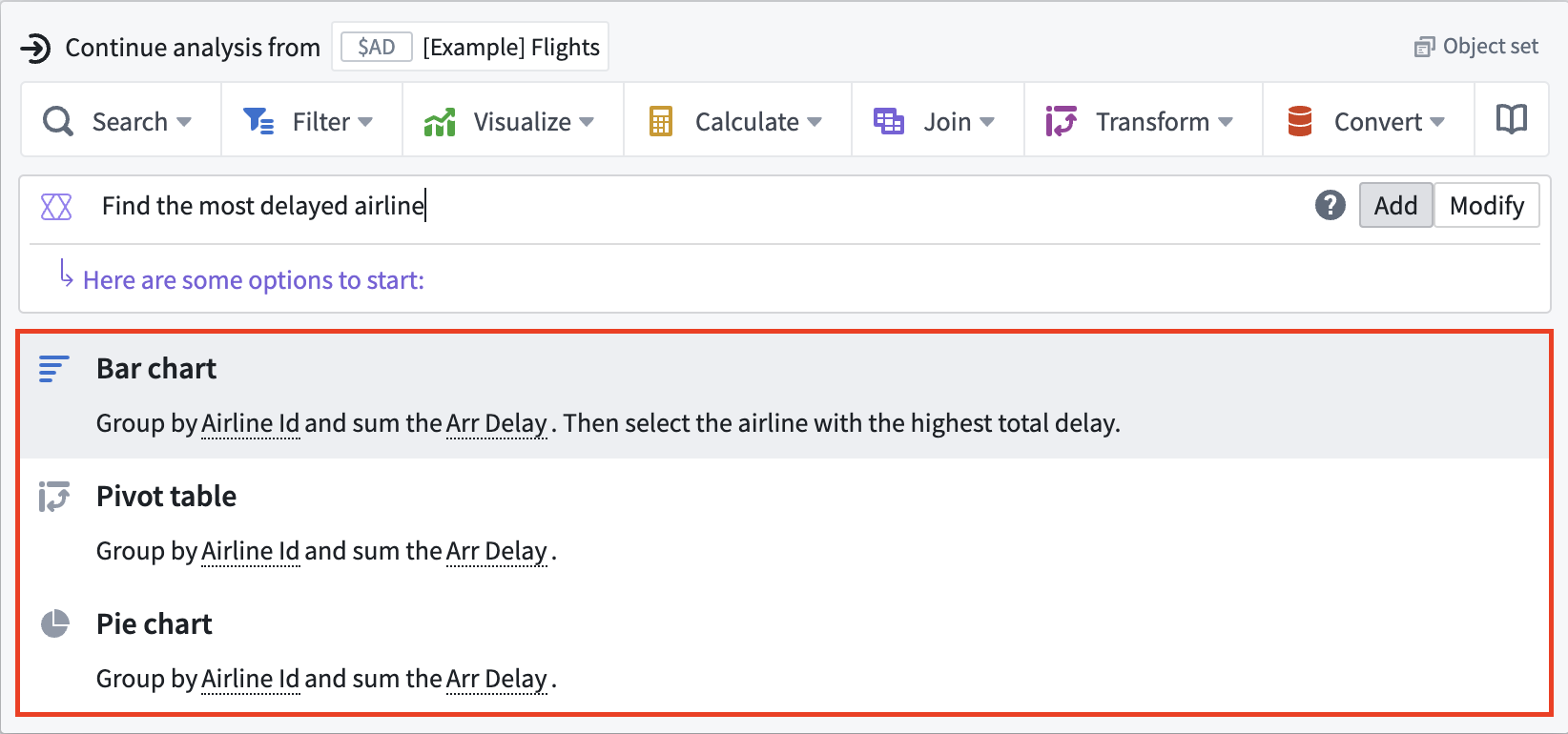
For best results, be as descriptive as possible. You can try phrasing your prompt in the form of a question such as “How are sales trending over time?” or instead use a directive tone such as “Show me a bar plot of sales revenue over time, grouped by month” or "Show the sum of marketing spend with rows grouped by advertising channel and columns grouped by retailer" for example.
When ready, select one of AIP's suggested options to generate and add the card to your canvas, where you can make additional configurations, as necessary.
If AIP believes the prompt requires multiple steps, then AIP Generate includes a + Follow up action tag next to the option's title which you can hover your cursor over to outline the additional steps it will execute to generate the card.
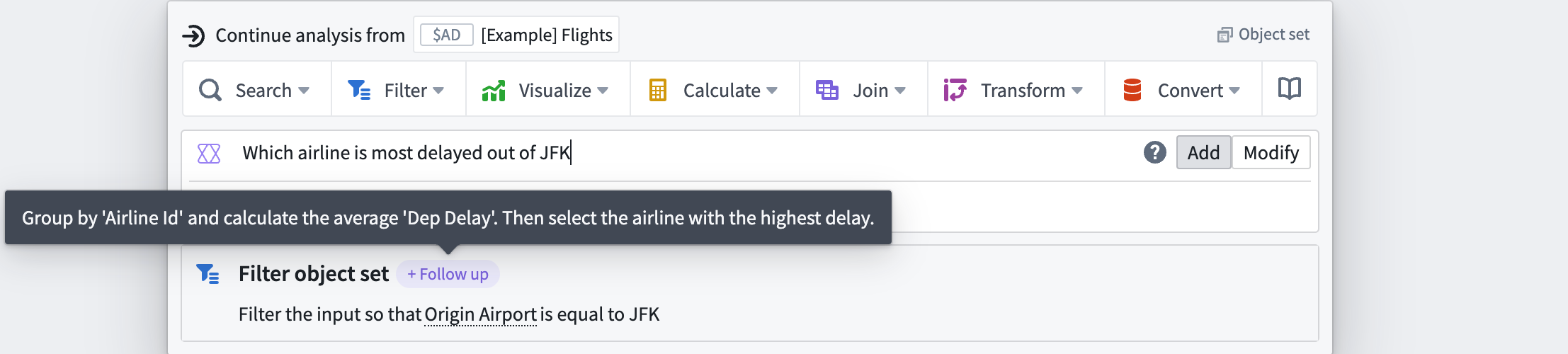
AIP Generate enters Chain Of Thought mode when you select an option containing a + Follow up action tag, enabling you to view its logic based off your initial prompt. After it configures the card from your prompt, AIP Generate automatically inputs the steps contained in + Follow up as well as a history of previous steps.
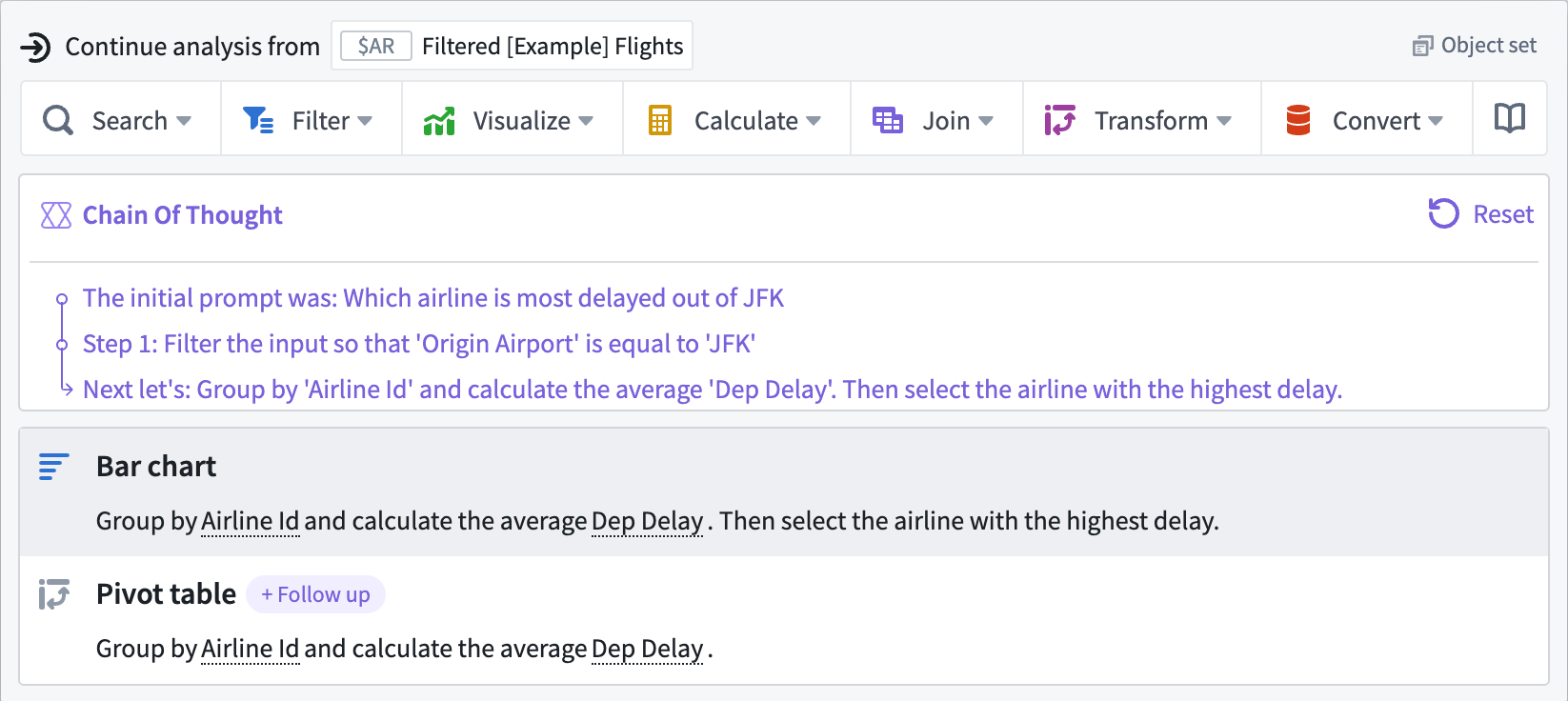
Select one of AIP Generate's options to continue or choose Reset to return to the original input prompt.
Select Tab on your keyboard from AIP Generate's text input box to queue the most recent prompt for ease of iteration.
:::callout{theme="neutral"} AIP Generate functionality currently primarily supports object and object set cards. Supported cards are labeled with an AIP icon to their right. :::
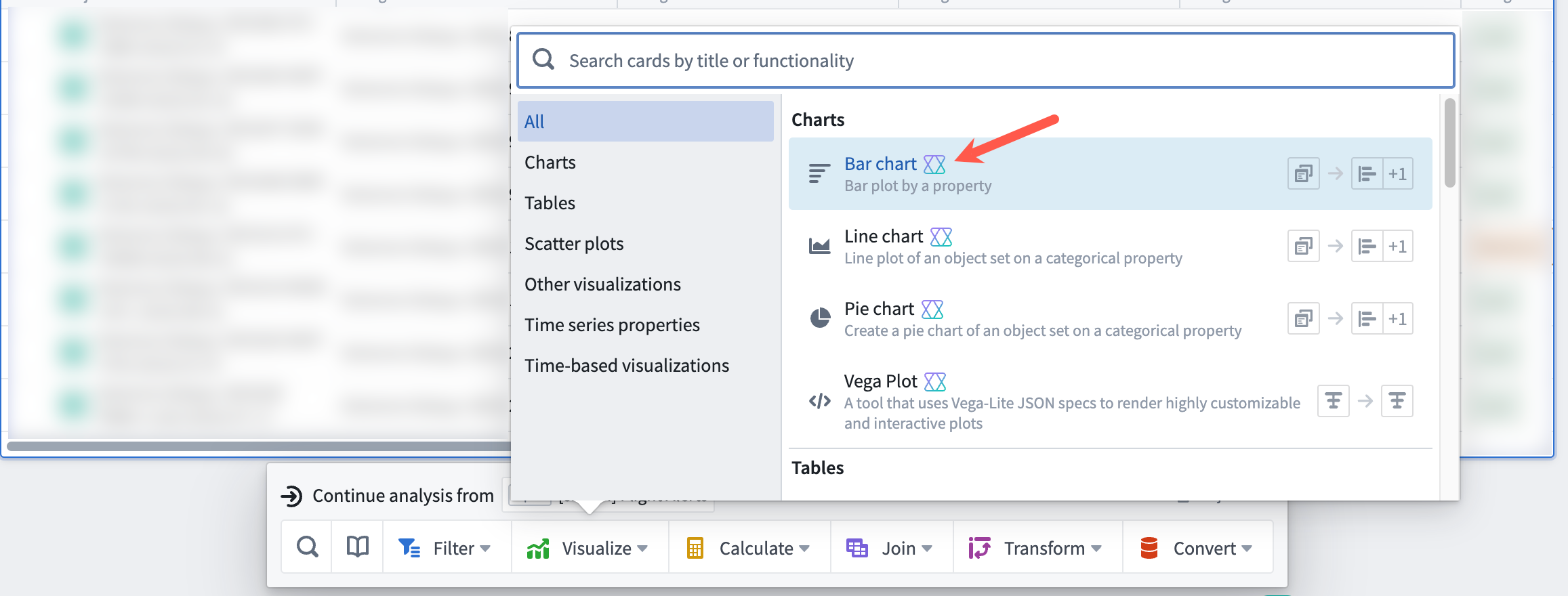
Additionally, you can select and launch AIP Generate from the top ribbon of your canvas, allowing AIP to act with more autonomy and perform multi-step analysis without human guidance.
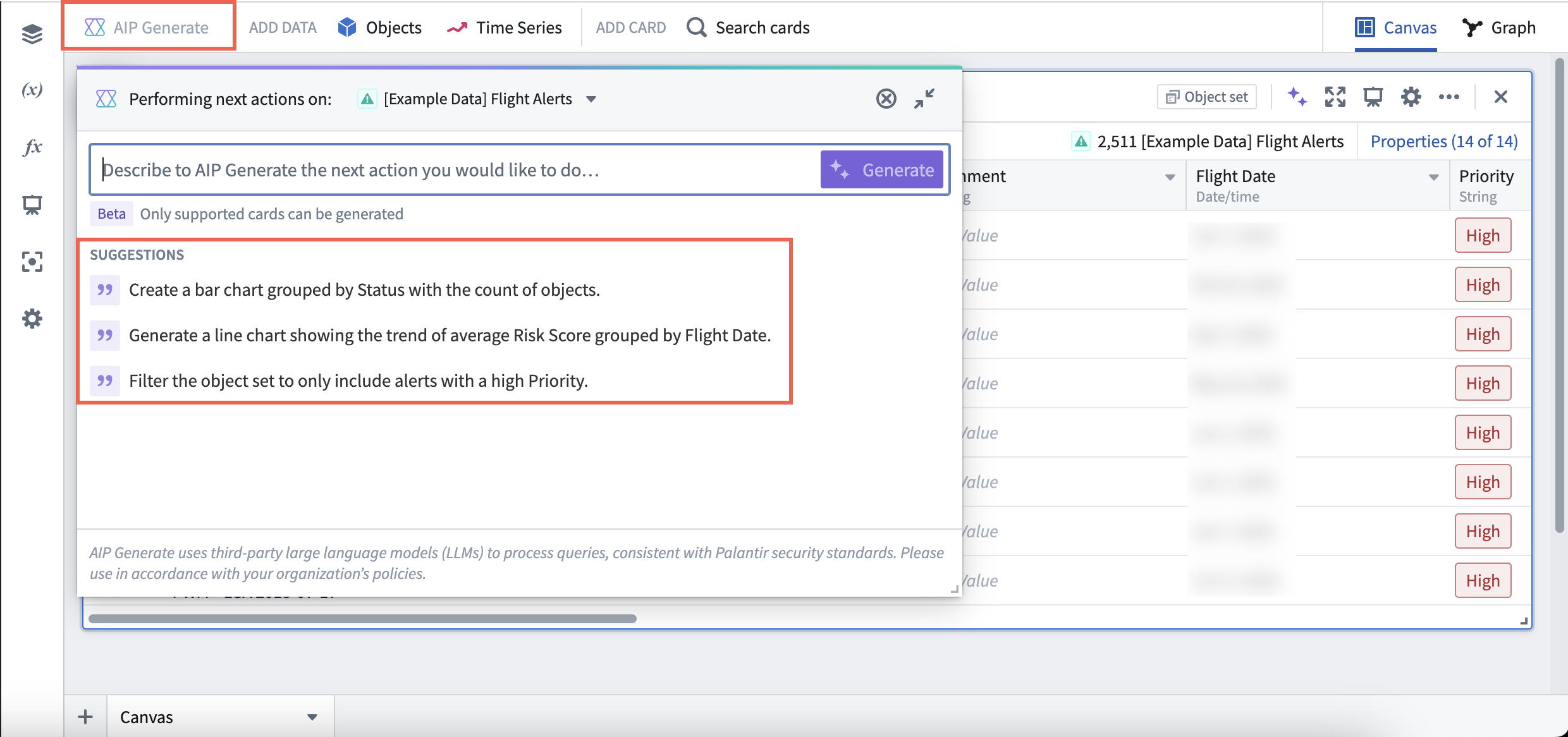
Input the action you would like to perform next in the query box. AIP will suggest prompt completions as you type.
When ready, select Generate.
To explore each of the cards closer, you can zoom in and out on the graph and drag the graph around using the mouse scroll gesture or by selecting the buttons on the lower left side.
Hover the cursor on a card to view a helpful explanation for why specific cards were chosen and how the cards were configured in relation to the respective prompt.

To add the resulting graph to the analysis canvas, select Add cards. You can then further modify or finalize the card configuration or visualization of each card.
How AIP uses Ontology data
To efficiently answer a user prompt, AIP uses only a summarized version of the object set data, or "property value hints", as follows:
-
String property types: Up to 100 unique values are computed
-
Numeric property types: Min, max, and average are computed
These summaries allow the determination of threshold values when making quantitative descriptions such as high, low, and medium, and also act to correct misspellings of column names and property values.
Configure cards
You can use AIP Configure to update card configurations.
To access AIP Configure, select the Modify button in the AIP Generate input bar.

Next, enter a description for the changes you would like to make to the card, such as “Move the legend to bottom and change style to grouped” or “Change the metric to sum of sales and update the y-axis title to Total Sales". As you type, AIP will generate a number of card configuration suggestions. Each suggestion shows the configuration setting that matched to a part of the prompt which you can accept or reject individually.
When ready, select one or more of AIP's suggestions which AIP applies immediately to the card.
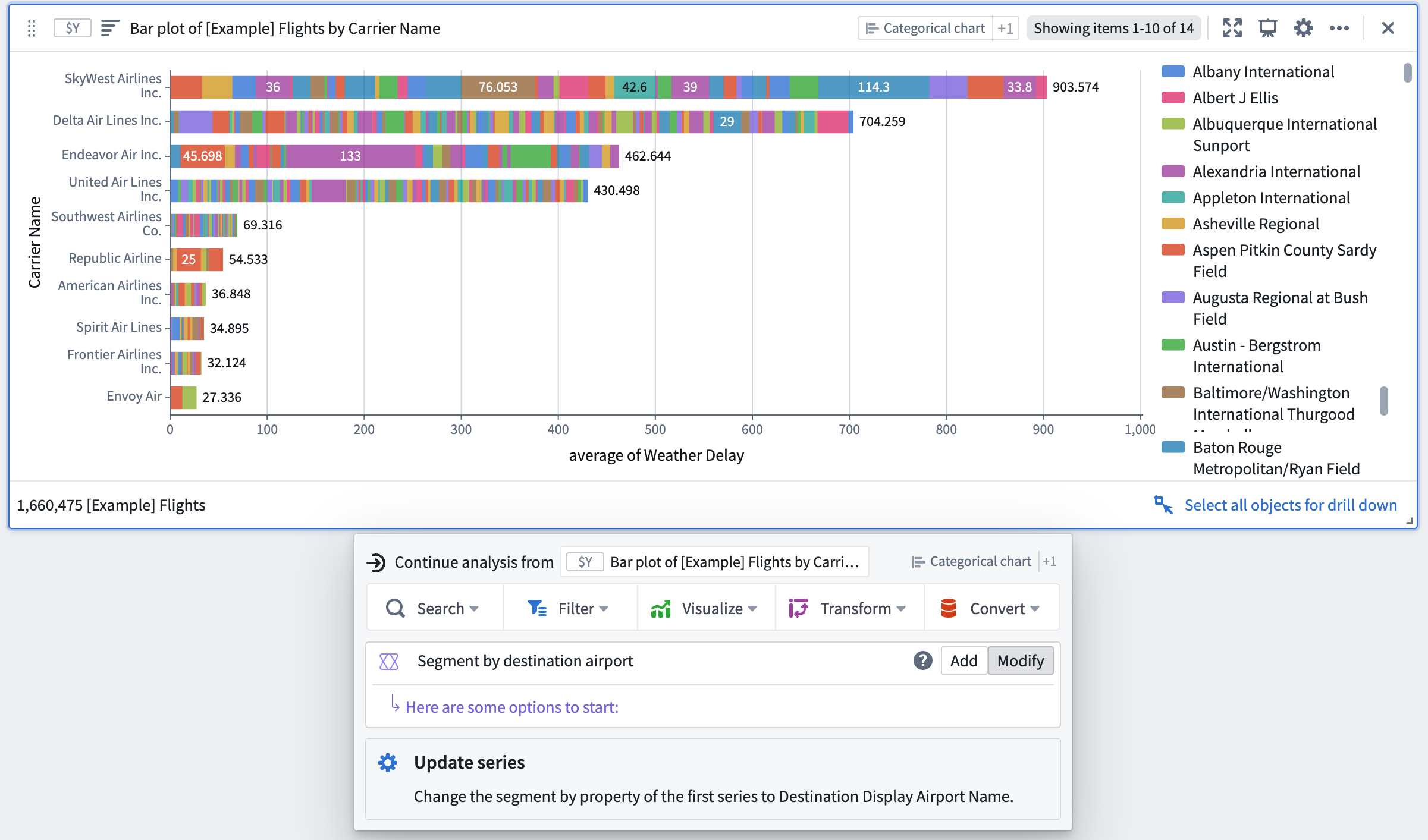
If you would like AIP to make additional configurations, you can input a new prompt and repeat the process.
Some cards, such as Vega Plots, support downstream analysis with AIP Configure but not AIP Generate.
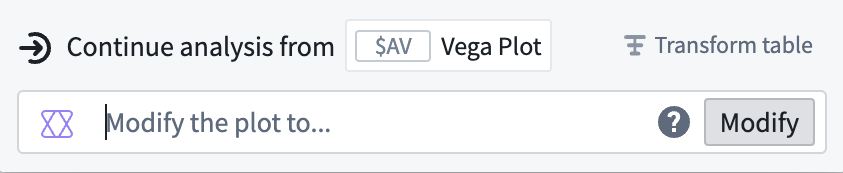
With AIP Configure, everyone can now get that picture-perfect visualization even if they are not familiar with all the visualization settings offered by each Quiver card.
Time Series
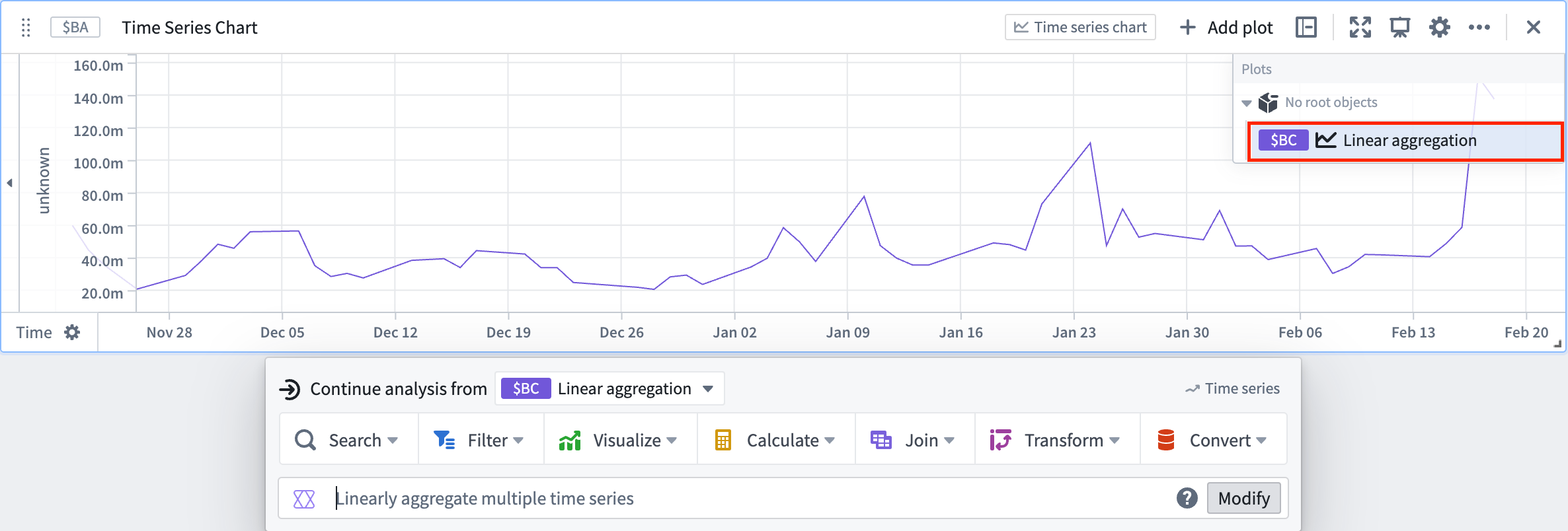
When used to analyze Time Series charts, AIP acts on the individual time series within the plot as opposed to the plot container.
AIP Configure appears after you select a time series within the plot to analyze.
:::callout{theme="neutral"} AIP feature availability is subject to change and may differ between enrollments. :::
中文翻译
Quiver 中的 AIP 功能
Quiver 的 AIP 功能旨在帮助您通过自然语言提示(natural language prompts)执行数据分析。除了从 AIP Assist 获取与 Quiver 相关问题的有用回复外,用户还可以使用:
- AIP Generate 添加和配置卡片,在保持用户参与的同时生成分析的后续步骤。
- AIP 如何使用 Ontology 数据
- AIP Configure 通过描述应如何操作数据或 Quiver 卡片,更改已有的卡片配置。
- 配置时间序列图表
生成分析
您可以通过 Continue analysis from 下一步操作栏下方的文本输入框使用 AIP Generate 从现有卡片或分析中的数据生成分析,该输入框会提示您 Enter a query to continue the exploration。
在文本输入框中输入您想要执行的分析操作,AIP Generate 将使用 Palantir 提供的大语言模型 (LLM) 建议多种选项。
为获得最佳结果,请尽可能详细地描述。您可以尝试以问题的形式表述提示,例如“销售额随时间的变化趋势如何?”,或者使用指令性语气,例如“显示按月分组的销售额柱状图”或“显示按广告渠道分组行、按零售商分组列的营销支出总和”。
准备就绪后,选择 AIP 建议的其中一个选项来生成卡片并将其添加到画布中,您可以在画布上根据需要进行额外配置。
如果 AIP 认为提示需要多个步骤,则 AIP Generate 会在选项标题旁边包含一个 + Follow up 操作标签,您可以将光标悬停在该标签上,以查看生成卡片时将执行的额外步骤。
当您选择包含 + Follow up 操作标签的选项时,AIP Generate 会进入思维链 (Chain Of Thought)模式,使您能够查看其基于初始提示的逻辑。在根据您的提示配置卡片后,AIP Generate 会自动输入 + Follow up 中包含的步骤以及先前步骤的历史记录。
选择 AIP Generate 的其中一个选项以继续,或选择 Reset 返回原始输入提示。
从 AIP Generate 的文本输入框中按键盘上的 Tab 键可排队最近的提示,以便于迭代。
:::callout{theme="neutral"} AIP Generate 功能目前主要支持对象和对象集卡片。受支持的卡片右侧标有 AIP 图标。 :::
此外,您还可以从画布顶部功能区中选择并启动 AIP Generate,使 AIP 能够更自主地运行,并在无需人工指导的情况下执行多步骤分析。
在查询框中输入您接下来要执行的操作。AIP 会在您输入时建议提示补全。
准备就绪后,选择 Generate。
要更仔细地探索每个卡片,您可以使用鼠标滚轮手势或选择左下角的按钮来放大、缩小图表以及拖动图表。
将光标悬停在卡片上可查看有用的解释,了解为何选择特定卡片以及如何根据相应提示配置卡片。
要将生成的图表添加到分析画布,请选择 Add cards。然后,您可以进一步修改或完成每个卡片的卡片配置或可视化效果。
AIP 如何使用 Ontology 数据
为了有效响应用户提示,AIP 仅使用对象集数据的摘要版本,即“属性值提示 (property value hints)”,具体如下:
- 字符串属性类型:最多计算 100 个唯一值
- 数值属性类型:计算最小值、最大值和平均值
这些摘要允许在做出定量描述(如高、低、中)时确定阈值,并且还可以纠正列名和属性值的拼写错误。
配置卡片
您可以使用 AIP Configure 更新卡片配置。
要访问 AIP Configure,请选择 AIP Generate 输入栏中的 Modify 按钮。
接下来,输入您要对卡片进行的更改的描述,例如“将图例移至底部并将样式更改为分组”或“将指标更改为销售额总和并将 y 轴标题更新为总销售额”。在您输入时,AIP 会生成多个卡片配置建议。每个建议都显示与提示部分匹配的配置设置,您可以单独接受或拒绝。
准备就绪后,选择一个或多个 AIP 建议,AIP 会立即将其应用于卡片。
如果您希望 AIP 进行额外配置,可以输入新的提示并重复该过程。
某些卡片(例如 Vega 图)支持使用 AIP Configure 进行下游分析,但不支持 AIP Generate。
借助 AIP Configure,即使不熟悉每个 Quiver 卡片提供的所有可视化设置,每个人现在也可以获得完美的可视化效果。
时间序列
当用于分析时间序列图表时,AIP 作用于图表内的单个时间序列,而不是图表容器本身。
在您选择图表内要分析的时间序列后,AIP Configure 会出现。
:::callout{theme="neutral"} AIP 功能的可用性可能会发生变化,并且可能因注册情况而异。 :::