Batch analyze time series(批量分析时间序列)
Quiver provides powerful tools for analyzing multiple time series simultaneously, enabling efficient investigation and comparison of time series data at scale. This guide covers the main approaches for batch time series analysis using transform tables, grouped time series plots, multi-time-series searches, and linear aggregations.
Transform table workflows
Transform tables are a powerful tool for batch analysis of time series data. Transform tables allow you to operate on multiple time series simultaneously through various workflows. For detailed information about available operations, see time series operations in transform tables.
Time series columns
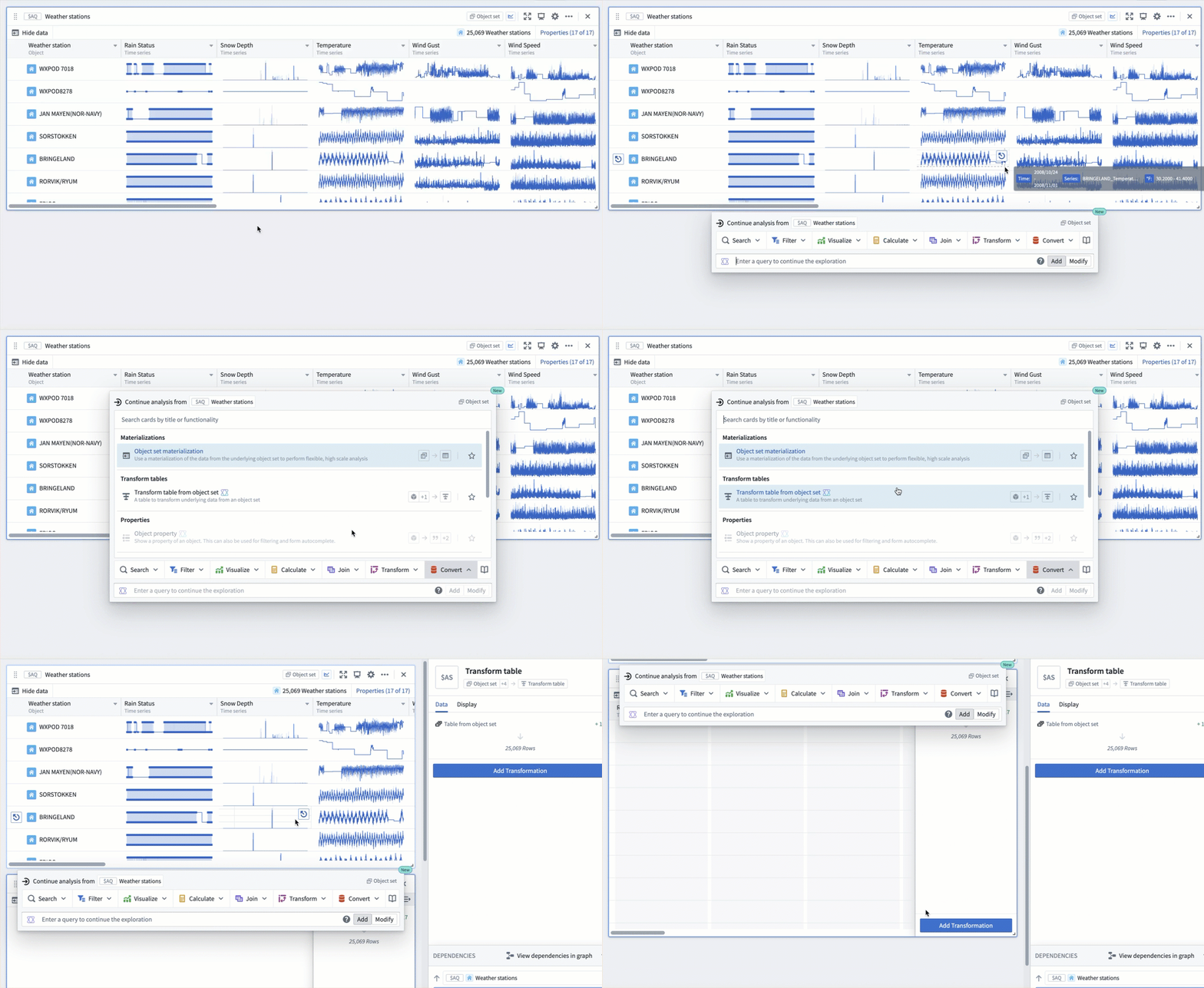
This section will show you how to use time series columns in a transform table to calculate the 30-day rolling average of temperatures across a hypothetical Weather Station object set. Starting off from the Weather Station object set, where the Weather Station object type contains a Temperature time series property:
- Create a transform table from the next actions menu by selecting Convert > Transform table from object set.
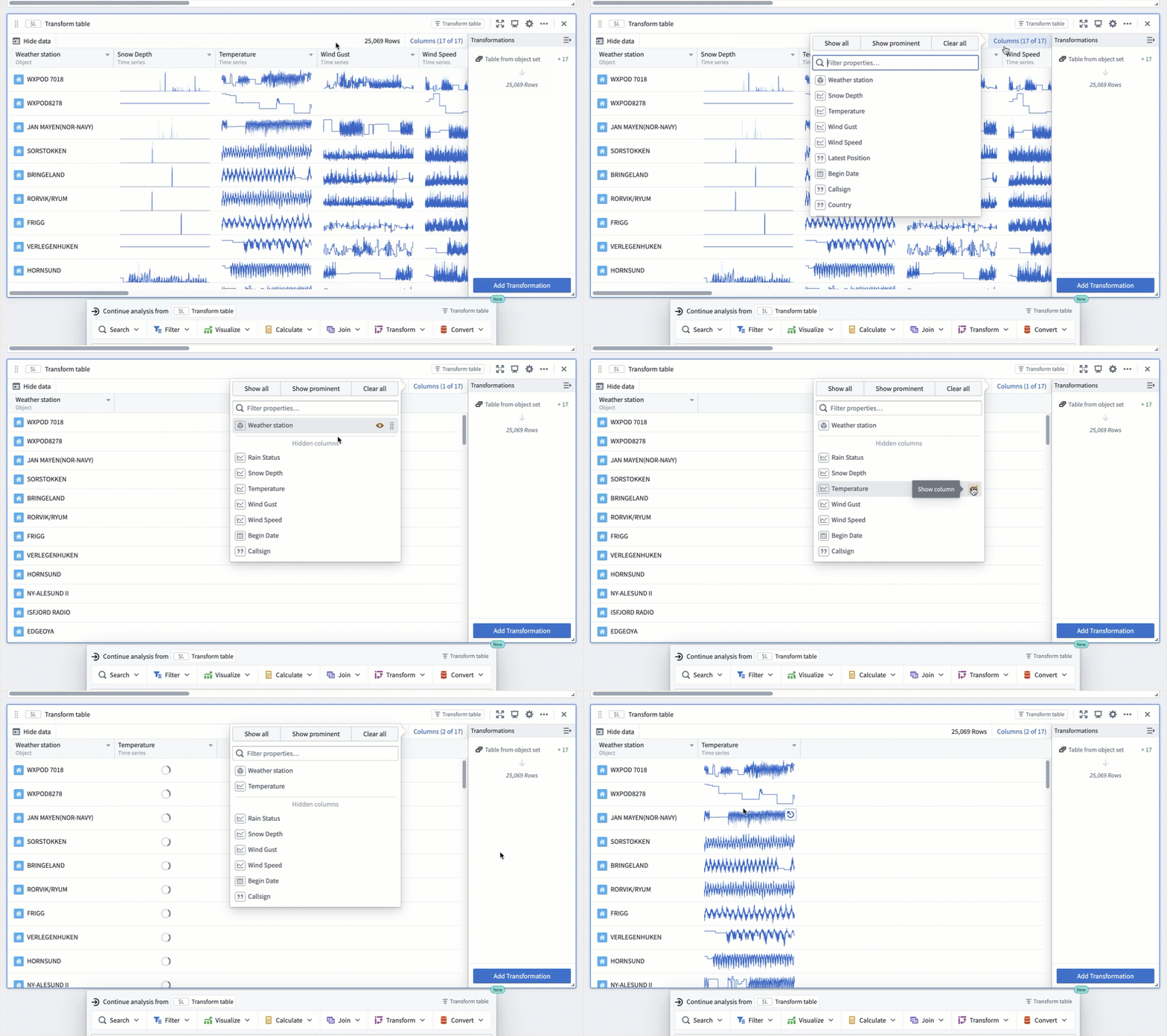
- Add the time series property as a column using the Properties button in the transform table. This is only required if the time series property is not already in your table. In the example below, the existing columns are removed with the *Clear all button before the
Temperaturetime series column is added.
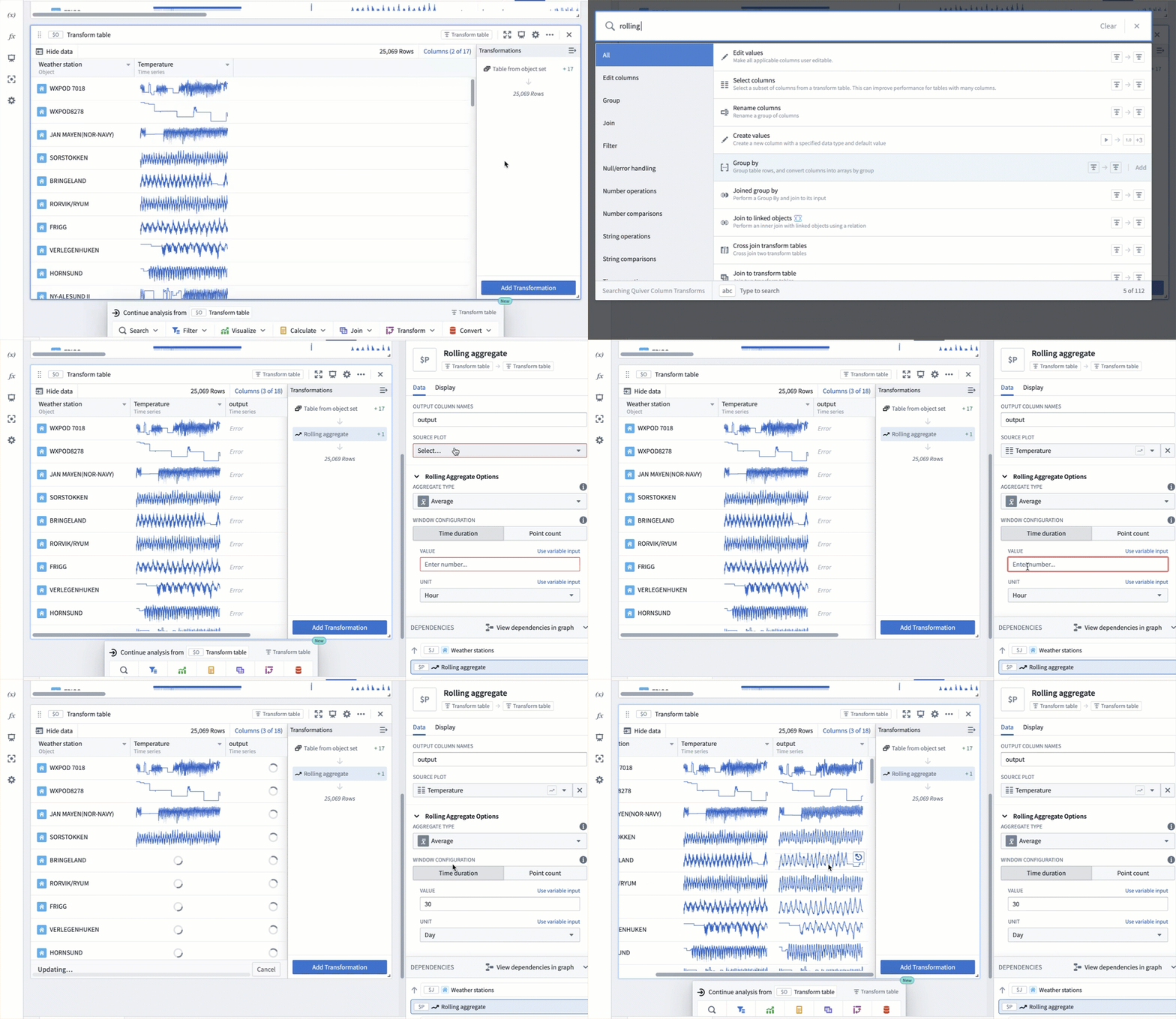
- Apply transformations to the time series column in batch using the Add Transformation button. In the example below, a 30-day rolling average transform of the
Temperaturetime series column is added by selecting Add Transformation, choosing the Rolling aggregate transformation, then setting the window configuration time duration value to30and the unit toDay.
This workflow is particularly useful if you want to:
- Apply the same transformation (such as rolling average or derivative) to multiple time series.
- Compare transformed series across different objects.
- Create derived metrics from multiple time series.
Grouped time series plots
Grouped time series plots provide a powerful way to visualize and analyze multiple time series together. For more information about visualizing time series in Quiver, see visualize time series.
To create a grouped time series plot:
- Start with multiple time series (from a transform table, or object set).
- Add a grouped time series plot card from the Next Actions menu by selecting Visualize > Grouped time series plot.
- Configure the plot by selecting:
- The input time series column from the table.
- The page size to control how many time series to overlay.
Grouped time series plots maintain the connection to the underlying data, allowing you to:
- Apply transformations to all series simultaneously.
- Create derived calculations from the grouped data.
- Export or share the analysis results.
This visualization approach is particularly useful for:
- Comparing trends across multiple time series.
- Identifying patterns or correlations between series.
- Analyzing the behavior of related metrics over time.
Grouped time series plots support the same set of time series operations that are available in transform tables. For details, see time series operations.
Time series from time series charts
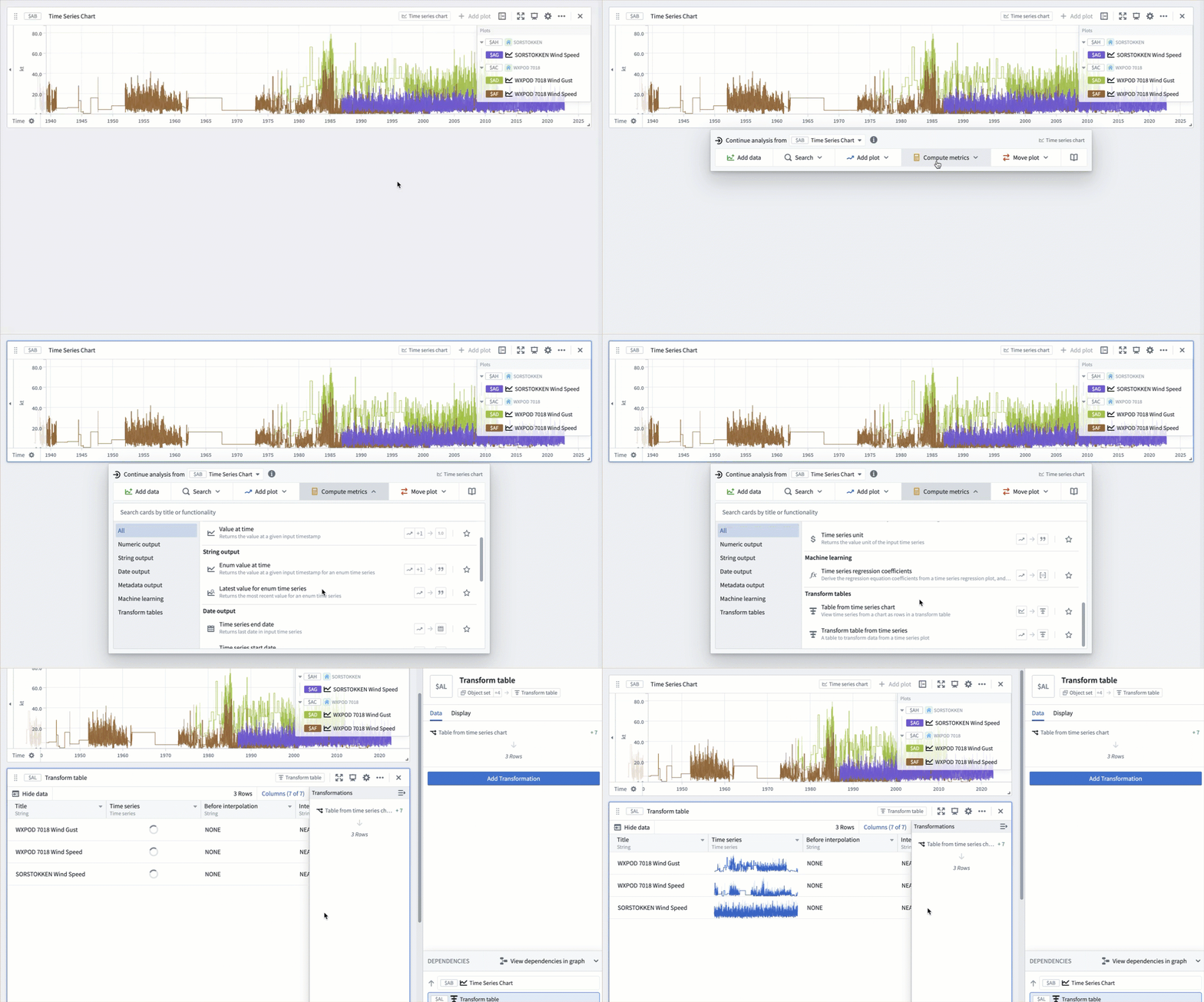
You can analyze multiple time series from a chart by following these steps:
- Select the time series chart (not individual plots) in your analysis.
- Create a transform table using Compute metrics > Table from time series chart from the Next Actions menu.
- Each time series plot becomes a row in the table; apply transformations to the table to analyze the series collectively.
This approach is valuable if you want to:
- Compare metrics across different time series.
- Apply statistical analysis to a group of series.
- Create derived calculations from multiple plots.
Multi-time-series searches
Time series searches enable you to find specific patterns or conditions across multiple time series simultaneously. This is particularly powerful for batch analysis through the multi-search feature.
This approach is valuable for:
- Finding patterns across multiple sensors or measurements.
- Identifying when multiple conditions occur simultaneously.
- Analyzing large sets of time series for specific behaviors.
The events identified through time series search can be saved as objects in the Ontology using time series alerting. This allows you to track and monitor specific conditions of interest across your time series data.
Linear aggregations
Linear aggregations provide a way to compute aggregate metrics across multiple time series. For related functionality, see linked series aggregations and how interpolation affects linear aggregations.
To perform linear aggregation:
- Start with multiple time series (from a transform table, grouped plot, or object set).
- Add a linear aggregation card from the Next Actions menu by selecting Visualize > Linear aggregation for object sets and transform tables, Add plot > Linear aggregation for grouped plots.
- Configure the aggregation to compute metrics across the time series set.
This feature is valuable for:
- Computing average behavior across multiple sensors.
- Creating composite metrics from related time series.
- Analyzing the overall trend of a group of measurements.
Unlike rolling or periodic aggregates that operate on a single time series, linear aggregation combines multiple series into a single aggregated result, making it ideal for batch analysis scenarios.
Best practices
When performing batch time series analysis:
- Consider the size of your dataset. Transform tables have a limit of 50,000 rows for performance reasons, however time series operations tend to slow down at much lower scales. For this reason we recommend limiting the number of rows to 1,000 or less.
- Use appropriate sampling when working with large time series datasets:
- For time series plots as input, choose between Sampled or Unsampled data options.
- Adjust the number of sampling buckets as needed.
- Leverage the transform table's ability to operate on time series columns for efficient batch processing.
- Combine different approaches (transform tables, grouped plots, linear aggregation) based on your analysis needs.
Related topics
- Transform tables
- Time series operations
- Grouped time series plots
- Time series searches
- Linear aggregations
中文翻译
批量分析时间序列
Quiver 提供了强大的工具,可同时分析多个时间序列,从而实现对大规模时间序列数据的高效调查与比较。本指南涵盖了使用转换表、分组时间序列图、多时间序列搜索和线性聚合进行批量时间序列分析的主要方法。
转换表工作流
转换表是批量分析时间序列数据的强大工具。转换表允许您通过各种工作流同时对多个时间序列进行操作。有关可用操作的详细信息,请参阅转换表中的时间序列操作。
时间序列列
本节将向您展示如何在转换表中使用时间序列列,计算假设的Weather Station(气象站)对象集上温度的30天滚动平均值。从Weather Station对象集开始,其中Weather Station对象类型包含一个Temperature(温度)时间序列属性:
- 通过选择转换 > 从对象集创建转换表,从下一步操作菜单中创建一个转换表。
- 使用转换表中的属性按钮,将时间序列属性添加为一列。仅当时间序列属性尚未出现在表中时才需要此操作。在下面的示例中,在添加
Temperature时间序列列之前,使用清除全部按钮移除了现有列。
- 使用添加转换按钮,批量对时间序列列应用转换。在下面的示例中,通过选择添加转换,选择滚动聚合转换,然后将窗口配置时间持续时间值设置为
30,单位设置为Day(天),为Temperature时间序列列添加了30天滚动平均转换。
如果您希望执行以下操作,此工作流尤其有用:
- 对多个时间序列应用相同的转换(如滚动平均或导数)。
- 比较不同对象间的转换后序列。
- 从多个时间序列创建派生指标。
分组时间序列图
分组时间序列图提供了一种强大的方式,可同时可视化和分析多个时间序列。有关在Quiver中可视化时间序列的更多信息,请参阅可视化时间序列。
要创建分组时间序列图:
- 从多个时间序列开始(来自转换表或对象集)。
- 通过选择可视化 > 分组时间序列图,从下一步操作菜单中添加一个分组时间序列图卡片。
- 通过选择以下内容配置图表:
- 表中的输入时间序列列。
- 页面大小,以控制叠加多少个时间序列。
分组时间序列图保持与底层数据的连接,允许您:
- 同时对所有序列应用转换。
- 从分组数据创建派生计算。
- 导出或共享分析结果。
这种可视化方法对于以下情况特别有用:
- 比较多个时间序列的趋势。
- 识别序列之间的模式或相关性。
- 分析相关指标随时间的行为。
分组时间序列图支持与转换表中相同的一组时间序列操作。有关详细信息,请参阅时间序列操作。
来自时间序列图表的时间序列
您可以通过以下步骤分析图表中的多个时间序列:
- 在分析中选择时间序列图表(而非单个图)。
- 使用计算指标 > 从时间序列图表创建表,从下一步操作菜单中创建一个转换表。
- 每个时间序列图成为表中的一行;对表应用转换以集体分析这些序列。
如果您希望执行以下操作,此方法很有价值:
- 比较不同时间序列的指标。
- 对一组序列应用统计分析。
- 从多个图创建派生计算。
多时间序列搜索
时间序列搜索使您能够同时跨多个时间序列查找特定模式或条件。通过多搜索功能,这对于批量分析尤其强大。
此方法对于以下情况很有价值:
- 跨多个传感器或测量值查找模式。
- 识别多个条件同时发生的情况。
- 分析大量时间序列以查找特定行为。
通过时间序列搜索识别的事件可以使用时间序列告警保存为本体论(Ontology)中的对象。这使您能够跨时间序列数据跟踪和监控感兴趣的特定条件。
线性聚合
线性聚合提供了一种跨多个时间序列计算聚合指标的方法。有关相关功能,请参阅链接序列聚合和插值如何影响线性聚合。
要执行线性聚合:
- 从多个时间序列开始(来自转换表、分组图或对象集)。
- 通过选择可视化 > 线性聚合(适用于对象集和转换表)或添加图 > 线性聚合(适用于分组图),从下一步操作菜单中添加一个线性聚合卡片。
- 配置聚合以计算跨时间序列集的指标。
此功能对于以下情况很有价值:
- 计算多个传感器的平均行为。
- 从相关时间序列创建复合指标。
- 分析一组测量值的整体趋势。
与对单个时间序列进行操作的滚动或周期聚合不同,线性聚合将多个序列组合成一个单一的聚合结果,使其成为批量分析场景的理想选择。
最佳实践
在执行批量时间序列分析时:
- 考虑数据集的大小。出于性能原因,转换表有50,000行的限制,但时间序列操作在规模小得多时就会变慢。因此,我们建议将行数限制在1,000或更少。
- 在处理大型时间序列数据集时使用适当的采样:
- 对于作为输入的时间序列图,在采样或未采样数据选项之间进行选择。
- 根据需要调整采样桶的数量。
- 利用转换表对时间序列列进行操作的能力,以实现高效的批量处理。
- 根据分析需求,结合不同的方法(转换表、分组图、线性聚合)。