Change width and height(更改宽度和高度)
Content in Foundry Reports is organized into rows, where each row contains at least one widget.
Change row width
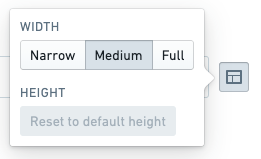
Each row can be displayed with one of three widths:
- Full. Fills 100% of the page width. Compresses down to
600pxat minimum. - Medium. Displays at a width of
820px. Compresses down to540pxat minimum. - Narrow. Displays at a width of
570px. Compresses down to540pxat minimum.
:::callout{theme="success"} By default, widgets added to a report will appear on their own row with a Medium width. :::
Change the width of one row
To change the width of a row:
-
(If needed) Switch to Editing mode.
-
Click the Layout Control button on the right side of the row.

-
Select a new width (Narrow, Medium, or Full).
Change the width of all content
As a convenience, you can also change all content in the report to Full width with one interaction. See Display all content in a report as full width for details.
Change row height
Most widgets can also be resized vertically. This is useful for resizing charts and other content that stretches to fill its available container.
Auto height
Widgets will size themselves automatically by default, choosing a reasonable initial height that varies according to the type of widget.
Some widgets will always adjust their size automatically to fit their content and cannot be manually resized. In particular:
- Text widgets (see Add text in a report)
- Table widgets (see Add a table to a report), and
- Images and videos (see Add a new image or video to a report).
Widgets added from other Foundry applications can typically be vertically resized.
Fixed height
Where permitted, changing the height of a row will “fix” the height to a value that may be different from the automatic value.
To manually adjust the height of a row:
-
(If needed) Switch to Editing mode.
-
Move your mouse cursor over the bottom edge of a widget or row of widgets.
-
Click and hold on the Row Resize button if one appears.

-
Drag up or down to resize, then release the mouse.

Display all content in a report as full width
You can resize individual rows in a report if needed (see Change the width and height of a row). However, some reports may contain many widgets that all look optimal at Full width. As a convenience, you can change all content in the report to Full width with one interaction.
To change an entire report to Full width:
-
(If needed) Switch to Editing mode.
-
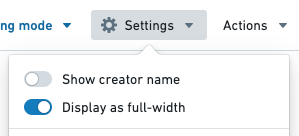
Click the Settings button in the application header.

-
Click Display as full-width in the menu that appears.
中文翻译
更改宽度和高度
Foundry Reports(报告)中的内容按行组织,每行至少包含一个小组件(widget)。
更改行宽度
每行可以以下三种宽度之一显示:
- 全宽(Full)。填充页面宽度的 100%。最小可压缩至
600px。 - 中等(Medium)。以
820px宽度显示。最小可压缩至540px。 - 窄版(Narrow)。以
570px宽度显示。最小可压缩至540px。
:::callout{theme="success"} 默认情况下,添加到报告中的小组件会以中等宽度独占一行显示。 :::
更改单行宽度
要更改行的宽度:
-
(如需) 切换到编辑模式(Editing mode)。
-
点击行右侧的布局控制(Layout Control)按钮。
-
选择新宽度(窄版、中等或全宽)。
更改所有内容的宽度
为方便起见,您也可以通过一次操作将报告中所有内容更改为全宽。详情请参阅将报告中所有内容显示为全宽。
更改行高度
大多数小组件还可以垂直调整大小。这对于调整图表及其他会拉伸以填满可用容器(container)的内容非常有用。
自动高度(Auto height)
默认情况下,小组件会自动调整大小,根据小组件类型选择合理的初始高度。
某些小组件始终会自动调整大小以适应其内容,且无法手动调整。具体包括:
- 文本小组件(参见在报告中添加文本)
- 表格小组件(参见在报告中添加表格),以及
- 图片和视频(参见在报告中添加新图片或视频)。
从其他 Foundry 应用添加的小组件通常可以垂直调整大小。
固定高度(Fixed height)
在允许的情况下,更改行高度会将高度“固定”为可能与自动值不同的数值。
要手动调整行的高度:
-
(如需) 切换到编辑模式。
-
将鼠标光标移至小组件或小组件行的底部边缘。
-
如果出现行调整(Row Resize)按钮,点击并按住该按钮。
-
向上或向下拖动以调整大小,然后松开鼠标。
将报告中所有内容显示为全宽
如有需要,您可以调整报告中单行的宽度(参见更改单行宽度)。然而,某些报告可能包含许多小组件,且这些小组件在全宽下显示效果最佳。为方便起见,您可以通过一次操作将报告中所有内容更改为全宽。
要将整个报告更改为全宽:
-
(如需) 切换到编辑模式。
-
点击应用标题栏中的设置按钮(Settings button)。
-
在出现的菜单中点击显示为全宽(Display as full-width)。