Merge multiple parameters(合并多个参数)
Reports lets you merge many parameters into one. This is useful for reducing the number of parameters in a report, particularly in the following cases:
- If two parameters are conceptually identical. For example, if you added two Contour widgets from different analyses, they may each have pulled a separate Year parameter into the report. Merging the two Year parameters together allows report viewers to control both Contour widgets with one parameter value.
- To display a parameter value in a text block. In some cases, you may want to display the current parameter value in a block of text. Merging a parameter created within a text block (as described in Add a parameter within text) into a parameter imported from another application (as described in Add a parameter from another Foundry application) will accomplish this. This workflow is also discussed in Edit text in a report.)
Concretely, merging Parameter A into Parameter B will:
- Hide Parameter A from the parameters bar, and
- Cause all widgets that were affected by Parameter A to be affected by Parameter B instead.
Merge parameters
To merge one parameter (“Parameter A”) into another (“Parameter B”):
-
(If needed) Switch to Editing mode.
-
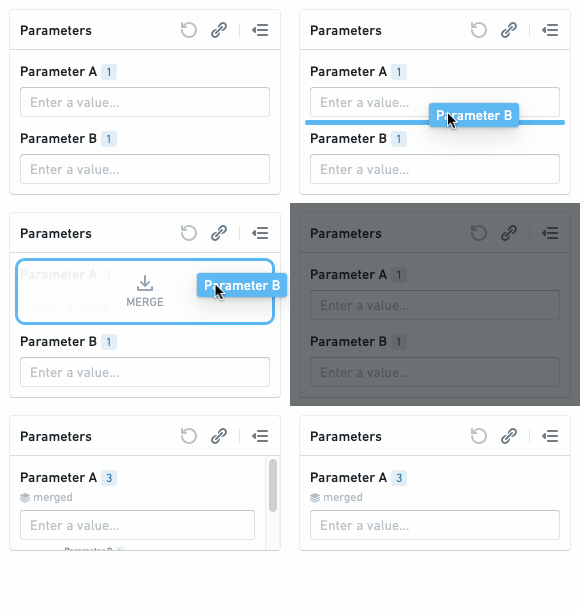
Click and hold the drag handle for Parameter A.
-
Drag Parameter A onto Parameter B, still holding the mouse button, until you see a “Merge” icon and label.
-
Release the mouse button.
-
Click Merge in the confirmation dialog.
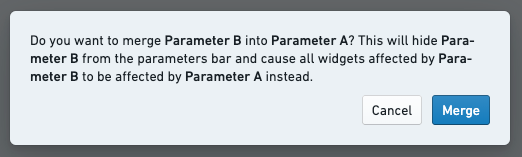
Merged parameters will show a small “merged” label beneath the parameter's title.
:::callout{theme="neutral"} You can merge as many parameters as you want into a single parameter. :::
Unmerge parameters
Merging is a reversible operation. Unmerging a parameter will:
- Display all linked parameters in the parameters bar again, and
- Cause all widgets that were originally affected by the linked parameters to be controlled by those parameters again (instead of the “master” merged parameter).
:::callout{theme="neutral"} Unmerging a merged parameter will cause all of its linked parameters to be unmerged, not just the most recently linked parameter. :::
To unmerge a parameter:
-
(If needed) Switch to Editing mode.
-
Click the gear icon next to the merged parameter in the parameters bar.
-
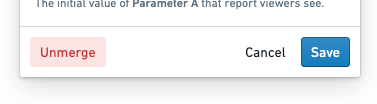
Click Unmerge in the Parameter Settings menu.
-
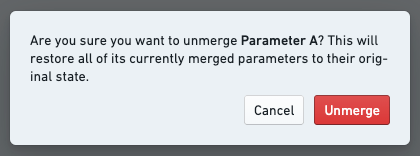
Click Unmerge in the confirmation dialog.
中文翻译
合并多个参数
Reports 支持将多个参数合并为一个。这在减少报告中的参数数量时非常有用,尤其适用于以下场景:
- 当两个参数在概念上完全相同时。 例如,如果你从不同的分析中添加了两个 Contour 小组件,它们可能各自在报告中引入了一个独立的 年份 参数。将这两个年份参数合并后,报告查看者只需通过一个参数值即可控制两个 Contour 小组件。
- 在文本块中显示参数值。 某些情况下,你可能希望在文本块中显示当前参数值。将文本块内创建的参数(如在文本中添加参数所述)合并到从其他应用程序导入的参数(如从其他 Foundry 应用程序添加参数所述)即可实现此目的。此操作流程也在编辑报告中的文本中讨论过。
具体来说,将参数 A 合并到参数 B 会:
- 从参数栏中隐藏参数 A,并且
- 使所有原本受参数 A 影响的小组件改为受参数 B 影响。
合并参数
要将一个参数(“参数 A”)合并到另一个参数(“参数 B”):
-
(如需) 切换到编辑模式。
-
点击并按住参数 A 的拖动手柄。
-
将参数 A 拖到参数 B 上,保持按住鼠标按钮,直到看到“合并”图标和标签。
-
松开鼠标按钮。
-
在确认对话框中点击合并。
合并后的参数会在其标题下方显示一个小的“已合并”标签。
:::callout{theme="neutral"} 你可以将任意数量的参数合并到单个参数中。 :::
取消合并参数
合并操作是可逆的。取消合并参数会:
- 将所有关联参数重新显示在参数栏中,并且
- 使所有原本受关联参数影响的小组件重新由这些参数控制(而非“主”合并参数)。
:::callout{theme="neutral"} 取消合并一个已合并的参数会导致其所有关联参数都被取消合并,而不仅仅是最近关联的参数。 :::
要取消合并参数:
-
(如需) 切换到编辑模式。
-
点击参数栏中合并参数旁边的齿轮图标。
-
在参数设置菜单中点击取消合并。
-
在确认对话框中点击取消合并。