Show and hide content(显示和隐藏内容)
:::callout{theme="neutral"} This will affect how all editors and viewers see the report. :::
Show / hide the report creator
To show or hide the name of the user who created a report:
-
(If needed) Switch to Editing mode.
-
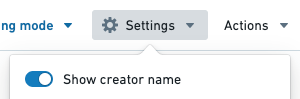
Click the Settings button in the application header.

-
Click Show creator name in the settings menu.
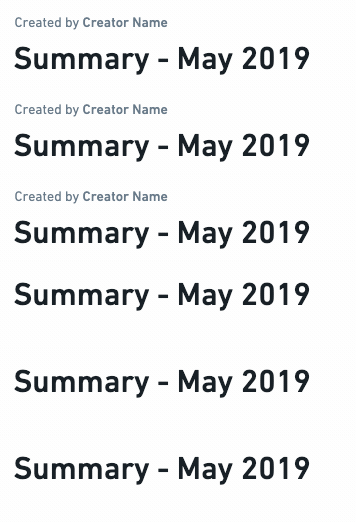
As a report editor, you can opt to show or hide the creator name above the report title.
Show / hide the report outline
To show or hide the outline in a report:
-
(If needed) Switch to Editing mode.
-
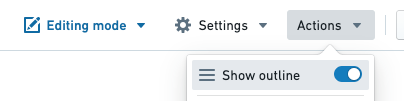
Click the Actions button in the application header.

-
Click Show outline in the actions menu.
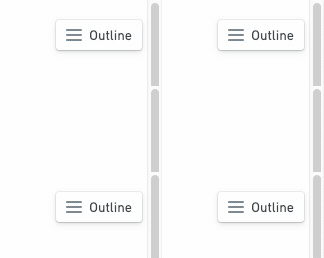
This will toggle the outline button in the top-right of the report:
Show / hide a piece of content's title
To show or hide the title of a piece of content:
-
(If needed) Switch to Editing mode.
-
Click the Settings cog in top right corner of a piece of content

-
Click Show title in the settings menu.
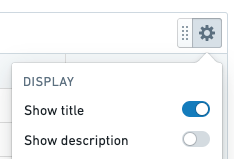
This will toggle the title above the widget.

:::callout{theme="neutral"} Content titles are displayed in the report outline in order to improve navigability. :::
Show / hide a piece of content's description
To show or hide the title of a piece of content:
-
(If needed) Switch to Editing mode.
-
Click the Settings cog in top right corner of a piece of content
-
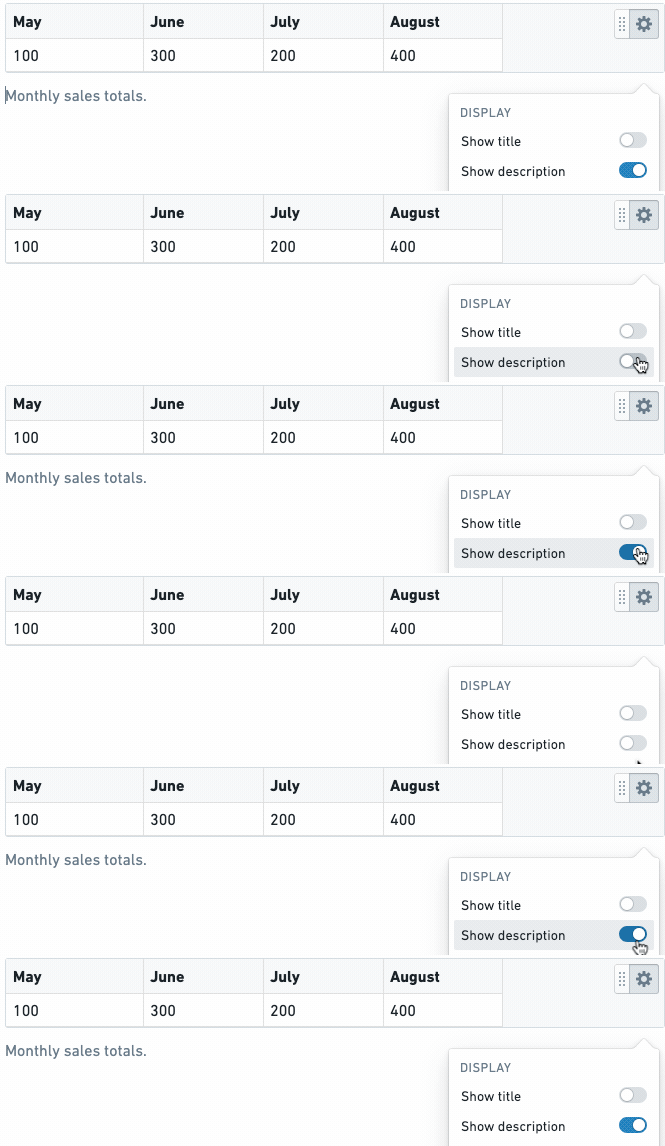
Click Show description in the settings menu.
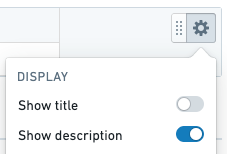
This will toggle the description below the widget.
Display parameters in a toolbar or sidebar
Reports lets you control how report parameters are displayed:
Display parameters in a sidebar if you have many parameters and want to display them in a scrollable list.
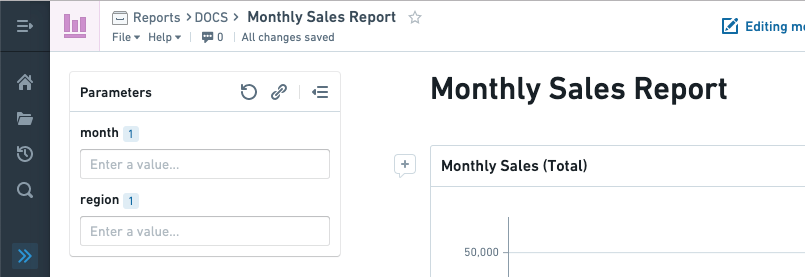
Display parameters in a toolbar (along the top) if you only have a few parameters and/or if the report content needs more width to display optimally.
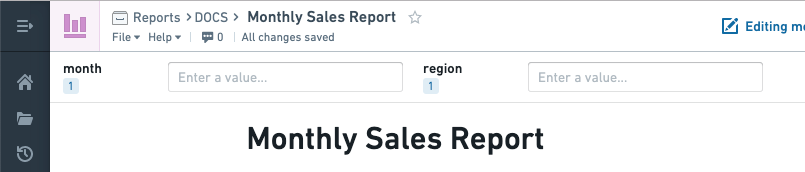
To change how the list of parameters is displayed:
-
Click Settings in the application header.
-
Under "Parameters Display", click Sidebar or Toolbar as needed.
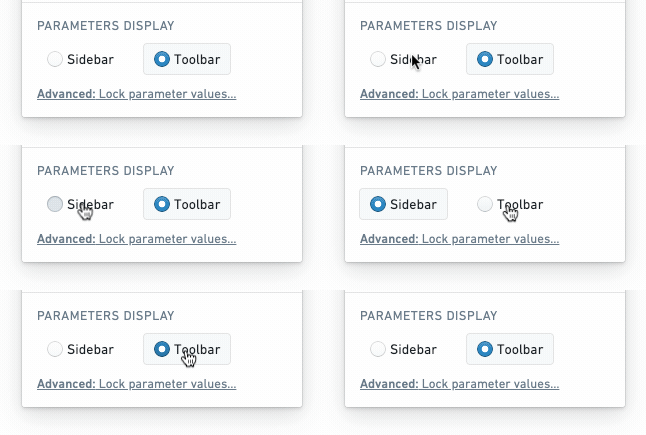
中文翻译
显示和隐藏内容
:::callout{theme="neutral"} 这将影响所有编辑者和查看者查看报告的方式。 :::
显示/隐藏报告创建者
要显示或隐藏创建报告的用户名称:
-
(如需) 切换到编辑模式(Editing mode)。
-
点击应用标题栏中的设置(Settings)按钮。
-
在设置菜单中点击显示创建者名称(Show creator name)。
作为报告编辑者,您可以选择在报告标题上方显示或隐藏创建者名称。
显示/隐藏报告大纲
要显示或隐藏报告中的大纲:
-
(如需) 切换到编辑模式。
-
点击应用标题栏中的操作(Actions)按钮。
-
在操作菜单中点击显示大纲(Show outline)。
这将切换报告右上角的大纲按钮:
显示/隐藏内容标题
要显示或隐藏某块内容的标题:
-
(如需) 切换到编辑模式。
-
点击某块内容右上角的设置(Settings)齿轮图标。
-
在设置菜单中点击显示标题(Show title)。
这将切换组件上方的标题显示。
:::callout{theme="neutral"} 内容标题会显示在报告大纲中,以提升导航便利性。 :::
显示/隐藏内容描述
要显示或隐藏某块内容的描述:
-
(如需) 切换到编辑模式。
-
点击某块内容右上角的设置齿轮图标。
-
在设置菜单中点击显示描述(Show description)。
这将切换组件下方的描述显示。
在工具栏或侧边栏中显示参数
报告(Reports)允许您控制报告参数的显示方式:
如果参数较多,希望以可滚动列表形式展示,可将参数显示在侧边栏(sidebar)中。
如果参数较少,或希望报告内容获得更宽的显示空间,可将参数显示在工具栏(toolbar)中(沿顶部排列)。
要更改参数列表的显示方式:
-
点击应用标题栏中的设置(Settings)。
-
在"参数显示"(Parameters Display)下,根据需要点击侧边栏(Sidebar)或工具栏(Toolbar)。