Show suggested values(显示建议值)
Once you've added a parameter to a report (see Add a parameter from another Foundry application), you can link it to a dataset to show suggested values from a particular column. You can also manually input a list of suggestions to display.
Displaying suggested values makes it easier for report editors and viewers alike to select valid parameter values and learn the range of values that the parameter will understand.
:::callout{theme="neutral"} Suggested values can be shown for String- and Number-type parameters, but not Date-type parameters. :::
Adding suggested values from a dataset
- (If needed) Switch to Editing mode.
- Click the gear icon next to a parameter to open its Parameter Settings menu.
- Click Show suggestions (from linked column).
- Click Link to values of a column…, and select a dataset column (if you don't see any columns here, see the troubleshooting section below). If there are multiple input datasets to the widgets added to the report, scroll down to see columns from all input datasets.
- Click Save.
You should now see a list of suggested values from the dataset column when you click inside the parameter's input field.
Adding suggested values manually
To add a list of suggested values for a particular parameter without linking it to a dataset, add Manual Suggestions.
-
(If needed) Switch to Editing mode.
-
Click the gear icon next to a parameter to open its Parameter Settings menu.
-
Click Show suggestions (from linked column).
-
Click Link to values of a column…, and select a dataset column (if you don't see any columns here, see the troubleshooting section below).
-
Click Or enter values manually.
-
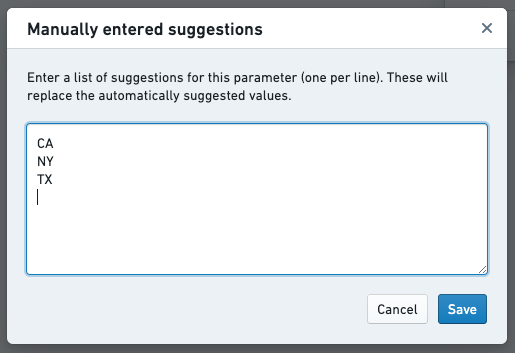
Enter a list of suggestions, one suggestion per line.
-
Click Save in the Manually entered suggestions dialog.
-
Click Save in the Parameter Settings dialog.
You should now see the list of suggested values that you just inputted when you click inside the parameter's input field.
Removing suggested values
To completely remove suggested values for a particular parameter:
-
(If needed) Switch to Editing mode.
-
Click the gear icon next to a parameter to open its Parameter Settings menu.
-
Click Show suggestions (from linked column) to disable suggestions:

-
Click Save.
You will no longer see a list of suggested values when you click inside the parameter's input field. Instead, you'll need to input values manually.
Troubleshooting
Not seeing a suggested value that exists in the linked column
You may see a warning sign on your parameter with the error message Due to a high number of distinct values, the list of suggestions is incomplete. Please choose from the list of precomputed values or enter a new value.
Reports uses the Foundry Stats service to populate suggested values. For performance reasons, if the linked column has a high number of distinct values, Reports may not show all distinct values in the column. If a particular value does not appear in the list of suggestions, you can type any value into the parameter dropdown to use the value anyway. You can contact your Palantir representative to learn more about the Foundry Stats computation limits.
Not seeing any suggested values after linking to a column
You may experience a delay before seeing suggested values if the backing dataset was recently added or updated. These values are populated via the Foundry Stats service. This problem typically resolves itself after a few minutes.
If you are still experiencing issues, as a next step navigate to the backing dataset and see if statistics are calculated for this dataset. In dataset-app, look at the "Size" field. If there is a link saying Calculate to view all stats, click the link, wait for the statistics to calculate and see if suggested values appear in your report. If you continue to experience issues, contact your Palantir representative.
Not seeing any dataset columns that can be linked
You'll need to add at least one data-backed widget to a report before you'll see suggested dataset columns in Parameter Settings menus. For instance, adding a Contour board to a report (from Contour) will show all columns from all datasets upstream of the Contour board.
Not seeing columns from a different dataset that can be linked
In the columns dropdown, columns from datasets that back widgets in your report will appear. Let's imagine you add a chart based on Dataset A to a Report. In a different path, you use Dataset B, but no descendants of Dataset B are added to the report. Only columns from Dataset A will appear in the suggested values dropdown. To link the parameter to Dataset B, you can make Dataset B an input into your chart through a join or union. Alternately, you could add a widget that uses Dataset B as an input.
Dataset uses Row-Level Policy Service but can't link parameter to a column
If the dataset uses Row-level Policy Service, you cannot link a parameter to a column in that dataset. You can add suggested values manually.
Linking a parameter to a column with Restricted View
If you are building on a Restricted View, you cannot link a parameter to a column. You can add suggested values manually.
中文翻译
显示建议值
在向报告添加参数后(请参阅从其他 Foundry 应用添加参数),您可以将其链接到数据集,以显示特定列的建议值。您也可以手动输入要显示的建议列表。
显示建议值可让报告编辑者和查看者更轻松地选择有效参数值,并了解参数可接受的值范围。
:::callout{theme="neutral"} 建议值仅适用于字符串类型(String)和数字类型(Number)参数,不适用于日期类型(Date)参数。 :::
从数据集添加建议值
- (如需) 切换到编辑模式。
- 点击参数旁的齿轮图标,打开其参数设置菜单。
- 点击显示建议(来自链接列)。
- 点击链接到列的值…,然后选择一个数据集列(如果此处未显示任何列,请参阅下方的故障排除部分)。如果添加到报告的小部件有多个输入数据集,请向下滚动以查看所有输入数据集的列。
- 点击保存。
现在,当您点击参数的输入字段时,应会看到来自数据集列的建议值列表。
手动添加建议值
要为特定参数添加建议值列表而不链接到数据集,请添加手动建议。
- (如需) 切换到编辑模式。
- 点击齿轮图标,打开参数设置菜单。
- 点击显示建议(来自链接列)。
- 点击链接到列的值…,然后选择一个数据集列(如果此处未显示任何列,请参阅下方的故障排除部分)。
- 点击或手动输入值。
- 输入建议列表,每行一个建议。
- 在手动输入建议对话框中点击保存。
- 在参数设置对话框中点击保存。
现在,当您点击参数的输入字段时,应会看到刚刚输入的建议值列表。
移除建议值
要完全移除特定参数的建议值:
- (如需) 切换到编辑模式。
- 点击参数旁的齿轮图标,打开其参数设置菜单。
- 点击显示建议(来自链接列)以禁用建议:
- 点击保存。
此后,当您点击参数的输入字段时,将不再看到建议值列表,而需要手动输入值。
故障排除
未看到链接列中存在的建议值
您可能会在参数上看到警告标志,并显示错误消息由于不同值数量过多,建议列表不完整。请从预计算值列表中选择或输入新值。
报告使用 Foundry Stats 服务来填充建议值。出于性能考虑,如果链接列的不同值数量过多,报告可能不会显示该列中的所有不同值。如果某个特定值未出现在建议列表中,您可以在参数下拉菜单中直接输入该值以使用它。请联系您的 Palantir 代表以了解有关 Foundry Stats 计算限制的更多信息。
链接到列后未看到任何建议值
如果底层数据集是最近添加或更新的,您可能会在查看建议值之前遇到延迟。这些值通过 Foundry Stats 服务填充。此问题通常会在几分钟后自行解决。
如果问题仍然存在,请导航到底层数据集,查看该数据集是否已计算统计信息。在数据集应用中,查看"大小"字段。如果显示计算以查看所有统计信息的链接,请点击该链接,等待统计信息计算完成,然后查看建议值是否出现在报告中。如果问题持续存在,请联系您的 Palantir 代表。
未看到任何可链接的数据集列
您需要先在报告中添加至少一个数据驱动的小部件,才能在参数设置菜单中看到建议的数据集列。例如,从 Contour 向报告添加 Contour 面板后,将显示 Contour 面板上游所有数据集的所有列。
未看到来自其他数据集的列
在列下拉菜单中,只会显示支持报告中小部件的数据集的列。假设您向报告添加了一个基于数据集 A 的图表。在另一条路径中,您使用了数据集 B,但数据集 B 的后代未被添加到报告中。建议值下拉菜单中只会显示数据集 A 的列。要将参数链接到数据集 B,您可以通过连接(join)或合并(union)将数据集 B 作为图表的输入。或者,您可以添加一个使用数据集 B 作为输入的小部件。
数据集使用了行级策略服务(Row-Level Policy Service),但无法将参数链接到列
如果数据集使用了行级策略服务,则无法将参数链接到该数据集中的列。您可以手动添加建议值。
将参数链接到受限视图(Restricted View)中的列
如果您在受限视图上构建,则无法将参数链接到列。您可以手动添加建议值。