Add data to a map(向地图添加数据)
Begin your geospatial analysis by adding data to your map. There are two kinds of geospatial data you can add to your map from the Foundry platform: Ontology objects and map overlays.
From the Layers panel, click + Add to map to add either of these kinds of data to your map using the search dialog.

Add Ontology objects
In the search dialog, the Objects tab allows you to add Ontology objects that have geospatial data to your map.
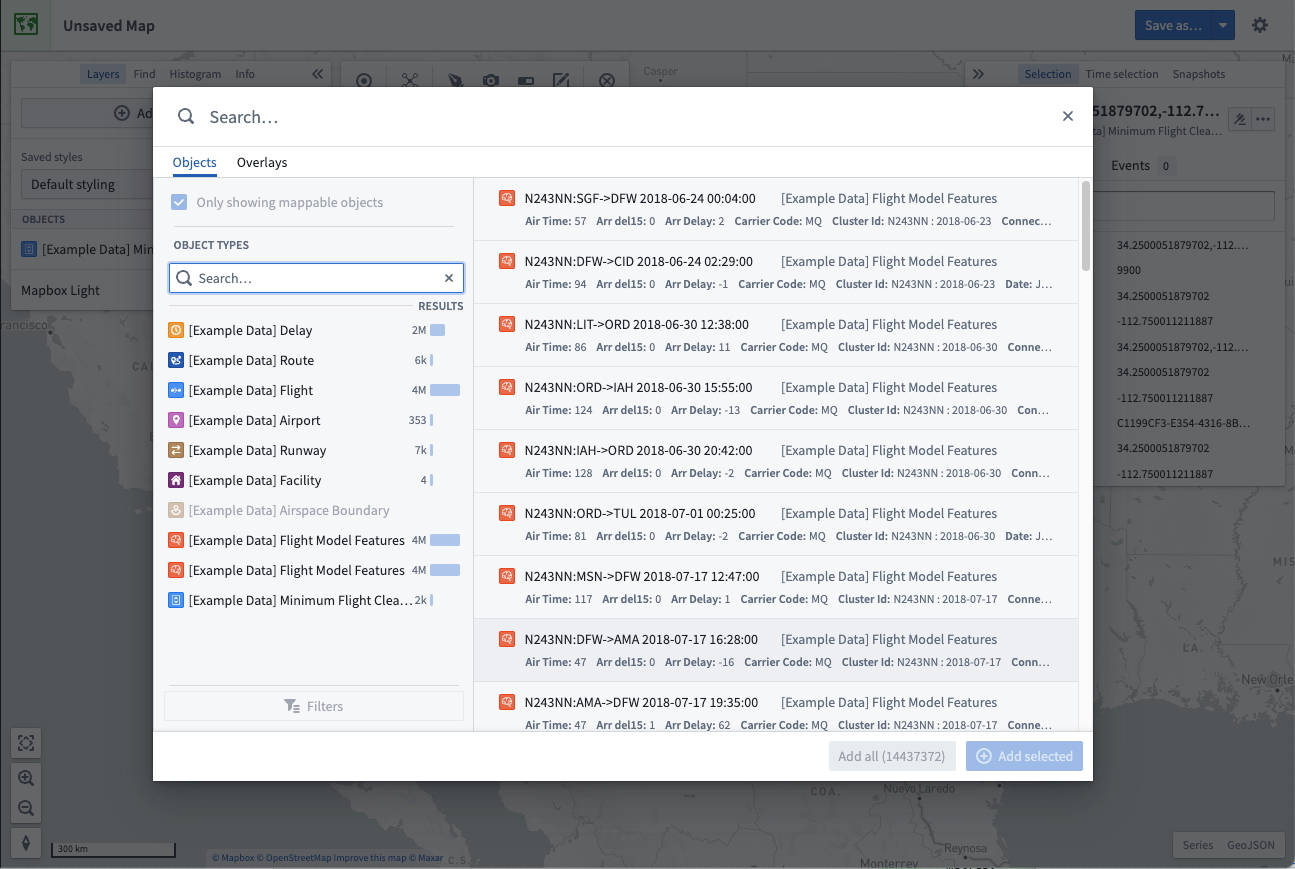
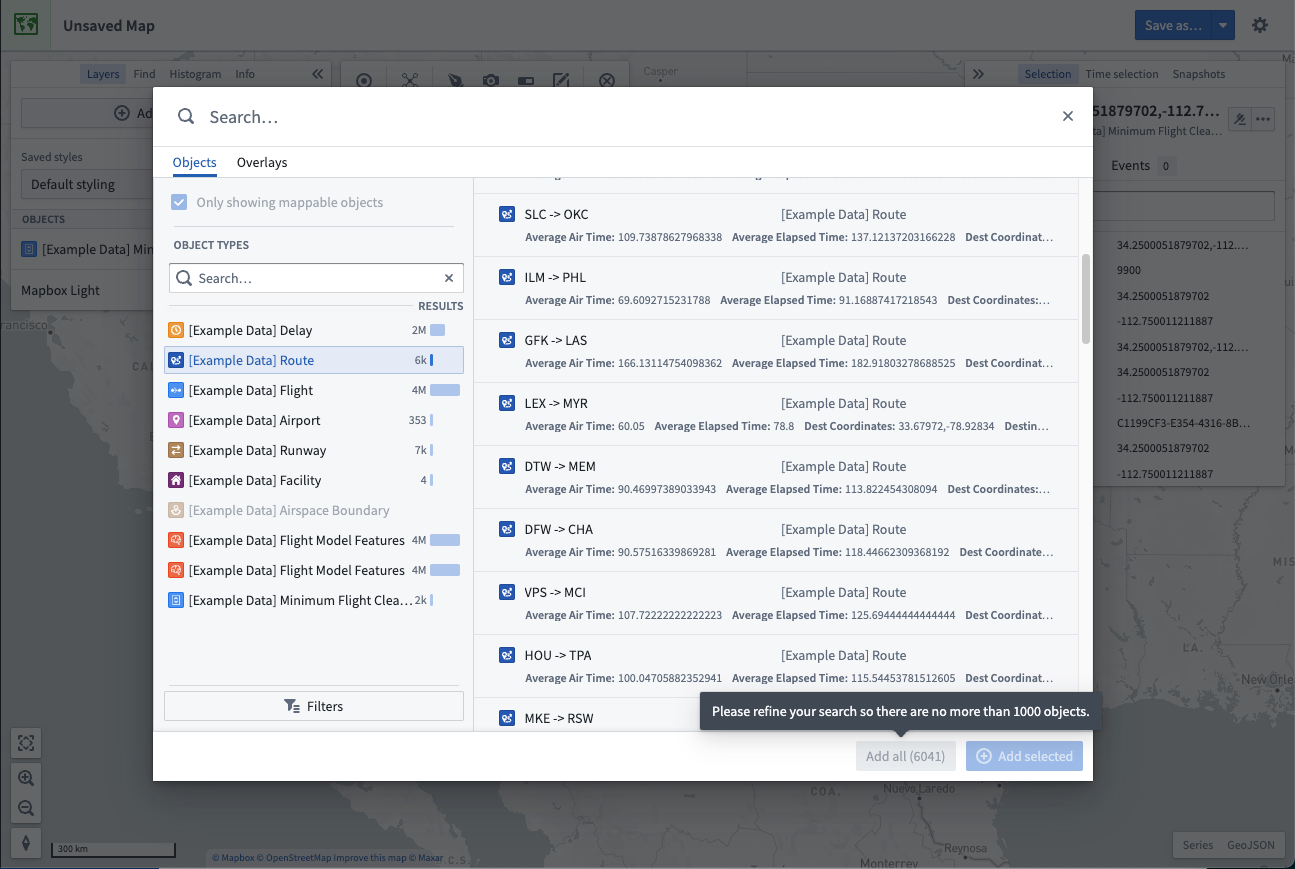
In the dialog, you can search for objects by entering any question into the primary Search... field at the top, or filter down the objects being searched using the filters panel on the left.
You can also configure object search limits in Control Panel.
Filter objects
Select an object type to filter results to only include objects of that type. After selecting an object type, you can further refine your search using the Filters option:
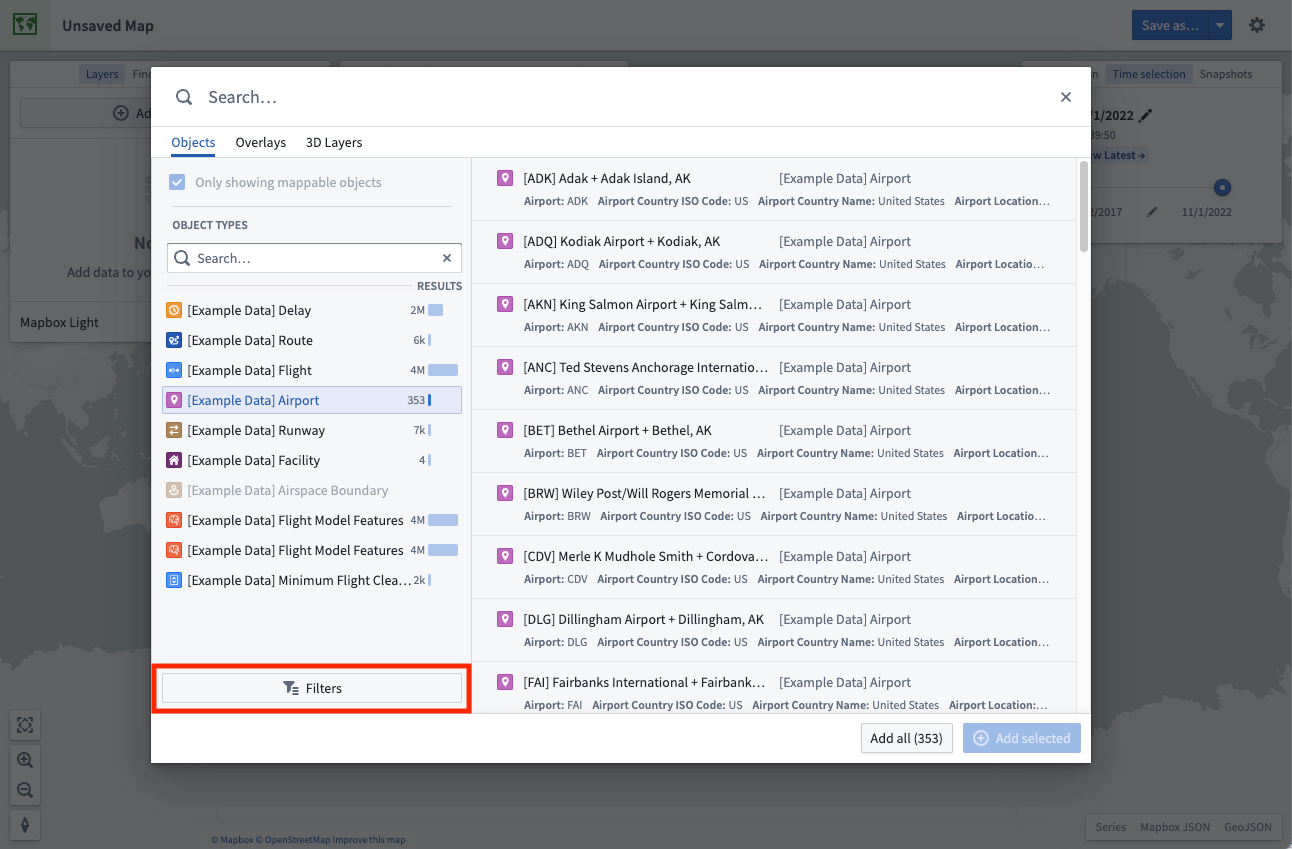
Some of the most commonly-used properties will automatically appear in the filters area, allowing you to narrow down the object results by selecting the values for properties of interest.
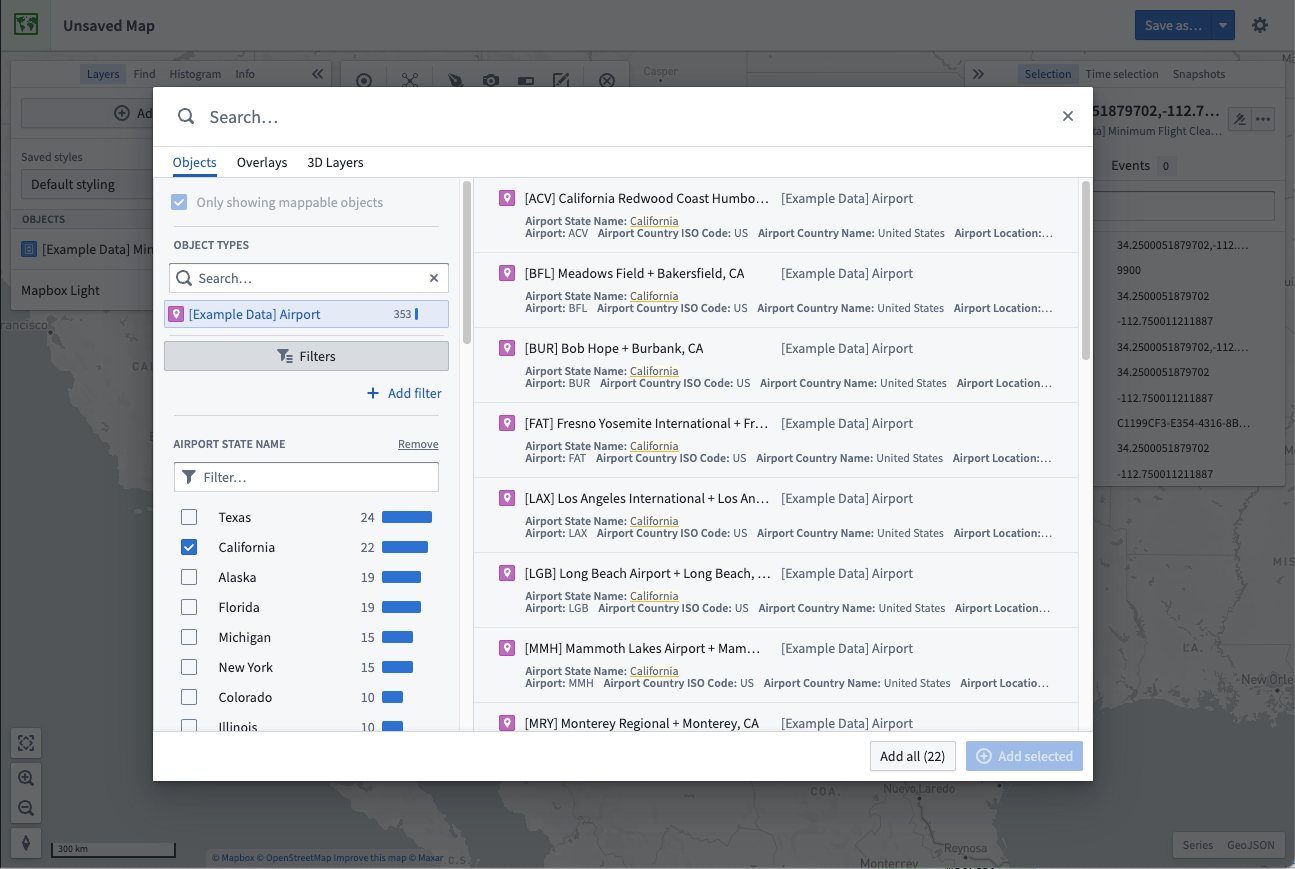
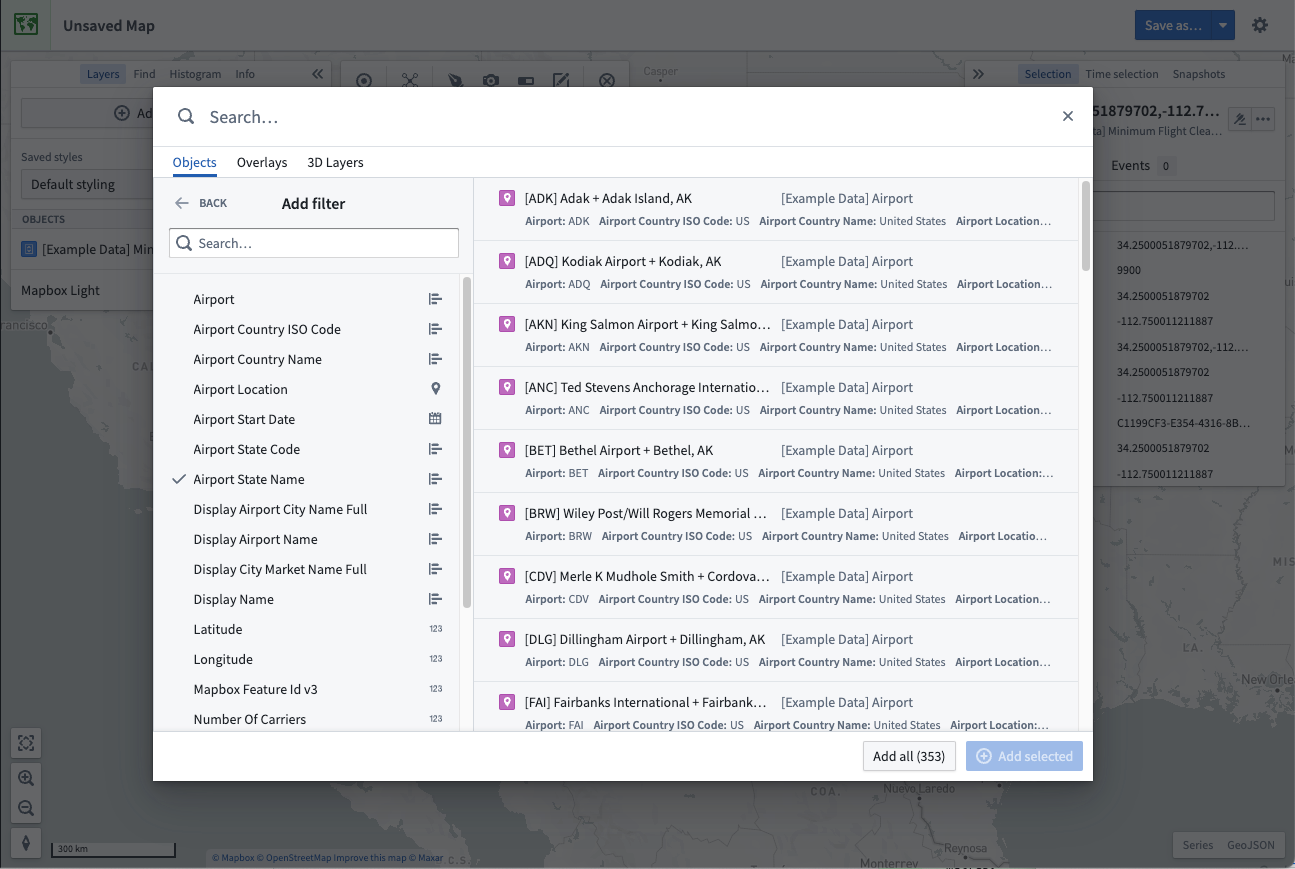
You can filter by any property on the object type by selecting + Add filter and adding the desired properties. Select Back to have your chosen properties appear in the filter area.
Select and add results
Select an object in the results table. To toggle selection of any object, hold the Cmd (macOS) or Ctrl (Windows) key, or additionally use the Shift key to select a range of objects. Add your selected objects to the map by using + Add selected, or add all objects that matched your search with Add all.
Maps limit how many objects you can add from the search dialog. By default, you can add 1000 objects. When this limit is reached, the Add all option is disabled and you will need to filter your results to reduce the number of objects before the option is re-enabled.
Search for objects geospatially
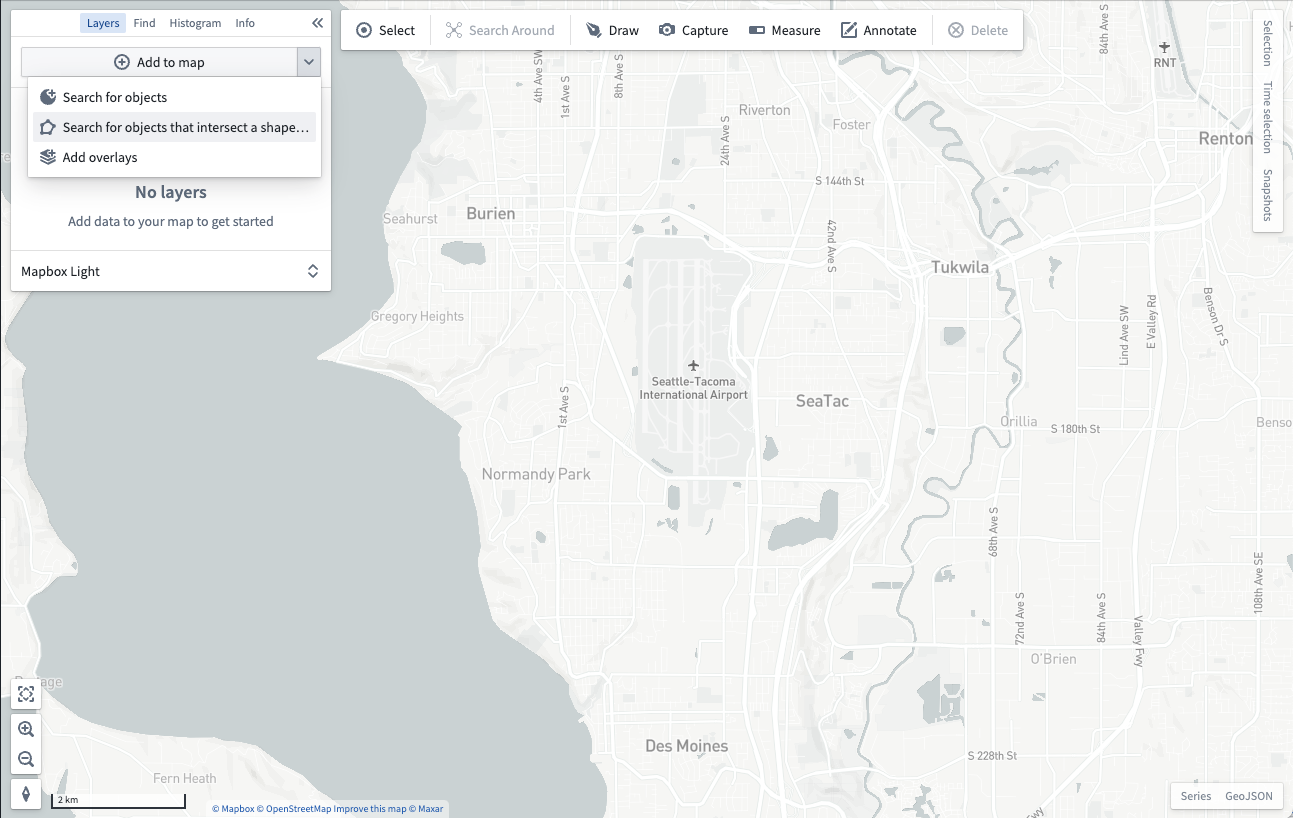
You can search for objects in a particular geospatial area of interest. From the Add to map dropdown, select Search for objects that intersect a shape...:
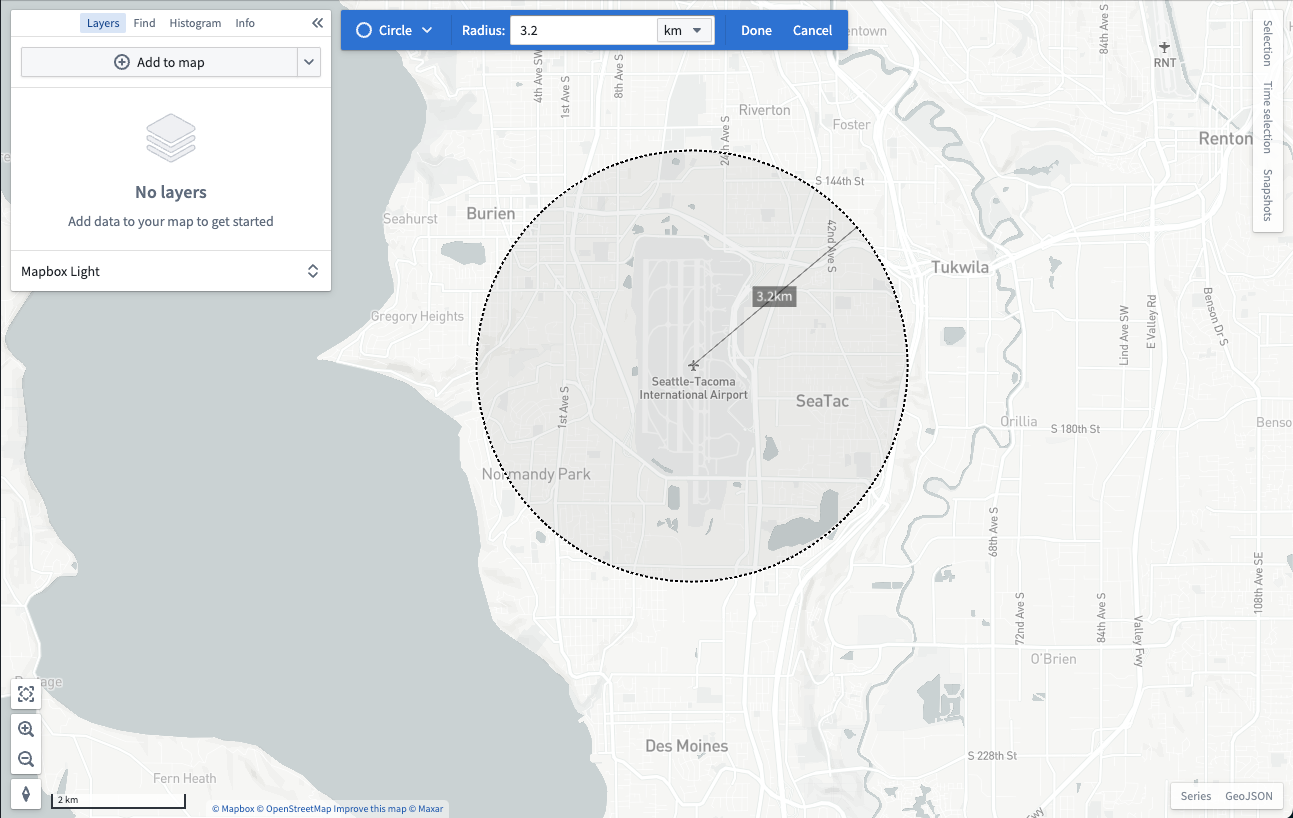
You will then be prompted to draw a shape around the geospatial area you want to search within:
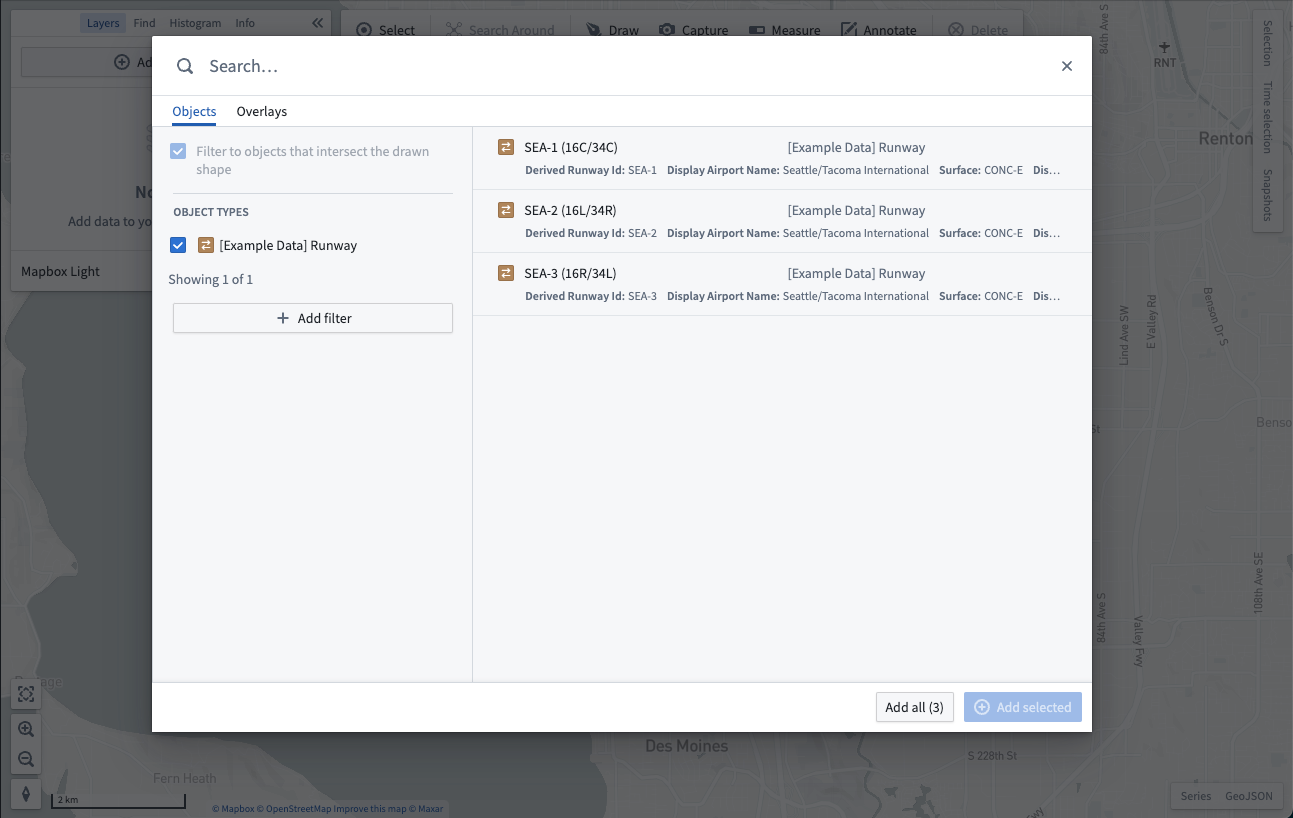
After you finish drawing a shape, the objects search dialog will open and only show objects that contain geospatial data which intersects with the shape you drew:
Add map overlays
The Overlays tab of the search dialog allows you to add layers created in the Map Layer Editor. These layers contain pre-configured views of geospatial datasets that can be reused across maps.
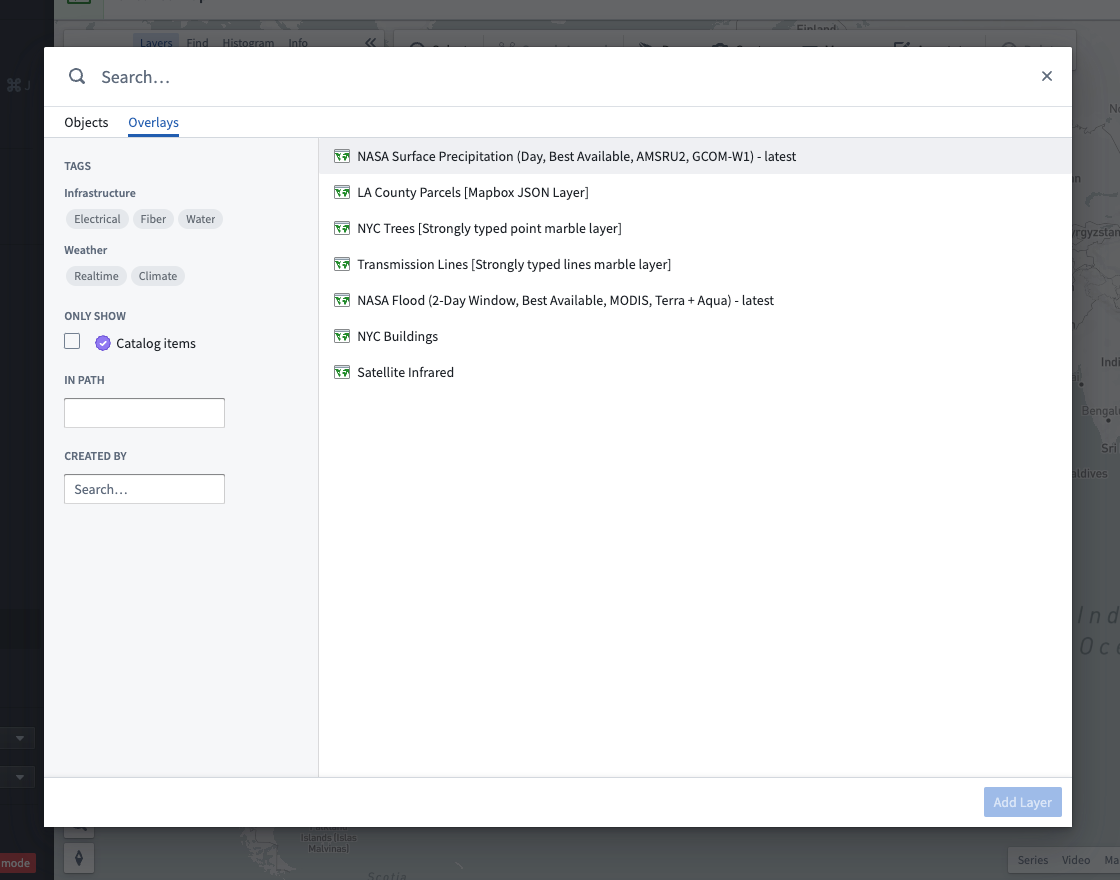
The dialog contains multiple ways for you to find layers:
- Enter text in the Search... field at the top to find layers by name.
- Use the Tags section of the sidebar to narrow layer results to specific topics.
- Find layers in a specific folder or project by typing the folder's path in the In path input.
- Look for layers created by a specific user by selecting the user in Created by.
Select a layer. Hold the Cmd (macOS) or Ctrl (Windows) key to toggle selection of a layer, or use the Shift key to select a range of layers. Add your selected layers to the map with Add layers.
Search Around
Starting from objects already on your map, you can traverse Ontology relationships and add related objects to your map by using a Search Around. First, select some objects on the map, and then select Search Around:
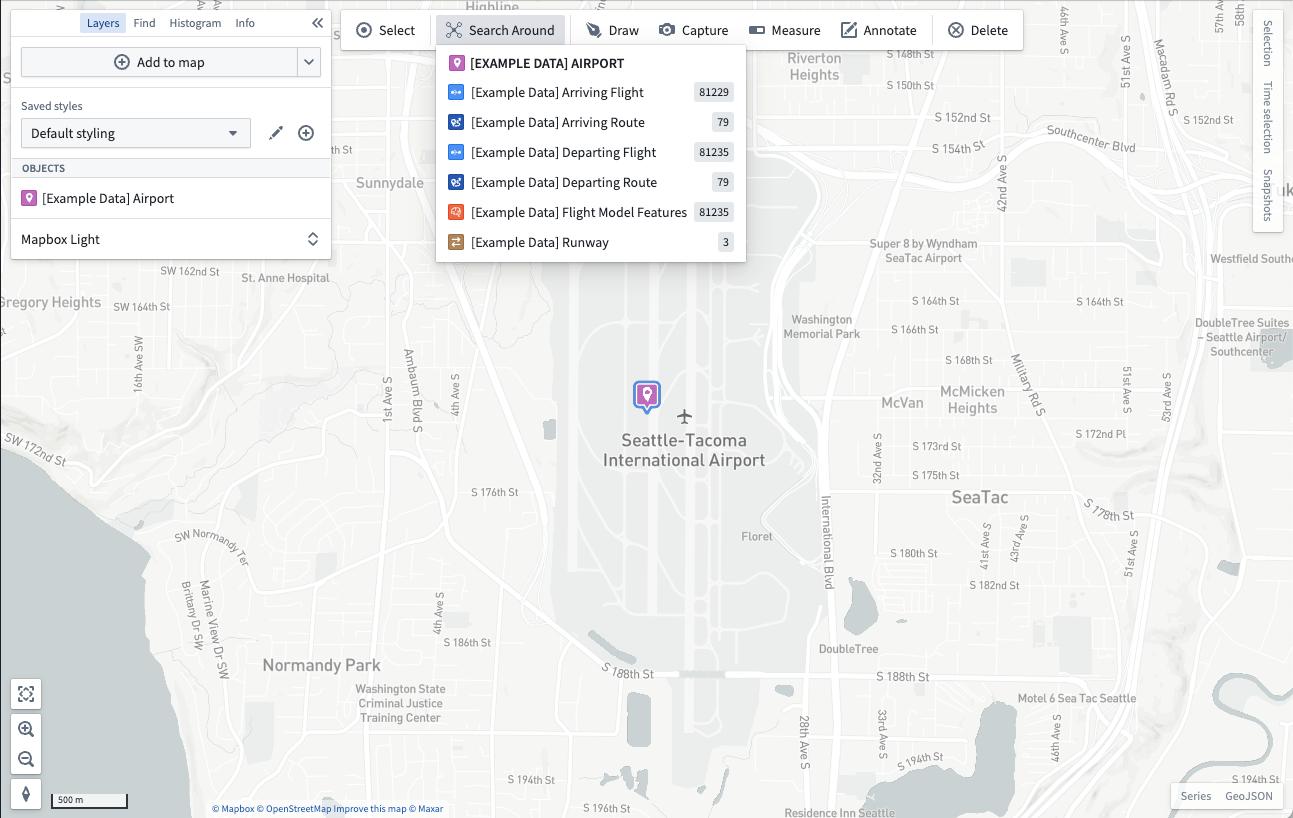
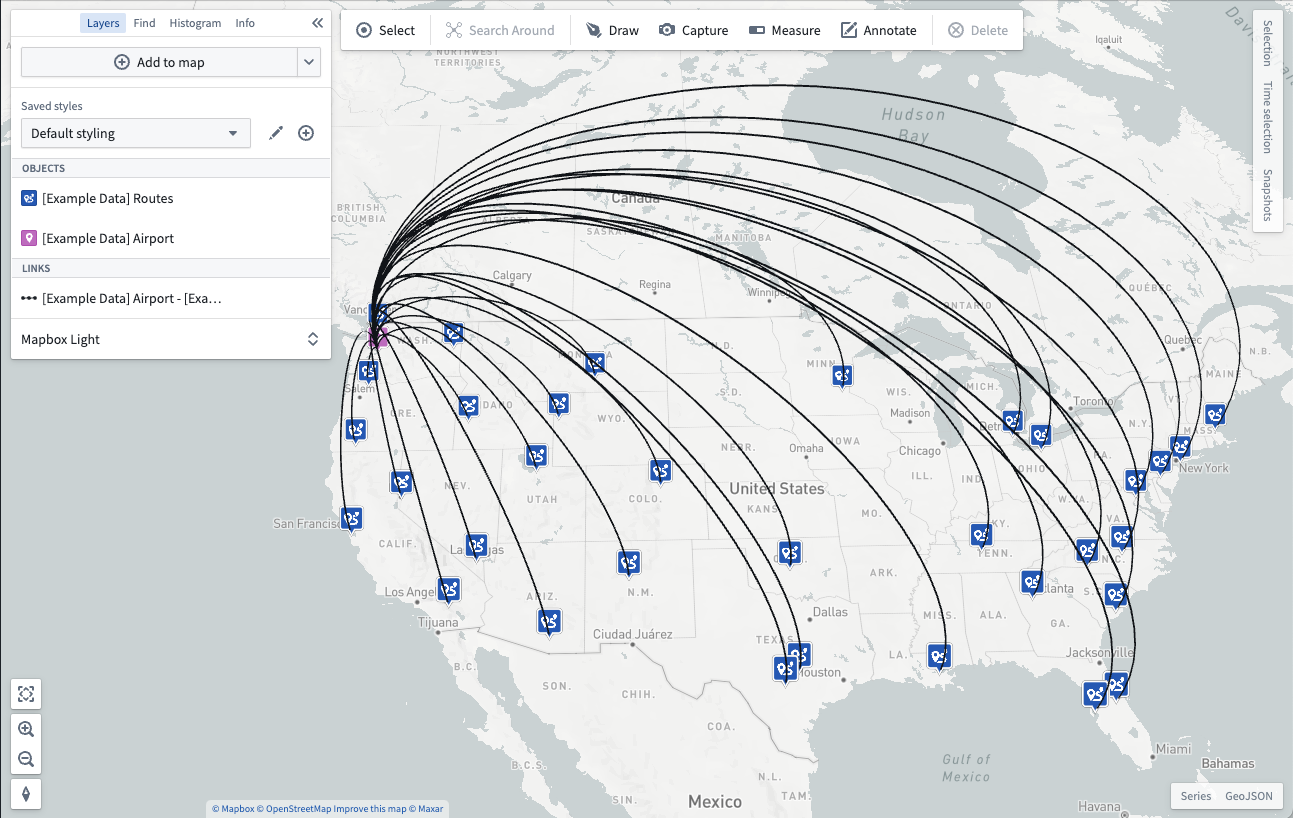
Select from the list of related objects to add them to your map. If the related objects display as points, the map will render a visual link between the related objects:
中文翻译
向地图添加数据
通过向地图添加数据来开始地理空间分析。您可以从 Foundry 平台向地图添加两种地理空间数据:本体论对象(Ontology objects)和地图叠加层(map overlays)。
在图层(Layers)面板中,点击+ 添加到地图(Add to map),通过搜索对话框添加上述任一类型的数据到地图中。
添加本体论对象(Ontology objects)
在搜索对话框中,对象(Objects)选项卡允许您向地图添加包含地理空间数据的本体论对象。
在对话框中,您可以通过在顶部的搜索(Search...)主字段中输入任何问题来搜索对象,或使用左侧的筛选器面板缩小搜索范围。
您还可以在控制面板中配置对象搜索限制。
筛选对象
选择一个对象类型以将结果仅筛选为该类型的对象。选择对象类型后,您可以使用筛选器(Filters)选项进一步细化搜索:
一些最常用的属性会自动出现在筛选区域中,允许您通过选择感兴趣属性的值来缩小对象结果范围。
您可以通过选择+ 添加筛选器(Add filter)并添加所需属性,按对象类型的任何属性进行筛选。选择返回(Back)可使您选择的属性出现在筛选区域中。
选择并添加结果
在结果表中选择一个对象。要切换选择任意对象,请按住Cmd(macOS)或Ctrl(Windows)键,或使用Shift键选择一系列对象。通过使用+ 添加已选(Add selected)将选中的对象添加到地图,或使用添加全部(Add all)添加所有匹配搜索的对象。
地图限制了您可以从搜索对话框中添加的对象数量。默认情况下,您可以添加1000个对象。当达到此限制时,添加全部(Add all)选项将被禁用,您需要筛选结果以减少对象数量,之后该选项才会重新启用。
按地理空间搜索对象
您可以在特定的地理空间区域中搜索对象。从添加到地图(Add to map)下拉菜单中,选择搜索与形状相交的对象(Search for objects that intersect a shape...):
然后系统会提示您围绕要搜索的地理空间区域绘制一个形状(shape):
绘制完形状后,对象搜索对话框将打开,并仅显示包含与您绘制的形状相交的地理空间数据的对象:
添加地图叠加层(Map overlays)
搜索对话框的叠加层(Overlays)选项卡允许您添加在地图图层编辑器(Map Layer Editor)中创建的图层。这些图层包含预配置的地理空间数据集视图,可在多个地图中重复使用。
该对话框提供了多种查找图层的方式:
- 在顶部的搜索(Search...)字段中输入文本,按名称查找图层。
- 使用侧边栏的标签(Tags)部分将图层结果缩小到特定主题。
- 在路径(In path)输入框中输入文件夹路径,查找特定文件夹或项目中的图层。
- 在创建者(Created by)中选择用户,查找由特定用户创建的图层。
选择一个图层。按住Cmd(macOS)或Ctrl(Windows)键可切换选择图层,或使用Shift键选择一系列图层。使用添加图层(Add layers)将选中的图层添加到地图。
周边搜索(Search Around)
从地图上已有的对象出发,您可以通过使用周边搜索(Search Around)遍历本体论关系(Ontology relationships)并将相关对象添加到地图。首先,在地图上选择一些对象,然后选择周边搜索(Search Around):
从相关对象列表中选择要添加到地图的对象。如果相关对象显示为点,地图将在相关对象之间渲染视觉链接: