Annotations(注释)
Use annotations to highlight and add contextual information about specific areas on a map.
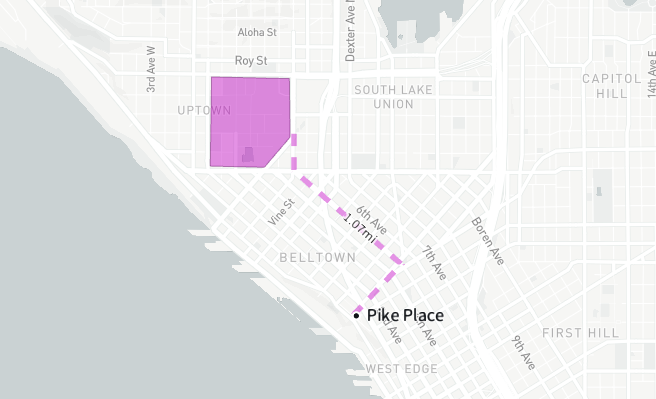
Create an annotation
Create an annotation by selecting Annotate in the toolbar and choosing one of the following methods:
- Text: Add text at a specific location.
- Line: Add a line by specifying all points.
- Polygon: Add a polygon by specifying all points.
- Rectangle: Add a rectangle annotation by specifying two corners.
- Circle: Add a circular annotation by specifying the center and a radius.
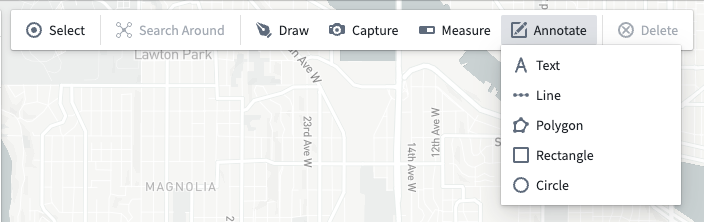
After selecting the kind of annotation you wish to create, the drawing tools will open and provide instructions on using that specific drawing mode to create a new annotation. Your map will group annotations into layers according to their types.
Edit annotations
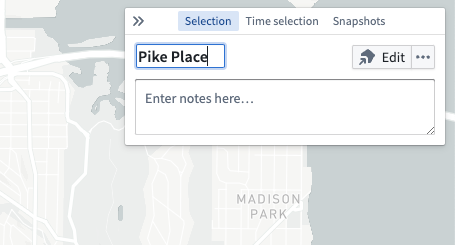
Select an annotation, then use the Selection panel to edit its title and add any notes. For text annotations, the title and notes will appear on both the map and in the tooltip that appears on hover. For polygon and line annotations, the title and notes only appear in the tooltip.
Adjust the annotation's placement by using the Edit button.
Annotation styling
You can modify the appearance of your annotations by editing their styling in the Layers panel.

Annotation styling options include:
- Text
- Text color: Sets the color of the annotation text.
- Text size: Sets the size of the annotation text in pixels.
- Text value: Configures whether the text value shown on the map includes the annotation's notes in addition to the title.
- Text outline color: Sets the color of an outline shown behind the text.
- Show location dot: When enabled, shows a circular marker indicating the specific location the annotation was added to.
- Show tooltips: When enabled, a tooltip containing the annotation's title and notes will appear when the user hovers over the annotation.
- Shapes
- Color: Sets the color of polygons and lines.
- Opacity: Sets the opacity of polygons and lines.
- Stroke width: Sets the width used for lines, and polygon outlines when Fill polygons is disabled.
- Stroke stroke: Sets the dash pattern used when rendering lines.
- Measurements: Controls the measurements that appear on the map.
- Polygon measurements
- Perimeter: Configure how measurements are displayed for polygon perimeters. Choose from no display, length displayed for each perimeter segment, or the total length of the entire perimeter.
- Area: Enable the display of the total area for polygons.
- Line measurements
- Length: Configure how measurements are displayed for lines. Choose from no display, length displayed for each line segment, or the total length for the entire line.
- Fill polygons: When enabled, polygons render with a minimal stroke and their interior filled with the specified color. When disabled, only the outline of the polygon is stroked.
- Show tooltips: When enabled, a tooltip containing the annotation's title and notes will appear when the user hovers over the annotation.
中文翻译
注释
使用注释功能可以在地图的特定区域上添加高亮和上下文信息。
创建注释
通过选择工具栏中的注释按钮,然后选择以下任一方法来创建注释:
- 文本: 在特定位置添加文本。
- 线条: 通过指定所有点来添加线条。
- 多边形: 通过指定所有点来添加多边形。
- 矩形: 通过指定两个角点来添加矩形注释。
- 圆形: 通过指定圆心和半径来添加圆形注释。
选择要创建的注释类型后,绘图工具将打开并提供使用该特定绘图模式创建新注释的说明。地图会根据注释的类型将其分组到不同的图层中。
编辑注释
选择一个注释,然后使用选择面板编辑其标题并添加备注。对于文本注释,标题和备注将同时显示在地图和悬停时出现的工具提示中。对于多边形和线条注释,标题和备注仅显示在工具提示中。
使用编辑按钮调整注释的位置。
注释样式
您可以通过在图层面板中编辑注释的样式来修改其外观。
注释样式选项包括:
- 文本
- 文本颜色: 设置注释文本的颜色。
- 文本大小: 设置注释文本的像素大小。
- 文本值: 配置地图上显示的文本值是否包含注释的备注以及标题。
- 文本轮廓颜色: 设置文本后方轮廓的颜色。
- 显示位置点: 启用后,会显示一个圆形标记,指示注释添加到的具体位置。
- 显示工具提示: 启用后,当用户悬停在注释上时,会显示包含注释标题和备注的工具提示。
- 形状
- 颜色: 设置多边形和线条的颜色。
- 不透明度: 设置多边形和线条的不透明度。
- 描边宽度: 设置线条的宽度,以及在禁用填充多边形时多边形轮廓的宽度。
- 描边虚线: 设置渲染线条时使用的虚线图案。
- 测量: 控制显示在地图上的测量值。
- 多边形测量
- 周长: 配置多边形周长的测量显示方式。可选择不显示、显示每个周长线段的长度,或显示整个周长的总长度。
- 面积: 启用多边形总面积显示。
- 线条测量
- 长度: 配置线条的测量显示方式。可选择不显示、显示每个线段的长度,或显示整条线的总长度。
- 填充多边形: 启用后,多边形将以最小描边渲染,内部填充指定颜色。禁用后,仅描边多边形的轮廓。
- 显示工具提示: 启用后,当用户悬停在注释上时,会显示包含注释标题和备注的工具提示。