Control Panel(控制面板)
Various organization-wide Map settings can be configured using the Control Panel. To modify Map settings, you will need the Map Admin role.
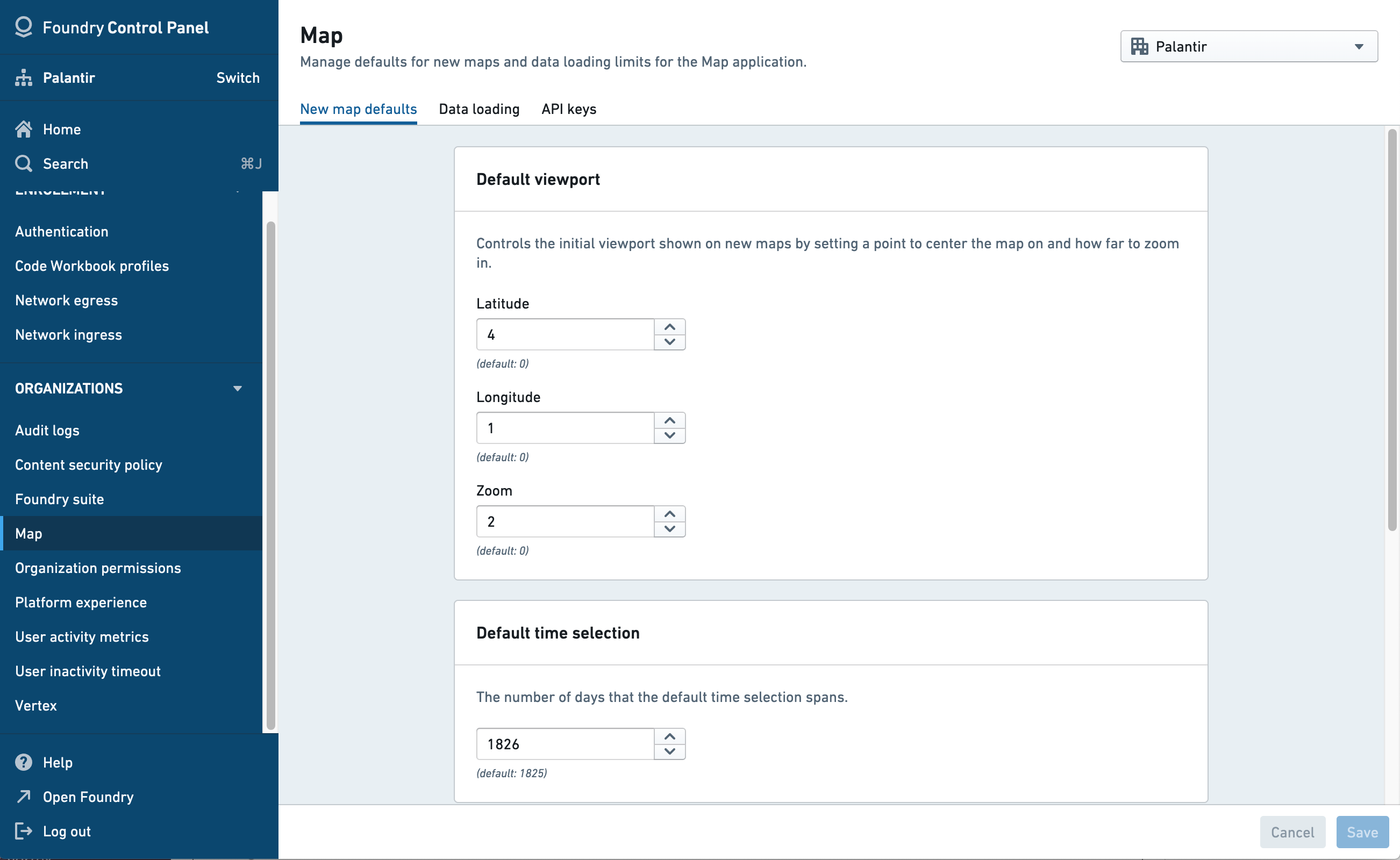
Some organization-level settings users will be able to override on a user or map level in the settings menu.
Map Defaults
- Default viewport defines the initial view, in terms of the center point (latitude and longitude) and zoom level, that a user will see when creating a new map.
- Default time selection defines the range of date options that will be shown to users when selecting the time range.
- Default unit system sets the different units system (metric, imperial, or nautical), for all users and/or specific users groups. Users can override this default in the map settings.
Data loading
- Time series polling interval: Define how frequently the map will check for updated time series data when in "View Latest" mode.
- Default polling interval: Set the default polling interval (in seconds) for new maps. Users can override this setting within the map.
- Minimum allowed polling interval: Set the minimum allowable polling interval override (in seconds). Users are prevented from setting a polling interval smaller than this value for individual maps.
- Time series points: Define how many points to load for each track.
- Default time series point count: The default number of points to load.
- Maximum number of points: The highest number of points a user can specify to load when overriding the default count on an individual map.
- Object search limits: Control the maximum number of objects a user can add to a map from the search dialog.
- Search around limits: Control the maximum number of objects a user can add to a map as the result of a single Search Around.
- Automatic object search: Controls whether object search results load automatically as you type or require manual triggering.
API Keys
Mapbox: Enable Find Locations on map
The Find Locations feature uses a proprietary geocoding service from Mapbox. To enable this feature for your organization, you will need to configure an organization-specific Mapbox API key that includes access to the Mapbox Geocoding API.
Bing Maps: Enable Bing Maps base layers
To use Bing Maps base layers, instead of the default Mapbox base layers, enter a Bing Maps API key.
Base maps
Enable Mapbox base maps
When Mapbox styles are disabled, map applications and widgets in the Foundry platform will use the first custom base map by default.
Custom base map
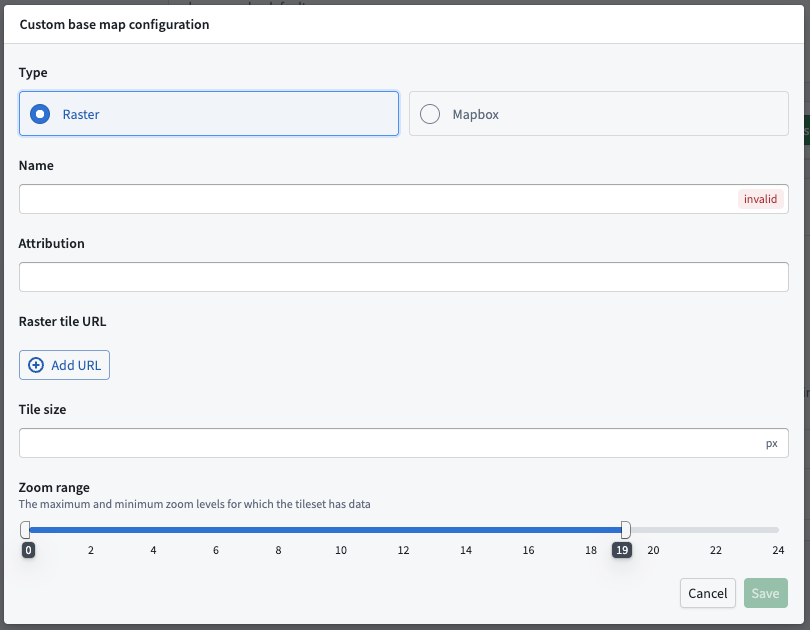
Add a custom base map using either Raster tiles or Mapbox JSON.
Watermark configurations
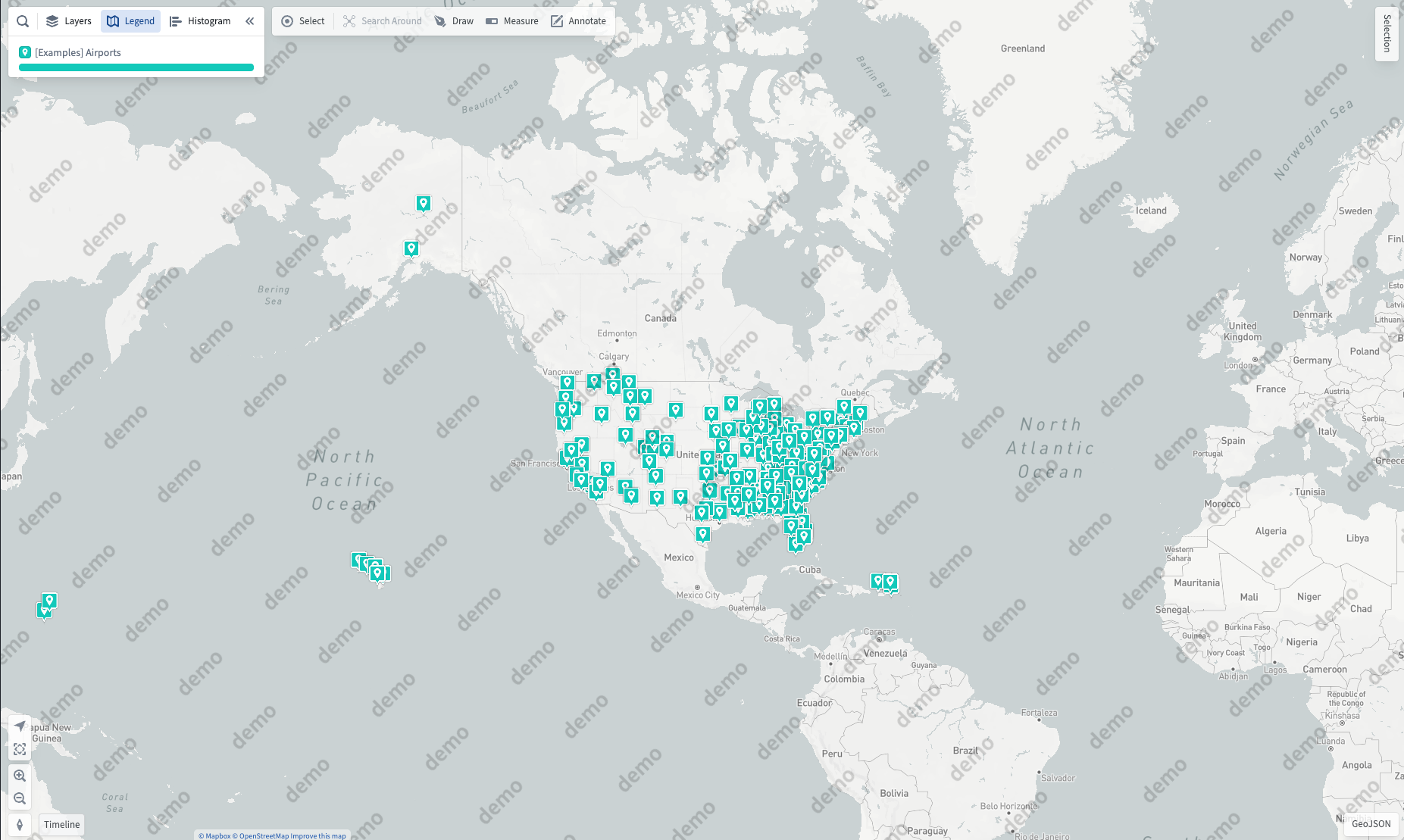
Watermarks can be configured as a default or per group. The watermark will overlay on the base map.
中文翻译
控制面板
各类组织级地图设置可通过控制面板进行配置。要修改地图设置,您需要拥有Map Admin角色。
部分组织级设置允许用户在设置菜单中按用户或地图级别进行覆盖。
地图默认值
- 默认视口(Default viewport) 定义了用户创建新地图时看到的初始视图,包括中心点(经纬度)和缩放级别。
- 默认时间选择(Default time selection) 定义了用户选择时间范围时将显示的日期选项范围。
- 默认单位系统(Default unit system) 为所有用户和/或特定用户组设置不同的单位系统(公制、英制或海里)。用户可在地图设置中覆盖此默认值。
数据加载
- 时序数据轮询间隔(Time series polling interval): 定义在"查看最新"模式下,地图检查更新时序数据的频率。
- 默认轮询间隔(Default polling interval): 为新地图设置默认轮询间隔(以秒为单位)。用户可在地图内覆盖此设置。
- 允许的最小轮询间隔(Minimum allowed polling interval): 设置允许的最小轮询间隔覆盖值(以秒为单位)。用户无法为单个地图设置小于此值的轮询间隔。
- 时序数据点(Time series points): 定义每条轨迹加载的数据点数量。
- 默认时序数据点数量(Default time series point count): 默认加载的数据点数量。
- 最大数据点数量(Maximum number of points): 用户在单个地图上覆盖默认数量时,可指定的最大加载数据点数量。
- 对象搜索限制(Object search limits): 控制用户通过搜索对话框可添加到地图的最大对象数量。
- 周边搜索限制(Search around limits): 控制用户通过单次"周边搜索"可添加到地图的最大对象数量。
- 自动对象搜索(Automatic object search): 控制对象搜索结果是在输入时自动加载,还是需要手动触发。
API密钥
Mapbox:在地图上启用位置查找
查找位置功能使用Mapbox专有的地理编码服务。要为您的组织启用此功能,您需要配置一个组织特定的Mapbox API密钥,该密钥需包含对Mapbox地理编码API的访问权限。
Bing Maps:启用Bing Maps底图
要使用Bing Maps底图替代默认的Mapbox底图,请输入Bing Maps API密钥。
底图
启用Mapbox底图
当禁用Mapbox样式时,Foundry平台中的地图应用和组件将默认使用第一个自定义底图。
自定义底图
使用栅格瓦片(Raster tiles)或Mapbox JSON添加自定义底图。
水印配置
水印可按默认设置或按用户组进行配置。水印将叠加显示在底图上。