Getting started(入门指南)
This guide demonstrates how to use the Map application with resources from the Foundry Training and Resources project. In this example, we will analyze some airline route data geospatially.
Create a new map
To create a map, expand the left-hand side Foundry navigation bar, then click on View all in the Apps section. You will find the Map application under the Operational Applications section.

Map application interface overview
When the Map application loads, you are presented with a blank map:
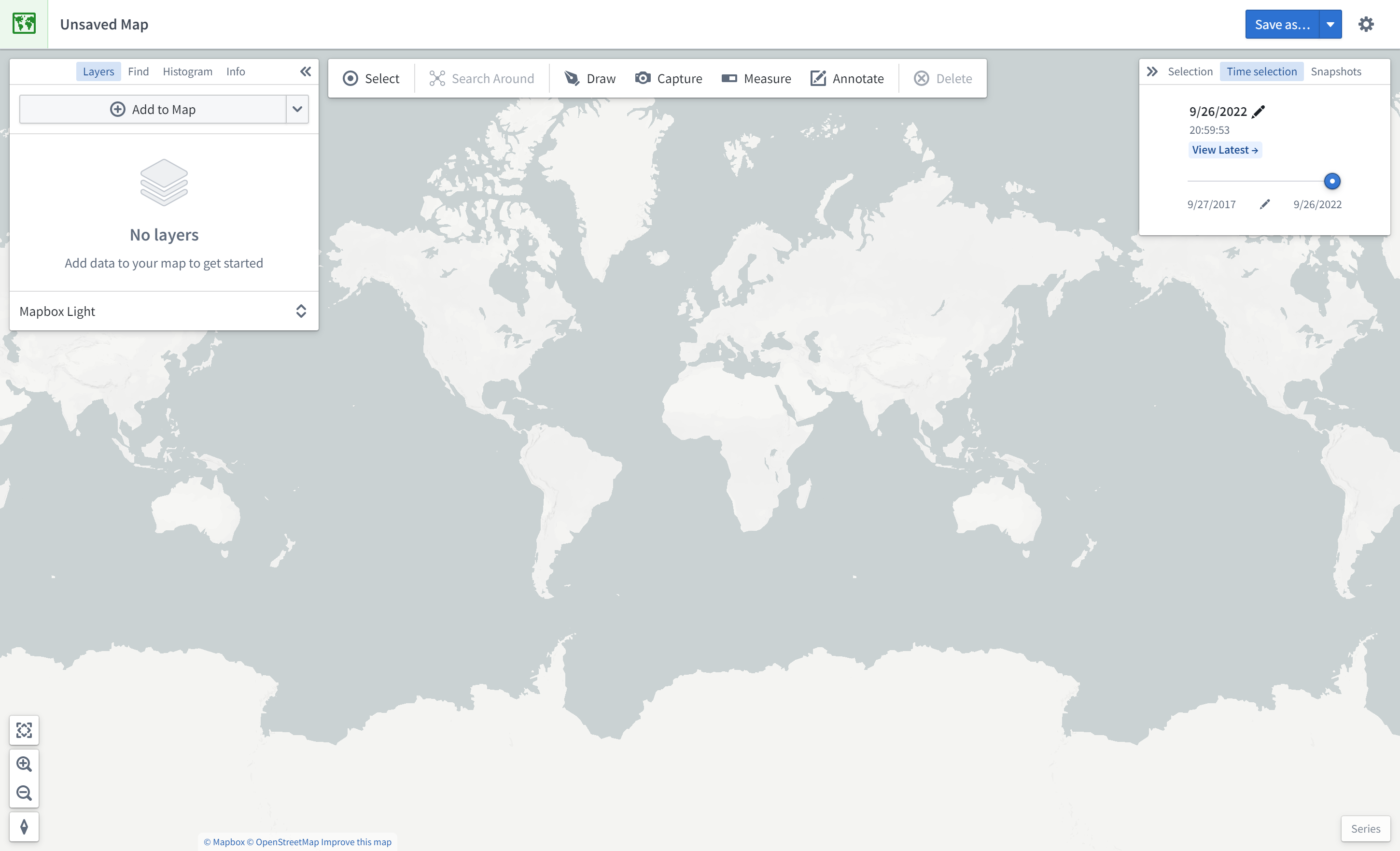
On the left side of the screen are the following panels:
- Layers: Add, manage, and style object and overlay layers; set the base layer.
- Find: Find objects and locations; navigate to specific geospatial coordinates.
- Histogram: Analyze and filter objects based on property and time series values.
- Info: Display an overall summary of the map.
At the top of the screen is a toolbar with the following functionality:
- Select: Select all items on the map, invert selection, or select items intersecting with a drawn shape.
- Search Around: Explore object relations.
- Draw: Draw and interact with shapes on the map, including polygons, circles, rectangles, lines, points.
- Capture: Capture a screenshot of the current map state.
- Measure: Measure physical distances on the map.
- Annotate: Add text or polygon annotations to the map.
- Delete: Remove items from the map.
On the right side of the screen are the following panels:
- Selection: Analyze details and take actions on selected items.
- Time Selection: Set the time range and current timestamp to apply to the map and time series views.
At the bottom right of the screen is the Series panel for the temporal analysis of time series and event data.
Add an object to the map
In this example, we will search for the Detroit Metro Airport (DTW) and add it to the map.
First, click Add to Map in the Layers panel:

Then, search for DTW to find Detroit Metro Airport; you may need to select the object type [Example Data] Airport in the list on the right. Select the DTW airport object and click Add selected.
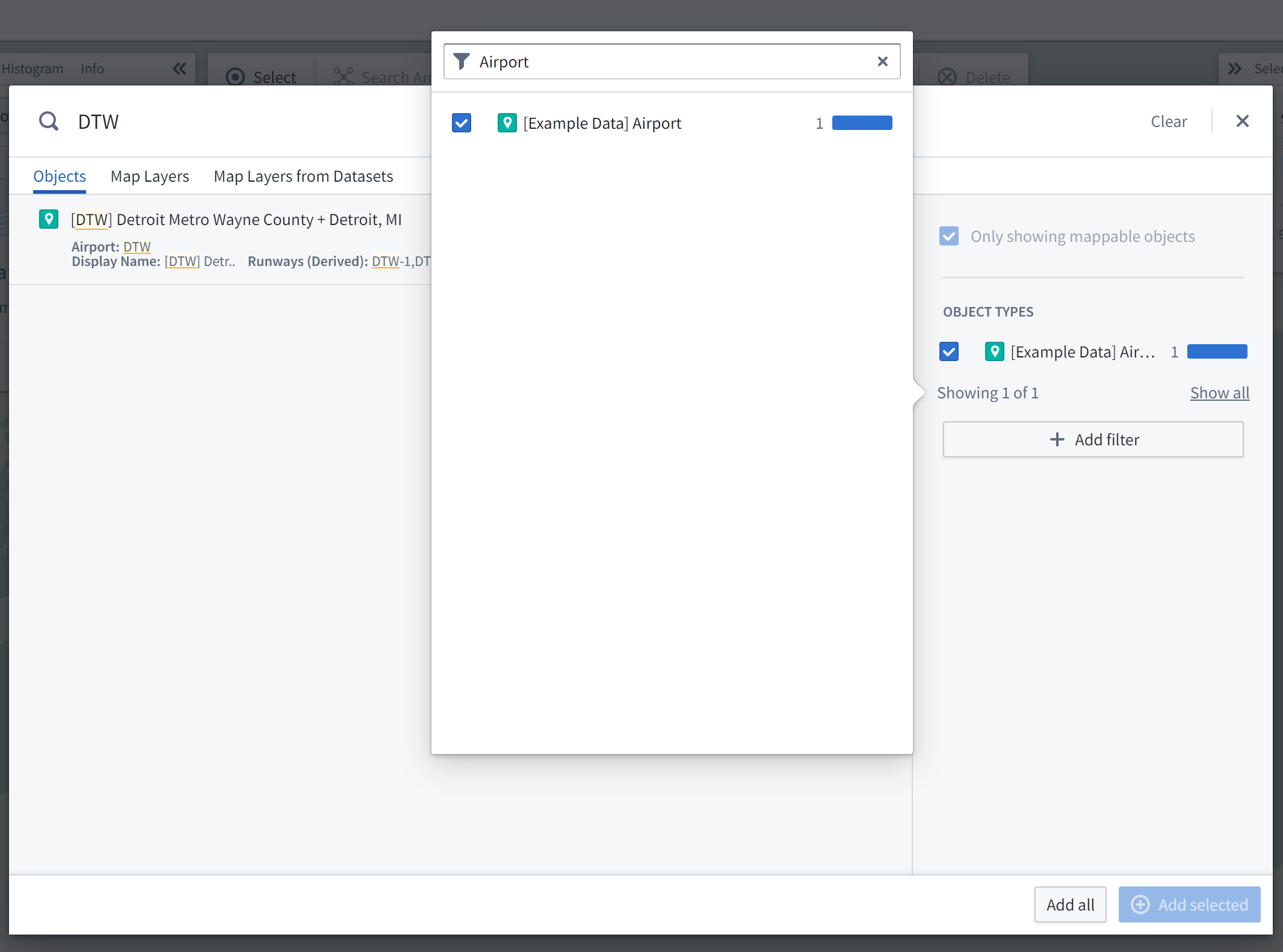
You should now see the map zoomed in on DTW airport; the object's geospatial data is a point, so the object is represented by a map pin indicating the coordinates. The Layers panel on the left now shows that you have an [Example Data] Airports layer, and the Selection panel on the right displays details about the selected object as shown below.

Try navigating around the map:
- Click and drag to pan the map around
- Zoom in and out by doing any of the following:
- Scrolling the mouse wheel
- Clicking the zoom buttons in the bottom-left corner of the interface
- Pressing the + and - keys on your keyboard
Search Around for linked objects
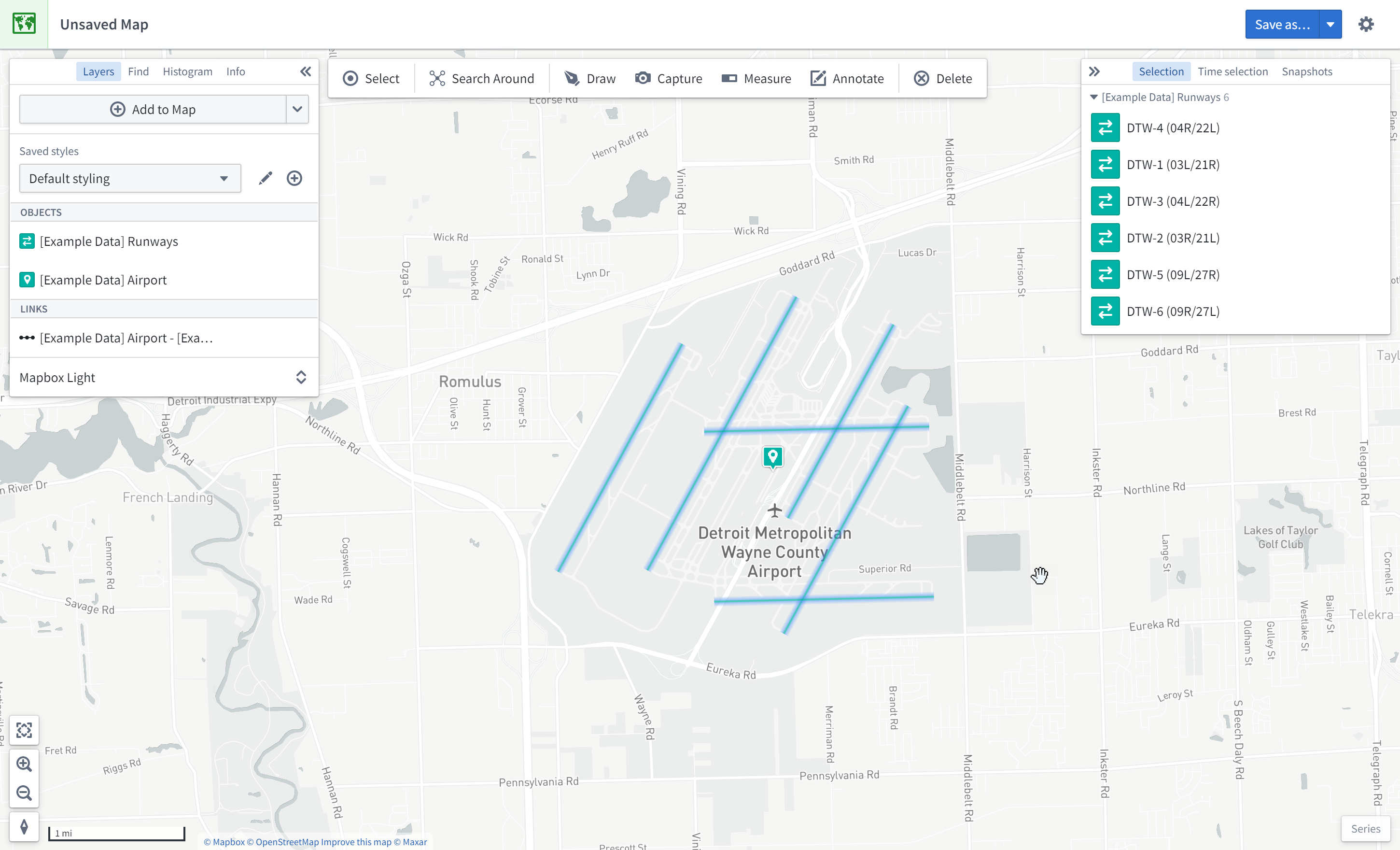
In this example, we will perform exploratory analysis regarding Detroit Metro Airport (DTW). First, add DTW's runways to the map by right-clicking the DTW object icon on the map, selecting Search Around, and then choosing [Example Data] Runway.

You should then see the runway objects added to the map as well. These runway objects are represented by lines on the map. You can hover the mouse over a runway line to see the runway ID. You can also click on a runway to select it and see more details in the Selection panel.
Geospatial search
In this example, we will find other airports within 200 kilometers of Detroit Metro Airport (DTW).
First, click Draw to bring up the shape drawing tool:

Then, select the Circle tool:

Finally, from the map, click on DTW airport to choose the center point, enter "200", and select km.

This opens the Object Search dialog, filtered to objects that intersect with that circle. Choose [Example Data] Airports from the Object Type list, and click Add all. This will add six additional airports to the map.
中文翻译
入门指南
本指南演示如何使用 Foundry 培训与资源 项目中的资源来使用地图(Map)应用程序。在此示例中,我们将对部分航线数据进行地理空间分析。
创建新地图
要创建地图,请展开左侧的 Foundry 导航栏,然后点击 应用 部分中的 查看全部。您将在 运营应用 部分找到 地图 应用程序。
地图应用程序界面概览
当地图应用程序加载时,您会看到一个空白地图:
屏幕左侧包含以下面板:
- 图层(Layers): 添加、管理和样式化对象图层与叠加图层;设置底图。
- 查找(Find): 查找对象和位置;导航到特定的地理空间坐标。
- 直方图(Histogram): 基于属性和时间序列值分析并筛选对象。
- 信息(Info): 显示地图的总体摘要。
屏幕顶部是一个工具栏,包含以下功能:
- 选择(Select): 选择地图上的所有项目、反向选择,或选择与绘制形状相交的项目。
- 周边搜索(Search Around): 探索对象关系。
- 绘制(Draw): 在地图上绘制形状并与之交互,包括多边形、圆形、矩形、线条、点。
- 捕获(Capture): 截取当前地图状态的屏幕截图。
- 测量(Measure): 测量地图上的物理距离。
- 标注(Annotate): 在地图上添加文本或多边形标注。
- 删除(Delete): 从地图中移除项目。
屏幕右侧包含以下面板:
- 选择(Selection): 分析所选项目的详细信息并执行操作。
- 时间选择(Time Selection): 设置应用于地图和时间序列视图的时间范围与当前时间戳。
屏幕右下角是 序列(Series) 面板,用于对时间序列和事件数据进行时间分析。
向地图添加对象
在此示例中,我们将搜索底特律大都会机场(DTW)并将其添加到地图中。
首先,点击 图层 面板中的 添加到地图:
然后,搜索 DTW 以找到底特律大都会机场;您可能需要在右侧列表中选择对象类型 [示例数据] 机场。选择 DTW 机场对象并点击 添加所选。
现在您应该看到地图已放大至 DTW 机场;该对象的地理空间数据是一个点,因此对象由表示坐标的地图图钉表示。左侧的 图层 面板现在显示您有一个 [示例数据] 机场 图层,右侧的 选择 面板显示所选对象的详细信息,如下所示。
尝试在地图上导航:
- 点击并拖动以平移地图
- 通过以下任一方式放大或缩小:
- 滚动鼠标滚轮
- 点击界面左下角的缩放按钮
- 按键盘上的 + 和 - 键
周边搜索关联对象
在此示例中,我们将对底特律大都会机场(DTW)进行探索性分析。首先,右键点击地图上的 DTW 对象图标,选择 周边搜索,然后选择 [示例数据] 跑道,将 DTW 的跑道添加到地图中。
然后,您应该会看到跑道对象也添加到了地图中。这些跑道对象在地图上由线条表示。您可以将鼠标悬停在跑道线上以查看跑道 ID。您也可以点击跑道以选择它,并在 选择 面板中查看更多详细信息。
地理空间搜索
在此示例中,我们将查找底特律大都会机场(DTW)周围 200 公里范围内的其他机场。
首先,点击 绘制 以调出形状绘制工具:
然后,选择 圆形 工具:
最后,在地图上点击 DTW 机场以选择中心点,输入 "200",并选择 km。
这将打开对象搜索对话框,并自动筛选出与该圆形相交的对象。从 对象类型 列表中选择 [示例数据] 机场,然后点击 添加全部。这将向地图添加另外六个机场。