Histogram(直方图)
The Histogram panel allows for the selection and filtering of objects data on your map. The first section of the panel Object types shows the counts of objects by object type on your map. Below, there is one section per property type, across all object types present on your map. The filter box at the top of the panel allows you to filter results to properties with matching names.
Use the histogram
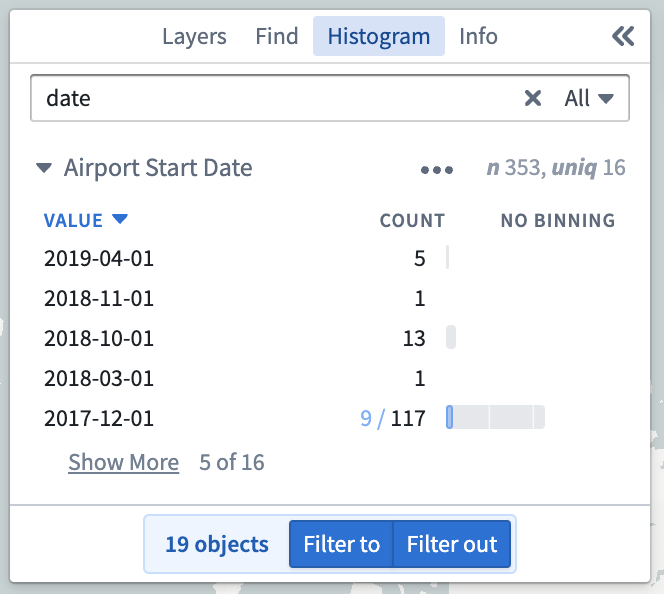
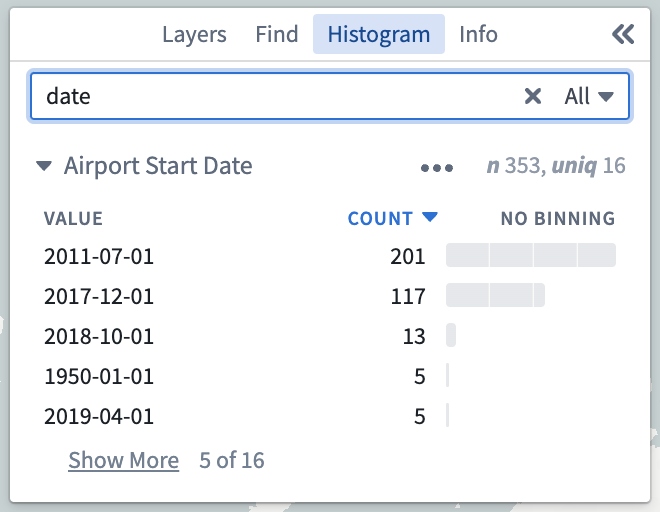
Expand a histogram section to show a row for each distinct value of the given property, limited by default to the top five sorted by the count of values. Click Show more to display the next five rows.
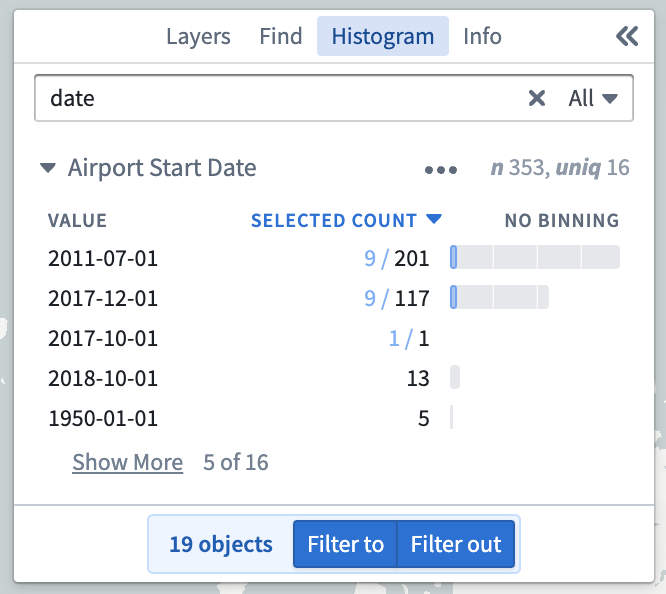
Click the Value heading to toggle the sort method to Value (ascending) or Value (descending). Click the Count heading to toggle the sort method to Count (descending), Count (ascending), Selected Count (descending) or Selected Count (ascending).
| Value | Count | Selected count |
|---|---|---|
 |
 |
 |
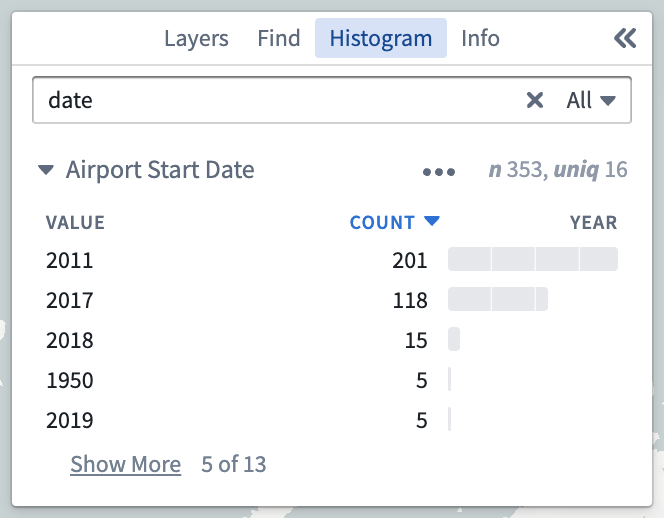
For date and numeric properties, an additional option to control the Binning is available.
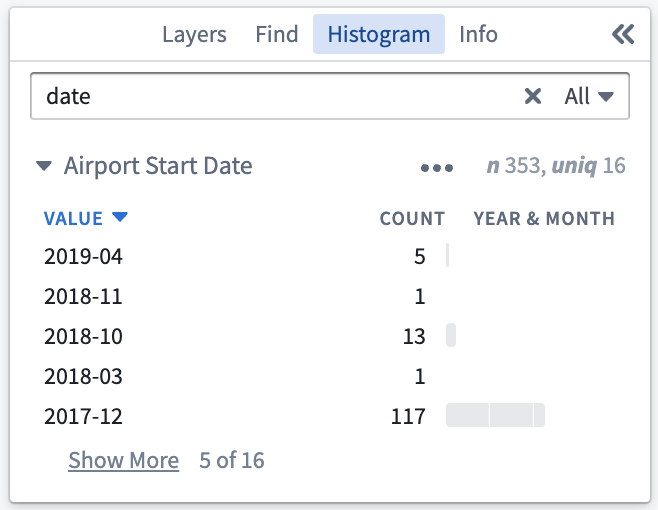
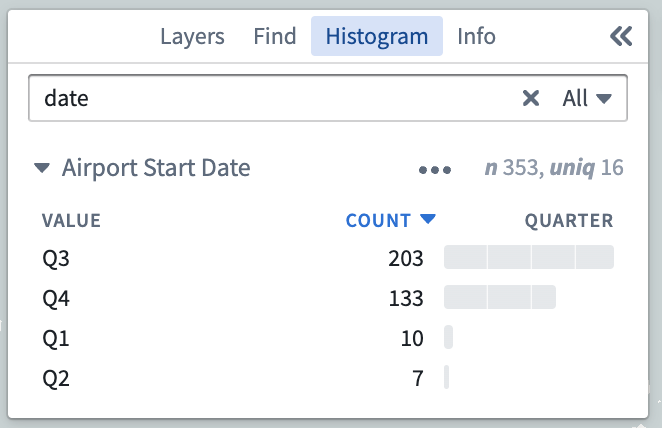
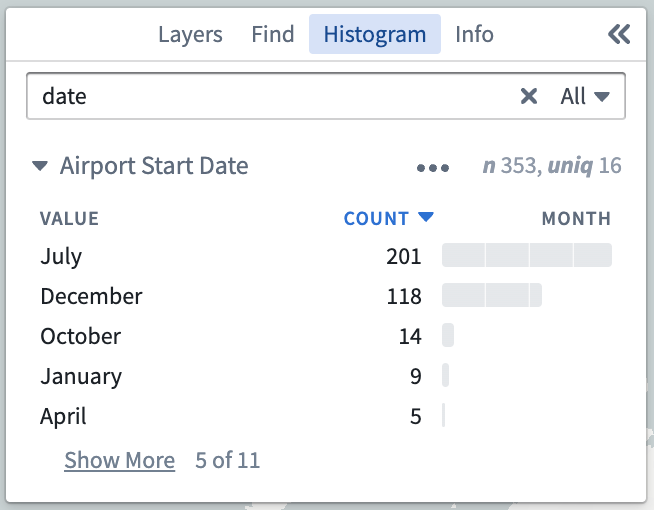
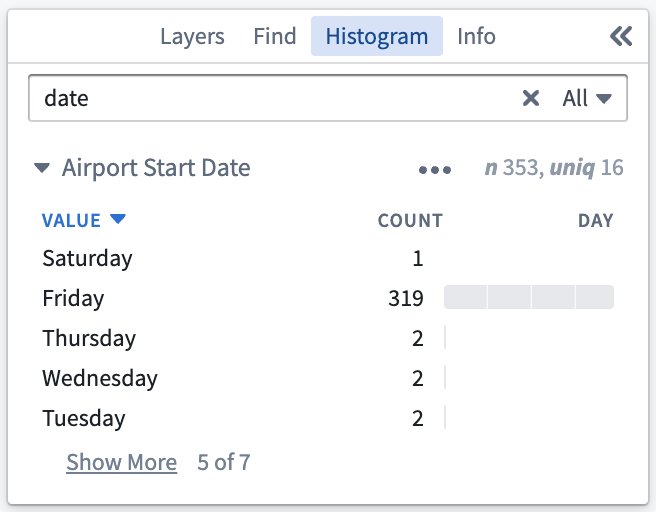
For date properties, by clicking on this heading you can toggle the binning method between Year, Year and month, Quarter, Month, and Day. Click an example image to expand it.
| Year | Year and month | Quarter | Month | Day |
|---|---|---|---|---|
 |
 |
 |
 |
 |
For numeric properties, by clicking on this heading you can toggle the binning method between No binning, Equal size which will automatically group the numeric values into equally sized bins, and Logarithmic which will group the numeric values by their order of magnitude.
| No binning | Equal size | Logarithmic |
|---|---|---|
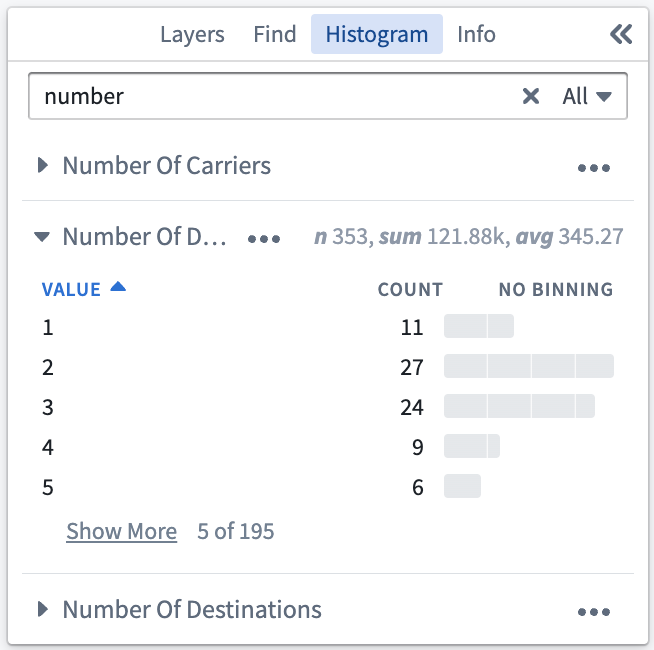 |
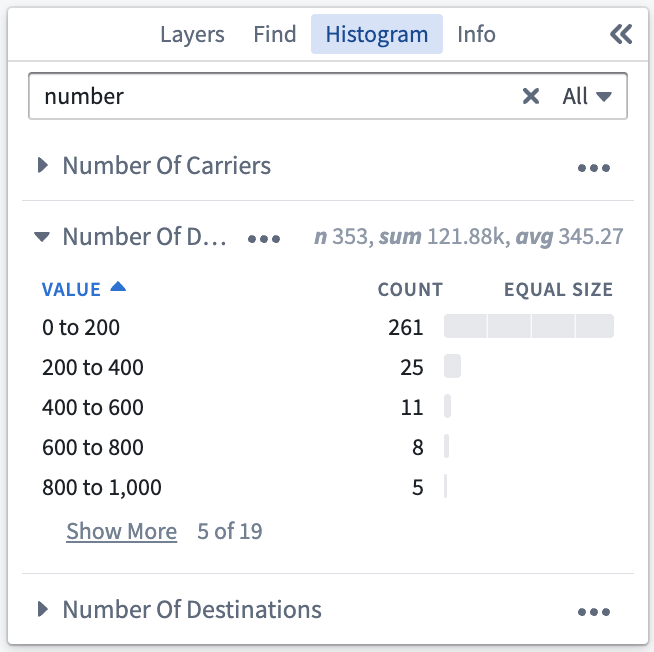 |
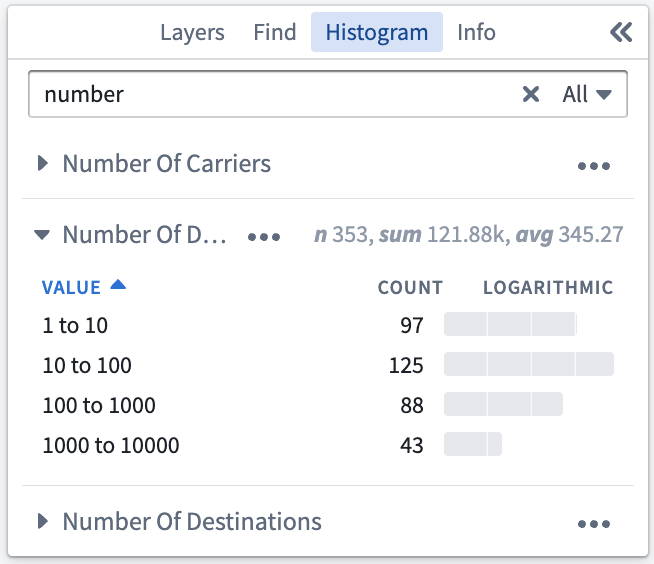 |
Selection
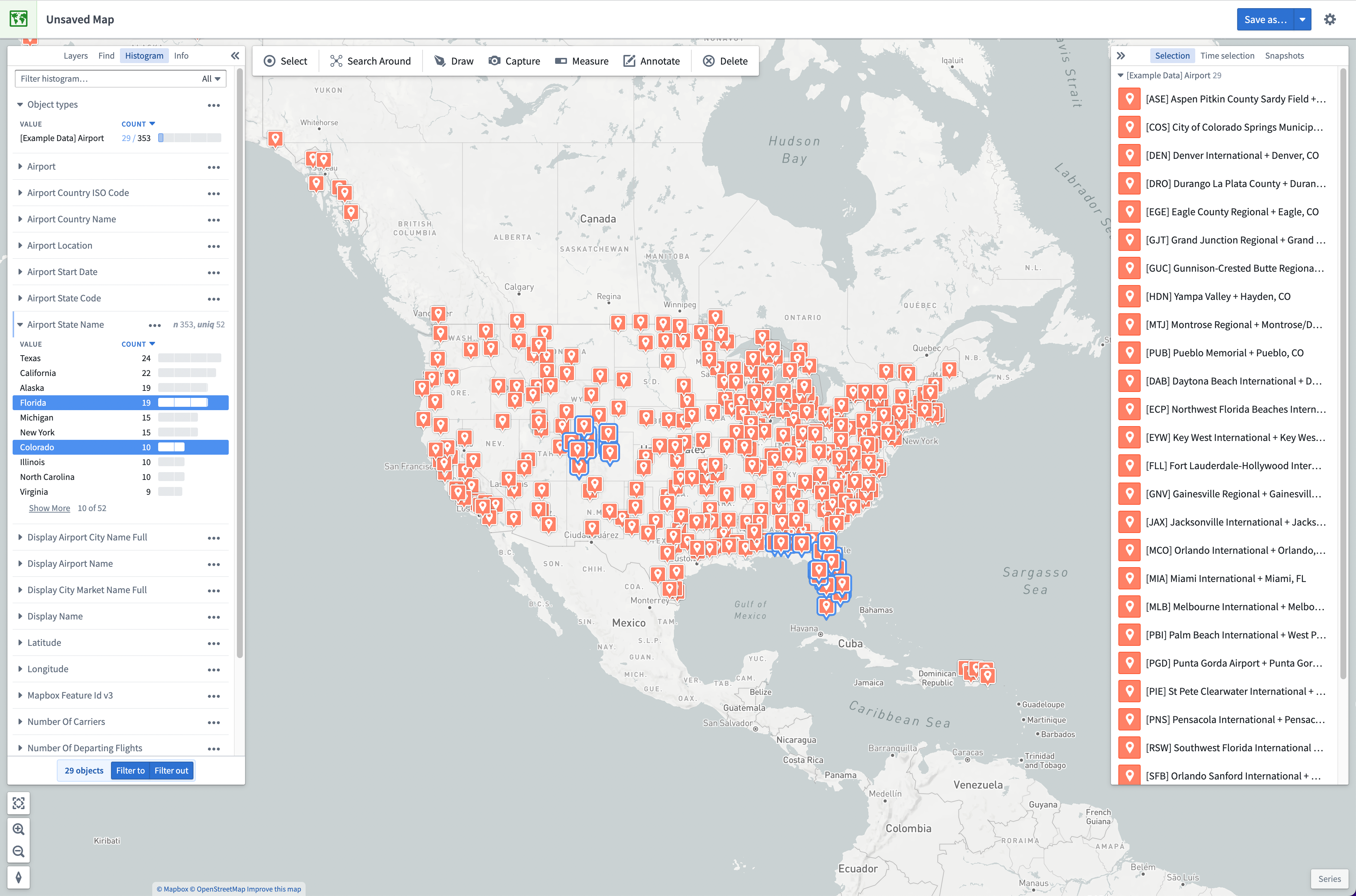
Clicking on a row within the Histogram panel will select all matching objects. Holding Shift while selecting a second row will select a range of rows. Holding Ctrl (Windows) or Cmd (Mac) will add the row to the existing selection. This enables you to select rows across multiple sections of the histogram.
Filtering
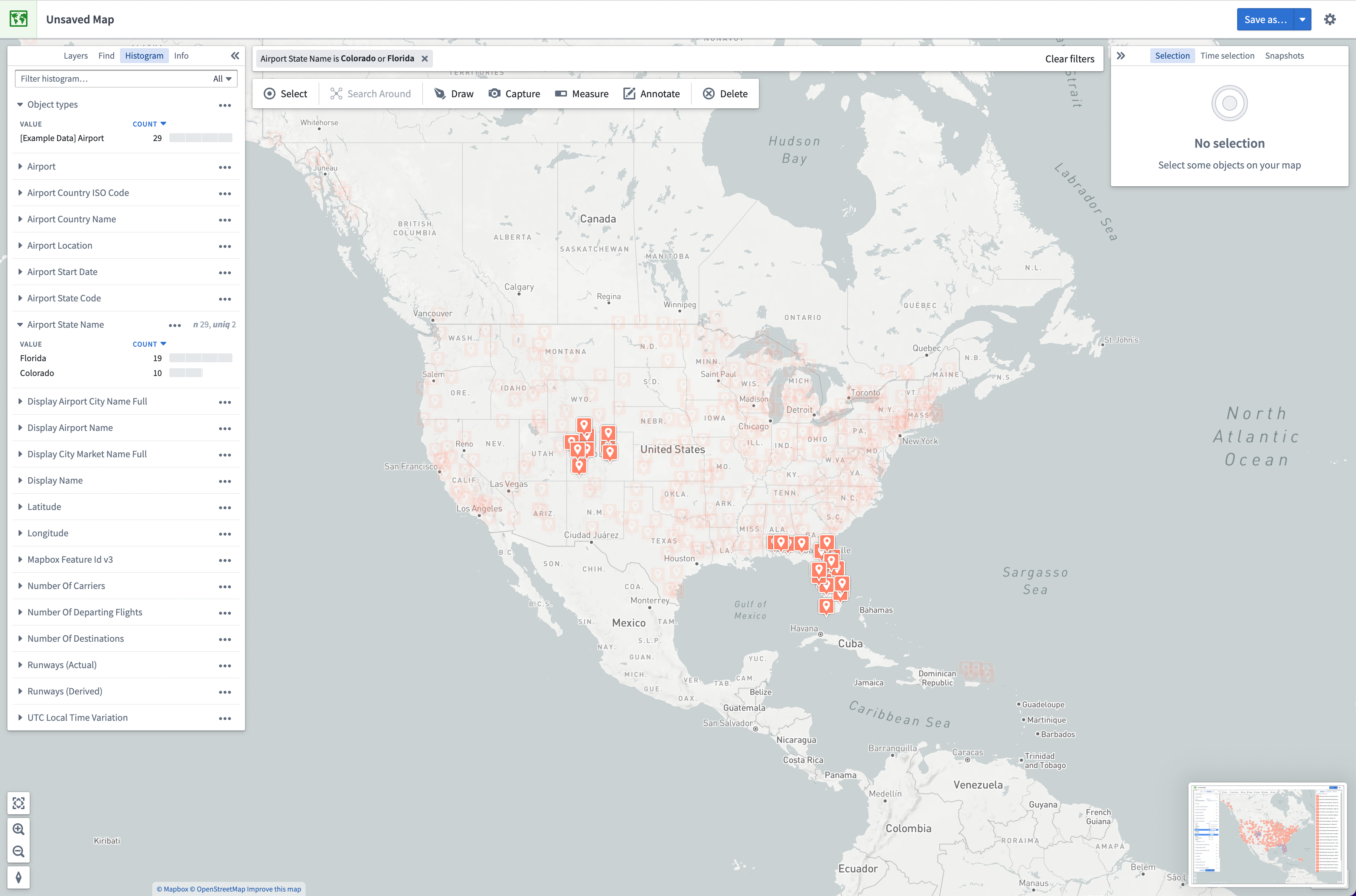
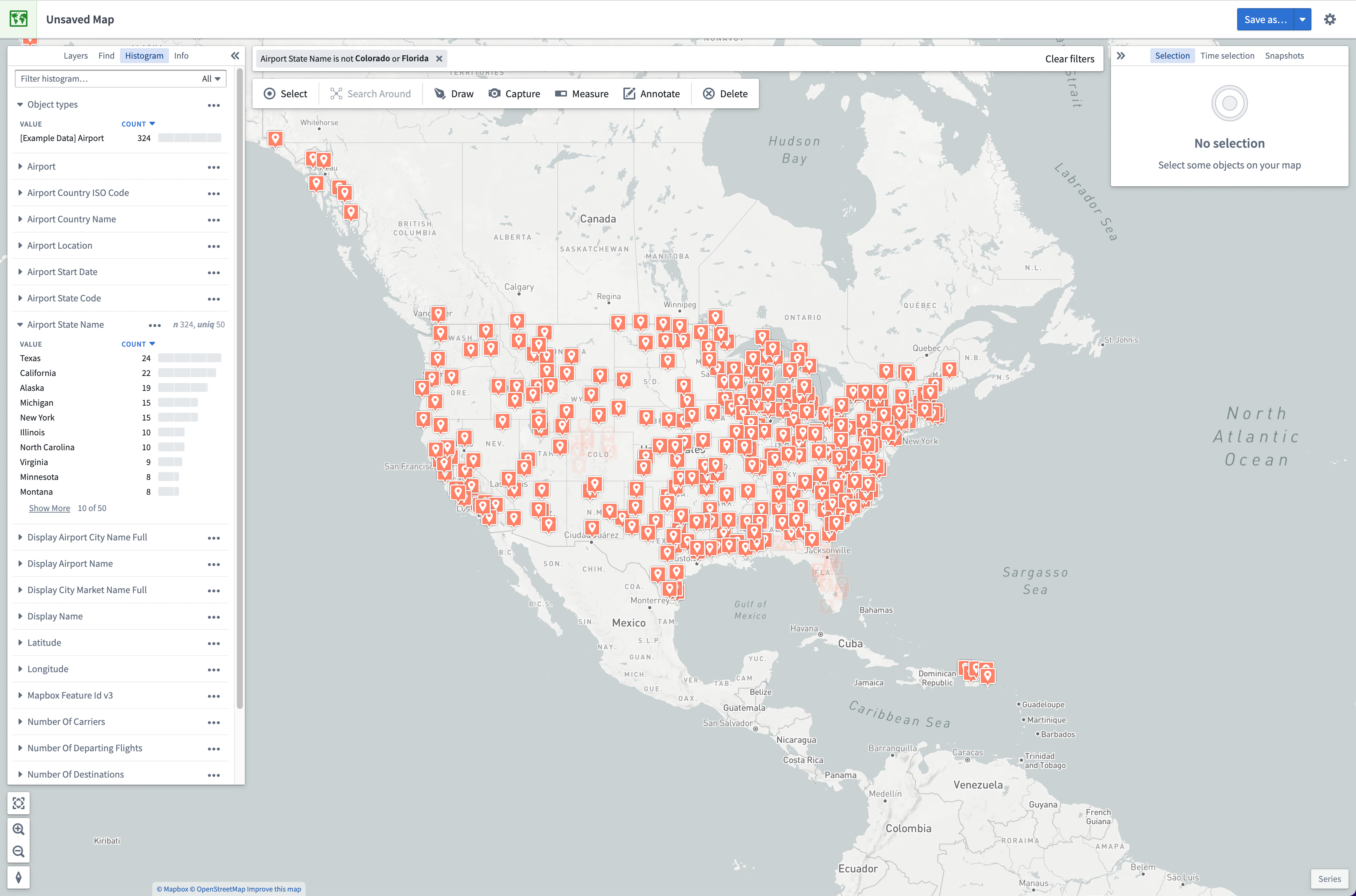
When histogram rows are selected, you can use the Filter to or Filter out buttons to create filters. Filters temporarily reduce the opacity of objects that do not match the filters. These objects will become uninteractive and will not contribute to the histogram statistics. When present, filters are visible in a bar above the main application toolbar. Filters can be removed using the x button on the filter, or by using the Clear filters button to remove all filters. Filters are not saved with your map.
Selecting Filter to will filter your map to only objects matching the selected rows.
Selecting Filter out will filter your map to only objects that do not match the selected rows.
In addition to the Filter to and *Filter out buttons, you can also filter to an individual histogram row by double-clicking on it. To filter to all currently selected objects, you can use the Filter to selected objects menu item from the right click menu on your map.
中文翻译
直方图
直方图(Histogram)面板允许您在地图上选择和筛选对象数据。面板的第一部分对象类型(Object types)按对象类型显示地图上对象的计数。其下方,针对地图上所有对象类型的每个属性类型都有一个独立分区。面板顶部的筛选框允许您按名称筛选属性结果。
使用直方图
展开直方图分区后,会为给定属性的每个不同值显示一行,默认限制为按值计数排序的前五行。点击显示更多(Show more)可显示接下来的五行。
点击值(Value)标题可在值(升序)(Value ascending)或值(降序)(Value descending)之间切换排序方式。点击计数(Count)标题可在计数(降序)(Count descending)、计数(升序)(Count ascending)、选中计数(降序)(Selected Count descending)或选中计数(升序)(Selected Count ascending)之间切换排序方式。
| 值 | 计数 | 选中计数 |
|---|---|---|
|
|
|
对于日期和数值属性,还提供了控制分箱(Binning)的额外选项。
对于日期属性,点击此标题可在年(Year)、年月(Year and month)、季度(Quarter)、月(Month)和日(Day)之间切换分箱方式。点击示例图片可放大查看。
| 年 | 年月 | 季度 | 月 | 日 |
|---|---|---|---|---|
|
|
|
|
|
对于数值属性,点击此标题可在无分箱(No binning)、等距分箱(Equal size,自动将数值分组为大小相等的区间)和对数分箱(Logarithmic,按数量级对数值进行分组)之间切换分箱方式。
| 无分箱 | 等距分箱 | 对数分箱 |
|---|---|---|
|
|
|
选择
点击直方图面板中的某一行将选中所有匹配的对象。按住 Shift 键选择第二行可选中连续的多行。按住 Ctrl(Windows)或 Cmd(Mac)键可将该行添加到现有选择中。这使您能够跨直方图的多个分区选择行。
筛选
选中直方图行后,您可以使用筛选至(Filter to)或筛除(Filter out)按钮创建筛选条件。筛选条件会暂时降低不匹配对象的透明度。这些对象将变为不可交互状态,且不会计入直方图统计。当存在筛选条件时,它们会显示在主应用工具栏上方的条形区域中。可以使用筛选条件上的 x 按钮移除单个筛选条件,或使用清除筛选条件(Clear filters)按钮移除所有筛选条件。筛选条件不会随地图保存。
选择筛选至会将地图筛选为仅显示与所选行匹配的对象。
选择筛除会将地图筛选为仅显示与所选行不匹配的对象。
除了筛选至和筛除按钮外,您还可以通过双击直方图的某一行来筛选至该行对应的对象。要筛选至所有当前选中的对象,可以使用地图右键菜单中的筛选至选中对象(Filter to selected objects)菜单项。