Ontology objects(本体对象)
The Map application supports Ontology objects with geospatial data attached.
Ontology-native representation
Point, line, and polygon geometries can be specified in the ontology using the geopoint or geoshape property types. See the ontology section of the geospatial docs for more details.
Circles
A circle geometry can be specified on an object type by selecting a Radius property in the Geospatial section of the object type's Capabilities tab. The radius property can be any numeric property measured in meters.
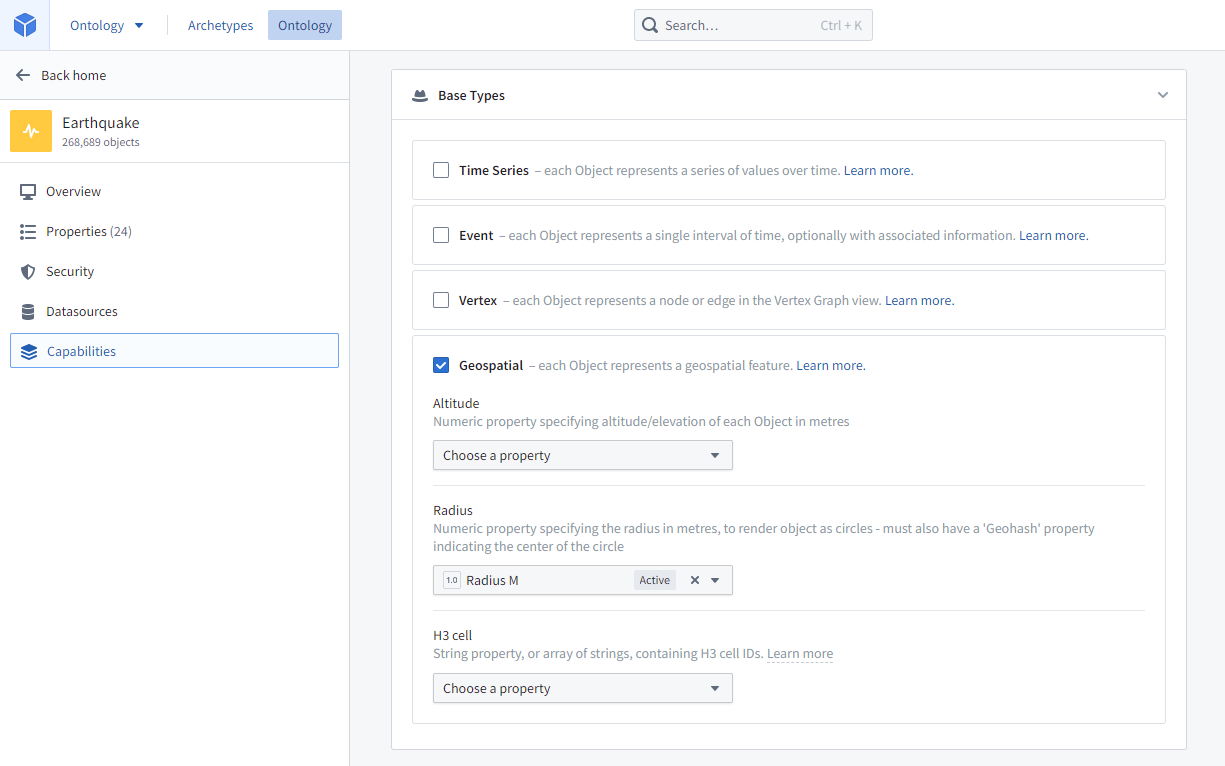
:::callout{theme="warning"} The circle geometry is only rendered on the map, not indexed for searching. If you need objects to be geospatially searchable based on a circle geometry, you will need to approximate a circle using a polygon. :::
Choropleths
To render choropleth visualizations, you will need to configure your ontology so that objects can be grouped together into regions. There are two ways to do so, boundary identifiers and linked objects.
Boundary identifiers
Maps support rendering choropleths for objects that are configured with some common region identifier types -- including ISO 3166 country codes, US State abbrevations, and more. The polygon geometry for these boundary types is built into the map application, making your data integration easier if your data already has one of these identifier types attached. These identifiers are configured by attaching a specific Value Type to a property on the object type you want to map.
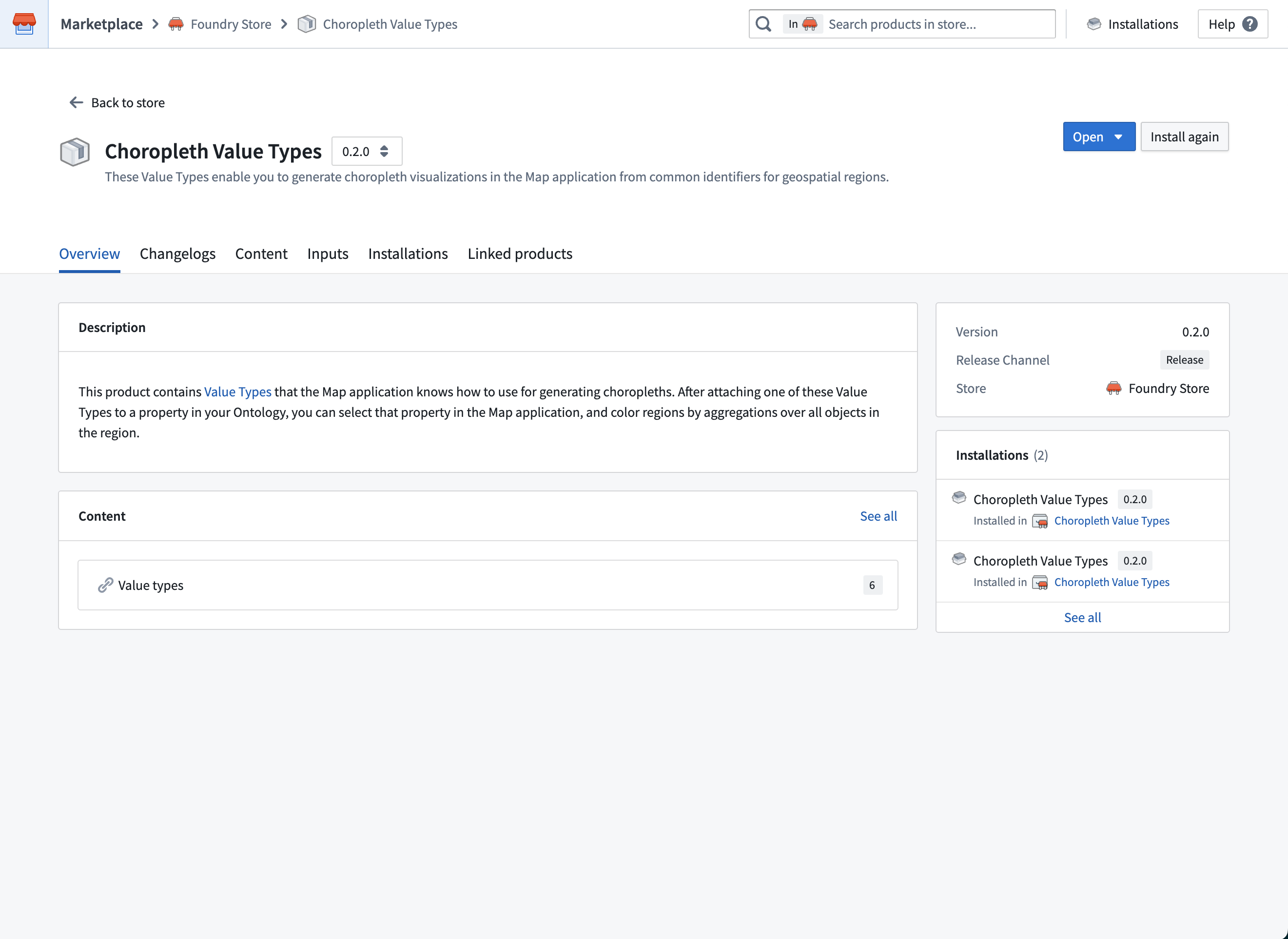
To configure boundary identifiers, first search for and install the "Choropleth Value Types" product in Marketplace. This product contains the ontology value types that the map application knows how to render as choropleths.
The current supported region types and ways of identifying them are:
- Admin 0 (global administrative level 0 boundaries)
- ISO 3166 alpha-2 country codes
- ISO 3166 alpha-3 country codes
- US States
- FIPS codes
- USPS abbrevations
- US Counties
- FIPS codes
- ANSI codes
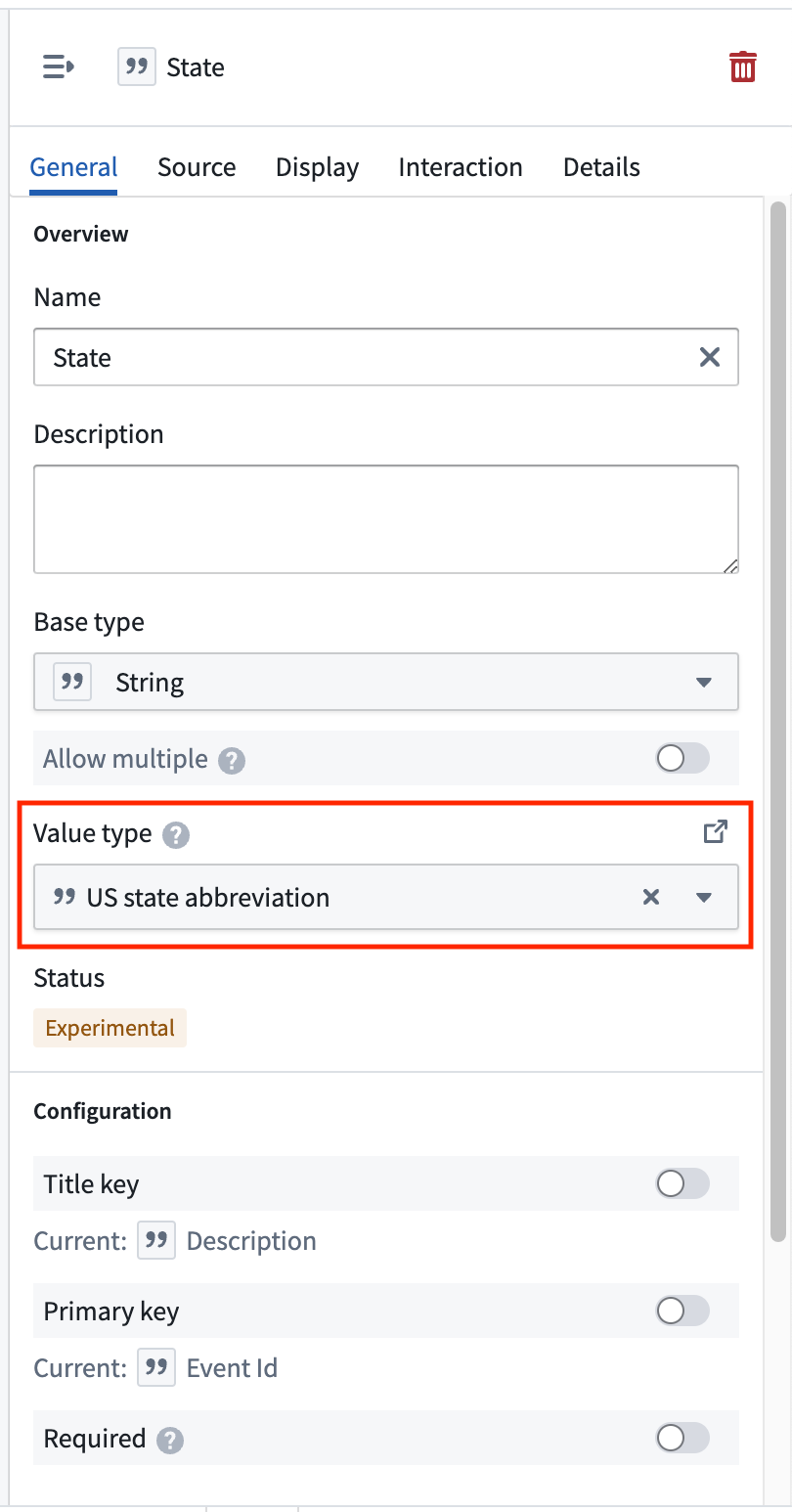
If your object type already has a property the contains one of these identifiers, select the corresponding value type in the Value Type dropdown menu for that property in Ontology Manager.
If you want to display choropleths for one of the region types above, but your data has latitude/longitude points instead of one of the supported identifiers, use the "Choropleth Boundary Datasets" product from Marketplace to attach the region identifiers. This product contains datasets that contain the actual geometries and other metadata for the regions. Use Pipeline Builder's Geometry intersection join to find the region that each point lies within and attach the corresponding region identifier, then configure the corresponding value type in ontology manager.
Linked objects
If you want to display a choropleth with a region type is not included above, or otherwise want more control over the region geometries and properties on the regions, you can create an object type with region geometry of your choice. Then create a many-one link from the object type you want to aggregate over to that region object type.
For example, imagine you want to display a choropleth that shows the total value of orders placed for each sales region. A simple way to configure the ontology for this is to have:
- A "Sales region" object type with a geoshape property containing the geometry of each sales region.
- An "Order" object type, with the properties:
- "Sales region" that contains the primary key of the region each order was placed in
- A "Value" that contains the total value of the order
- A many-one from "Order" to "Sales region"
To display the choropleth:
- Use the search dialog to add your "Order" objects to the map
- Add a Choropleth display for the "Order" layer
- Choose the Linked object option in the Regions section, and select the link type that links from an "Order" object to its associated "Sales region".
- Use the "Value" property in styling aggregations to control the color of each region
H3 hexagons
Objects can include string properties containing H3 cell IDs from the H3 geospatial indexing system ↗. These will render as relevant hexagons on the map.
To specify that a string property contains H3 cell IDs, select that property under H3 cell in the Geospatial section of the object type's Capabilities tab.
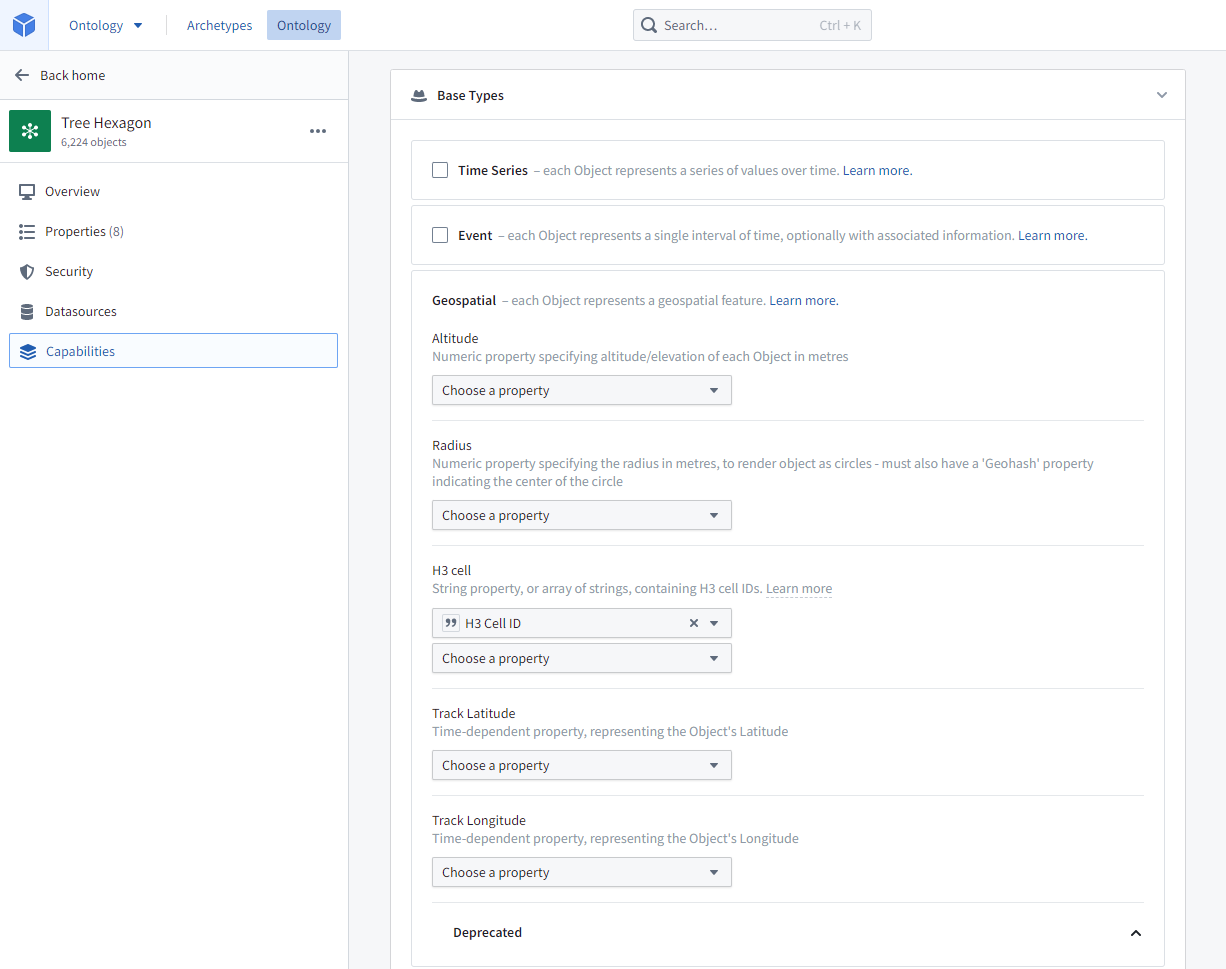
:::callout{theme="warning"}
The H3 hexagon is only rendered on the Map, not indexed for searching. If you need objects to be geospatially searchable based on a H3 hexagon, you will need to convert the H3 cell IDs into GeoJSON Polygons and include them in a geoshape property as described above.
:::
Georectified images
An object can have georectified images attached, such as a satellite photo, aerial imagery, or a scan of a physical map. Two properties are required for the georectified image:
- An image URL
Stringproperty containing the URL of the image to render. Supported image file extensions include.png,.jpg,.jpeg,.gif,.webp,.bmp,.ico, and.svg. The ID of the image URL property is used to configure the image bounds property. - An image bounds
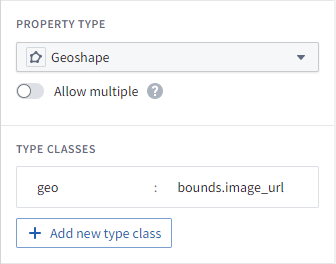
geoshapeproperty containing a GeoJSON Polygon of a quadrilateral representing the georectified bounds of the image. The polygon must specify its vertices in clockwise order, beginning with the bottom left corner. - The image bounds property must have a type class indicating the ID of the image URL property, in the following format:
- Kind:
geo - Value:
bounds.<image URL property ID>where<image URL property ID>is the ID of the image URL property.
- Kind:
- For example, if the image URL property ID is
image_urlthen the typeclass would be: Kind:geo, Value:bounds.image_url
Objects with georectified images are indexed for geospatial search, as with all geoshape properties.
Tiled imagery from media sets [Beta]
:::callout{theme="neutral" title="Beta"} Using media references in Maps is in the beta phase of development and may not be available on your enrollment. Functionality may change during active development. :::
Georeferenced raster imagery can also be displayed in tiles by uploading GeoTIFF imagery in a (.tiff, .tif) to a media set. From there, object types with a media reference property can be added to the map and only the visible portions of the imagery will be loaded as the user pans or zooms around the Map.
Track objects
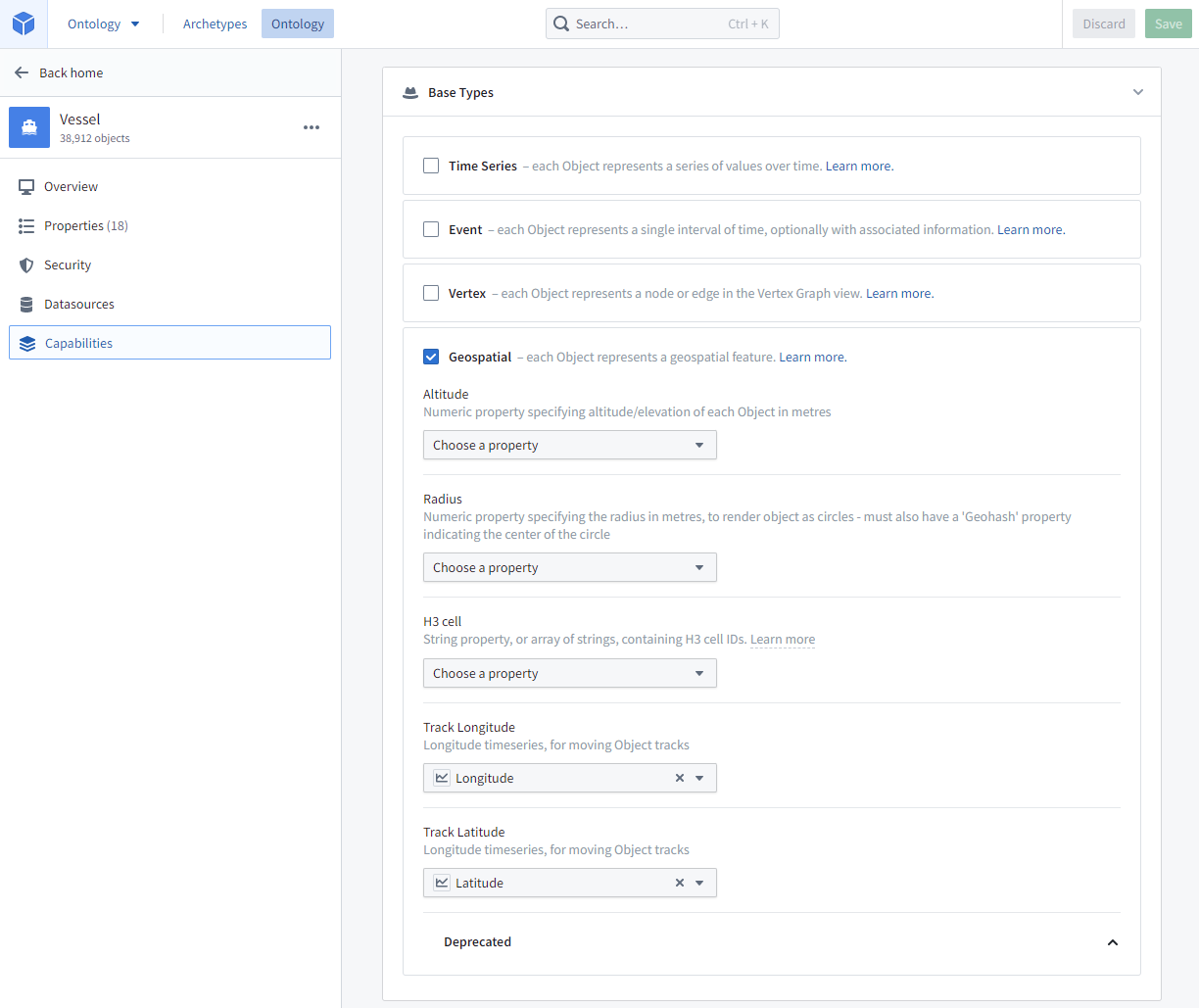
Objects can have numeric time series properties representing an object's latitude and longitude over time, allowing users to see the path the object traveled over time as well as its location at any point in time.
To configure the track for the object type, select the Track Latitude and Track Longitude properties in the Geospatial section of the object type's Capabilities tab. Both properties must be numeric time series properties representing the object's location over time. See Time series setup for more information on configuration time series, and track displays for more information on the options in maps for visualizing tracks.
Event objects
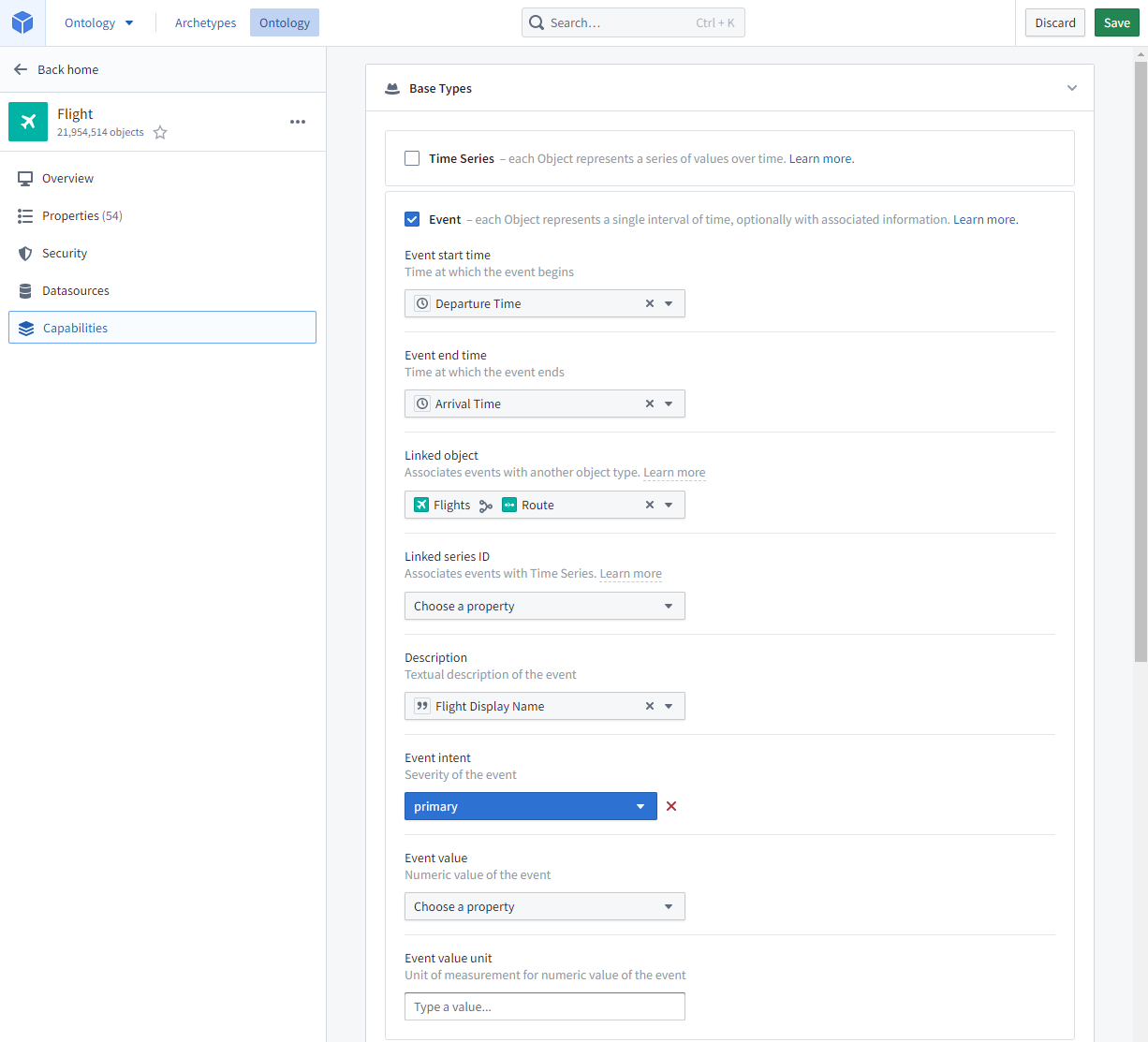
Event objects are Ontology objects that occur at a point or period of time. Object types can be configured as events by specifying Event start time and Event end time timestamp properties in the Event section of the object type's Capabilities tab.
Event objects on the map
If event objects are added to the Map, they can be configured to only display when current (that is, when the selected timestamp is within the event period).
Event objects linked to objects on the map
If objects on the map have event objects linked to them, the event objects can be added to the Series panel for temporal analysis, and current event count indicators can be added to object labels. For example, a road object could be represented as lines on the map, and a road object may have linked traffic accident events; a user could then use the indicators to see traffic event counts for each road at any point in time.
For this to be possible, the event object type must be configured with an Event intent indicating the severity of the event in the Event section of the object type's Capabilities tab.
中文翻译
本体对象
Map 应用支持附加了地理空间数据(geospatial data)的本体对象(Ontology objects)。
本体原生表示
点、线和多边形几何图形可以使用 geopoint 或 geoshape 属性类型在本体中指定。更多详情请参阅地理空间文档的本体部分。
圆形
通过在对象类型的功能选项卡的地理空间部分中选择半径属性,可以在对象类型上指定圆形几何图形。半径属性可以是任何以米为单位的数值属性。
:::callout{theme="warning"} 圆形几何图形仅在地图上渲染,不会建立搜索索引。如果需要基于圆形几何图形对对象进行地理空间搜索,则需要使用多边形来近似表示圆形。 :::
等值线图
要渲染等值线图可视化,需要配置本体,使对象能够分组到区域中。有两种实现方式:边界标识符和链接对象。
边界标识符
Map 支持为配置了某些通用区域标识符类型的对象渲染等值线图——包括 ISO 3166 国家代码、美国州缩写等。这些边界类型的多边形几何图形已内置于 Map 应用中,如果数据已包含这些标识符类型之一,则可以简化数据集成。这些标识符通过将特定的值类型附加到要映射的对象类型的属性上来配置。
要配置边界标识符,首先在 Marketplace 中搜索并安装"Choropleth Value Types"产品。该产品包含 Map 应用能够渲染为等值线图的本体值类型。
当前支持的区域类型及其识别方式如下:
- Admin 0(全球行政级别 0 边界)
- ISO 3166 alpha-2 国家代码
- ISO 3166 alpha-3 国家代码
- 美国各州
- FIPS 代码
- USPS 缩写
- 美国各县
- FIPS 代码
- ANSI 代码
如果对象类型已包含包含这些标识符之一的属性,请在 Ontology Manager 中为该属性选择值类型下拉菜单中对应的值类型。
如果要为上述区域类型之一显示等值线图,但数据包含的是纬度/经度点而非支持的标识符,请使用 Marketplace 中的"Choropleth Boundary Datasets"产品来附加区域标识符。该产品包含包含区域实际几何图形和其他元数据的数据集。使用 Pipeline Builder 的几何相交连接来查找每个点所在的区域并附加相应的区域标识符,然后在 Ontology Manager 中配置对应的值类型。
链接对象
如果要显示包含上述未包含的区域类型的等值线图,或者希望对区域几何图形和属性有更多控制,可以创建具有自定义区域几何图形的对象类型。然后创建从要聚合的对象类型到该区域对象类型的多对一链接。
例如,假设要显示一个等值线图,展示每个销售区域的总订单价值。配置本体的简单方法如下:
- 创建一个"销售区域"对象类型,其中包含一个
geoshape属性,用于存储每个销售区域的几何图形。 - 创建一个"订单"对象类型,包含以下属性:
- "销售区域"属性,包含每个订单所在区域的主键
- "价值"属性,包含订单的总价值
- 从"订单"到"销售区域"建立多对一链接
要显示等值线图:
- 使用搜索对话框将"订单"对象添加到地图
- 为"订单"图层添加等值线图显示
- 在区域部分选择链接对象选项,并选择从"订单"对象链接到其关联"销售区域"的链接类型
- 使用"价值"属性进行样式聚合来控制每个区域的颜色
H3 六边形
对象可以包含包含 H3 单元 ID 的字符串属性,这些 ID 来自 H3 地理空间索引系统 ↗。这些属性将在地图上渲染为相应的六边形。
要指定字符串属性包含 H3 单元 ID,请在对象类型的功能选项卡的地理空间部分中的H3 单元下选择该属性。
:::callout{theme="warning"}
H3 六边形仅在地图上渲染,不会建立搜索索引。如果需要基于 H3 六边形对对象进行地理空间搜索,则需要将 H3 单元 ID 转换为 GeoJSON 多边形,并将其包含在 geoshape 属性中,如上所述。
:::
地理配准图像
对象可以附加地理配准图像,例如卫星照片、航拍影像或实体地图的扫描件。地理配准图像需要两个属性:
- 一个图像 URL
String属性,包含要渲染的图像的 URL。支持的图像文件扩展名包括.png、.jpg、.jpeg、.gif、.webp、.bmp、.ico和.svg。图像 URL 属性的 ID 用于配置图像边界属性。 - 一个图像边界
geoshape属性,包含一个表示图像地理配准边界的四边形 GeoJSON 多边形。多边形必须按顺时针顺序指定其顶点,从左下角开始。 - 图像边界属性必须具有指示图像 URL 属性 ID 的类型类,格式如下:
- Kind:
geo - Value:
bounds.<图像 URL 属性 ID>,其中<图像 URL 属性 ID>是图像 URL 属性的 ID。
- Kind:
- 例如,如果图像 URL 属性 ID 是
image_url,则类型类为:Kind:geo,Value:bounds.image_url
与所有 geoshape 属性一样,具有地理配准图像的对象会建立地理空间搜索索引。
来自媒体集的瓦片影像 [Beta]
:::callout{theme="neutral" title="Beta"} 在 Maps 中使用媒体引用处于开发阶段的 beta 阶段,可能不适用于您的注册环境。功能在活跃开发期间可能会发生变化。 :::
地理参考栅格影像也可以通过将 GeoTIFF 影像(.tiff、.tif)上传到媒体集以瓦片形式显示。然后,具有媒体引用属性的对象类型可以添加到地图中,当用户在地图上平移或缩放时,只会加载影像的可见部分。
轨迹对象
对象可以具有表示对象随时间变化的纬度和经度的数值时间序列属性,使用户能够查看对象随时间移动的路径以及在任何时间点的位置。
要为对象类型配置轨迹,请在对象类型的功能选项卡的地理空间部分中选择轨迹纬度和轨迹经度属性。这两个属性必须是表示对象随时间变化位置的数值时间序列属性。有关配置时间序列的更多信息,请参阅时间序列设置;有关可视化轨迹的地图选项的更多信息,请参阅轨迹显示。
事件对象
事件对象(Event objects)是在某个时间点或时间段发生的本体对象。通过在对象类型的功能选项卡的事件部分中指定事件开始时间和事件结束时间时间戳属性,可以将对象类型配置为事件。
地图上的事件对象
如果将事件对象添加到地图,可以将其配置为仅在当前时间(即所选时间戳在事件时间段内)显示。
链接到地图对象的事件对象
如果地图上的对象链接了事件对象,则可以将事件对象添加到系列面板进行时间分析,并且可以将当前事件计数指示器添加到对象标签。例如,road 对象可以在地图上表示为线条,而 road 对象可能链接了 traffic accident 事件;用户可以使用指示器查看每条道路在任何时间点的事件数量。
要实现这一点,事件对象类型必须在对象类型的功能选项卡的事件部分中配置事件意图,以指示事件的严重程度。