Layer management(图层管理(Layer management))
All data on your map is grouped into different types of layers, which can be managed in the Layers panel.
Toggle layer visibility
Show or hide the contents of a layer by using the visibility toggle:

Rename layers
Edit a layer's name by clicking on the current name.

Reorder layers
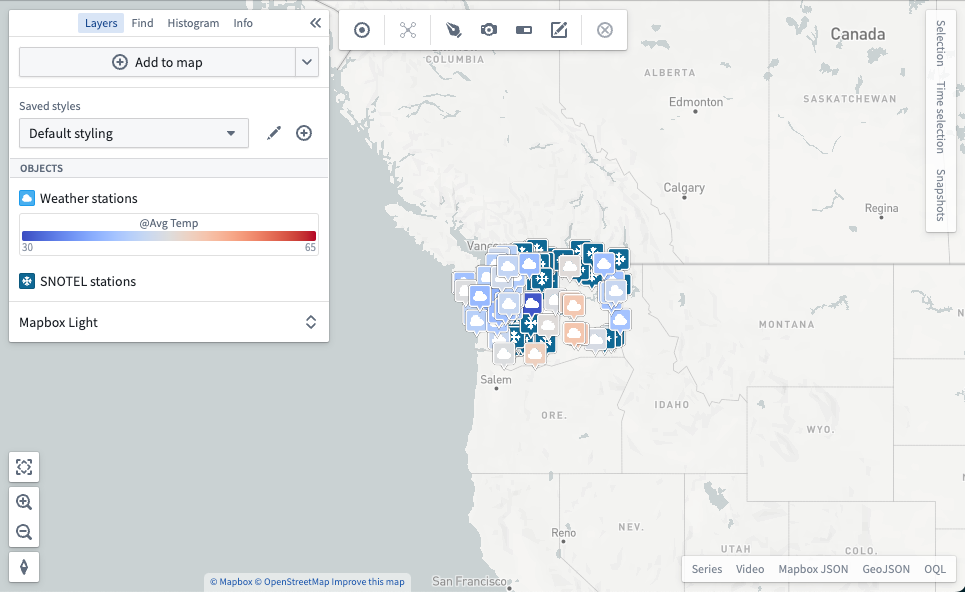
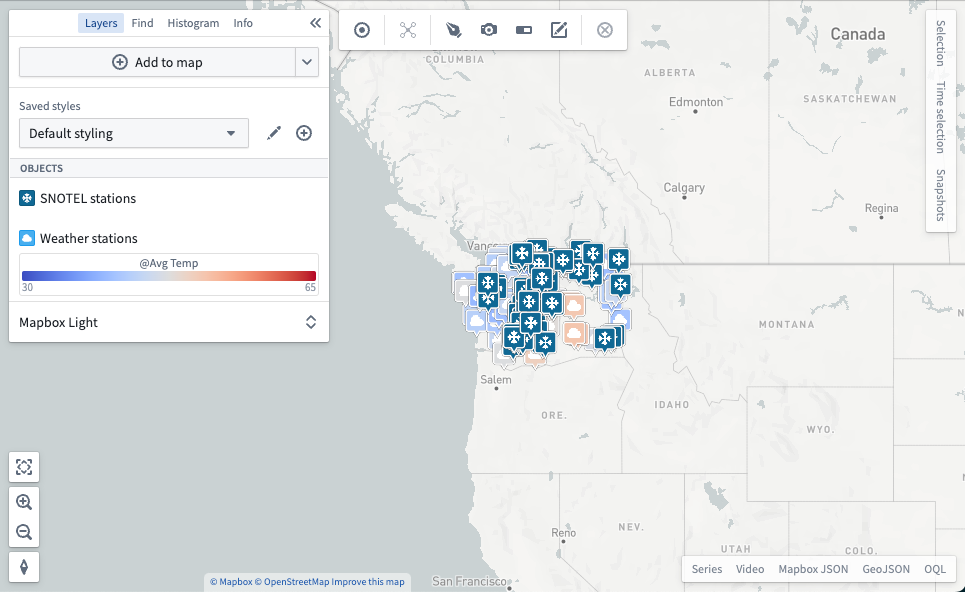
Change the order of layers by dragging the layer's icon. Reordering layers can alter the rendering of your map, as layers that appear higher in the list of layers render on top of layers that appear lower in the list.
Move objects to new or existing layers
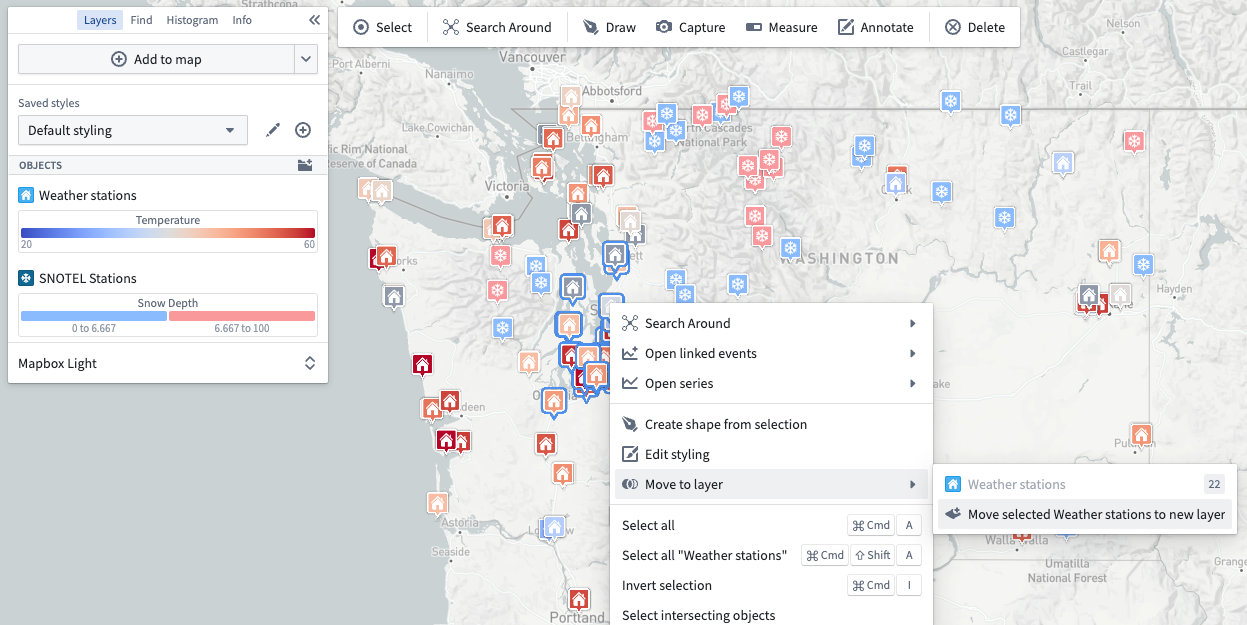
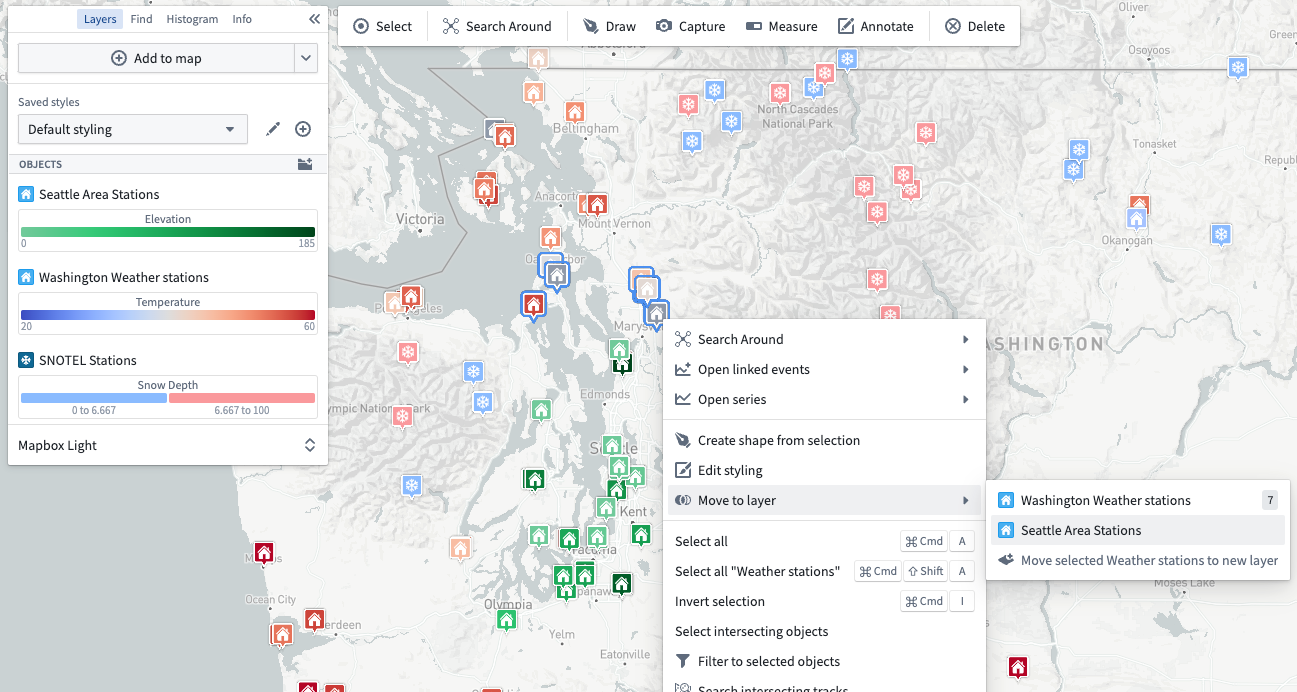
Objects can be spread into multiple layers, as long as the contents are all of the same object type. After moving a selected set into a new layer, the objects in each set can be styled differently, as demonstrated in the images below.
中文翻译
图层管理(Layer management)
地图上的所有数据按不同的图层类型进行分组,您可以在图层面板中对它们进行管理。
切换图层可见性
使用可见性切换开关显示或隐藏图层内容:
重命名图层
点击当前名称即可编辑图层名称。
调整图层顺序
通过拖拽图层图标来改变图层顺序。调整图层顺序会影响地图的渲染效果,因为列表中位置较高的图层会显示在位置较低的图层之上。
将对象移至新建或现有图层
只要内容属于同一对象类型,即可将对象分散到多个图层中。将选中的对象集移至新图层后,每个集合中的对象可以设置不同的样式,如下图所示。