Navigation(导航)
The Map application allows you to pan, zoom, rotate, or tilt maps to facilitate viewing and analysis. You can also use shortcuts to quickly center the map or use the Find panel to locate objects, locations, and coordinates on a map.
Basic map controls
- To pan, click and drag on the map viewport, or use the arrow keys on your keyboard.
- To zoom, use one of the following:
- The Zoom in and Zoom out buttons in the bottom left
- The mouse wheel
- The + and - keys on your keyboard
- To rotate and tilt the map, click and drag while holding Ctrl (Windows) or Cmd (macOS).
Center the map on items
Press 0 on your keyboard to navigate the map to display your selected objects. If you have no selected objects, 0 will navigate the map such that all objects on the map can be displayed.
Use the Find panel
The Find panel allows you to navigate to objects that have been added to your map, as well as locations and coordinates.
Find objects on map
Select the Objects on map tab, and enter a search query to find objects by title or property values. Selecting a result will navigate the map to that object.

Find locations
:::callout{theme="neutral" title="API Key Required"} Your organization must have configured a Mapbox API Key in Control Panel for this feature to be available. :::
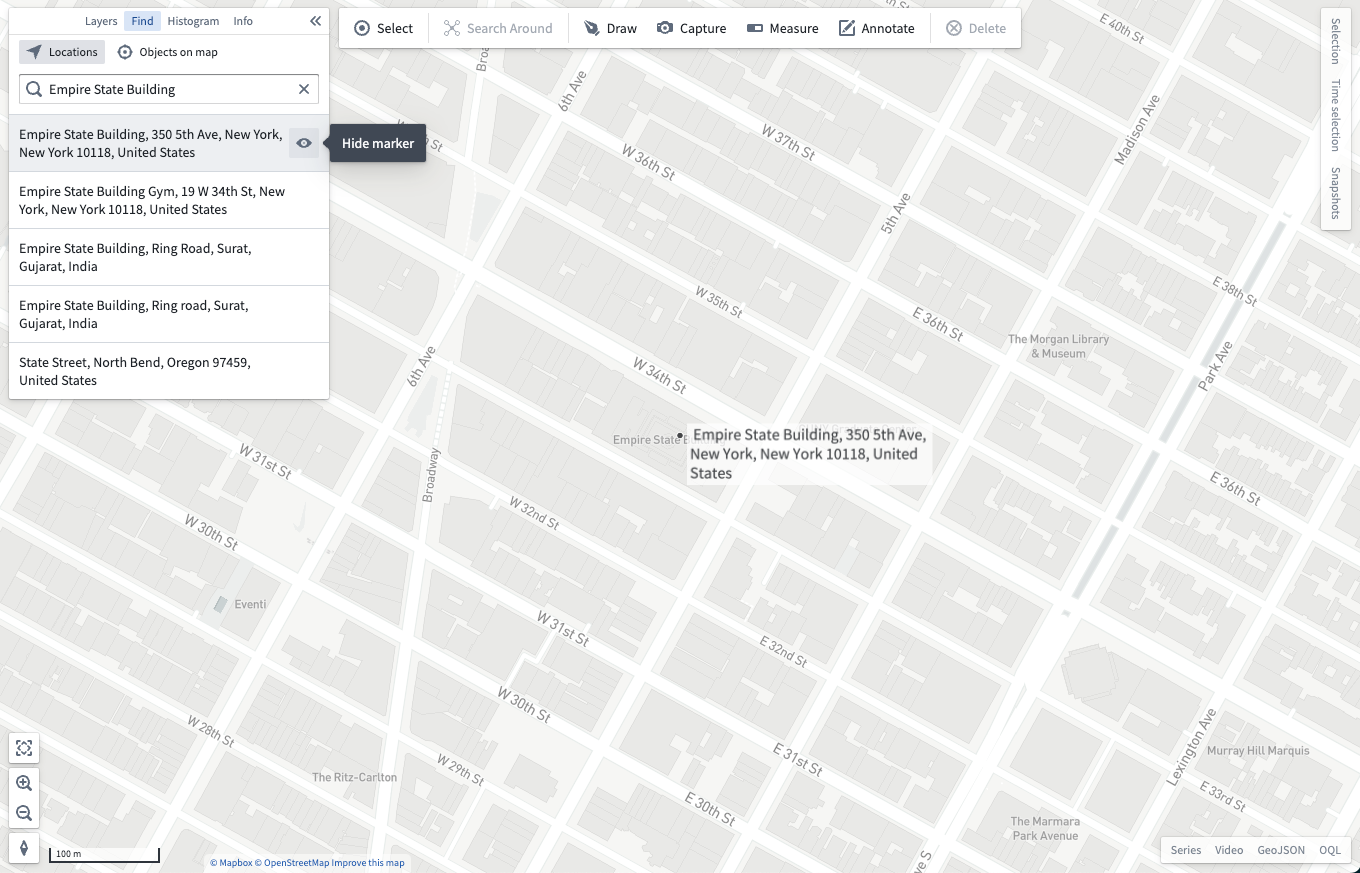
Select the Locations tab and enter a query to find locations by their address or name. Selecting a result will navigate the map to that location and show a marker with the location's address. You can hide the marker by clicking the eye icon next to the address in the results list.
Navigate to Coordinates
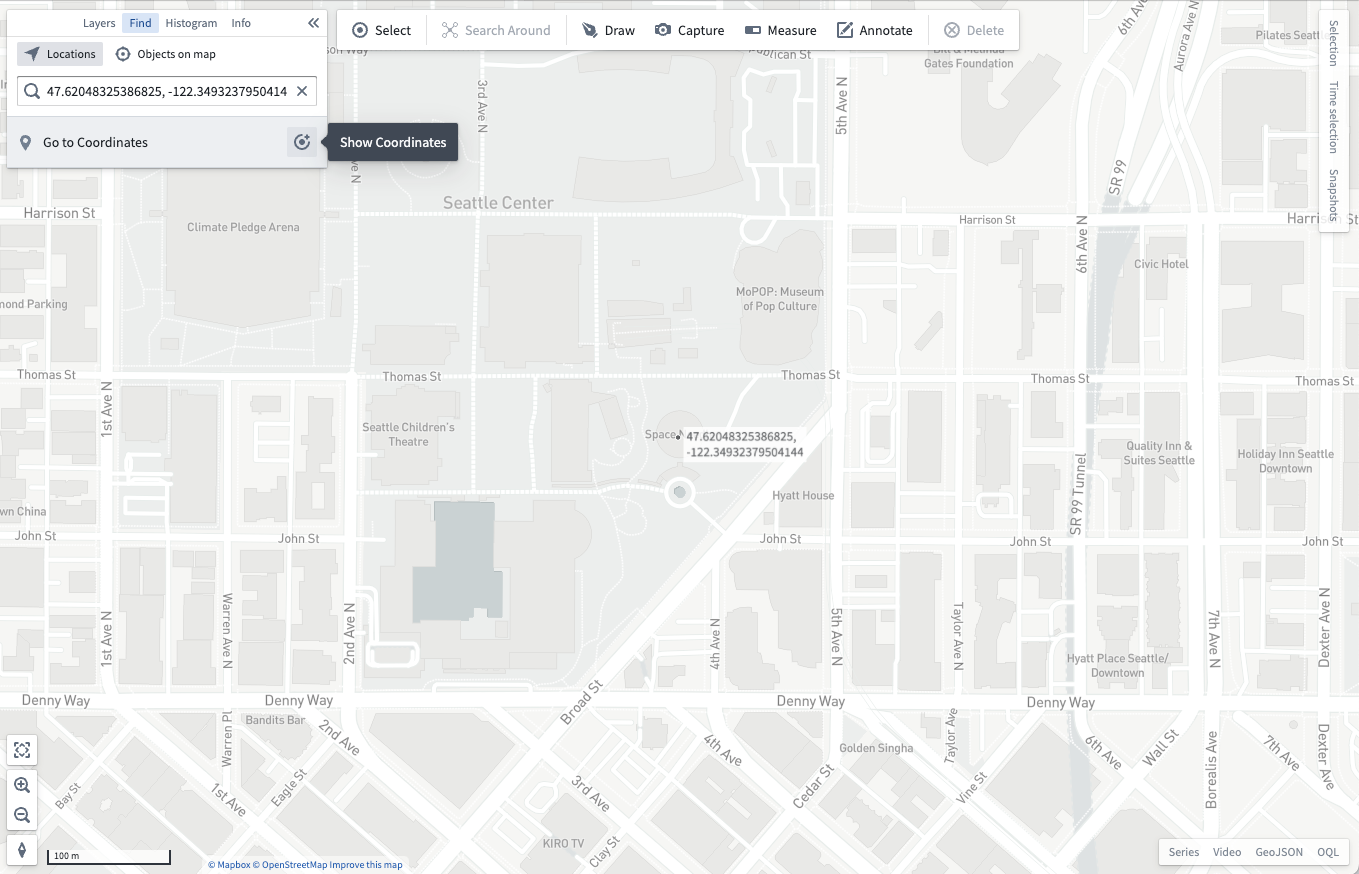
With either the Objects on map or Locations tab selected, you can enter coordinates in the search input and navigate your map to them by selecting the result. Using the Show coordinates button will add a text annotation at your specified coordinates.
中文翻译
导航
地图应用支持平移、缩放、旋转或倾斜地图,以便于查看和分析。您还可以使用快捷键快速居中地图,或通过查找面板定位地图上的对象、位置和坐标。
基本地图控制
- 平移:在地图视口中点击并拖动,或使用键盘上的方向键。
- 缩放:使用以下任一方式:
- 左下角的放大和缩小按钮
- 鼠标滚轮
- 键盘上的 + 和 - 键
- 旋转和倾斜:按住 Ctrl(Windows)或 Cmd(macOS)的同时点击并拖动。
将地图居中于对象
按下键盘上的 0 键,地图将导航至显示您选中的对象。如果没有选中任何对象,按 0 键将调整地图视图,使地图上的所有对象均可显示。
使用查找面板
查找面板允许您导航至已添加到地图中的对象,以及位置和坐标。
查找地图上的对象
选择地图上的对象选项卡,输入搜索查询以按标题或属性值查找对象。选择某个结果将导航地图至该对象。
查找位置
:::callout{theme="neutral" title="需要 API 密钥"} 您的组织必须在控制面板中配置 Mapbox API 密钥,此功能才可用。 :::
选择位置选项卡,输入查询以按地址或名称查找位置。选择某个结果将导航地图至该位置,并显示带有地址的标记。您可以通过点击结果列表中地址旁的眼睛图标来隐藏标记。
导航至坐标
在选中地图上的对象或位置选项卡时,您可以在搜索输入框中输入坐标,并通过选择结果导航至该坐标。使用显示坐标按钮将在指定坐标处添加文本注释。