Selection(选择 (Selection))
The Map application has a variety of methods for selecting objects and annotations.
Select items on the map
- Select items: Click on an object or annotation to select it. If there are multiple items under the cursor, all items will be selected.
- Add items to existing selection: Hold Ctrl (Windows) or Cmd (macOS) while clicking to add the items under the cursor to the selection.
- Select all items in a rectangular region: Hold Shift while clicking and dragging the cursor to select all items in a rectangular region.
- Clear selection: Click on an empty space on the map.
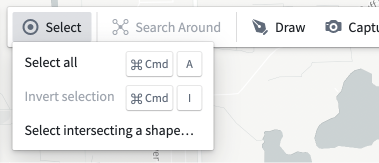
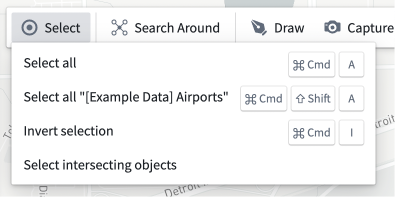
Additional selection options are available in the Select toolbar menu. These are:
- Select All: Select all items on your map.
- Also available via the Ctrl+A (Windows) or Cmd+A (macOS) keyboard shortcut.
- Select All of "Type": Select all items matching the object type of the currently selected object.
- Only available when there is an existing selection that contains a single type of object.
- Invert Selection: Swap the selection to all items that are not currently selected.
- Also available via the Ctrl+I (Windows) or Cmd+I (macOS) keyboard shortcut.
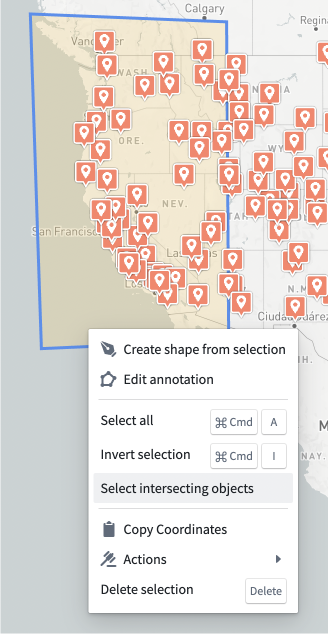
- Select intersecting objects: Select all objects that intersect with all currently selected items.
- Only available when there is an existing selection.
- Select intersecting a shape...: Allows you to draw a shape and select all objects that intersect with it.
- Only available when there is no existing selection.
These functions are also available in the right-click menu.
| Select menu | Select menu with existing selection | Right click menu for a shape |
|---|---|---|
 |
 |
 |
You can select all the objects in a given layer using the Select objects in layer menu item from the Layer Actions menu.

Select items using the histogram
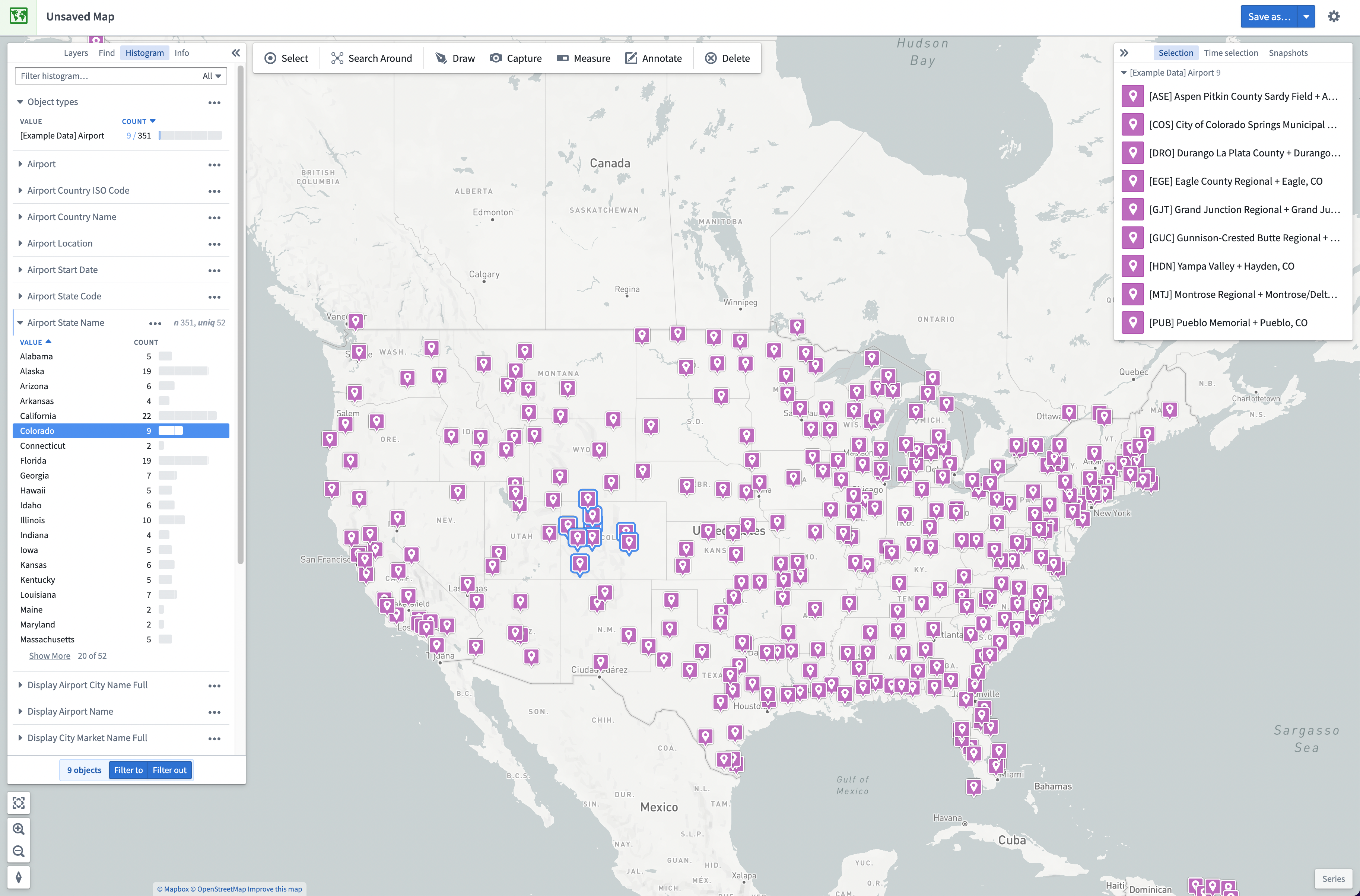
Click on a row within the Histogram panel to select all matching objects. Hold Shift while selecting a second row to select a range of rows. Holding Ctrl (Windows) or Cmd (macOS) will add the row to the existing selection. You can find more details in the histogram and filtering documentation.
Locking objects on the map
Lock the objects in a layer by selecting the … option, located in the Layers panel under the "Objects" section:

This will lock the objects of a layer so that they will not be selectable on the map. The objects can still be selected from the left Layers, Find, and Histogram Panel, but you cannot interact with them on the map with your cursor, selection shortcuts, or intersecting shapes. You can still edit the styling of a layer from the … menu button.
To unlock the objects in a layer, select the lock icon next to a layer in the Layers panel or access via the … dropdown menu.
Selection Panel
If there are multiple objects selected, the Selection panel will list these objects. From this list, you can click a single object to narrow down your selection to that object. With a single object selected, the Selection panel on the right will show the details of the object.

If the object has actions, these can be accessed by clicking the  icon. Additional actions such as centering the map on the object, deleting the object from the map, and opening the object in other applications are available from the ... menu.
This panel has four tabs.
- The Properties tab will show the properties of the object.
- You can pin properties by right-clicking and selecting Pin property which will cause the properties to be shown at the top and allow you to hide the other properties.
- If there are any functions available, these can be added by selecting
 in the bottom right. Selecting a function will add the value returned by that function to the properties list.
 - The Series tab will show any series linked to the object.
- The Events tab will show any events linked to the object in the currently selected time window.
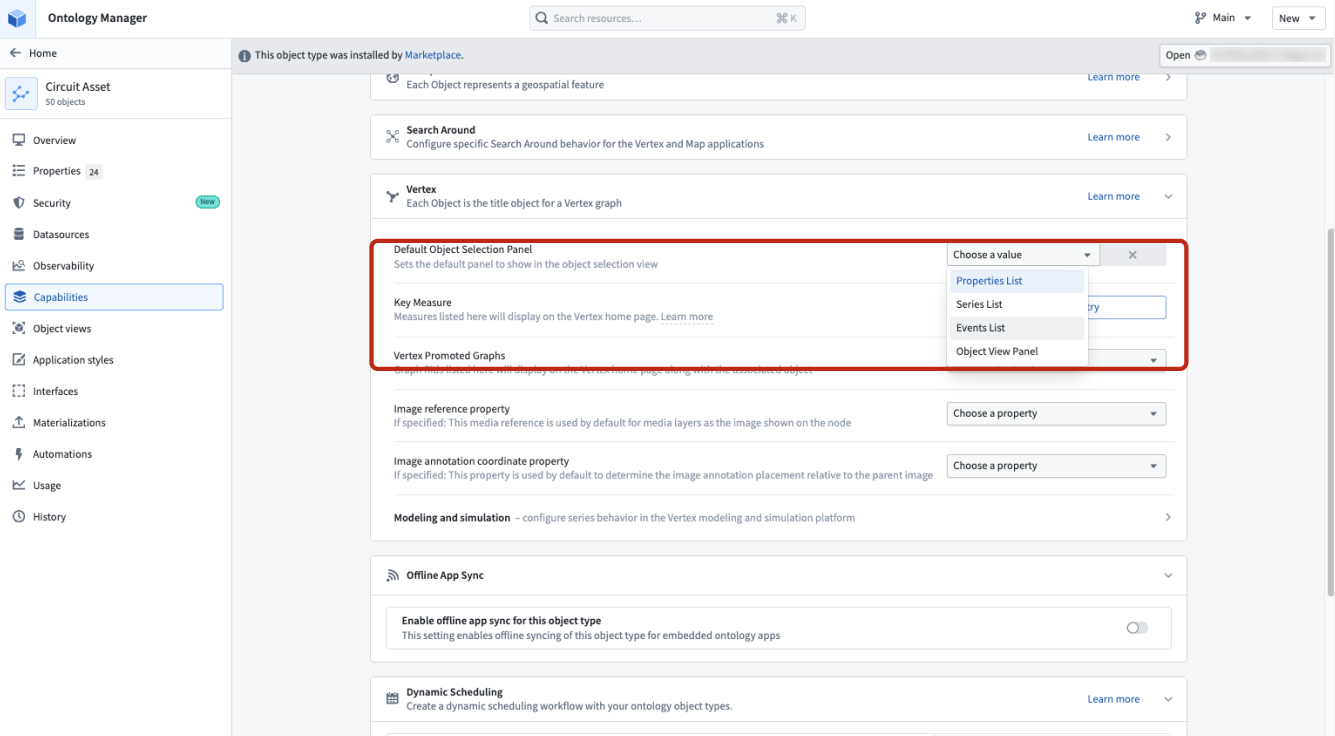
- The Object view tab will show the object view configured in the Ontology Manager's Object Views tab.
You can change the default tab for an object in Ontology Manager's Capabilities tab.
| Adding a function | Showing a function value |
|---|---|
 |
 |
Remove items from the map
To remove selected objects and annotations from your map, do one of the following:
- Click Delete in the toolbar
- Select the Delete selection entry in the right-click menu
- Press the delete key on your keyboard.
A toast will appear confirming the number of items that were deleted, with an Undo option to revert this action.
To remove all objects within a single layer, use the Delete layer item in the Layer actions menu.

中文翻译
选择 (Selection)
Map 应用程序提供了多种选择对象和标注的方法。
在地图上选择项目
- 选择项目: 点击某个对象或标注即可将其选中。如果光标下有多个项目,则所有项目都会被选中。
- 将项目添加到现有选择: 按住 Ctrl(Windows)或 Cmd(macOS)键的同时点击,可将光标下的项目添加到当前选择中。
- 选择矩形区域内的所有项目: 按住 Shift 键的同时点击并拖动光标,可选择矩形区域内的所有项目。
- 清除选择: 点击地图上的空白区域。
其他选择选项可在 选择 (Select) 工具栏菜单中找到,包括:
- 全选 (Select All): 选择地图上的所有项目。
- 也可通过快捷键 Ctrl+A(Windows)或 Cmd+A(macOS)实现。
- 全选"类型" (Select All of "Type"): 选择与当前选中对象类型相同的所有项目。
- 仅当当前选择中包含单一类型的对象时可用。
- 反选 (Invert Selection): 将选择切换为当前未选中的所有项目。
- 也可通过快捷键 Ctrl+I(Windows)或 Cmd+I(macOS)实现。
- 选择相交对象 (Select intersecting objects): 选择与当前所有选中项目相交的对象。
- 仅当存在现有选择时可用。
- 选择与形状相交的对象... (Select intersecting a shape...): 允许您绘制一个形状,并选择与其相交的所有对象。
- 仅当没有现有选择时可用。
这些功能也可在右键菜单中找到。
| 选择 (Select) 菜单 | 选择 (Select) 菜单(已有选择时) | 形状的右键菜单 |
|---|---|---|
|
|
|
您可以使用 图层操作 (Layer Actions) 菜单中的 选择图层中的对象 (Select objects in layer) 菜单项,选择给定图层中的所有对象。
使用直方图选择项目
点击 直方图 (Histogram) 面板中的某一行,可选择所有匹配的对象。按住 Shift 键并选择第二行,可选择连续的多行。按住 Ctrl(Windows)或 Cmd(macOS)键可将该行添加到现有选择中。更多详情请参阅直方图与筛选文档。
锁定地图上的对象
通过选择 图层 (Layers) 面板中"对象 (Objects)"部分下的 … 选项,可锁定图层中的对象:
这将锁定图层中的对象,使其无法在地图上被选中。这些对象仍可从左侧的 图层 (Layers)、查找 (Find) 和 直方图 (Histogram) 面板中选择,但您无法通过光标、选择快捷键或相交形状在地图上与它们交互。您仍然可以通过 … 菜单按钮编辑图层的样式。
要解锁图层中的对象,请选择 图层 (Layers) 面板中图层旁边的锁定图标,或通过 … 下拉菜单访问。
选择面板 (Selection Panel)
如果选择了多个对象,选择 (Selection) 面板将列出这些对象。在此列表中,您可以点击单个对象,将选择范围缩小到该对象。当选中单个对象时,右侧的 选择 (Selection) 面板将显示该对象的详细信息。
如果对象具有操作,可以通过点击 图标来访问。其他操作,例如将地图居中于该对象、从地图中删除该对象以及在其他应用程序中打开该对象,可通过 ... 菜单使用。
此面板有四个选项卡。
- 属性 (Properties) 选项卡将显示对象的属性。
- 您可以通过右键点击并选择 固定属性 (Pin property) 来固定属性,这会使该属性显示在顶部,并允许您隐藏其他属性。
- 如果有可用的函数 (functions),可以通过点击右下角的 来添加。选择一个函数会将函数返回的值添加到属性列表中。
- 序列 (Series) 选项卡将显示与该对象关联的任何序列。
- 事件 (Events) 选项卡将显示在当前选定的时间窗口内与该对象关联的任何事件。
- 对象视图 (Object view) 选项卡将显示在本体管理器 (Ontology Manager) 的 对象视图 (Object Views) 选项卡中配置的对象视图。
您可以在本体管理器的 功能 (Capabilities) 选项卡中更改对象的默认选项卡。
| 添加函数 | 显示函数值 |
|---|---|
|
|
从地图中移除项目
要从地图中移除选中的对象和标注,请执行以下任一操作:
- 点击工具栏中的 删除 (Delete)
- 在右键菜单中选择 删除选择 (Delete selection)
- 按下键盘上的删除键。
将出现一个提示 (toast),确认已删除的项目数量,并提供一个 撤销 (Undo) 选项以恢复此操作。
要移除单个图层中的所有对象,请使用 图层操作 (Layer actions) 菜单中的 删除图层 (Delete layer) 项。