Settings(设置)
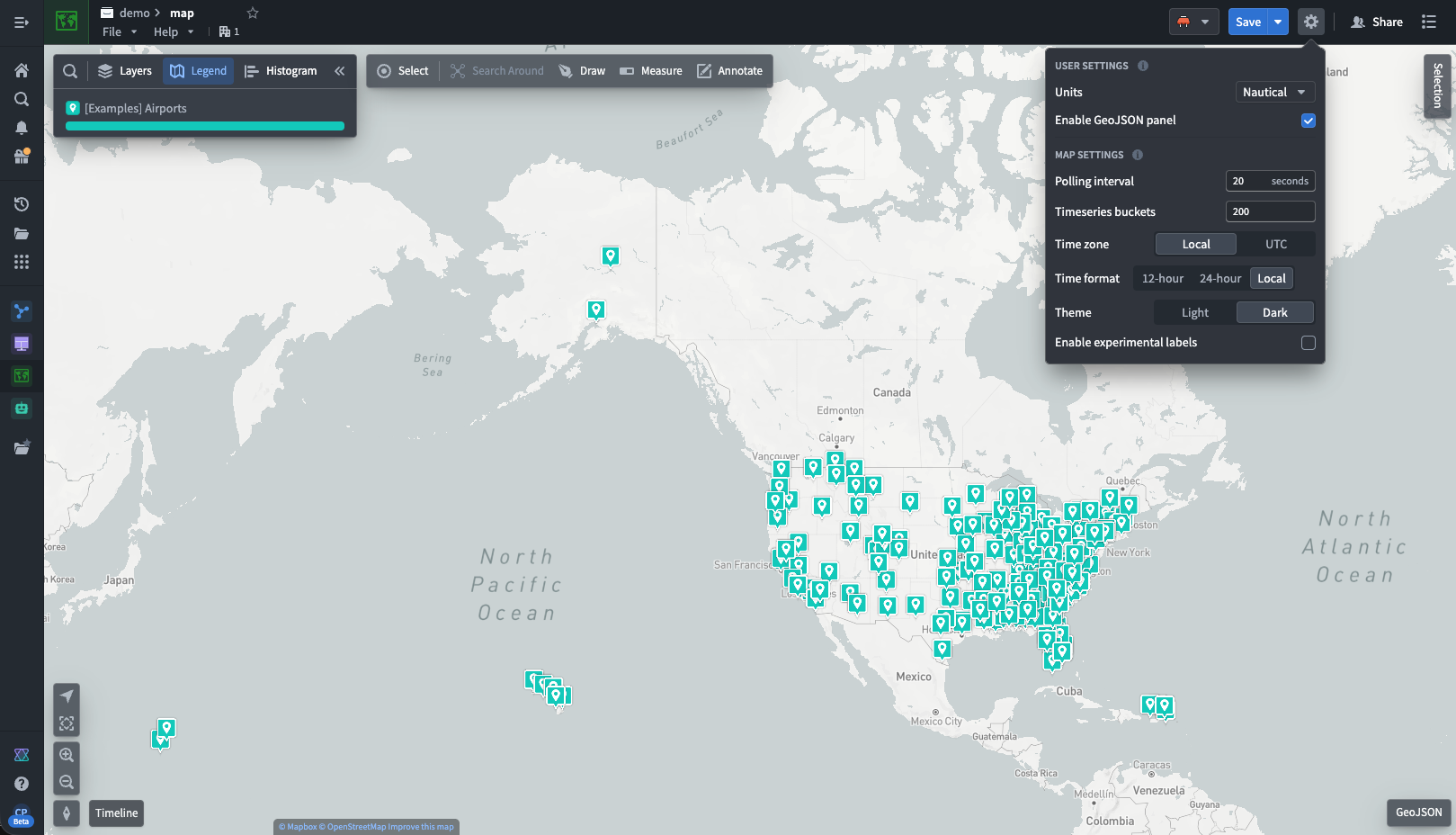
Choose the settings gear icon ( ) in the top right corner of the Map screen to open the settings menu:
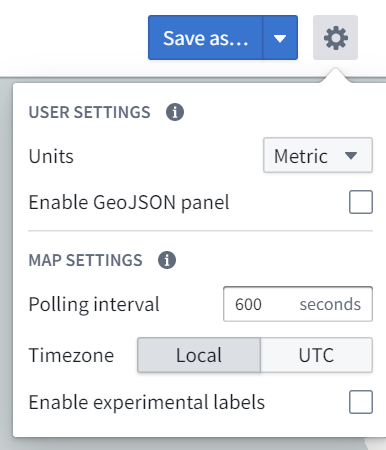
Some settings will be limited by what is configured organization-wide via Control Panel.
User settings
Settings that are associated with your user and apply to all maps you open.
Units
You can specify the units in which distances are displayed. This is a per-user setting and is applied for you whenever you are using the Map application. The options for units are:
- Metric
- Imperial
- Nautical
Enable GeoJSON panel
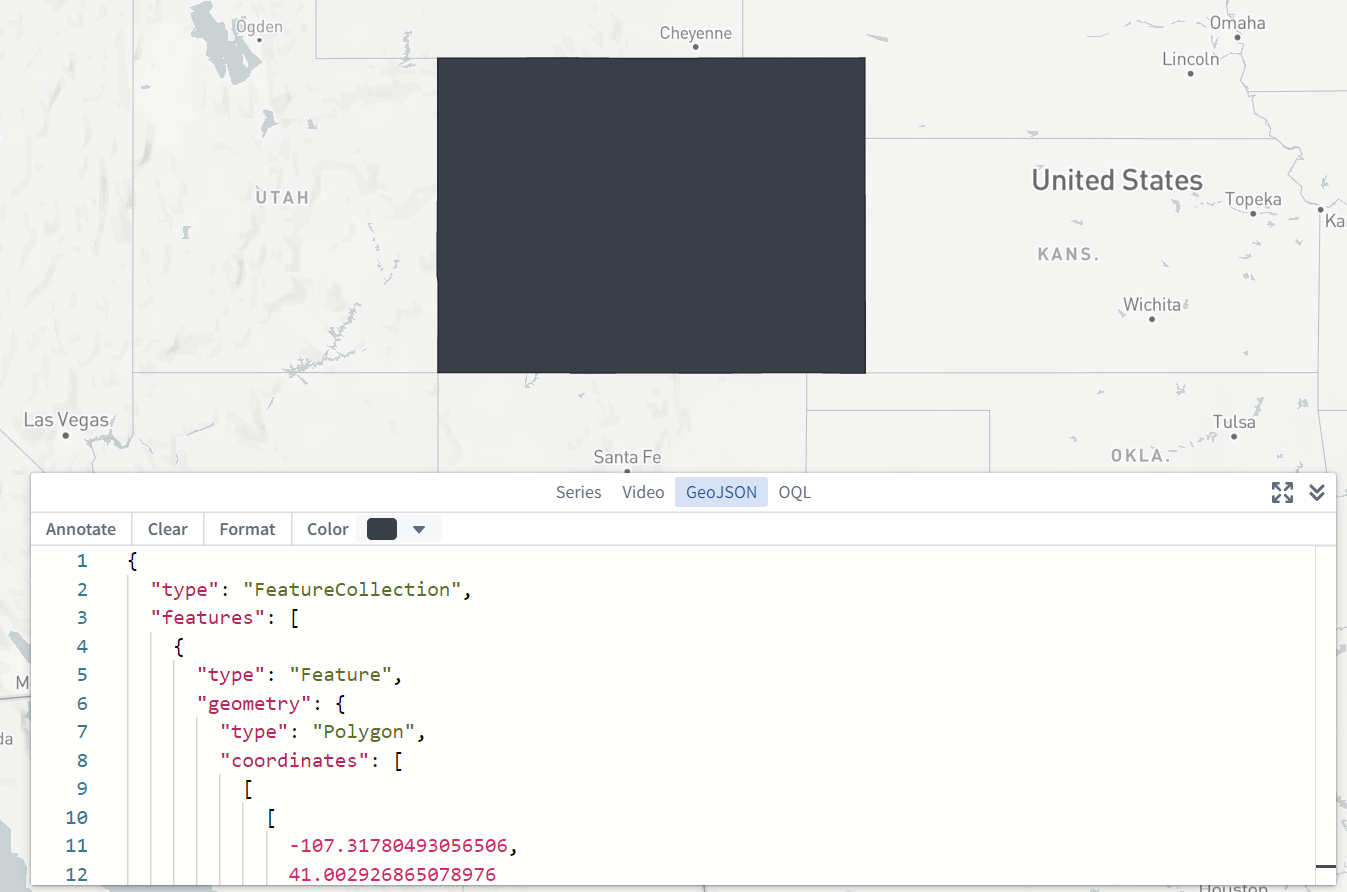
You can enable an additional GeoJSON panel in the bottom-right corner of the screen that allows you to enter and edit GeoJSON data, and create annotations based on the GeoJSON geometries. This is a per-user setting and is applied for you whenever you are using the Map application.
Map settings
Settings that are stored per-map. These settings will apply for all users when using this specific saved map.
Polling interval
You can specify the frequency at which new time series and time series property values will be loaded when in "View Latest" mode.
Time series buckets
You can specify the number of points to load for each track.
Time zone
You can specify the time zone in which to display the map. The options for time zone are:
- Local (this will use the time zone of the viewer's computer)
- UTC
Time format
Time format in which to display the map.
- 12-hour
- 24-hour
- Local
Note that 24-hour is the only time format available if the time zone is set to UTC.
Theme
Switch between Light and Dark mode for the map app. This setting does not change the base map to be light or dark, only the UI of the map application.
Enable experimental labels
You can enable an experimental method for displaying and positioning objects labels on the map. This method applies a positioning algorithm that attempts to minimize instances of labels overlapping each other, or obscuring objects. However, in some circumstances (such as with large numbers of labels) the resulting label positioning could be undesirable, or labels could reposition in undesirable or distracting ways. This is a per-map setting that applies for all users when using this specific saved map.
中文翻译
设置
点击地图界面右上角的设置齿轮图标()即可打开设置菜单:
部分设置可能受限于通过控制面板进行的组织级配置。
用户设置
与用户关联的设置,适用于您打开的所有地图。
单位
您可以指定距离显示的单位。此为按用户设置的参数,在使用地图应用时始终生效。可选单位包括:
- 公制
- 英制
- 海里
启用 GeoJSON 面板
您可以在屏幕右下角启用额外的 GeoJSON 面板,用于输入和编辑 GeoJSON 数据,并基于 GeoJSON 几何图形创建标注。此为按用户设置的参数,在使用地图应用时始终生效。
地图设置
按地图存储的设置。使用特定已保存地图时,这些设置将适用于所有用户。
轮询间隔
您可以指定在"查看最新"模式下加载新时间序列及时间序列属性值的频率。
时间序列桶数
您可以指定每条轨迹加载的数据点数量。
时区
您可以指定地图显示的时区。可选时区包括:
- 本地(使用查看者计算机的时区)
- UTC
时间格式
地图显示的时间格式。
- 12小时制
- 24小时制
- 本地
请注意,当时区设置为 UTC 时,仅支持24小时制时间格式。
主题
在地图应用的浅色与深色模式间切换。此设置不会改变底图的明暗,仅影响地图应用的界面外观。
启用实验性标签
您可以启用实验性方法来显示和定位地图上的对象标签。该方法采用定位算法,旨在尽量减少标签重叠或遮挡对象的情况。但在某些场景下(如标签数量过多时),可能导致标签定位效果不佳,或标签以不理想/干扰方式重新定位。此为按地图设置的参数,使用特定已保存地图时适用于所有用户。