Shapes(形状(Shapes))
Use shapes to select a geospatial area on your map in which to search for objects, select objects already on your map, take actions, or create annotations.
Create a shape
All operations available on shapes first require an active shape. Create a shape in one of the ways below:
- Construct a shape yourself using the drawing tools.
- Use the currently selected objects and annotations to create shapes that cover the same geospatial area as your selection.
Draw a shape
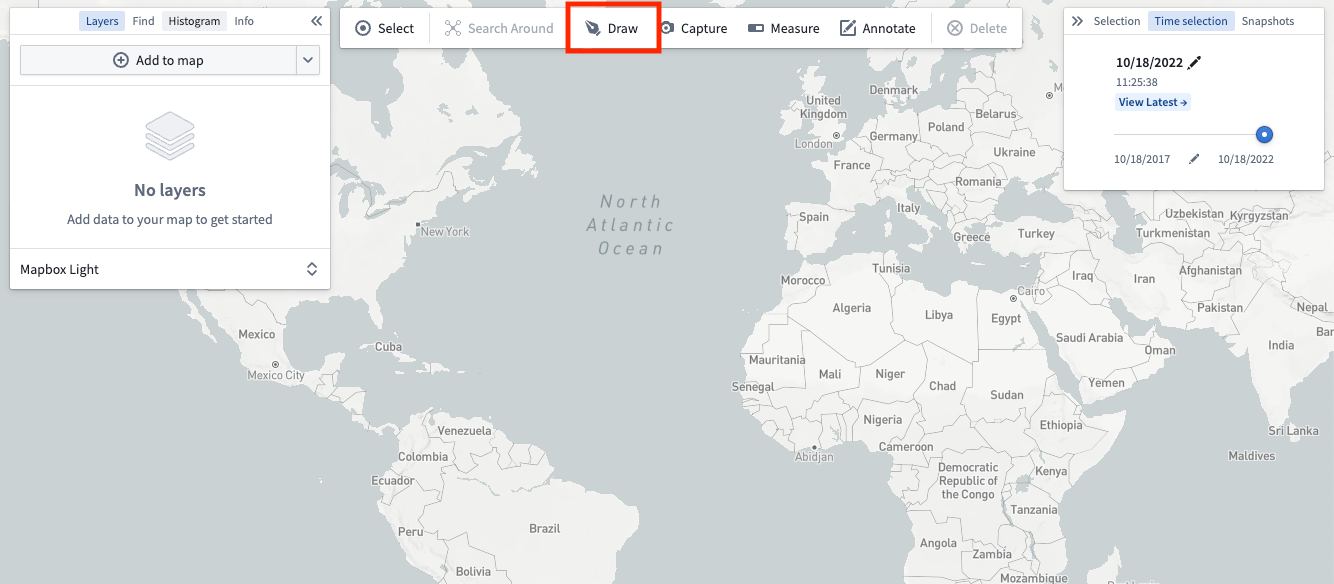
Choose one of the Drawing method options in the toolbar or press D on your keyboard to manually draw a shape on the map.
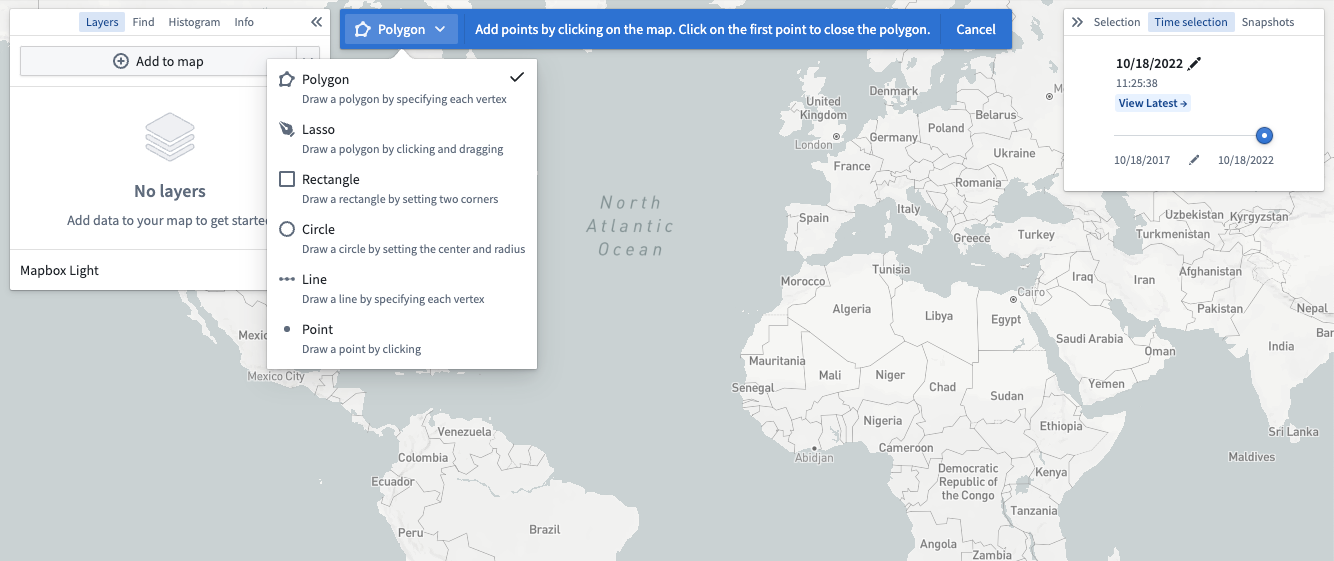
Select from the various modes available using the dropdown accessible by clicking on the current drawing mode:
From selection
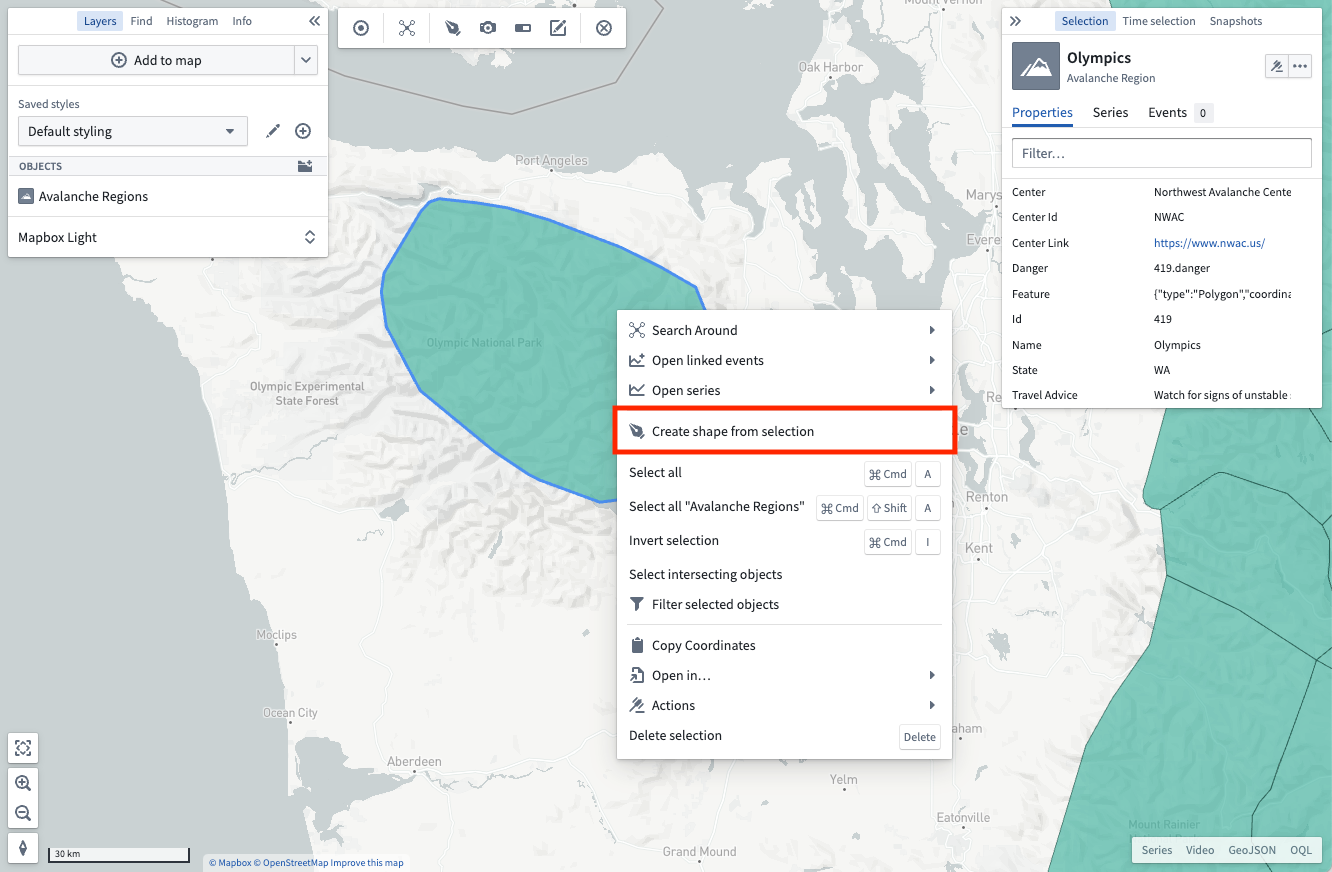
You can also create shapes from the active selection on the map. Right-click on any selected object and use the Create shape from selection menu entry.
Modify a shape
You can edit active shapes on your map by using the Modify button in the shapes toolbar.
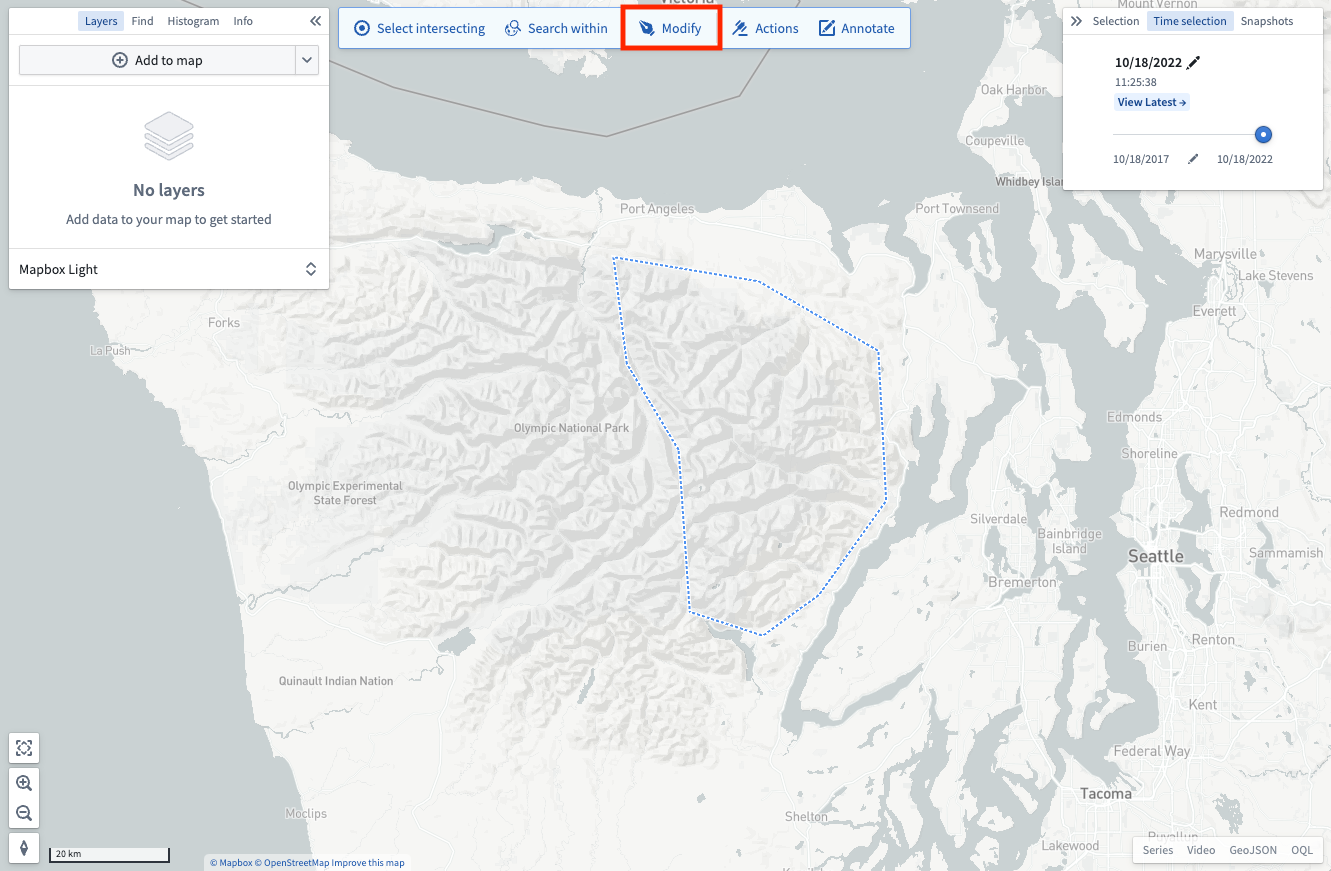
There are a number of modification tools available:

- Edit points: Lets you drag individual vertices to modify polygons, lines, or points.
- Buffer: Allows entering a specific distance by which to grow or shrink the perimeter of shapes.
- Translate: Enables moving an entire shape by dragging it.
- Replace: Discards the currently drawn shape and opens the drawing tools to draw a new shape.
Once finished applying modifications, use the Done button to return the shapes toolbar.
Perform operations with an active shape
With an active shape, use the Shapes toolbar to perform various operations:

- Select intersecting: Selects every object on your map that is in a visible layer and that intersects the current shape.
- Search within: Opens the Add objects panel and filters the results to only include objects that have geospatial data that intersects the current shape. Note that only objects with
geohashorgeoshapeproperties can be searched. - Actions: Shows every available ontology action that consumes shapes. Read more about configuring geospatial actions at Actions. Note that the actions button will only appear if geospatial actions have been configured in the ontology.
- Delete: Removes the selected shapes from the map interface.
中文翻译
形状(Shapes)
使用形状(Shapes)在地图上选择地理空间区域,以便搜索对象、选择地图上已有的对象、执行操作或创建标注(annotations)。
创建形状
所有与形状相关的操作都需要先激活一个形状。通过以下任一方式创建形状:
- 使用绘图工具自行构建形状。
- 利用当前选中的对象和标注,创建覆盖与所选内容相同地理空间区域的形状。
绘制形状
在工具栏中选择一种绘图方法选项,或按键盘上的 D 键,在地图上手动绘制形状。
点击当前绘图模式,通过下拉菜单选择可用的各种模式:
从选择内容创建
你也可以从地图上的活动选择内容创建形状。右键点击任意选中的对象,然后使用从选择内容创建形状菜单项。
修改形状
你可以通过形状工具栏中的修改按钮编辑地图上的活动形状。
可用的修改工具有多种:
- 编辑点(Edit points): 允许拖动单个顶点来修改多边形、线条或点。
- 缓冲区(Buffer): 可输入特定距离,以扩大或缩小形状的边界。
- 平移(Translate): 通过拖动来移动整个形状。
- 替换(Replace): 丢弃当前绘制的形状,并打开绘图工具绘制新形状。
完成修改后,使用完成按钮返回形状工具栏。
使用活动形状执行操作
激活形状后,使用形状工具栏执行各种操作:
- 选择相交对象(Select intersecting): 选择地图上所有位于可见图层中且与当前形状相交的对象。
- 在范围内搜索(Search within): 打开添加对象面板,并将结果过滤为仅包含地理空间数据与当前形状相交的对象。请注意,只有具有
geohash或geoshape属性的对象才能被搜索。 - 操作(Actions): 显示所有可消耗形状的本体操作(ontology action)。更多关于配置地理空间操作的信息,请参阅操作。请注意,仅当在本体中配置了地理空间操作时,操作按钮才会出现。
- 删除(Delete): 从地图界面中移除选中的形状。