Styling(样式设置)
Use styling to control the visualization of the data contained in your map's layers. By editing attributes like color, size, stroke width, and more, you can highlight key attributes of your data and create maps that help you understand patterns or identify outliers in your geospatial data.
Styling options
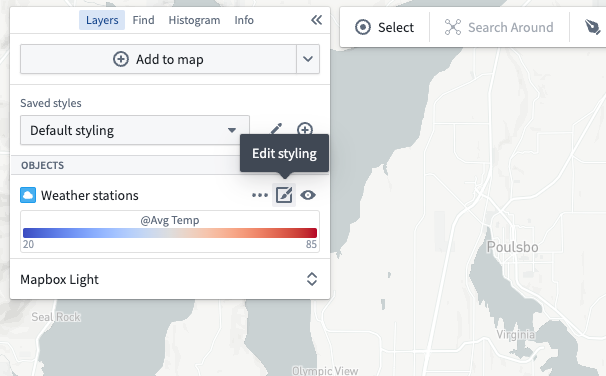
Edit styling for a layer by using the edit styling button in the Layers panel:
:::callout{theme="neutral"} This list contains styling options that are used across different layers, but the options available for each layer vary based on the kind of data contained within the layer. For example the Fill polygons option only appears when the styler being configured render as a polygon. Within each option, the available modes also vary by the layer type: property, function, and measure based styling are only available on object layers, while fixed styling is available on every layer type. :::
Color
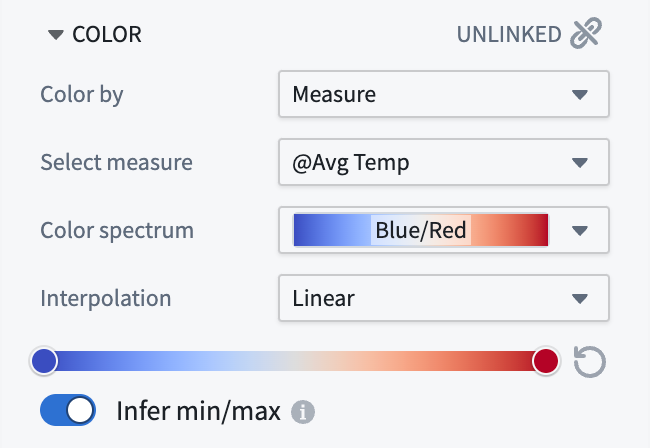
Use the Color section to control the coloring for objects in the layer. The Color by dropdown contains the various modes that can be used for coloring:
- Fixed: Select a single color that uniformly applies to all objects in the layer.
- Function: Color objects using values computed by a function.
- Property: Color objects using values from a property.
- Measure: Color objects using values from a time series.
When coloring by a function, property, or time series that has numeric values, use the gradient editor to map values to output colors. The colors used in the gradients can be edited by selecting points the gradient bar. The numerical range (min/max) for the color gradient is automatically inferred, but this can be toggled off to set the range manually.
When coloring by a function, property, or time series that has string values, the Color mapping dropdown contains methods for mapping values to colors:
- Manual: Explicitly specify colors to use per-value.
- Automatic: Assign colors from a color scheme automatically, to differentiate between different values without having to configure specific values.
- None: Attempts to apply each value directly as a hex color.
Opacity
Use the Opacity section to control the transparency for objects in the layer.
The Value from dropdown contains the various ways you can specify opacity:
- Fixed: Select a single opacity that uniformly applies to all objects in the layer.
- By time: When rendering tracks or objects that are events, control their opacity based on the global time selection.
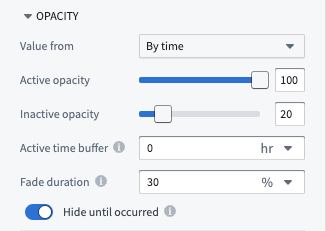
- Active opacity: Sets the opacity when the object or point is considered active.
- Inactive opacity: Sets the opacity when the object or point is not considered active.
- Active time buffer: Sets how temporally close an event or track point's timestamp must be to the current time cursor for it to be considered active
- Fade duration: Sets the time period over which an object's opacity fades from the active to inactive opacity, once it becomes inactive.
- Hide until occurred: If enabled, an object will be fully hidden until the time cursor has passed the start of the event or a track point's timestamp.
:::callout{theme="neutral"} The Value from dropdown and By time opacity options will only appear when styling tracks or objects with event data. :::
Zoom levels
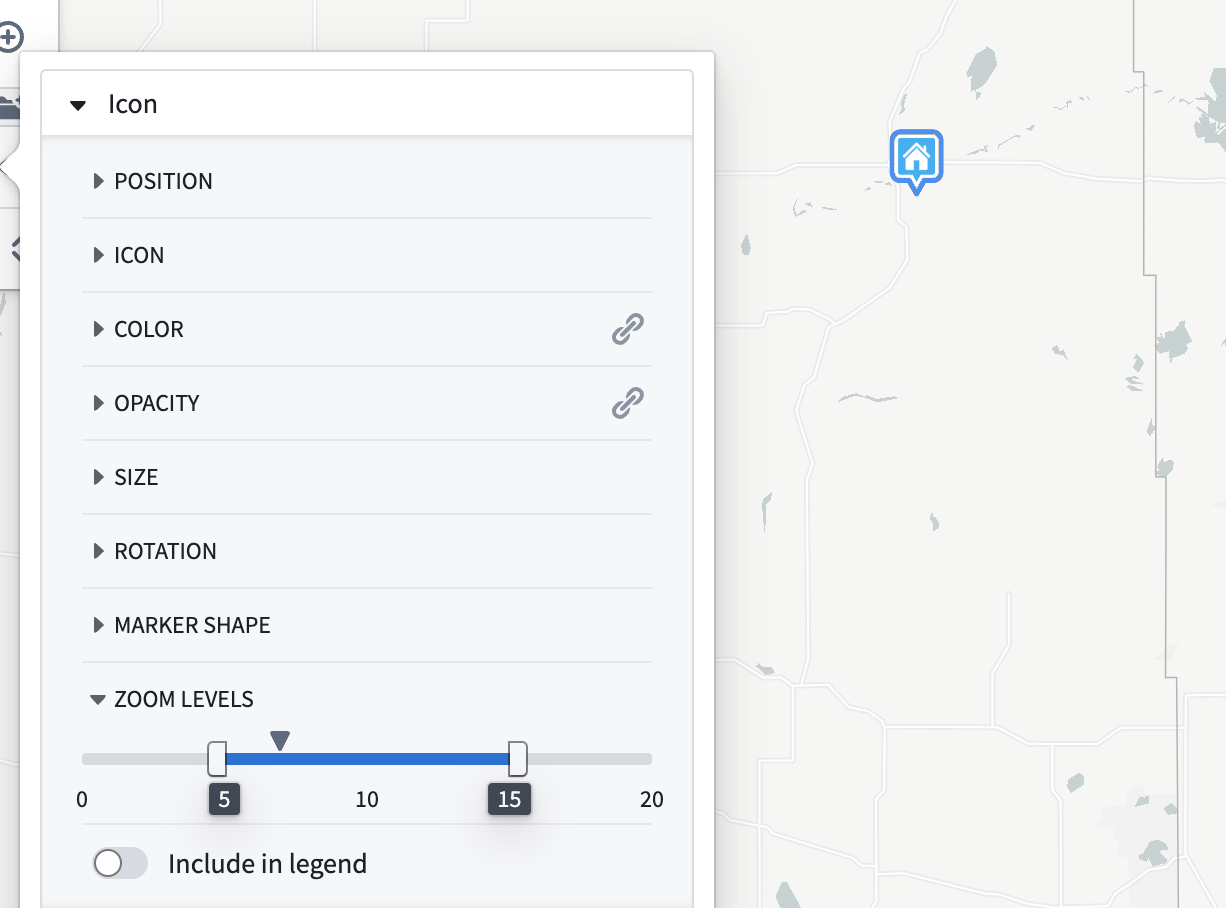
Use the Zoom levels section to control the visibility range of the objects in the layer. The caret symbol indicates your current zoom level.
When the viewport is at a zoom level within the active range, the corresponding display will be rendered on the map. When outside the range, the corresponding display will be hidden.
The zoom level configuration only applies to layers that are toggled to be visible.
Stroke width
Use the Stroke width section to control the width used when rendering lines.
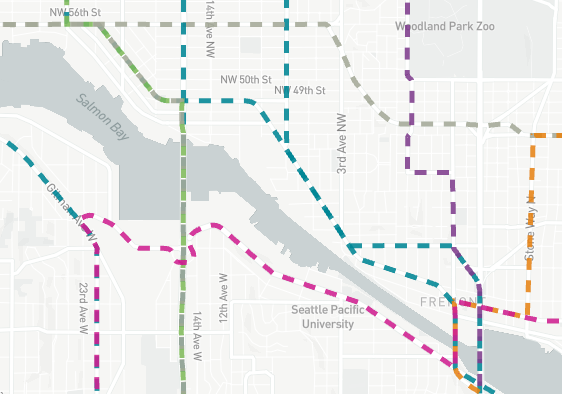
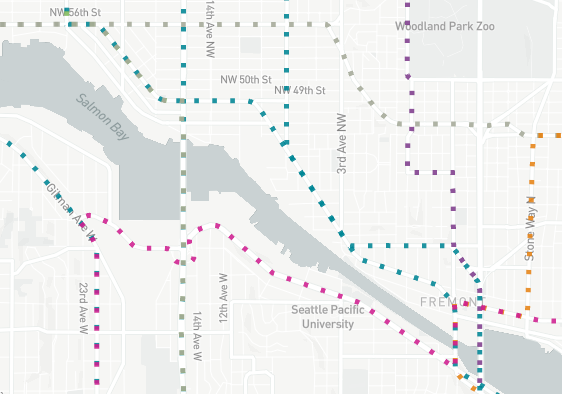
Stroke style
Use the Stroke style section to control the dash pattern used when rendering lines. The available options are:
- Solid
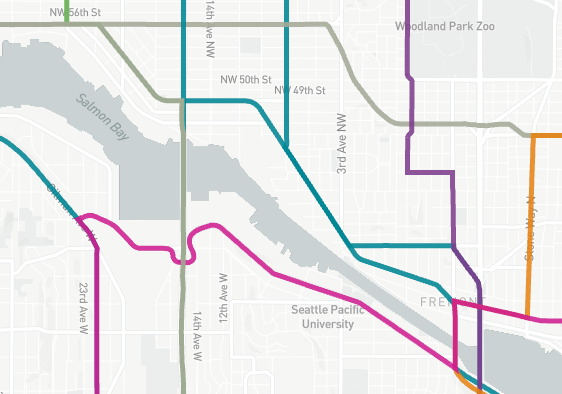 * Dashed
 * Dotted
For line segments, use the stroke style section to optionally display arrows, as pictured below.

Fill polygons
When Fill polygons is enabled, polygons render with a minimal stroke and their interior filled with the specified color. When disabled, the polygon is instead only stroked, using the styling configuration in Stroke width and Stroke style.
Icon
When configuring an icon styler, use the Icon section to configure the icon that is rendered for each object. The Icon source dropdown contains the modes that can be used for assigning icons:
- Object default: Use the icon assigned to the object in the Ontology.
- Fixed icon: Select a single icon that will apply to all objects in the layer.
- Property: Assign icons to objects by mapping property values to icons.
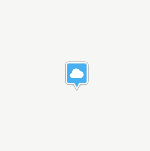
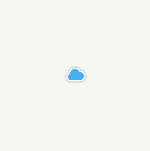
Marker shape
When configuring an icon styler, use the Marker shape section to configure the shape of the marker that the icon is rendered within. The available options are:
- Circle
 * Pin
* Pin
 * None
Include in legend
By default, when coloring a layer by property, function, or measure, a legend will display the color mapping to help you interpret the colors when viewing your map. You can remove the legend by disabling the Include in legend toggle. Similarly, when coloring by a fixed color, you can opt-in to showing a legend entry by turning Include in legend on.
Labels and tooltips
There are two optional toggles related to labels and tooltips:
Show labels: Controls whether a label appears on the map for each item in the layer. Show tooltips: Controls whether items in the layer will show a pop-up with contextual information when hovered.
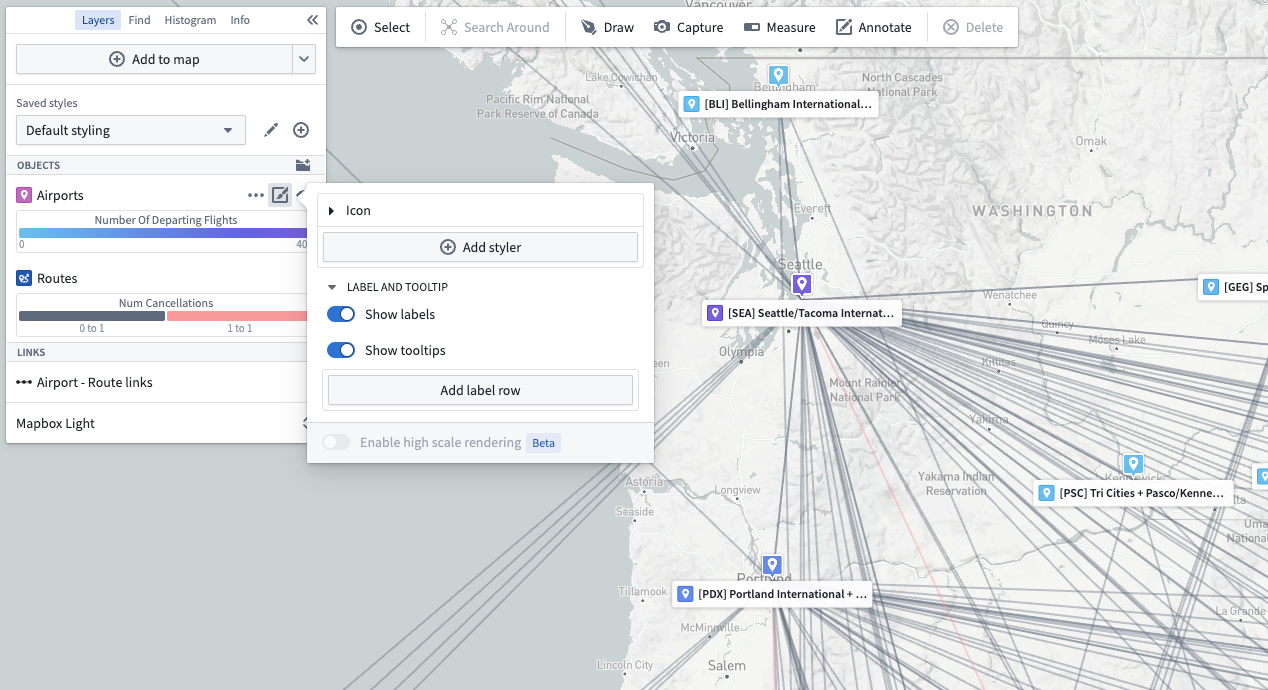
Label content for object layers
For object-backed layers, labels and tooltips may contain the following:
- Properties (including time-series properties)
- Functions
- Series
- Linked object counts
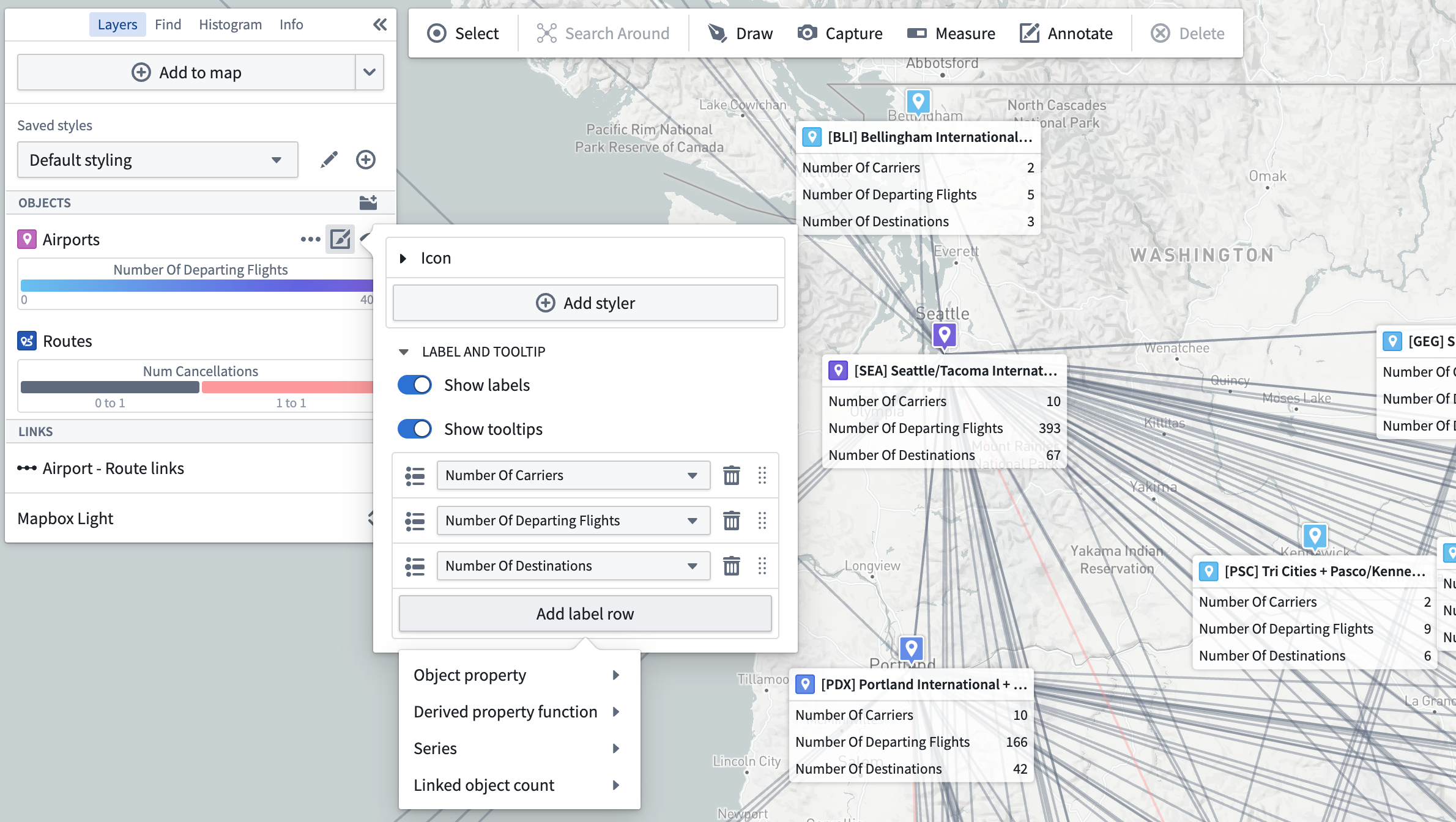
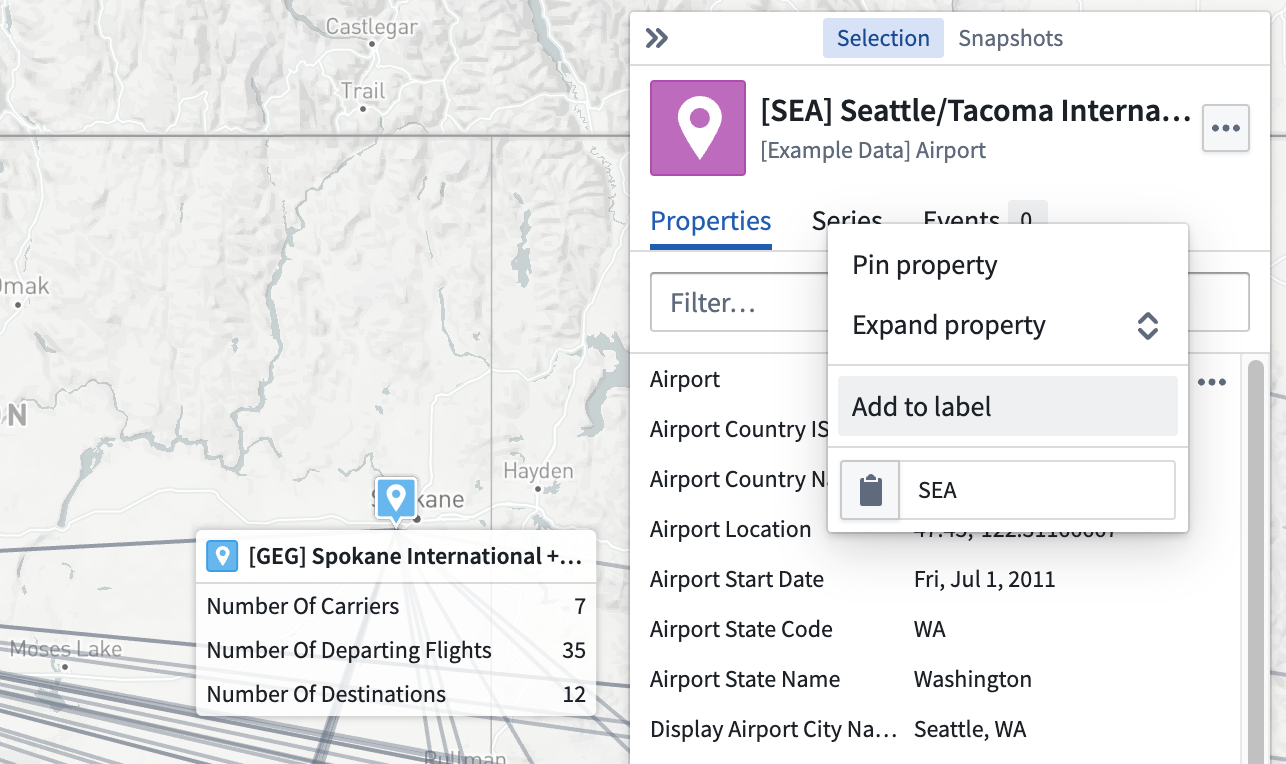
Properties or series can also be added from the selection panel using the … menu that appears when hovering on a property or series, as pictured below.
Object layer stylers
Each object in an object layer can render in multiple ways on the map by specifying multiple stylers. For example, an object with a geopoint type property could be rendered as both a pin marker and a circle.
Edit object layer stylers
Edit the stylers for an object layering by opening the layer's styling panel. Expand any individual styler to edit its styling options (color, opacity, and so on), or add a new styler using the Add styler button:
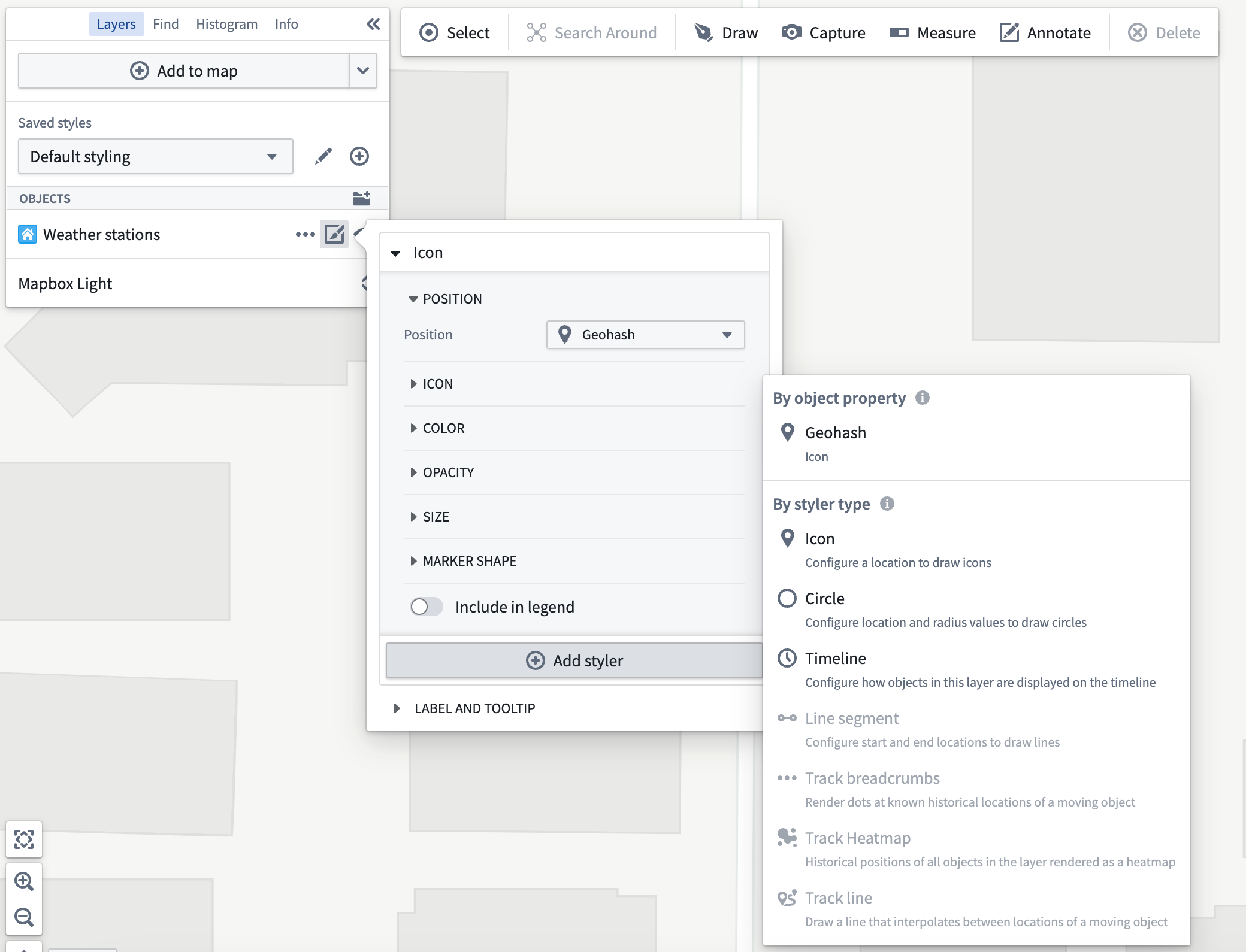
The add styler menu contains two sections:
- By object property: Simple pre-configured stylers that are inferred by the Map from the object type for the layer.
- By styler type: Advanced stylers that have more configuration options. Only those stylers which can be fully configured for the layer's object type are enabled.
The advanced styler types that you can explicitly configure for an object layer are:
- Icon: Renders a marker with an icon per object.
- Circle: Renders a circle per object from a center point and a radius value.
- Line segment: Renders a line segment between two points.
- Track breadcrumbs: For a moving object, renders a circle at every recorded position of the object.
- Track line: For a moving object, renders a line that connects every recorded position of the object.
Moving geometry interpolation
When the geometry source used in a styler is a track--a position that changes over time--there are additional options that configure how the map selects the point location to use given the track and the temporal cursor.
- Interpolation mode: Changes whether the map interpolates linearly between known points, or uses the last known point.
- Max time gap: When two consecutive track points have a time difference greater than the value configured, the track is considered as having no data for that time period and the will render when the time cursor is in that time period.
Saved Styles
Saved styles allow you to save multiple different stylings of your map and switch between them. Providing many styles with one map can help you or consumers of your map understand many different dimensions of the data being visualized without needing to manually edit layer styles.
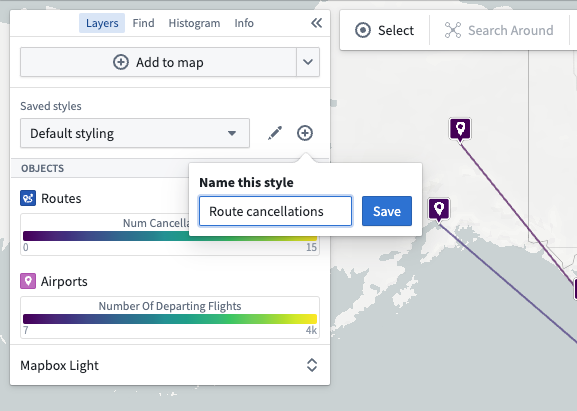
Create a saved style using the New style button, and give it a name that will help users understand what that style helps them visualize:
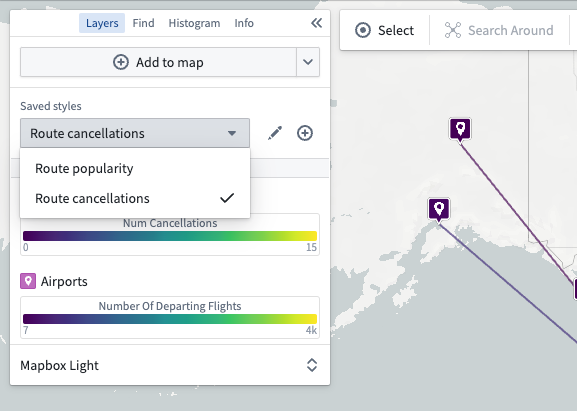
Then switch between styles using the Saved styles dropdown:
中文翻译
样式设置
使用样式设置来控制地图图层中数据的可视化效果。通过编辑颜色、大小、描边宽度等属性,您可以突出显示数据的关键特征,创建有助于理解地理空间数据模式或识别异常值的地图。
样式选项
通过图层面板中的编辑样式按钮来编辑图层的样式:
:::callout{theme="neutral"} 此列表包含不同图层通用的样式选项,但每个图层可用的选项取决于该图层包含的数据类型。例如,填充多边形选项仅在配置的样式器渲染为多边形时出现。在每个选项中,可用的模式也因图层类型而异:基于属性、函数和度量的样式仅适用于对象图层,而固定样式适用于所有图层类型。 :::
颜色
使用颜色部分来控制图层中对象的着色。颜色依据下拉菜单包含可用于着色的各种模式:
- 固定: 选择一种统一应用于图层中所有对象的单一颜色。
- 函数: 使用函数计算的值对对象进行着色。
- 属性: 使用属性值对对象进行着色。
- 度量: 使用时间序列中的值对对象进行着色。
当按具有数值的函数、属性或时间序列着色时,使用渐变编辑器将值映射到输出颜色。可以通过选择渐变条上的点来编辑渐变中使用的颜色。颜色渐变的数值范围(最小值/最大值)会自动推断,但可以关闭此功能以手动设置范围。
当按具有字符串值的函数、属性或时间序列着色时,颜色映射下拉菜单包含将值映射到颜色的方法:
- 手动: 明确指定每个值使用的颜色。
- 自动: 从配色方案中自动分配颜色,以区分不同值,无需配置特定值。
- 无: 尝试直接将每个值作为十六进制颜色应用。
不透明度
使用不透明度部分来控制图层中对象的透明度。
值来源下拉菜单包含指定不透明度的各种方式:
- 活动不透明度: 设置对象或点被视为活动时的不透明度。
- 非活动不透明度: 设置对象或点不被视为活动时的不透明度。
- 活动时间缓冲: 设置事件或轨迹点的时间戳必须与当前时间光标多接近才能被视为活动。
- 淡出持续时间: 设置对象的不透明度从活动状态变为非活动状态所需的淡出时间。
- 隐藏直到发生: 如果启用,对象将完全隐藏,直到时间光标经过事件开始时间或轨迹点的时间戳。
:::callout{theme="neutral"} 值来源下拉菜单和按时间不透明度选项仅在样式化轨迹或具有事件数据的对象时出现。 :::
缩放级别
使用缩放级别部分来控制图层中对象的可见范围。插入符号指示您当前的缩放级别。
当视口处于活动范围内的缩放级别时,相应的显示内容将在地图上渲染。当超出范围时,相应的显示内容将被隐藏。
缩放级别配置仅适用于已切换为可见的图层。
描边宽度
使用描边宽度部分来控制渲染线条时使用的宽度。
描边样式
使用描边样式部分来控制渲染线条时使用的虚线图案。可用选项包括:
- 实线
* 虚线
* 点线
对于线段,使用描边样式部分可选择显示箭头,如下图所示。
填充多边形
当启用填充多边形时,多边形以最小描边渲染,内部填充指定颜色。禁用时,多边形仅使用描边宽度和描边样式中的样式配置进行描边。
图标
配置图标样式器时,使用图标部分来配置为每个对象渲染的图标。图标来源下拉菜单包含可用于分配图标的模式:
- 对象默认: 使用本体中分配给对象的图标。
- 固定图标: 选择一个将应用于图层中所有对象的单一图标。
- 属性: 通过将属性值映射到图标来为对象分配图标。
标记形状
配置图标样式器时,使用标记形状部分来配置图标渲染所在的标记形状。可用选项包括:
- 圆形
* 图钉
* 无
包含在图例中
默认情况下,当按属性、函数或度量对图层着色时,图例将显示颜色映射,以帮助您在查看地图时解释颜色。您可以通过禁用包含在图例中开关来移除图例。同样,当按固定颜色着色时,您可以通过开启包含在图例中来选择显示图例条目。
标签和工具提示
有两个与标签和工具提示相关的可选开关:
显示标签: 控制是否在地图上为图层中的每个项目显示标签。 显示工具提示: 控制图层中的项目在悬停时是否显示包含上下文信息的弹出窗口。
对象图层的标签内容
对于基于对象的图层,标签和工具提示可以包含以下内容:
也可以从选择面板中使用悬停在属性或序列上时出现的…菜单添加属性或序列,如下图所示。
对象图层样式器
对象图层中的每个对象可以通过指定多个样式器在地图上以多种方式渲染。例如,具有geopoint类型属性的对象可以同时渲染为图钉标记和圆形。
编辑对象图层样式器
通过打开图层的样式面板来编辑对象图层的样式器。展开任意单个样式器以编辑其样式选项(颜色、不透明度等),或使用添加样式器按钮添加新的样式器:
添加样式器菜单包含两个部分:
- 按对象属性: 由地图根据图层的对象类型推断出的简单预配置样式器。
- 按样式器类型: 具有更多配置选项的高级样式器。只有那些可以为图层的对象类型完全配置的样式器才被启用。
您可以显式为对象图层配置的高级样式器类型包括:
- 图标: 为每个对象渲染带有图标的标记。
- 圆形: 根据中心点和半径值为每个对象渲染圆形。
- 线段: 在两个点之间渲染线段。
- 轨迹面包屑: 对于移动对象,在对象的每个记录位置渲染一个圆形。
- 轨迹线: 对于移动对象,渲染连接对象每个记录位置的线条。
移动几何插值
当样式器中使用的几何源是轨迹(随时间变化的位置)时,还有额外的选项可配置地图如何根据轨迹和时间光标选择要使用的点位置。
- 插值模式: 更改地图是在已知点之间线性插值,还是使用最后一个已知点。
- 最大时间间隔: 当两个连续轨迹点的时间差大于配置的值时,该轨迹被视为在该时间段内没有数据,并且当时间光标位于该时间段内时不会渲染。
已保存样式
已保存样式允许您保存地图的多种不同样式并在它们之间切换。为一个地图提供多种样式可以帮助您或地图的消费者理解所可视化数据的多个不同维度,而无需手动编辑图层样式。
使用新建样式按钮创建已保存样式,并为其命名,以帮助用户理解该样式帮助他们可视化什么:
然后使用已保存样式下拉菜单在样式之间切换: