Map templates(地图模板(Map templates))
Map templates are a powerful tool to generate maps complete with all the data a user may need for their geospatial analysis task.
Map templates can be used to generate new maps, and can also be embedded in Workshop modules using the widget.
Create a map template
First, create a standard map as an example of what you would want the generated maps to be. Then, click the down arrow located beside Save, then click Save as template....

Configure a map template
Parameters
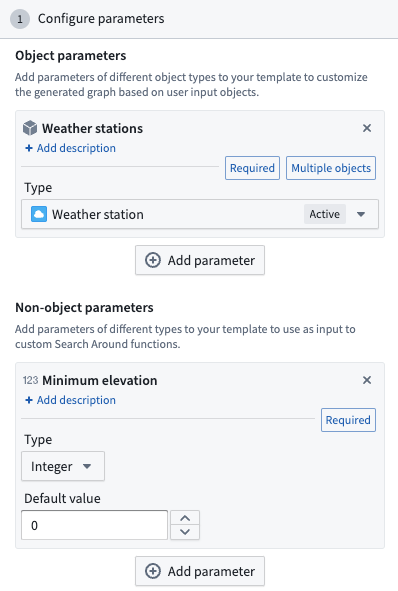
Map templates let you configure two kinds of parameters, that can be used to configure the following Search Arounds:
- Object parameters: Define which object types will be used to generate the resulting map.
- Non-object parameters: Define additional inputs for primitive data types. For example,
string,float,double,integer,long,boolean,date, ortimestampinputs.
Search Arounds
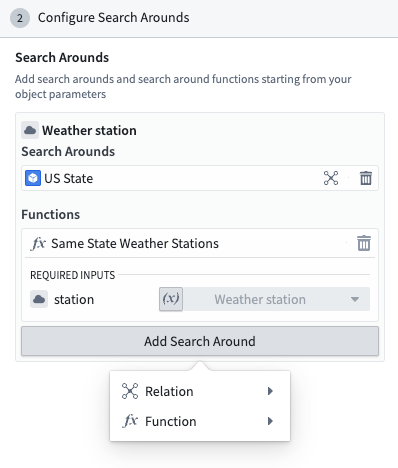
Next, you can configure Search Arounds associated with your template. Each object parameter can be associated with Search Arounds, which can be either simple Search Arounds using Ontology links or Search Around functions.
Any non-object arguments to Search Around functions can be mapped to a value, which can be either a constant or a parameter. To map a function input to a parameter, click the Parameter button on left side of the input box and select a parameter from the dropdown.
Layers
Object layers can be configured as:
- Constant: The layer, including all the objects in it, are included as-is in the template
- Styling: The current objects in this layer will be ignored, but all the layer styling will be included in the template. If objects of this type are then added to the map, for example, through template SearchArounds, or by the user, they will be styled accordingly in this way.
- Alternately, the layer can be removed by clicking X on the layer so it is not included in the template.
Overlay layers can either be included in the template or removed.
Series
If you have pinned series on your map, you can choose to include or remove those in the resulting template.
Interface
The interface of the generated maps can be configured in these ways:
- Workshop module: Allow users to see a link back to the selected Workshop module.
- Series panel: Opens the Series panel by default when a new templated map is created.
- Viewport settings (Fly to objects on map): Centers the map automatically on objects present on the map.
Use a map template
Once the template is opened, you will be prompted to supply values for the template parameters.
An object or an object set can also be preloaded into a template using URL query parameters:
- Single object: Use the
objectRidsquery parameterobjectRids=<object_rid> - Multiple objects: Use the
objectRidsquery parameter with commas separating the object RIDsobjectRids=<first_object_rid>,<second_object_rid> - Object set: Use the
objectSetRidquery parameterobjectSetRid=<object_set_rid>
To interact with the given parameter values, click Parameters located in the top toolbar. This will allow you to select all the objects used as values for a given object parameter, or change the parameter values to regenerate your map.
:::callout{theme="neutral"} Templates can also be embedded in Workshop using the corresponding widget. :::
中文翻译
地图模板(Map templates)
地图模板是一种强大的工具,可生成包含用户地理空间分析任务所需全部数据的完整地图。
地图模板可用于生成新地图,也可通过小组件(widget)嵌入到 Workshop 模块中。
创建地图模板
首先,创建一个标准地图作为生成地图的示例。然后,点击保存(Save)旁的向下箭头,再点击另存为模板...(Save as template...)。
配置地图模板
参数(Parameters)
地图模板允许配置两种参数,可用于配置以下周边搜索(Search Arounds):
- 对象参数(Object parameters): 定义用于生成结果地图的对象类型。
- 非对象参数(Non-object parameters): 定义基本数据类型(primitive data types)的额外输入。例如,
string、float、double、integer、long、boolean、date或timestamp输入。
周边搜索(Search Arounds)
接下来,您可以配置与模板关联的周边搜索。每个对象参数都可以关联周边搜索,这些搜索可以是使用 Ontology 链接的简单周边搜索,也可以是周边搜索函数(Search Around functions)。
周边搜索函数中的任何非对象参数都可以映射到一个值,该值可以是常量或参数。要将函数输入映射到参数,请点击输入框左侧的参数(Parameter)按钮,然后从下拉菜单中选择一个参数。
图层(Layers)
对象图层(Object layers)可配置为:
- 常量(Constant): 图层及其包含的所有对象按原样包含在模板中。
- 样式(Styling): 该图层中的当前对象将被忽略,但所有图层样式将包含在模板中。如果随后通过模板的周边搜索或用户操作将此类对象添加到地图中,它们将按此方式应用相应样式。
- 或者,可以通过点击图层上的 X 将其移除,使其不包含在模板中。
叠加图层(Overlay layers)可以选择包含在模板中或移除。
序列(Series)
如果您在地图上固定了序列,可以选择在生成的模板中包含或移除这些序列。
界面(Interface)
生成地图的界面可通过以下方式配置:
- Workshop 模块: 允许用户查看返回所选 Workshop 模块的链接。
- 序列面板(Series panel): 创建新的模板化地图时,默认打开序列面板。
- 视口设置(Fly to objects on map): 自动将地图居中显示在地图上的对象上。
使用地图模板
打开模板后,系统会提示您为模板参数提供值。
也可以使用 URL 查询参数将对象或对象集预加载到模板中:
- 单个对象: 使用
objectRids查询参数objectRids=<对象RID> - 多个对象: 使用
objectRids查询参数,多个对象 RID 之间用逗号分隔objectRids=<第一个对象RID>,<第二个对象RID> - 对象集: 使用
objectSetRid查询参数objectSetRid=<对象集RID>
要与给定的参数值交互,请点击顶部工具栏中的参数(Parameters)。这将允许您选择用作给定对象参数值的所有对象,或更改参数值以重新生成地图。
:::callout{theme="neutral"} 模板也可以通过相应小组件嵌入到 Workshop 中。 :::