Use geospatial data in the Ontology(在本体论(Ontology)中使用地理空间数据)
:::callout{theme="warning"}
The geospatial-tools library is no longer actively developed; instead, use Pipeline Builder to load, transform, and wield geospatial data. The functionality for manipulating geospatial data types described on this page has been superseded by Pipeline Builder's geospatial capabilities. Learn more about Pipeline Builder's geospatial features.
:::
How to configure Ontology datasets with vector data
Foundry's geospatial-tools library was developed to parse, clean and convert vector data formats such as shapefiles and geoJSON into datasets which can be added to the Ontology. However, this functionality has been superseded by Pipeline Builder's geospatial capabilities. You should use Pipeline Builder instead of the geospatial-tools library as the geospatial-tools library is no longer maintained and may not function as expected.
The documentation on this page will remain available as a reference until official deprecation of the geospatial-tools library.
Points
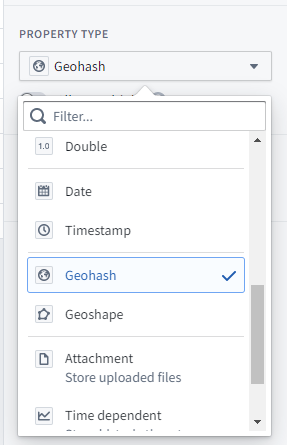
Point geometries can be specified using the geopoint property type. The contents of a geopoint property should be a string of either:
latitude,longitude: For example,57.64911,10.40744. Coordinates must use the WGS 84 CRS (standard latitude and longitude).- A Geohash ↗: For example,
u4pruydqqvj. Geohashes will be converted into points, using the bottom-left corner of the Geohash rectangle.
Objects with geopoint properties are indexed for geospatial search.
Polygons and lines
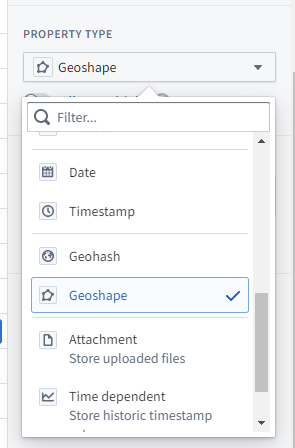
Polygon and line geometries can be specified using the geoshape property type. The contents of a geoshape property must be a GeoJSON Geometry string meeting the following requirements:
- Must be a GeoJSON LineString, Polygon, MultiLineString, MultiPolygon, MultiPoint, or Point. However, Point geometries should not use the
geoshapeproperty type; use thegeopointproperty type for Point geometries. - Must not be a Feature, FeatureCollection, or GeometryCollection.
- Must comply with the GeoJSON Specification (RFC 7946) ↗.
- Must use WGS 84 coordinates.
- Polygons and MultiPolygons must be valid according to the GeoJSON Specification. Polygons and MultiPolygons must be closed, use a right-hand/counterclockwise winding order for exterior rings, and have no self-intersection.
This is an example of valid GeoJSON for a geoshape property:
{ "type": "LineString", "coordinates": [ [100.0, 0.0], [101.0, 1.0] ] }
Objects with geoshape properties are indexed for geospatial search.
How to visualize, explore, and publish geospatial data
Once your geospatial data is loaded in the Ontology, there are two primary Ontology mapping tools where your data can be used:
- The Map application provides immersive geospatial analysis and investigation capabilities, including time series overlay, link analysis, and simulations.
- Workshop is an application-building framework designed for operational users and includes a robust map widget. Learn more about creating maps in Workshop.
Geospatial capabilities are also available in other Foundry applications, including Slate, Quiver, Object Explorer, and Contour.
Using external layers in maps
In some cases, Foundry also supports adding external layers into maps; for instance, in situations where you have an external feature service or tile server that you want to connect directly to a Foundry map without first loading all the data into a dataset.
Contact your Palantir representative for more details, as this requires additional configuration to enable.
Mapbox Boundaries
In partnership with Mapbox ↗, Foundry provides built-in support for creating choropleth-style layers using a variety of available options for defining region boundaries.
With Boundaries, you can connect your Foundry Datasets and/or Ontology with a managed set of geographical features representing various types of boundaries, such as administrative divisions or postal code areas. Polygons in Mapbox Boundaries are edge matched for seamless global coverage, so you can create exact data visualizations and accurate analysis.
Layer types, levels, and worldviews
Mapbox provides boundaries data across multiple types, levels, and worldviews. You can explore the types and levels of boundaries available using the Boundaries Explorer app ↗, as well as additional documentation on the different types of boundaries ↗.
Using Mapbox Boundaries
The instructions below are for leveraging the latest version of Mapbox Boundaries (v4). If you are already using a prior version, migrate your pipelines and applications first.
Install Mapbox Boundary definitions
Mapbox boundary definitions v4 are available to download in the Foundry Marketplace. To access from your Foundry instance:
- Navigate to
/workspace/marketplace/discoveryon your Foundry instance. - Search for “Mapbox” or filter to the “Foundry Store” using the Store filter in the left panel.
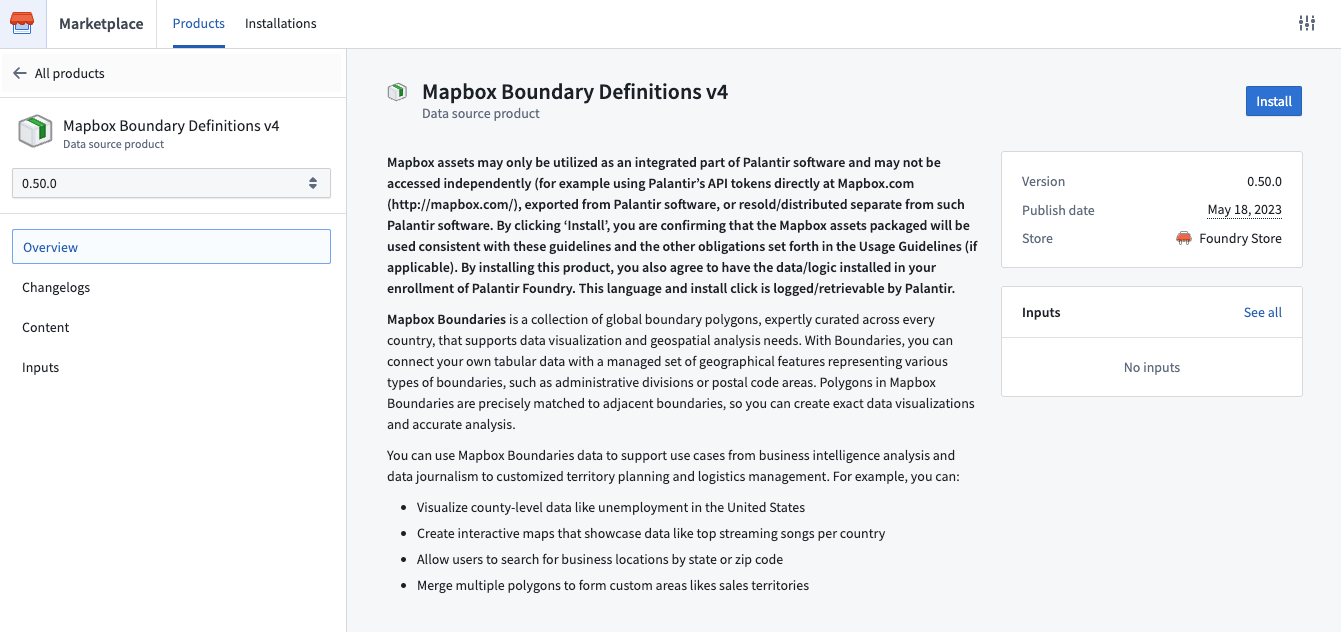
- Choose the Mapbox Boundary Definitions v4 product.
- Click Install. If someone has already installed these boundaries, you will see Open instead, from which you can navigate to the current installation.
- When installing:
- Choose a space to install into.
- As the product only contains datasets, an Ontology is not required.
- Enable Installation suffix to customize the project name in which the datasets will be installed.
- Select Install at the bottom of the left panel.
- Once the installation job has finished, click View installation located to the right of the product name to navigate to the installation.
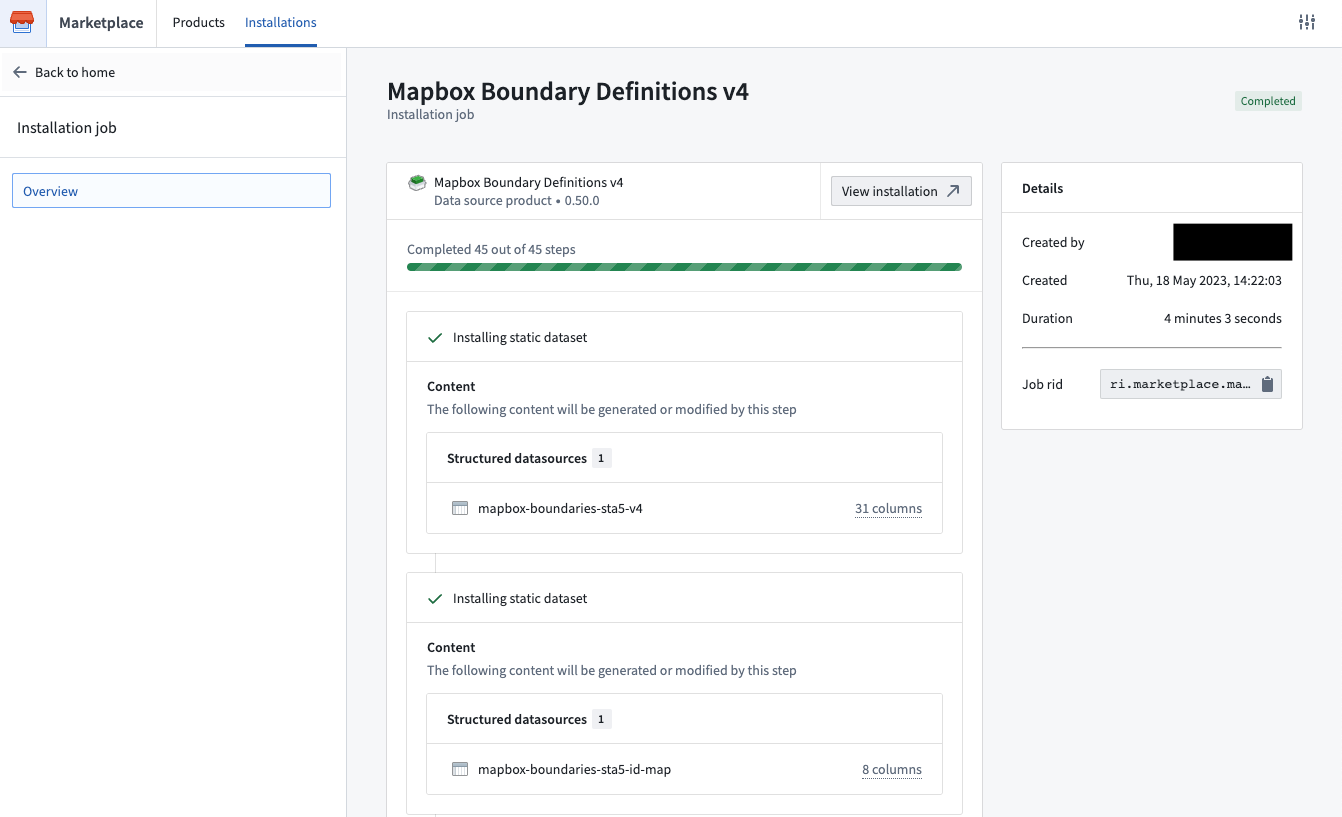
- You can access the installed boundary datasets by selecting the location link in the right panel. By default, only you will have access to this Project but you can add other users and groups in the project details panel on the right.
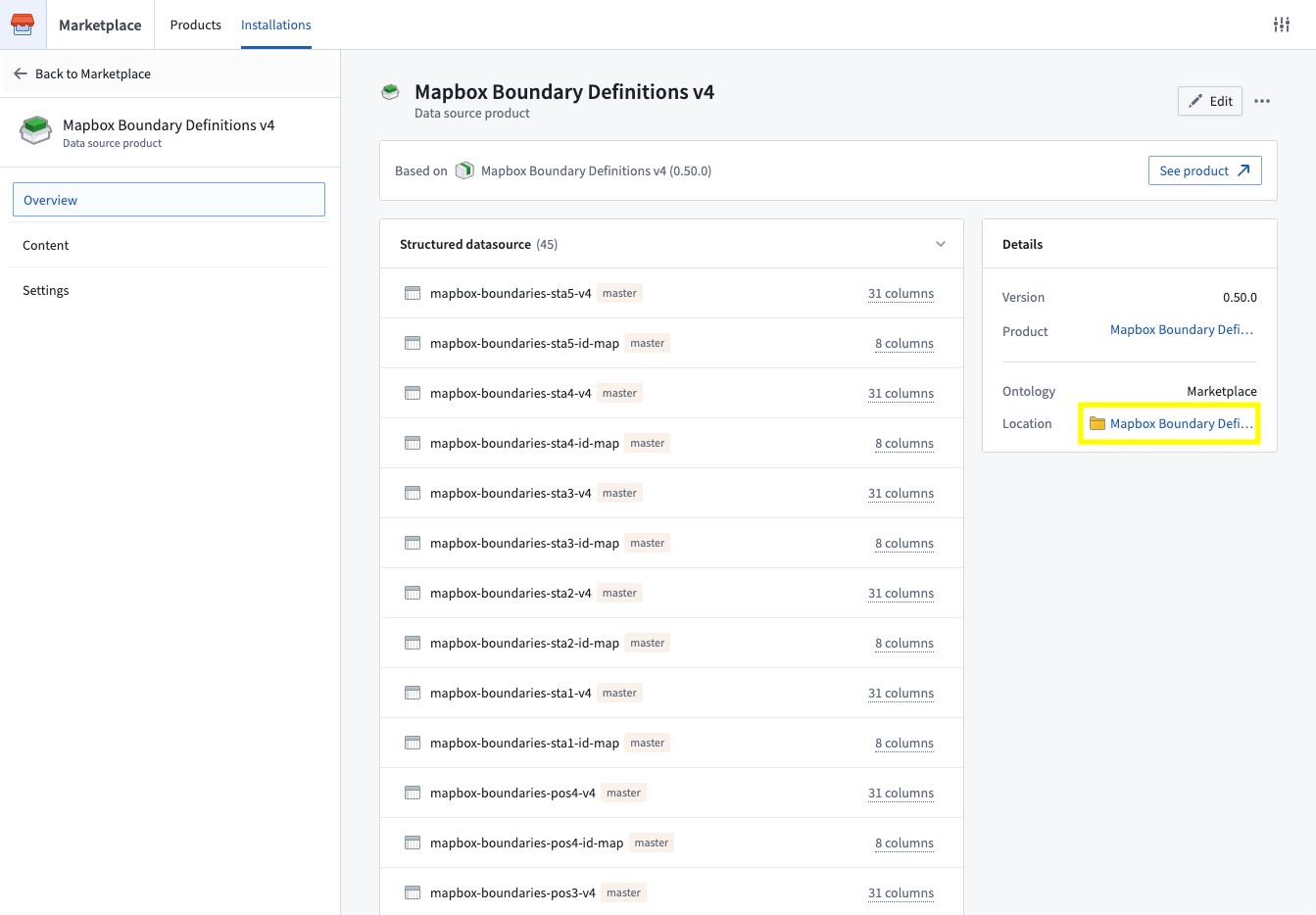
When new minor boundary dataset versions become available, you will be able to upgrade via the banner that will appear at the top of your installation. Major version releases will be available as a new data source product.

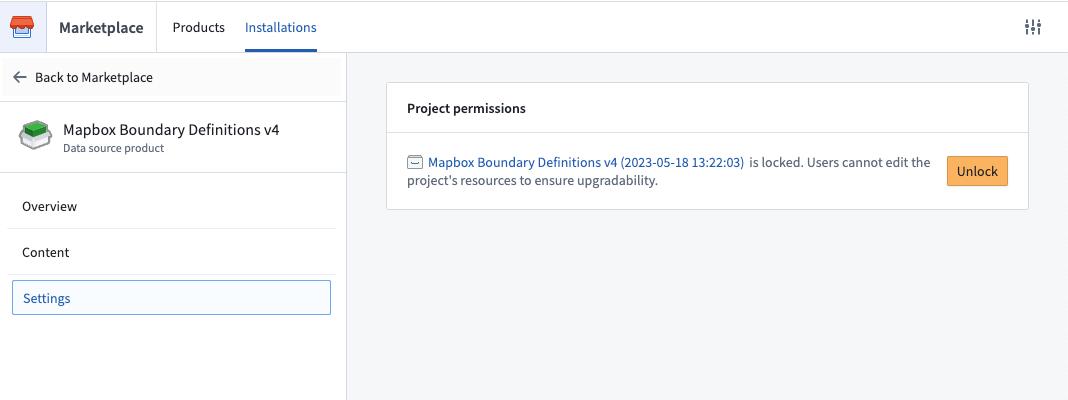
:::callout{theme="note"} Note that products install into a new project that has edits disabled by default to ensure safe upgrades (for example, if additional boundary datasets become available). Given that, we recommend saving content that leverages these datasets (for example, analyses, pipelines, etc) in a different project. If you need to edit the project itself, you can enable edits by selecting Settings in the left panel and then Unlock, as below. :::
Integrate Mapbox IDs into pipelines
In order to leverage Mapbox Boundaries, you will need a mapbox ID that identifies a region for a specific type of boundary at a specific level. These IDs can be found in the boundaries metadata files ↗, which are automatically available as part of the Mapbox Boundary definitions product. See Install Mapbox definitions for instructions.
Once you have installed the metadata files, join them against your data within Foundry in order to add the mapbox_id column. Depending on the type and level of boundary, the metadata files will contain other ID and/or name columns that you can use as join keys against your own data.
This mapbox_id column will be used to configure downstream applications to display boundaries-based maps.
Configure downstream applications
Mapbox Boundaries can currently be used to produce Choropleth-style visualizations in any of the following products:
The specific configuration options may differ slightly for each consuming application, but the common configuration options will include:
- The field or property in your data that contains the
mapbox_id - A selection for the specific worldview ↗ you wish to display the data with respect to
- The type and level of boundary to use
You will then be able to use data from your datasets and/or Ontology to drive the styling of these boundaries, such as the coloring of the polygons. For more specific documentation on those additional styling options, visit the documentation of the specific downstream application.
Migrate from Mapbox Boundaries v3 to v4
If you are currently using an older version of Mapbox’s Boundaries data (such as V2 or V3), we highly recommend upgrading to v4. In addition to getting updates to the boundaries themselves, the V4 release includes more reliable support for displaying region names in tooltips, as well as support for automatic zoom-to-fit for Mapbox boundaries-backed map layers, amongst other improvements.
When migrating from v3 to v4, there are a few boundaries that have breaking changes. Review a detailed changelog of breaking changes ↗ before proceeding.
To migrate the data in your pipelines, you can either:
- Leverage the V3 to V4 ID mapping tables ↗, which are included in the Mapbox boundary definitions V4 product. Join them against your existing boundaries data, using the
feature_idcolumn from V3, and pull in the newmapbox_idcolumn that was added with v4. Make sure to manually account for any of the breaking changes mentioned above. - Or, you can simply follow the instructions above and use the boundaries metadata CSV files to join in the
mapbox_idcolumn from scratch.
Once you have added the mapbox_id column into your pipeline/Ontology, reconfigure downstream applications to leverage v4 boundaries, and select this new column and the corresponding boundary type/level.
中文翻译
在本体论(Ontology)中使用地理空间数据
:::callout{theme="warning"}
geospatial-tools库已不再积极开发;请改用Pipeline Builder来加载、转换和处理地理空间数据。本页面描述的操作地理空间数据类型的功能已被Pipeline Builder的地理空间功能所取代。了解更多关于Pipeline Builder的地理空间功能。
:::
如何配置包含矢量数据的本体论(Ontology)数据集
Foundry的geospatial-tools库最初开发用于解析、清理和转换矢量数据格式(如shapefiles和geoJSON)为可添加到本体论(Ontology)的数据集。然而,该功能已被Pipeline Builder的地理空间功能所取代。您应使用Pipeline Builder而非geospatial-tools库,因为geospatial-tools库已不再维护,可能无法按预期运行。
本页面文档将作为参考保留,直至geospatial-tools库正式弃用。
点(Points)
点几何图形可使用geopoint属性类型指定。geopoint属性的内容应为以下任一格式的字符串:
纬度,经度:例如,57.64911,10.40744。坐标必须使用WGS 84 CRS(标准纬度和经度)。- Geohash ↗:例如,
u4pruydqqvj。Geohash将被转换为点,使用Geohash矩形的左下角。
具有geopoint属性的对象会被索引以支持地理空间搜索。
多边形(Polygons)和线(Lines)
多边形和线几何图形可使用geoshape属性类型指定。geoshape属性的内容必须是符合以下要求的GeoJSON Geometry字符串:
- 必须是GeoJSON LineString、Polygon、MultiLineString、MultiPolygon、MultiPoint或Point。但Point几何图形不应使用
geoshape属性类型;请对Point几何图形使用geopoint属性类型。 - 不得是Feature、FeatureCollection或GeometryCollection。
- 必须符合GeoJSON规范(RFC 7946) ↗。
- 必须使用WGS 84坐标。
- Polygon和MultiPolygon必须根据GeoJSON规范有效。Polygon和MultiPolygon必须是闭合的,外环使用右手/逆时针绕行顺序,且无自相交。
以下是geoshape属性的有效GeoJSON示例:
{ "type": "LineString", "coordinates": [ [100.0, 0.0], [101.0, 1.0] ] }
具有geoshape属性的对象会被索引以支持地理空间搜索。
如何可视化、探索和发布地理空间数据
一旦您的地理空间数据加载到本体论(Ontology)中,有两个主要的本体论(Ontology)映射工具可以使用您的数据:
- 地图应用程序提供沉浸式地理空间分析和调查能力,包括时间序列叠加、链接分析和模拟。
- Workshop是一个面向操作型用户的应用程序构建框架,包含强大的地图小部件。了解更多关于在Workshop中创建地图。
地理空间功能也可在Foundry的其他应用程序中使用,包括Slate、Quiver、Object Explorer和Contour。
在地图中使用外部图层
在某些情况下,Foundry还支持将外部图层添加到地图中;例如,当您有外部要素服务或瓦片服务器,希望直接连接到Foundry地图而无需先将所有数据加载到数据集时。
请联系您的Palantir代表了解更多详情,因为这需要额外的配置才能启用。
Mapbox Boundaries
与Mapbox ↗合作,Foundry提供内置支持,可使用多种可用选项创建分级统计图(choropleth)样式图层来定义区域边界。
通过Boundaries,您可以将Foundry数据集和/或本体论(Ontology)与一组受管理的地理要素连接起来,这些要素代表各种类型的边界,如行政区划或邮政编码区域。Mapbox Boundaries中的多边形经过边缘匹配,实现无缝全球覆盖,因此您可以创建精确的数据可视化和准确的分析。
图层类型、层级和世界观(Worldviews)
Mapbox提供跨多种类型、层级和世界观(Worldviews)的边界数据。您可以使用Boundaries Explorer应用程序 ↗探索可用的边界类型和层级,以及关于不同类型边界的附加文档 ↗。
使用Mapbox Boundaries
以下说明适用于利用最新版本的Mapbox Boundaries (v4)。如果您已在使用旧版本,请先迁移您的管道和应用程序。
安装Mapbox Boundary定义
Mapbox边界定义v4可在Foundry Marketplace中下载。要从您的Foundry实例访问:
- 导航至Foundry实例上的
/workspace/marketplace/discovery。 - 搜索"Mapbox"或使用左侧面板中的商店(Store)过滤器筛选至"Foundry Store"。
- 选择Mapbox Boundary Definitions v4产品。
- 点击安装(Install)。如果其他人已安装这些边界,您将看到打开(Open),从中可导航至当前安装。
- 安装时:
- 选择一个空间(space)进行安装。
- 由于该产品仅包含数据集,不需要本体论(Ontology)。
- 启用安装后缀(Installation suffix)以自定义数据集将安装到的项目名称。
- 选择左侧面板底部的安装(Install)。
- 安装作业完成后,点击产品名称右侧的查看安装(View installation)以导航至安装位置。
- 您可以通过选择右侧面板中的位置链接来访问已安装的边界数据集。默认情况下,只有您有权访问此项目,但您可以在右侧的项目详情面板中添加其他用户和组。
当新的次要边界数据集版本可用时,您可以通过安装顶部出现的横幅进行升级。主要版本发布将作为新的数据源产品提供。
:::callout{theme="note"} 请注意,产品安装到默认禁用编辑的新项目中,以确保安全升级(例如,当其他边界数据集可用时)。鉴于此,我们建议将利用这些数据集的内容(例如,分析、管道等)保存在不同的项目中。如果您需要编辑项目本身,可以通过选择左侧面板中的设置(Settings),然后选择解锁(Unlock)来启用编辑,如下所示。 :::
将Mapbox ID集成到管道中
为了利用Mapbox Boundaries,您需要一个mapbox ID,用于标识特定层级特定类型边界的区域。这些ID可以在边界元数据文件 ↗中找到,这些文件作为Mapbox Boundary definitions产品的一部分自动可用。请参阅安装Mapbox定义获取说明。
安装元数据文件后,在Foundry中将其与您的数据进行连接,以添加mapbox_id列。根据边界的类型和层级,元数据文件将包含其他ID和/或名称列,您可以将这些列作为连接键与您自己的数据一起使用。
此mapbox_id列将用于配置下游应用程序以显示基于边界的地图。
配置下游应用程序
Mapbox Boundaries目前可用于在以下任何产品中生成分级统计图(Choropleth)样式的可视化:
每个消费应用程序的具体配置选项可能略有不同,但常见的配置选项包括:
- 数据中包含
mapbox_id的字段或属性 - 选择您希望显示数据所依据的特定世界观(Worldview) ↗
- 要使用的边界类型和层级
然后,您将能够使用数据集和/或本体论(Ontology)中的数据来驱动这些边界的样式,例如多边形的着色。有关这些附加样式选项的更具体文档,请访问特定下游应用程序的文档。
从Mapbox Boundaries v3迁移到v4
如果您当前正在使用旧版本的Mapbox Boundaries数据(如V2或V3),我们强烈建议升级到v4。除了获得边界本身的更新外,V4版本还包括更可靠的支持,可在工具提示中显示区域名称,以及支持Mapbox边界支持的地图图层的自动缩放适配等功能。
从v3迁移到v4时,有一些边界存在破坏性变更。在继续之前,请查看详细的破坏性变更日志 ↗。
要迁移管道中的数据,您可以:
- 利用V3到V4 ID映射表 ↗,这些表包含在Mapbox边界定义V4产品中。使用V3中的
feature_id列将它们与您现有的边界数据进行连接,并引入v4新增的mapbox_id列。确保手动处理上述任何破坏性变更。 - 或者,您可以直接按照上述说明,使用边界元数据CSV文件从头开始连接
mapbox_id列。
一旦将mapbox_id列添加到您的管道/本体论(Ontology)中,重新配置下游应用程序以利用v4边界,并选择此新列及相应的边界类型/层级。