Analysis panel(分析面板)
You can find the various Insight analysis tools from the analysis panel to the left of your workbook. From this panel, you can construct your analysis, step by step. Here, you can also find the filters you may have applied to your tables, charts, or maps. The cards shown in the panel represent the analysis results and the steps taken to reach them.
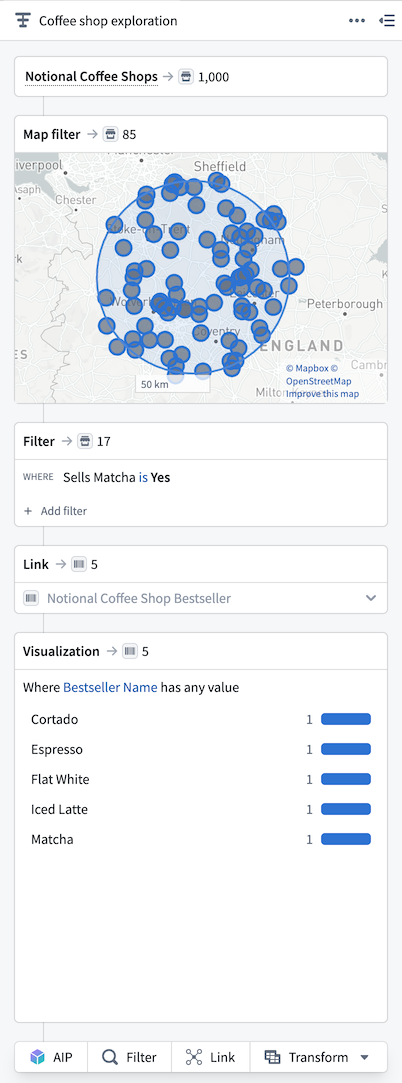
The header of the analysis panel contains the path name, which you can edit. To the right of the header is the collapsible path menu.
Path menu
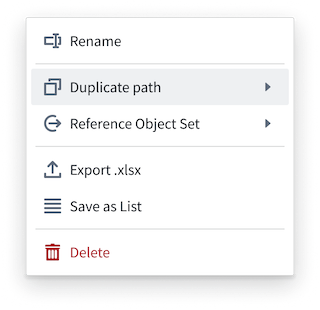
You can view the following options in the path menu, found in the analysis panel:
Duplicate path: Copy the path to another path within the current workbook, a new workbook, or an existing workbook of your choice. This action will copy the path details, including the starting set of data and the cards representing each step in the path.
Reference object set: If a path backs a published object set, the menu displays the option to reference it. Referencing a published object set will place the object set as the starting block of data in another path within the workbook, a new workbook, or an existing workbook. The referenced object set is read-only, meaning you cannot edit it. However, this reference allows you to interact with the object set data or add additional steps to an analysis path. The results of a path that contains an object set reference can also be published as an object set.
Export xlsx: Export the tabular results as an Excel file. Export is limited to a maximum of 200,000 objects.
Save as list: You can save a path as a list to create a resource file that contains only the object IDs found in the analysis path results. This means that the analysis steps themselves are not retained in a list resource. Saving a list is useful when you want to retain exact analysis results for future reference. If the underlying data in the source object type changes (for example, if data updates over time), the list will not change; it is a static copy of the results at the moment it was saved. Lists can be edited by adding or removing objects, and you can add object IDs to a list by right-clicking on individual objects in the table.
Delete: You can choose to delete the analysis path, and this is a permanent action. If the path backs an object set, an additional dialog will appear asking you to confirm if you also want to delete the object set. Published object sets can continue to exist if you delete the backing path.
Step cards
In the path, you can construct step-by-step analysis using tools from the tool ribbon. Every time you use a tool to build the analysis, a configuration card will appear and display the count of objects used at that step.
Select a step card in the panel to navigate to that part of the analysis and view results in the table, charts, and maps sections. You can also inspect the data results of that specific step.
Tools
You can access all of Insight's analysis tools from the ribbon in the analysis panel:

Most cards display the same values and options:
- The number of objects by object type, if multiple object types exist in the path.
- The ability to rename the card from its default naming (for example, updating
FiltertoShow positive reviews). - By hovering over the card, you can view additional options:
- Delete: Remove the card from the analysis.
- Collapse/expand: Expand the card to view details of the tool configuration, or collapse it to display a minimized result summary.
- Toggle: When toggled on, the tool is active in the analysis path. When toggled off, the tool is disabled from the path. This option allows you to test steps in your analysis without needing to remove a card from the path.
Cards cannot be reordered, but you can add new cards between existing steps in your path. Hover between the step cards to view the + Add option, which will open the tool ribbon between those cards.
Select any card to view the resulting data from that step and inspect details of the data at any point in the analysis path.
中文翻译
分析面板
您可以从工作簿左侧的分析面板找到各种 Insight 分析工具。通过此面板,您可以逐步构建分析。在这里,您还可以找到已应用于表格、图表或地图的筛选器。面板中显示的卡片代表了分析结果以及达成这些结果所采取的步骤。
分析面板的标题包含路径名称,您可以对其进行编辑。标题右侧是可折叠的路径菜单。
路径菜单
您可以在分析面板的路径菜单中查看以下选项:
复制路径 (Duplicate path): 将路径复制到当前工作簿、新工作簿或您选择的现有工作簿中的另一个路径。此操作将复制路径详细信息,包括起始数据集以及代表路径中每个步骤的卡片。
引用对象集 (Reference object set): 如果路径支持已发布的对象集,菜单将显示引用该对象集的选项。引用已发布的对象集将把该对象集作为数据起始块放置在工作簿、新工作簿或现有工作簿中的另一个路径中。被引用的对象集是只读的,这意味着您无法编辑它。但是,此引用允许您与对象集数据进行交互,或向分析路径添加其他步骤。包含对象集引用的路径的结果也可以作为对象集发布。
导出 xlsx (Export xlsx): 将表格结果导出为 Excel 文件。导出限制为最多 200,000 个对象。
另存为列表 (Save as list): 您可以将路径保存为列表,以创建一个仅包含分析路径结果中对象 ID 的资源文件。这意味着分析步骤本身不会保留在列表资源中。当您希望保留精确的分析结果以供将来参考时,保存列表非常有用。如果源对象类型中的底层数据发生变化(例如,数据随时间更新),列表不会改变;它是保存时结果的静态副本。可以通过添加或删除对象来编辑列表,您还可以通过右键单击表格中的单个对象将对象 ID 添加到列表中。
删除 (Delete): 您可以选择删除分析路径,这是一个永久性操作。如果该路径支持对象集,将出现一个额外的对话框,询问您是否也要删除该对象集。如果删除支持路径,已发布的对象集可以继续存在。
步骤卡片
在路径中,您可以使用工具功能区中的工具逐步构建分析。每次使用工具构建分析时,都会出现一个配置卡片,并显示该步骤中使用的对象数量。
在面板中选择一个步骤卡片,即可导航到分析的该部分,并在表格、图表和地图部分查看结果。您还可以检查该特定步骤的数据结果。
工具
您可以从分析面板的功能区访问所有 Insight 分析工具:
大多数卡片显示相同的值和选项:
- 按对象类型显示的对象数量(如果路径中存在多种对象类型)。
- 重命名卡片的功能(例如,将
筛选器更新为显示正面评价)。 - 将鼠标悬停在卡片上,可以查看其他选项:
- 删除 (Delete): 从分析中移除该卡片。
- 折叠/展开 (Collapse/expand): 展开卡片以查看工具配置的详细信息,或折叠卡片以显示最小化的结果摘要。
- 切换 (Toggle): 当切换为开启时,该工具在分析路径中处于激活状态。当切换为关闭时,该工具在路径中被禁用。此选项允许您测试分析中的步骤,而无需从路径中移除卡片。
卡片无法重新排序,但您可以在路径中的现有步骤之间添加新卡片。将鼠标悬停在步骤卡片之间,即可查看 + 添加 选项,该选项将在这些卡片之间打开工具功能区。
选择任意卡片,即可查看该步骤的结果数据,并在分析路径中的任意点检查数据的详细信息。