Create and save a layout(创建并保存布局)
You can save a specific view of your Insight workbook by saving the layout. You can keep the layout private, share it with other users, or configure it as the default object type view for users with Owner permissions. Access all available saved layout templates for the analysis from the top right corner of the view header. Selecting a saved layout will change the view of the analysis data, including column ordering, property visibility, and chart arrangement.
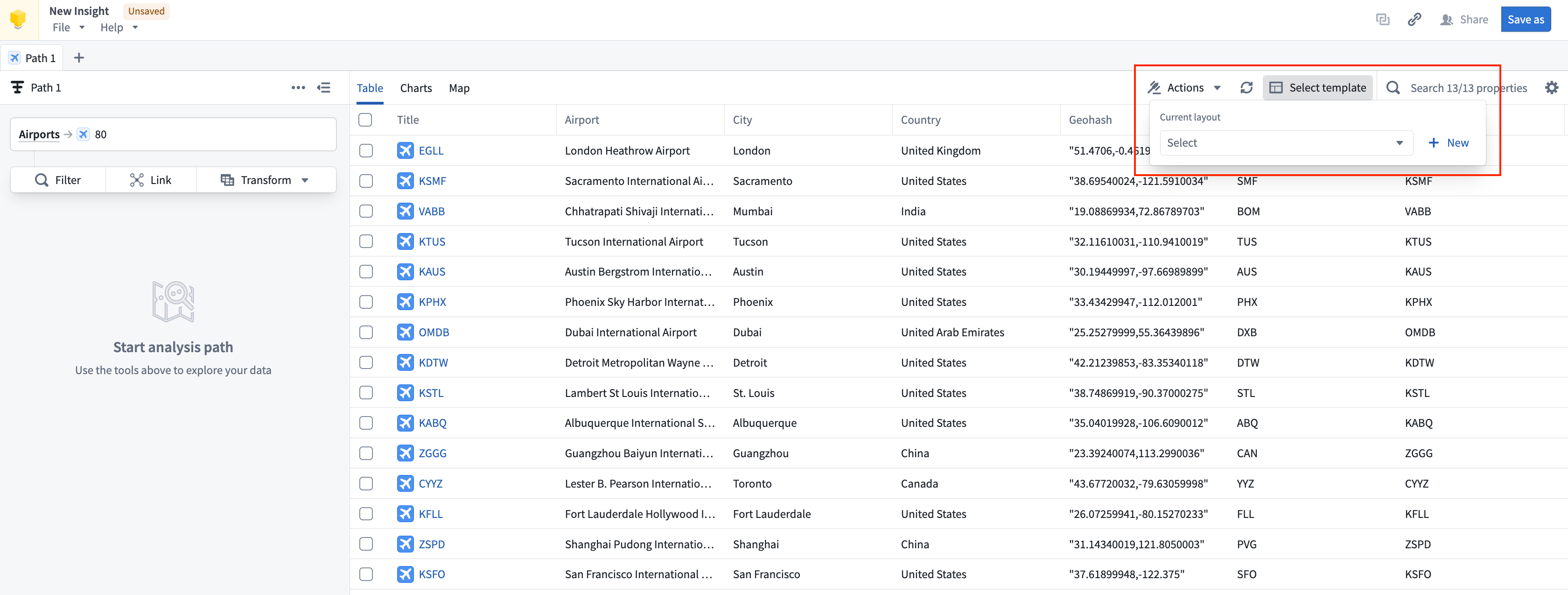
Create a new layout
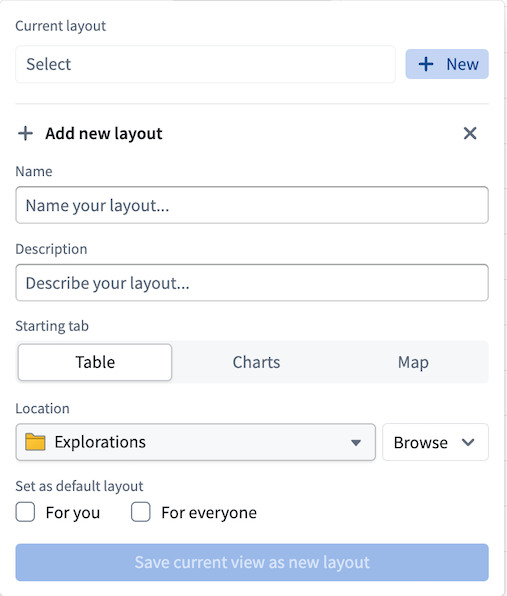
To create a layout, select + New from the Select template dropdown menu. Enter a name for the layout (required), and other option details including a description, save location, starting view, and whether to set the layout as default for yourself or everyone. The save location for the layout will impact user access; be sure to save the layout in a project with the correct level of permissions if you want to share it with others.
If you choose to save your layout as a default For you, the Ontology data will automatically populate in this view for any new Insight workbooks you create with the same data. You can set the layout as default For everyone using the contained Ontology data if you have appropriate Administrator or Owner permissions on the backing Ontology.
Edit a layout
If you choose to work with a layout template and modify your analysis arrangement (for example, if you move a chart to a different location in your workbook view), the layout name will appear orange with an asterisk (*) next to it. These indicators mean that edits you made were not saved. Select the layout name to choose one of the following options:
- Revert: Undo any edits and return to the workbook.
- Save as new layout: Save your edits as a new layout option.
- Save current: Save the changes made and update the template of the layout. Saving changes to a layout template may modify the workbooks of users who also use the template.
You do not have to save changes to a layout template. You can save changes to your own Insight workbook without updating the layout template you use for analysis.
中文翻译
创建并保存布局
您可以通过保存布局来保留 Insight 工作簿的特定视图。您可以将布局设为私有、与其他用户共享,或将其配置为具有 Owner 权限的用户的默认对象类型视图。从视图标题右上角可访问该分析的所有已保存布局模板。选择已保存的布局将更改分析数据的视图,包括列排序、属性可见性和图表排列。
创建新布局
要创建布局,请从 选择模板 下拉菜单中选择 + 新建。输入布局名称(必填),以及其他可选详细信息,包括描述、保存位置、起始视图,以及是否将布局设为个人或所有人的默认设置。布局的保存位置会影响用户访问权限;如果您希望与他人共享布局,请务必将其保存在具有适当权限级别的项目中。
如果您选择将布局保存为 个人 默认设置,则对于您使用相同数据创建的任何新 Insight 工作簿,本体(Ontology)数据将自动填充到此视图中。如果您对底层本体具有适当的 Administrator 或 Owner 权限,则可以将布局设为 所有人 的默认设置,并使用包含的本体数据。
编辑布局
如果您选择使用某个布局模板并修改分析排列(例如,将图表移动到工作簿视图中的其他位置),布局名称将显示为橙色并带有星号(*)。这些标记表示您所做的编辑尚未保存。选择布局名称以选择以下选项之一:
- 还原: 撤销所有编辑并返回工作簿。
- 另存为新布局: 将您的编辑保存为新布局选项。
- 保存当前: 保存所做的更改并更新布局模板。保存对布局模板的更改可能会修改其他使用该模板的用户的工作簿。
您不必保存对布局模板的更改。您可以保存对个人 Insight 工作簿的更改,而无需更新用于分析的布局模板。