Filter card(筛选卡片)
With the Filter card, you can perform a keyword search across all properties of the object types in the analysis path.
The available search and filter types are described below:
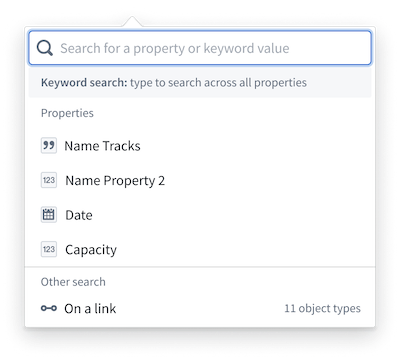
Keyword search: Type directly into the search bar and press Enter to search for a particular value across all data in the analysis.
Property search: Enter or choose a property from the dropdown menu to further define in the filter card. The default for each property is an exact match search type (is), but you can change this to a different parameter depending on the property type. For example, you could change a filter from Project Start Date is May 15, 2023 to Project Start Date is between Jan 1, 2023 and Dec 31, 2024.
Filter on linked property: Filter on the properties of a linked object type without traversing to those object types. Select the On a link option at the bottom of the filter property dropdown menu to choose an object type linked to one or all object types in your analysis. Then choose whether to search for properties of an object type in your analysis that is linked to or is not linked to the selected linked object type.
Special property types
Additional property types, such as vector, leading wildcard, and regex properties, appear at the bottom of the filter card when present in your analysis. For more information about regex searchable properties and syntax, review the search syntax documentation.
Leading wildcards
Leading wildcard search lets you find values that end with a given term. For example, a query of *smith matches values such as Goldsmith and Blacksmith.
To enable leading wildcard search on a string property:
- In the Ontology Manager, open the object type and select the string property you want to configure.
- Enable the Enable leading wildcards render hint on the property.
- Confirm that the Searchable render hint is also enabled, as it is required for leading wildcards to function.
- Save your changes and reindex the object type's backing data sources into Object Storage V1 (Phonograph). You can wait for the next triggered reindex or manually start one from the Data sources tab.
For the full list of available render hints, see Render hints.
:::callout{theme="warning"}
Combined leading-and-trailing wildcards (*term*) are not supported. You can use either a leading wildcard (*term) or a trailing wildcard (term*), but not both at the same time. If you need partial string matching, consider using Contour or the Regex mode in a Workshop Filter List.
:::
Search matching
When a search query is entered, it is broken into individual units called tokens. For example, The Quick Brown Fox produces four tokens: the, quick, brown, and fox. Note that tokenization is case-insensitive.
Underscores and periods are treated as part of a token rather than as separators. For example, banana_pudding is stored as a single token, so a query for banana will not match banana_pudding without a wildcard. Dashes, in contrast, are treated as token separators by the standard analyzer — a value like well-known is broken into two tokens (well and known). This is a common source of confusion when searching for hyphenated terms or formatted identifiers (such as UUIDs), because the query is split into separate tokens that are matched independently rather than as a single connected term.
For a detailed reference on analyzer behavior, analyzer types, and how text search works across the platform, see Understanding text search.
Search types
-
is: Signals an exact match against non-analyzed text. For example,The Quick Brown Foxwill only matchThe Quick Brown Fox. -
starts with: Appends*to the lowercase search term and matches against non-analyzed, raw field values. -
contains: Uses partial matching on the final token. All tokens in the query are matched exactly against the target field, except for the final token, which is matched as a prefix. This allows results to appear before the final word is fully entered.
Example:
The search term The Quick Brown F searches for records containing the, quick, and brown as exact matches, and any word beginning with f as a prefix match. This would return a record containing the brown fox reached the quick rabbit, as all tokens are present and fox satisfies the prefix match on f. It would not, however, match the fox quickly jumped over the brown fence. While fence satisfies the prefix match on f, the token quick is not present, as quickly is not considered an exact match for quick.
The order of tokens is not considered when evaluating matches. All tokens must be present in the target field but may appear in any position. This search behavior applies to text-based properties only.
contains any word from: Uses the multi-match filter. An object matches if the search tokens exactly match any token from values in the given property.
Example:
For the search term The Quick Brown Fox, queries for the OR quick OR brown OR fox.
This search will match: brown vehicle, fox hole, the quick fox ran through the forest
This search will not match: brownie, foxtrot, Many foxes move quickly
contains phrase: Uses a phrase filter that requires tokens to appear consecutively in the exact order entered.
Example:
A query of The Quick Brown Fox would match The quick brown fox is climbing the tree, as the four tokens appear consecutively in the correct order.
This search will not match:
The Quick brown foxy bear: The tokenfoxis not present as a standalone word.the brown rabbit met the quick fox near the river: The tokens are present, but not in the correct order.the quick smart and fast brown fox: Additional words appear between the tokens.
Common pitfalls
- Partial-word searches do not match exact tokens: A query of
appdoes not matchapplicationwith the defaultissearch type, because the standard analyzer indexesapplicationas a single token andappis not an exact token match. To match values that contain a word starting with your query term (such asappmatchingapplication), use thecontainssearch type, which treats the final token of the query as a prefix and performs the wildcard search for you. To match a sequence of letters that appears in the middle of a word (such ascatinsideapplication), none of the standard search types will match — you would need to use a regex pattern such as.*cat.*against a regex-enabled property. - Wildcard queries are not analyzed: When you use a wildcard search (such as
Quick*), the query string is compared character-for-character against the indexed tokens rather than being run through the analyzer. As a result, the case of your query must match the indexed (lowercased) form, and multi-word wildcard queries do not match because each indexed token is a single word. - Leading wildcards require a render hint: Leading wildcard search (
*term) is only available on string properties that have the Enable leading wildcards render hint enabled in the Ontology Manager. Without this render hint, leading wildcard queries do not return results.
中文翻译
筛选卡片
通过筛选卡片,您可以对分析路径中所有对象类型的属性执行关键词搜索。
可用的搜索和筛选类型如下所述:
关键词搜索: 直接在搜索栏中输入内容,然后按 Enter 键,即可在分析中的所有数据中搜索特定值。
属性搜索: 从下拉菜单中输入或选择一个属性,以在筛选卡片中进一步定义。每个属性的默认搜索类型为精确匹配(is),但您可以根据属性类型将其更改为其他参数。例如,您可以将筛选条件从项目开始日期是 2023年5月15日更改为项目开始日期介于 2023年1月1日 和 2024年12月31日 之间。
基于链接属性的筛选: 在不导航到链接对象类型的情况下,筛选链接对象类型的属性。在筛选属性下拉菜单底部选择基于链接选项,即可选择与您分析中的一个或所有对象类型相关联的对象类型。然后选择是搜索分析中已链接到还是未链接到所选链接对象类型的对象类型的属性。
特殊属性类型
当分析中存在其他属性类型(如向量、前导通配符和正则表达式属性)时,它们会显示在筛选卡片底部。有关正则表达式可搜索属性和语法的更多信息,请查阅搜索语法文档。
前导通配符
前导通配符搜索允许您查找以给定术语结尾的值。例如,查询*smith可以匹配Goldsmith和Blacksmith等值。
要在字符串属性上启用前导通配符搜索:
- 在本体管理器(Ontology Manager)中,打开对象类型并选择要配置的字符串属性。
- 在该属性上启用启用前导通配符(Enable leading wildcards)渲染提示。
- 确认可搜索(Searchable)渲染提示也已启用,因为这是前导通配符功能正常运行的必要条件。
- 保存更改并将对象类型的支持数据源重新索引到对象存储 V1 (Phonograph)。您可以等待下一次触发的重新索引,也可以从数据源(Data sources)选项卡手动启动重新索引。
有关可用渲染提示的完整列表,请参阅渲染提示。
:::callout{theme="warning"}
不支持组合使用前导和尾随通配符(*term*)。您可以使用前导通配符(*term)或尾随通配符(term*),但不能同时使用两者。如果您需要部分字符串匹配,请考虑使用 Contour 或 Workshop 中筛选列表(Filter List)的正则表达式模式。
:::
搜索匹配
输入搜索查询时,查询会被分解为称为令牌(token)的独立单元。例如,The Quick Brown Fox会产生四个令牌:the、quick、brown和fox。请注意,令牌化不区分大小写。
下划线和句点被视为令牌的一部分,而不是分隔符。例如,banana_pudding存储为单个令牌,因此查询banana在不使用通配符的情况下不会匹配banana_pudding。相比之下,标准分析器将破折号视为令牌分隔符——像well-known这样的值会被分解为两个令牌(well和known)。这在搜索带连字符的术语或格式化标识符(如 UUID)时是常见的困惑来源,因为查询会被拆分为独立的令牌,这些令牌被独立匹配,而不是作为一个连续的术语进行匹配。
有关分析器行为、分析器类型以及文本搜索在平台中如何工作的详细参考,请参阅理解文本搜索。
搜索类型
-
is(精确匹配): 表示对非分析文本进行精确匹配。例如,The Quick Brown Fox只会匹配The Quick Brown Fox。 -
starts with(开头匹配): 在转换为小写的搜索词后附加*,并针对非分析的原始字段值进行匹配。 -
contains(包含匹配): 对最后一个令牌使用部分匹配。查询中的所有令牌(最后一个令牌除外)都会与目标字段进行精确匹配,而最后一个令牌则作为前缀进行匹配。这样可以在最后一个单词完全输入之前就显示结果。
示例:
搜索词The Quick Brown F会搜索包含精确匹配的the、quick和brown,以及任何以f开头的单词作为前缀匹配的记录。这将返回包含the brown fox reached the quick rabbit的记录,因为所有令牌都存在,且fox满足f的前缀匹配。但是,它不会匹配the fox quickly jumped over the brown fence。虽然fence满足f的前缀匹配,但令牌quick不存在,因为quickly不被视为quick的精确匹配。
在评估匹配时,不考虑令牌的顺序。所有令牌必须存在于目标字段中,但可以出现在任何位置。此搜索行为仅适用于基于文本的属性。
contains any word from(包含任意单词): 使用多匹配筛选器。如果搜索令牌与给定属性值中的任意令牌精确匹配,则对象匹配。
示例:
对于搜索词The Quick Brown Fox,查询会搜索the OR quick OR brown OR fox。
此搜索将匹配: brown vehicle、fox hole、the quick fox ran through the forest
此搜索将不匹配: brownie、foxtrot、Many foxes move quickly
contains phrase(包含短语): 使用短语筛选器,要求令牌按输入的确切顺序连续出现。
示例:
查询The Quick Brown Fox会匹配The quick brown fox is climbing the tree,因为四个令牌按正确顺序连续出现。
此搜索将不匹配:
The Quick brown foxy bear: 令牌fox不作为独立单词存在。the brown rabbit met the quick fox near the river: 令牌存在,但顺序不正确。the quick smart and fast brown fox: 令牌之间出现了额外的单词。
常见陷阱
- 部分单词搜索不匹配精确令牌: 使用默认的
is搜索类型时,查询app不会匹配application,因为标准分析器将application索引为单个令牌,而app不是精确的令牌匹配。要匹配包含以查询词开头的单词的值(例如app匹配application),请使用contains搜索类型,该类型将查询的最后一个令牌视为前缀并为您执行通配符搜索。要匹配出现在单词中间的一系列字母(例如application中的cat),标准搜索类型都无法匹配——您需要对启用了正则表达式的属性使用类似.*cat.*的正则表达式模式。 - 通配符查询不经过分析: 当您使用通配符搜索(例如
Quick*)时,查询字符串会与索引令牌逐字符进行比较,而不是通过分析器处理。因此,查询的大小写必须与索引(小写)形式匹配,并且多词通配符查询不会匹配,因为每个索引令牌都是一个单词。 - 前导通配符需要渲染提示: 前导通配符搜索(
*term)仅适用于在本体管理器(Ontology Manager)中启用了启用前导通配符(Enable leading wildcards)渲染提示的字符串属性。如果没有此渲染提示,前导通配符查询将不会返回结果。