Getting started(入门指南)
The following tutorial walks you through using Insight to analyze Ontology data, from finding and opening resources to saving and sharing results.
Create a new analysis
To create a new Insight analysis, select + New analysis from the top right of the home page.

You can also create a new Insight analysis from other applications:
- From Object Explorer, select any object type or object set to view an option to analyze the data in Insight.
- From other applications, an Open in Insight option is available from the Actions menu.
Find data
When you create a new Insight analysis, you must first select Ontology data. Insight works with the Foundry Ontology, allowing you to search for object types, object sets, and interfaces. Use the Choose starting data window to find data based on names and descriptions.
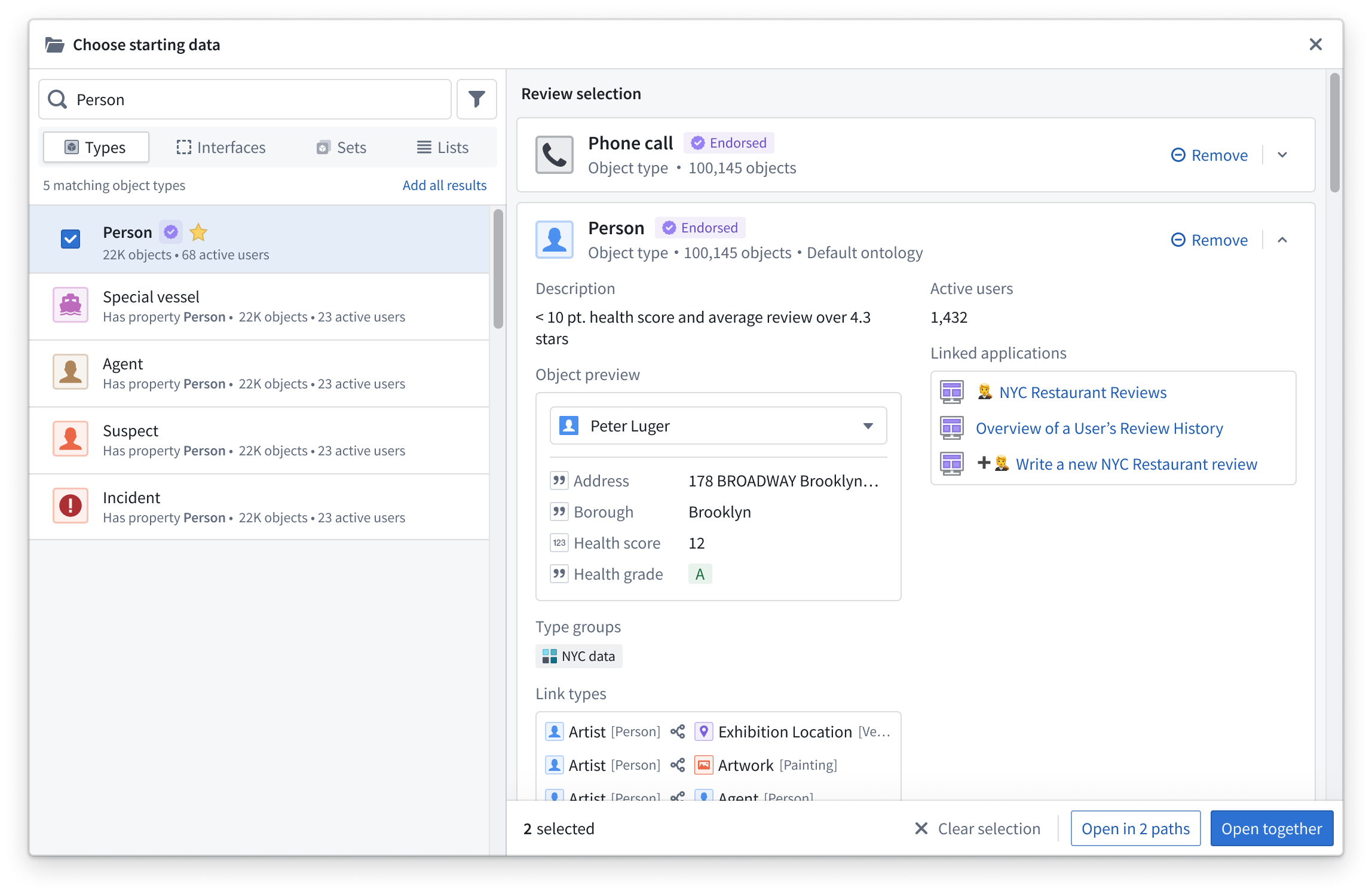
For more advanced searching, select the filter icon to the right of the search bar. Available filters include the following:
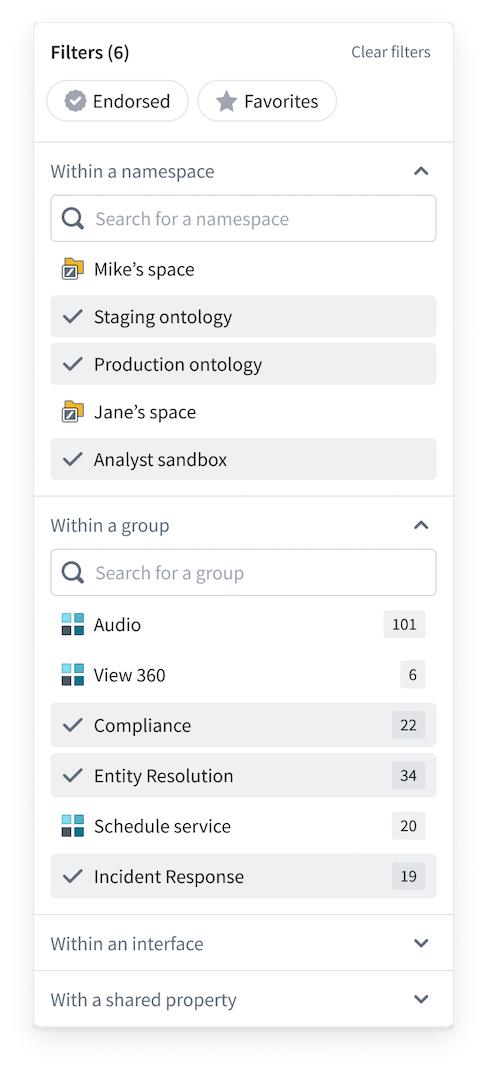
Filtering allows for more complex searching, using a combination of filters to reduce the search space to find a particular object type.
For example, you can select the Endorsed status filter and choose only certain groups to search within to significantly narrow the scope of results.
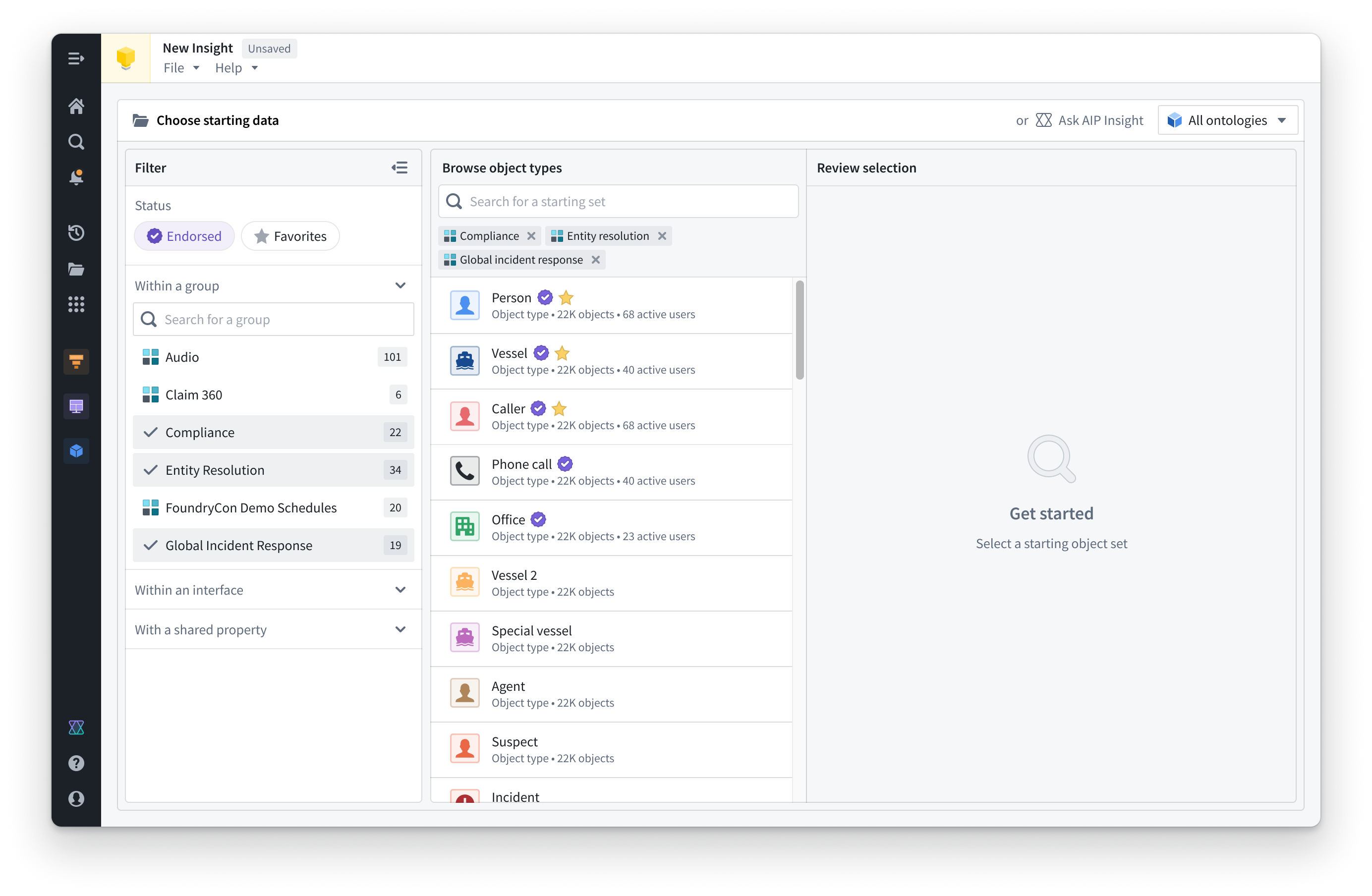
Preview and select data
Object types can be previewed for more detailed information by selecting a card in the search results. You can select multiple object types to open multiple previews. The preview provides information such as properties, groups, and linked object types. Individual objects can also be previewed.
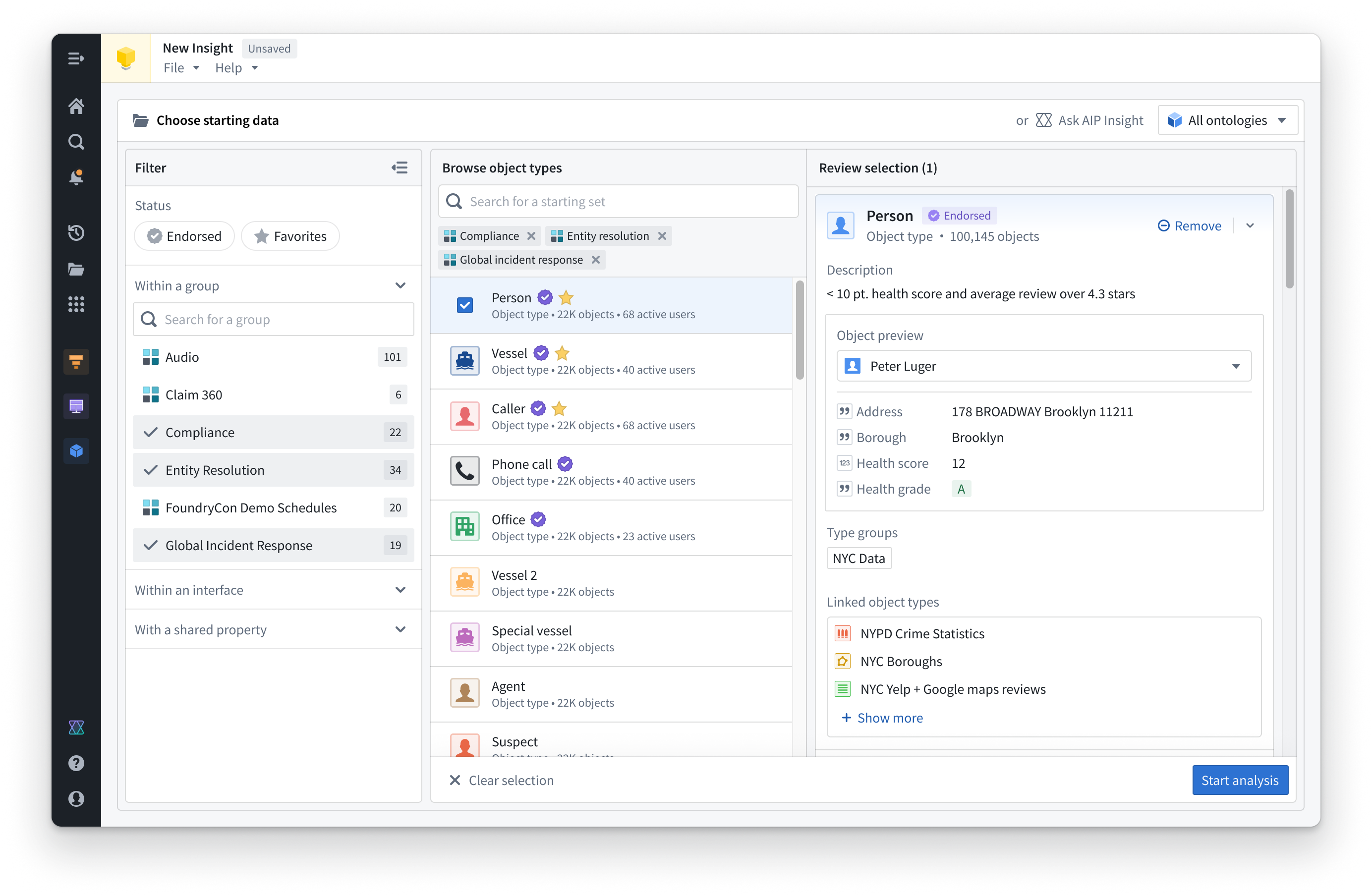
Choose one or many object types and add them to the analysis. Select Start analysis in the bottom right corner, or select Open on any object type card to begin creating your Insight analysis.
Learn more about building an analysis path for your data.
中文翻译
入门指南
以下教程将引导您使用 Insight 分析本体(Ontology)数据,涵盖从查找和打开资源到保存和共享结果的完整流程。
创建新分析
要创建新的 Insight 分析,请从主页右上角选择 + 新分析。
您也可以从其他应用程序创建新的 Insight 分析:
- 在 对象浏览器(Object Explorer) 中,选择任意对象类型或对象集,即可查看在 Insight 中分析数据的选项。
- 在其他应用程序中,操作(Actions) 菜单下提供了 在 Insight 中打开 选项。
查找数据
创建新的 Insight 分析时,您必须首先选择本体数据。Insight 与 Foundry 本体协同工作,允许您搜索对象类型、对象集和接口(interfaces)。使用 选择起始数据 窗口,根据名称和描述查找数据。
如需更高级的搜索,请选择搜索栏右侧的筛选图标。可用的筛选条件包括:
筛选功能支持更复杂的搜索,通过组合多个筛选条件来缩小搜索范围,从而找到特定的对象类型。
例如,您可以选择 已认可(Endorsed) 状态筛选条件,并仅选择特定组进行搜索,从而显著缩小结果范围。
预览并选择数据
通过选择搜索结果中的卡片,可以预览对象类型以获取更详细的信息。您可以选择多个对象类型以打开多个预览。预览提供属性、组和关联对象类型等信息。单个对象也可以进行预览。
选择一个或多个对象类型,并将其添加到分析中。选择右下角的 开始分析,或点击任意对象类型卡片上的 打开,即可开始创建您的 Insight 分析。
进一步了解如何为您的数据构建分析路径(analysis path)。