Save and share a workbook(保存与共享工作簿)
Saving in Insight is flexible; you can work without saving at all, or save and share workbooks for ongoing use.
Insight does not require you to save a workbook to view your analysis, making it easy to run quick, unplanned analyses without any setup. If you do not need to keep the analysis results, close the tab when done. If you have unsaved work, Insight displays an orange banner and an Unsaved tag at the top left of the screen as a reminder.
Save an Insight workbook
Follow the steps below to save an Insight workbook:
-
Select Save as in the top right corner of your screen.
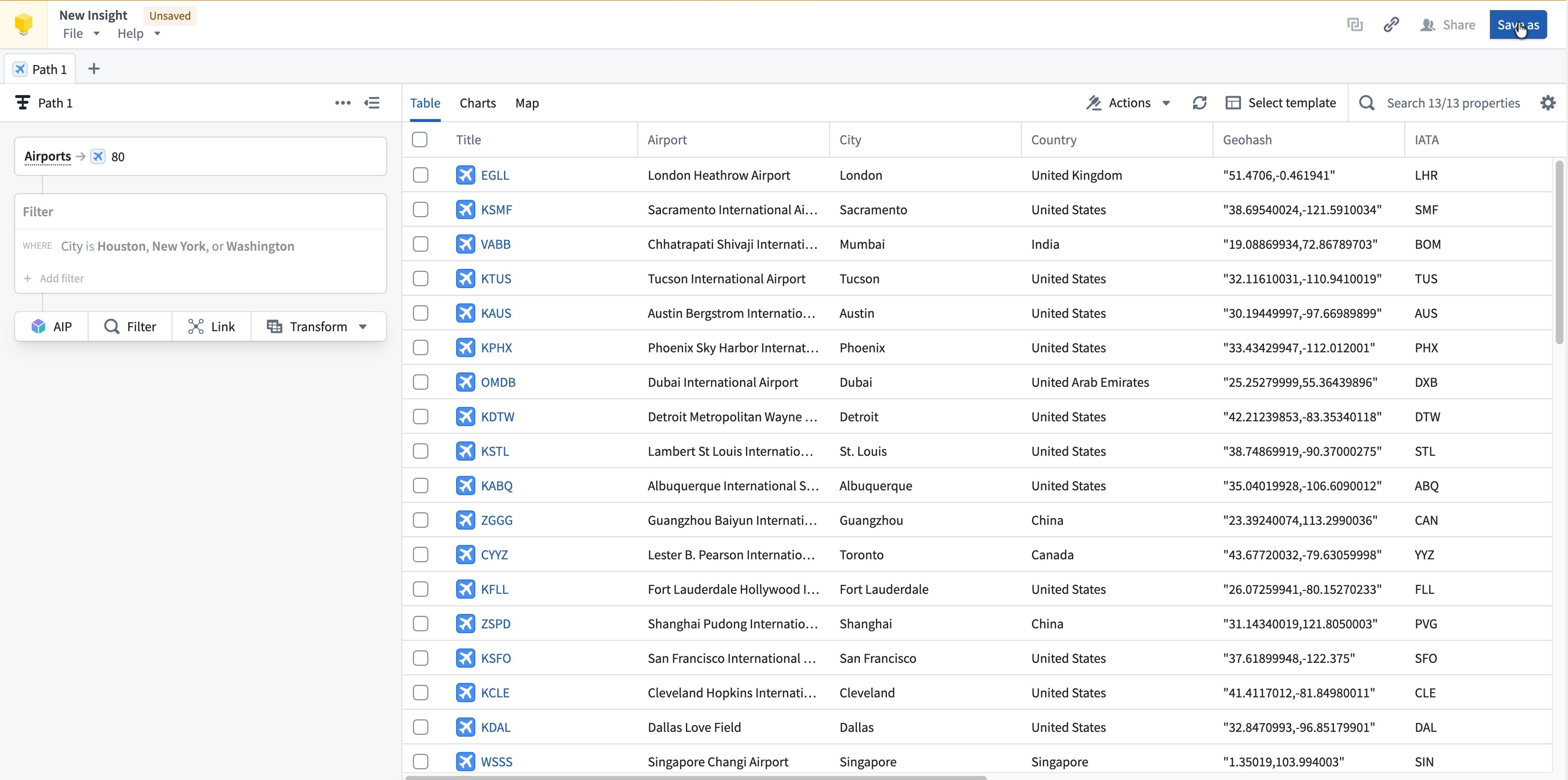
-
Choose a name and save location for the workbook and optionally add a description.
-
Select Save.
-
A confirmation message appears at the top of the screen, and the workbook name and save location appear in the top left.
A saved workbook includes all configurations, including the analysis paths, column and chart layouts, and maps.
Publish an object set
Any path in a saved workbook can be published as an object set. Publishing an object set allows the path to be searchable and used in other applications, including Quiver and Vertex. Object sets can also be referenced by other Insight users. Since published object sets can be used in other workflows, changes made to the backing path of the object set will directly impact all users of the object set.
Follow the steps below to publish an object set:
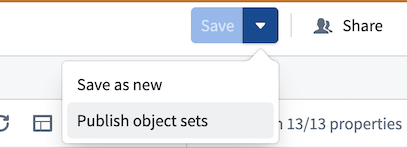
- Select the Save dropdown arrow in the top right corner of a saved workbook, then choose Publish object sets.
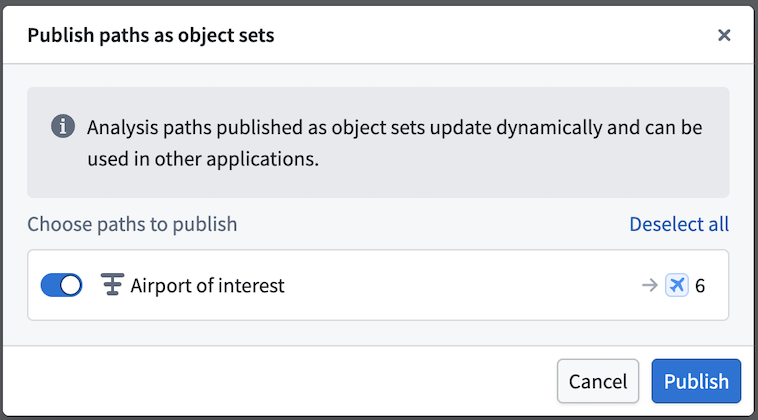
- Select the paths to publish. Once published, the object set will be discoverable throughout the platform, and the backing path will display a
Publishedtag.
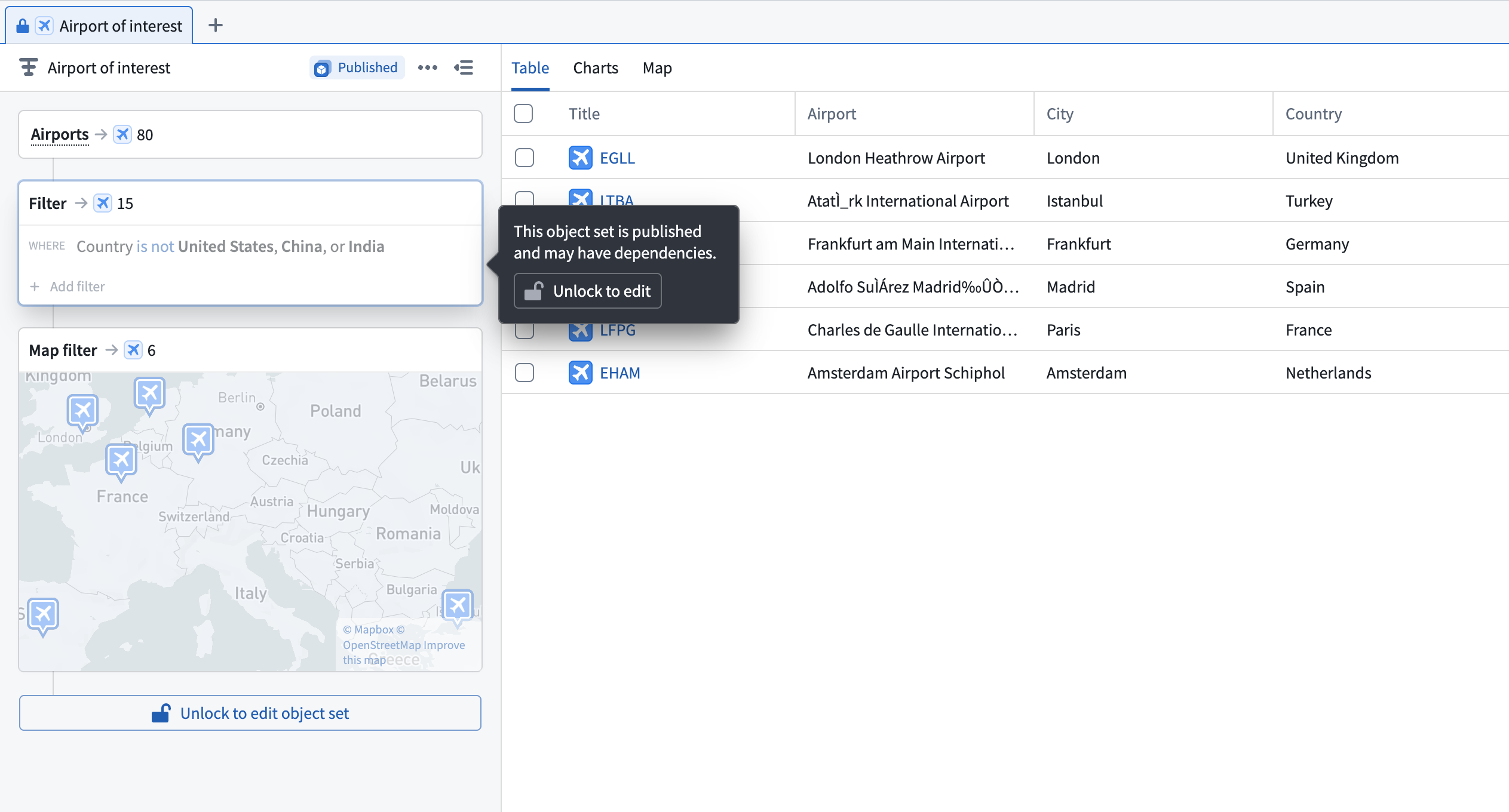
The backing path of a published object set displays a lock icon, indicating the path is read-only by default. To modify the published object set, you must have Edit access to the workbook to unlock the path. Unlocking requires confirmation to ensure edits are intentional, as changes will propagate to all instances of the object set.
Share a workbook
You can share an Insight workbook to specific users through link sharing or access grants. Follow the steps below to open the available sharing options:
- Select Share in the top right corner of the saved workbook.
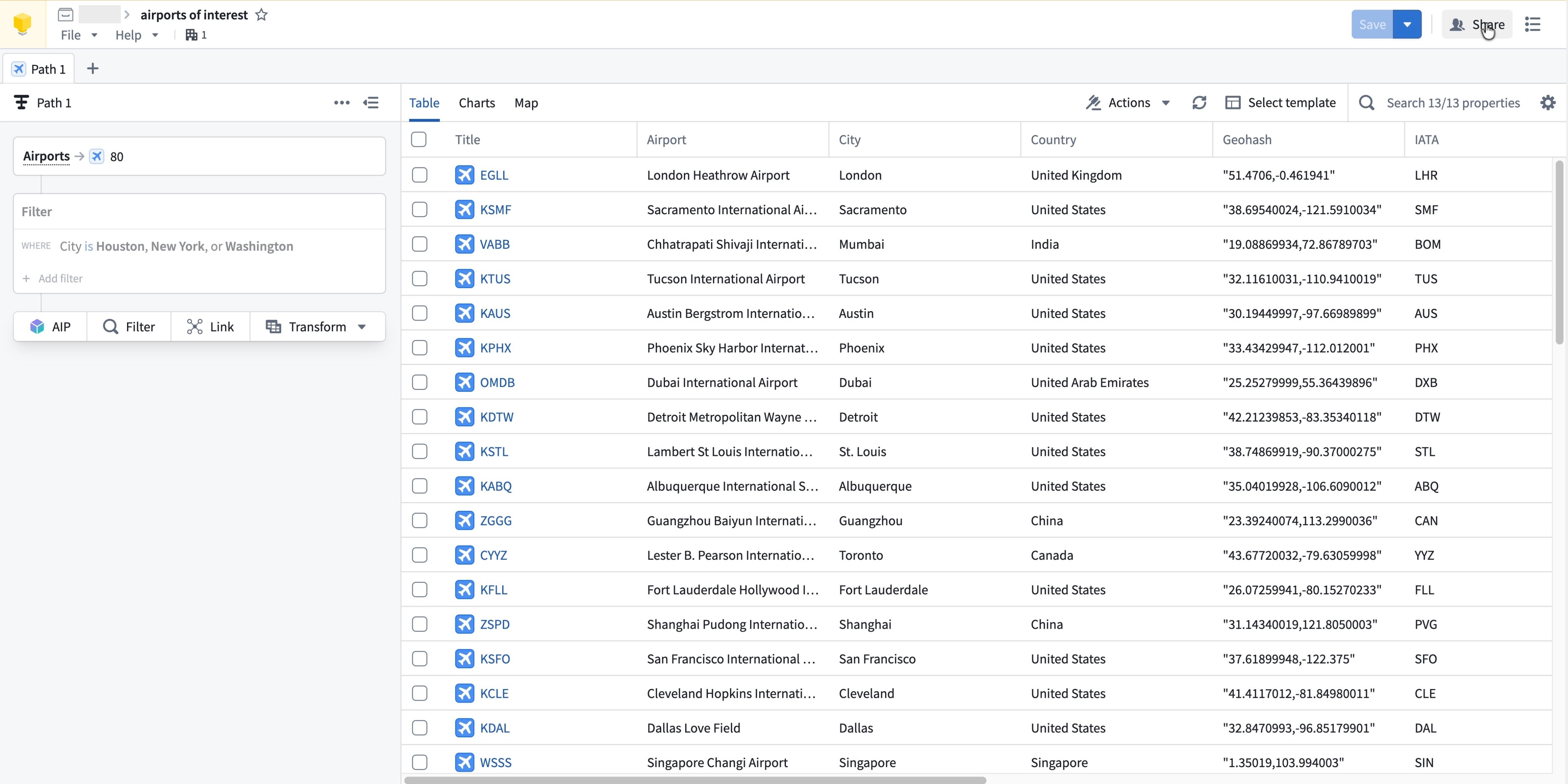
- In the Access panel, directly grant roles to specific users or groups, or toggle on Link sharing.
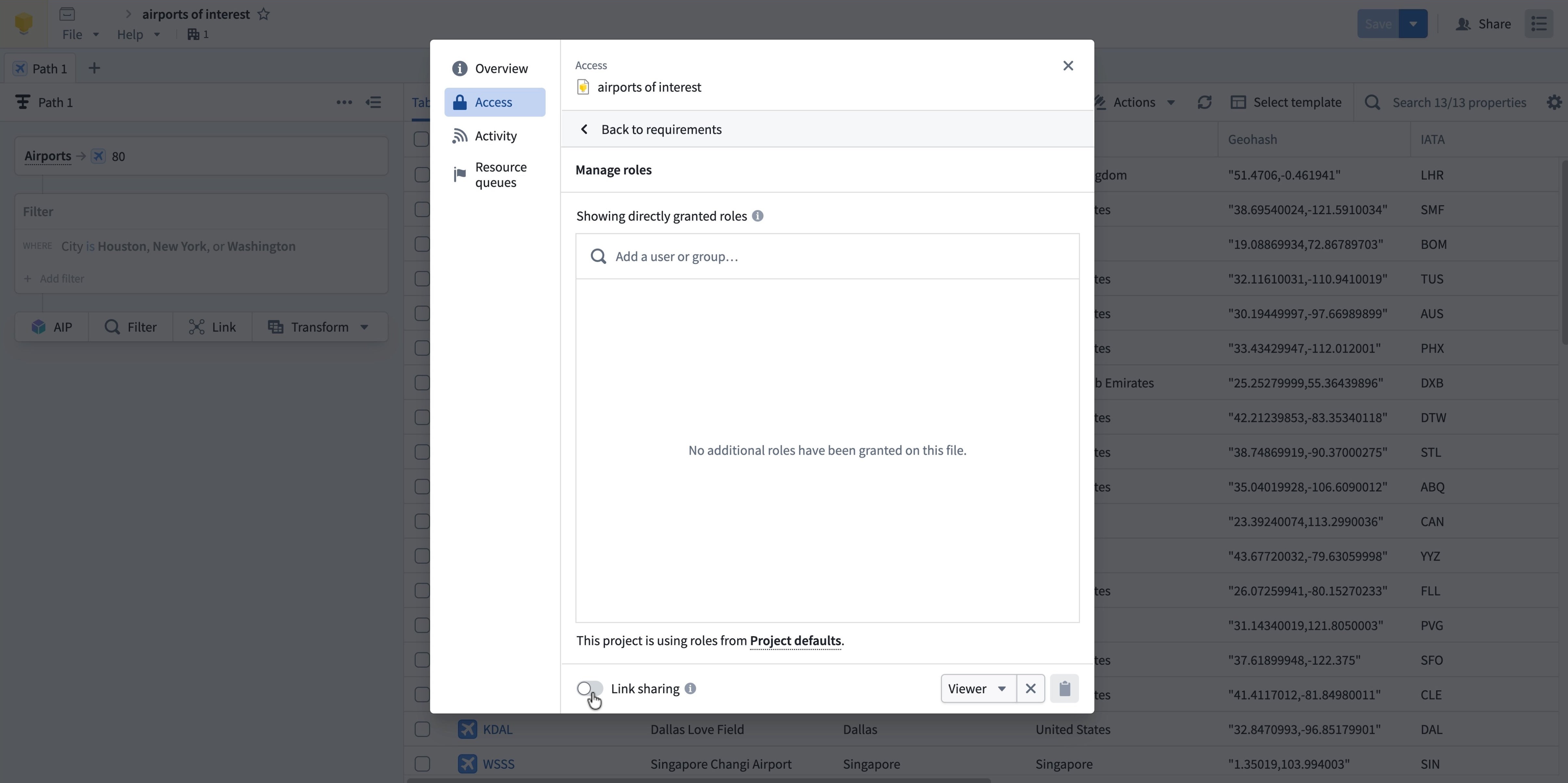
Option 1: Share with specific users
- Under Manage roles, select the Add a user or group search field and enter a user or group name.
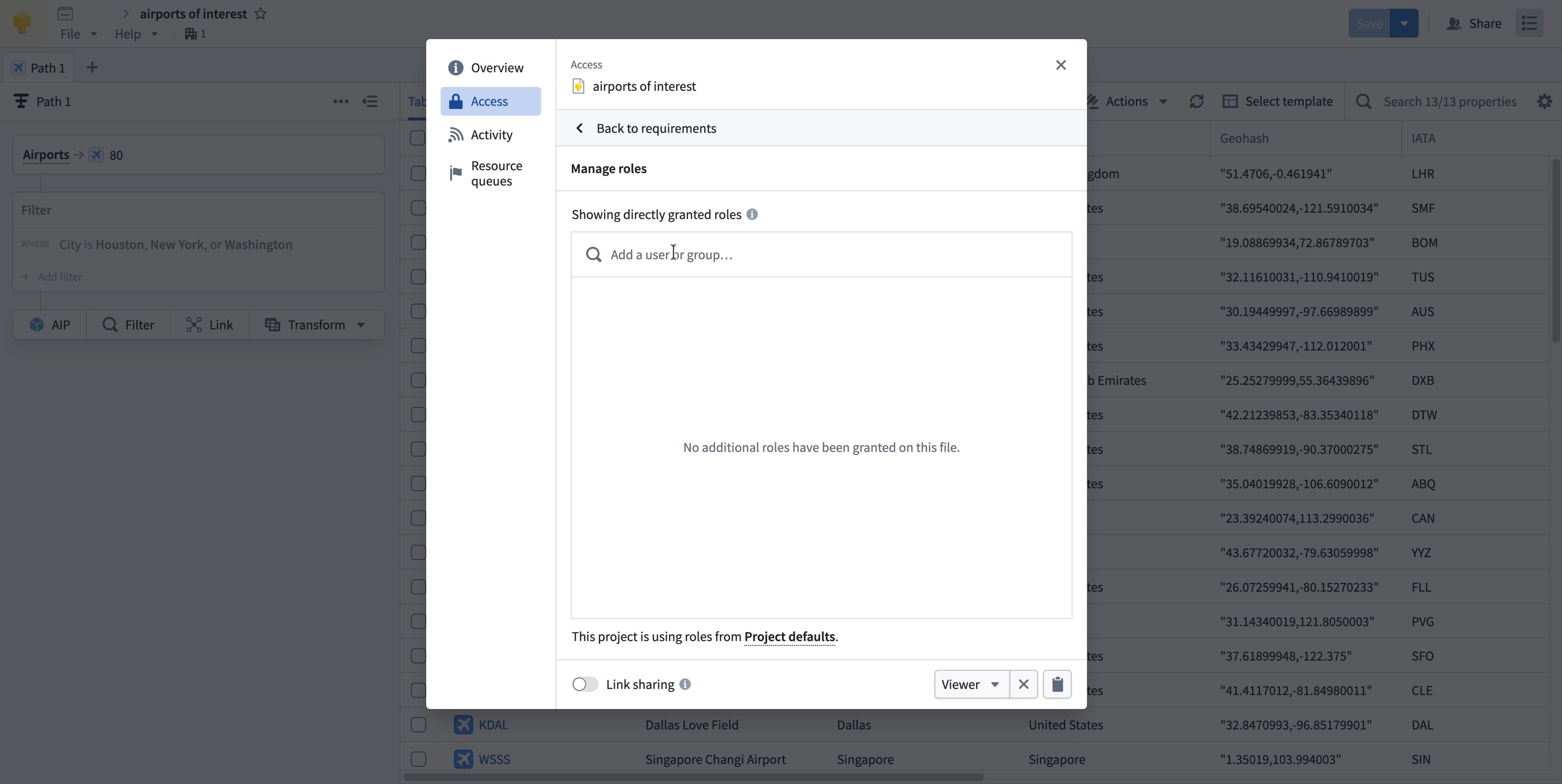
- Find the user or group from the Search results dropdown list and select + Add.
- Assign an access role to the user or group, then select Save.
Added users and groups will receive a notification when access is granted.
Option 2: Enable link sharing
-
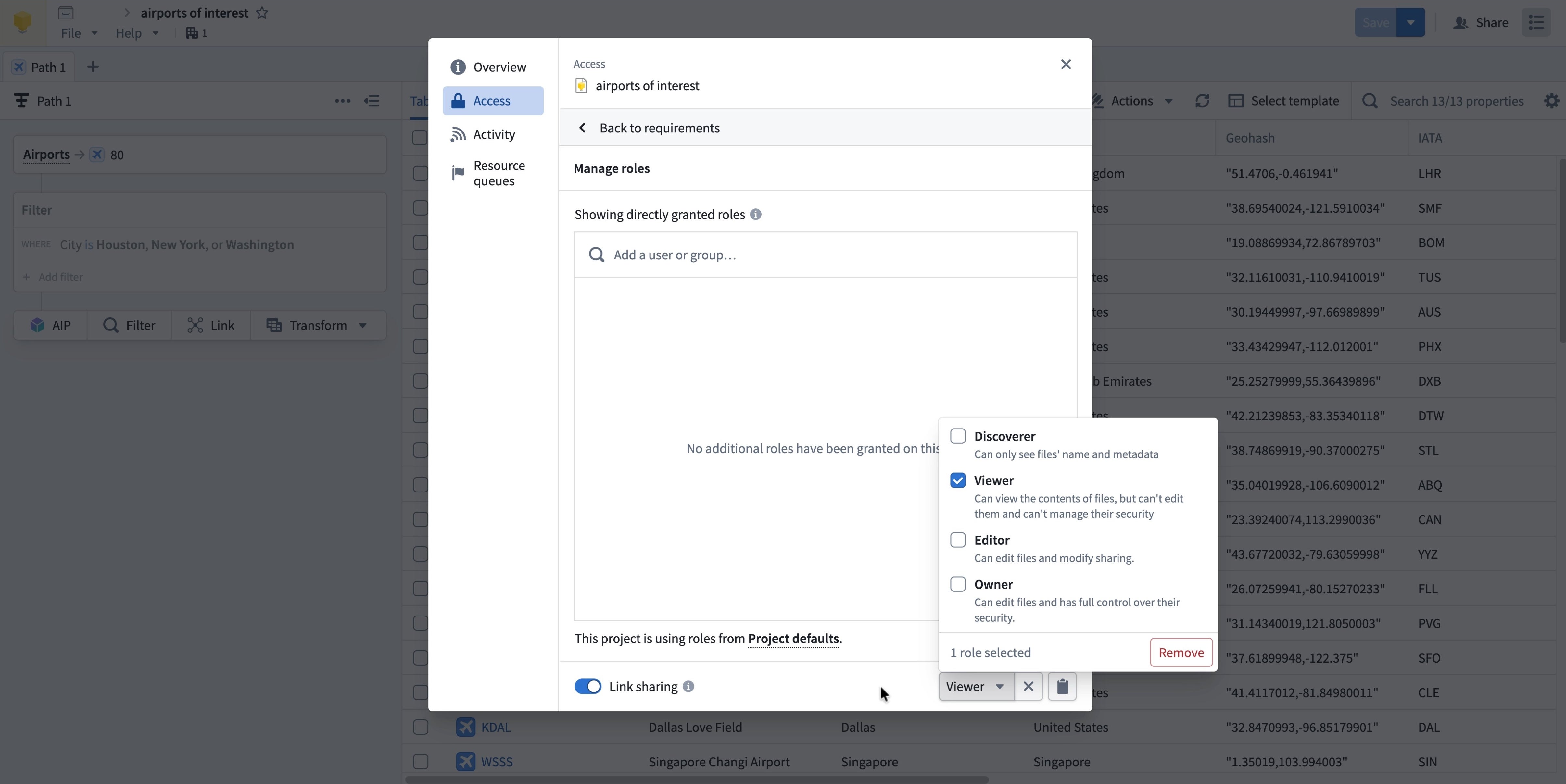
At the bottom of the Access panel, toggle on Link sharing.
-
From the dropdown menu in the lower right corner, choose the access role for the users who access the workbook from a shared link.
-
Select the clipboard icon to copy and share the workbook link.
Turn off link sharing
To disable link sharing, toggle off Link sharing.
Access roles
When sharing your workbook with other users or groups, assign them one of the following access roles:
Discoverer: Users can only see that the workbook exists and view its metadata, but cannot access its contents.Viewer: Users can view workbook contents but cannot save edits to the original. Edits can be saved to a copy of the workbook.Editor: Users can edit the workbook, save changes, and modify sharing settings.Owner: Users have full control over the workbook, including sharing and security settings.
:::callout{theme="neutral"}
For simple read-only sharing, Viewer is the recommended role. Users can view the analysis and save a copy if needed.
:::
中文翻译
保存与共享工作簿
Insight 中的保存功能非常灵活;您可以完全不保存直接工作,也可以保存并共享工作簿以供持续使用。
Insight 不要求您保存工作簿即可查看分析结果,这使得您可以轻松进行快速、临时的分析,无需任何前期设置。如果不需要保留分析结果,完成后关闭标签页即可。如果存在未保存的工作,Insight 会在屏幕左上角显示橙色横幅和 Unsaved 标签作为提醒。
保存 Insight 工作簿
按照以下步骤保存 Insight 工作簿:
-
选择屏幕右上角的 Save as。
-
为工作簿选择名称和保存位置,并可选择添加描述。
-
选择 Save。
-
屏幕顶部会出现一条确认消息,工作簿名称和保存位置将显示在左上角。
已保存的工作簿包含所有配置,包括分析路径、列和图表布局以及地图。
发布对象集(Object Set)
已保存工作簿中的任何路径都可以作为对象集(Object Set)发布。发布对象集(Object Set)后,该路径将可被搜索,并可在其他应用程序中使用,包括 Quiver 和 Vertex。其他 Insight 用户也可以引用对象集(Object Set)。由于已发布的对象集(Object Set)可在其他工作流中使用,因此对对象集(Object Set)底层路径所做的更改将直接影响该对象集(Object Set)的所有用户。
按照以下步骤发布对象集(Object Set):
- 选择已保存工作簿右上角的 Save 下拉箭头,然后选择 Publish object sets。
- 选择要发布的路径。发布后,该对象集(Object Set)将在整个平台中可被发现,并且底层路径将显示
Published标签。
已发布对象集(Object Set)的底层路径会显示一个锁图标,表示该路径默认是只读的。要修改已发布的对象集(Object Set),您必须拥有工作簿的 Edit 权限才能解锁该路径。解锁需要确认以确保编辑是故意的,因为更改将传播到该对象集(Object Set)的所有实例。
共享工作簿
您可以通过链接共享或访问授权将 Insight 工作簿共享给特定用户。按照以下步骤打开可用的共享选项:
- 选择已保存工作簿右上角的 Share。
- 在 Access 面板中,直接向特定用户或组授予角色,或开启 Link sharing。
选项 1:与特定用户共享
- 在 Manage roles 下,选择 Add a user or group 搜索字段,输入用户或组名称。
- 从 Search results 下拉列表中找到该用户或组,然后选择 + Add。
- 为用户或组分配一个访问角色,然后选择 Save。
添加的用户和组在获得访问权限时会收到通知。
选项 2:启用链接共享
-
在 Access 面板底部,开启 Link sharing。
-
从右下角的下拉菜单中,为通过共享链接访问工作簿的用户选择访问角色。
-
选择剪贴板图标以复制并共享工作簿链接。
关闭链接共享
要禁用链接共享,请关闭 Link sharing。
访问角色(Access Roles)
在与其他用户或组共享工作簿时,请为他们分配以下访问角色之一:
Discoverer:用户只能看到工作簿存在并查看其元数据,但无法访问其内容。Viewer:用户可以查看工作簿内容,但无法将编辑内容保存到原始工作簿。编辑内容可以保存到工作簿的副本中。Editor:用户可以编辑工作簿、保存更改以及修改共享设置。Owner:用户对工作簿拥有完全控制权,包括共享和安全设置。
:::callout{theme="neutral"}
对于简单的只读共享,建议使用 Viewer 角色。用户可以查看分析结果,并在需要时保存副本。
:::