Table(表格(Table))
The Table tab in Insight presents analysis objects in a tabular format, with property names as column headers and each row representing an individual object instance.
Selection states
Selecting a row highlights it and opens the object panel view, a condensed version of the full object view.
The following keyboard shortcuts are available in the table:
- Multi-select:
Cmd+Click(macOS) orCtrl+Click(Windows) to select multiple individual rows. - Range select: Select a row, then
Shift+Clickanother row to highlight all rows between them. - Deselect all: Select any row when multiple rows are already selected to deselect all.
The multi-select buttons on the left side of the table allow for selecting multiple objects at once. The multi-select button at the top of the table selects or deselects all rows.
Properties
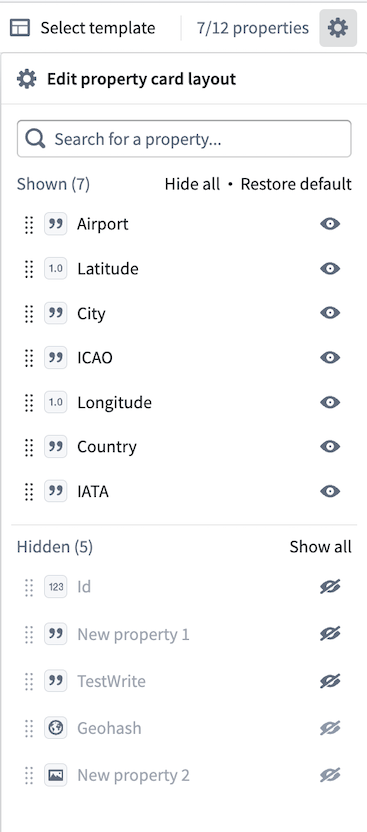
A property search bar is available in the top right of the table, showing how many properties are currently visible. Properties not shown in the table can be added through the property configuration panel, accessible via the gear icon in the top right corner. Only properties currently in the table can be searched. Matches appear in the dropdown and are highlighted in the table.
Property configuration
The configuration panel provides access to all object type properties. Properties not currently in the table can be searched and added, and property order can be modified by dragging. The Truncate text in table option is enabled by default. Disabling it displays the full text of longer fields, which may increase row height.
Derived properties
Derived properties are calculated at runtime based on the values of other properties or links on objects. To add a derived property, open the property configuration panel via the gear icon and select + Add derived property at the bottom of the panel. From there, add linked properties or property aggregations as needed.
Multi-object type analysis
If the analysis path contains multiple object types, each object type appears as a selectable header in the table. Each object type can be toggled on or off, and the properties of all visible object types are shown in the table and property configuration panel.
Data operations
Insight allows you to write data back to the Ontology by creating, updating, and deleting objects directly from your analysis results.
Permissions
To perform write operations, you need the following:
- Edit permission on the object type in the Ontology
- Write access to the underlying data source
- Project permissions if the object type is scoped to a project
Contact your Foundry administrator if you need write access.
Select objects
Before performing operations, select the objects to modify. In the results table, select the checkbox next to individual objects, or select the header checkbox to select all visible objects. The selection count appears in the toolbar.
When results span multiple pages, selecting the header checkbox selects all objects matching the applied filters, not just the objects on the current page.
Row actions
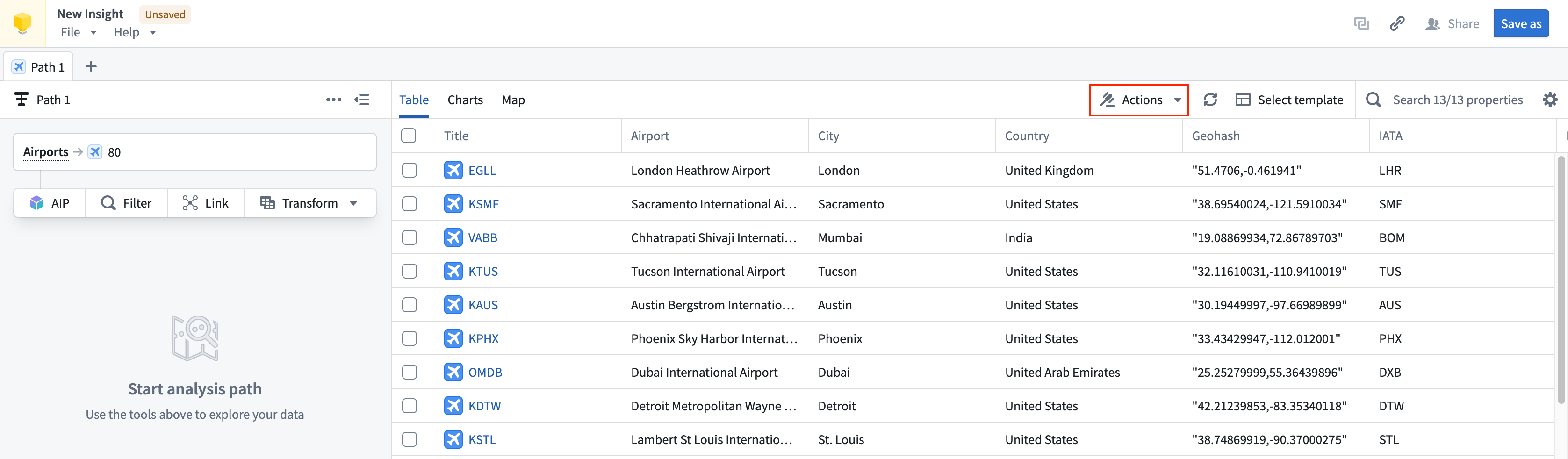
The Actions menu in the toolbar provides operations defined for the object type in the Ontology.
- Select one or more objects.
- Select Actions to view available operations.
- Choose an action.
- Complete the action form or workflow.
Available actions depend on your Ontology configuration. Common examples include assigning objects to users, triggering workflows, or updating related objects.
Create objects
- Select Create in the toolbar.
- Select the object type to create.
- Fill in property values.
- Select Create.
The form displays all properties defined on the object type. Required properties are marked.
Update objects
- Select one or more objects.
- Select Edit in the toolbar.
- Modify property values.
- Select Save.
Bulk updates
When multiple objects are selected, you can update shared properties across all of them at once. Only modify the properties you want to change; unmodified properties retain their existing values.
中文翻译
表格(Table)
Insight 中的表格选项卡以表格形式展示分析对象,属性名称作为列标题,每一行代表一个单独的对象实例。
选择状态(Selection states)
选中某行会高亮显示该行,并打开对象面板视图(object panel view),这是完整对象视图的简化版本。
表格中支持以下键盘快捷键:
- 多选:
Cmd+点击(macOS)或Ctrl+点击(Windows)可选择多个单独的行。 - 范围选择: 选中一行,然后按住
Shift+点击另一行,可高亮显示这两行之间的所有行。 - 取消全选: 当已选中多行时,点击任意一行即可取消全选。
表格左侧的多选按钮允许同时选择多个对象。表格顶部的多选按钮用于全选或取消全选所有行。
属性(Properties)
表格右上角提供属性搜索栏,显示当前可见的属性数量。未在表格中显示的属性可通过属性配置面板(property configuration panel)添加,该面板可通过右上角的齿轮图标访问。只能搜索当前在表格中的属性。匹配项会出现在下拉菜单中,并在表格中高亮显示。
属性配置(Property configuration)
配置面板提供对所有对象类型属性的访问。可以搜索并添加当前不在表格中的属性,并且可以通过拖拽修改属性顺序。截断表格中的文本(Truncate text in table) 选项默认启用。禁用该选项会显示较长字段的完整文本,这可能会增加行高。
派生属性(Derived properties)
派生属性 在运行时根据对象上其他属性或链接的值计算得出。要添加派生属性,请通过齿轮图标打开属性配置面板,然后选择面板底部的 + 添加派生属性(+ Add derived property)。在此处,根据需要添加链接属性或属性聚合。
多对象类型分析(Multi-object type analysis)
如果分析路径包含多个对象类型,每个对象类型会作为可选择的标题出现在表格中。每个对象类型可以切换为显示或隐藏,所有可见对象类型的属性都会显示在表格和属性配置面板中。
数据操作(Data operations)
Insight 允许您通过直接从分析结果中创建、更新和删除对象,将数据写回本体(Ontology)。
权限(Permissions)
要执行写入操作,您需要具备以下条件:
- 对本体中的对象类型拥有编辑权限(Edit permission)
- 对底层数据源拥有写入权限(Write access)
- 如果对象类型限定在项目范围内,还需拥有项目权限(Project permissions)
如果您需要写入权限,请联系您的 Foundry 管理员。
选择对象(Select objects)
在执行操作之前,请先选择要修改的对象。在结果表格中,选中单个对象旁边的复选框,或选中标题复选框以选择所有可见对象。选择计数会显示在工具栏中。
当结果跨越多页时,选中标题复选框会选择所有符合应用筛选条件的对象,而不仅仅是当前页面上的对象。
行操作(Row actions)
工具栏中的操作(Actions)菜单提供了为本体中的对象类型定义的操作。
- 选择一个或多个对象。
- 选择操作(Actions)以查看可用的操作。
- 选择一个操作。
- 完成操作表单或工作流。
可用的操作取决于您的本体配置。常见示例包括将对象分配给用户、触发工作流或更新相关对象。
创建对象(Create objects)
- 在工具栏中选择创建(Create)。
- 选择要创建的对象类型。
- 填写属性值。
- 选择创建(Create)。
表单会显示对象类型上定义的所有属性。必填属性会带有标记。
更新对象(Update objects)
- 选择一个或多个对象。
- 在工具栏中选择编辑(Edit)。
- 修改属性值。
- 选择保存(Save)。
批量更新(Bulk updates)
当选中多个对象时,您可以一次性更新它们共有的属性。只需修改您想要更改的属性;未修改的属性将保留其现有值。