Transform card(转换卡片)
Use a Transform card in your analysis path to perform operations on your data, such as set math, group by, and SQL.
Set math
Three operation types are available with a Set Math transform in Insight:
-
Union: Combines object sets into a single object set. Input object sets can be published object sets or paths within the workbook. When combining different object types, the operation functions like a full outer join, adding properties from all object types to the table and chart views. When working with unioned sets, you can sort rows by matches, which is helpful for quickly identifying overlap between filtered sets of the same object type.
-
Intersect: Keeps objects that appear across all selected object sets. Intersection can only be applied to a single object type, so the object set picker only shows paths or object sets matching the object type in the path.
-
Subtract: Removes objects from an object set. Like intersection, subtraction can only be applied to a single object type, so the object set picker only shows paths or object sets matching the object type in the path.
Visualize
Use a Group by aggregation or create a Property chart or Vega chart to visualize the data in your analysis.
Group by
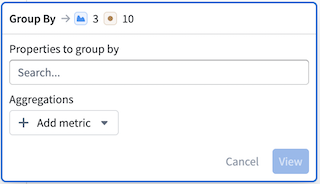
The Group by operation aggregates rows across one or many properties:
-
Properties to group by: Select one or more properties to group by. Properties not selected here can be used as aggregation targets.
-
Aggregations: Select at least one aggregation metric (for example,
Count). Multiple aggregation types can be added, and column names can be renamed as needed.
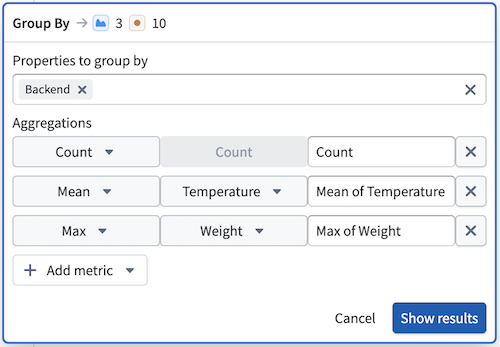
Select Show results to view the Group By table in the analysis path.
Filter with the Group By table
Selecting rows in the Group By table applies a filter to the underlying data without modifying it. Select one or more rows to enable filtering; the label in the top left of the table will update from Select a row to filter results to Filtering on [1] row. To remove the filter, select X.
Property chart
Property charts display an in-path histogram of values within a selected property. Selecting a range in the chart applies a filter to the underlying data without modifying it. For similar functionality, use the charts tab of your workbook.
Vega chart
Vega is a fully customizable, open-source visualization library. In Insight, Vega charts can only be used with output from an SQL sandbox card and do not support Ontology data directly from the analysis path. For configuration details, review the Vega documentation ↗.
Query
SQL
This tool can be used to write SQL expressions and transform path data. SQL is only supported when the analysis path contains a single object type and is disabled when more than one object type is present. The SQL sandbox supports joins with other object types without relying on Ontology link types. To reference object types for joins, use a backtick.
The SQL sandbox in Insight defaults to the following query:
SELECT * FROM Path
LIMIT 10
Path refers to the data in the analysis path at the point where this card is added. If filters are applied before the SQL card, the SQL operates on that filtered data.
For more information about supported syntax and other SQL use cases, view the Ontology SQL documentation.
SQL results
SQL sandbox results appear in the SQL preview table. The SQL tool runs on a materialization of your data, so its outputs are not ontologized and cannot be used directly in the path. SQL results can be viewed in the preview table by selecting the SQL sandbox card, or downloaded as a CSV.
SQL sandbox and filter cards
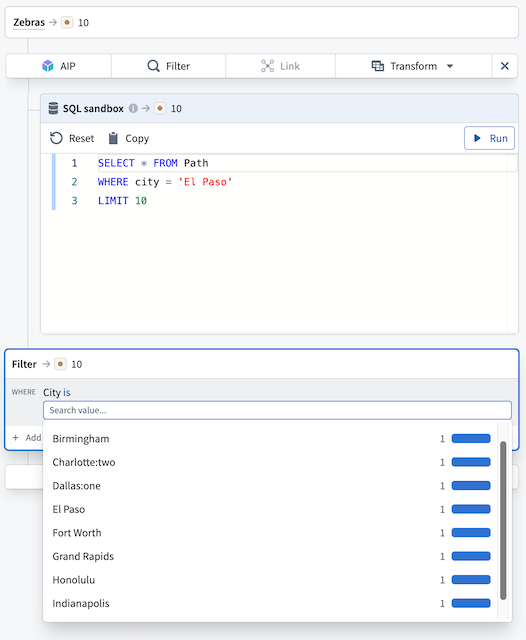
Because the SQL sandbox does not affect path data, any filter card added after it will filter on the path data from before the SQL step. In the example image below, the SQL result is 1 while the object count remains 10, since the query cannot affect path results directly. Applying a filter card after the SQL step shows all 10 objects.
中文翻译
转换卡片
在分析路径中使用转换卡片对数据执行操作,例如集合运算、分组和SQL。
集合运算
Insight中的集合运算转换提供三种操作类型:
-
并集: 将多个对象集合并为单个对象集。输入对象集可以是已发布的对象集或工作簿中的路径。当合并不同对象类型时,该操作类似于全外连接,将所有对象类型的属性添加到表格和图表视图中。处理并集时,可以按匹配项对行进行排序,这有助于快速识别同一对象类型的筛选集之间的重叠部分。
-
交集: 保留所有选定对象集中共同出现的对象。交集只能应用于单一对象类型,因此对象集选择器仅显示与路径中对象类型匹配的路径或对象集。
-
差集: 从对象集中移除对象。与交集类似,差集只能应用于单一对象类型,因此对象集选择器仅显示与路径中对象类型匹配的路径或对象集。
可视化
使用分组聚合或创建属性图表或Vega图表来可视化分析中的数据。
分组
分组操作按一个或多个属性聚合行:
-
分组依据属性: 选择一个或多个属性进行分组。未在此处选择的属性可用作聚合目标。
-
聚合: 至少选择一个聚合指标(例如
计数)。可以添加多种聚合类型,并根据需要重命名列名。
选择显示结果以在分析路径中查看分组表格。
使用分组表格进行筛选
在分组表格中选择行会对底层数据应用筛选,而不会修改数据。选择一行或多行以启用筛选;表格左上角的标签将从选择一行以筛选结果更新为正在筛选 [1] 行。要移除筛选,请选择X。
属性图表
属性图表显示选定属性内数值的路径内直方图。在图表中选择一个范围会对底层数据应用筛选,而不会修改数据。如需类似功能,请使用工作簿的图表选项卡。
Vega图表
Vega是一个完全可定制的开源可视化库。在Insight中,Vega图表只能与SQL沙箱卡片的输出一起使用,不支持直接来自分析路径的本体数据。有关配置详情,请查阅Vega文档 ↗。
查询
SQL
此工具可用于编写SQL表达式并转换路径数据。仅当分析路径包含单一对象类型时才支持SQL,当存在多个对象类型时禁用。SQL沙箱支持与其他对象类型的连接,无需依赖本体链接类型。要引用用于连接的对象类型,请使用反引号。
Insight中的SQL沙箱默认使用以下查询:
SELECT * FROM Path
LIMIT 10
Path指的是添加此卡片时分析路径中的数据。如果在SQL卡片之前应用了筛选,则SQL将对该筛选后的数据执行操作。
有关支持语法和其他SQL用例的更多信息,请查看本体SQL文档。
SQL结果
SQL沙箱结果显示在SQL预览表格中。SQL工具在数据的物化版本上运行,因此其输出不会被本体化,也不能直接在路径中使用。通过选择SQL沙箱卡片可以在预览表格中查看SQL结果,或将其下载为CSV文件。
SQL沙箱与筛选卡片
由于SQL沙箱不影响路径数据,因此在其后添加的任何筛选卡片都将对SQL步骤之前的路径数据进行筛选。在下面的示例图中,SQL结果为1,而对象计数仍为10,因为查询无法直接影响路径结果。在SQL步骤之后应用筛选卡片会显示所有10个对象。