Explore object relationships(探索对象关系)
Vertex allows you to visualize and quantify cause and effect across the digital twin of your real-world organization. Using Vertex, you can access and explore existing graphs that have been published by your organization or build new graphs.
Start a new exploration
Vertex can be launched from the Foundry workspace sidebar's Apps section, under the Operational Applications header. To launch a new exploration, select Vertex from the list of applications and click on the + New Graph icon.
When starting a new exploration, a blank workspace will open where you can choose to + add objects to get started. From the object search pop-up, select the object(s) you are interested in exploring to begin creating your graph.
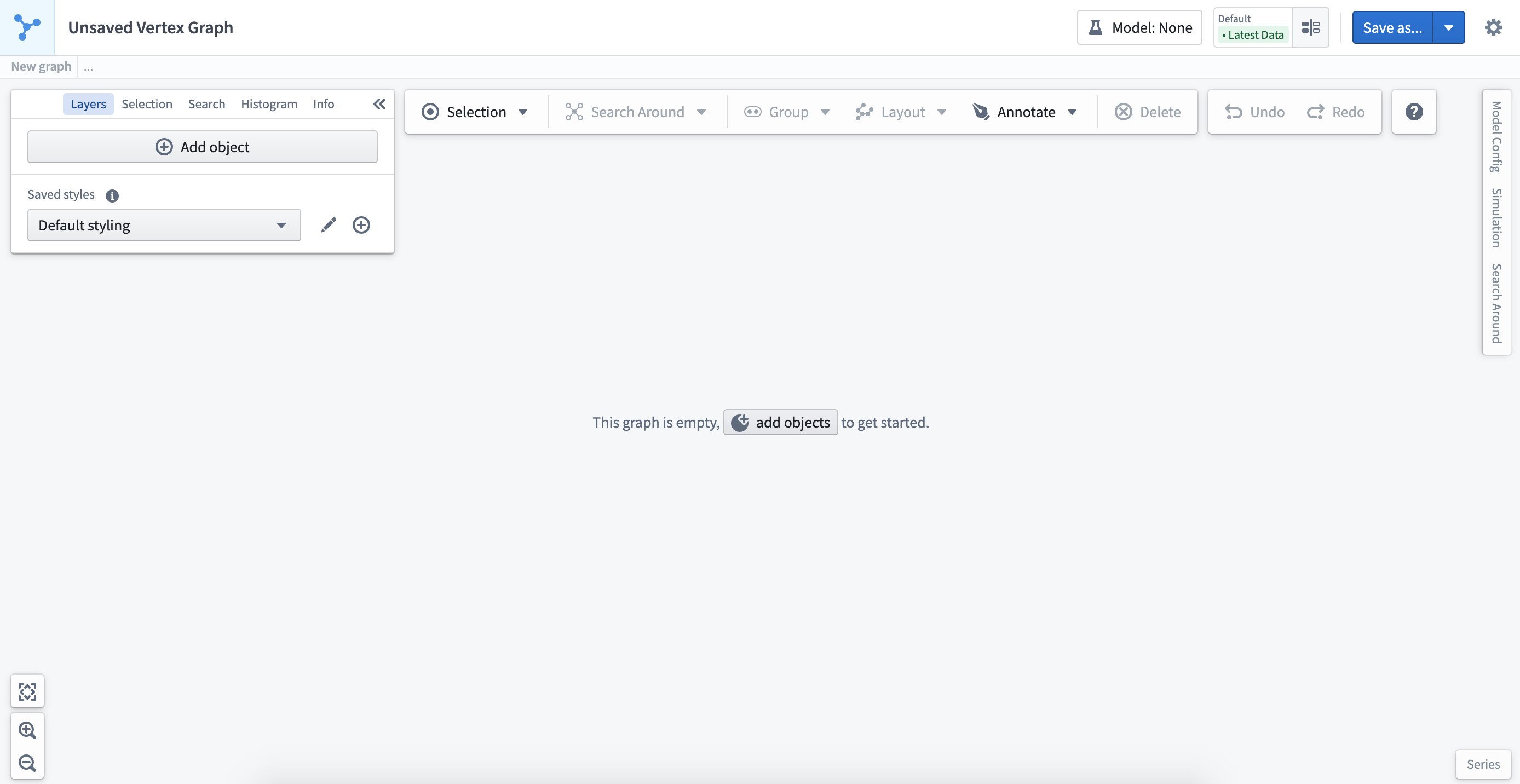
Object selection panel
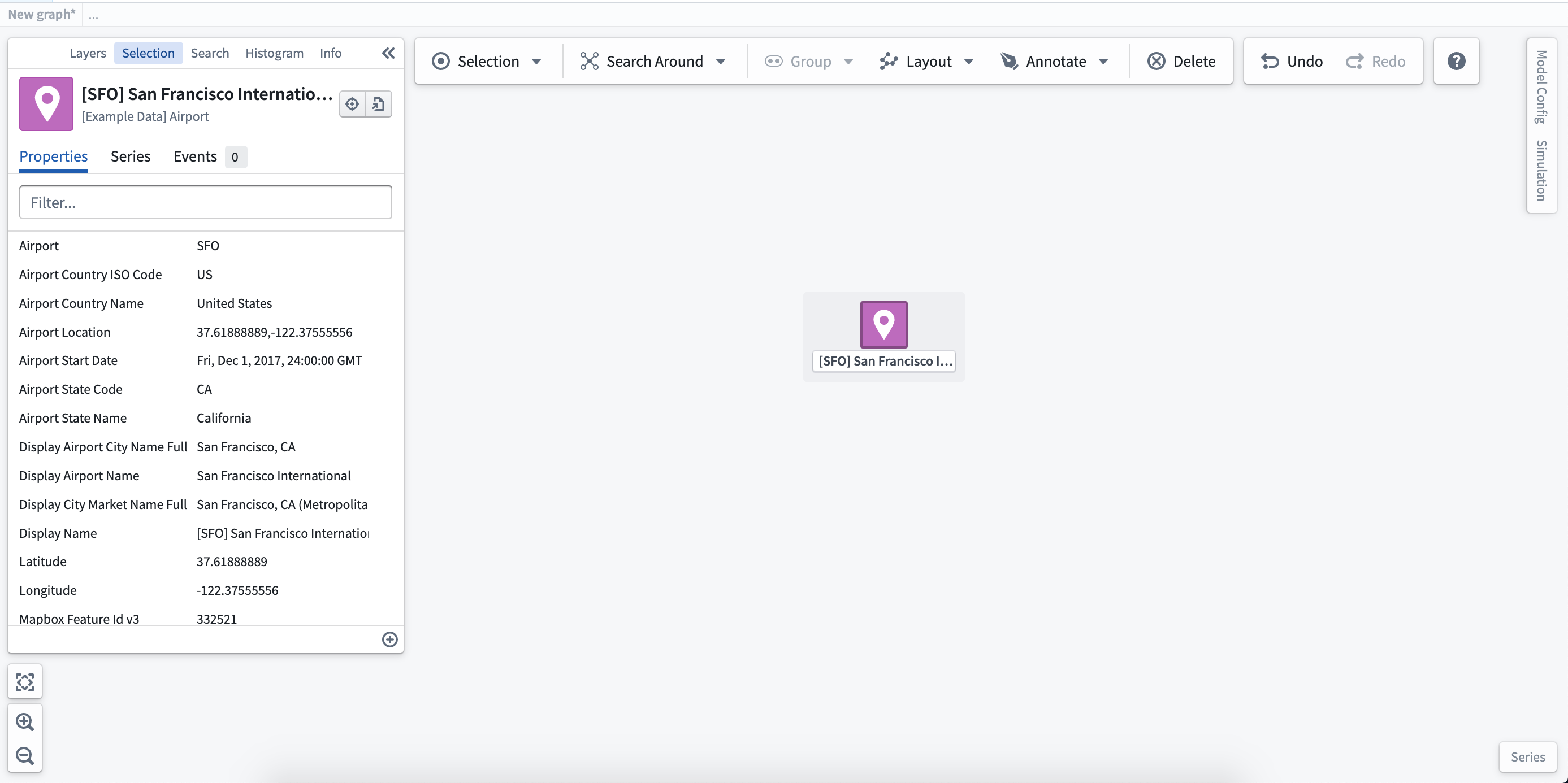
When you click on an object on the graph, the selection panel will automatically open to display the properties of the object.
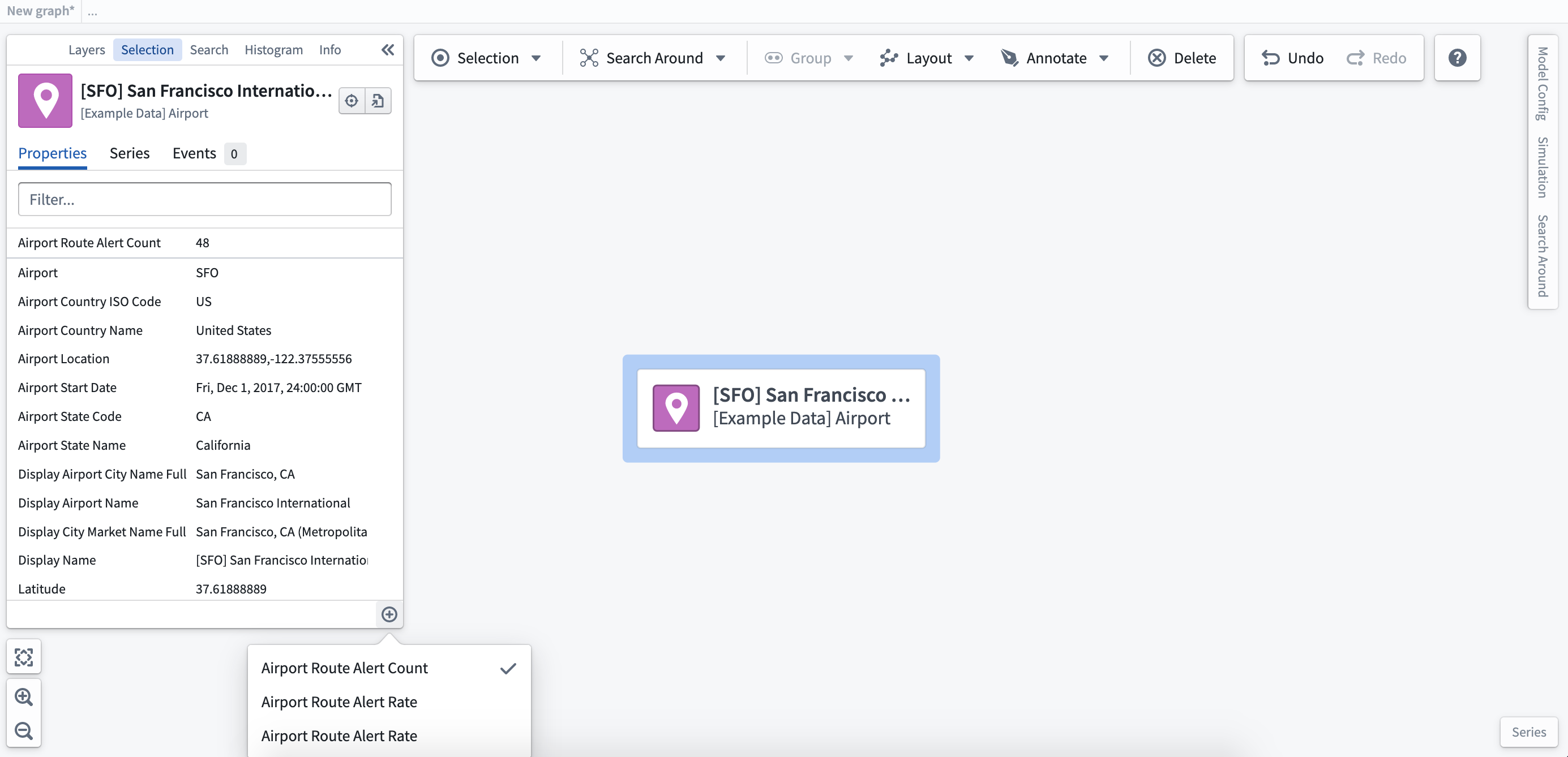
Selecting the (+) symbol at the bottom right corner of the selection panel will allow you to add derived property functions. In this case, a simple function calculates the total number of alerts on routes related to the airport. Derived properties are shown at the top of the selection panel.
Explore related objects
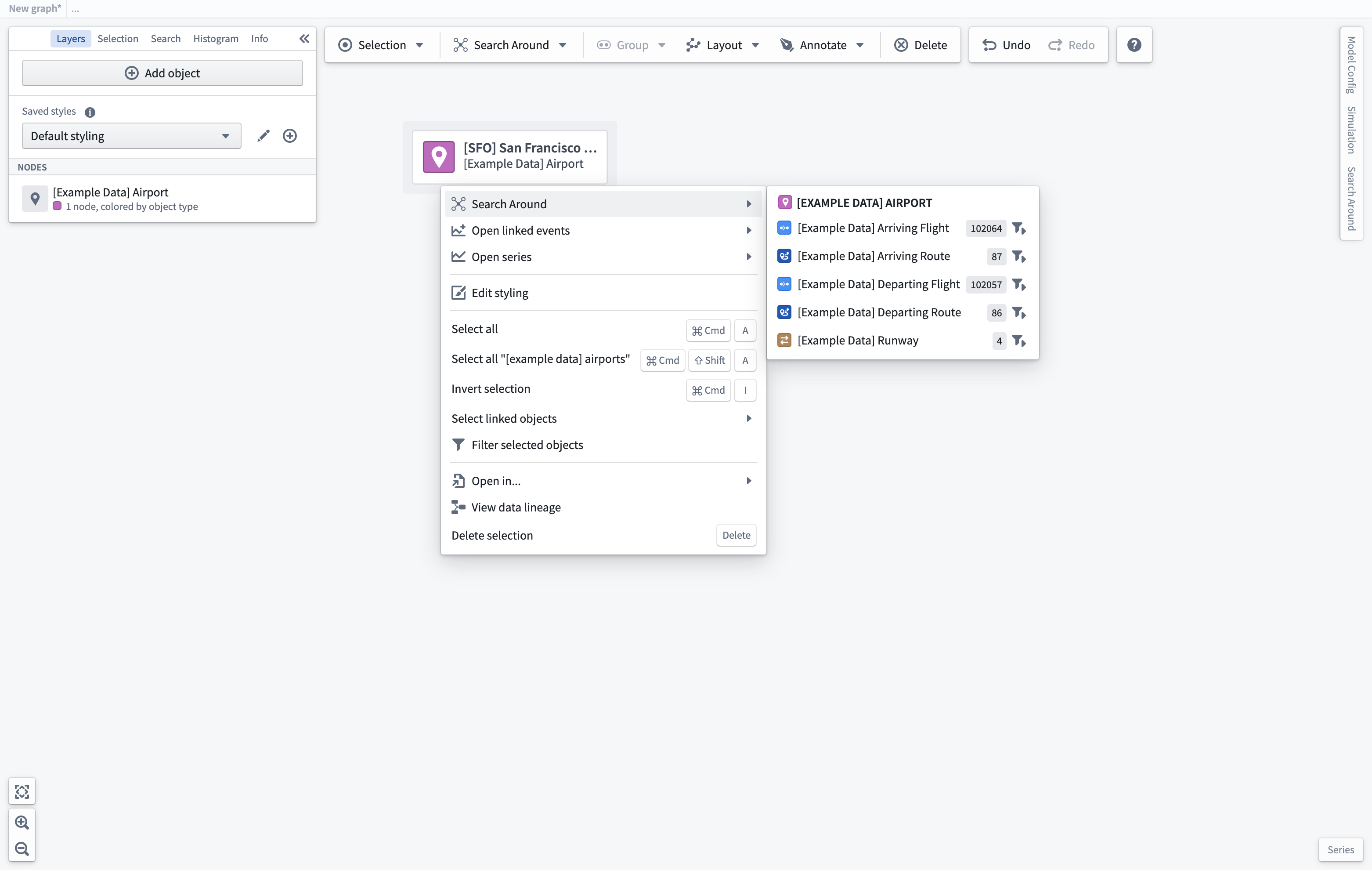
Vertex allows you to traverse operational relationships to build out your graph visualization. From an individual node or group of nodes, you can right-click to see your selection, layout, and exploration options.
Search Around
Select from the list of related objects to add them to the graph. The total number of objects of each type is shown within the dropdown list. With a large number of objects, you should consider using the filter icon next to the number of objects to include additional filters. This will open the Search Around panel where you can add filters and search across multiple steps.
Build multi-step Search Arounds
Running basic Search Arounds from objects on your graph can be a great way to explore your Ontology and quickly add relevant related objects to the graph. In cases where you want to create a multi-step, filtered graph that crosses different object types, the Search Around panel provides a point-and-click interface to build out logic as you generate a new graph.
You can access the Search Around panel by selecting the filter icon within the basic Search Around dropdown list or through the tabs available on the right side of the workspace. To start the Search Around, select a single object or objects of the same type; then, you will be able to create a Search Around from your selection by choosing a link.
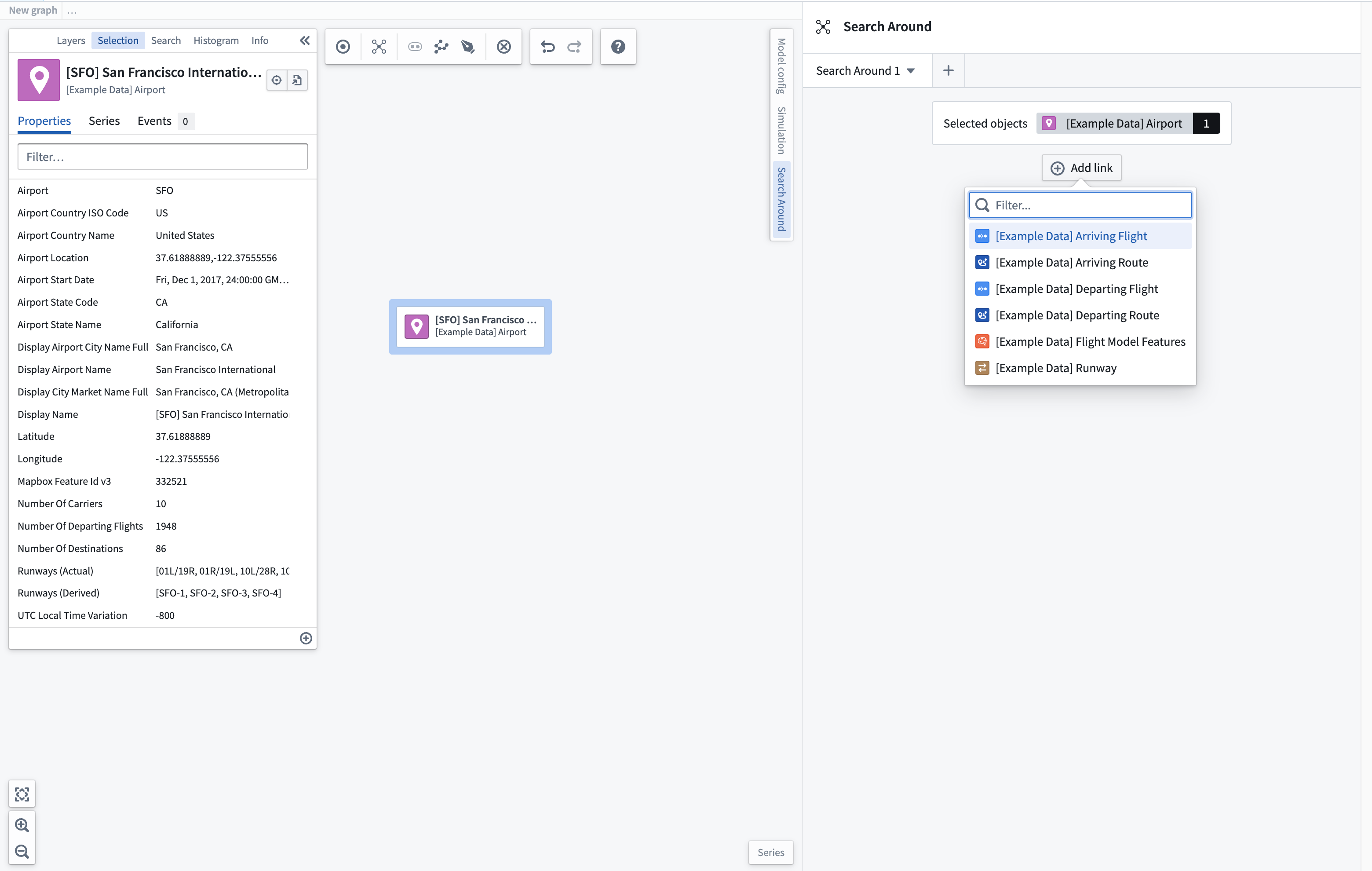
If you would like to update your starting set of objects, select a new object (or group of objects) and click the Set starting objects option which appears when hovering over the starting objects box.
Find related objects
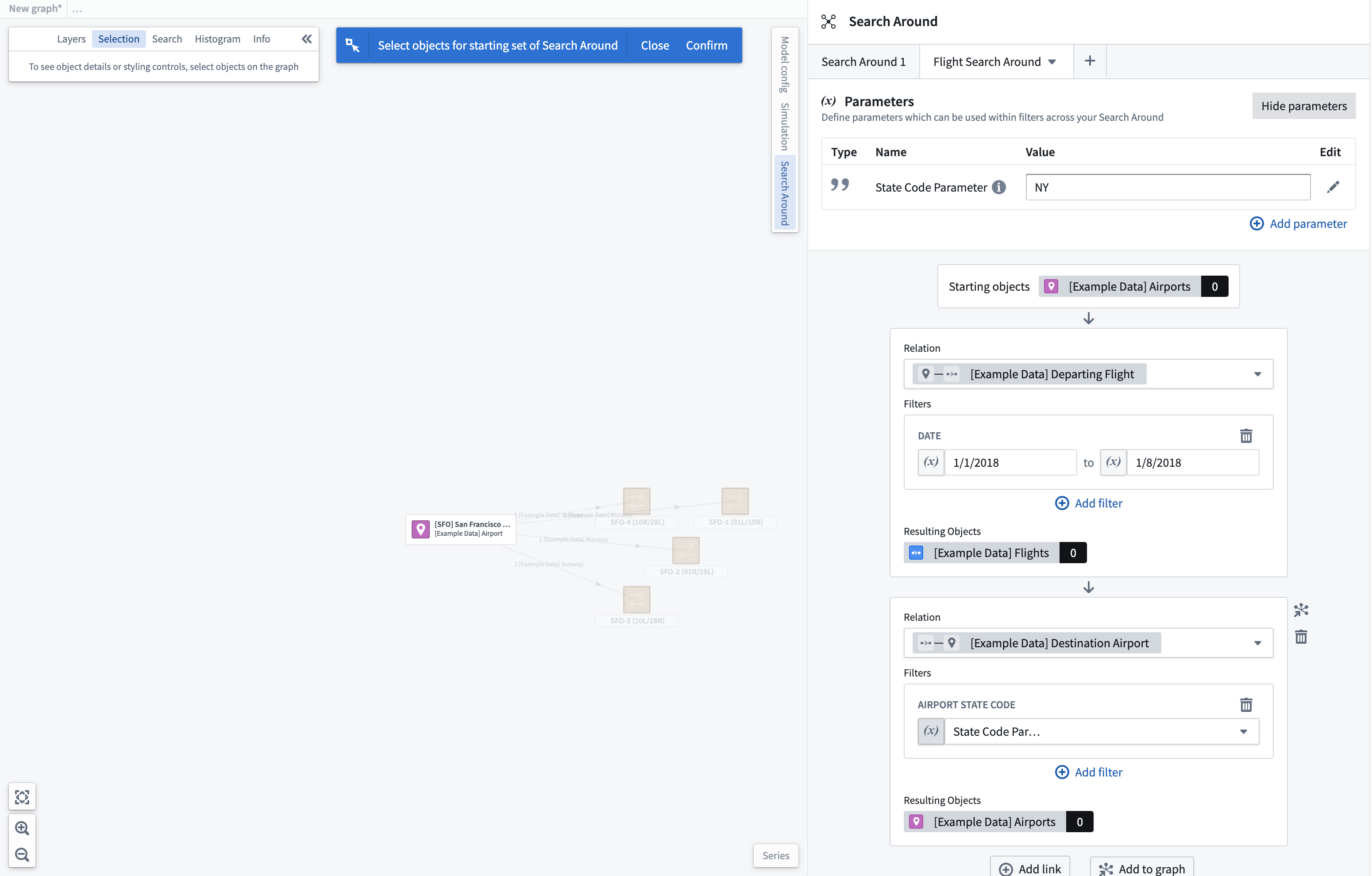
Once you have selected the related object(s) to add, the number of objects found will be shown next to the resulting object type. To further filter the returned objects, click the Add filter button and select the property you wish to use to filter the resulting object set.
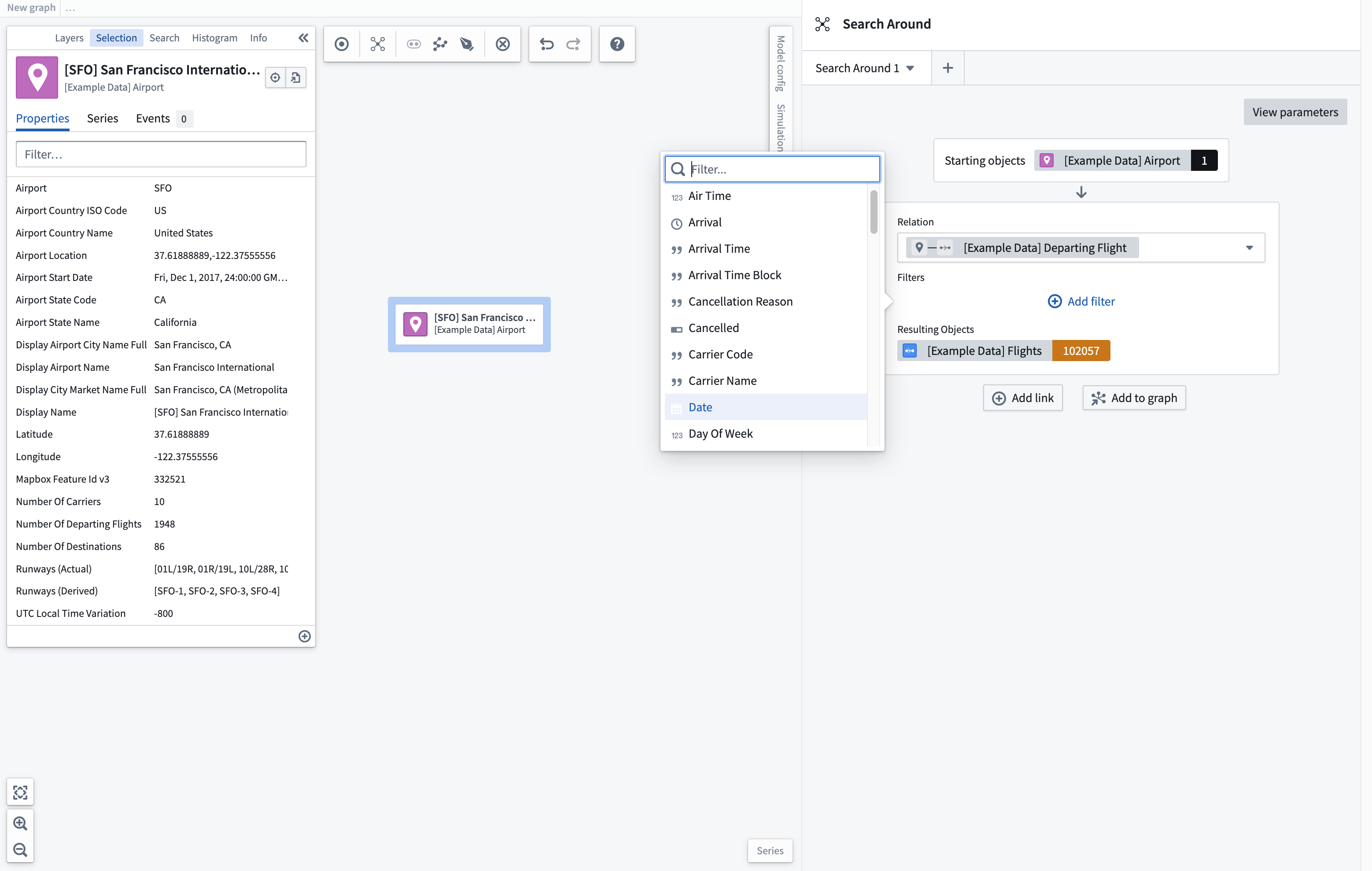
Once you have filtered your object set, you can choose to add this to your graph immediately, or continue building a multi-step Search Around across multiple objects using the Add link button.
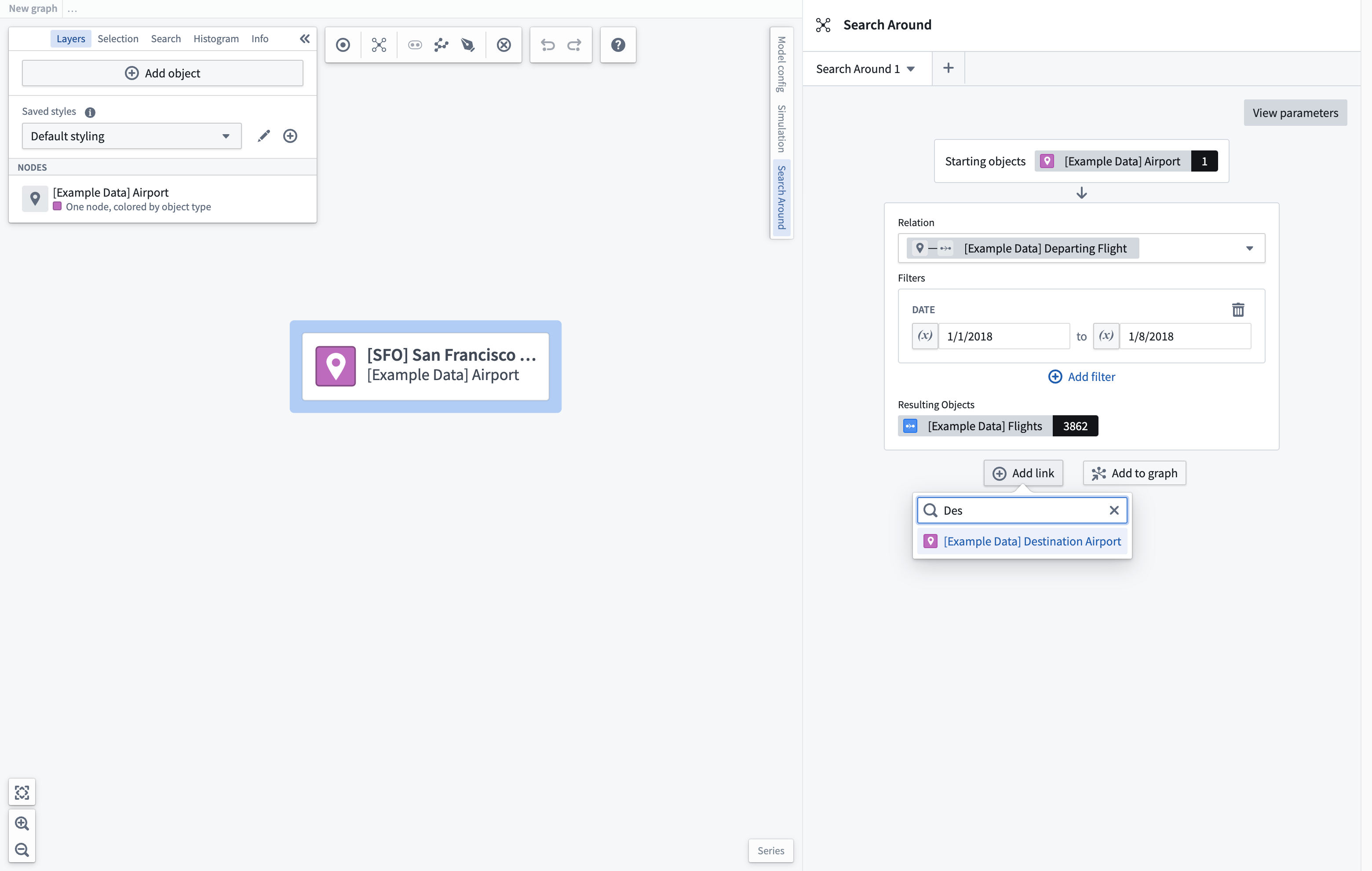
The next link in the Search Around will take the resulting object set from the previous link as its starting object set. Using the object set resulting from this new Search Around, you can find additional related objects to add to the graph; in this case, the destination airport for the flights generated in Link 1.
Once you have added the new related object set, you can filter this object set further. Once a filter has been applied, the starting object set will be filtered to those objects connected to the filtered resulting object set. In this case, 157 flights are departing to a NY state airport.
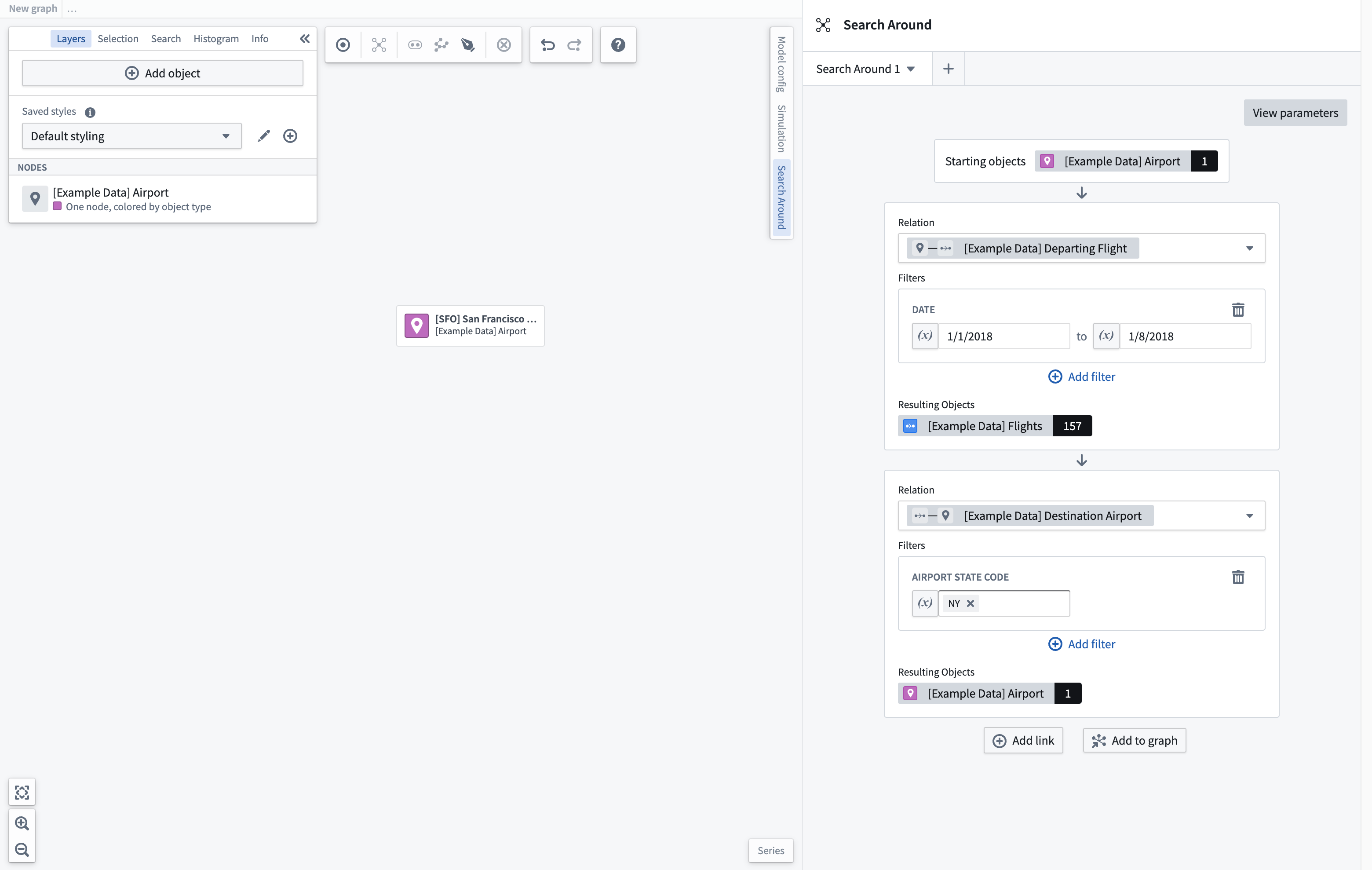
Select Add to graph to generate a new graph based on the traversals defined in the Search Around panel. It may take some time to generate the graph, depending on the complexity of the Search Around.
Add parameters
To enhance reusability of Search Arounds, you can define parameters which can be used throughout the Search Around. Select the View parameters button in the top right corner of the panel to view any existing parameters or create new ones. Select the Add parameter button to choose the type of parameter to add.
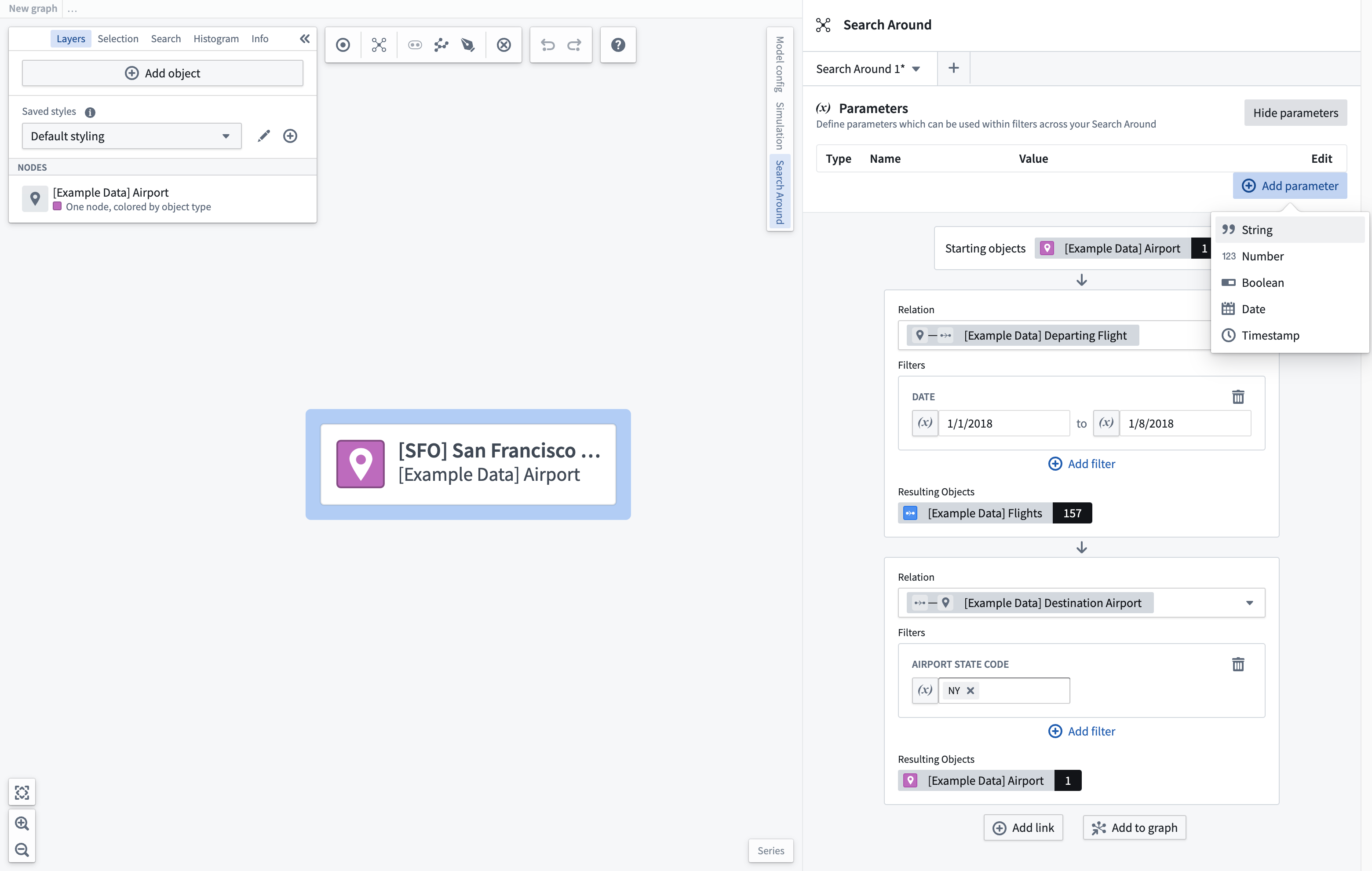
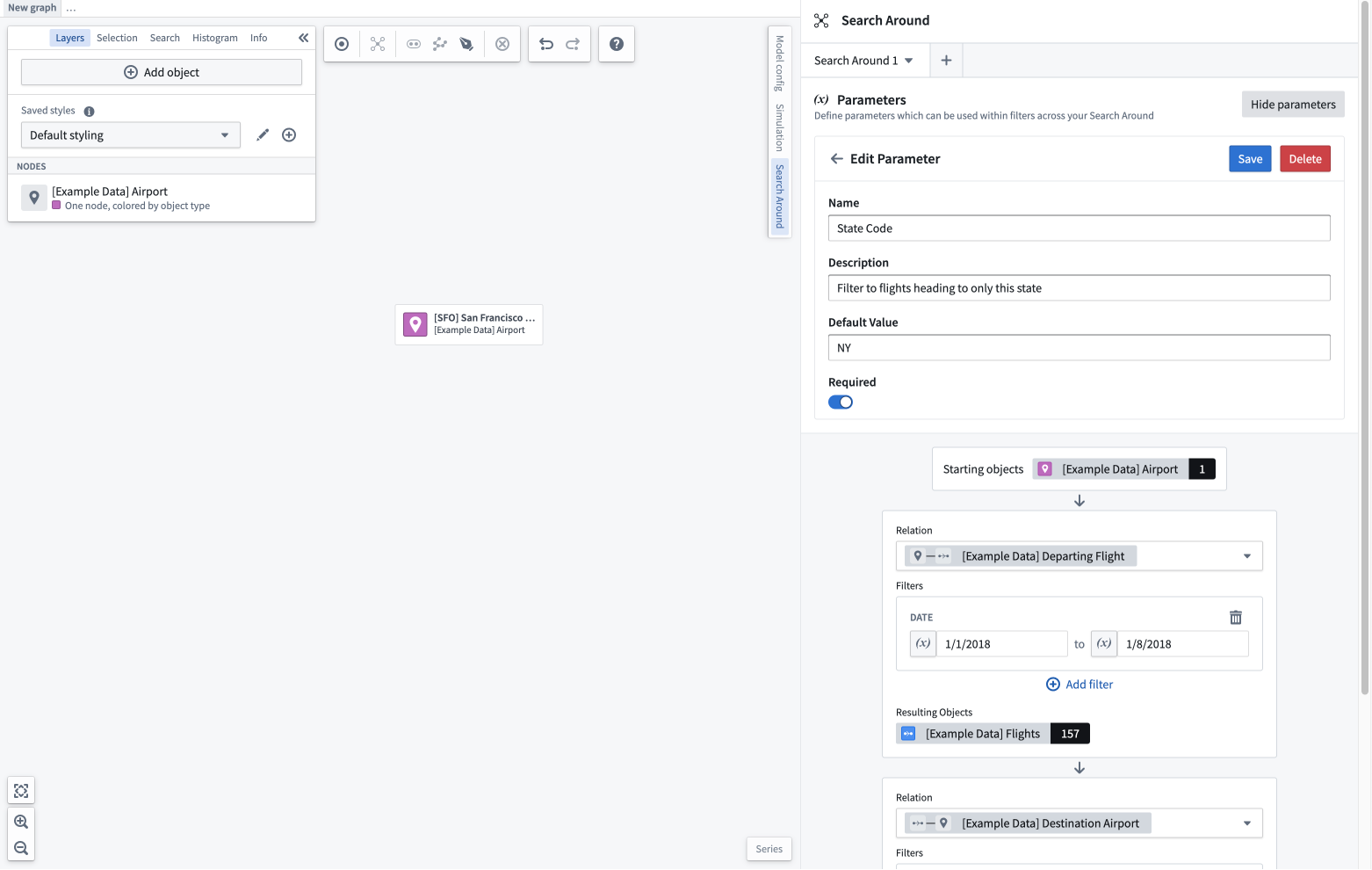
Once you add a parameter, you can give it a value or select the edit button to change its name, description, and default value which will be used when loading this Search Around.
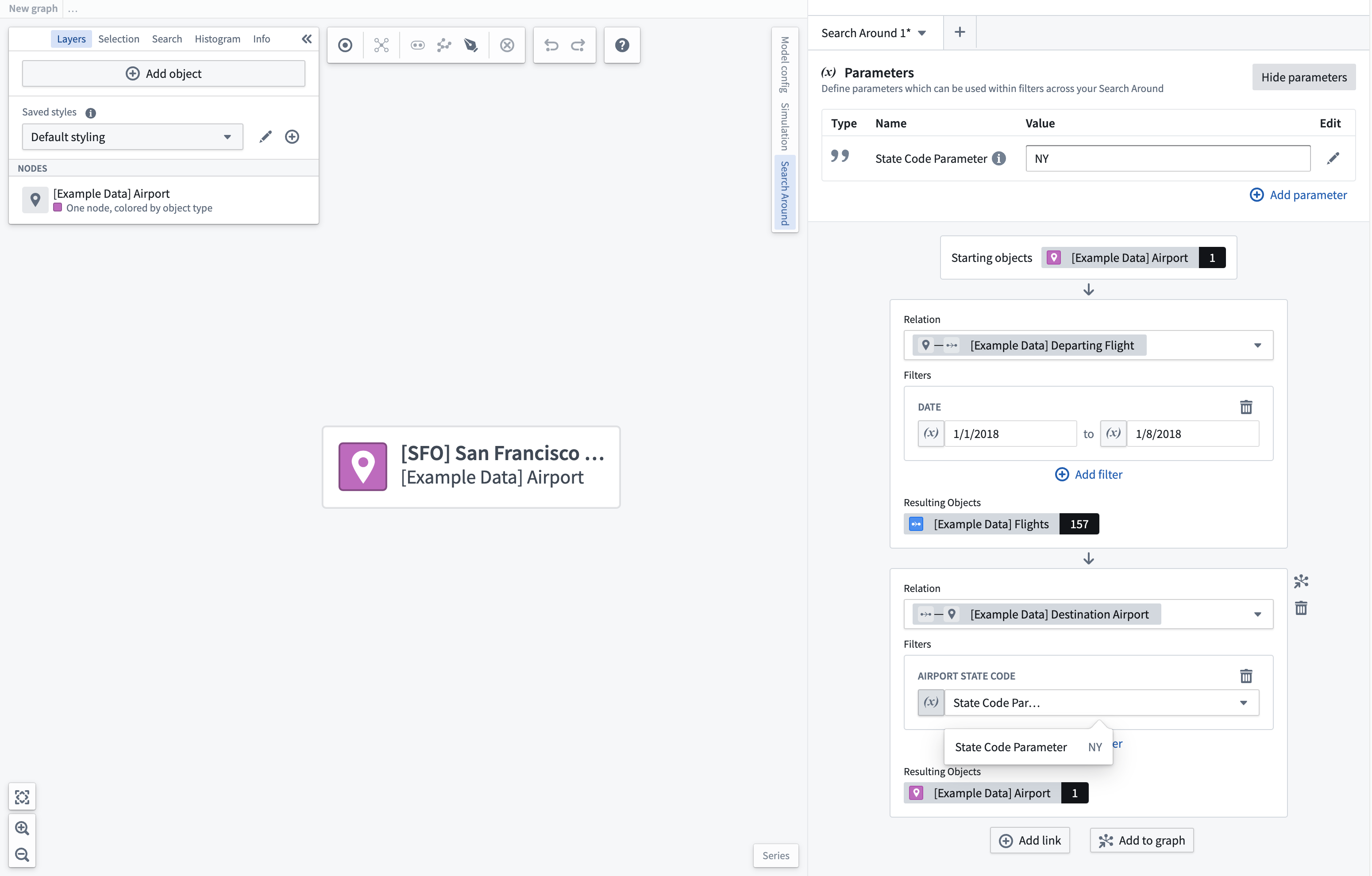
You can then use this parameter in any filter field of an appropriate type. To use a parameter, select the parameter toggle next to the filter field and then choose a parameter from the dropdown. When changing the value of the parameter, the Search Around will be updated to reflect the new value in any spot where that parameter is used.
Save and load
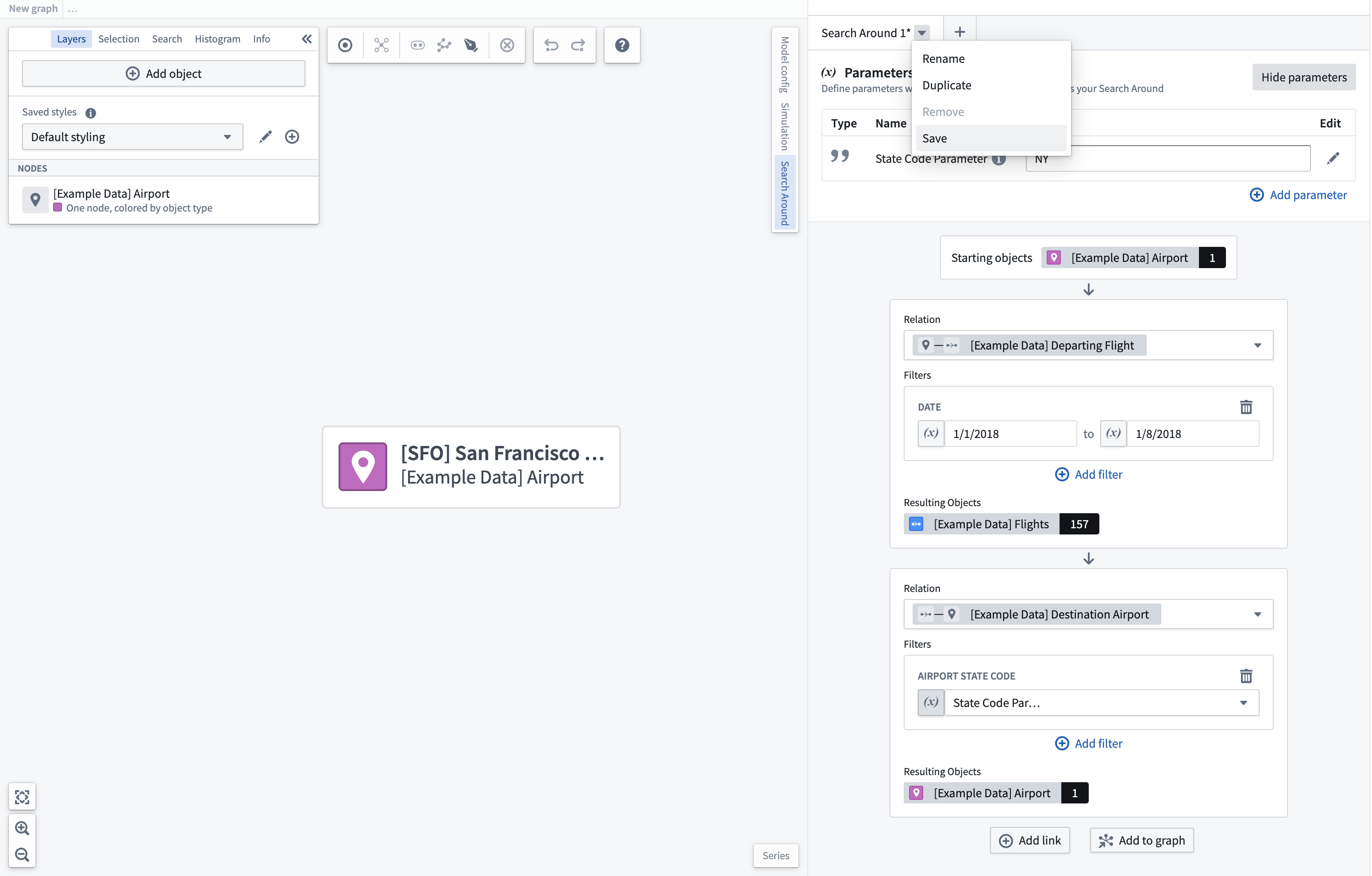
If you would like to reuse this Search Around in other graphs or within graph templates, you can save it as a resource. To do this, select the dropdown next to the tab for the Search Around you would like to save. This will open a modal where you can choose the name and location to save the Search Around.
When adding a new Search Around through the + icon in the Search Around tab header, selecting the Load Search Around option will open a resource picker to allow you to choose the Search Around to open. Upon loading the Search Around, you will be prompted to select objects from the graph to be used as the starting object set for the search around. Only objects of the appropriate type can be selected.
Histogram filters
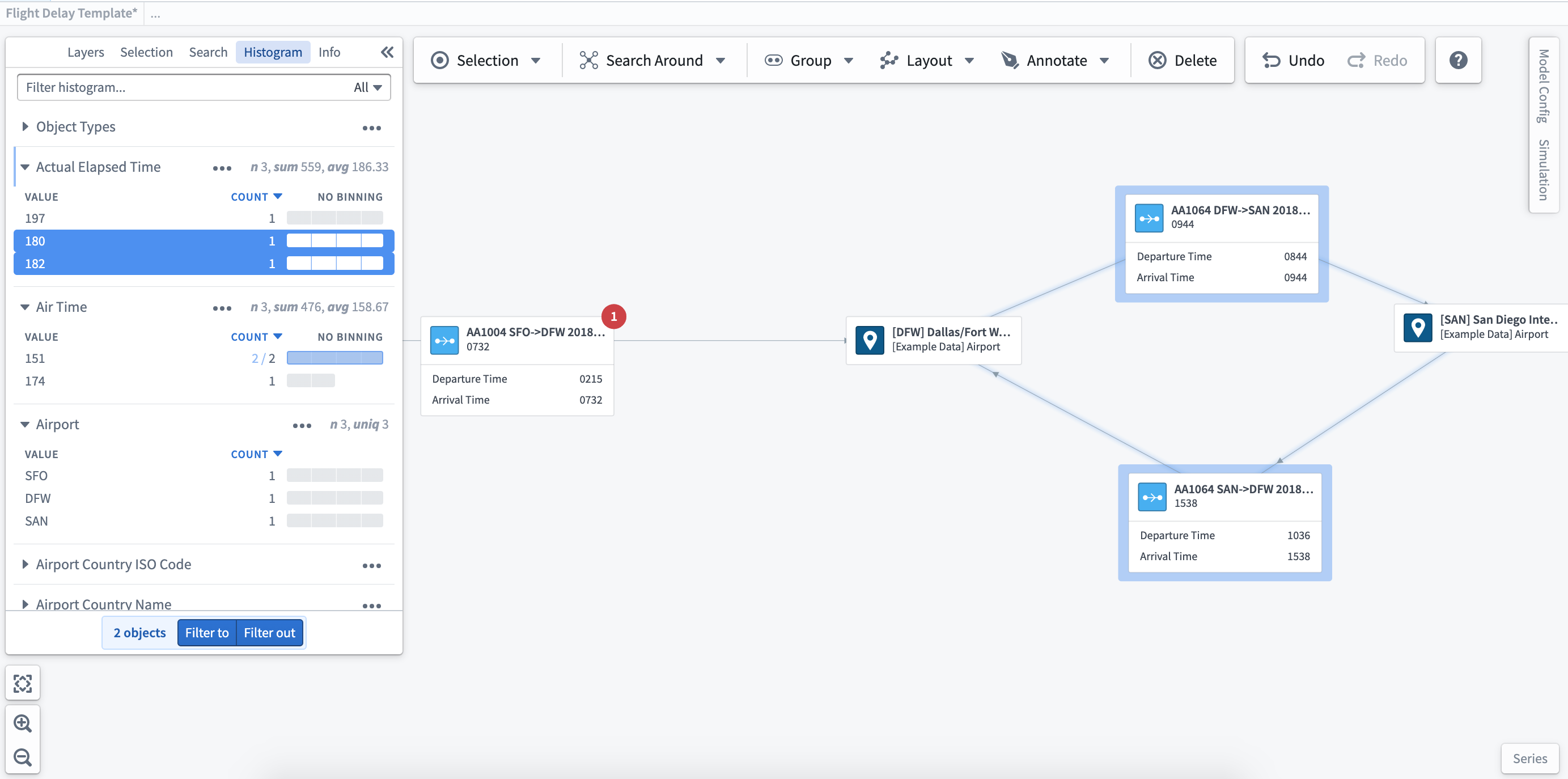
Once you have built your object graph, you can explore and filter the graph using the histogram filters. The histogram displays the properties for selected objects and provides the total values for each. Selections made in the histogram will be reflected in the graph, giving you additional granularity in exploration.
中文翻译
探索对象关系
Vertex 允许您对真实世界组织的数字孪生体中的因果关系进行可视化和量化分析。通过 Vertex,您可以访问和探索组织已发布的现有图谱,或构建新的图谱。
开始新的探索
您可以从 Foundry 工作区侧边栏的 应用 部分(位于 运营应用 标题下)启动 Vertex。要启动新的探索,请从应用列表中选择 Vertex,然后点击 + 新建图谱 图标。
开始新的探索时,将打开一个空白工作区,您可以选择 + 添加对象 来开始操作。从对象搜索弹窗中,选择您感兴趣探索的一个或多个对象,即可开始创建图谱。
对象选择面板
当您点击图谱上的某个对象时,选择面板将自动打开,显示该对象的属性。
选择面板右下角的 (+) 符号,您可以添加派生属性函数。在此示例中,一个简单的函数计算了与机场相关的航线上警报的总数。派生属性显示在选择面板的顶部。
探索相关对象
Vertex 允许您遍历运营关系以构建图谱可视化。从单个节点或节点组中,您可以右键单击以查看选择、布局和探索选项。
周边搜索
从相关对象列表中选择要添加到图谱中的对象。每种类型的对象总数显示在下拉列表中。当对象数量较多时,建议使用对象数量旁边的筛选图标来添加更多筛选条件。这将打开 周边搜索 面板,您可以在其中添加筛选条件并跨多个步骤进行搜索。
构建多步骤周边搜索
从图谱上的对象运行基础周边搜索是探索本体论(Ontology)并快速将相关对象添加到图谱中的绝佳方式。当您希望创建跨不同对象类型的多步骤筛选图谱时,周边搜索 面板提供了点击式界面,用于在生成新图谱时构建逻辑。
您可以通过选择基础 周边搜索 下拉列表中的筛选图标,或通过工作区右侧的选项卡来访问 周边搜索 面板。要开始周边搜索,请选择一个对象或同一类型的多个对象;然后,您可以通过选择链接从所选对象创建周边搜索。
如果您想更新起始对象集,请选择新对象(或对象组),然后点击悬停在起始对象框上时出现的 设置起始对象 选项。
查找相关对象
选择要添加的相关对象后,找到的对象数量将显示在结果对象类型旁边。要进一步筛选返回的对象,请点击 添加筛选条件 按钮,并选择要用于筛选结果对象集的属性。
筛选对象集后,您可以选择立即将其添加到图谱中,或使用 添加链接 按钮继续构建跨多个对象的多步骤周边搜索。
周边搜索中的下一个链接将把上一个链接的结果对象集作为其起始对象集。使用此新周边搜索生成的对象集,您可以找到更多相关对象添加到图谱中;在此示例中,即链接1中生成的航班的目的地机场。
添加新的相关对象集后,您可以进一步筛选该对象集。应用筛选条件后,起始对象集将被筛选为仅包含与筛选后的结果对象集相连的对象。在此示例中,有157个航班飞往纽约州的机场。
选择 添加到图谱,根据周边搜索面板中定义的遍历路径生成新图谱。根据周边搜索的复杂程度,生成图谱可能需要一些时间。
添加参数
为提高周边搜索的可复用性,您可以定义可在整个周边搜索中使用的参数。点击面板右上角的 查看参数 按钮,查看现有参数或创建新参数。选择 添加参数 按钮,选择要添加的参数类型。
添加参数后,您可以为其赋值,或点击编辑按钮更改其名称、描述和默认值(加载此周边搜索时将使用该默认值)。
然后,您可以在任何适当类型的筛选字段中使用此参数。要使用参数,请选择筛选字段旁边的参数切换开关,然后从下拉列表中选择一个参数。更改参数值时,周边搜索将更新,以反映该参数在所用位置的新值。
保存与加载
如果您希望在其他图谱或图谱模板中重复使用此周边搜索,可以将其保存为资源。为此,请选择要保存的周边搜索选项卡旁边的下拉菜单。这将打开一个模态框,您可以在其中选择保存周边搜索的名称和位置。
通过周边搜索选项卡标题中的 + 图标添加新的周边搜索时,选择 加载周边搜索 选项将打开资源选择器,允许您选择要打开的周边搜索。加载周边搜索后,系统将提示您从图谱中选择对象,作为该周边搜索的起始对象集。只能选择适当类型的对象。
直方图筛选器
构建对象图谱后,您可以使用直方图筛选器探索和筛选图谱。直方图显示所选对象的属性,并提供每个属性的总值。在直方图中所做的选择将反映在图谱中,为您提供更精细的探索粒度。