Explore existing graphs(探索现有图谱)
Object exploration
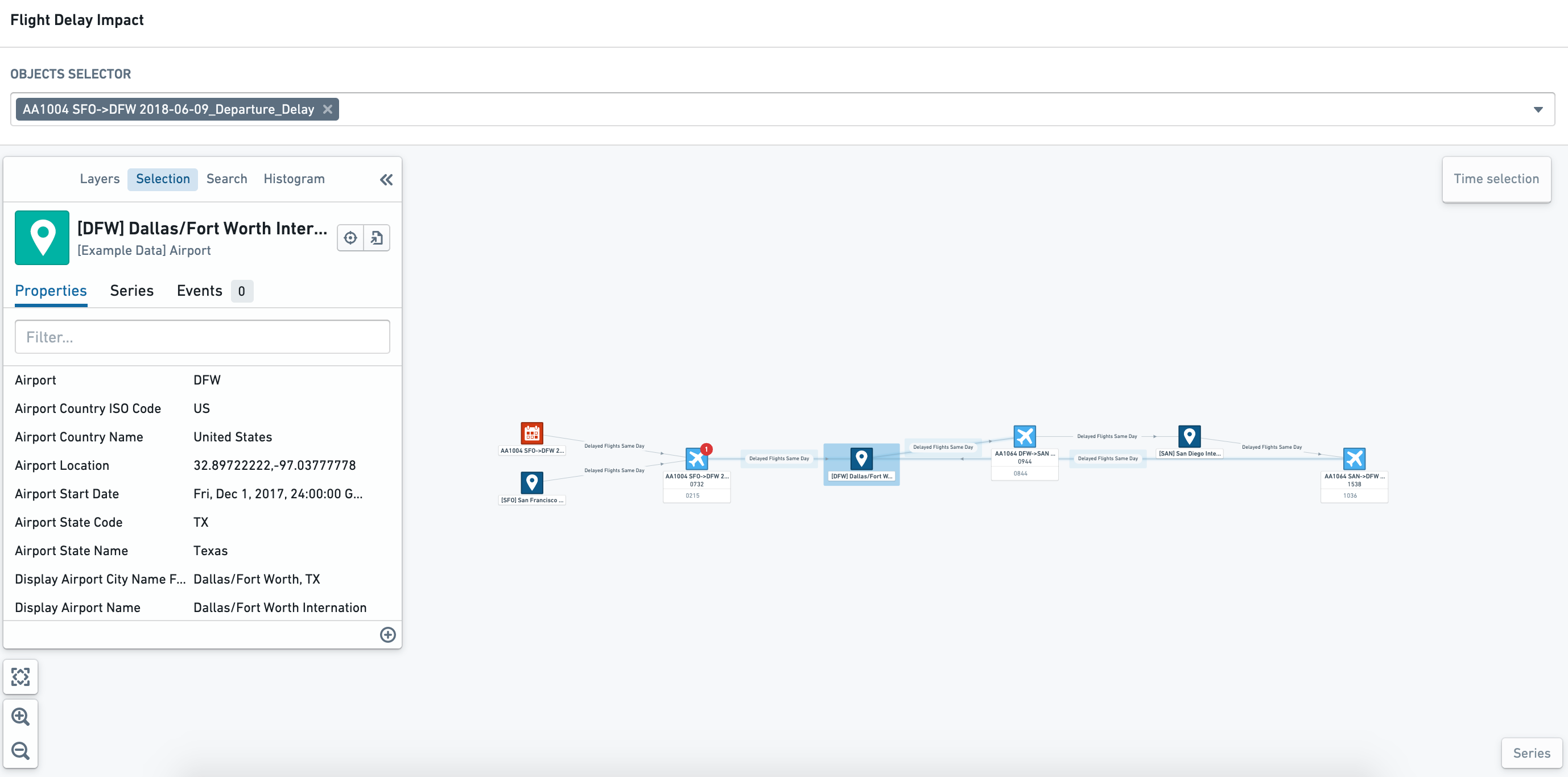
If you select an object of interest on the graph, you will see its properties in the Selection tab of the sidebar.
Objects may also have key information or metrics shown in the node labels. The example below shows the departure and arrival times of the flights.
Associated events
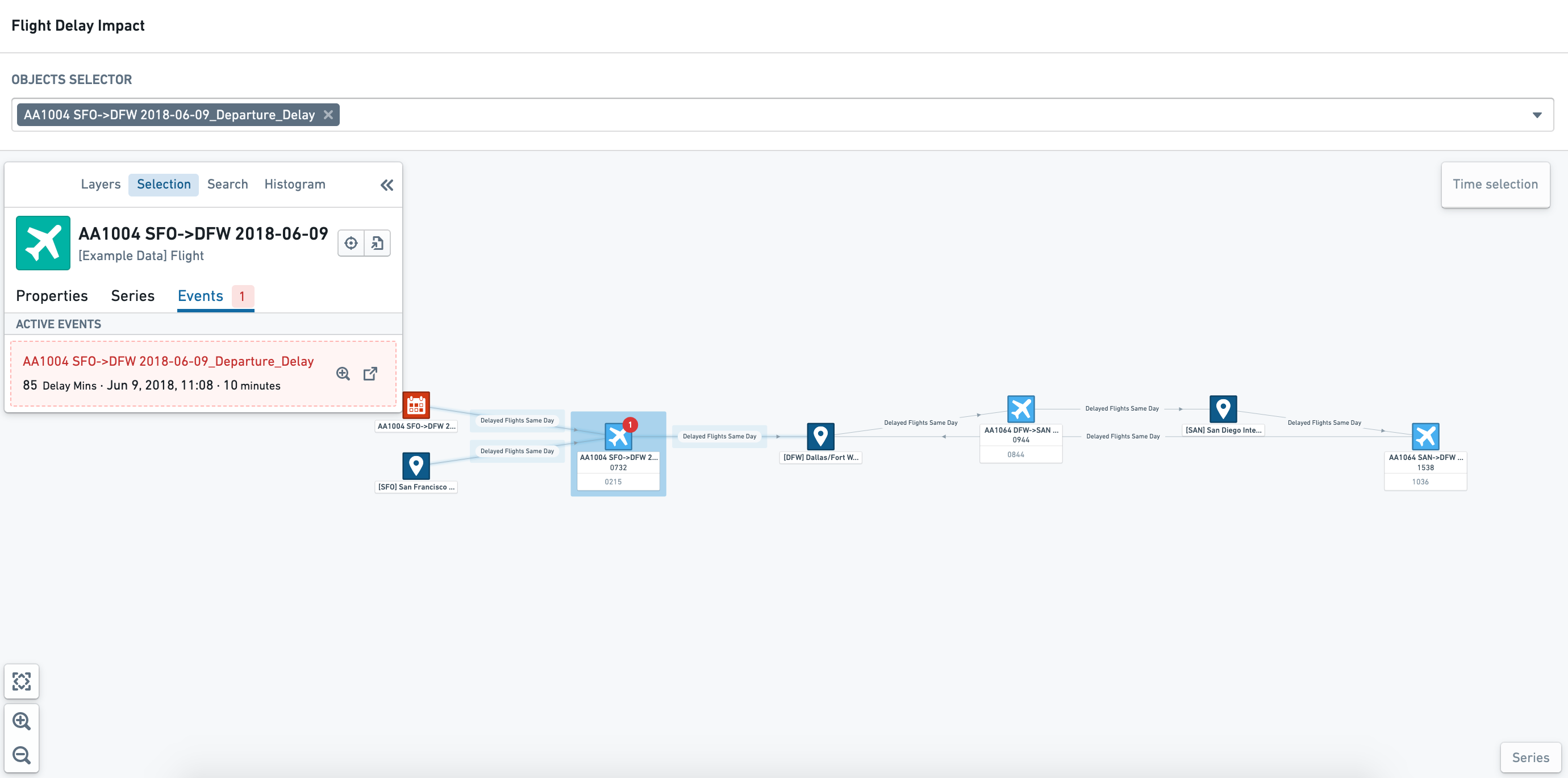
If an object has an associated event, the event can be configured to show as a badge against the impacted object. If you click on an object node with related events, you can see the details in the Events tab of the object selection sidebar.
Understand current state and changes over time
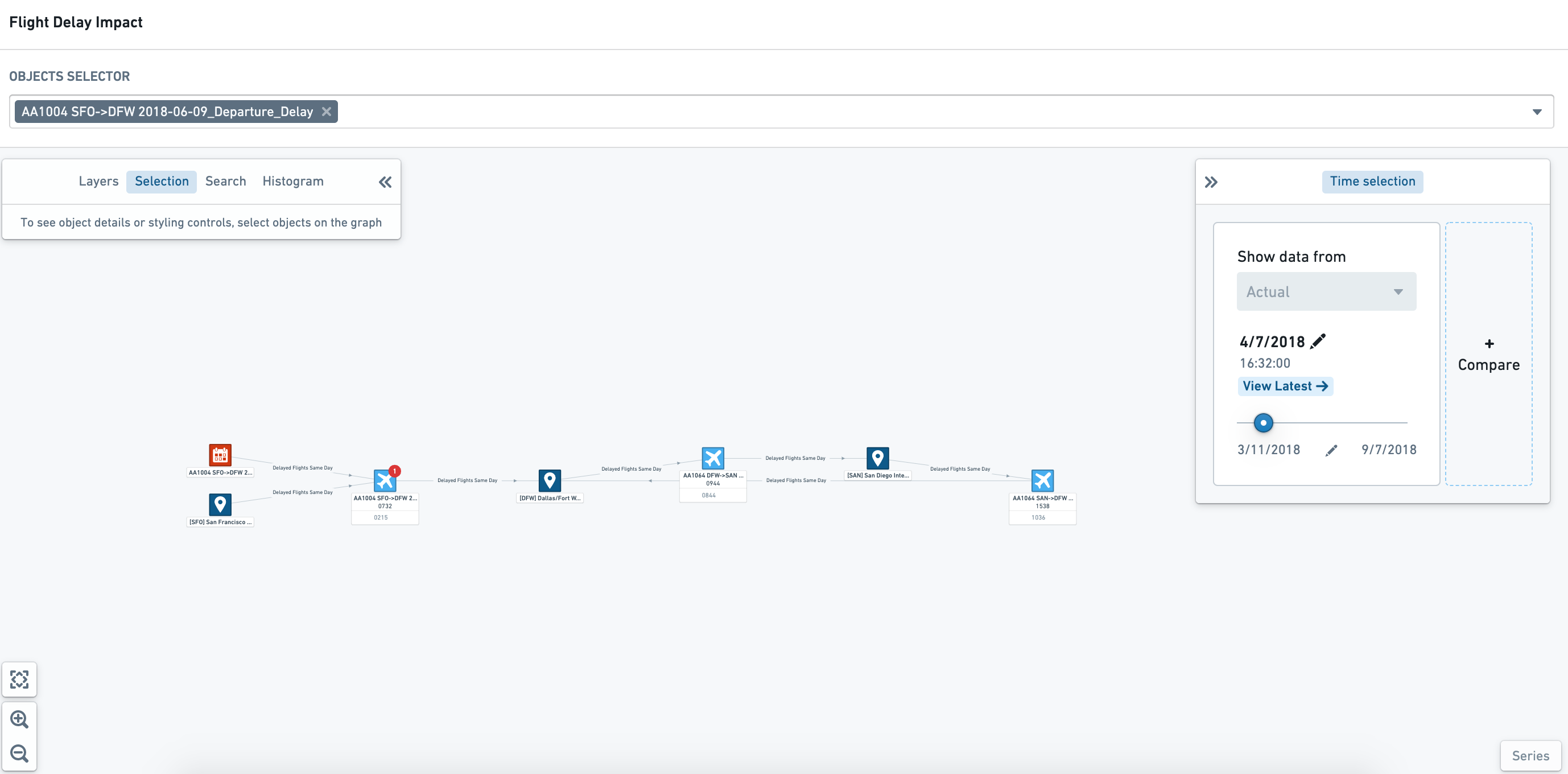
Objects can be styled by object type, property value, time series, or events. In the example below, the following styling is applied:
- Airport objects are colored dark blue
- Flights are colored light blue, and will show red if the
Cancelled StatusisTrue. - Flight Delay events are colored red
- Flight Delay events are shown as a red badge on the Flight object node.
Using the time selection panel, you can "scrub" (drag the cursor) through to see, with dynamic styling, how properties change. The screenshot below shows that the event badge only appears when the event is in progress (that is, between the start and end time of the event).
Filter and explore object properties
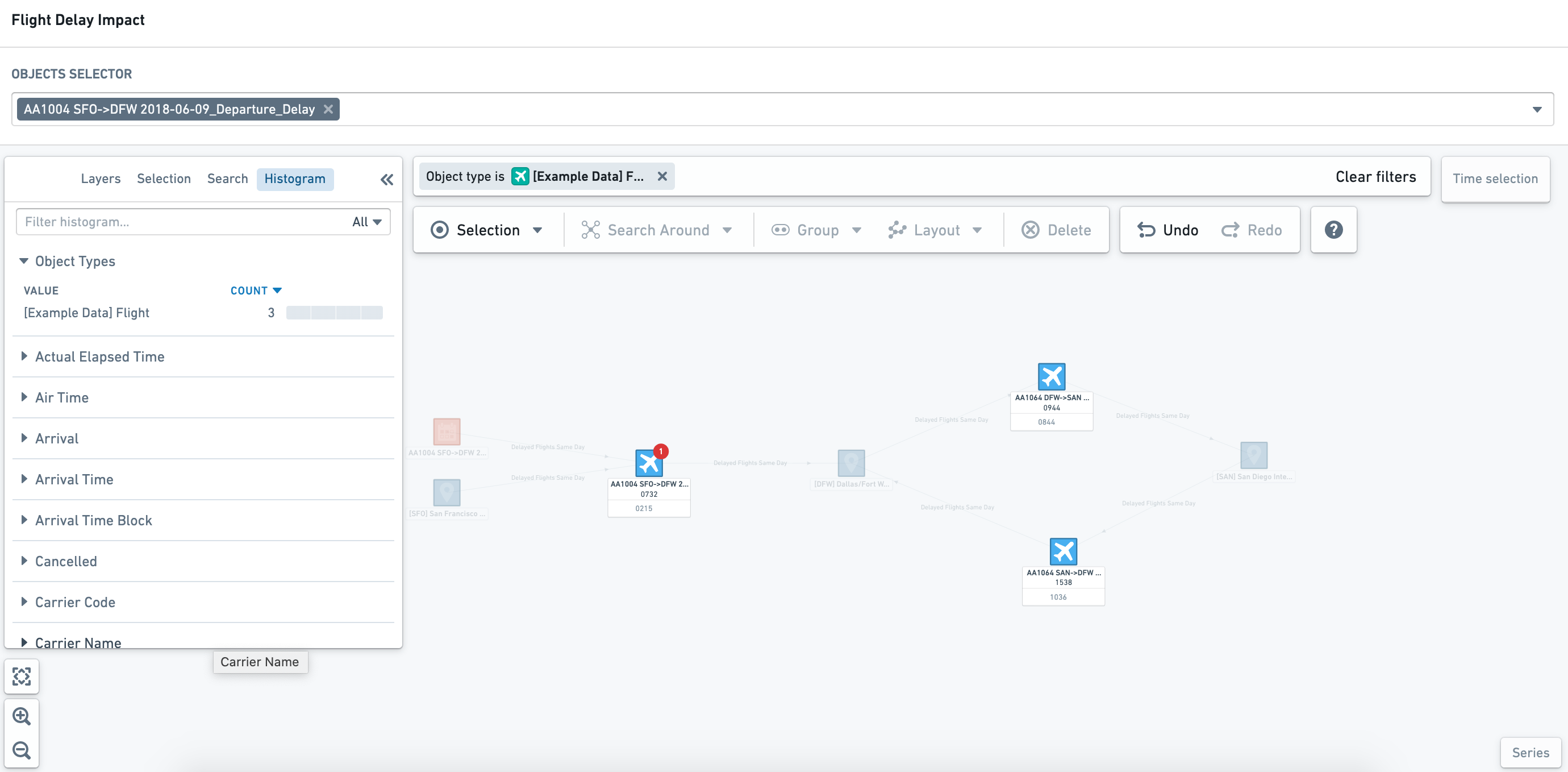
Within read-only mode, you can use the Histogram tab in the sidebar to filter the graph view by object type and properties.
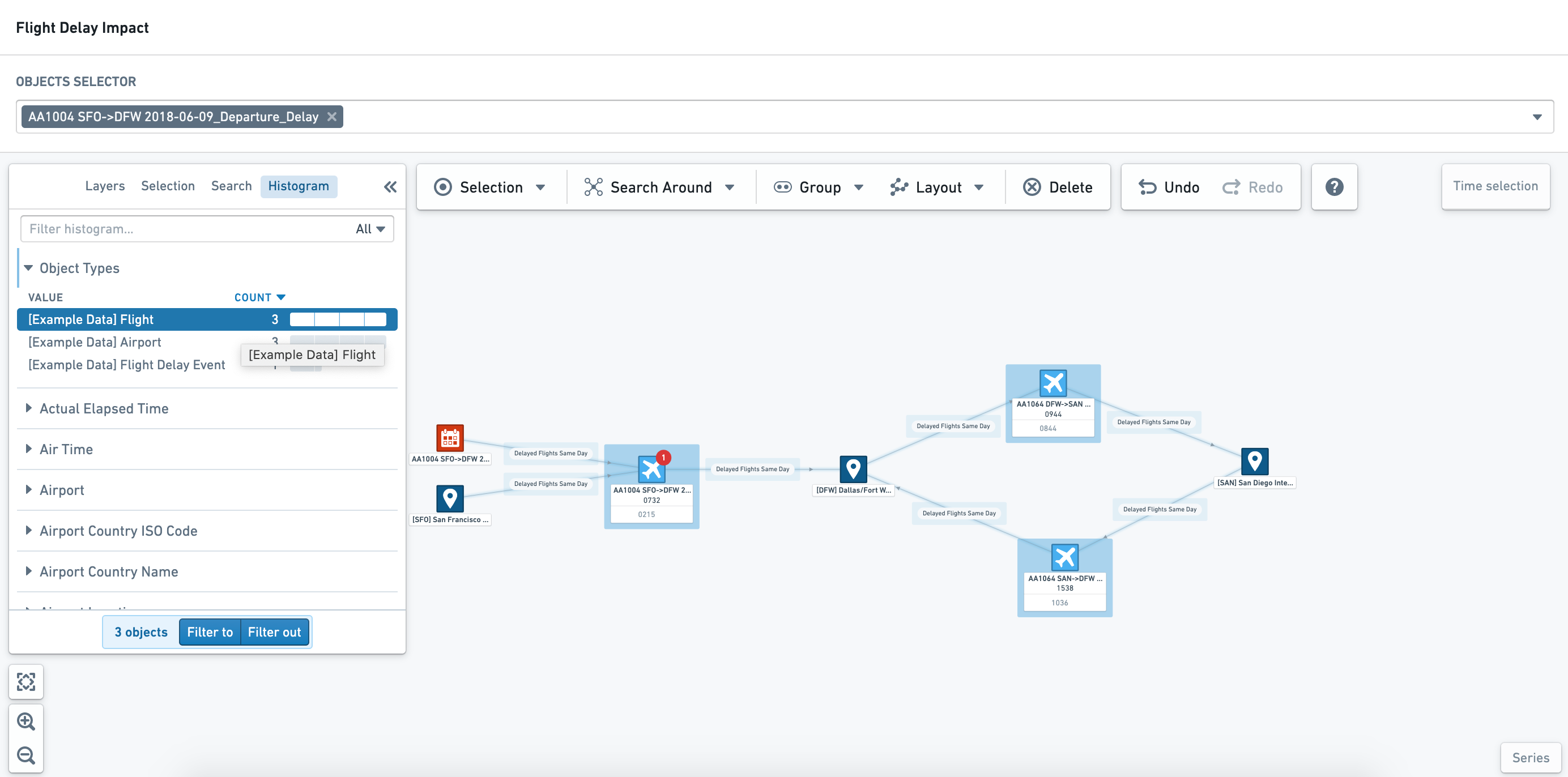
Once you have selected the objects of interest, you can select Filter to or Filter out to apply the histogram selections to the graph. The top of the graph canvas displays the applied filters; you can remove individual object filters by clicking on the x symbol next to the specific parameter, or you can remove all filters by selecting Clear filters.
Exploring object relationships
For more exploratory workflows, you may want to interact with the graph view to understand wider relationships and different metrics. In these editable views of an object graph, you can take many actions available in the full Vertex application, including Search Arounds, styling, and layout changes.
:::callout{theme="neutral"} Changes made to a graph within a Workshop module will not update the underlying template used to generate the graph. If you wish to permanently change a view within Workshop, you will need to update the underlying template. :::
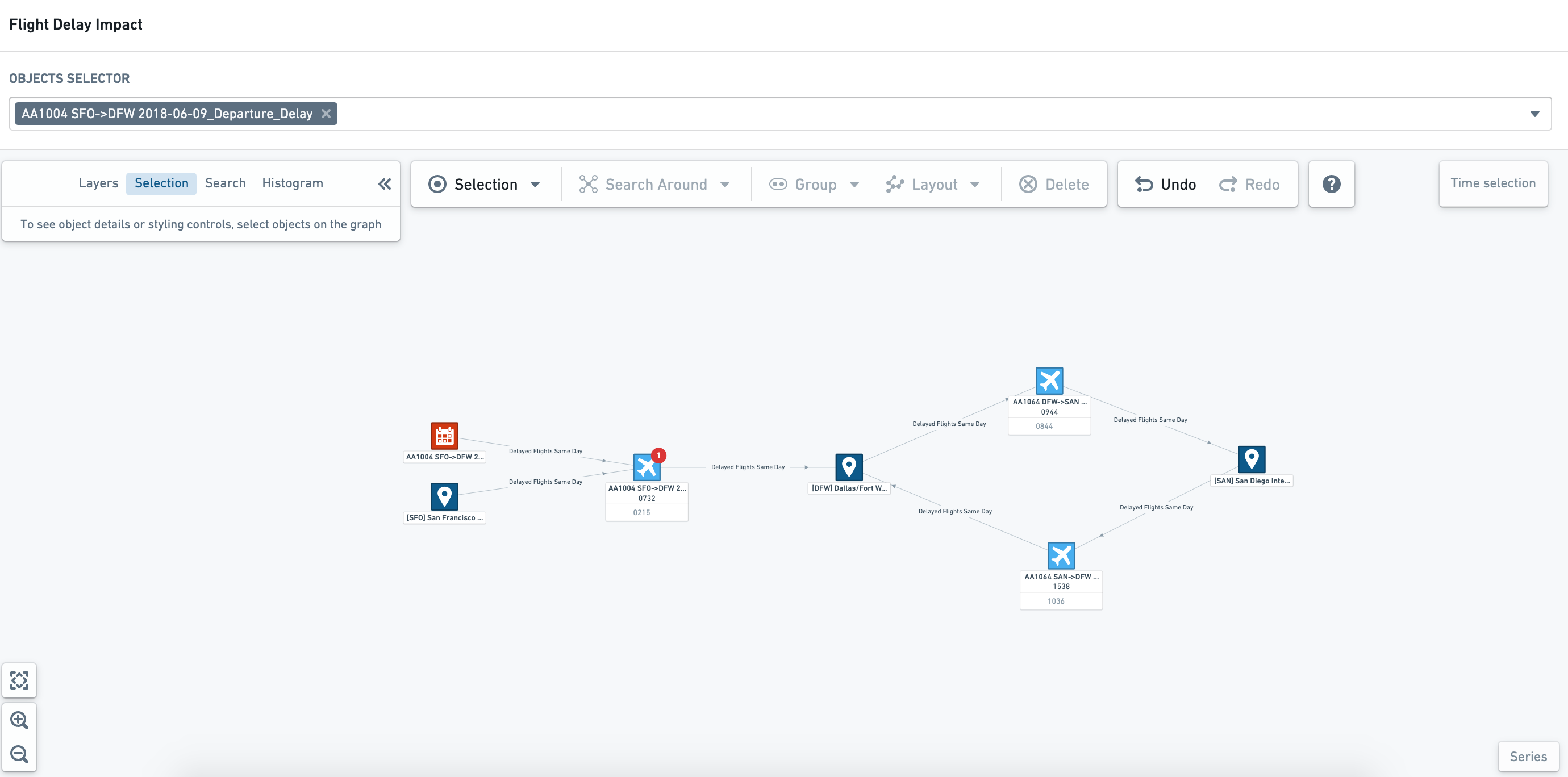
At the top of the Graph canvas, you can see the additional exploration toolbar as shown below.
Explore relationships
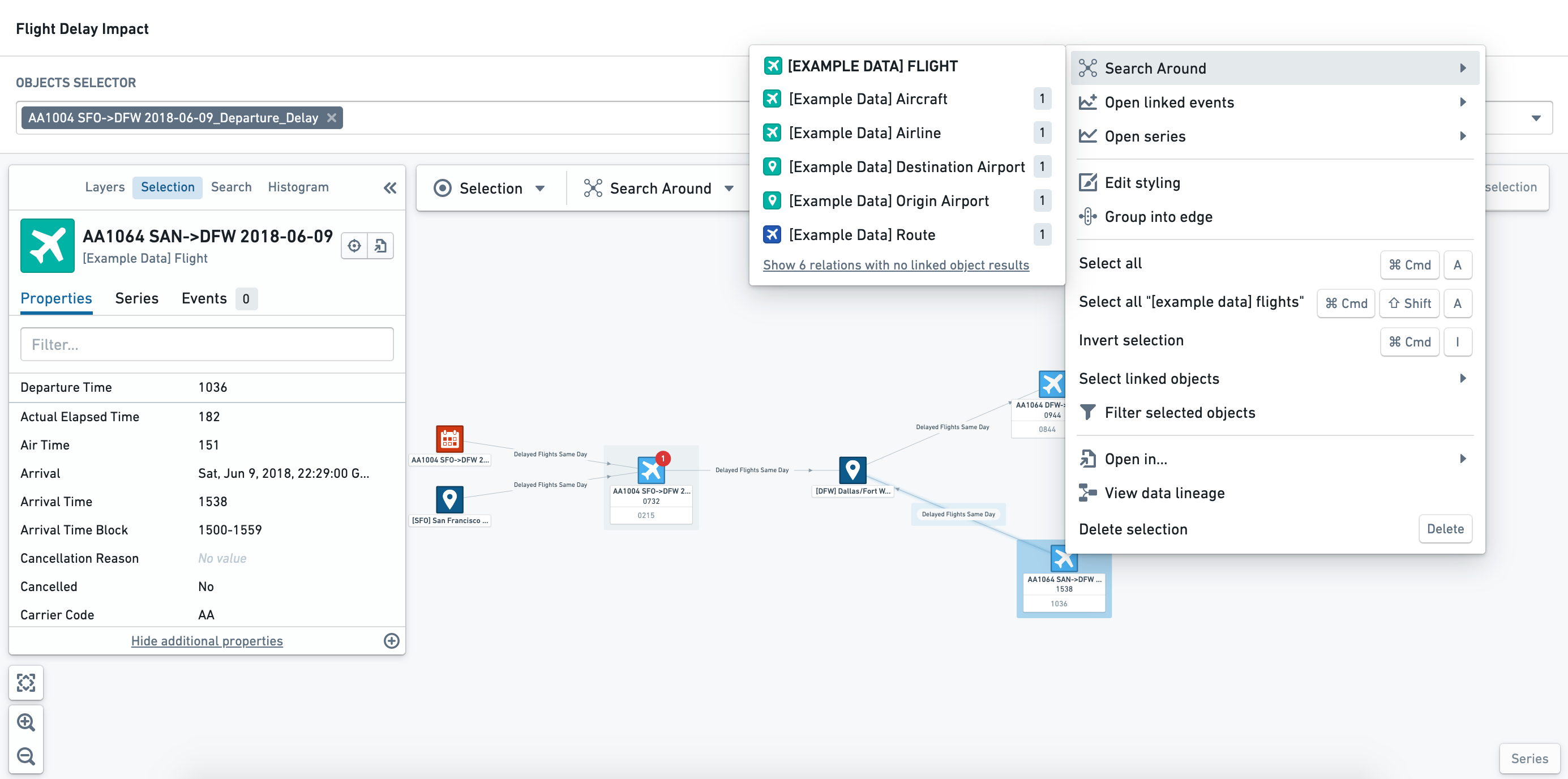
Select an object and right-click to open the Actions menu. This menu lets you Search Around to find related objects and events to add additional nodes to the graph view.
Object and edge node styling
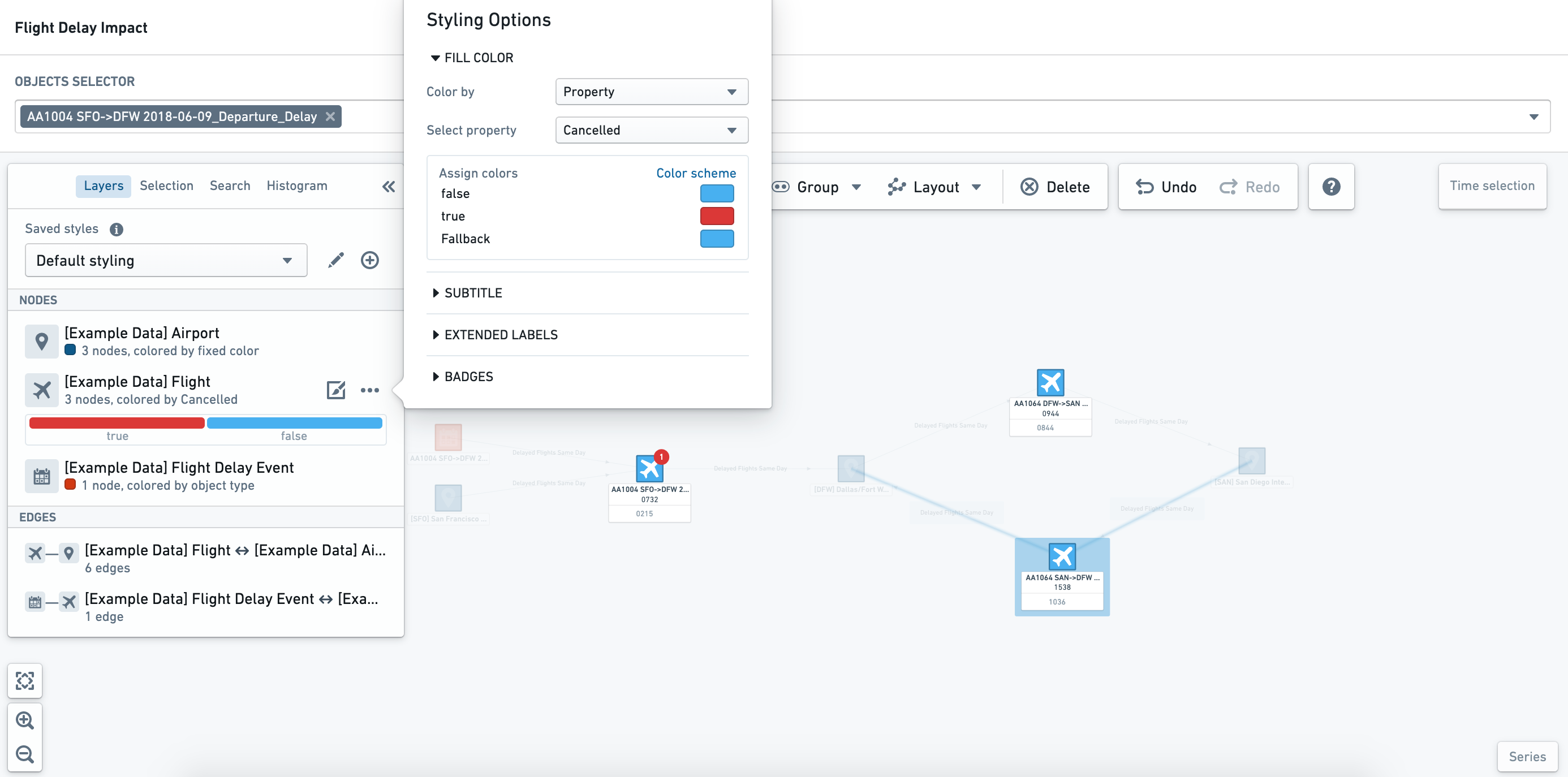
Once you have selected an object node or edge of interest, you can update and change the styling in the Layers tab of the sidebar.
:::callout Changes made to styling within a Workshop module are not persisted. You can, however, configure multiple saved styles within the underlying template. :::
中文翻译
探索现有图谱
对象探索(Object exploration)
在图谱上选择感兴趣的对象后,您可以在侧边栏的选择(Selection)选项卡中查看其属性。
对象的关键信息或指标也可能显示在节点标签中。以下示例展示了航班的出发和到达时间。
关联事件(Associated events)
如果对象有关联事件,可以将该事件配置为在受影响对象上以徽章(badge)形式显示。如果点击带有相关事件的对象节点,您可以在对象选择(object selection)侧边栏的事件(Events)选项卡中查看详情。
了解当前状态及随时间的变化
对象可以按对象类型、属性值、时间序列或事件进行样式设置。在以下示例中,应用了以下样式:
- 机场对象显示为深蓝色
- 航班显示为浅蓝色,如果
取消状态(Cancelled Status)为True,则显示为红色 - 航班延误事件显示为红色
- 航班延误事件在航班对象(Flight object)节点上显示为红色徽章
使用时间选择面板,您可以"擦洗"(拖动光标)查看属性如何通过动态样式发生变化。以下截图显示,事件徽章仅在事件进行中(即事件的开始时间和结束时间之间)出现。
筛选和探索对象属性
在只读模式下,您可以使用侧边栏中的直方图(Histogram)选项卡,按对象类型和属性筛选图谱视图。
选择感兴趣的对象后,您可以选择筛选至(Filter to)或筛选排除(Filter out),将直方图选择应用到图谱中。图谱画布顶部会显示已应用的筛选条件;您可以通过点击特定参数旁的x符号移除单个对象筛选条件,或选择清除筛选(Clear filters)移除所有筛选条件。
探索对象关系(Object relationships)
对于更具探索性的工作流程,您可能需要与图谱视图交互,以了解更广泛的关系和不同的指标。在这些对象图谱的可编辑视图中,您可以执行完整 Vertex 应用程序中的许多操作,包括周边搜索(Search Arounds)、样式设置和布局更改。
:::callout{theme="neutral"} 在 Workshop 模块中对图谱所做的更改不会更新用于生成图谱的底层模板。如果您希望永久更改 Workshop 中的视图,则需要更新底层模板。 :::
在图谱画布顶部,您可以看到额外的探索工具栏,如下所示。
探索关系
选择一个对象并右键单击以打开操作(Actions)菜单。此菜单允许您进行周边搜索(Search Around),查找相关对象和事件,以向图谱视图添加更多节点。
对象和边节点样式设置
选择感兴趣的对象节点或边后,您可以在侧边栏的图层(Layers)选项卡中更新和更改样式。
:::callout 在 Workshop 模块中对样式所做的更改不会持久保存。不过,您可以在底层模板中配置多个已保存样式(saved styles)。 :::