Create a graph template(创建图模板(Graph Template))
Vertex graph templates are resources that generate graphs with a defined styling based on parameters. They enable workflows such as:
- Pivoting a graph analysis on one object/object set to another object/object set.
- Creating a reusable resource encoding a graph generation workflow for consumers.
- Embedding a graph template in another Foundry application, such as an Object View or a Workshop application.
Any Vertex analysis can be converted into a graph template. Transforming an analysis into a template makes it easier to conduct future analyses of the same nature.
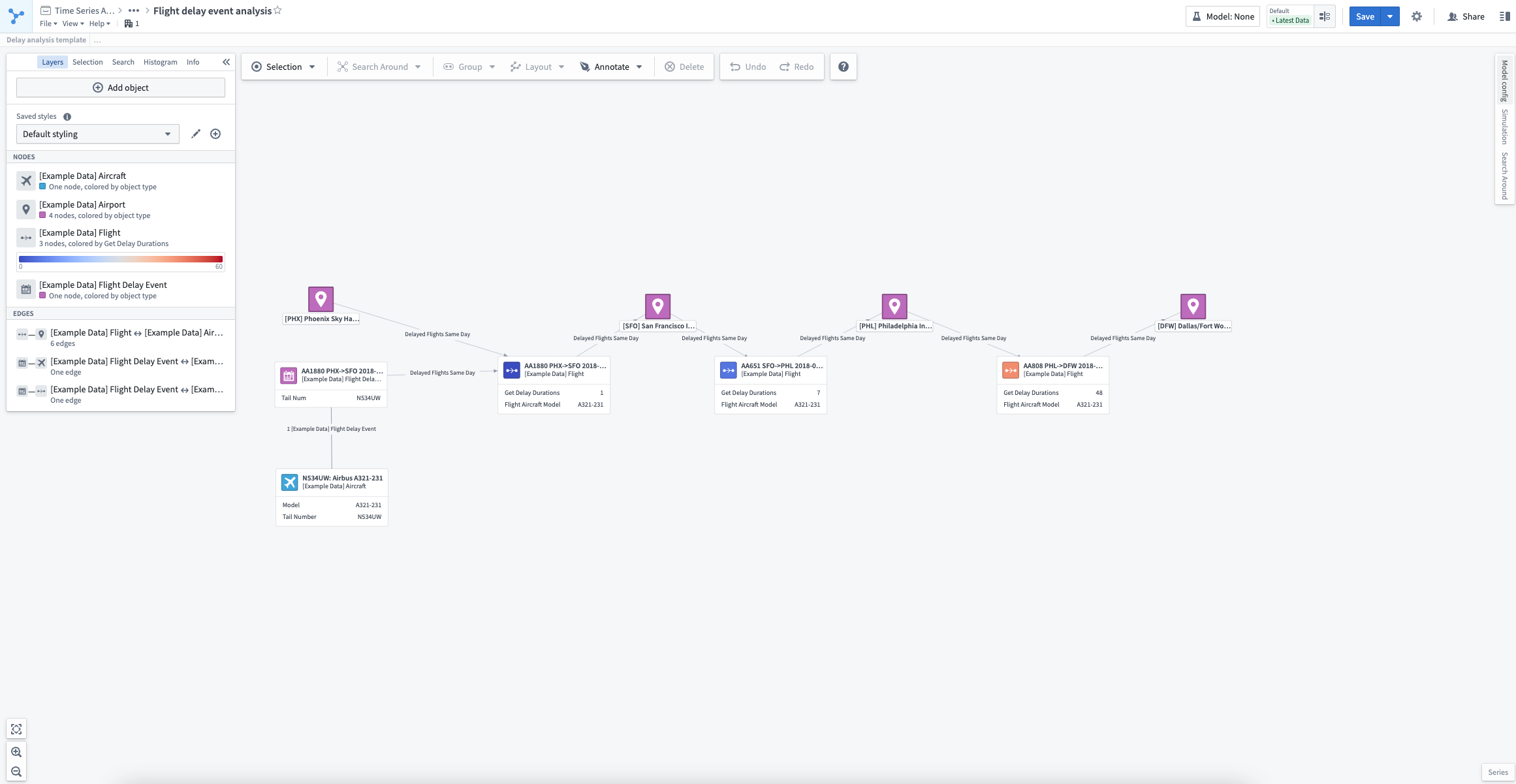
In this example, we are exploring airline delays with an analysis of a flight Delay Event linked to Aircrafts and other delayed Flights (at Airports) on the same day using a Search Around function. The analysis that generated the flight delay investigation graph shown below was performed in a free-form way without an imposed structure. By creating a graph template from the analysis, we enable reuse of this analysis template in future investigations.
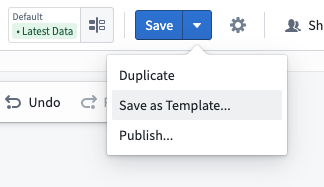
To convert this analysis into a graph template, open the save options in the top-right toolbar and select Save as Template....
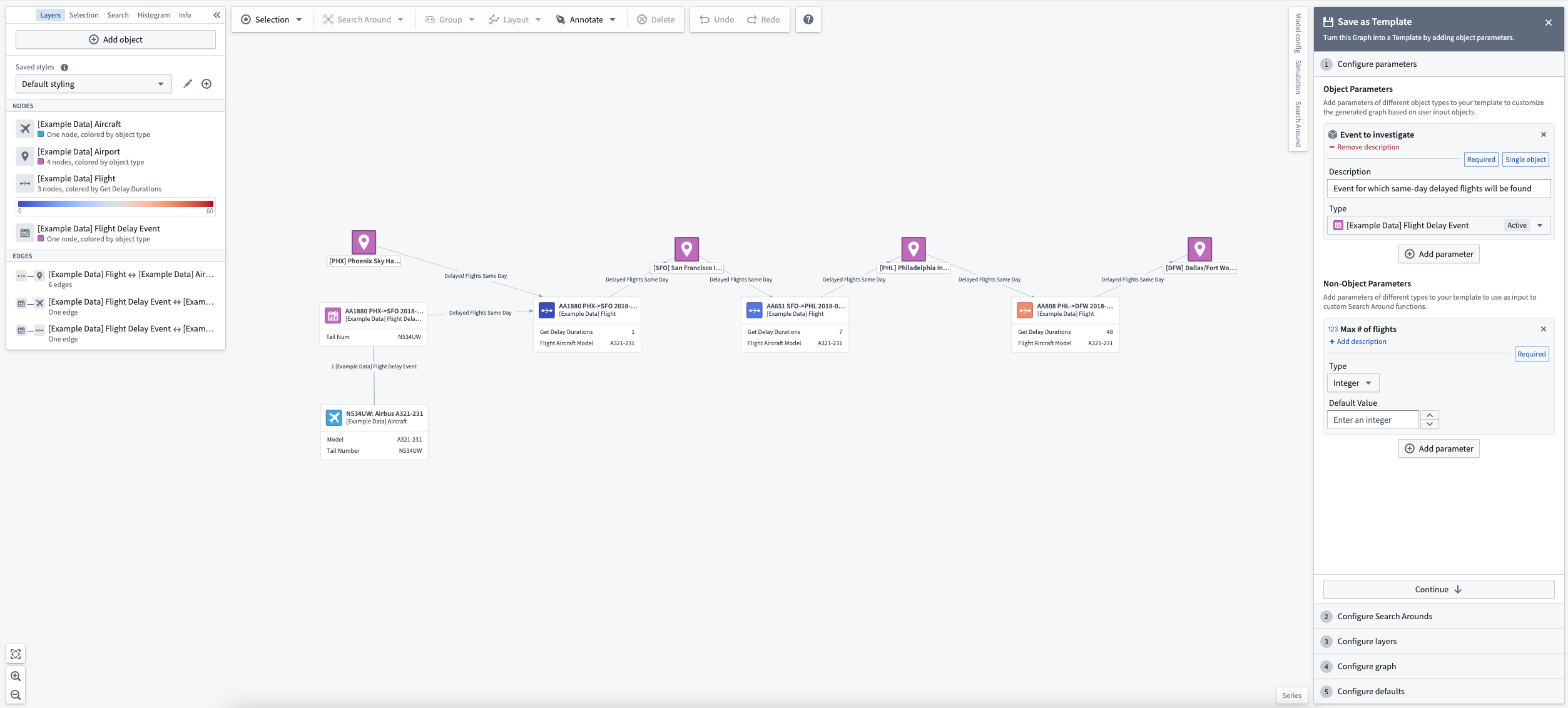
This will open a helper with the option to Configure parameters. There are two kinds of graph template parameters: object parameters and non-object parameters.
Object parameters are object inputs to your template which will be added to the graph when the template is used. Adding object parameters also allows you to perform Search Arounds and functions on the objects provided by the graph template user.
Non-object parameters are additional parameters that can be used as arguments to custom Search Around functions or saved Search Arounds. The supported types for non-object parameters mirror the non-object arguments supported by Search Around functions.
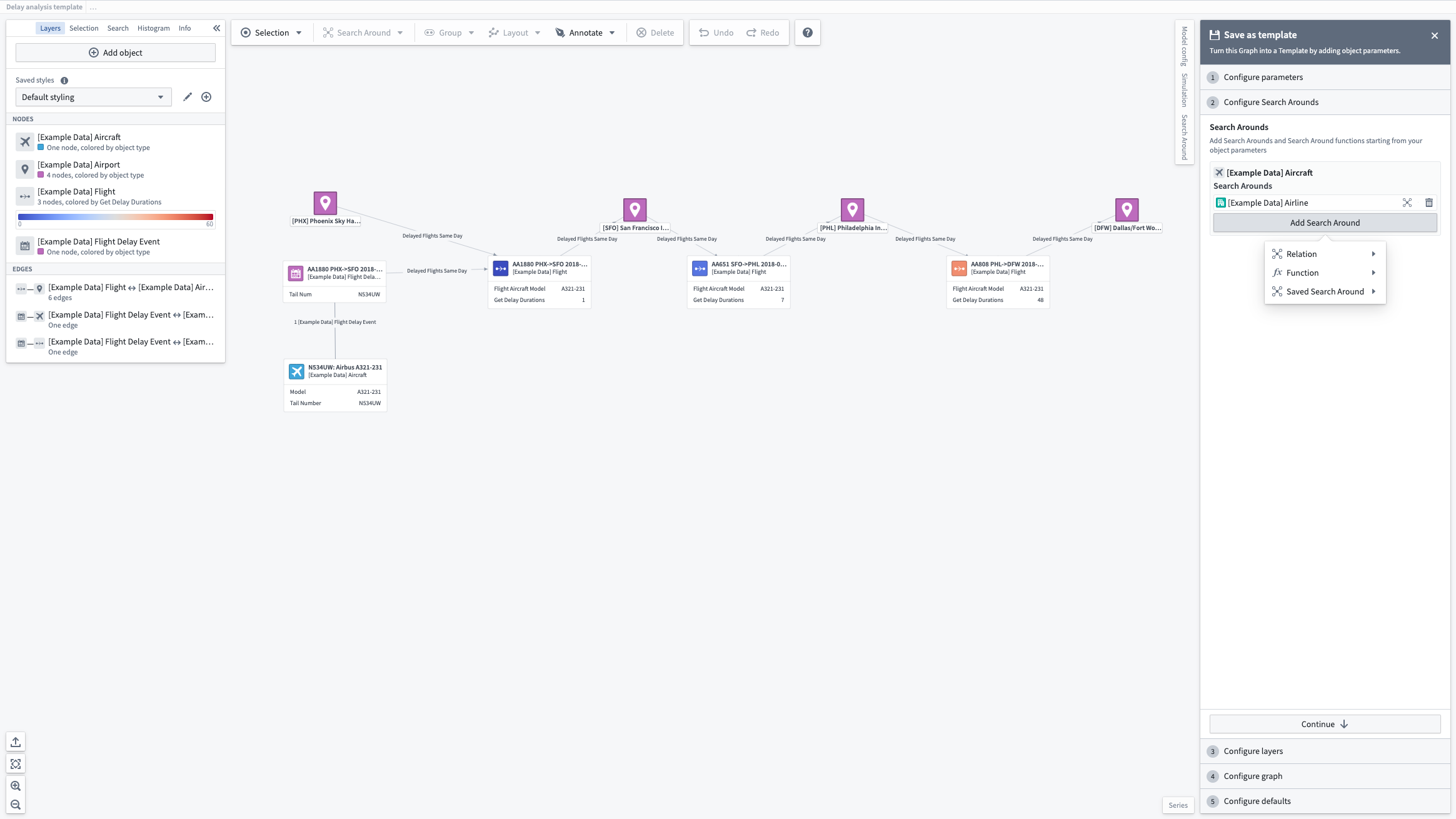
Next, you can configure Search Arounds associated with your template. Each object parameter can be associated with Search Arounds, which can be either simple Search Arounds using Ontology links, Search Around functions, or saved Search Arounds which were built using the Search Around sidebar. Any non-object arguments to Search Around functions or saved Search Arounds can be mapped to a value, which can be either a constant or a parameter. To map an input to a parameter, choose the parameter button on the left side of the input box and select a parameter from the dropdown.
After adding any desired parameters and Search Arounds, you can configure layers and layer styling associated with your template. Styling layers will save the current styling as it exists on your graph. Excluded layers will leave out the layer style in the saved template.
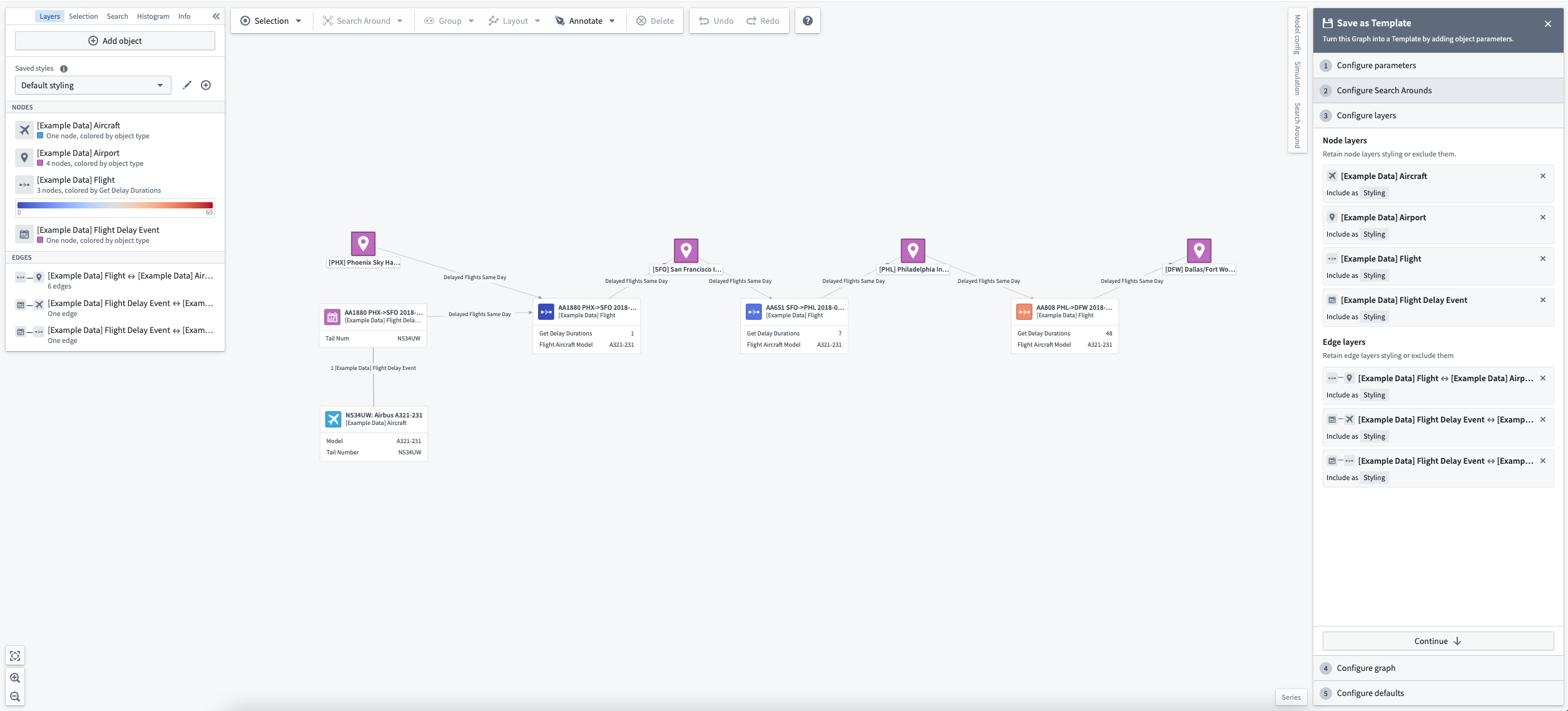
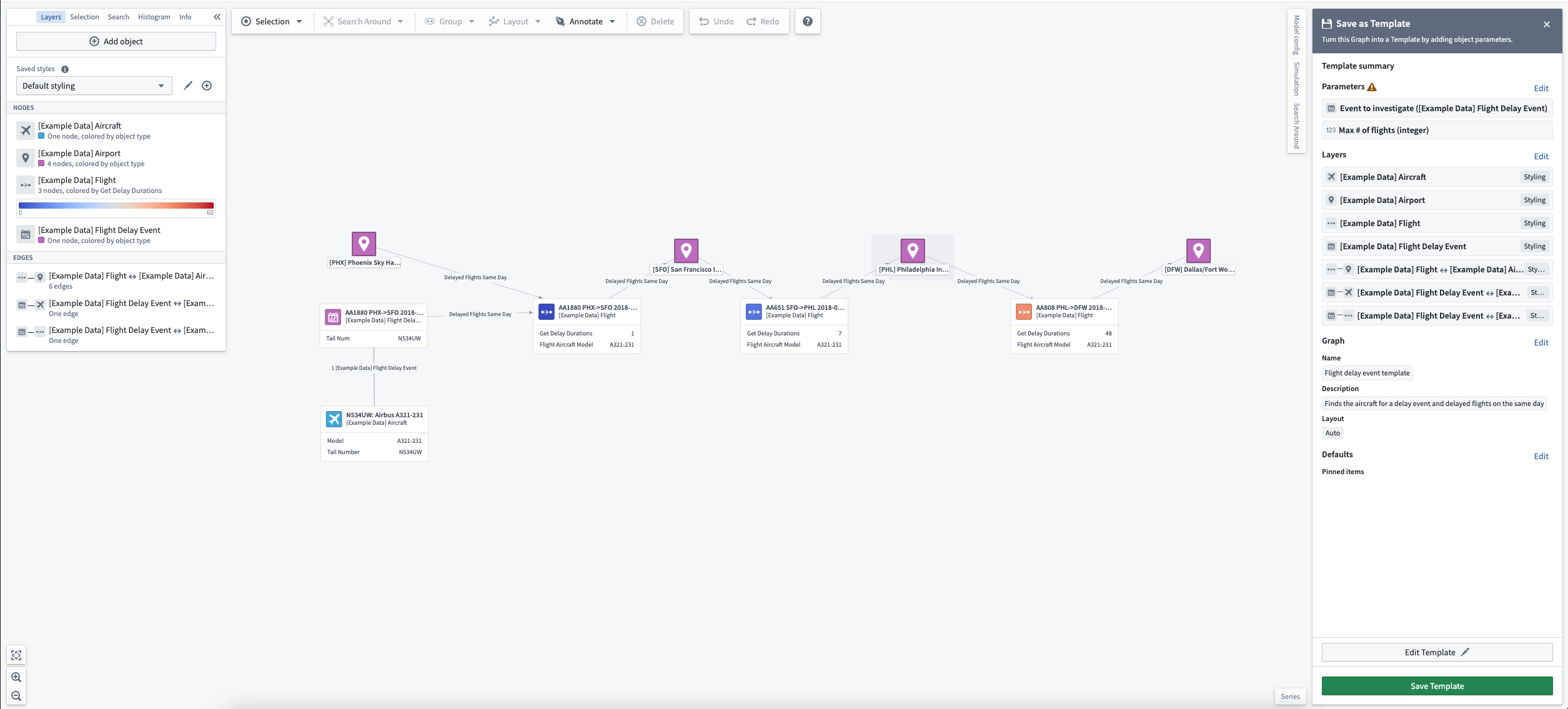
Lastly, after choosing a layout to apply and which graph settings from your current analysis to keep, you can view a template summary and choose to save your template.
Use a graph template
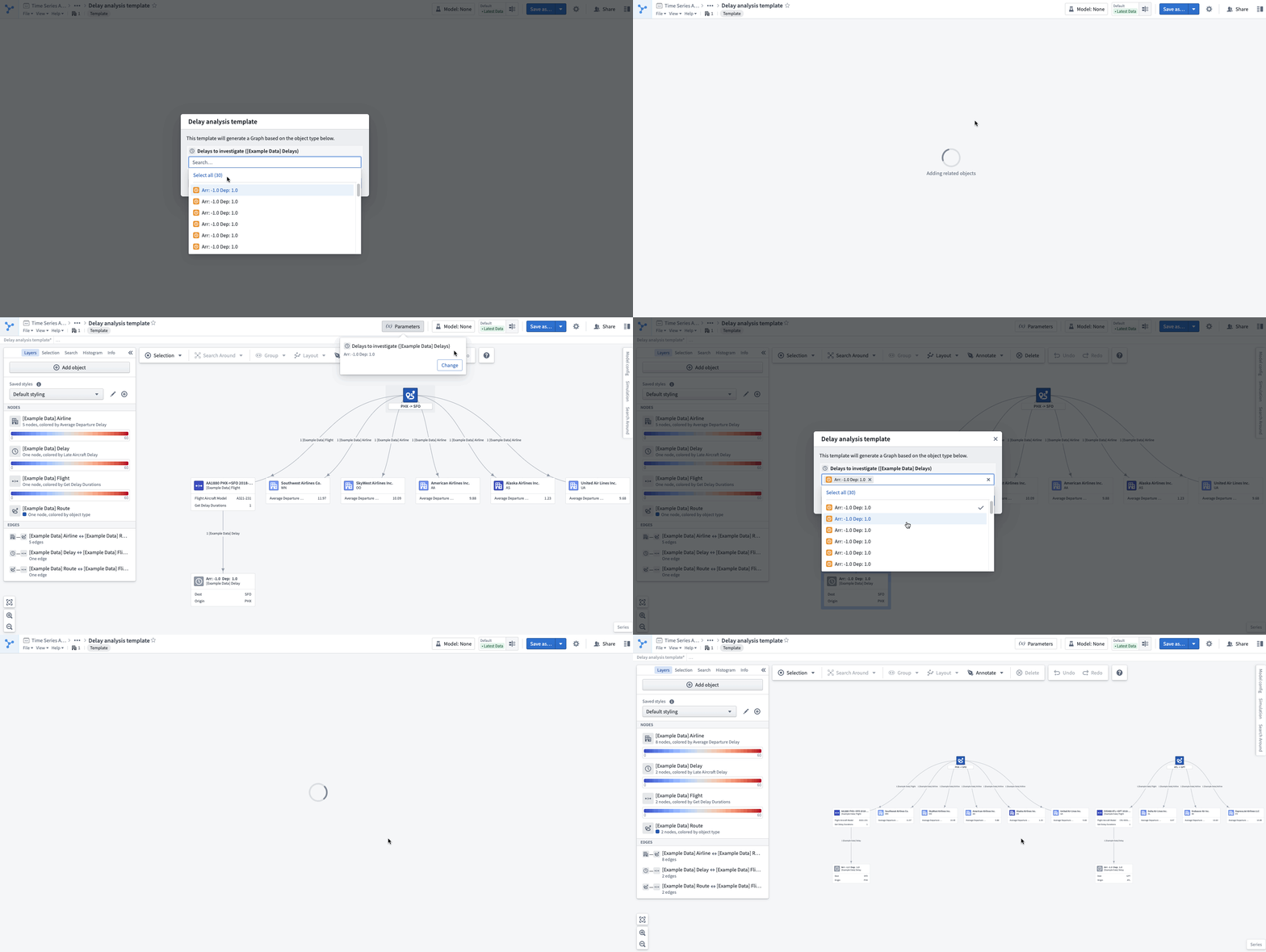
Once the template is opened, you will be prompted to supply values for the template parameters.
An object or an object set can also be preloaded into a template using URL query parameters:
- Object: Use query parameter
objectRid=<your_object_rid_here> - Object set: Use query parameter
objectSetRid=<your_object_set_rid_here>
To interact with the given parameter values, use the Parameters button in the top toolbar. This will allow you to select all the objects used as values for a given object parameter, or change the parameter values to regenerate your graph.
:::callout{theme="neutral"} Templates can also be embedded in Workshop using the Vertex widget. :::
中文翻译
创建图模板(Graph Template)
顶点图模板(Vertex graph templates)是一种资源,能够根据参数生成具有定义样式的图。它们支持以下工作流程:
- 将基于某个对象/对象集(object/object set)的图分析转向另一个对象/对象集。
- 创建可复用的资源,为使用者封装图生成工作流。
- 将图模板嵌入其他 Foundry 应用,例如对象视图(Object View)或 Workshop 应用。
任何 Vertex 分析都可以转换为图模板。将分析转换为模板后,可以更轻松地开展同类后续分析。
在本示例中,我们通过"周边搜索"(Search Around)功能,分析航班延误事件(Delay Event)与同一日期的飞机(Aircrafts)及其他延误航班(Flights,位于机场 Airports)之间的关联。下图所示的航班延误调查分析图是以自由形式生成的,没有预设结构。通过基于该分析创建图模板,我们可以在未来的调查中复用此分析模板。
要将此分析转换为图模板,请点击右上角工具栏中的保存选项,然后选择另存为模板...(Save as Template...)。
此时将打开一个助手,其中包含配置参数(Configure parameters)选项。图模板参数分为两类:对象参数(object parameters)和非对象参数(non-object parameters)。
对象参数是模板的对象输入,在使用模板时会被添加到图中。添加对象参数后,还可以对图模板用户提供的对象执行"周边搜索"和函数操作。
非对象参数是额外的参数,可用作自定义"周边搜索"函数或已保存"周边搜索"的参数。非对象参数支持的类型与"周边搜索"函数支持的非对象参数类型一致。
接下来,您可以配置与模板关联的"周边搜索"(Search Arounds)。每个对象参数都可以关联"周边搜索",这些搜索可以是基于 Ontology 链接的简单"周边搜索"、"周边搜索"函数,或是通过"周边搜索"侧边栏构建的已保存"周边搜索"。"周边搜索"函数或已保存"周边搜索"中的任何非对象参数都可以映射到一个值,该值可以是常量或参数。要将输入映射到参数,请点击输入框左侧的参数按钮,然后从下拉菜单中选择一个参数。
添加所需的参数和"周边搜索"后,您可以配置图层(layers)及其样式。保存样式图层将保留图中当前的样式。排除的图层则会在保存的模板中省略该图层样式。
最后,选择要应用的布局以及从当前分析中保留的图设置后,您可以查看模板摘要(template summary)并选择保存模板。
使用图模板
打开模板后,系统会提示您为模板参数提供值。
您还可以通过 URL 查询参数将对象或对象集预加载到模板中:
- 对象: 使用查询参数
objectRid=<your_object_rid_here> - 对象集: 使用查询参数
objectSetRid=<your_object_set_rid_here>
要与给定的参数值进行交互,请使用顶部工具栏中的参数(Parameters)按钮。这将允许您选择用作给定对象参数值的所有对象,或更改参数值以重新生成图。
:::callout{theme="neutral"} 模板还可以通过 Vertex 组件(Vertex widget)嵌入到 Workshop 中。 :::