Media layers and image annotations(媒体图层与图像标注)
Media layers in Vertex allow you to visualize and annotate objects on maps or images, enabling spatial analysis and contextual understanding of your data. You can add objects as overlays, filter them based on properties, and create interactive annotations.
This section of documentation uses public domain images from Wikimedia Commons ↗ as an example to notionally construct a World War II-era naval ship via schematics overlaid with objects in Vertex.
.png)
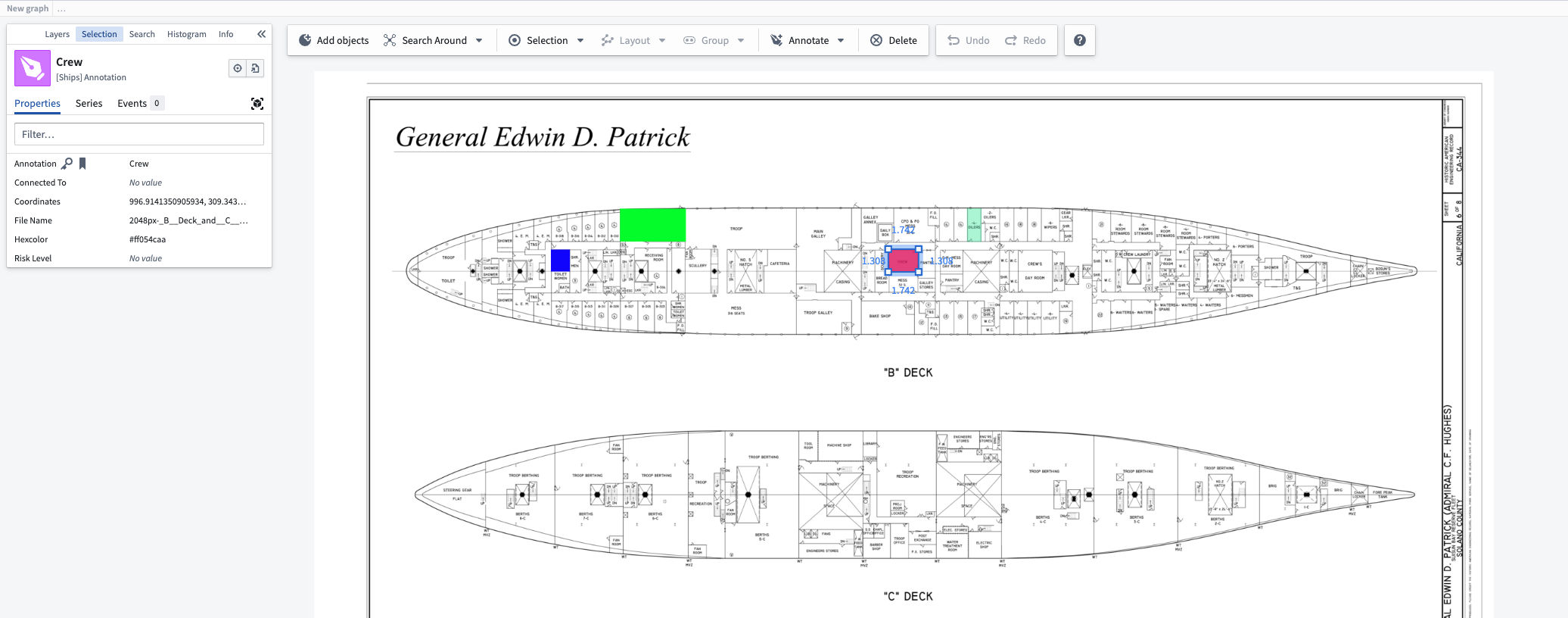
By the end of this example we will have an interactive ship diagram in Vertex with annotations that show a few of the rooms overlaid on the image.
Configuration
Pipeline Builder configuration
To get started using media in Vertex, ensure you have at least one object type with a media reference. For our example, we are using one object type created from a media set of images. We also have two object types that we will use to create annotations in our Vertex graph.
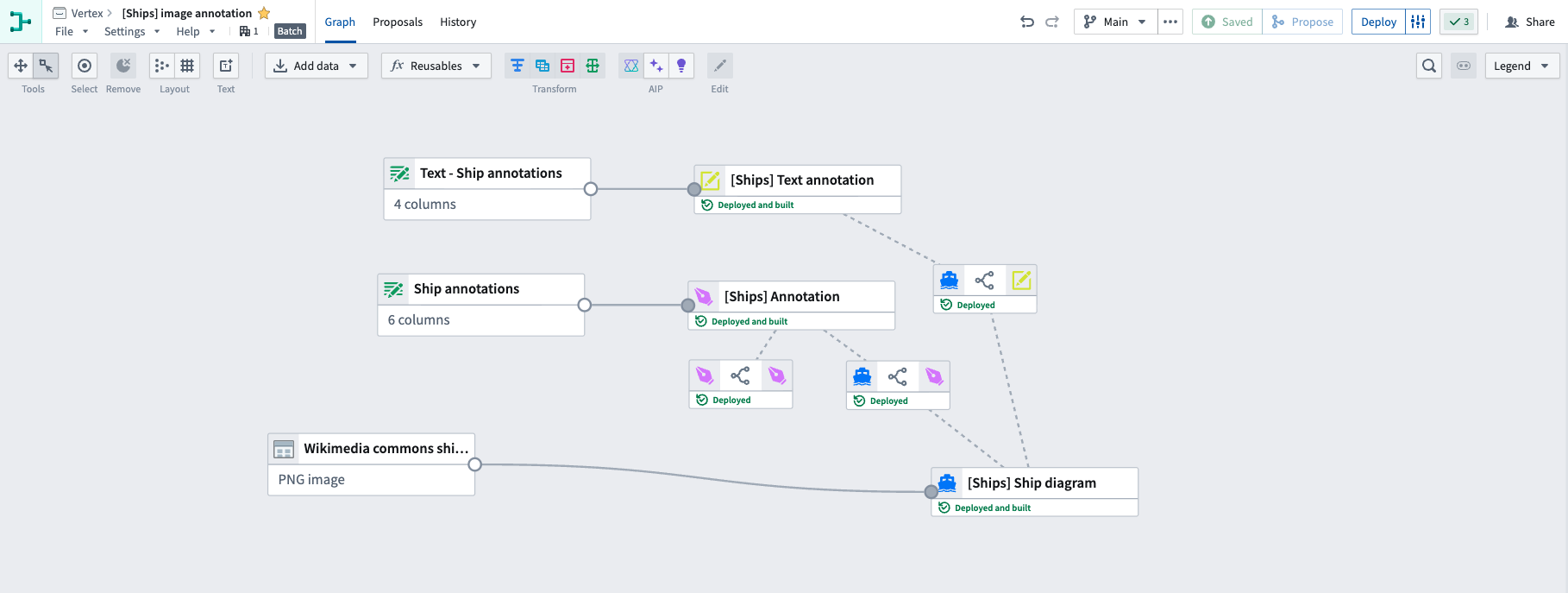
In the Pipeline Builder graph below, the Wikipedia commons... media set outputs the [Ships] Ship diagram object type. The Text - Ship annotations dataset outputs the [Ship] Text Annotations object type. Finally, the Ship annotations dataset outputs the [Ships] Annotation object type.
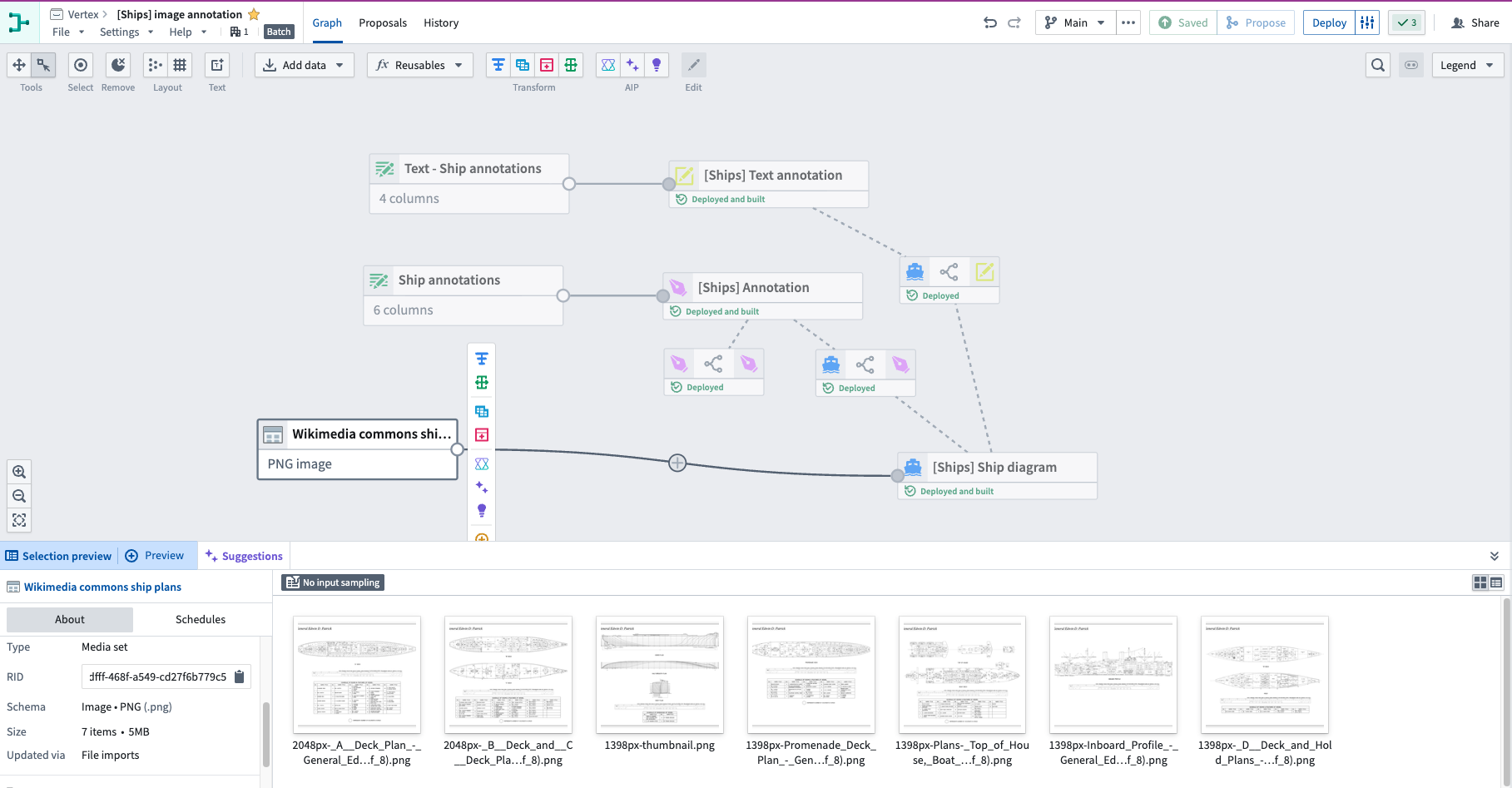
When selected, you can view the individual PNG images that make up the Wikipedia commons... media set in the preview panel.
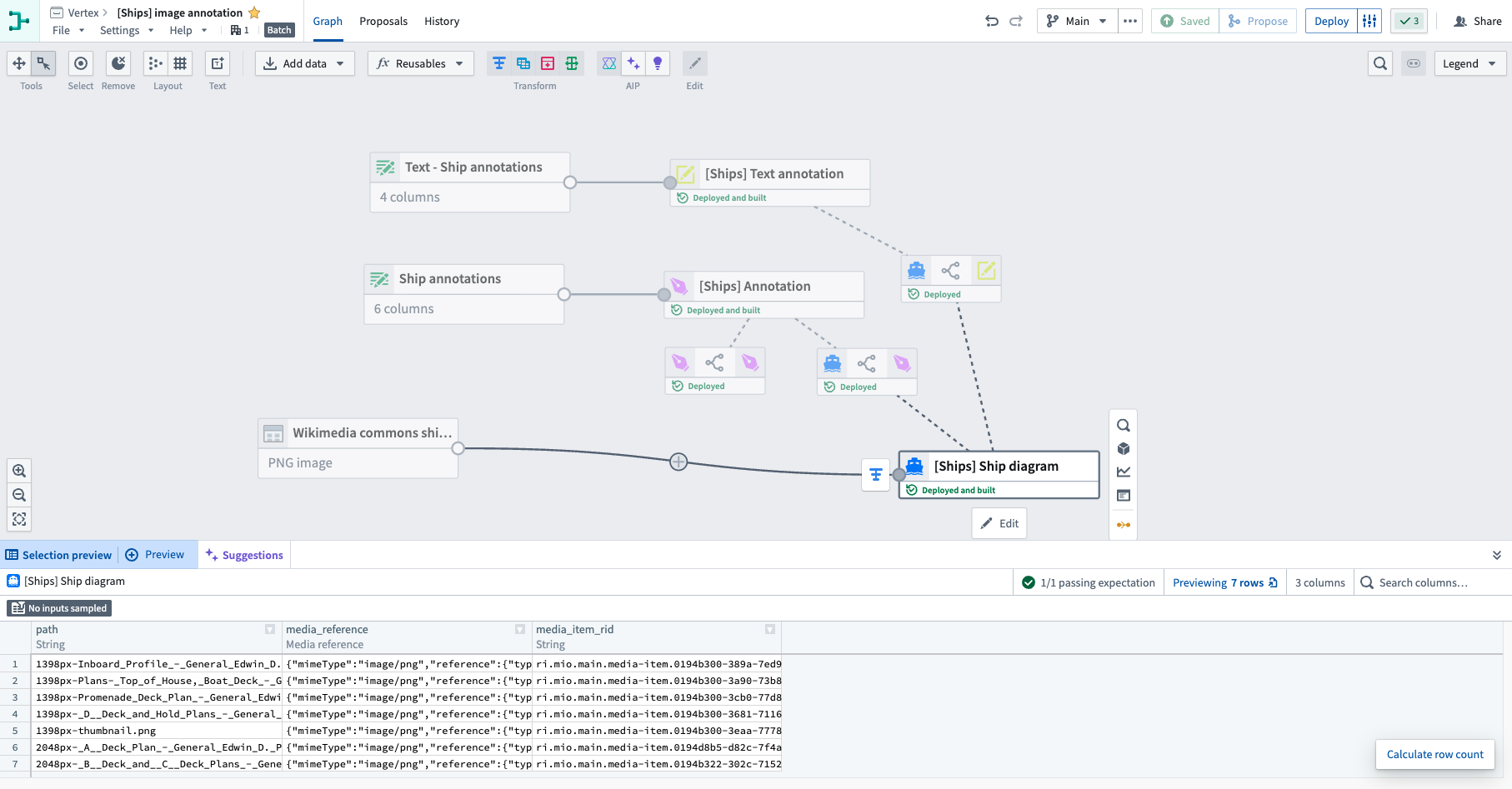
Selecting the [Ships] Ship diagram object type reveals a preview of the image media references and RIDs.
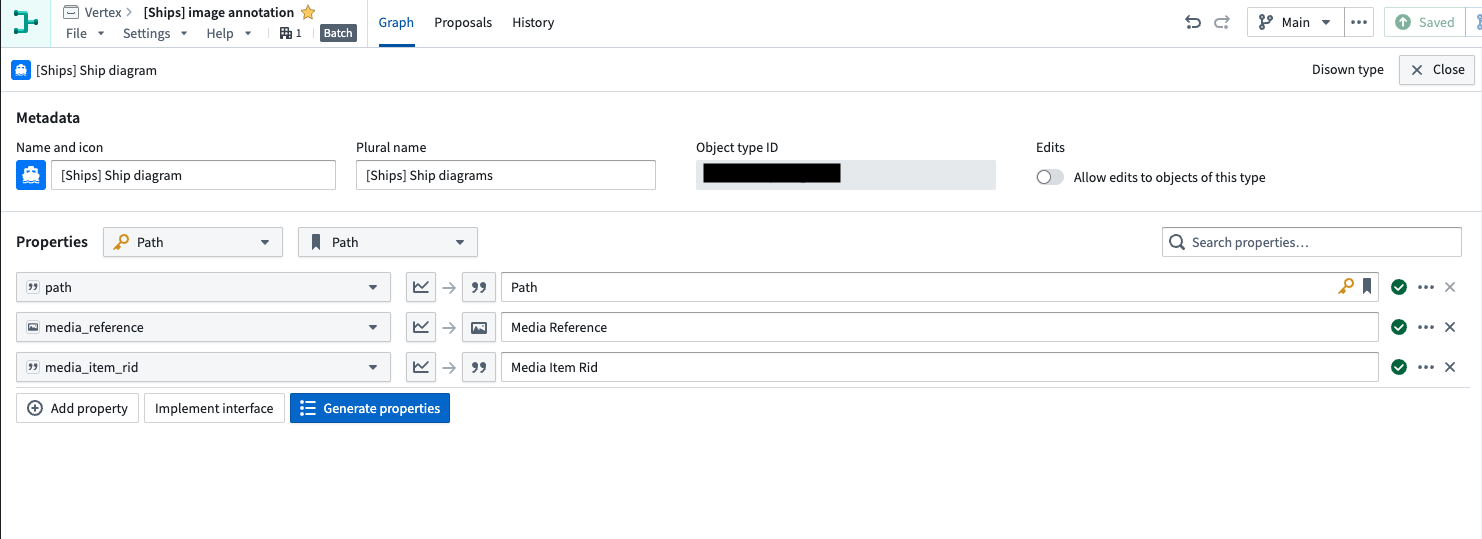
By double-clicking the same node, we can view the properties of the [Ships] Ship diagram object type that are derived from the columns of the source dataset.
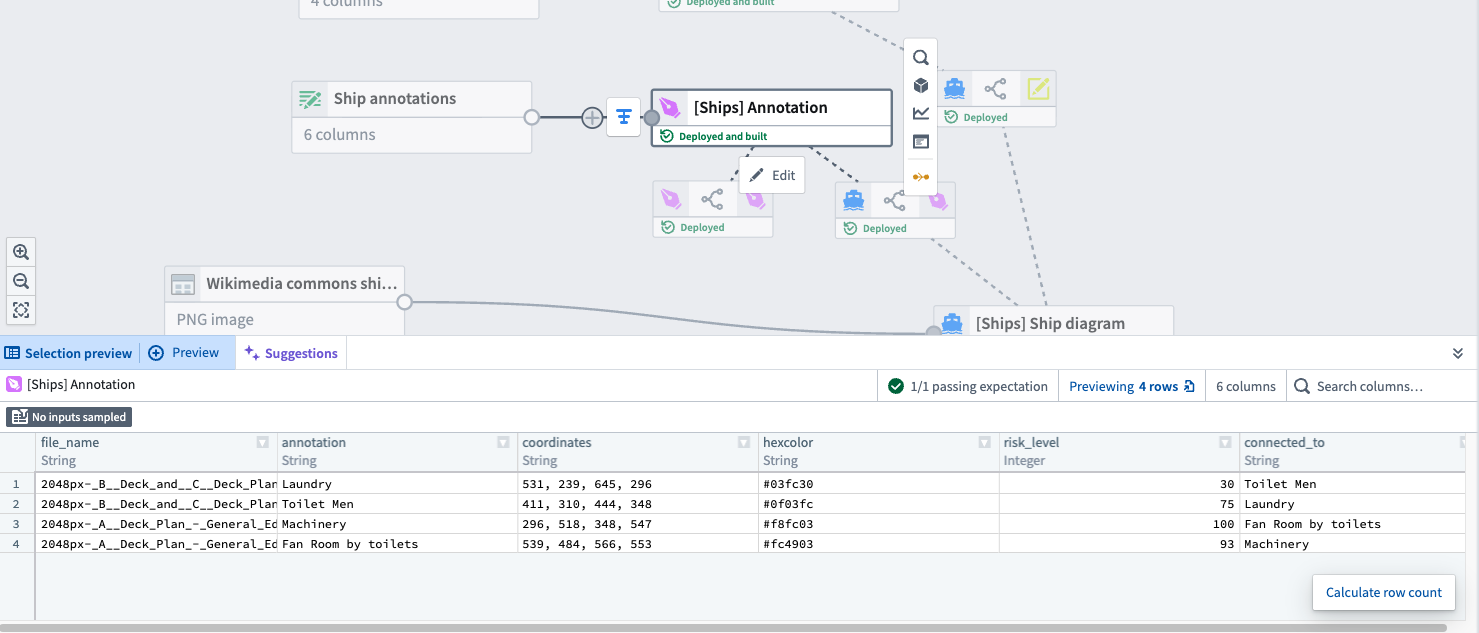
We can select the [Ships] Annotation object type to view a preview of the source dataset, which includes annotation, coordinates, and hexcolor columns.
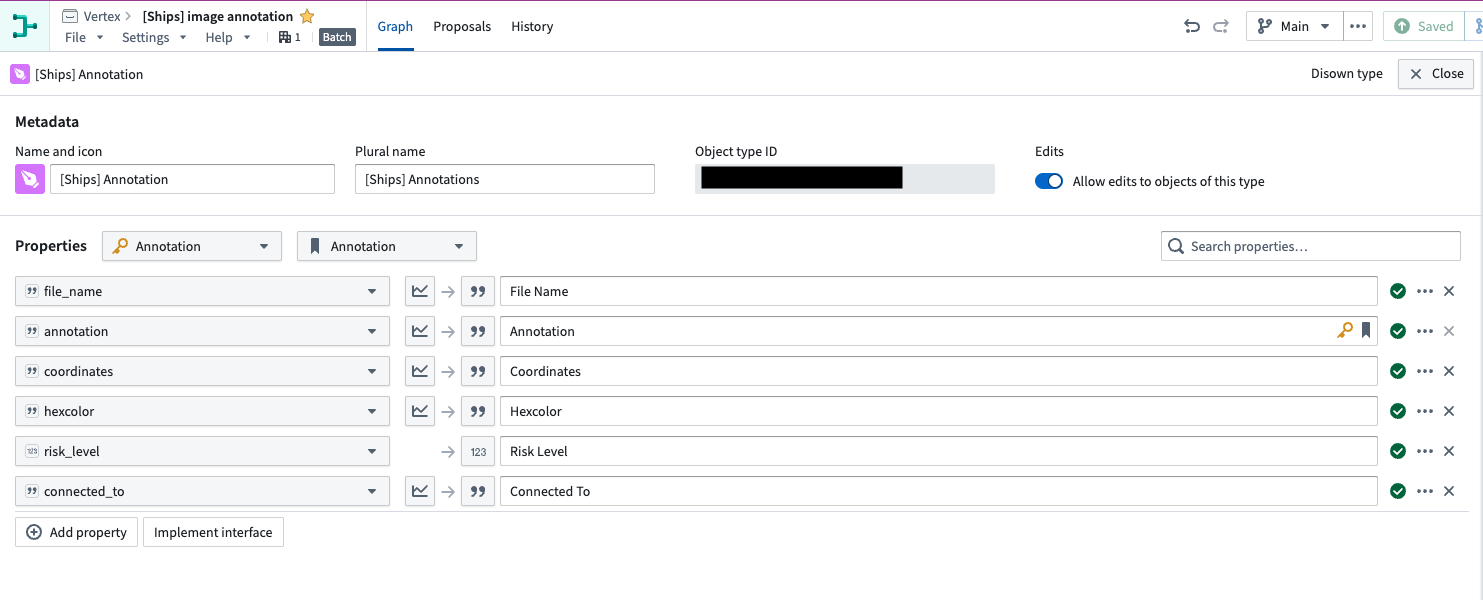
Double-clicking the same node will display the properties of the [Ships] Annotation object type that are derived from the columns of the source dataset.
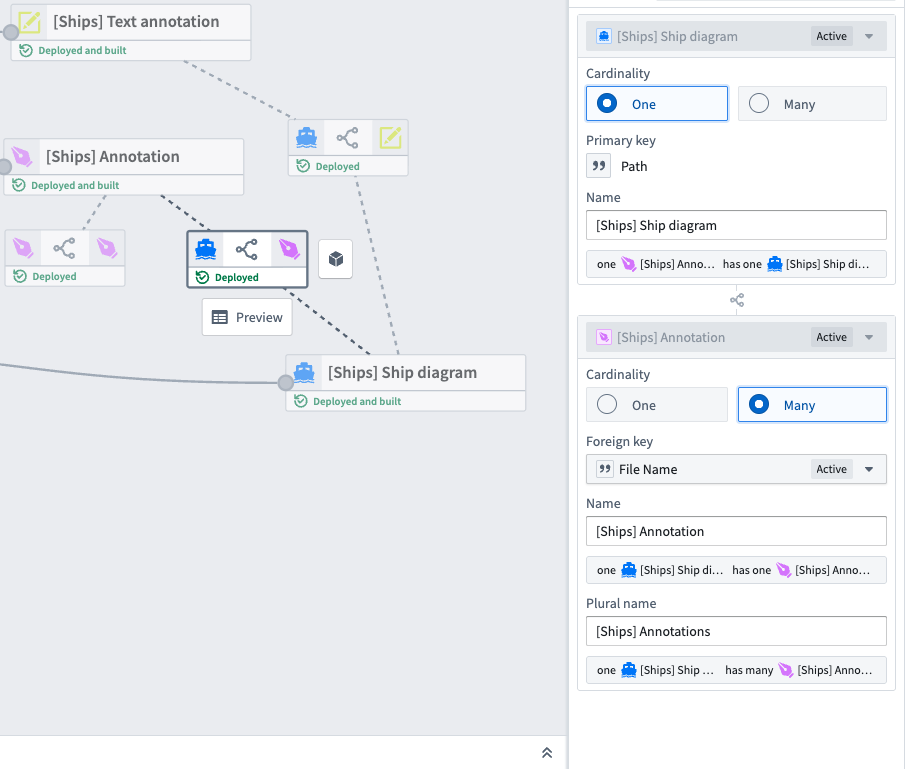
We linked the Annotation and Text annotation object types to their related Ship diagram object types with the File Name foreign key property.
Now that we understand the relationship between our media-based object type and annotation object types, we can continue configurations in Ontology Manager to set default behaviors for our object types when used in a Vertex graph.
Ontology Manager configuration
Navigate to your media-based object type in Ontology Manager. From the Capabilities tab, choose which image reference to use as the default image in a media layer. Select an option from the Image reference property dropdown menu.

Now we can configure the Annotation object type to define its behavior when used in Vertex.

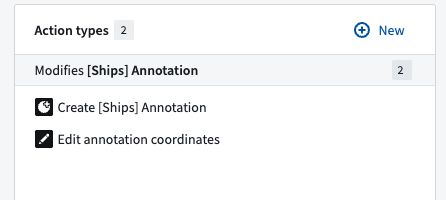
From the overview page, we can view two action types that we created to use on the Annotation object type: Create [Ships] Annotation and Edit annotation coordinates. We can use these action types in our Vertex graph to create or edit an image annotation.
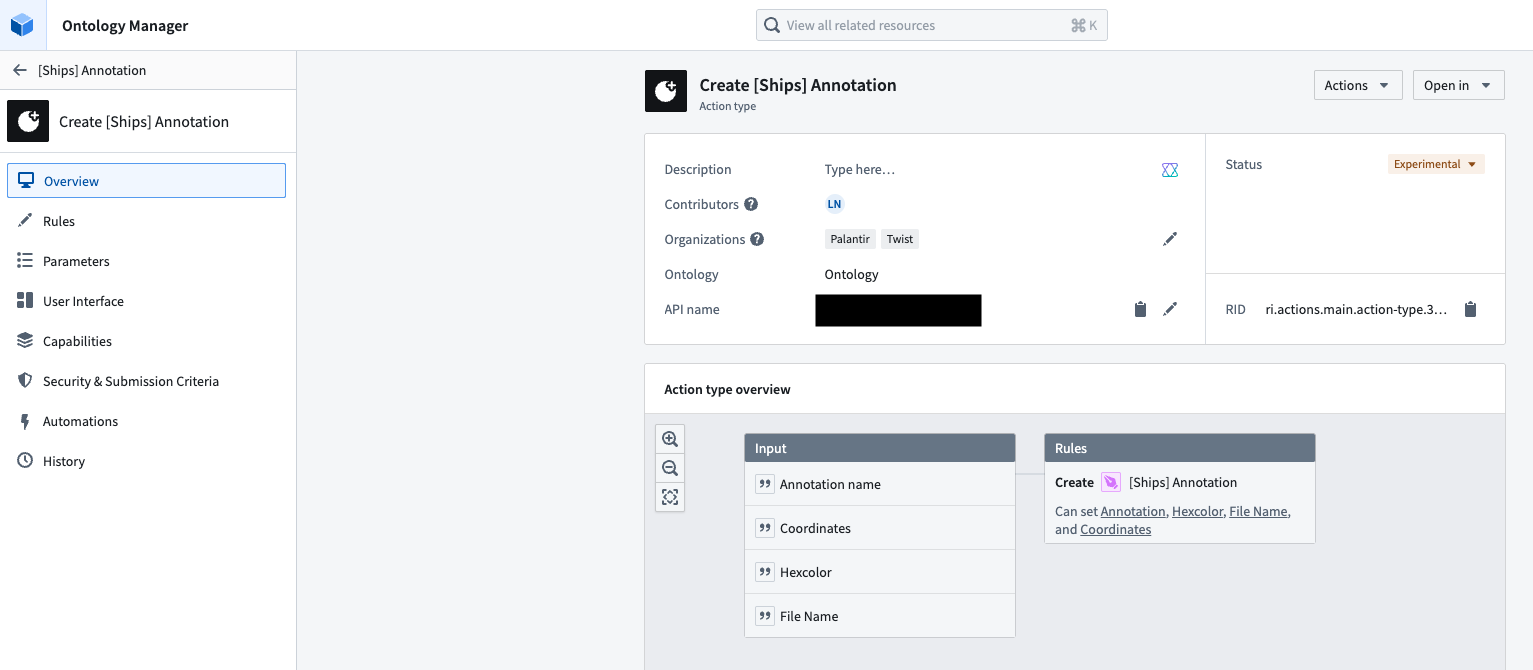
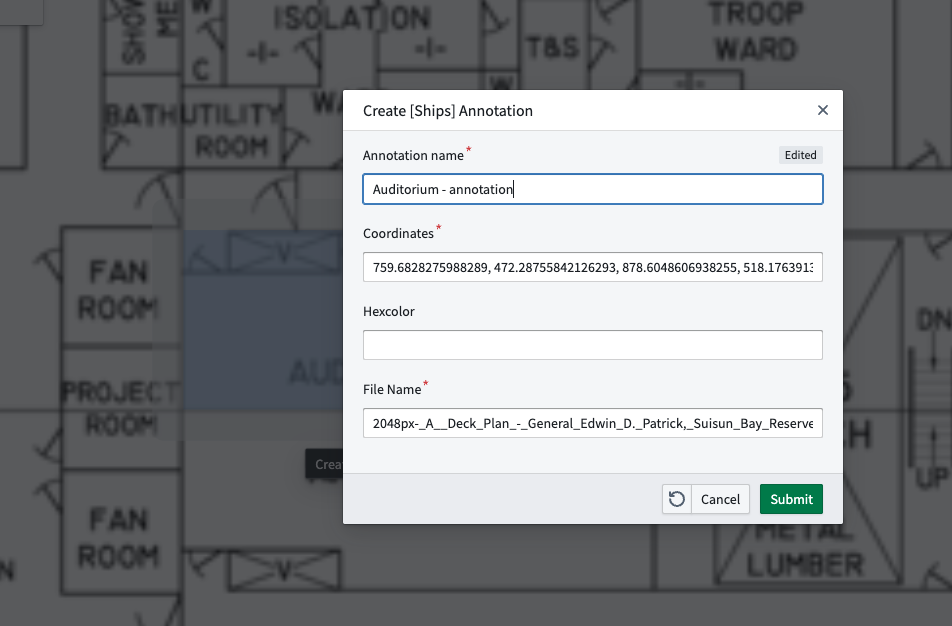
Select the action type to view its overview page. We can see that the Create [Ships] Annotation action type, for example, is set up to use the Annotation name, Coordinates, Hexcolor, and File Name properties when run.
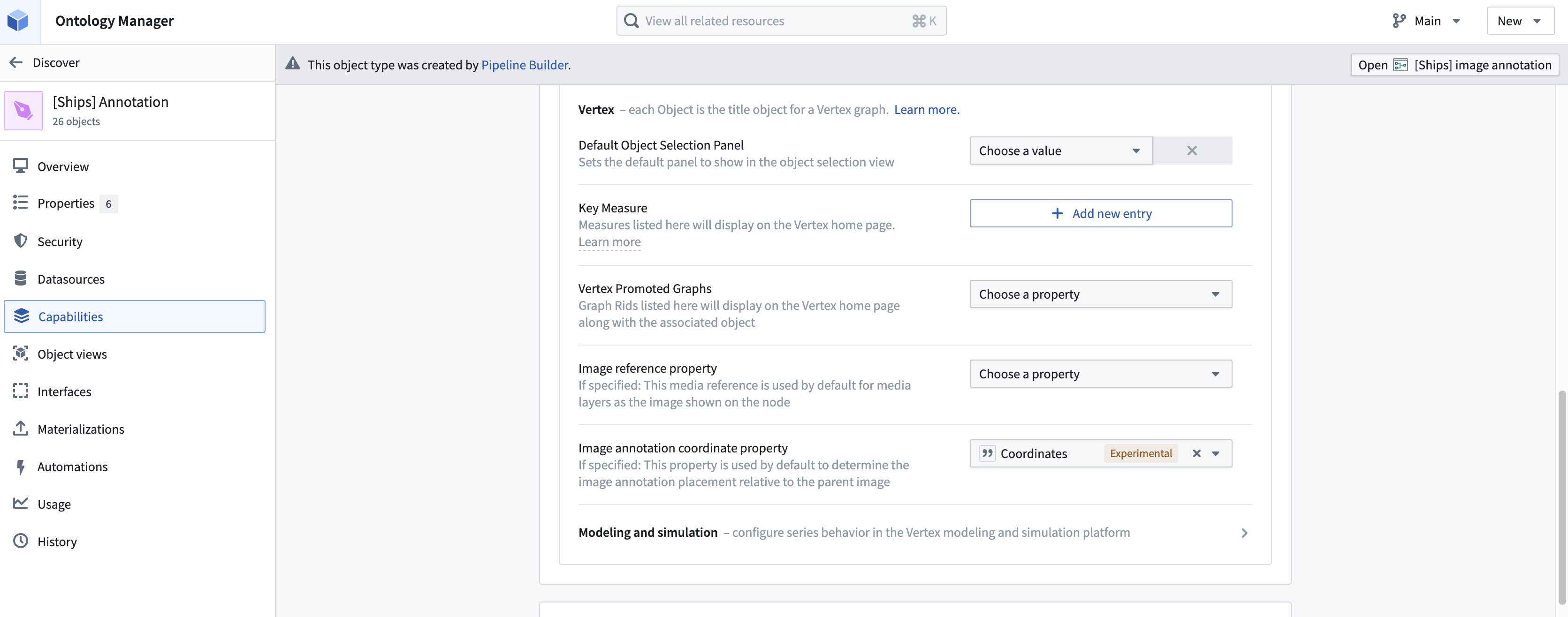
You can configure which of the object type properties is used by default as the pixel space bounding box coordinates of your image annotations. In the same Capabilities tab, choose from the properties available in the Image annotation coordinate property dropdown menu. For our example, we are choosing the Coordinates property.
Add objects as media layers
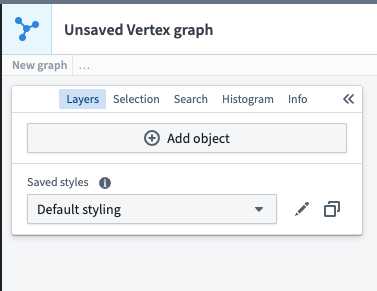
After confirming your configurations in Ontology Manager, you can add objects to your Vertex graph. Select + Add object to open the object search interface.
You can search by name, type, or other identifying properties. You can also filter down to object types that only contain media references using the dropdown menu.
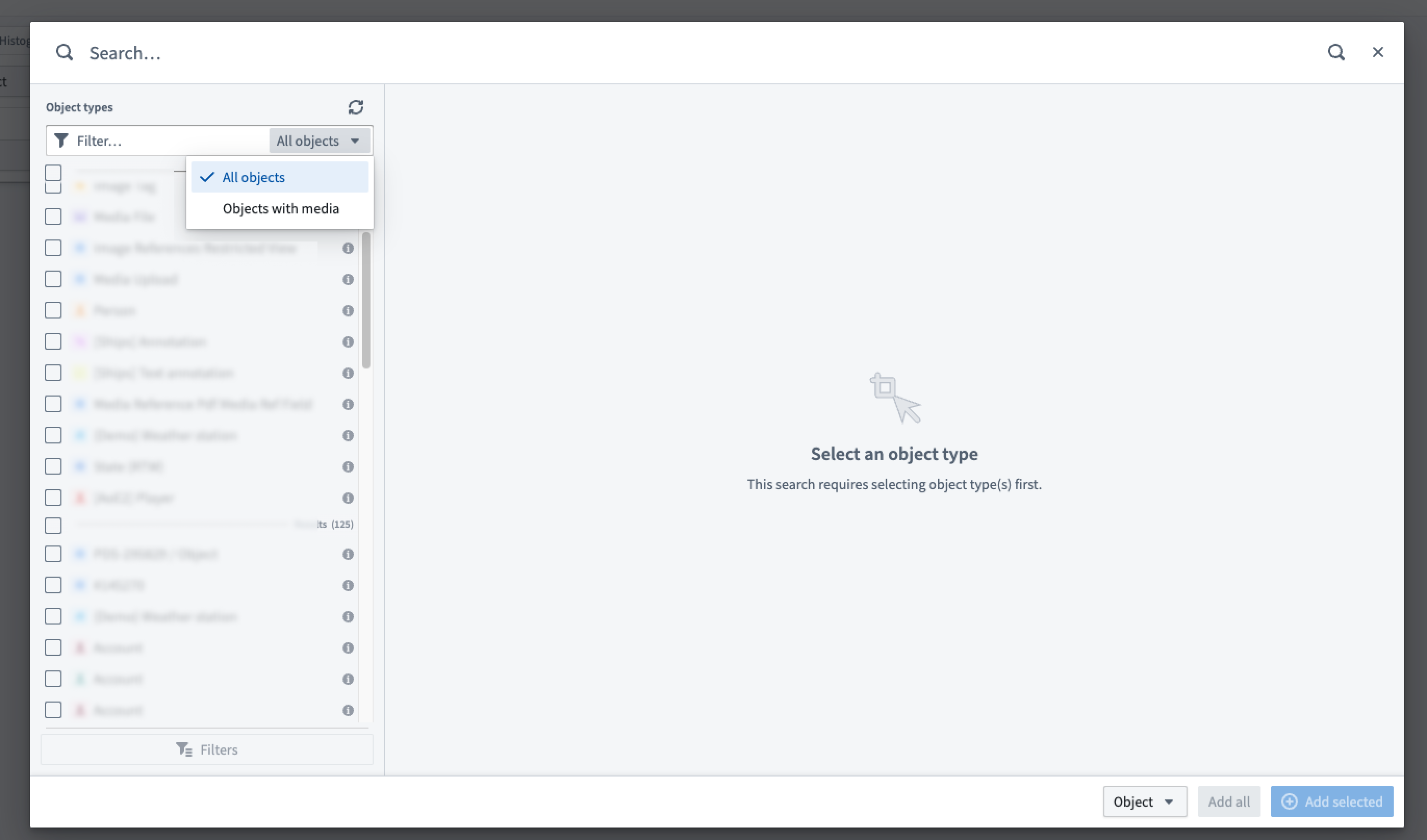
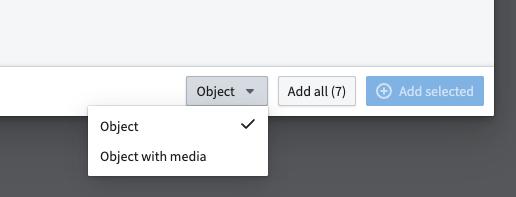
In the bottom right corner of the dialog, use the dropdown menu to specify how to add the object to Vertex. Object is the default option and will add the objects to the graph with their configured Ontology Manager object type icon and color. Choose the Object with media option to add and view annotations on the object.
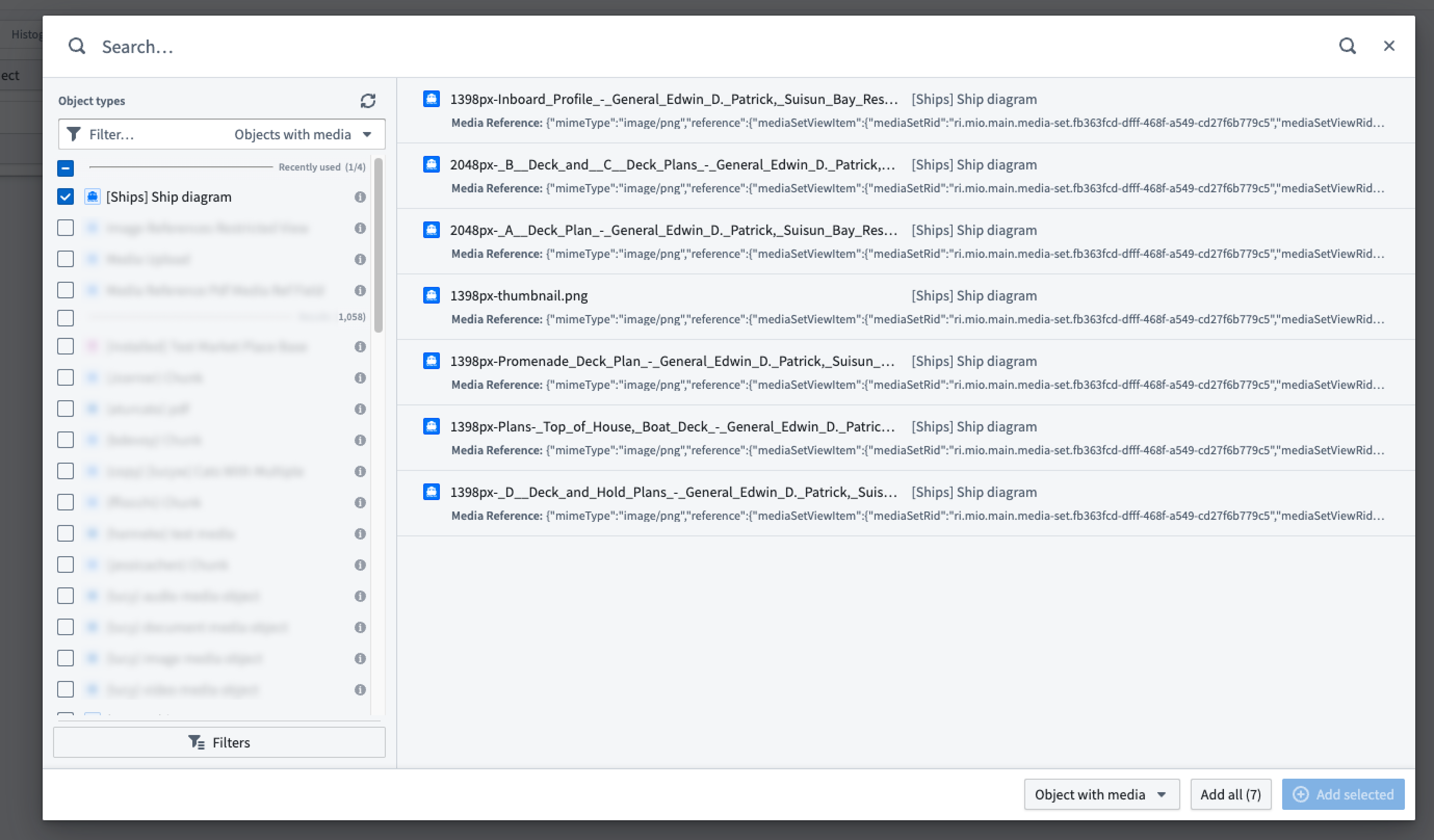
Once you have selected all the objects you wish to add to Vertex, choose to Add all or + Add selected to add them to your graph where they will be displayed as a media layer.
Style and explore media layers
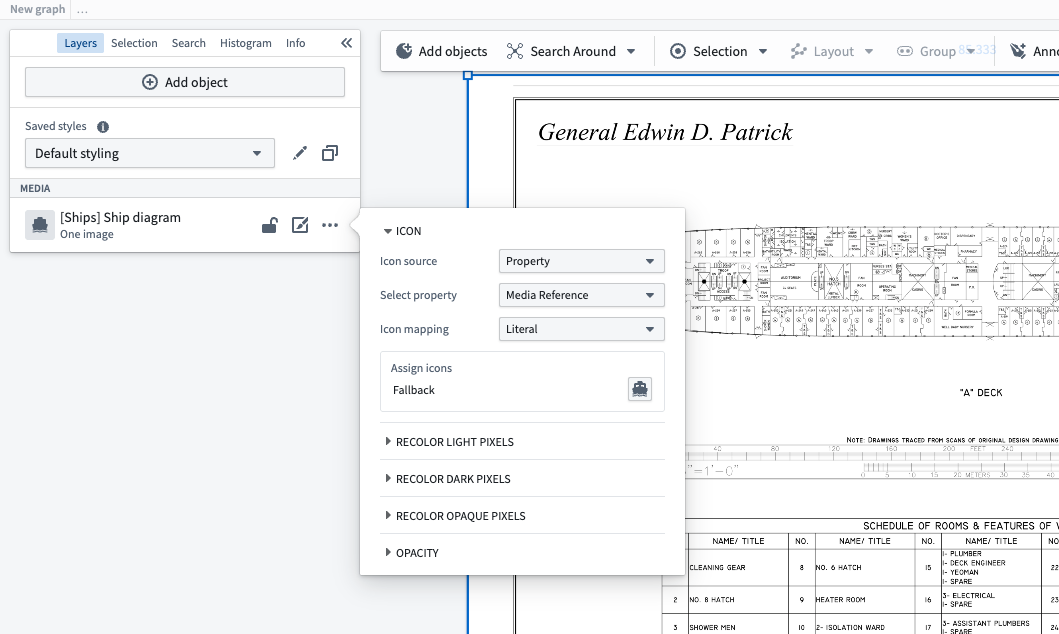
Unless otherwise configured in Ontology Manager, media layers will, by default, display the object using the first media reference. However, you can also customize the visual appearance of your media layer objects using the icon style options accessed from the Layers panel to the left. If the object you want to display has multiple media references, you can select which one to use.
Right-click on the graph to use the Search Around functionality to explore related objects and expand your media layer visualization with connected data.

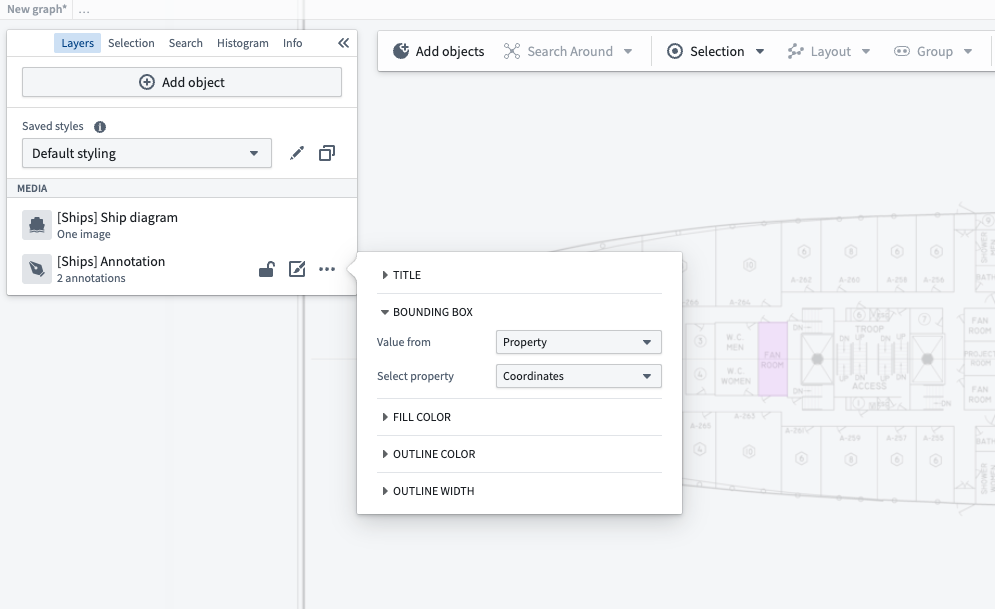
If you did not configure the image annotation coordinate property for the object in Ontology Manager, you can also use the style options to choose which property is used as the pixel-space bounding box coordinates of your image annotations.
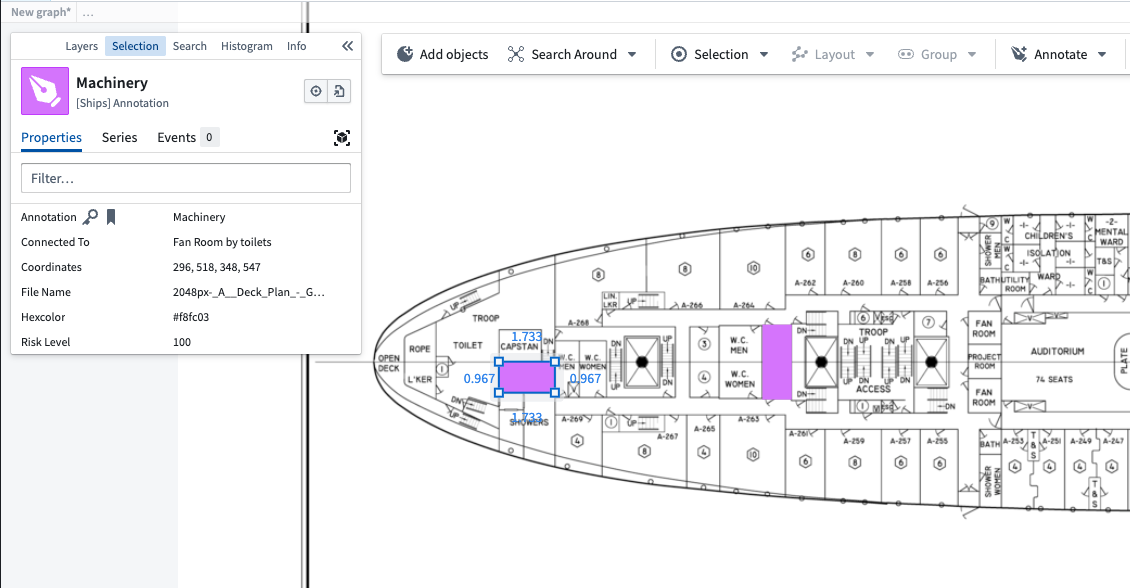
Select objects within your media layer to view and interact with their properties. The selection will highlight the chosen object and display relevant information.
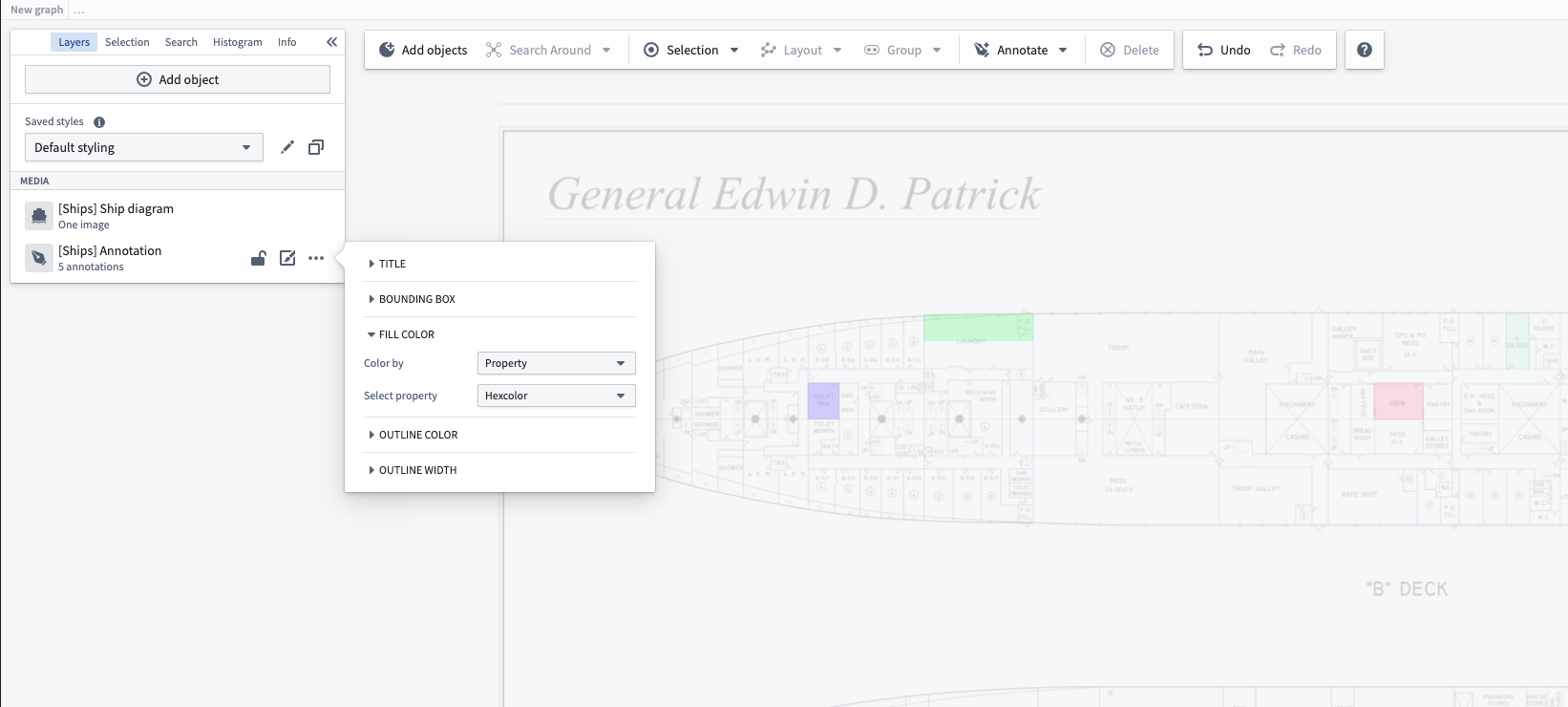
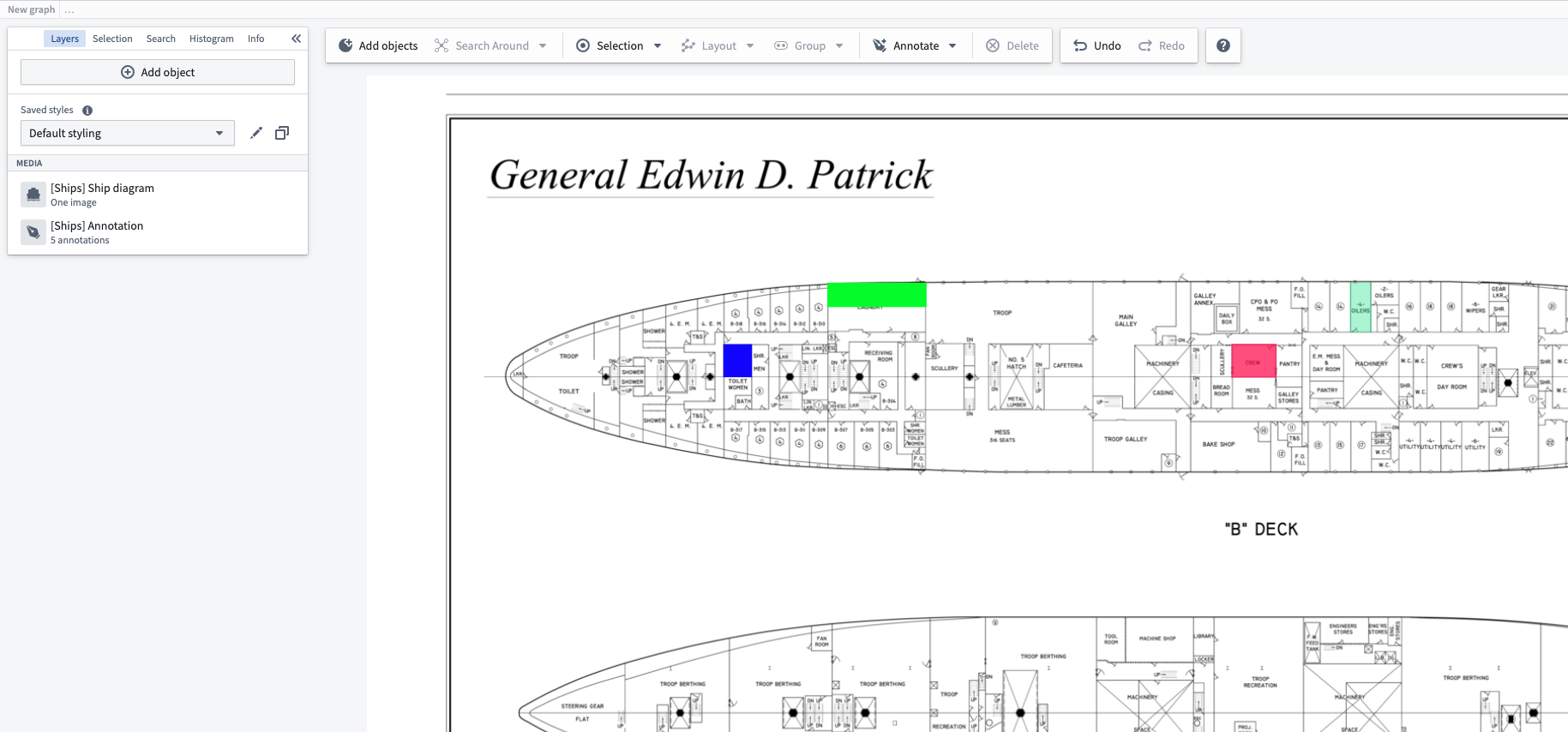
Style the annotations, including the fill and outline colors, using the annotation layer style menu.
Create image annotations
Annotations allow you to mark specific areas or features within your media layer. To create a new annotation, right-click on a media layer object to open the context menu and select Create Annotation.
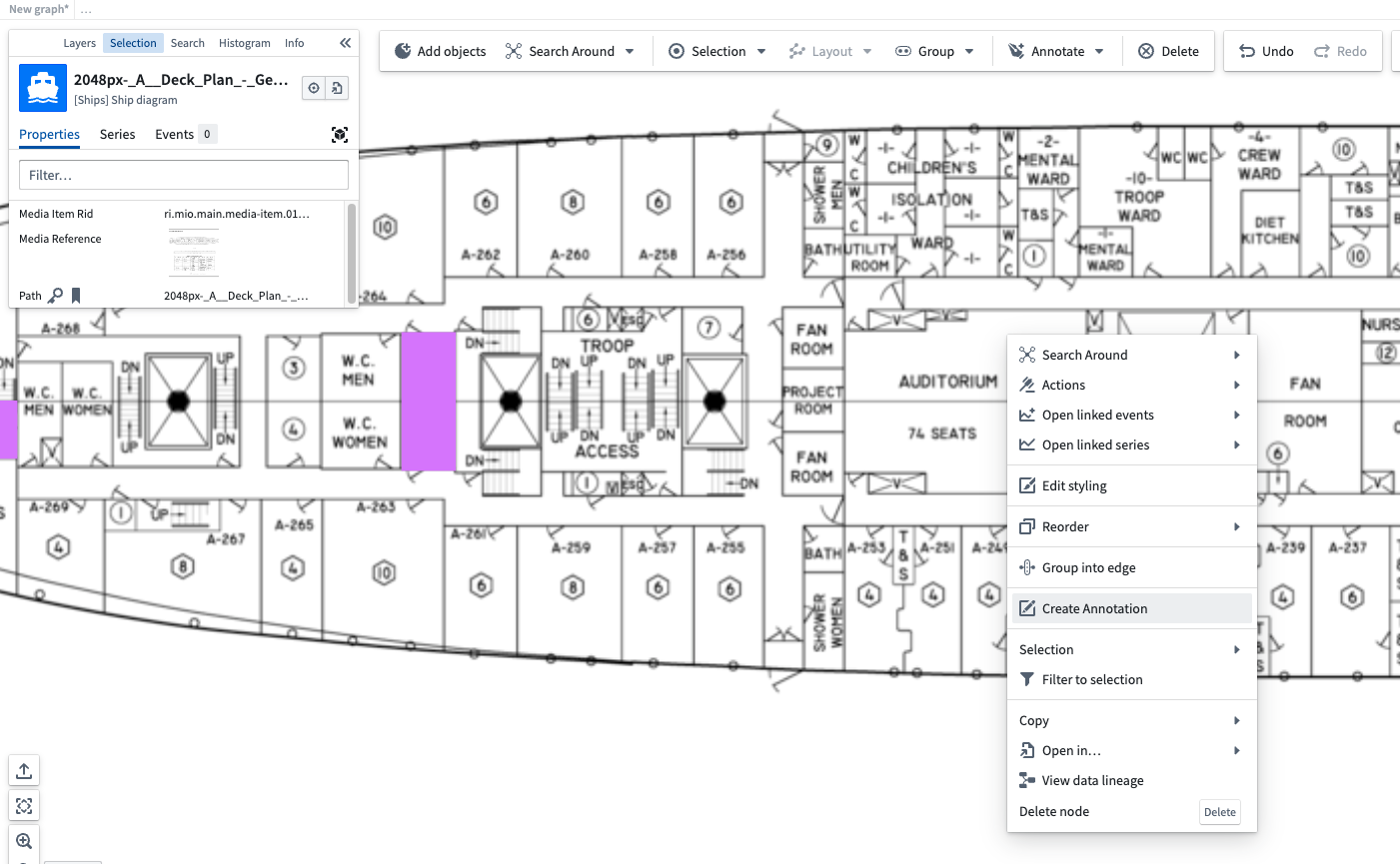
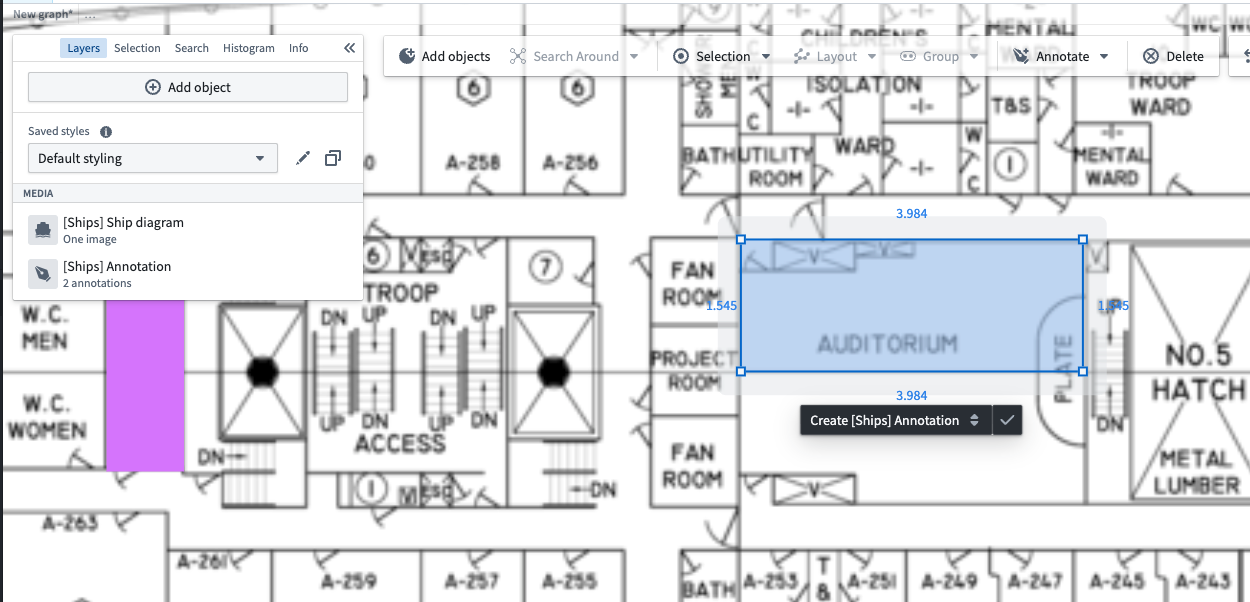
Draw your annotation directly on the image, dragging to define the shape. You can resize and move the annotation after you draw it.
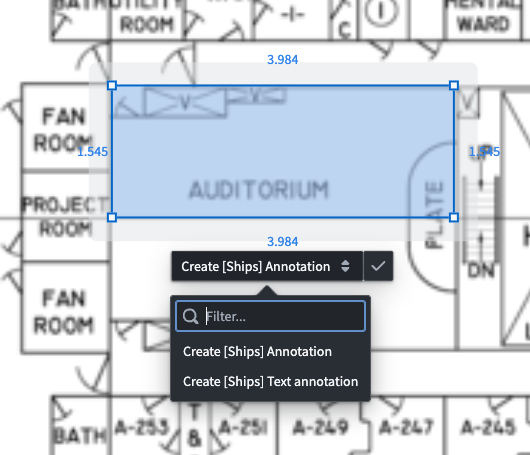
If you configured action types to create annotations for objects linked to the object type of the media, you will see the options to run those actions in a dropdown menu. In our example, we can see both the Create [Ships] Annotation and a Create [Ships] Text annotation.
Select the action type you want to run, then fill out the form to name your new annotation object. Notice that the coordinates of the annotation will be used as the bounding box coordinates for the new object, which will vary depending on how you configured the action for your object type.
You can now view the object with its associated annotation in the media layer of your graph.
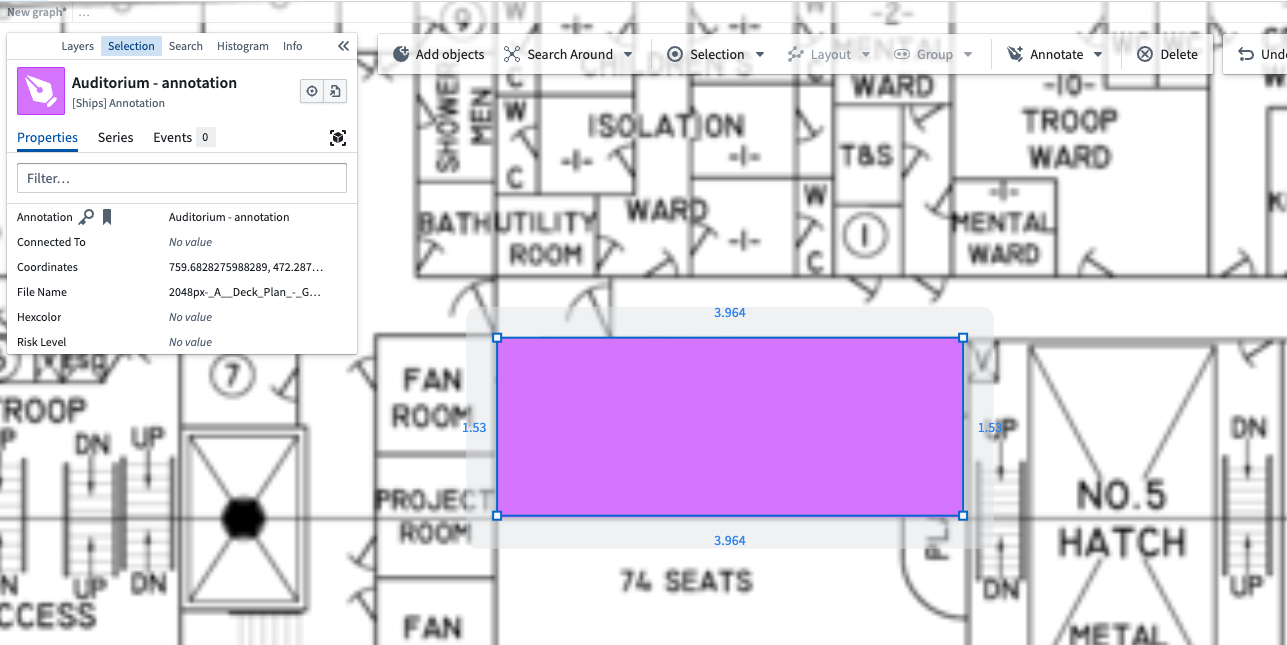
Modify existing annotations
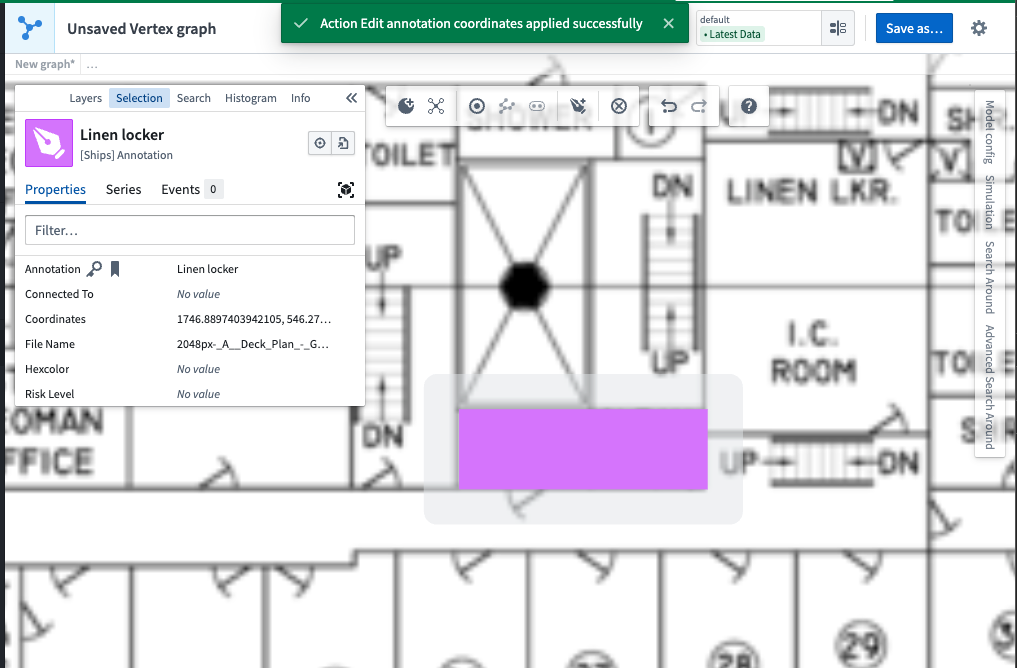
To modify an existing annotation, locate and select the object you want to edit. In this example, we are working with a Linen locker object that was previously annotated.
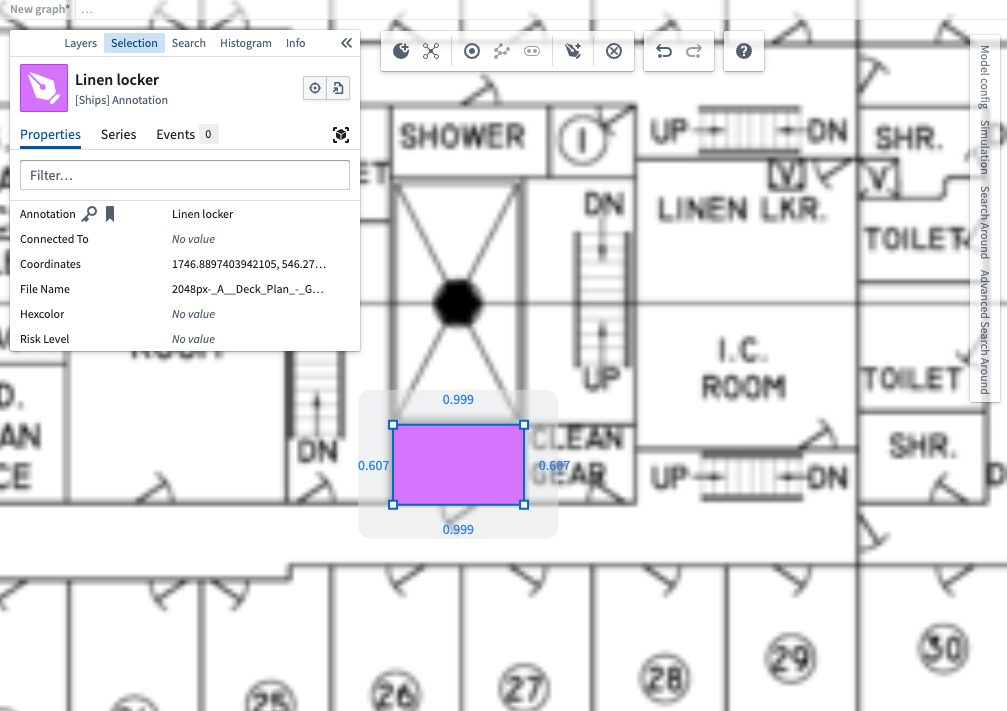
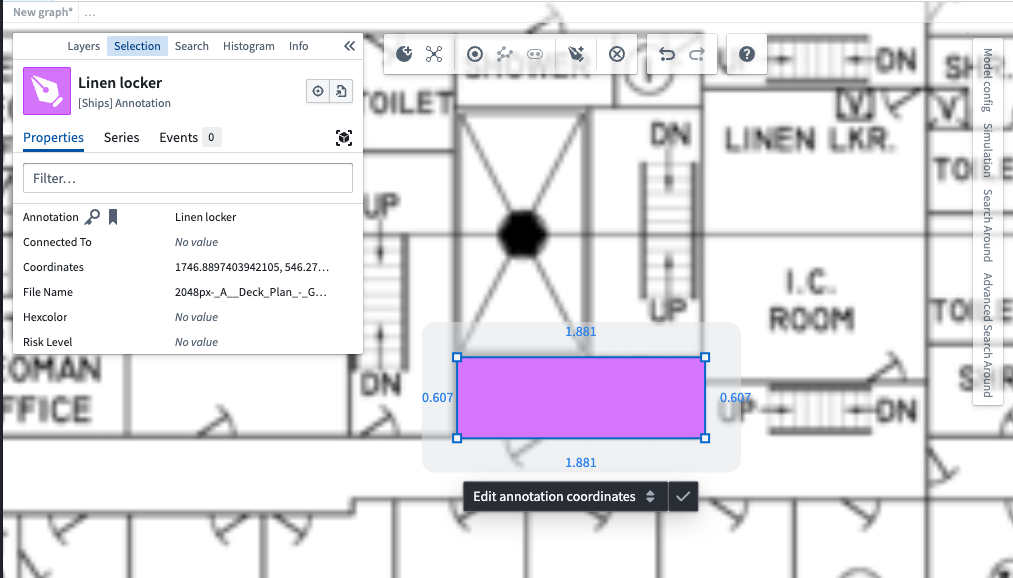
When you move or resize an annotation, any action types that can modify the object type will appear below the annotation. In our example, we can run an Edit annotation coordinates action type to update the new location of the annotation.
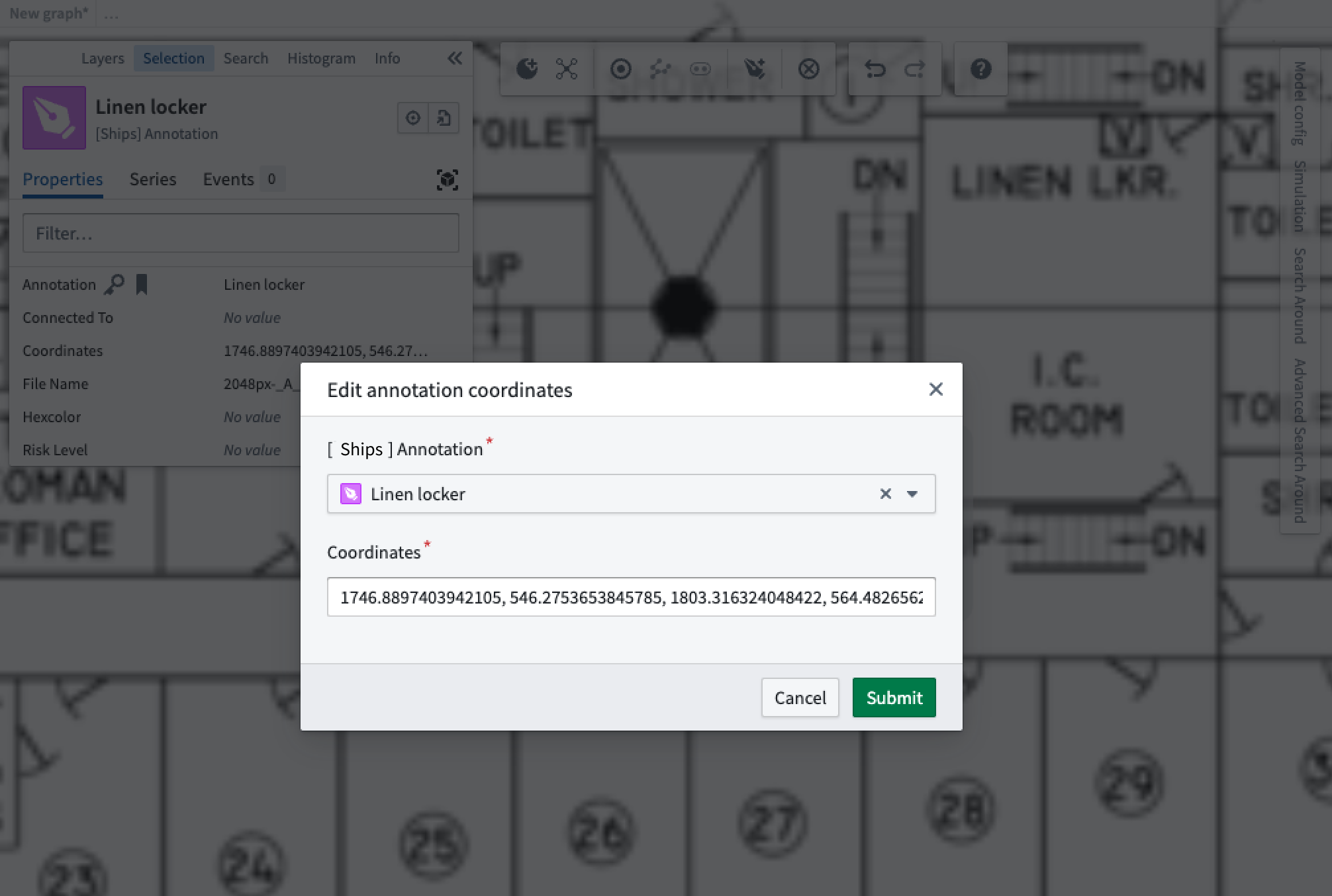
Use the edit form to update the object's pixel space bounding box coordinates, which is populated by the shape we just drew.
After making your changes, review the updated object to ensure your modifications were applied correctly. The edited annotation will reflect your changes in the media layer.
中文翻译
媒体图层与图像标注
Vertex中的媒体图层(Media layers)允许您在地图或图像上可视化和标注对象,从而实现对数据的空间分析和上下文理解。您可以将对象添加为叠加层(overlays),根据属性进行筛选,并创建交互式标注(interactive annotations)。
本文档的这一部分使用维基共享资源中的公共领域图片 ↗作为示例,通过将对象叠加在示意图上,概念性地构建一艘二战时期的海军舰船。
通过本示例,我们最终将在Vertex中获得一个交互式舰船示意图,其中包含叠加在图像上的若干舱室标注。
配置
Pipeline Builder配置
要开始在Vertex中使用媒体,请确保您至少拥有一个包含媒体引用(media reference)的对象类型(object type)。在我们的示例中,我们使用从一个媒体集(media set)的图像中创建的一个对象类型。此外,我们还有两个对象类型,用于在Vertex图表中创建标注。
在下面的Pipeline Builder图表中,Wikipedia commons...媒体集输出[Ships] Ship diagram对象类型。Text - Ship annotations数据集输出[Ship] Text Annotations对象类型。最后,Ship annotations数据集输出[Ships] Annotation对象类型。
选中后,您可以在预览面板中查看构成Wikipedia commons...媒体集的各个PNG图像。
选择[Ships] Ship diagram对象类型,可以预览图像媒体引用和RID。
双击同一节点,我们可以查看[Ships] Ship diagram对象类型的属性,这些属性源自源数据集的列。
我们可以选择[Ships] Annotation对象类型来预览源数据集,其中包含annotation、coordinates和hexcolor列。
双击同一节点将显示[Ships] Annotation对象类型的属性,这些属性源自源数据集的列。
我们使用File Name外键属性(foreign key property)将Annotation和Text annotation对象类型链接到它们相关的Ship diagram对象类型。
现在我们已经了解了基于媒体的对象类型与标注对象类型之间的关系,我们可以继续在Ontology Manager中进行配置,为我们的对象类型在Vertex图表中使用时设置默认行为。
Ontology Manager配置
在Ontology Manager中导航到您的基于媒体的对象类型。在Capabilities选项卡中,选择要在媒体图层中用作默认图像的图像引用。从Image reference property下拉菜单中选择一个选项。
现在我们可以配置Annotation对象类型,以定义其在Vertex中的行为。
从概览页面,我们可以查看为在Annotation对象类型上使用而创建的两个操作类型(action types):Create [Ships] Annotation和Edit annotation coordinates。我们可以在Vertex图表中使用这些操作类型来创建或编辑图像标注。
选择操作类型以查看其概览页面。例如,我们可以看到Create [Ships] Annotation操作类型被设置为在执行时使用Annotation name、Coordinates、Hexcolor和File Name属性。
您可以配置默认使用哪个对象类型属性作为图像标注的像素空间边界框坐标(pixel space bounding box coordinates)。在同一个Capabilities选项卡中,从Image annotation coordinate property下拉菜单中的可用属性中进行选择。在我们的示例中,我们选择Coordinates属性。
将对象添加为媒体图层
在确认Ontology Manager中的配置后,您可以将对象添加到Vertex图表中。选择+ Add object以打开对象搜索界面。
您可以按名称、类型或其他标识属性进行搜索。您还可以使用下拉菜单筛选出仅包含媒体引用的对象类型。
在对话框的右下角,使用下拉菜单指定如何将对象添加到Vertex。Object是默认选项,将使用Ontology Manager中配置的对象类型图标和颜色将对象添加到图表中。选择Object with media选项以添加并查看对象上的标注。
选择所有要添加到Vertex的对象后,选择Add all或+ Add selected将它们添加到图表中,它们将以媒体图层的形式显示。
样式化与探索媒体图层
除非在Ontology Manager中另有配置,否则媒体图层默认会使用第一个媒体引用显示对象。但是,您也可以使用从左侧Layers面板访问的图标样式选项来自定义媒体图层对象的视觉外观。如果要显示的对象有多个媒体引用,您可以选择使用哪一个。
右键单击图表,使用Search Around功能探索相关对象,并用连接的数据扩展您的媒体图层可视化。
如果您没有在Ontology Manager中为对象配置图像标注坐标属性,您也可以使用样式选项来选择哪个属性用作图像标注的像素空间边界框坐标。
选择媒体图层中的对象以查看和交互其属性。选择将高亮显示所选对象并显示相关信息。
使用标注图层样式菜单设置标注的样式,包括填充色和轮廓色。
创建图像标注
标注允许您标记媒体图层中的特定区域或特征。要创建新标注,右键单击媒体图层对象以打开上下文菜单,然后选择Create Annotation。
直接在图像上绘制您的标注,拖动以定义形状。绘制后,您可以调整标注的大小和位置。
如果您配置了操作用于为链接到媒体对象类型的对象创建标注,您将看到在下拉菜单中运行这些操作的选项。在我们的示例中,我们可以看到Create [Ships] Annotation和Create [Ships] Text annotation。
选择要运行的操作类型,然后填写表单以命名您的新标注对象。请注意,标注的坐标将用作新对象的边界框坐标,具体取决于您如何为对象类型配置操作。
您现在可以在图表的媒体图层中查看带有相关标注的对象。
修改现有标注
要修改现有标注,找到并选择要编辑的对象。在本示例中,我们正在处理一个之前已标注的Linen locker对象。
当您移动或调整标注大小时,任何可以修改该对象类型的操作类型将出现在标注下方。在我们的示例中,我们可以运行Edit annotation coordinates操作类型来更新标注的新位置。
使用编辑表单更新对象的像素空间边界框坐标,该坐标由我们刚刚绘制的形状填充。
完成更改后,查看更新后的对象以确保您的修改已正确应用。编辑后的标注将在媒体图层中反映您的更改。