Save, share, and collaborate(保存、分享与协作)
There are many ways to save and share your system graph or case study.
Save a draft
Selecting Save as on the top toolbar will prompt you to save a graph within a relevant Foundry project. A graph is only visible to those who have access to the project where it is saved. Once a draft has been saved for the first time, selecting Save will update the state.
If you wish to share this graph more broadly, you can turn on link sharing from the Share menu in the top toolbar. From this menu, you can select the relevant permission role you want to allow users when using the share link. When others access the link you will see their usernames under Roles.
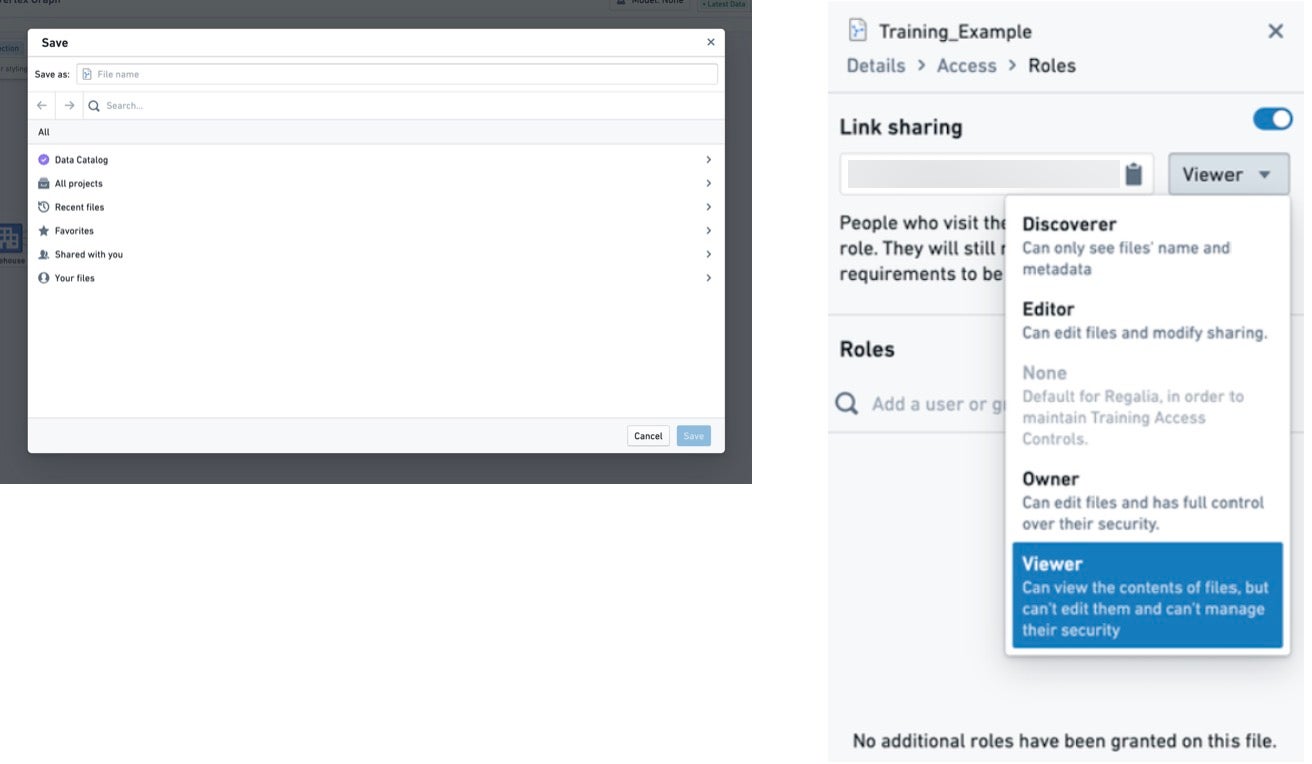
Sharing a graph will not grant users access to any other resources to which a user does not already have access. When opening a graph, if a user does not have access to any objects or time series referenced in the graph due to permissions or deleted data, they will still see the structure and shape of the graph. The user will not see the specific data pertaining to the objects.
Duplicate existing graphs
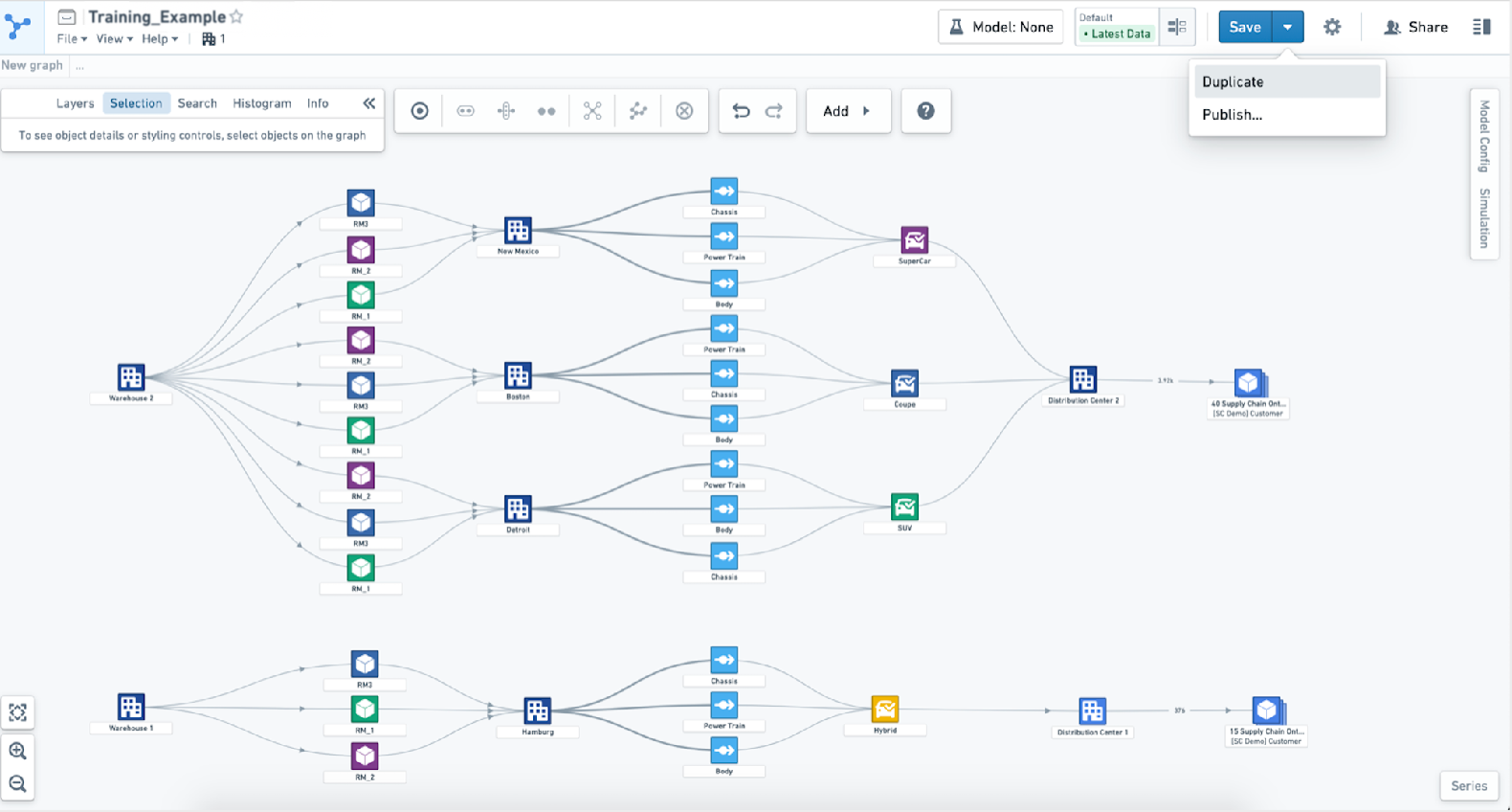
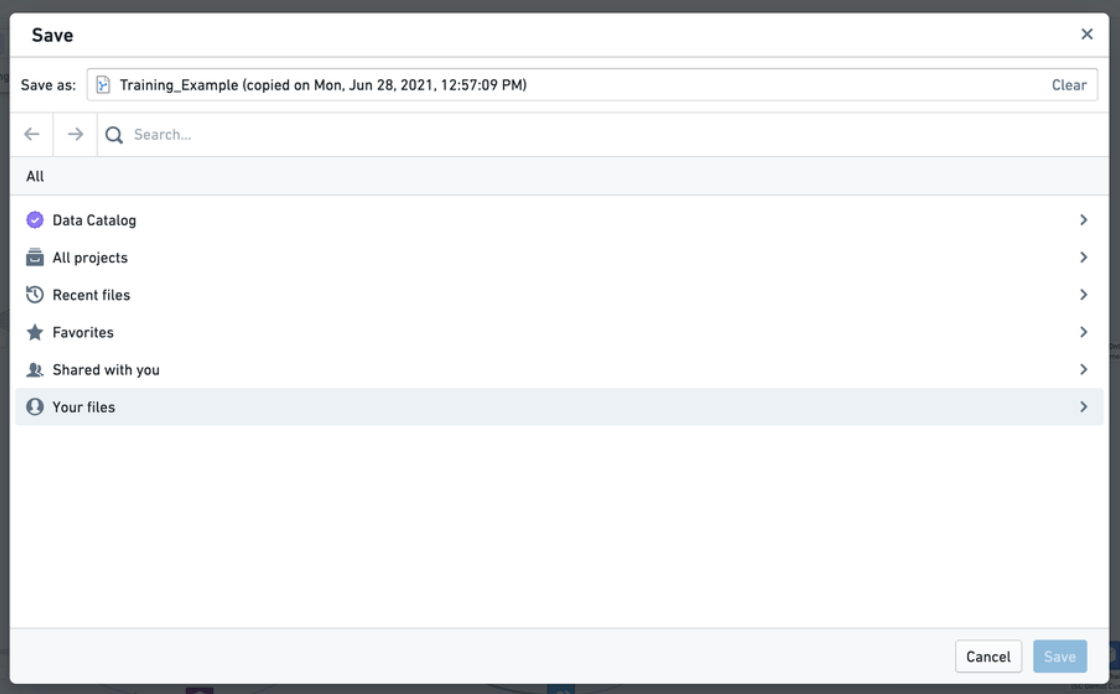
If you would like to work from an existing graph, you can select Duplicate from the dropdown Save menu. This action will prompt you to save a copy of the graph in a new project of your choice. Duplicating creates a new graph that you can work from without making changes to the original.
Version control
If you would like to keep track of changes to your graph over time, you can select Enable versioning from the dropdown Save menu. Subsequent saves will create a new version of the graph.
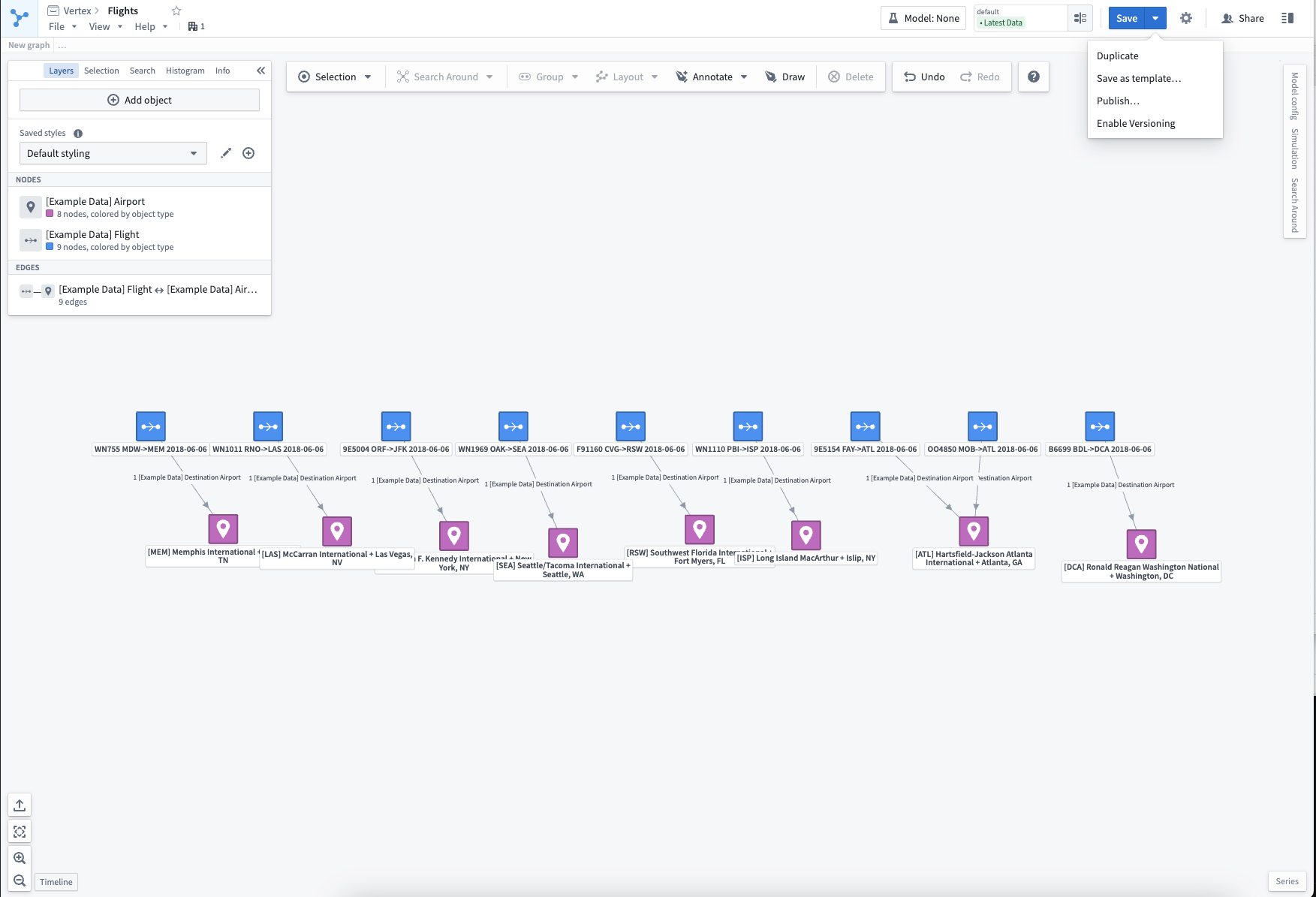
A full version history can be viewed in the Graph History sidebar. Previous versions of the graph can be accessed in read-only mode (the current version number will be visible in the resource header).
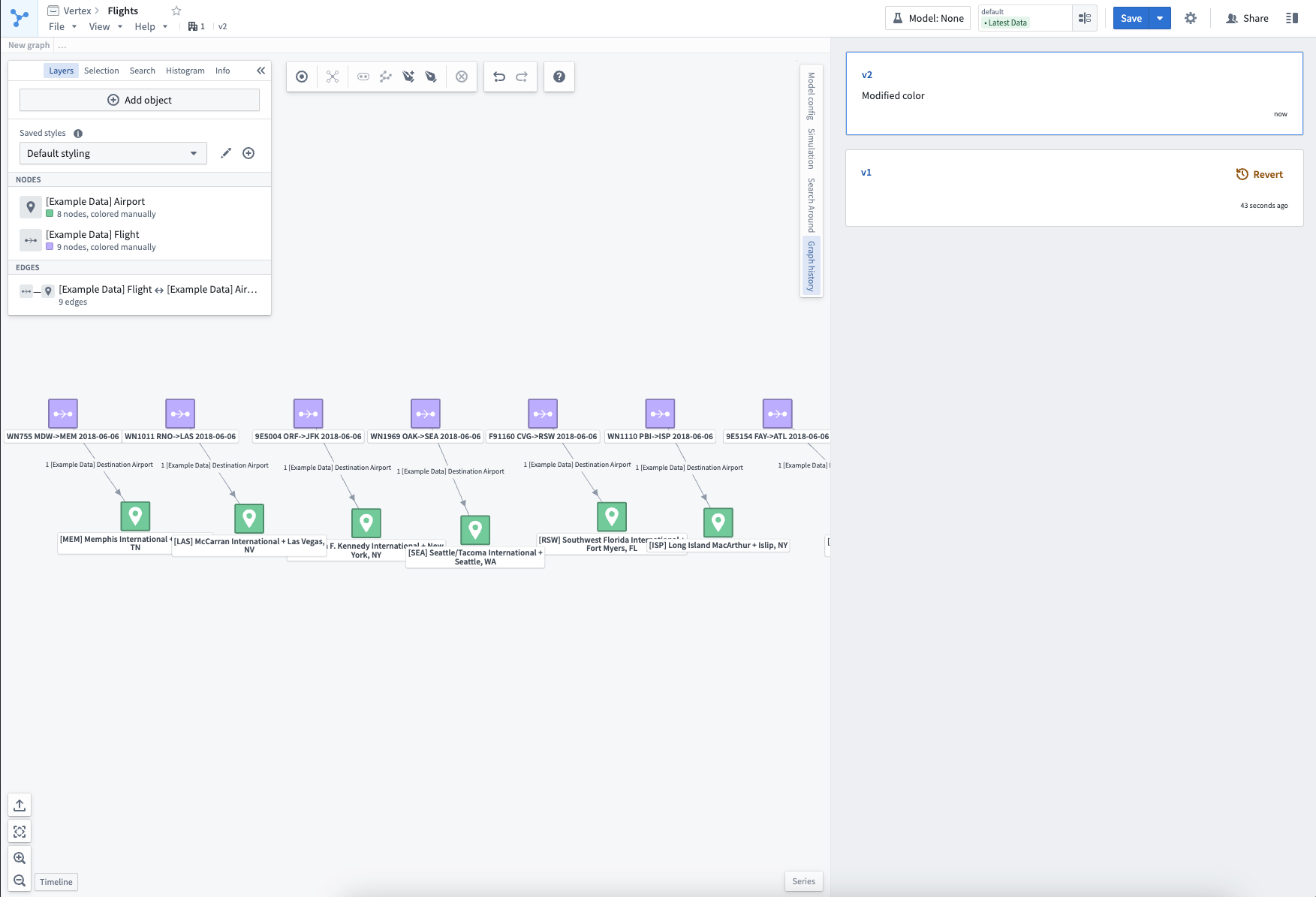
By selecting Revert from the Graph History sidebar, a new version will be created with the same contents of the selected version.
中文翻译
保存、分享与协作
您可以通过多种方式保存和分享您的系统图谱(System Graph)或案例研究(Case Study)。
保存草稿
点击顶部工具栏中的 另存为(Save as) 将提示您在相关的 Foundry 项目中保存图谱。图谱仅对拥有该项目访问权限的用户可见。首次保存草稿后,点击 保存(Save) 即可更新状态。
如果您希望更广泛地分享此图谱,可以从顶部工具栏的 分享(Share) 菜单中开启链接分享。在此菜单中,您可以选择希望允许用户在使用分享链接时拥有的相关权限角色。当其他人访问该链接时,您将在 角色(Roles) 下看到他们的用户名。
分享图谱不会授予用户访问其尚未拥有权限的其他任何资源的权限。当打开图谱时,如果用户因权限限制或数据删除而无法访问图谱中引用的任何对象(Object)或时间序列(Time Series),他们仍将看到图谱的结构和形状,但不会看到与这些对象相关的具体数据。
复制现有图谱
如果您希望基于现有图谱进行工作,可以从 保存(Save) 下拉菜单中选择 复制(Duplicate)。此操作将提示您将图谱副本保存到您选择的新项目中。复制操作会创建一个新的图谱,您可以在不修改原图的情况下进行工作。
版本控制
如果您希望跟踪图谱随时间的变化,可以从 保存(Save) 下拉菜单中选择 启用版本控制(Enable versioning)。后续的保存操作将创建图谱的新版本。
完整的版本历史记录可以在 图谱历史(Graph History) 侧边栏中查看。图谱的先前版本可以以只读模式访问(当前版本号将显示在资源标题中)。
通过在图谱历史侧边栏中选择 还原(Revert),将创建一个包含所选版本相同内容的新版本。