Getting started(入门指南)
Scenarios allow you to understand the impact of different conditions or decision paths by asking "What if?" questions of your system. Vertex leverages existing models authored, published, and orchestrated within Foundry to provide an interface for visualizing modeled interactions across your system and selectively overriding key parameters to understand alternative Actions that can be taken to reach optimal outputs.
Add Actions
You can test how using pre-configured Actions to modify objects in your Ontology may potentially impact both your local and overall system.
Select Actions
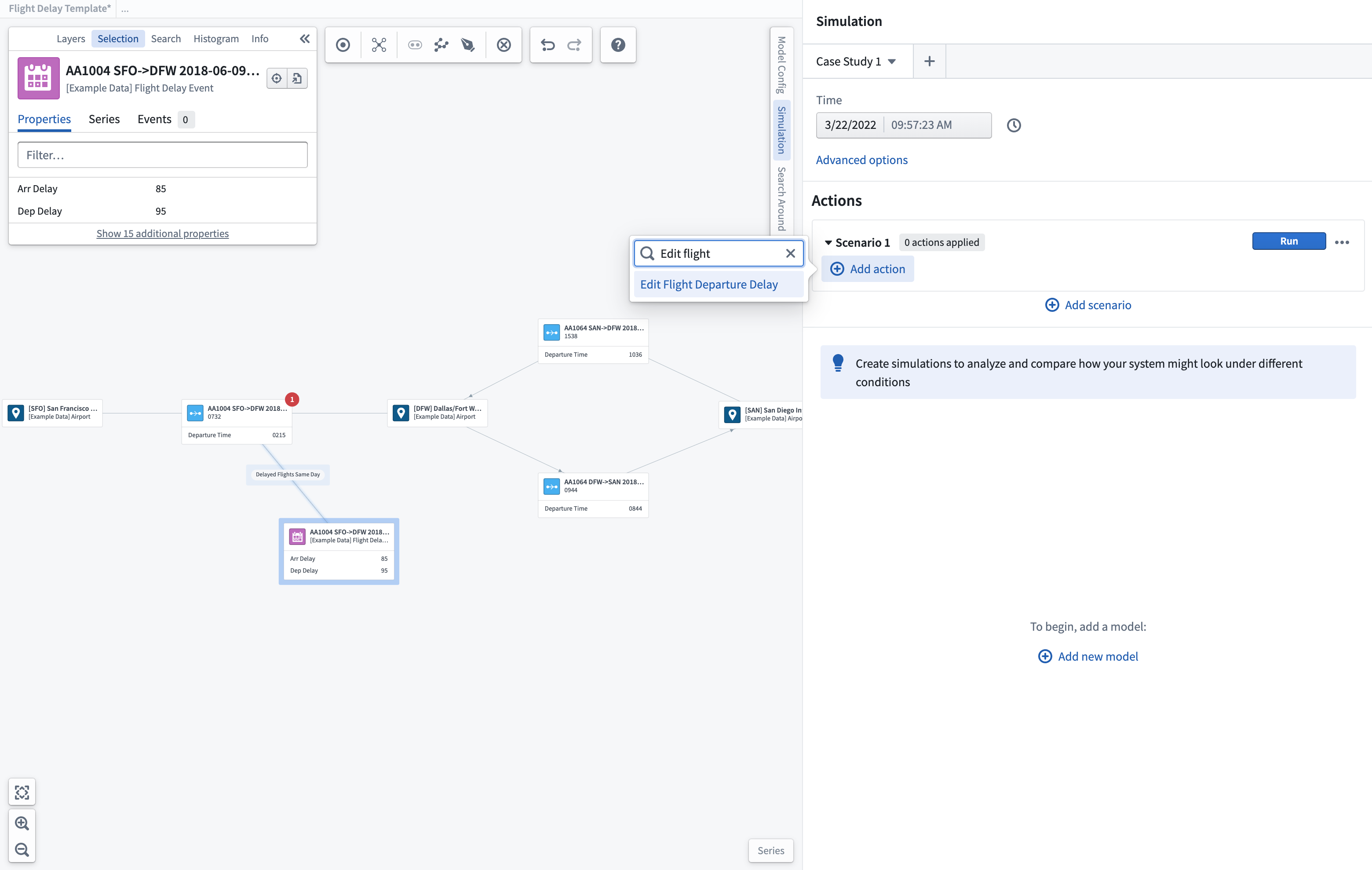
To begin adding Actions, first select the Add scenario button. This will create a new scenario to which you can add Actions. You can expand the scenario section by selecting the scenario and selecting the Add Action button.
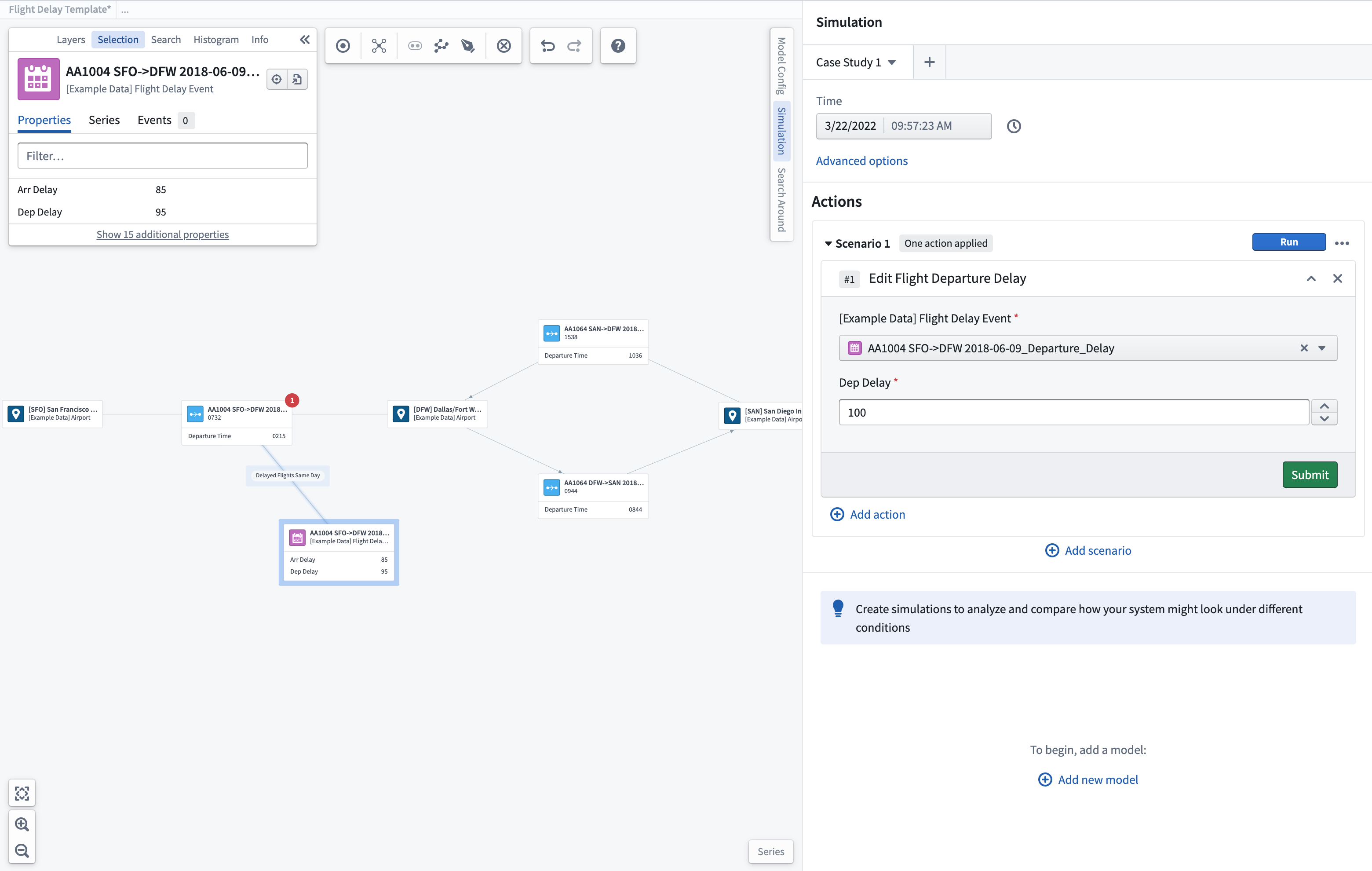
After choosing which Action to add, you must update the parameters of the Action and select Submit to save this Action within your scenario.
You may then run this scenario and view the effects of the Actions you created.
You may also add additional Actions or continue on to add models to a scenario to further simulate the effects on your system.
Select models [Sunset]
:::callout{theme="warning" title="Sunset"} The model selection, configuration, and run process described below is in the sunset phase of development and will be deprecated at a future date. Full support remains available. To continue using models in Vertex scenarios, we recommend configuring a function for the model, importing that function into a function-backed Action, then following the instructions listed above. :::
You can select from existing models or functions that have been published within Foundry and bound to the Ontology using Modeling Objectives. Within Vertex, you can create a scenario case study to investigate and understand the local processes and quantify how individual changes may impact local and connected systems.
New model selection
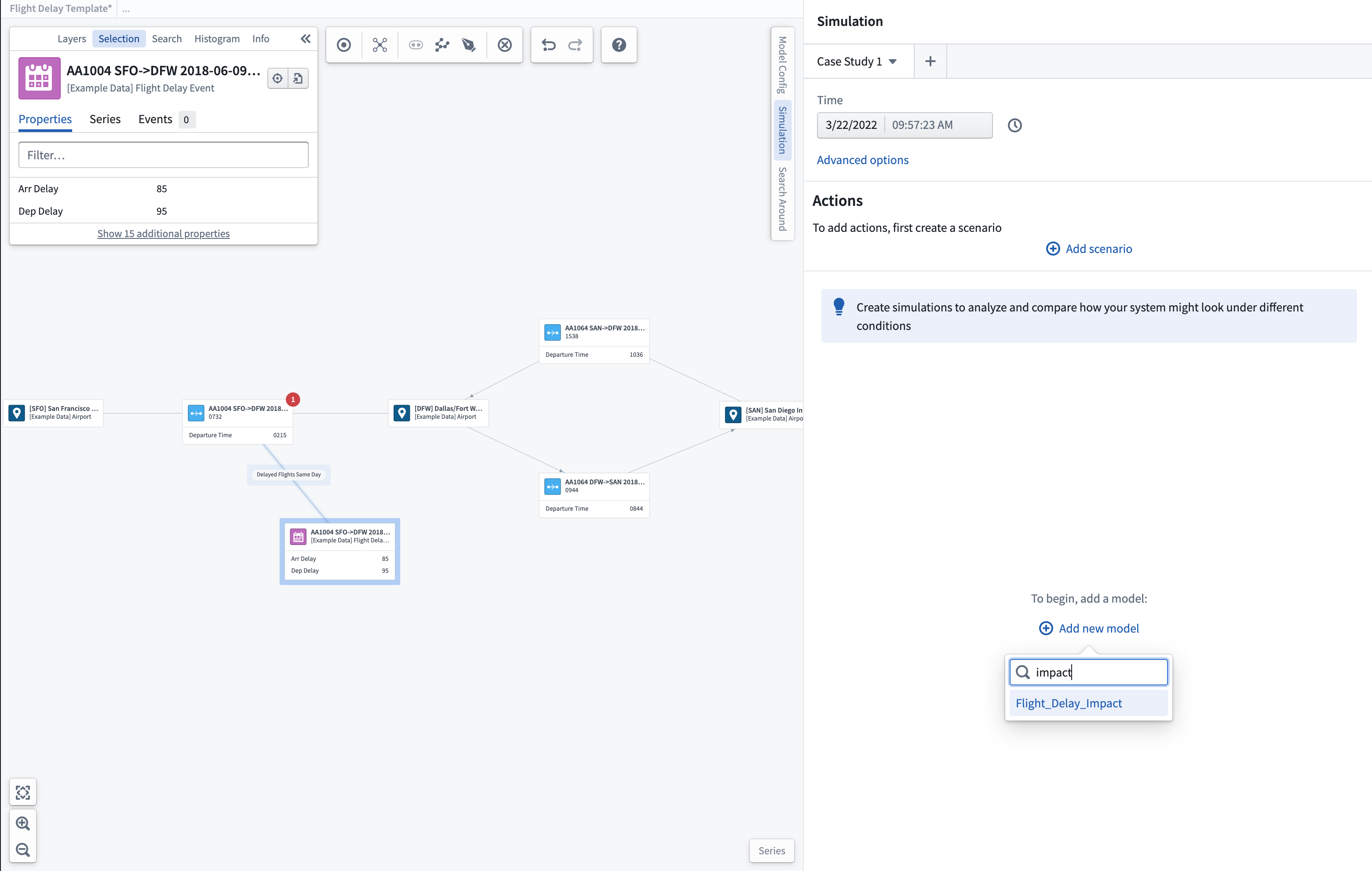
To start a new investigation, you can select from any published models. Select Add new model and search for the relevant model for your process.
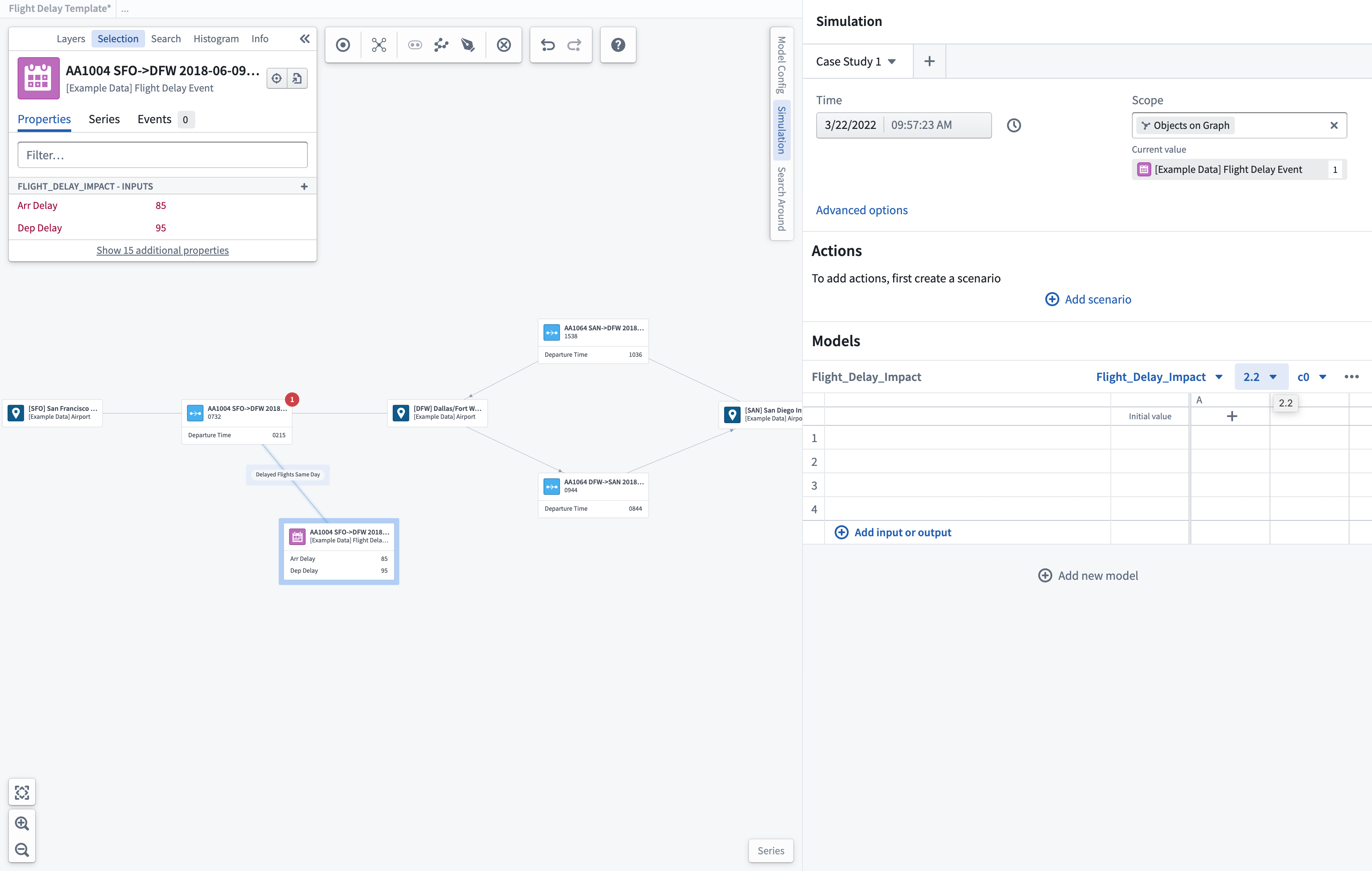
This will add the selected model to the scenario pane and allow you to select the correct model and configuration versions to start your new case study.
Default model selection
When exploring an existing system or process, you can choose to run scenarios from the recommended pre-configured default models.
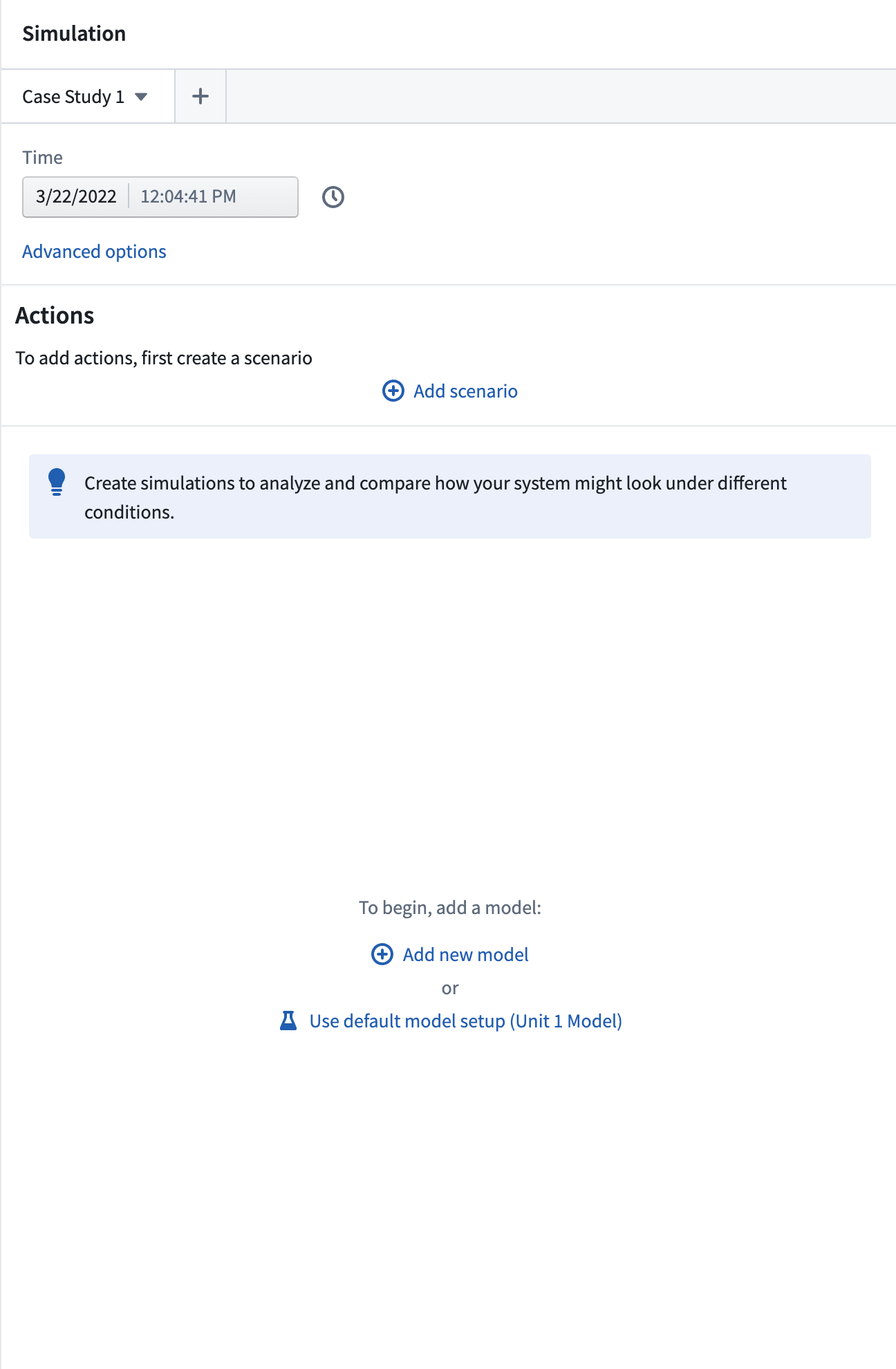
This will add the relevant models to the scenario pane and allow you to select the correct model and configuration versions to start your new case study.
Learn more about the options that can be configured for your scenario.
Select input/output parameters
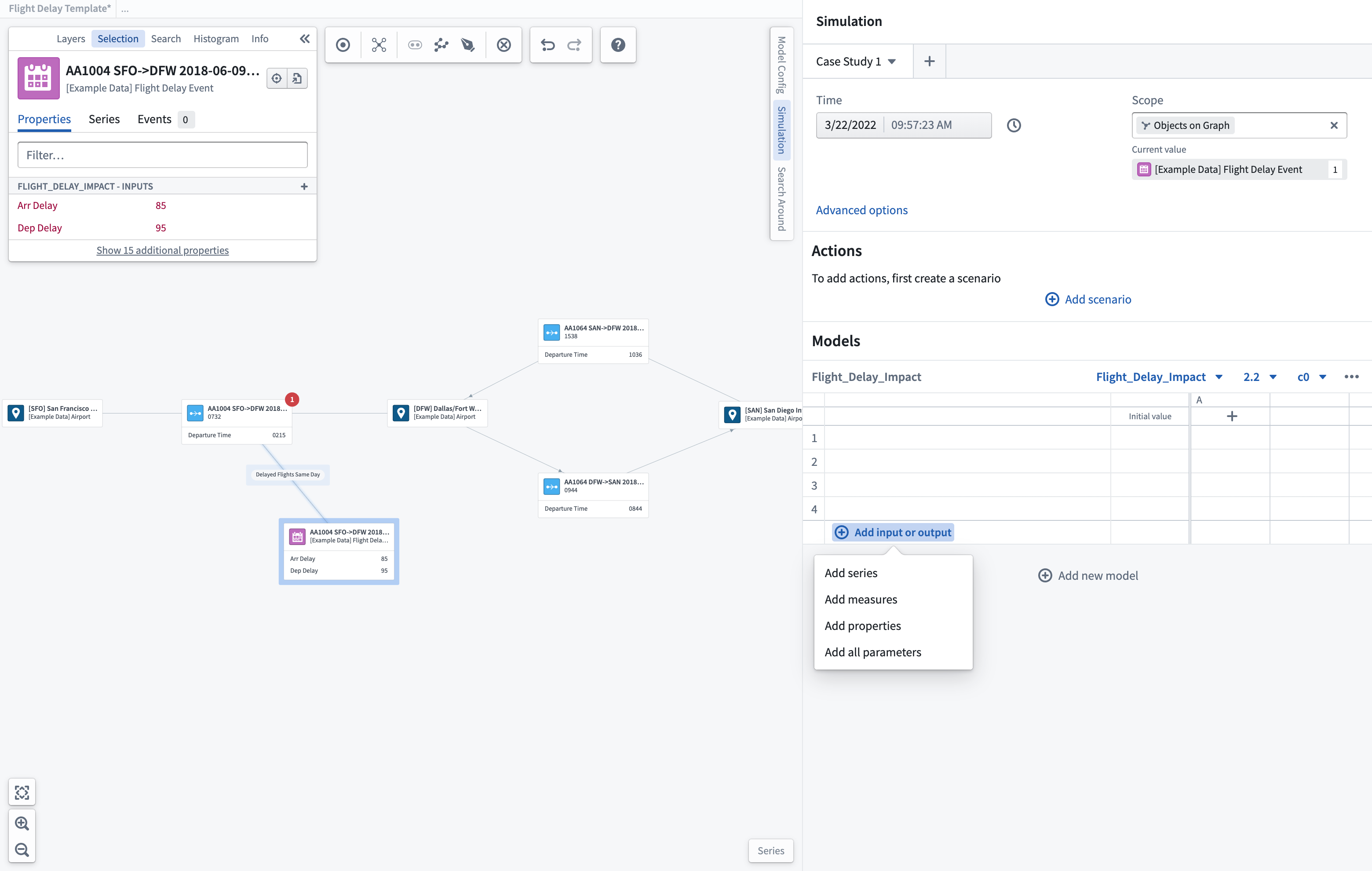
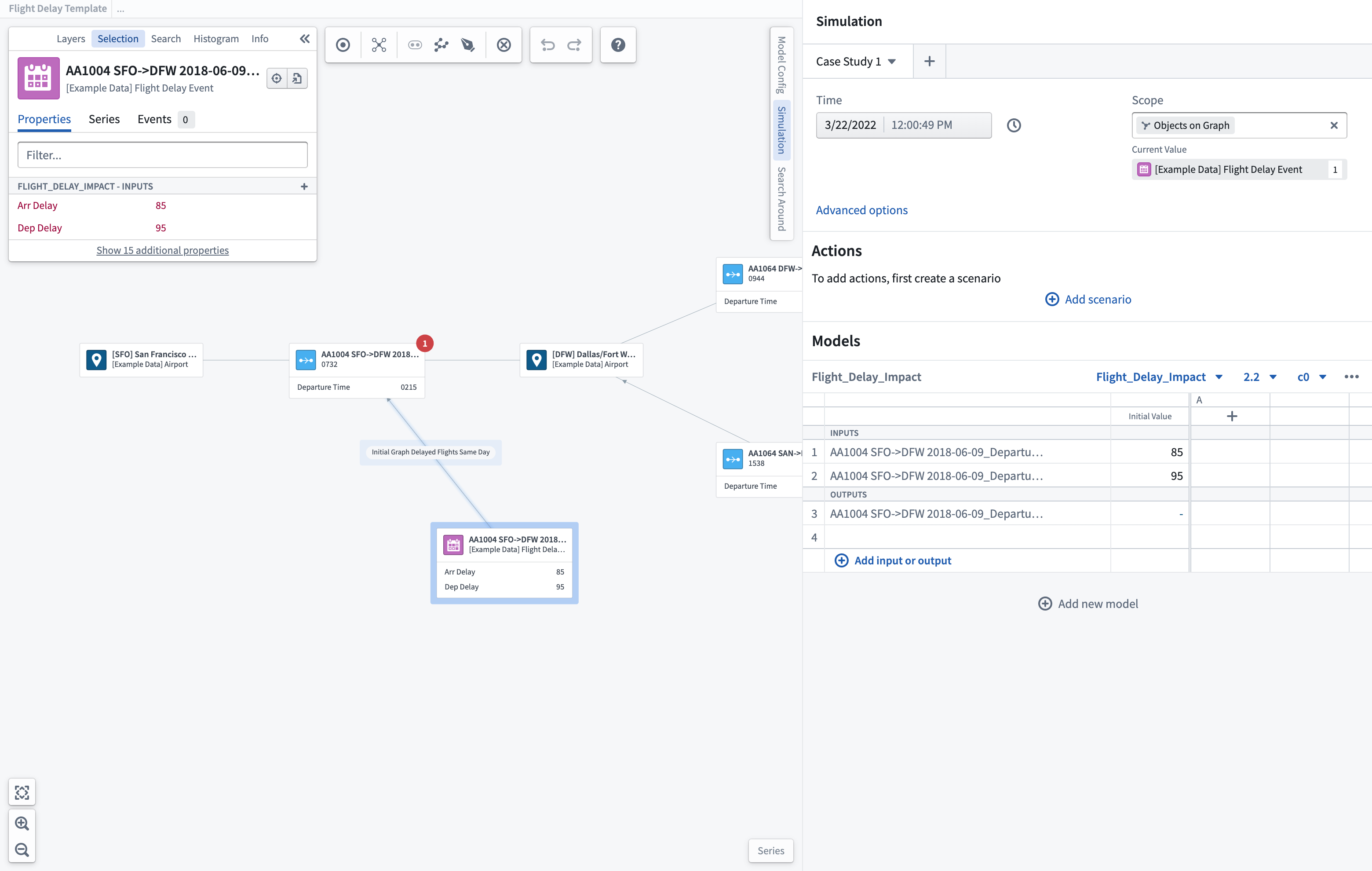
You can add the parameters you want to display within the scenario table using the + Add input or output option. From here, you can choose to add individual time series, object properties, or measures to your scenario. This will open a search and selection box with the configured inputs/outputs available for the selected model. You can also default to Add all parameters that have been pre-configured. Any parameters chosen will be shown within the scenario table; if the parameter is an input, it can be overridden by manually editing the value within the scenario table prior to running a scenario.
:::callout Once the model is selected, any properties used as input/output parameters will be shown in the object selection panel. :::
Run a scenario
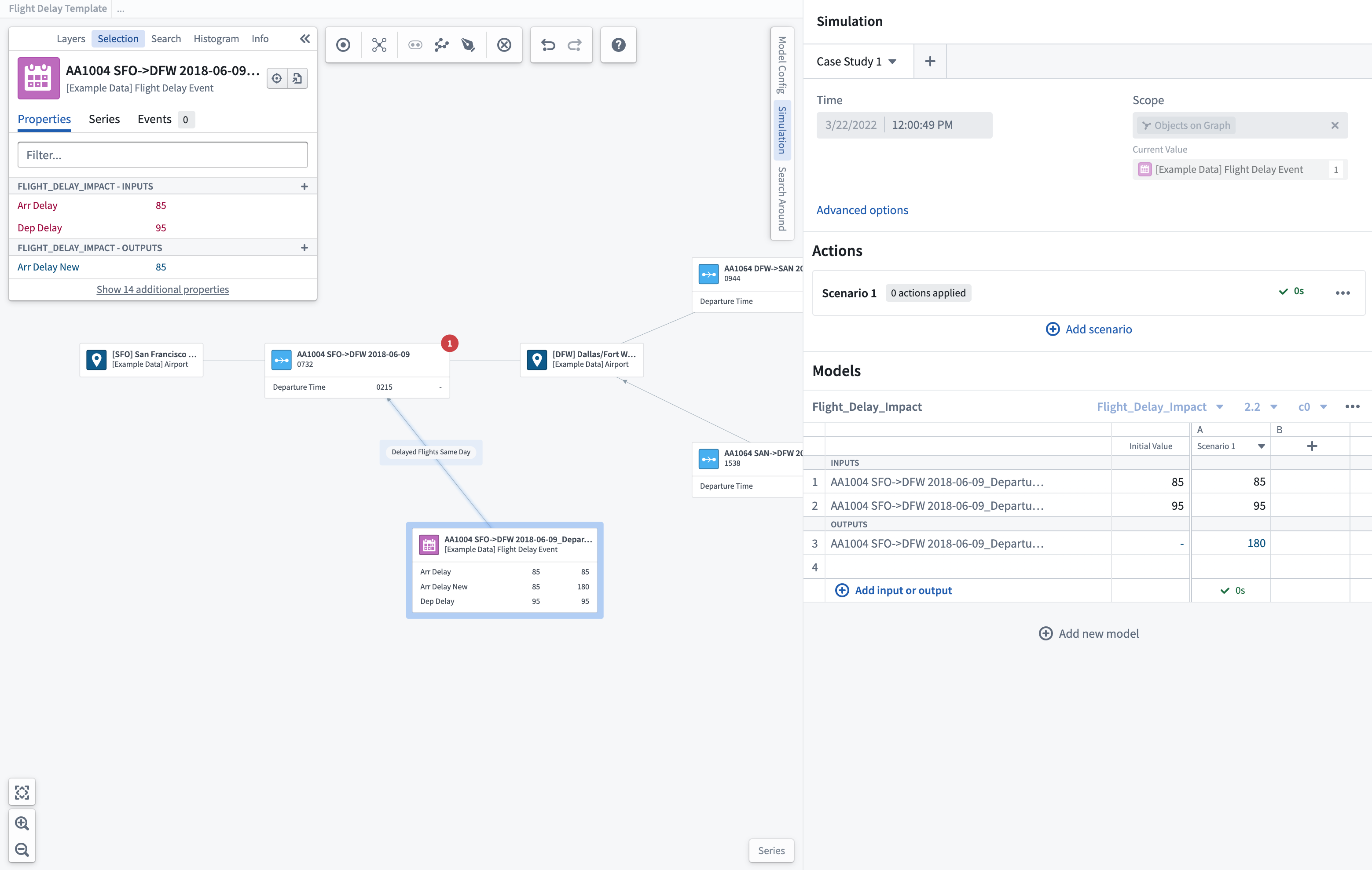
Once parameters have been added, the current value of the parameter will be shown for the inputs using the currently selected time for any time series parameters. Selecting Run will generate a scenario to calculate the modeled outputs based on the input values shown. Once completed, the scenario will show a green checkmark and the time taken for outputs to be generated.
Build your "what if" case study
To test possible solutions, you can build your case study and iterate through "what if" scenarios.
Input override conditions by selecting the parameter to override and inputting the new simulated input. This will highlight the box with the override.
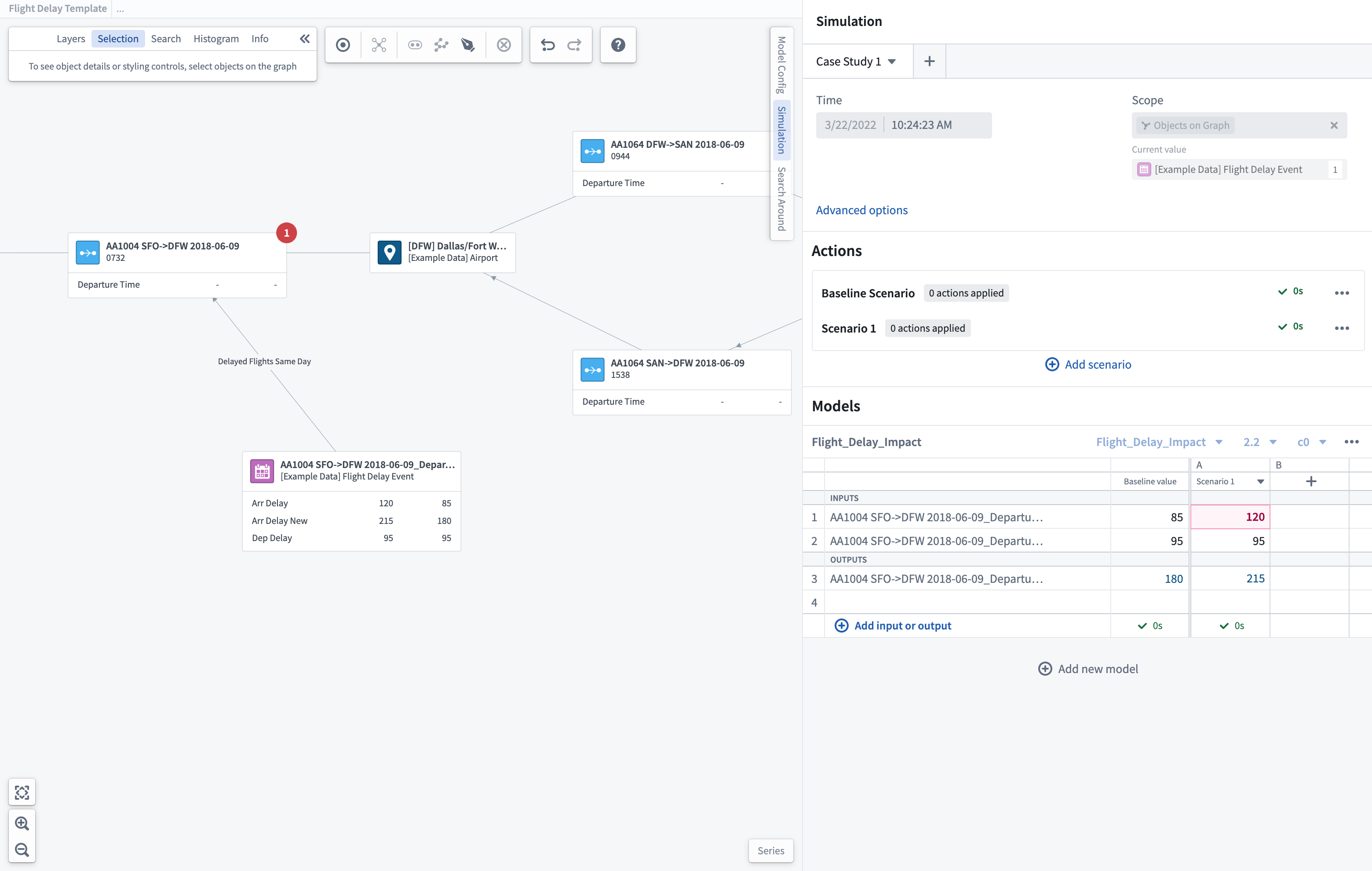
Running a scenario with override values will show the newly calculated outputs for comparison to the baseline scenario that was run. You can continue to add different scenario runs to investigate the optimal outputs.
Simulated values will be shown as comparisons to the readouts added to the object node extended labels.
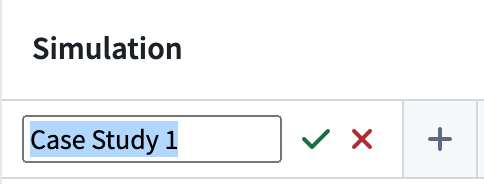
Once you have completed a set case study, you can rename this at the top of the scenario pane. You may want to create multiple different case studies to investigate different conditions across the same system. You may also rename individual scenarios to better capture the Actions which are involved.
Chained models
Learn how to configure chained models.
中文翻译
入门指南
场景(Scenarios) 允许您通过向系统提出"假设(What if)"问题,来理解不同条件或决策路径的影响。Vertex 利用在 Foundry 中创作、发布和编排的现有模型,提供一个可视化界面,让您了解系统中的建模交互,并有选择性地覆盖关键参数,以了解为达到最优输出可采取的替代行动(Actions)。
添加行动(Actions)
您可以测试使用预配置的行动(Actions)来修改本体论(Ontology)中的对象,可能会对局部和整体系统产生何种影响。
选择行动(Actions)
要开始添加行动(Actions),首先选择 添加场景(Add scenario) 按钮。这将创建一个新场景,您可以在其中添加行动(Actions)。您可以通过选择场景并点击 添加行动(Add Action) 按钮来展开场景部分。
选择要添加的行动(Action)后,您必须更新该行动(Action)的参数,然后选择 提交(Submit) 以将该行动(Action)保存到场景中。
然后,您可以运行此场景并查看所创建行动(Actions)的效果。
您还可以添加更多行动(Actions),或继续向场景添加模型,以进一步模拟对系统的影响。
选择模型 [已弃用(Sunset)]
:::callout{theme="warning" title="已弃用(Sunset)"} 下面描述的模型选择、配置和运行流程正处于开发阶段的已弃用(Sunset)阶段,并将在未来某个日期停止使用。目前仍提供全面支持。要继续在 Vertex 场景中使用模型,我们建议为模型配置函数,将该函数导入到函数支持的行动(Function-backed Action)中,然后按照上述说明操作。 :::
您可以从已在 Foundry 中发布并使用建模目标(Modeling Objectives)绑定到本体论(Ontology)的现有模型或函数中进行选择。在 Vertex 中,您可以创建一个场景案例研究,以调查和了解局部流程,并量化单个更改可能如何影响局部和关联系统。
新建模型选择
要开始新的调查,您可以从任何已发布的模型中进行选择。选择 添加新模型(Add new model) 并搜索与您的流程相关的模型。
这会将所选模型添加到场景面板中,并允许您选择正确的模型和配置版本,以开始新的案例研究。
默认模型选择
在探索现有系统或流程时,您可以选择从推荐的预配置默认模型运行场景。
这会将相关模型添加到场景面板中,并允许您选择正确的模型和配置版本,以开始新的案例研究。
选择输入/输出参数
您可以使用 + 添加输入或输出(Add input or output) 选项,添加要在场景表中显示的参数。在此处,您可以选择将单个时间序列、对象属性或度量(Measures)添加到场景中。这将打开一个搜索和选择框,其中包含所选模型的已配置输入/输出。您也可以默认选择 添加所有参数(Add all parameters)(即已预配置的参数)。所选参数将显示在场景表中;如果参数是输入,则可以在运行场景之前通过手动编辑场景表中的值来覆盖它。
:::callout 一旦选择了模型,任何用作输入/输出参数的属性都将显示在对象选择面板中。 :::
运行场景
添加参数后,对于任何时间序列参数,将使用当前所选时间显示输入的当前值。选择 运行(Run) 将生成一个场景,根据显示的输入值计算建模输出。完成后,场景将显示一个绿色复选标记以及生成输出所花费的时间。
构建您的"假设(What if)"案例研究
要测试可能的解决方案,您可以构建案例研究并迭代"假设(What if)"场景。
通过选择要覆盖的参数并输入新的模拟输入来设置输入覆盖条件。这将高亮显示带有覆盖的框。
使用覆盖值运行场景将显示新计算的输出,以便与之前运行的基线场景进行比较。您可以继续添加不同的场景运行,以研究最优输出。
模拟值将作为与添加到对象节点扩展标签的读数进行比较而显示。
完成一组案例研究后,您可以在场景面板顶部重命名它。您可能希望创建多个不同的案例研究,以调查同一系统中的不同条件。您也可以重命名单个场景,以更好地捕捉所涉及的行动(Actions)。