Use time selection(使用时间选择(Time selection))
By choosing the Time selection bar at the top of the workspace, you can set a time window and scroll through to understand how your system changes over time. You can also use the date selector to set a time window if there is a specific time range of interest.
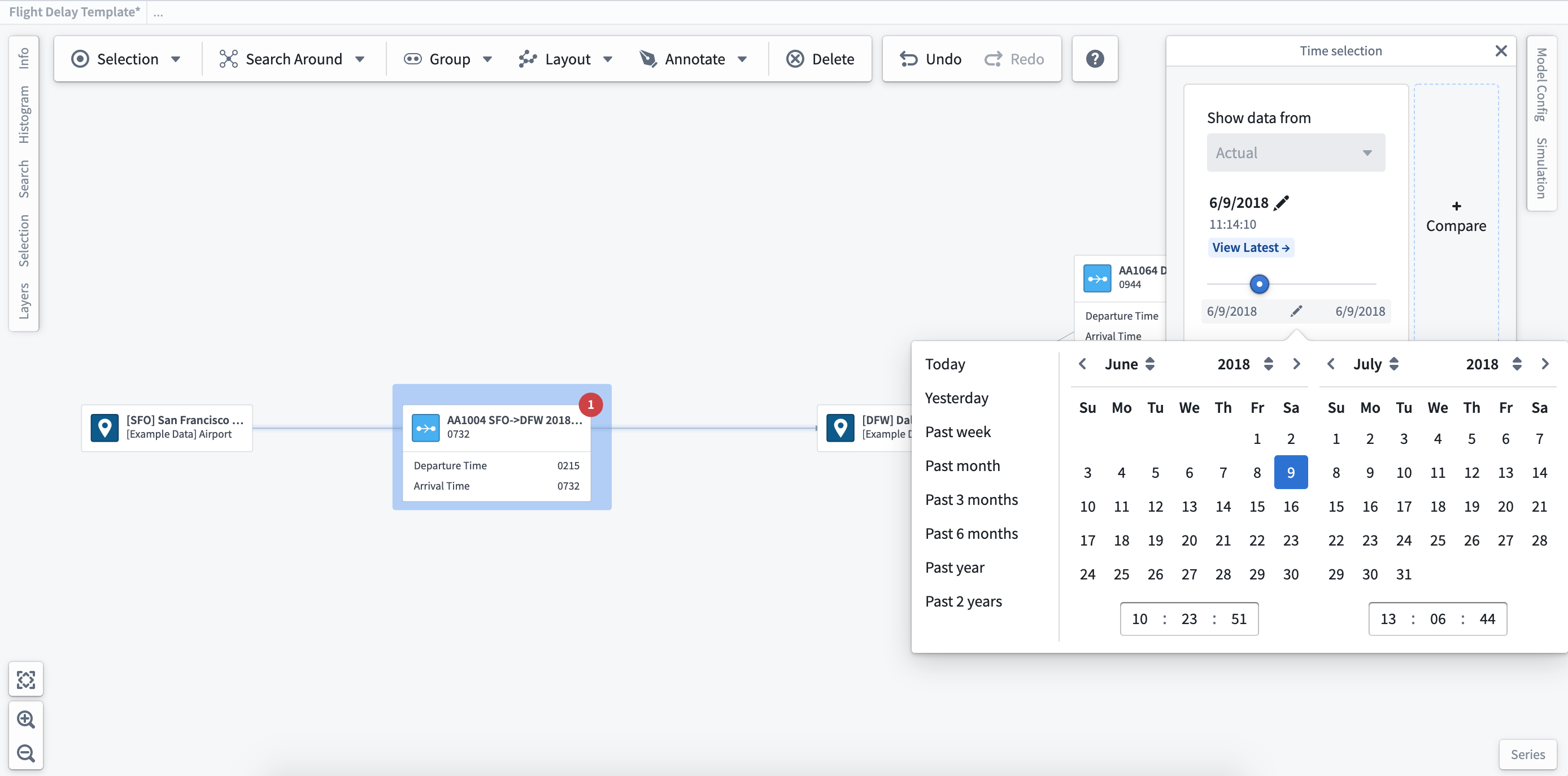
You can choose to create multiple time selections for comparison. Click on the + Compare button to the right of the Time selection pane to create additional time selections. As you compare selected time windows, the values shown on the extended labels/readouts on the graph will update. These updates allow you to visualize and compare changes over time.
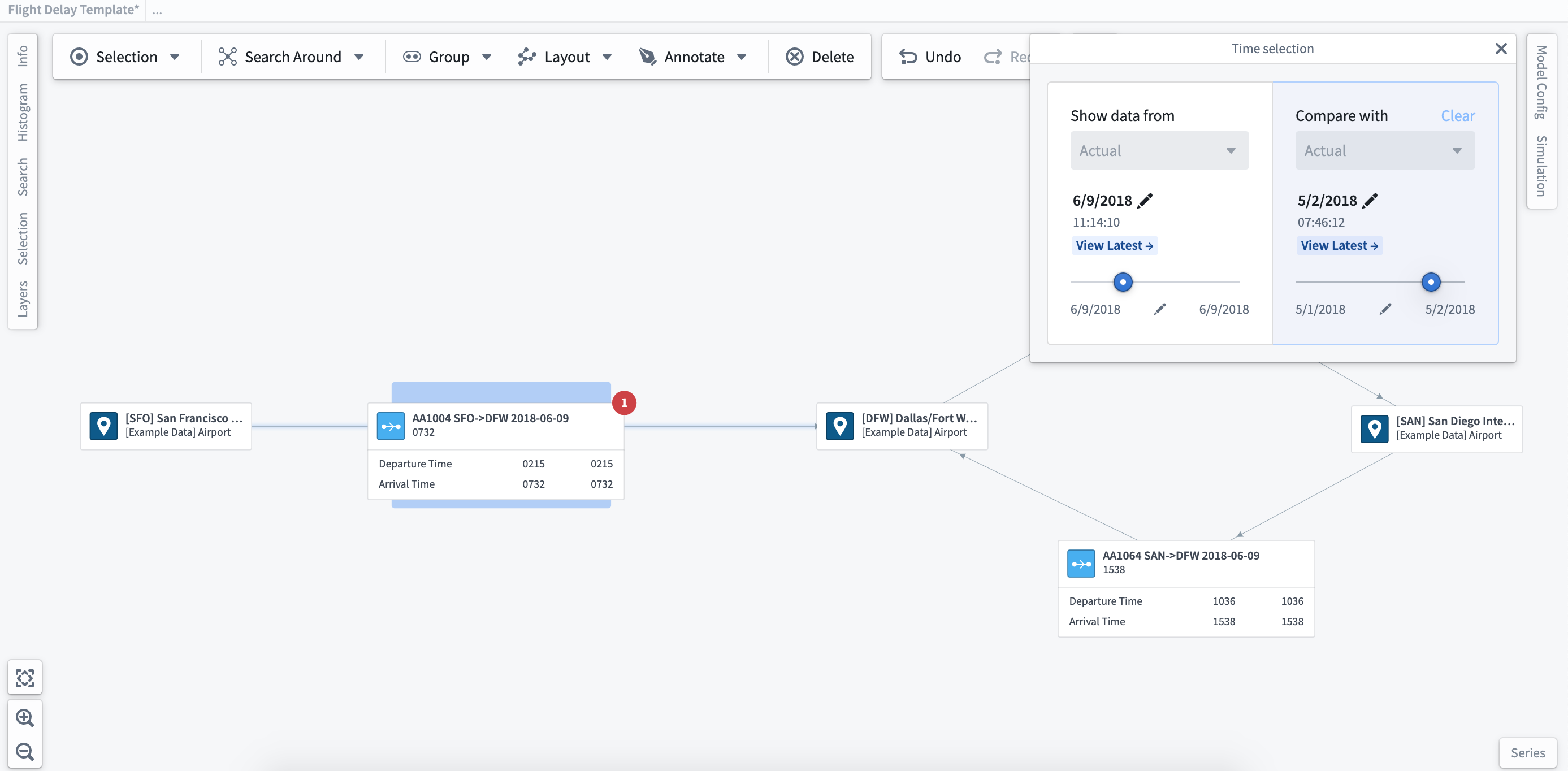
:::callout If you have a simulation case study, you can select it from the dropdown to compare modeled values. :::
中文翻译
使用时间选择(Time selection)
通过选择工作区顶部的时间选择栏,您可以设定一个时间窗口并滚动浏览,以了解系统随时间的变化情况。如果您有特定的时间范围需求,也可以使用日期选择器来设置时间窗口。
您可以选择创建多个时间选择以进行比较。点击时间选择窗格右侧的+ 比较按钮,即可添加额外的时间选择。在比较所选时间窗口时,图表上扩展标签/读数显示的值将随之更新。这些更新让您能够直观地观察并比较随时间发生的变化。
:::callout 如果您有模拟案例研究(simulation case study),可以从下拉菜单中选择它,以比较建模后的数值。 :::