Create or select a time series object type(创建或选择时序对象类型)
To add time series properties to an existing object type, follow the Choose existing object type path in the setup assistant. Proceed to the section on how to set up time series properties for next steps.
To create a new object type, you must first have a time series object type backing dataset. If you do not already have a dataset matching this desired schema, then you will need to create one in Pipeline Builder.
While it is possible to create a new object type as an ontology output in Pipeline Builder, we recommend creating the time series object type backing dataset in Pipeline Builder and then following the setup assistant to create the new object type. Follow the steps below to prepare the dataset in Pipeline Builder.
Prepare time series object type backing dataset
Before creating a new time series object type, you must first have a time series object type backing dataset. The following instructions describe how to create a time series object type backing dataset in Pipeline Builder.

- First, focus on creating a dataset where each row represents a single object for the new object type. This dataset needs a primary key column that can be used to uniquely identify an object and a column for each non-time-series property on an object.
-
Next, allow this object type backing dataset to support time series by adding a series ID for each time series property. You will likely add this through one of the following transformations in Pipeline Builder, depending on the shape of your data:
- You have a single dataset for all measurements and/or a large number of series.
- You have multiple datasets for a single measurement/sensor type.
Multiple datasets (manual creation of new series ID columns)
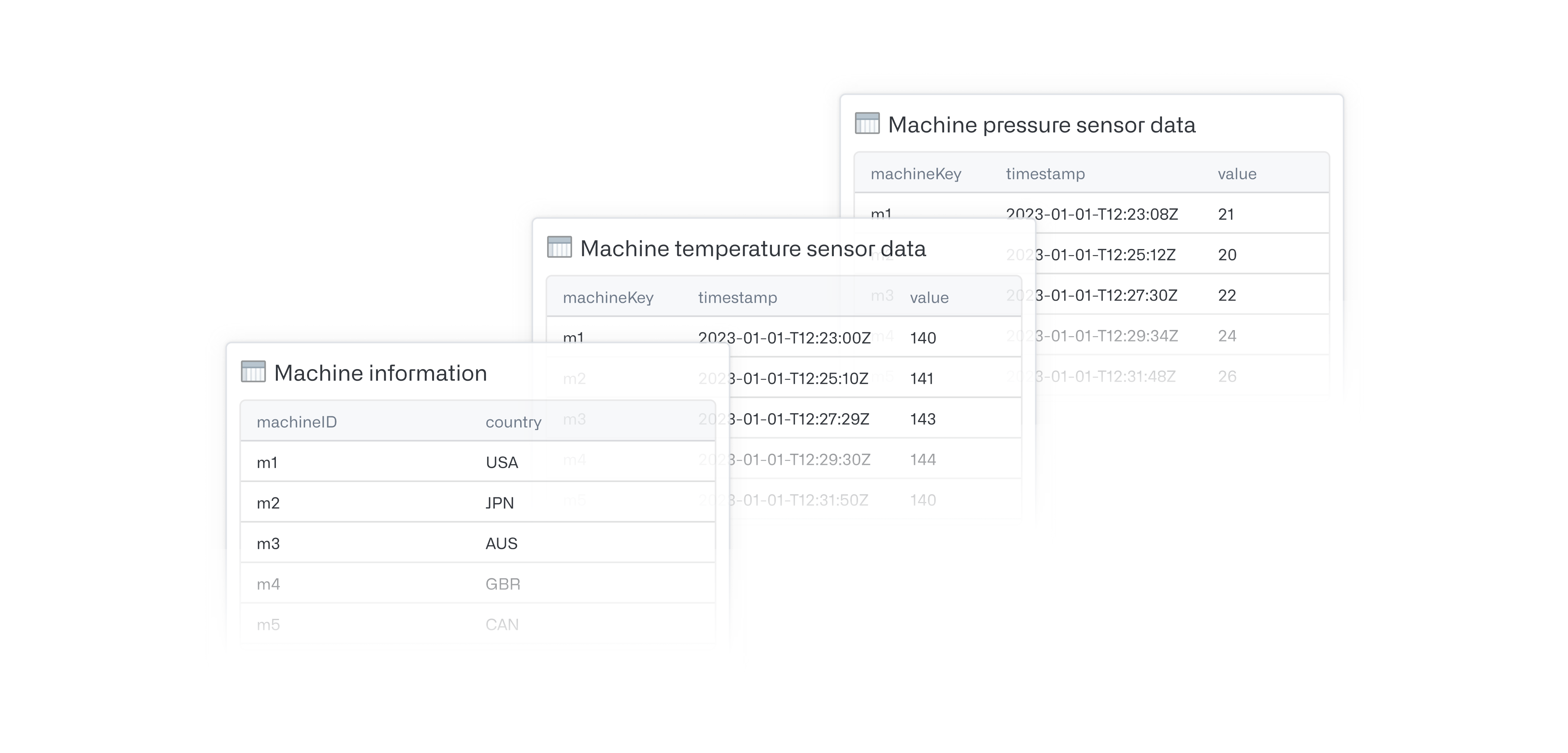
Start with the dataset containing information about the objects (for example, the Machine information in the image below):
- Add a
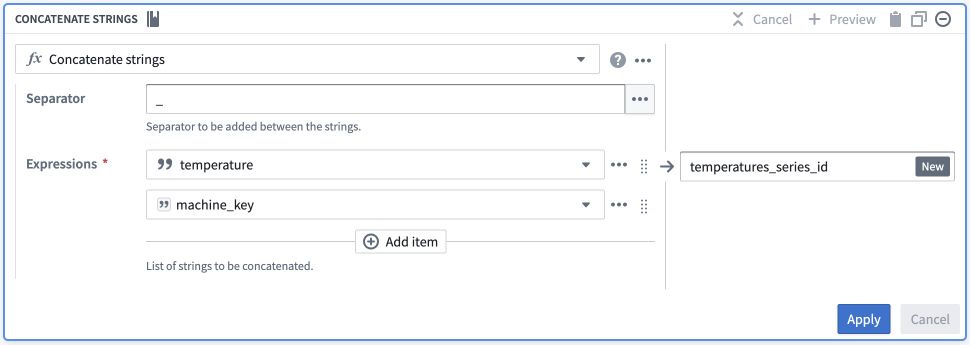
Concatenate stringstransformation in Pipeline Builder. - Pick a common separator, such as an underscore (
_). - Configure your expressions:
- Enter a Value type input, and set this value to be the name of your series (for example,
temperature). - Enter a Column type input, and set this to be your primary/object key.
- Enter a Value type input, and set this value to be the name of your series (for example,
- Name this new column to easily identify it as the series ID for this specific series (for example,
temperatureortemperature_series_id).
Single dataset or large number of series
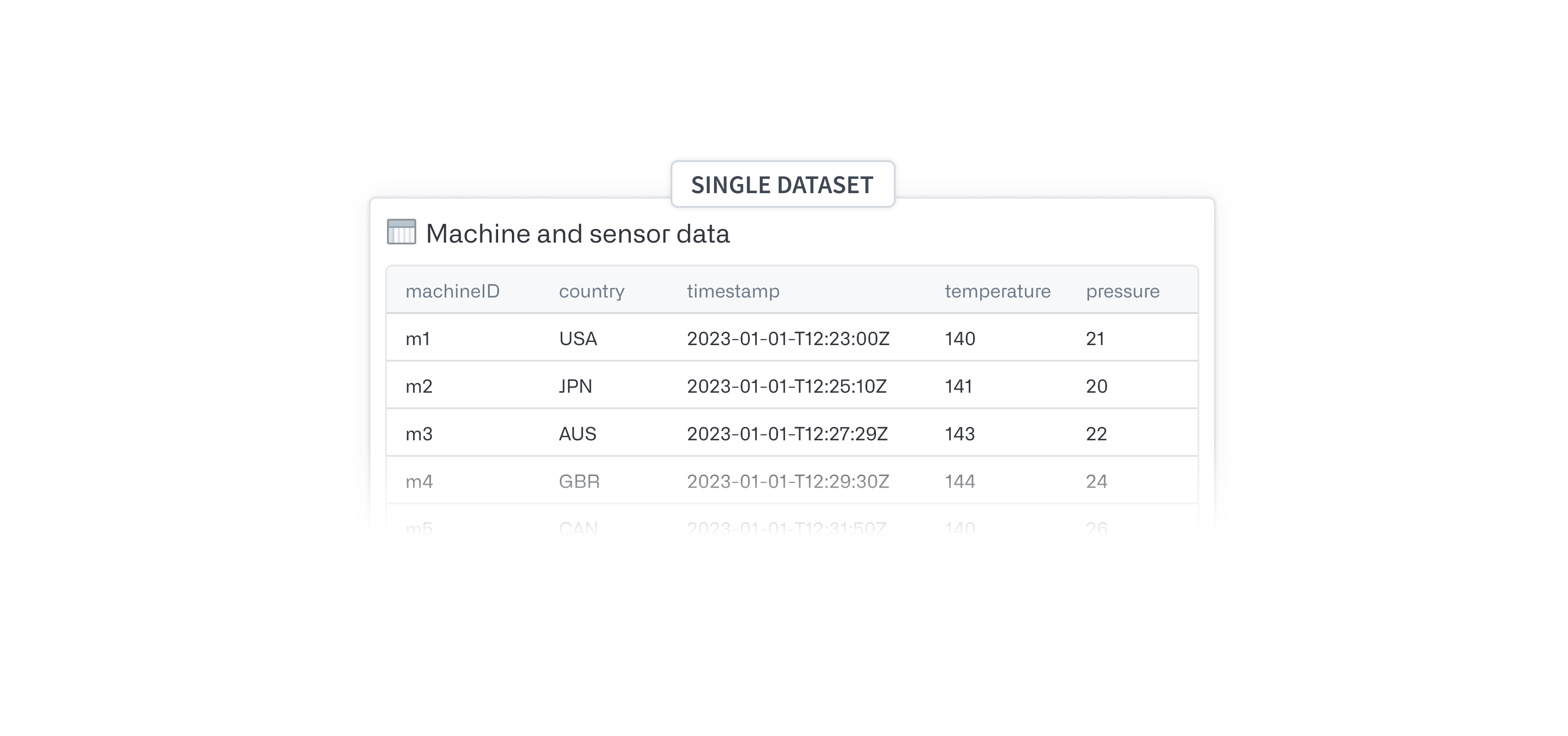
Avoid manually creating each new series ID column by creating a dataset that has each series name as a column name via a join. Once you have this single dataset, follow these instructions:
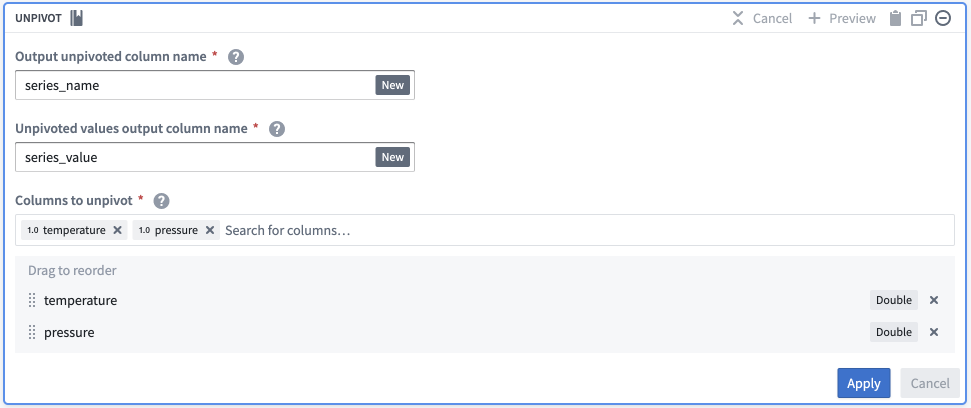
- Add an
Unpivottransformation. - Set Output unpivoted column name as
series_name. - Set Unpivoted values output column name as
series_value. -
In the Columns to unpivot field, pick all columns with a series name.
-
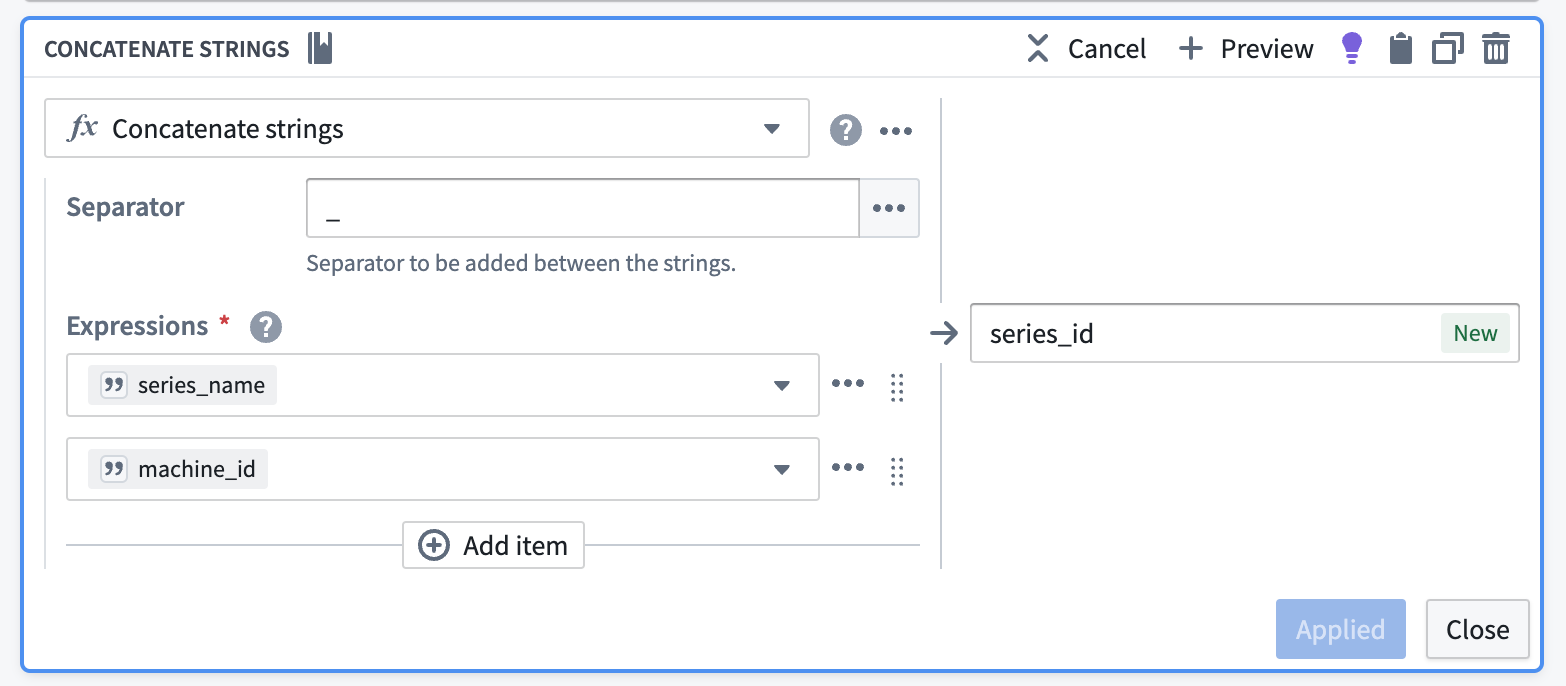
Add a
concatenate stringstransformation to generate the series ID. - Pick a common separator, such as an underscore (
_). -
Configure your expressions:
- Enter
series_nameas the first input. - Enter the object key as the second input (
machine_idin the screenshot below).
- Enter
-
Name this new output
series_id.
-
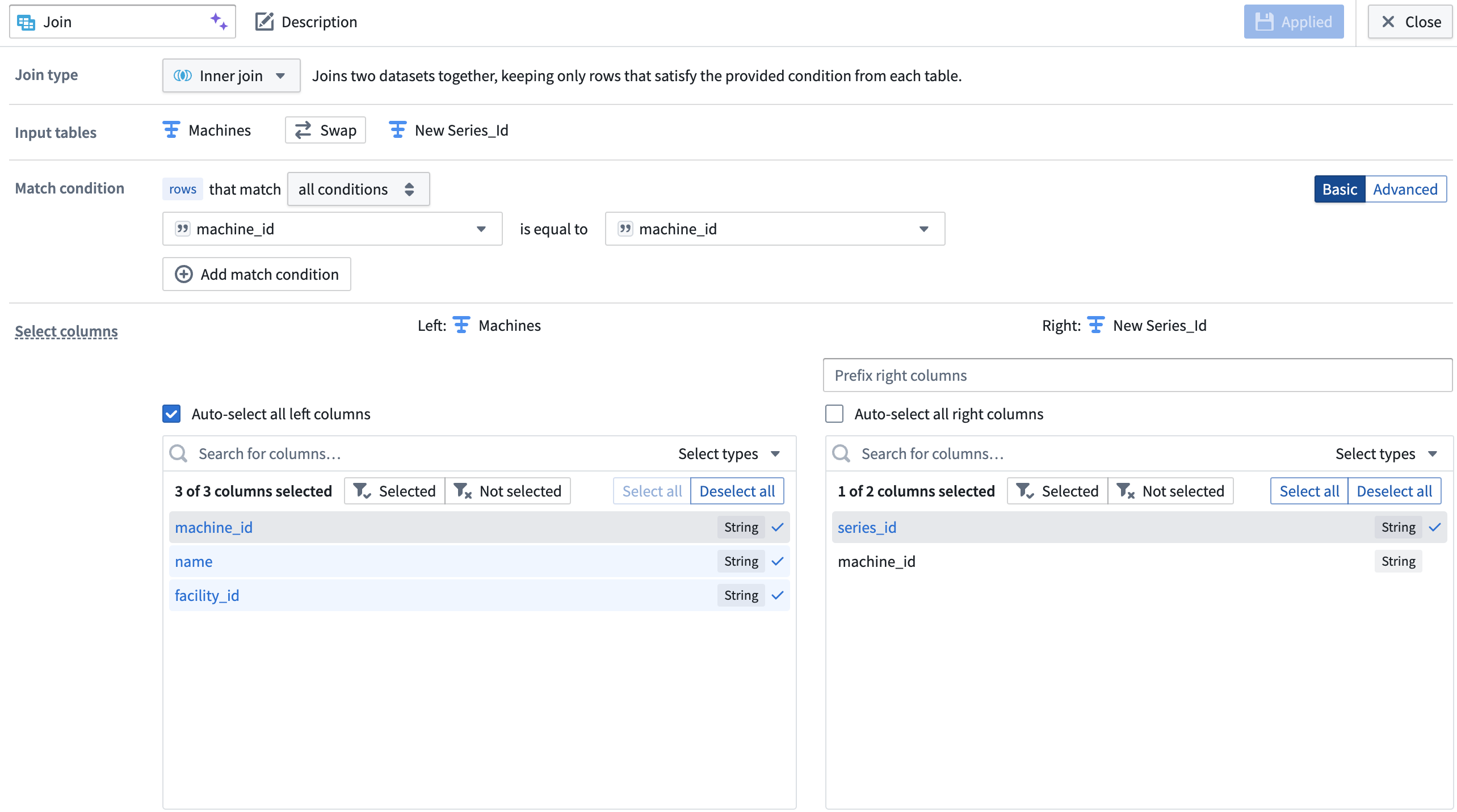
Join the series ID columns back to your object type backing dataset on the object key (
machine_idin the screenshot below). The backing dataset of your new time series object type now has theseries_idyou created in addition to other object type metadata.
Multiple datasets for a single measurement type
:::callout{theme="warning"} Your object type must be in Object Storage V2 to back a time series property with multiple time series syncs. :::
Since sensor data is often powered by multiple data sources, it can be challenging to normalize and transform all sensor data within one dataset. Sometimes, it is not possible to do this because some sensors hold categorical data and others contain numerical data; different data types cannot exist within one time series sync. To avoid the need to transform and unify all sensor data into one time series dataset, you can link a time series property to multiple time series syncs. To do this, you must have a column of qualified series IDs on your object type backing dataset. Create a qualified series ID by following the steps below. Note that you will need to create your time series sync before following these steps.
-
Add the backing data for each of the time series syncs that back your time series property to your pipeline by selecting Add data in Pipeline Builder.
-
For each of your time series sync datasets, select only the series ID column and deduplicate the resulting single-column dataset.
-
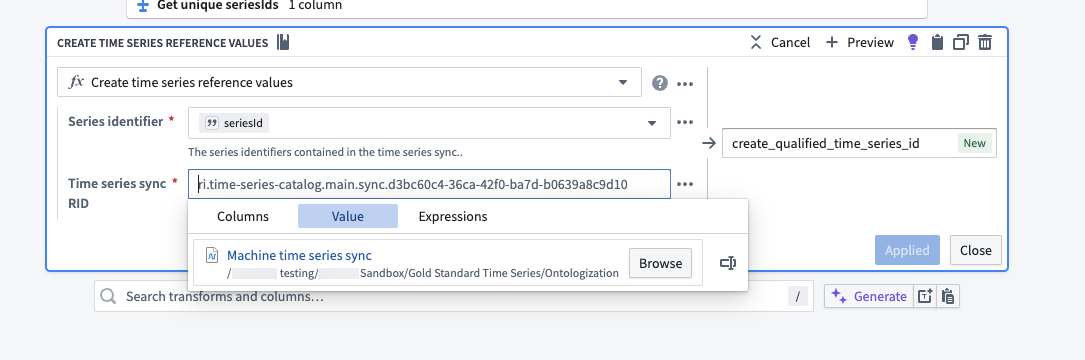
Add a
Create time series reference valuestransformation. Use the series ID column as the Series identifier and select the appropriate time series sync as the Time series sync RID. Name the new columnqualified_time_series_idor similar.
-
Join the qualified series ID column back to your object type backing dataset. This step requires that the series IDs in your object type backing dataset are unique.
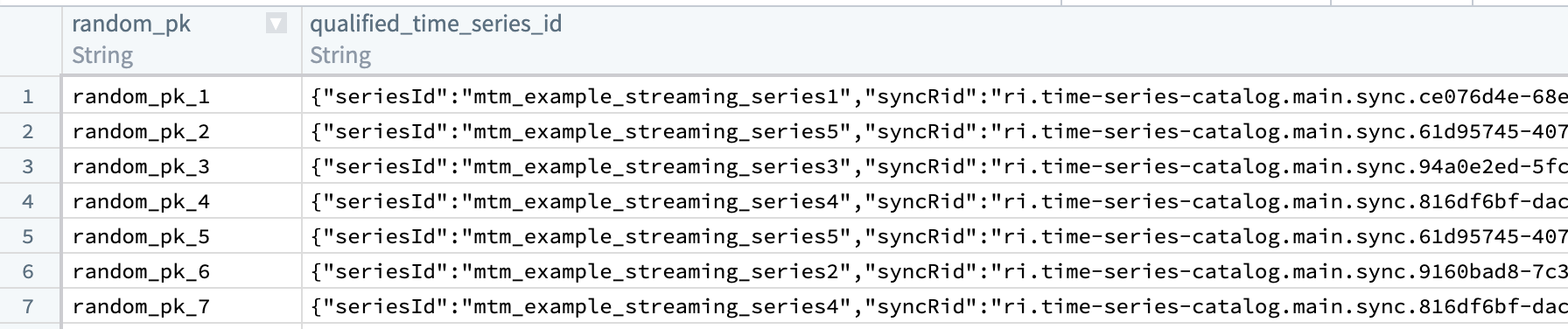
The resulting dataset should look like the example below. The seriesId corresponds to the series identifier in the sync dataset, and the syncRid corresponds to the RID of the sync that stores that series.
Create a new time series object type
Once you have prepared your time series object type backing dataset, follow the path in the setup assistant to Create a new object type. This path will redirect you to the Ontology Manager object creation setup assistant where you will select the new dataset as your backing datasource. Upon completion of the assistant dialog, you will be ready to set up time series properties.
:::callout{theme="warning"} If you launch the object creation setup assistant directly from the Ontology Manager home page (that is, not from the time series setup assistant), the assistant will not redirect you to the new object type’s Capabilities tab upon completion. :::
中文翻译
创建或选择时序对象类型
要为现有对象类型添加时序属性,请按照设置助手(setup assistant)中的选择现有对象类型路径操作。后续步骤请参阅设置时序属性部分。
要创建新的对象类型,首先需要拥有时序对象类型支持数据集。如果尚未拥有符合所需模式的数据集,则需要在Pipeline Builder中创建一个。
虽然可以在Pipeline Builder中通过本体输出创建新对象类型,但我们建议先在Pipeline Builder中创建时序对象类型支持数据集,然后通过设置助手创建新对象类型。请按照以下步骤在Pipeline Builder中准备数据集。
准备时序对象类型支持数据集
在创建新的时序对象类型之前,必须首先拥有一个时序对象类型支持数据集。以下说明描述了如何在Pipeline Builder中创建时序对象类型支持数据集。
- 首先,专注于创建一个数据集,其中每一行代表新对象类型的一个独立对象。该数据集需要包含一个主键列(primary key column),用于唯一标识对象,以及每个非时序属性对应的列。
-
接下来,通过为每个时序属性添加系列ID,使该对象类型支持数据集支持时序。根据数据形态,您可能需要在Pipeline Builder中通过以下转换之一来添加:
- 所有测量数据位于单个数据集和/或包含大量系列。
- 单个测量类型有多个数据集。
多个数据集(手动创建新的系列ID列)
从包含对象信息的数据集开始(例如下图中的机器信息):
- 在Pipeline Builder中添加一个
连接字符串转换。 - 选择一个通用分隔符,如下划线(
_)。 - 配置表达式:
- 输入一个值类型输入,并将该值设置为系列名称(例如
temperature)。 - 输入一个列类型输入,并将其设置为主键/对象键。
- 输入一个值类型输入,并将该值设置为系列名称(例如
- 命名此新列,以便轻松识别为特定系列的系列ID(例如
temperature或temperature_series_id)。
单个数据集或大量系列
通过创建一个数据集(其中每个系列名称作为列名)并执行连接,避免手动创建每个新的系列ID列。拥有此单个数据集后,请按照以下说明操作:
- 添加一个
逆透视转换。 - 将输出逆透视列名设置为
series_name。 - 将逆透视值输出列名设置为
series_value。 -
在要逆透视的列字段中,选择所有包含系列名称的列。
-
添加一个
连接字符串转换以生成系列ID。 - 选择一个通用分隔符,如下划线(
_)。 -
配置表达式:
- 输入
series_name作为第一个输入。 - 输入对象键作为第二个输入(下图中为
machine_id)。
- 输入
-
将此新输出命名为
series_id。
-
将系列ID列按对象键(下图中为
machine_id)连接回对象类型支持数据集。新的时序对象类型的支持数据集现在除了其他对象类型元数据外,还包含您创建的series_id。
单个测量类型的多个数据集
:::callout{theme="warning"} 您的对象类型必须位于对象存储V2中,才能通过多个时序同步(time series syncs)支持时序属性。 :::
由于传感器数据通常由多个数据源提供支持,因此将所有传感器数据标准化并转换到一个数据集中可能具有挑战性。有时,由于某些传感器包含分类数据而其他传感器包含数值数据,无法实现这一点;不同的数据类型不能共存于一个时序同步中。为避免将所有传感器数据转换并统一到一个时序数据集中的需求,您可以将一个时序属性链接到多个时序同步。为此,您的对象类型支持数据集必须包含一个限定系列ID列。请按照以下步骤创建限定系列ID。请注意,在遵循这些步骤之前,您需要先创建时序同步。
-
在Pipeline Builder中选择添加数据,将支持时序属性的每个时序同步的支持数据添加到管道中。
-
对于每个时序同步数据集,仅选择系列ID列,并对生成的单列数据集进行去重。
-
添加一个
创建时序引用值转换。使用系列ID列作为系列标识符,并选择相应的时序同步作为时序同步RID。将新列命名为qualified_time_series_id或类似名称。
-
将限定系列ID列连接回对象类型支持数据集。此步骤要求对象类型支持数据集中的系列ID是唯一的。
生成的数据集应类似于以下示例。seriesId对应于同步数据集中的系列标识符,syncRid对应于存储该系列的同步的RID。
创建新的时序对象类型
准备好时序对象类型支持数据集后,请按照设置助手中的创建新对象类型路径操作。此路径将重定向到Ontology Manager对象创建设置助手,您将在其中选择新数据集作为支持数据源。完成助手对话框后,即可设置时序属性。
:::callout{theme="warning"} 如果您直接从Ontology Manager主页启动对象创建设置助手(即不是从时序设置助手启动),则助手完成后不会重定向到新对象类型的功能选项卡。 :::