Manage derived series(管理派生序列(Derived Series))
After creating a derived series from the Time Series Catalog, you will be redirected to the management page for the derived series. The page represents both the generated Palantir resource and the codex template used to perform the derived series calculations. You can also navigate to this page from the platform file system.
The management page comprises the following three primary tabs.
Overview
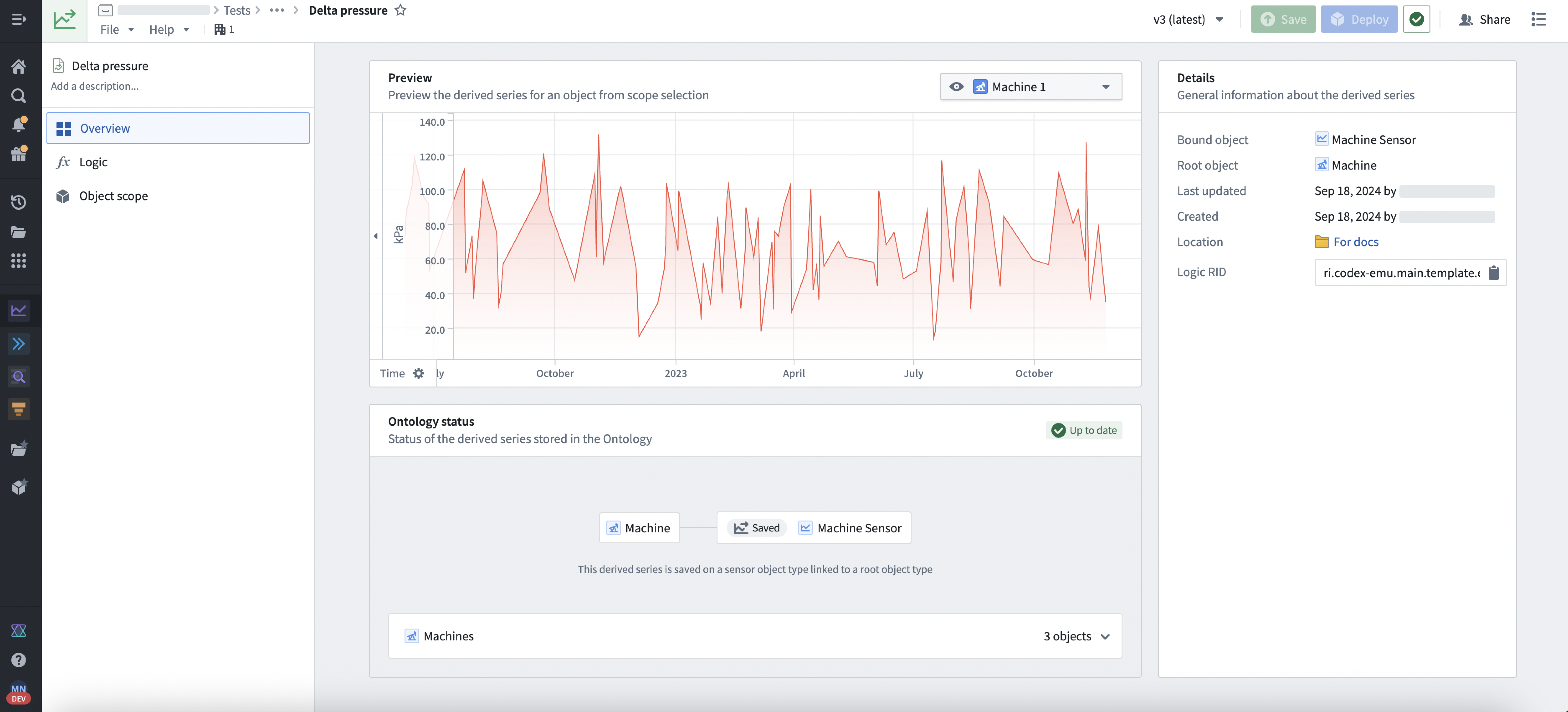
The Overview tab allows users to preview their logic, Ontology setup, and general derived series details.
Select the title or description texts to edit the title and description used in Quiver analyses and other applications. Select Save in the top right to review the changes and update the derived series display information.
Logic
The Logic tab can be used to view and edit the derived series logic. Modify the time series cards inline to edit the logic. Select Save in the top toolbar to persist changes.
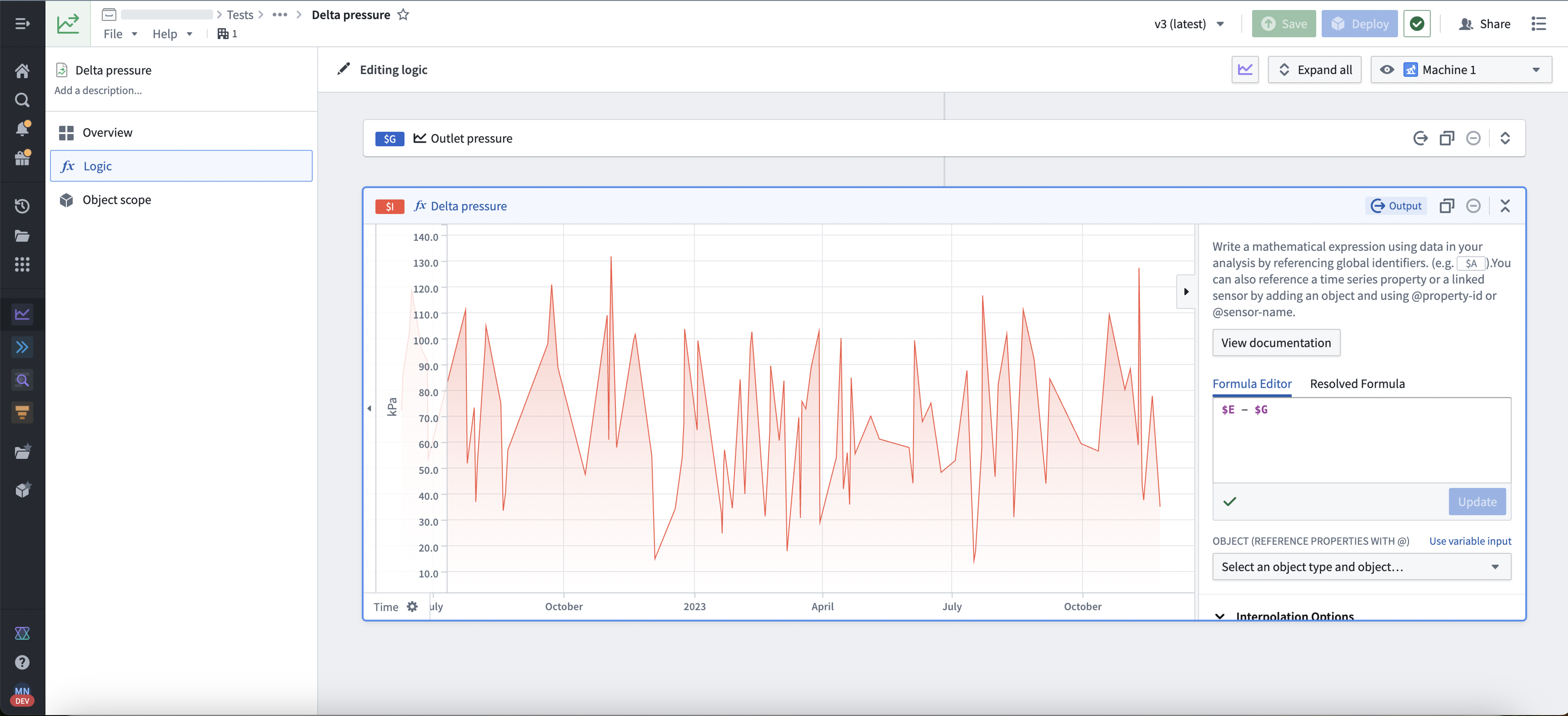
:::callout{theme="neutral"} If the derived series is manually saved to the Ontology, saved changes to logic will immediately take effect unless the derived series is pinned to a particular version in the Ontology. See the manual saving documentation to learn how to use a pinned version. Derived series objects created using automatic saving always reference a particular version. :::
Ontology
The Ontology tab is used to manage automatic saving Ontology options for a derived series. Options for automatic saving include a sensor name, a root object scope for templated derived series, and a property mapping.
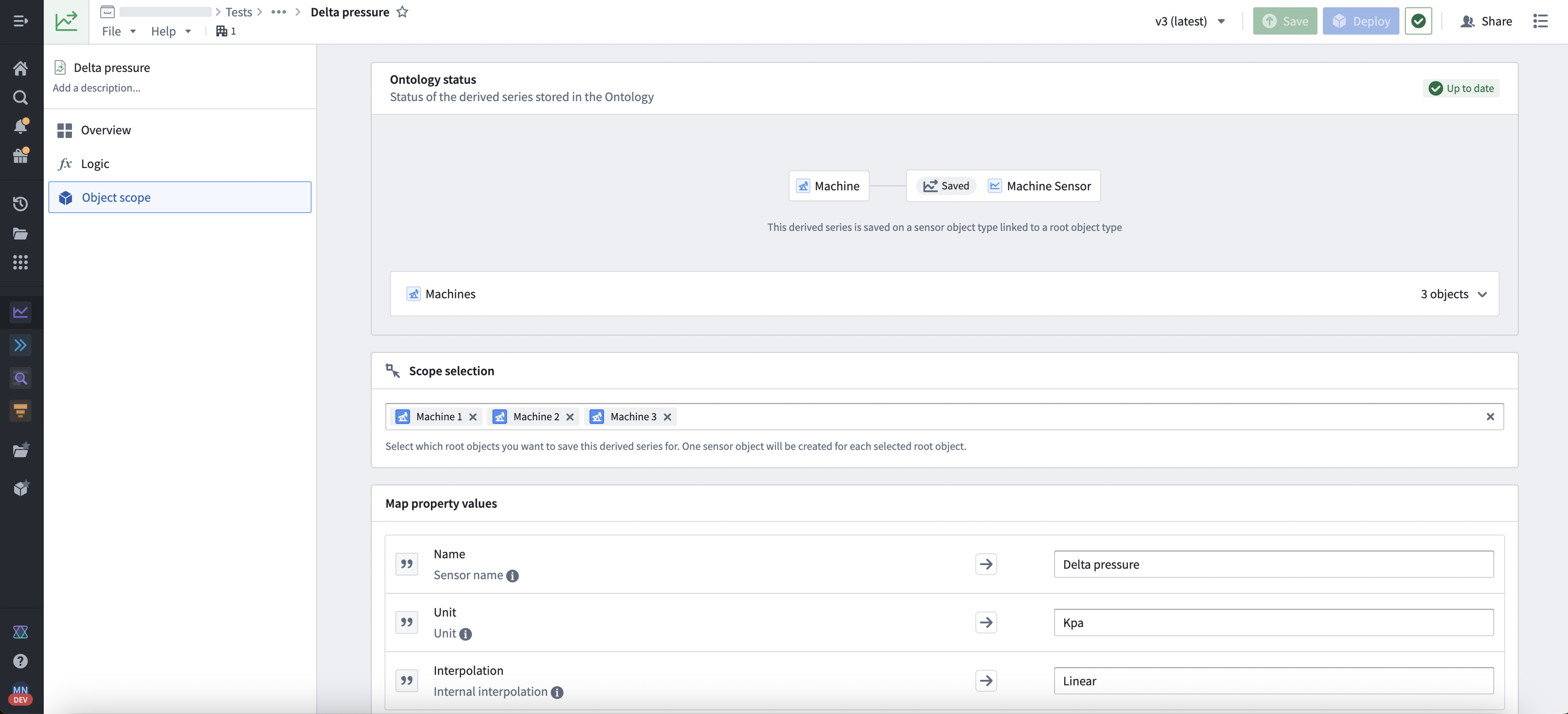
Changes to the object scope must be saved and deployed. Select Save in the top toolbar to review and save scope changes. Once saved, select Deploy in the toolbar for the changes to be deployed to the Ontology.
Ontology status
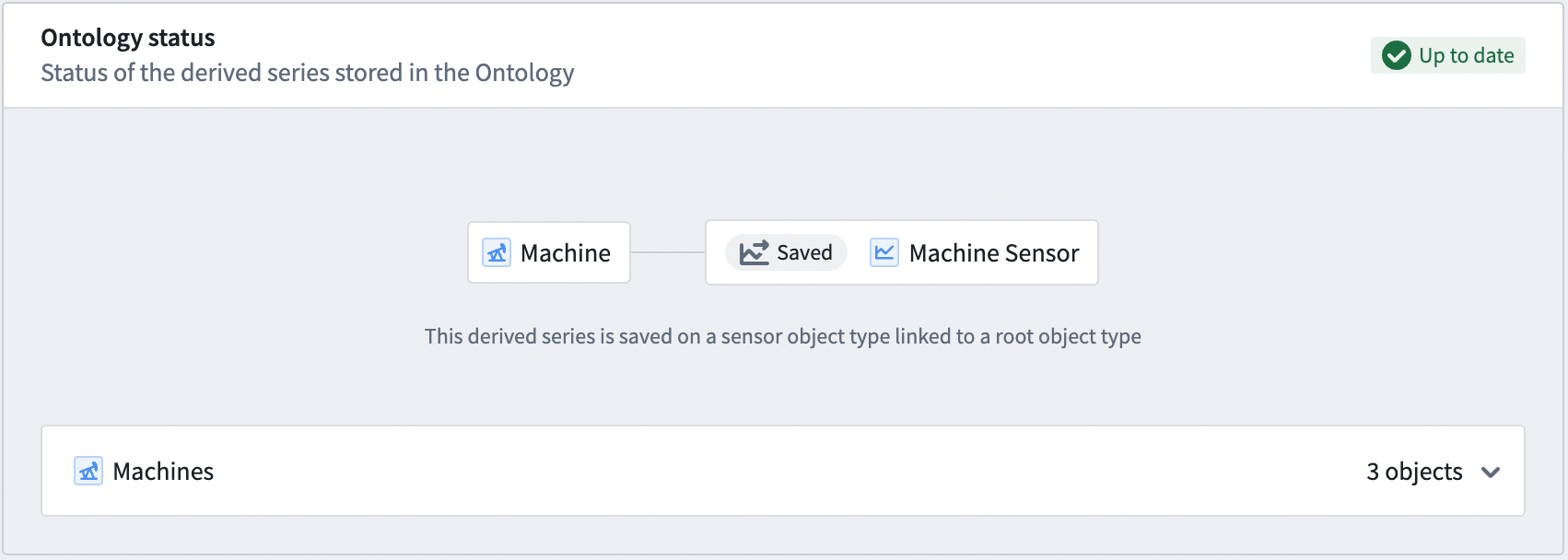
The Ontology status of a derived series indicates whether the derived series is up to date based on the current requested logic version and Ontology options.
For example, the following image shows the Ontology status card for an up-to-date templated derived series with a root object scope containing ten objects:
If a derived series is out of date with respect to what is requested be in the Ontology, then the status will indicate that the derived series is out of date and must be redeployed.
To update a derived series with respect to its Ontology options, you must Deploy the latest version to the Ontology. Select Deploy to view what must be updated in the Ontology for the derived series objects to match what is expected based on the Ontology options.
The following image shows a deploy dialog for an out-of-date templated derived series. You will be prompted to supply Action types for each associated update type. For example, to remove objects you must supply an Action type that deletes objects of the bound sensor object type.

The Ontology status and deploy dialog are similar for single derived series, though single derived series will always expect only one object to exist in the Ontology.
The following examples describe out-of-date derived series:
- The derived series was just updated, but the existing objects in the Ontology no longer reference the latest logic.
- In a templated derived series, a dynamic root object scope captures more objects after already being defined against all current objects. For example, if a root object scope is "all
Machines" and a newMachineis added after deploying the derived series, then the derived series would expect that a sensor object exists for this newMachine. Since the original scope did not capture this newMachineobject, the derived series is now out of date.
Delete from Ontology
To delete sensor objects created by a derived series from the Ontology, select the dropdown arrow to the right of the Deploy button and choose Delete from Ontology. You will be prompted to supply an Action type for deleting the sensor objects.

中文翻译
管理派生序列(Derived Series)
在通过时间序列目录(Time Series Catalog)创建派生序列后,您将被重定向到该派生序列的管理页面。该页面同时展示了生成的Palantir资源以及用于执行派生序列计算的代码模板(Codex Template)。您也可以从平台文件系统导航至该页面。
管理页面包含以下三个主要选项卡。
概览(Overview)
概览(Overview) 选项卡允许用户预览其逻辑、本体论(Ontology)设置以及派生序列的常规详细信息。
选择标题或描述文本可编辑在Quiver分析及其他应用中使用的标题和描述。点击右上角的保存(Save)可查看更改并更新派生序列的显示信息。
逻辑(Logic)
逻辑(Logic) 选项卡可用于查看和编辑派生序列的逻辑。直接修改时间序列卡片即可编辑逻辑。点击顶部工具栏中的保存(Save)以持久化更改。
:::callout{theme="neutral"} 如果派生序列已手动保存到本体论(Ontology),则逻辑的保存更改将立即生效,除非派生序列在本体论中固定到特定版本。请参阅手动保存文档了解如何使用固定版本。使用自动保存创建的派生序列对象始终引用特定版本。 :::
本体论(Ontology)
本体论(Ontology) 选项卡用于管理派生序列的自动保存本体论选项。自动保存选项包括传感器名称、模板化派生序列的根对象范围(Root Object Scope)以及属性映射(Property Mapping)。
对对象范围的更改必须保存并部署。点击顶部工具栏中的保存(Save)以查看并保存范围更改。保存后,点击工具栏中的部署(Deploy)以使更改部署到本体论。
本体论状态(Ontology Status)
派生序列的本体论状态指示该派生序列是否基于当前请求的逻辑版本和本体论选项保持最新。
例如,下图显示了一个包含十个对象的根对象范围的最新模板化派生序列的本体论状态卡片:
如果派生序列相对于本体论中请求的内容已过时,则状态将指示该派生序列已过时,必须重新部署。
要更新派生序列以匹配其本体论选项,您必须将最新版本部署(Deploy)到本体论。点击部署(Deploy)以查看本体论中需要更新哪些内容,才能使派生序列对象与基于本体论选项的预期一致。
下图显示了一个过时模板化派生序列的部署对话框。系统将提示您为每个关联的更新类型提供操作类型(Action Type)。例如,要删除对象,您必须提供一种可删除绑定传感器对象类型对象的操作类型。
对于单个派生序列,本体论状态和部署对话框类似,但单个派生序列始终期望本体论中仅存在一个对象。
以下示例描述了过时的派生序列:
- 派生序列刚刚更新,但本体论中的现有对象不再引用最新逻辑。
- 在模板化派生序列中,动态根对象范围在已针对所有当前对象定义后捕获了更多对象。例如,如果根对象范围是"所有
机器(Machines)",并且在部署派生序列后添加了新的机器(Machine),则派生序列将期望存在一个针对此新机器的传感器对象。由于原始范围未捕获此新机器对象,派生序列现已过时。
从本体论中删除(Delete from Ontology)
要从本体论中删除由派生序列创建的传感器对象,请点击部署(Deploy)按钮右侧的下拉箭头,然后选择从本体论中删除(Delete from Ontology)。系统将提示您提供用于删除传感器对象的操作类型。