Create sensor object type data in Pipeline Builder(在 Pipeline Builder 中创建传感器对象类型数据)
The pipeline you create with this guide will transform an imported flight sensor reading dataset to create a sensor object type backing dataset, then transform the sensor readings to a time series format to create a time series sync output. This data will then be used to create a sensor object type to use in the platform. The final pipeline at the end of this guide should look like the image below:
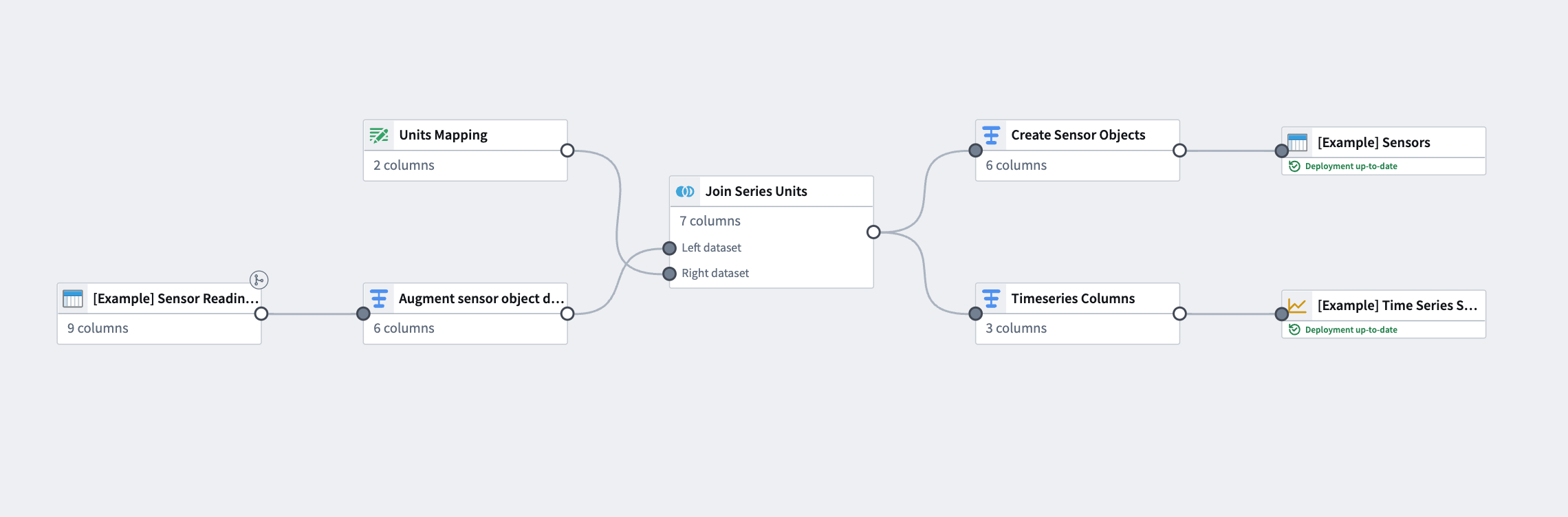
The example provided in this use case shows one way to transform sensor data from a source dataset. Though sensor readings come in different shapes with a large variety of possible schemas, our example uses a common schema; each row represents singular sensor readings for multiple sensors (for example, speed or altitude) that are tied to a flight (and, therefore, a flight_ID to serve as a foreign key to the Flight object).
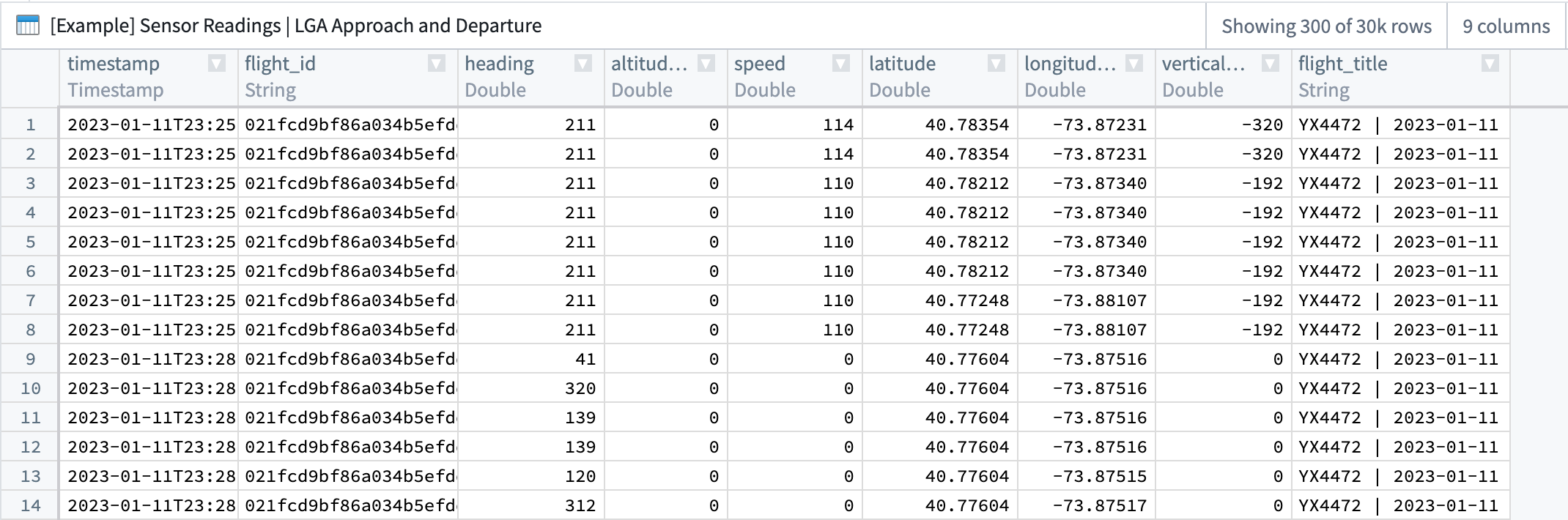
| timestamp | flight_id | heading | altitude | speed | latitude | longitude | vertical_speed | flight_ title |
|---|---|---|---|---|---|---|---|---|
| 2023-01-11T23... | 021fcdbsd ... | 211 | 134 | 50 | 40.78354 | -73.87231 | -320 | YX4472... |
This guide assumes a basic understanding of Pipeline Builder. Review our Pipeline Builder documentation for information on general pipeline guidance. This use case example also assumes that the flight sensor reading data has already been imported into a pipeline.
Part I: Enrich sensor reading data
Once the sensor reading dataset is added to a new pipeline, you will need to add some metadata.
1. Apply transforms to reformat sensor readings
From the sensor reading dataset, apply transforms using the steps below.
Unpivot data to merge series values
Since this dataset contains time series data in different columns, you must use an unpivot transform to merge it into one value column so the data can match the required schema for a time series sync, as shown below:
- series ID:
string| The series ID for the set of timestamp and value pairs referred to by a TSP, which must match the TSP's series ID. - timestamp:
timestamporlong| The time at which the quantity is measured. - value:
integer,float,double,string| The value of the quantity at the point that it is measured. A string type indicates a categorical time series; each categorical time series can have, at most, 10,000 unique variants.
The unpivot transform shown below places values for both altitude and speed into the same series_value column. Those original column names are outputs to the new series_name column so that parent root objects can identify what each sensor represents (altitude, for example).
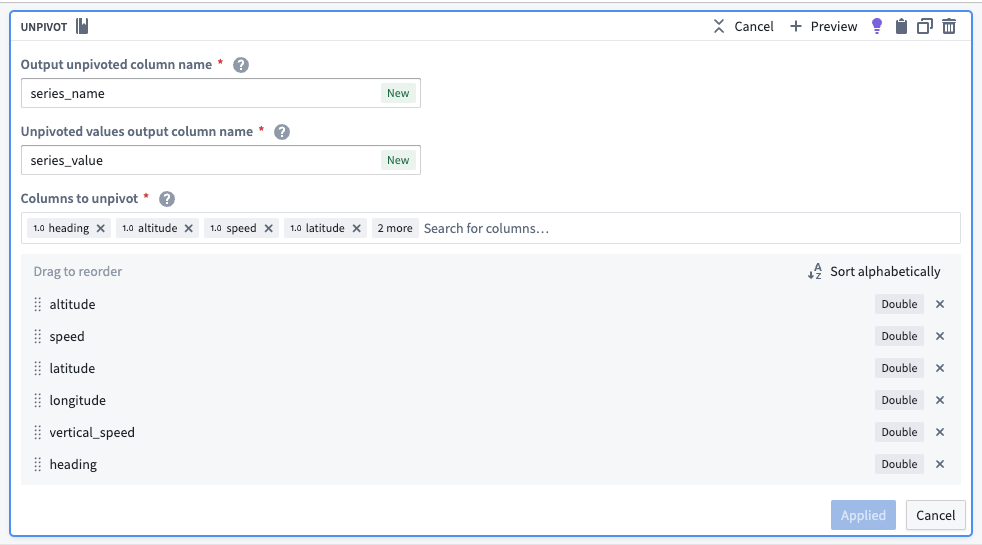
The transformed dataset should preview with the new series_value and series_id columns:
| series_name | series_value | timestamp | flight_id | flight_ title |
|---|---|---|---|---|
| altitude | 134 | 2023-01-11T23... | 021fcdbsd... | YX4472... |
| speed | 114.00 | 2023-01-11T23... | 021fcdbsd... | YX4472... |
Concatenate primary keys to create the series ID
Now, you can use the concatenate strings transform to create the series ID (the identifier for the associated time series values). Use the transform to combine the series_name (what each sensor represents) with the primary key of each object.
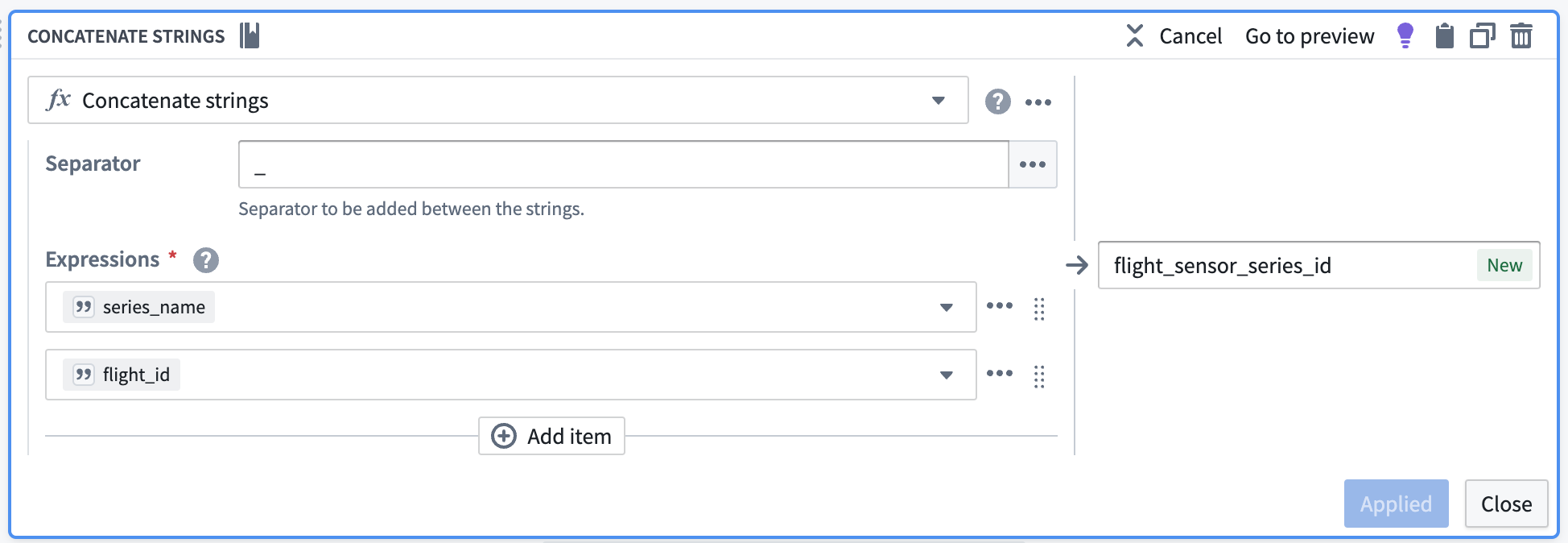
| flight_sensor_series_id | series_name | series_value | timestamp | flight_id | flight_ title |
|---|---|---|---|---|---|
| altitude_021fcdbsd... | altitude | 134 | 2023-01-11T23... | 021fcdbsd... | YX4472... |
| speed_021fcdbsd... | speed | 114.00 | 2023-01-11T23... | 021fcdbsd... | YX4472... |
Remove null values
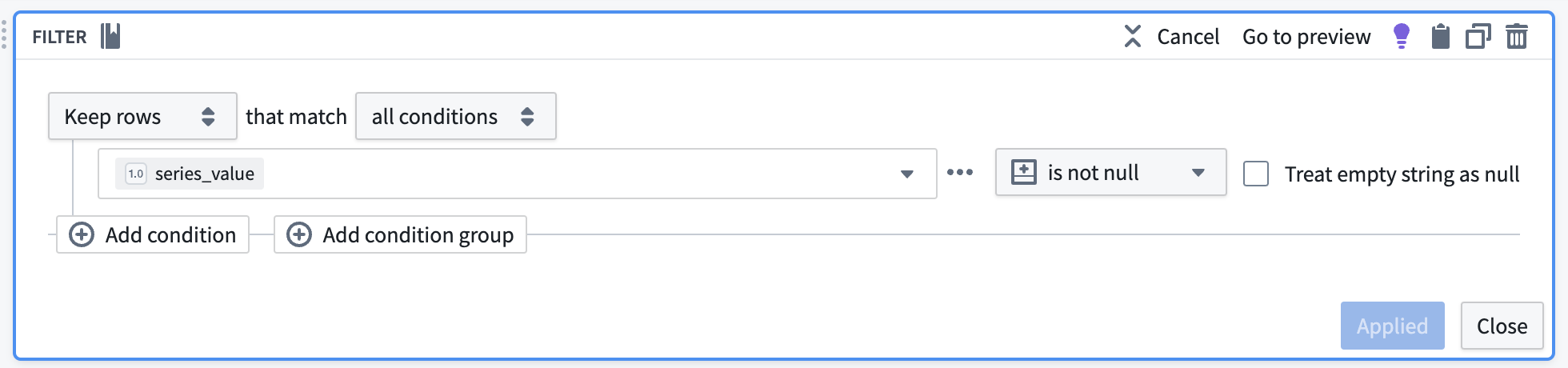
Apply a filter transform to remove any rows containing null values that will not be used in our time series calculations.
2. Add units to the dataset
Manually upload a units dataset
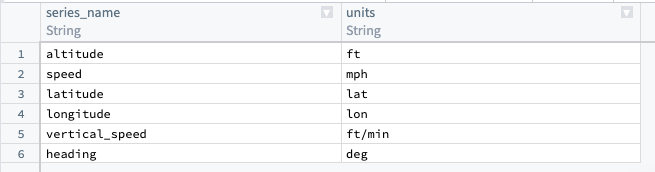
Since the original example sensor reading dataset does not include units, you must add a generated dataset to map units to the series name. From the upper left corner of the Pipeline Builder graph, select Add data, then Enter data manually. Create a column called series_name and another called units. If necessary, you can repeat this step for internal interpolation (though it is not required for our example).
Internal interpolation is used to enable Quiver to infer series values between adjacent data points. An internal interpolation column would provide a property for the ontology to save the interpolation settings per sensor object. Quiver will rely on that property when visualizing the time series data. Review our documentation on interpolation for more information.
:::callout{theme="neutral"} Some sensor reading datasets do include units; in these cases, you can skip this step and proceed with creating a sensor object type backing dataset. :::
Create a join to combine the units and sensor datasets
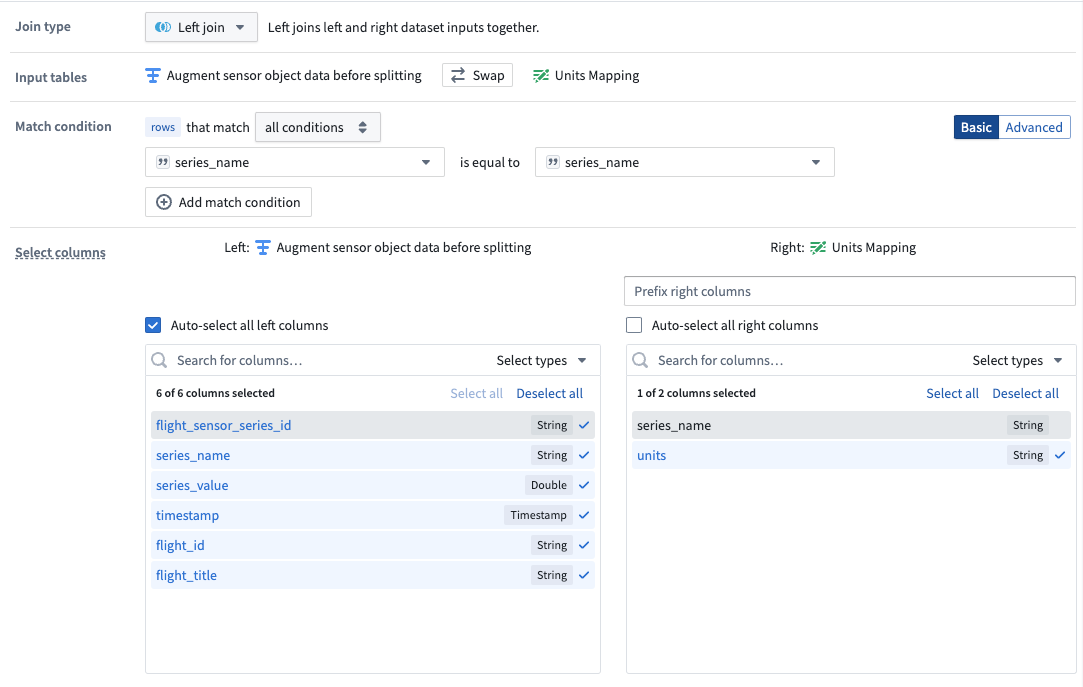
Using the join board, create a join that combines data from the units and sensor datasets. Be sure the following configuration are set:
- Add a Left join and match by
series_name. - Auto-select columns from the left dataset.
- Select only the
unitscolumn as the right column.
The data should preview with the new units column, as shown below:
| flight_sensor_series_id | series_name | series_value | timestamp | flight_id | flight_ title | units |
|---|---|---|---|---|---|---|
| altitude_021fcdbsd... | altitude | 134 | 2023-01-11T23... | 021fcdbsd... | YX4472... | ft |
| altitude_021fcdbsd... | altitude | 155 | 2023-01-11T23... | 021fcdbsd... | YX4472... | ft |
| speed_021fcdbsd... | speed | 114.00 | 2023-01-11T23... | 021fcdbsd... | YX4472... | mph |
| speed_021fcdbsd... | speed | 135.00 | 2023-01-11T23... | 021fcdbsd... | YX4472... | mph |
Part II: Create a sensor object type backing dataset
Now, you are ready to create the sensor object type. Follow the steps below to apply transforms to the join output to create a dataset that will ultimately back the sensor object type.
1. Drop duplicates to create one row per sensor
A sensor object represents one, and only one, collection of related time series data (the altitude for a particular flight, for example). Since each related time series collection is uniquely identified by a flight_sensor_series_id, you can assume that keeping only one row per unique flight sensor series ID corresponds to exactly one sensor object. Using a drop duplicates transform on the generated flight_sensor_series_id, you can create one row per sensor object. You will remove the rest of the series data (timestamp and value) in a later step.

The dataset should look as follows:
| flight_sensor_series_id | series_name | series_value | timestamp | flight_id | flight_ title | units |
|---|---|---|---|---|---|---|
| altitude_021fcdbsd... | altitude | 134 | 2023-01-11T23... | 021fcdbsd... | YX4472... | ft |
| speed_021fcdbsd... | speed | 114.00 | 2023-01-11T23... | 021fcdbsd... | YX4472... | mph |
2. Hash the series ID to create a primary key
Since each sensor object must be uniquely identifiable, you must create a primary key for each one using the hash sha256 transform. You could reuse the series_id since it should be unique across all of these sensor objects, but hashing is a more direct indicator that the series_id should only be used as a unique identifier.

The dataset should preview as follows:
| unique_sensor_flight_id | flight_sensor_series_id | series_name | series_value | timestamp | flight_id | flight_ title | units |
|---|---|---|---|---|---|---|---|
| 2492af5a2fe62c78ad8d... | altitude_021fcdbsd... | altitude | 134.00 | 2023-01-11T23... | 021fcdbsd... | YX4472... | ft |
| ec4808668f4b48cc5104... | altitude_011794756... | altitude | 0.0000 | 2023-01-22T17... | 011794756... | UA1878... | ft |
3. Concatenate strings to create title properties for objects
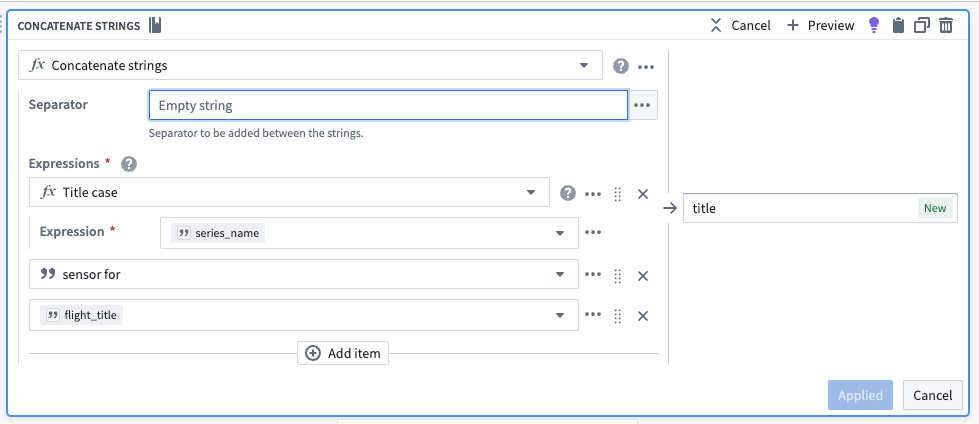
Now, you should create human-readable title properties for our sensor objects using the concatenate strings transform. Even though the sensor objects will embed into the object view of another Flight object, creating a dedicated name for a sensor object will make it more intuitive for users to build and analyze sensors for use in the platform.
The dataset should preview as follows:
| title | unique_sensor_flight_id | flight_sensor_series_id | series_name | series_value | timestamp | flight_id | flight_ title | units |
|---|---|---|---|---|---|---|---|---|
| Altitude sensor for YX4472... | 2492af5a2fe62c78ad8d... | altitude_021fcdbsd... | altitude | 134.00 | 2023-01-11T23... | 021fcdbsd... | YX4472... | ft |
| Altitude sensor for UA1878... | ec4808668f4b48cc5104... | altitude_011794756... | altitude | 0.0000 | 2023-01-22T17... | 011794756... | UA1878... | ft |
4. Drop unnecessary columns
Since our sensor objects only represent the sensors themselves, you can remove the remaining series_value and timestamp columns with a drop columns transform. Those columns are represented on the time series property and will be linked to the sensor in the Ontology based on the flight_sensor_series value. Additionally, you will drop the flight_title column since it is not needed for our sensor object types.
You will keep the flight_id so that sensor objects (Flight Sensors) can be linked to their root object (Flights).

The dataset should preview as follows:
| title | unique_sensor_flight_id | flight_sensor_series_id | series_name | flight_id | units |
|---|---|---|---|---|---|
| Altitude sensor for YX4472... | 2492af5a2fe62c78ad8d... | altitude_021fcdbsd... | altitude | 021fcdbsd... | ft |
| Altitude sensor for UA1878... | ec4808668f4b48cc5104... | altitude_011794756... | altitude | 011794756... | ft |
5. Add a dataset output to back sensor object type
Select Add output and then select Add dataset. The resulting dataset should mirror the schema created in the transform. Any newer changes may require updating the schema in the resulting dataset.
Part III: Create the sensor object type time series sync
1. Transform the sensor readings to a time series sync format
Using the select columns transform, you will only keep the columns that are required for the time series sync: series_id, timestamp, and value. The backing dataset will hold values for all sensors, regardless of what they are measuring (both altitude and speed, for example). You can use the generated flight_sensor_series_id for the series_id as a unique identifier for a particular set of sensor data. For example, Flight A445B from LGA to LAX will have a linked sensor object for speed that will hold the sensor data for speed on that flight. Similarly, it will also have a linked sensor object for altitude.
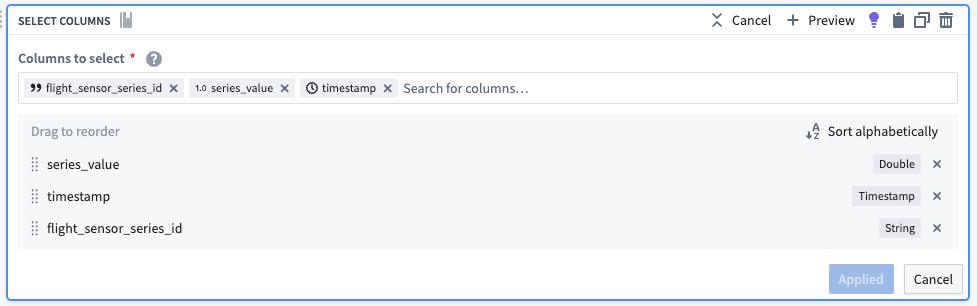
The dataset output should preview as follows:
| flight_sensor_series_id | series_value | timestamp |
|---|---|---|
| altitude_021fcdbsd... | 134.00 | 2023-01-11T23... |
| altitude_011794756... | 0.0000 | 2023-01-22T17... |
Part III: Create the time series sync
1. Configure the time series sync
Now, create a time series sync by selecting Add from the pipeline output section to the right of the screen. Then, select Time series sync. Fill out the necessary data for the new time series sync, with the following considerations:
- Select the
flight_sensor_series_idcolumn for the Series ID field. - Add the created
timestampcolumn in the Time field. - Add
series_valueto the Value field.
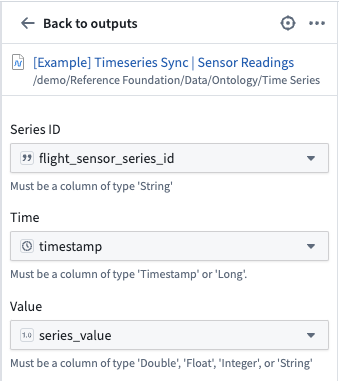
Now, save and build the pipeline. The outputs will be created in the same folder as the pipeline.
2. Use a time series sync to add properties to sensor object types
Now that you created a pipeline with a time series sync, you are ready to use the sync to add time series properties to sensor object types. Move on to our documentation for adding time series properties to sensor object types for more guidance.
中文翻译
在 Pipeline Builder 中创建传感器对象类型数据
按照本指南创建的管道将转换导入的飞行传感器读数数据集,以创建传感器对象类型支持数据集,然后将传感器读数转换为时间序列格式,以生成时间序列同步输出。这些数据随后将用于创建可在平台中使用的传感器对象类型。本指南最终完成的管道应如下图所示:
本用例提供的示例展示了一种转换源数据集中传感器数据的方法。尽管传感器读数的格式各异,可能包含多种不同的模式,但我们的示例使用了一种常见模式:每一行代表与某个航班相关联的多个传感器(例如速度或高度)的单一传感器读数(因此,flight_ID 作为 Flight 对象的外键)。
| timestamp | flight_id | heading | altitude | speed | latitude | longitude | vertical_speed | flight_ title |
|---|---|---|---|---|---|---|---|---|
| 2023-01-11T23... | 021fcdbsd ... | 211 | 134 | 50 | 40.78354 | -73.87231 | -320 | YX4472... |
本指南假定您已基本了解 Pipeline Builder。有关一般管道指导的信息,请查阅我们的 Pipeline Builder 文档。本用例示例还假定飞行传感器读数数据已导入到管道中。
第一部分:丰富传感器读数数据
将传感器读数数据集添加到新管道后,您需要添加一些元数据。
1. 应用转换以重新格式化传感器读数
从传感器读数数据集开始,按照以下步骤应用转换。
逆透视数据以合并序列值
由于此数据集在不同列中包含时间序列数据,您必须使用逆透视转换将其合并到一个值列中,以便数据能够匹配时间序列同步所需的模式,如下所示:
- 序列 ID (series ID):
string| 由 TSP 引用的一组时间戳和值对的序列 ID,必须与 TSP 的序列 ID 匹配。 - 时间戳 (timestamp):
timestamp或long| 测量数量的时间点。 - 值 (value):
integer、float、double、string| 在测量点测量的数量值。字符串类型表示分类时间序列;每个分类时间序列最多可以有 10,000 个唯一变体。
如下所示的逆透视转换将 altitude 和 speed 的值放入同一个 series_value 列中。这些原始列名将输出到新的 series_name 列,以便父根对象可以识别每个传感器代表什么(例如 altitude)。
转换后的数据集应预览新的 series_value 和 series_id 列:
| series_name | series_value | timestamp | flight_id | flight_ title |
|---|---|---|---|---|
| altitude | 134 | 2023-01-11T23... | 021fcdbsd... | YX4472... |
| speed | 114.00 | 2023-01-11T23... | 021fcdbsd... | YX4472... |
连接主键以创建序列 ID
现在,您可以使用连接字符串转换来创建序列 ID(关联时间序列值的标识符)。使用该转换将 series_name(每个传感器代表什么)与每个对象的主键组合起来。
| flight_sensor_series_id | series_name | series_value | timestamp | flight_id | flight_ title |
|---|---|---|---|---|---|
| altitude_021fcdbsd... | altitude | 134 | 2023-01-11T23... | 021fcdbsd... | YX4472... |
| speed_021fcdbsd... | speed | 114.00 | 2023-01-11T23... | 021fcdbsd... | YX4472... |
移除空值
应用筛选转换以移除包含 null 值的任何行,这些值不会用于我们的时间序列计算。
2. 向数据集添加单位
手动上传单位数据集
由于原始示例传感器读数数据集不包含单位,您必须添加一个生成的数据集,将单位映射到序列名称。从 Pipeline Builder 图的左上角,选择 添加数据 (Add data),然后选择 手动输入数据 (Enter data manually)。创建一个名为 series_name 的列和另一个名为 units 的列。如有必要,您可以重复此步骤进行内部插值(尽管我们的示例不需要)。
内部插值 (Internal interpolation) 用于使 Quiver 能够推断相邻数据点之间的序列值。内部插值列将为本体论(Ontology)提供一个属性,用于保存每个传感器对象的插值设置。Quiver 在可视化时间序列数据时将依赖该属性。有关更多信息,请查阅我们关于插值的文档。
:::callout{theme="neutral"} 某些传感器读数数据集确实包含单位;在这种情况下,您可以跳过此步骤,直接进行创建传感器对象类型支持数据集。 :::
创建连接以合并单位数据集和传感器数据集
使用连接面板,创建一个连接来合并单位数据集和传感器数据集中的数据。请确保设置以下配置:
- 添加 左连接 (Left join),并按
series_name匹配。 - 自动选择左侧数据集中的列。
- 仅选择
units列作为右侧列。
数据应预览新的 units 列,如下所示:
| flight_sensor_series_id | series_name | series_value | timestamp | flight_id | flight_ title | units |
|---|---|---|---|---|---|---|
| altitude_021fcdbsd... | altitude | 134 | 2023-01-11T23... | 021fcdbsd... | YX4472... | ft |
| altitude_021fcdbsd... | altitude | 155 | 2023-01-11T23... | 021fcdbsd... | YX4472... | ft |
| speed_021fcdbsd... | speed | 114.00 | 2023-01-11T23... | 021fcdbsd... | YX4472... | mph |
| speed_021fcdbsd... | speed | 135.00 | 2023-01-11T23... | 021fcdbsd... | YX4472... | mph |
第二部分:创建传感器对象类型支持数据集
现在,您已准备好创建传感器对象类型。按照以下步骤对连接输出应用转换,以创建最终将支持传感器对象类型的数据集。
1. 删除重复项以创建每个传感器一行
一个传感器对象代表且仅代表一个相关时间序列数据的集合(例如,特定航班的 altitude)。由于每个相关时间序列集合都由一个 flight_sensor_series_id 唯一标识,您可以假设每个唯一的飞行传感器序列 ID 保留一行恰好对应一个传感器对象。使用对生成的 flight_sensor_series_id 的删除重复项转换,您可以为每个传感器对象创建一行。您将在后续步骤中移除其余的序列数据(时间戳和值)。
数据集应如下所示:
| flight_sensor_series_id | series_name | series_value | timestamp | flight_id | flight_ title | units |
|---|---|---|---|---|---|---|
| altitude_021fcdbsd... | altitude | 134 | 2023-01-11T23... | 021fcdbsd... | YX4472... | ft |
| speed_021fcdbsd... | speed | 114.00 | 2023-01-11T23... | 021fcdbsd... | YX4472... | mph |
2. 对序列 ID 进行哈希处理以创建主键
由于每个传感器对象必须是唯一可识别的,您必须使用 hash sha256 转换为每个传感器对象创建一个主键。您可以重用 series_id,因为它应该在这些传感器对象中是唯一的,但哈希处理更直接地表明 series_id 应仅用作唯一标识符。
数据集应预览如下:
| unique_sensor_flight_id | flight_sensor_series_id | series_name | series_value | timestamp | flight_id | flight_ title | units |
|---|---|---|---|---|---|---|---|
| 2492af5a2fe62c78ad8d... | altitude_021fcdbsd... | altitude | 134.00 | 2023-01-11T23... | 021fcdbsd... | YX4472... | ft |
| ec4808668f4b48cc5104... | altitude_011794756... | altitude | 0.0000 | 2023-01-22T17... | 011794756... | UA1878... | ft |
3. 连接字符串以为对象创建标题属性
现在,您应该使用连接字符串转换为传感器对象创建人类可读的标题属性。即使传感器对象将嵌入到另一个 Flight 对象的对象视图中,为传感器对象创建专用名称也将使用户在平台中构建和分析传感器时更加直观。
数据集应预览如下:
| title | unique_sensor_flight_id | flight_sensor_series_id | series_name | series_value | timestamp | flight_id | flight_ title | units |
|---|---|---|---|---|---|---|---|---|
| Altitude sensor for YX4472... | 2492af5a2fe62c78ad8d... | altitude_021fcdbsd... | altitude | 134.00 | 2023-01-11T23... | 021fcdbsd... | YX4472... | ft |
| Altitude sensor for UA1878... | ec4808668f4b48cc5104... | altitude_011794756... | altitude | 0.0000 | 2023-01-22T17... | 011794756... | UA1878... | ft |
4. 删除不必要的列
由于我们的传感器对象仅代表传感器本身,您可以使用删除列转换移除剩余的 series_value 和 timestamp 列。这些列在时间序列属性上表示,并将根据 flight_sensor_series 值链接到本体论(Ontology)中的传感器。此外,您将删除 flight_title 列,因为我们的传感器对象类型不需要它。
您将保留 flight_id,以便传感器对象(Flight Sensors)可以链接到其根对象(Flights)。
数据集应预览如下:
| title | unique_sensor_flight_id | flight_sensor_series_id | series_name | flight_id | units |
|---|---|---|---|---|---|
| Altitude sensor for YX4472... | 2492af5a2fe62c78ad8d... | altitude_021fcdbsd... | altitude | 021fcdbsd... | ft |
| Altitude sensor for UA1878... | ec4808668f4b48cc5104... | altitude_011794756... | altitude | 011794756... | ft |
5. 添加数据集输出以支持传感器对象类型
选择 添加输出 (Add output),然后选择 添加数据集 (Add dataset)。生成的数据集应反映转换中创建的模式。任何较新的更改可能需要更新结果数据集中的模式。
第三部分:创建传感器对象类型时间序列同步
1. 将传感器读数转换为时间序列同步格式
使用选择列转换,您将仅保留时间序列同步所需的列:series_id、timestamp 和 value。支持数据集将保存所有传感器的值,无论它们测量的是什么(例如,同时包含 altitude 和 speed)。您可以使用生成的 flight_sensor_series_id 作为 series_id,作为特定传感器数据集的唯一标识符。例如,从 LGA 飞往 LAX 的航班 A445B 将有一个链接的 speed 传感器对象,该对象将保存该航班的速度传感器数据。同样,它还将有一个链接的 altitude 传感器对象。
数据集输出应预览如下:
| flight_sensor_series_id | series_value | timestamp |
|---|---|---|
| altitude_021fcdbsd... | 134.00 | 2023-01-11T23... |
| altitude_011794756... | 0.0000 | 2023-01-22T17... |
第三部分:创建时间序列同步
1. 配置时间序列同步
现在,通过从屏幕右侧的管道输出部分选择 添加 (Add) 来创建时间序列同步。然后,选择 时间序列同步 (Time series sync)。填写新时间序列同步的必要数据,并考虑以下事项:
- 为 序列 ID (Series ID) 字段选择
flight_sensor_series_id列。 - 在 时间 (Time) 字段中添加创建的
timestamp列。 - 将
series_value添加到 值 (Value) 字段。
现在,保存并构建管道。输出将创建在与管道相同的文件夹中。
2. 使用时间序列同步向传感器对象类型添加属性
既然您已经创建了包含时间序列同步的管道,您就可以使用该同步向传感器对象类型添加时间序列属性了。请继续查阅我们关于向传感器对象类型添加时间序列属性的文档以获取更多指导。