Setup(设置)
The following document is intended to guide you through the process of creating and configuring time series object types and properties for analysis in Foundry applications.
:::callout{theme="warning"} Review and understand the two options available for setting up time series in the Ontology before proceeding with your setup. If you have already started the setup process but are not sure where you left off, review the Setup checkpoints section below to understand where to resume your progress. :::
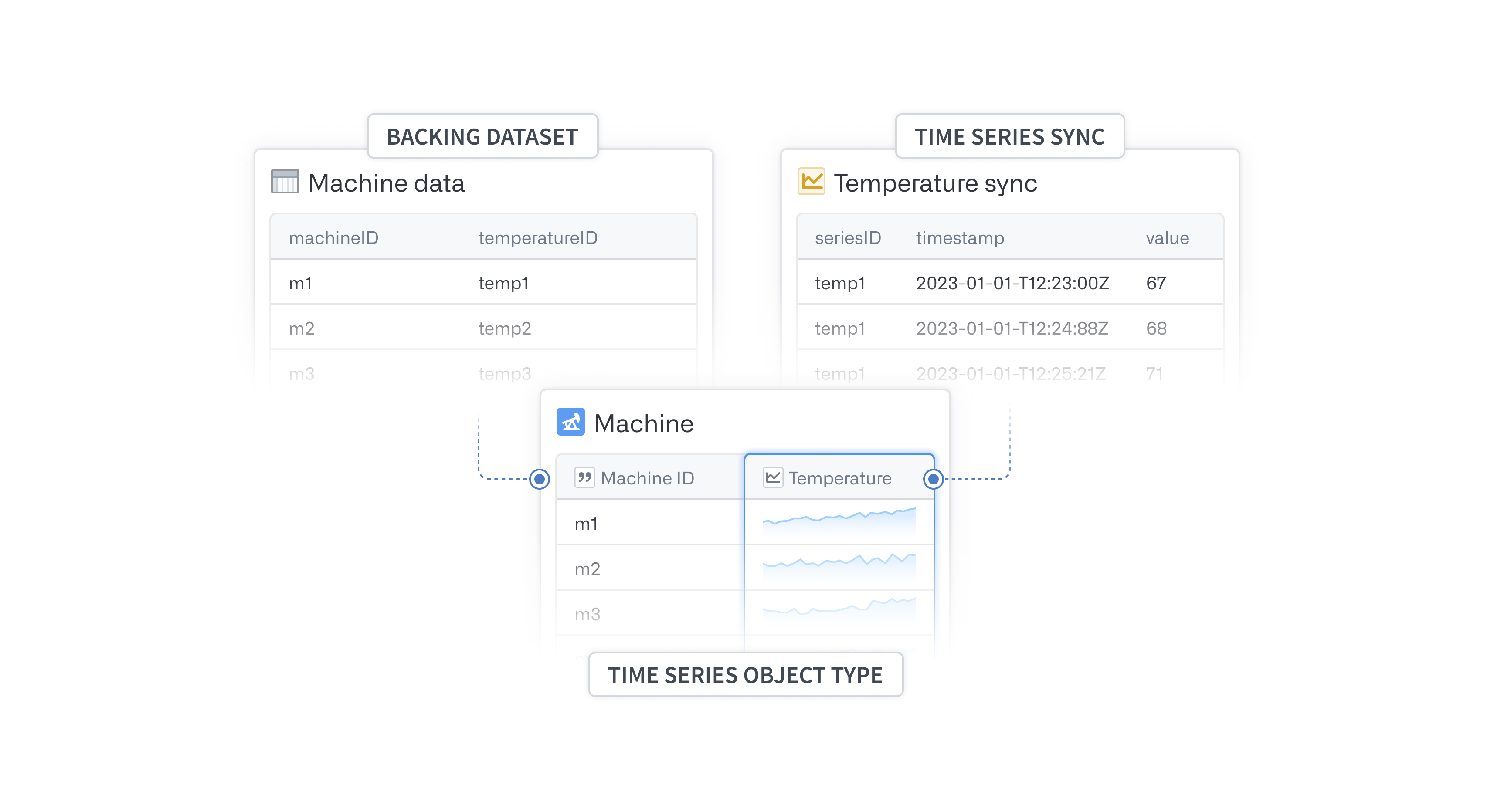
Get started
Before you can start setting up time series object types and properties that can be used for analysis, you will need one or more datasets in Foundry containing your time series. If you have multiple datasets, all values for a series should be contained within the same dataset. See Setup Checkpoints for examples of common starting points.
To begin, navigate to a dataset preview containing a timestamp column, and select Set up time series from the Analyze data action menu.
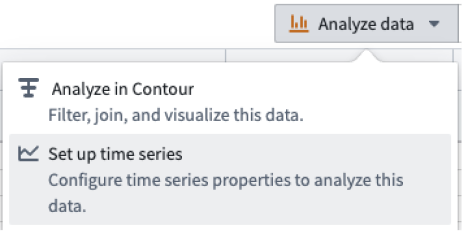
This will launch an overview that will take you to our time series setup assistant. The following documentation will provide more in-depth explanations of any data transformations that may be required as the assistant walks you through the following process.
:::callout{theme="neutral"}
You can also launch the setup assistant by navigating directly to https://<domain>/workspace/ontology/home/overview/time-series-setup
:::
Setup checkpoints
Use the following decision tree to identify your starting point or resume progress through the time series setup process.
- Is your raw time series data in Foundry yet?
- No: Use Data Connection to sync your data into Foundry.
- Does your raw time series data have a timestamp column of only type timestamp?
- No: Edit the schema in Dataset app
- Does your raw data look like the examples below?
-
A single dataset containing an object key, timestamp column, and multiple columns each with a value for that point in time.
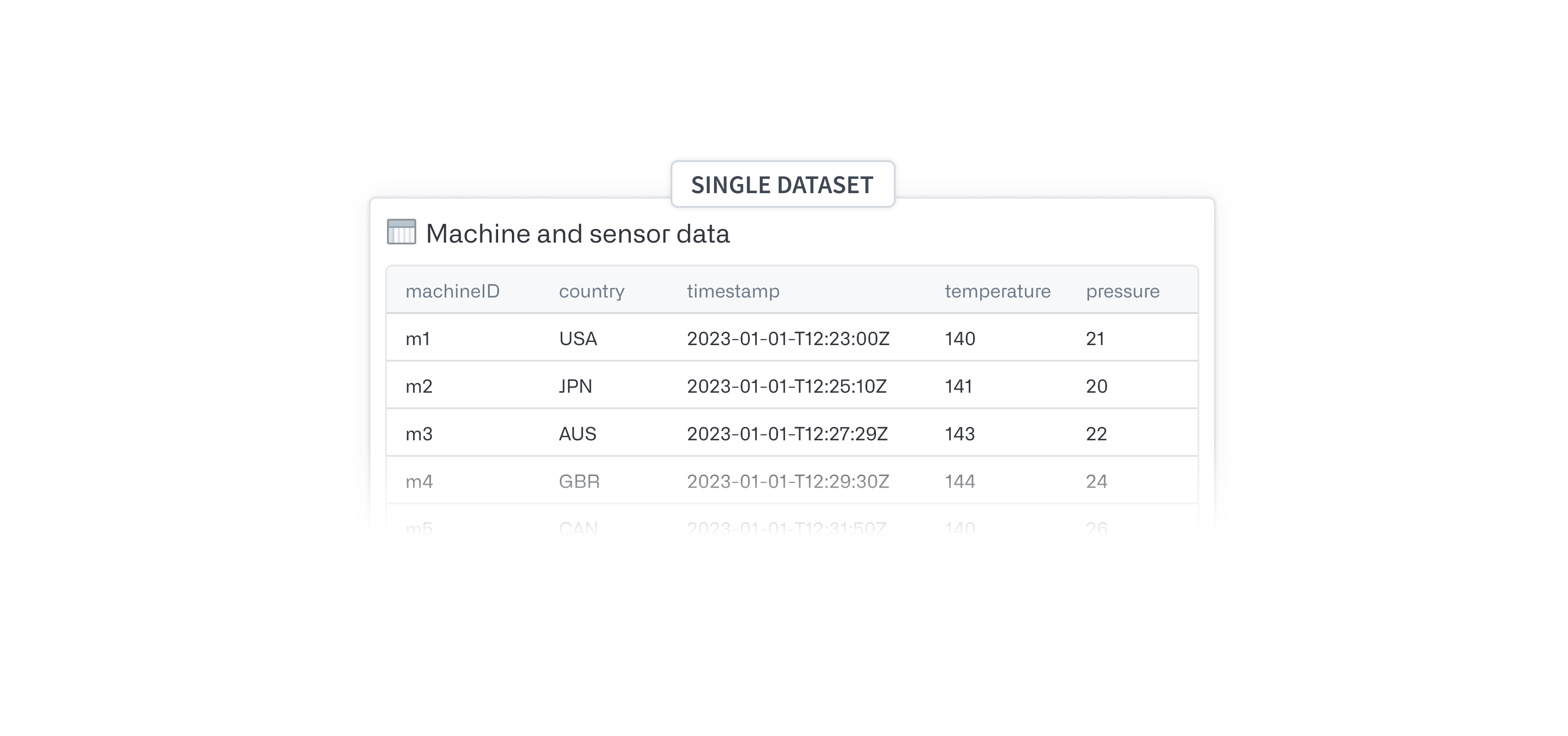
-
A dataset containing information about the objects plus multiple datasets each containing a key, timestamp column, and value for a single series.
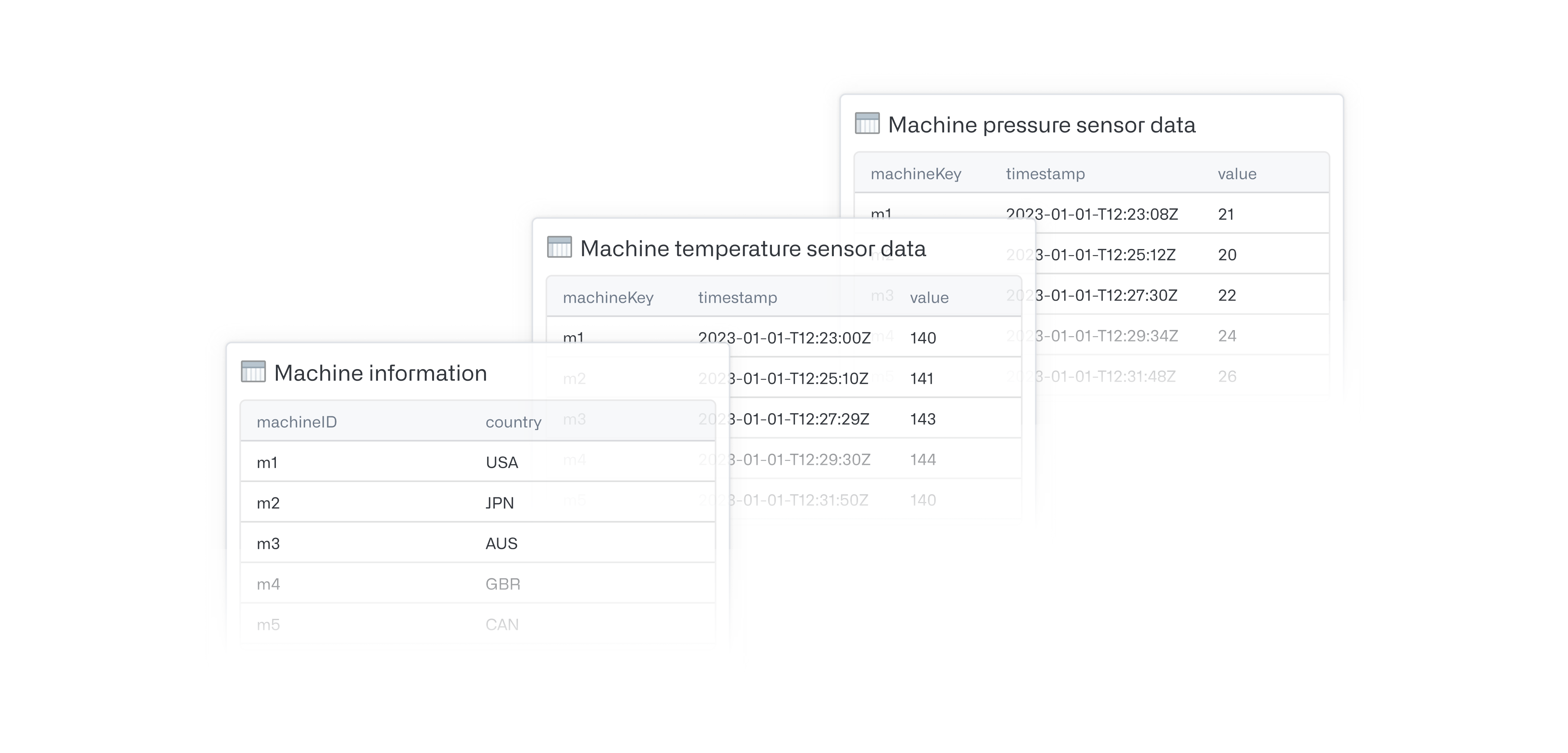
-
No: You may want to transform your data to have a similar schema to one of these examples. If not, you may still be able to proceed, but you will need to know how to transform the data yourself to produce a valid time series object type backing dataset and time series sync.
- How do I launch the setup assistant?
-
View a time series dataset (that is, a dataset with a timestamp column) and select Set up time series from under the Analyze data action menu (see Get started). This will present the walkthrough dialog followed by our setup assistant.
-
Alternatively, launch the setup assistant directly by navigating directly to
https://<domain>/workspace/ontology/home/overview/time-series-setup - Does your object type already exist?
- Yes: Launch the setup assistant and select Choose existing object.
- No: Launch the setup assistant and select Create new object type.
- Do you have an object type backing dataset?
- Yes: Select it in the Create new object type dialog.
- No: Navigate to Pipeline Builder and transform data from a common shape to that of a time series object type backing dataset (see Create or select a time series object type).
- Have you added time series properties (TSPs) to your object type?
- Yes: You are ready to use the time series object type. See Use time series in Foundry for different ways you can use time series in Foundry applications.
- No: See Configure time series properties for next steps.
- Do you have a time series sync?
- Yes: Finish configuring time series properties and select your sync in the second step of the dialog.
- No: Follow the instructions for creating a time series sync under Configure time series properties.
- Ensure the series ID of the time series sync matches the series ID of the object type backing dataset
- How do I use the time series properties I just set up?
- See Use time series in Foundry to explore ways you can analyze time series in Foundry.
中文翻译
设置
本文档旨在指导您在 Foundry 应用中创建和配置用于分析的时间序列对象类型与属性。
:::callout{theme="warning"} 在开始设置之前,请先了解并理解在本体论(Ontology)中设置时间序列的两种可用选项。如果您已开始设置过程但不确定进度,请查看下方设置检查点(Setup checkpoints)部分,了解应从何处继续。 :::
开始使用
在开始设置可用于分析的时间序列对象类型和属性之前,您需要在 Foundry 中拥有一个或多个包含时间序列(Time Series)的数据集。如果您有多个数据集,某个序列的所有值应包含在同一数据集中。常见起始点的示例请参见设置检查点(Setup Checkpoints)。
首先,导航至包含时间戳列的数据集预览(Dataset Preview),然后从分析数据(Analyze data)操作菜单中选择设置时间序列(Set up time series)。
这将启动一个概览页面,引导您进入时间序列设置助手。以下文档将对助手引导您完成的过程中可能需要的任何数据转换提供更深入的解释。
:::callout{theme="neutral"}
您也可以直接导航至 https://<domain>/workspace/ontology/home/overview/time-series-setup 来启动设置助手。
:::
设置检查点
使用以下决策树来确定您的起始点,或继续推进时间序列设置过程。
- 您的原始时间序列数据是否已在 Foundry 中?
- 否: 使用数据连接(Data Connection)将数据同步到 Foundry。
- 您的原始时间序列数据是否只有时间戳类型的时间戳列?
- 否: 在数据集应用中编辑模式(Schema)
- 您的原始数据是否类似于以下示例?
-
单个数据集,包含对象键、时间戳列以及多个列,每列对应一个时间点的值。
-
一个包含对象信息的数据集,加上多个数据集,每个数据集包含键、时间戳列和单个序列的值。
-
否: 您可能需要转换数据,使其具有与上述示例之一类似的模式。如果不需要,您仍可继续,但您需要自行了解如何转换数据,以生成有效的时间序列对象类型支撑数据集(Time Series Object Type Backing Dataset)和时间序列同步(Time Series Sync)。
- 如何启动设置助手?
-
查看时间序列数据集(即包含时间戳列的数据集),然后从分析数据(Analyze data)操作菜单中选择设置时间序列(Set up time series)(参见开始使用)。这将显示引导对话框,随后进入设置助手。
-
或者,直接导航至
https://<domain>/workspace/ontology/home/overview/time-series-setup启动设置助手。 - 您的对象类型是否已存在?
- 是: 启动设置助手,选择选择现有对象(Choose existing object)。
- 否: 启动设置助手,选择创建新对象类型(Create new object type)。
- 您是否有对象类型支撑数据集(Object Type Backing Dataset)?
- 是: 在创建新对象类型(Create new object type)对话框中选择它。
- 否: 导航至管道构建器(Pipeline Builder),将数据从常见形状转换为时间序列对象类型支撑数据集的形状(参见创建或选择时间序列对象类型)。
- 您是否已向对象类型添加了时间序列属性(Time Series Properties, TSPs)?
- 是: 您已准备好使用时间序列对象类型。有关在 Foundry 应用中使用时间序列的不同方式,请参见在 Foundry 中使用时间序列。
- 否: 有关后续步骤,请参见配置时间序列属性。
- 您是否有时间序列同步(Time Series Sync)?
- 是: 完成配置时间序列属性,并在对话框的第二步中选择您的同步。
- 否: 按照配置时间序列属性下的说明创建时间序列同步。
- 确保时间序列同步的序列 ID(Series ID)与对象类型支撑数据集的序列 ID 匹配。
- 如何使用刚刚设置的时间序列属性?
- 请参见在 Foundry 中使用时间序列,探索在 Foundry 中分析时间序列的各种方式。