Create an interactive audio transcription application(创建交互式音频转录应用)
This guide will teach you how to build a workflow to transcribe audio and create an interactive application for viewing the transcription using media sets.
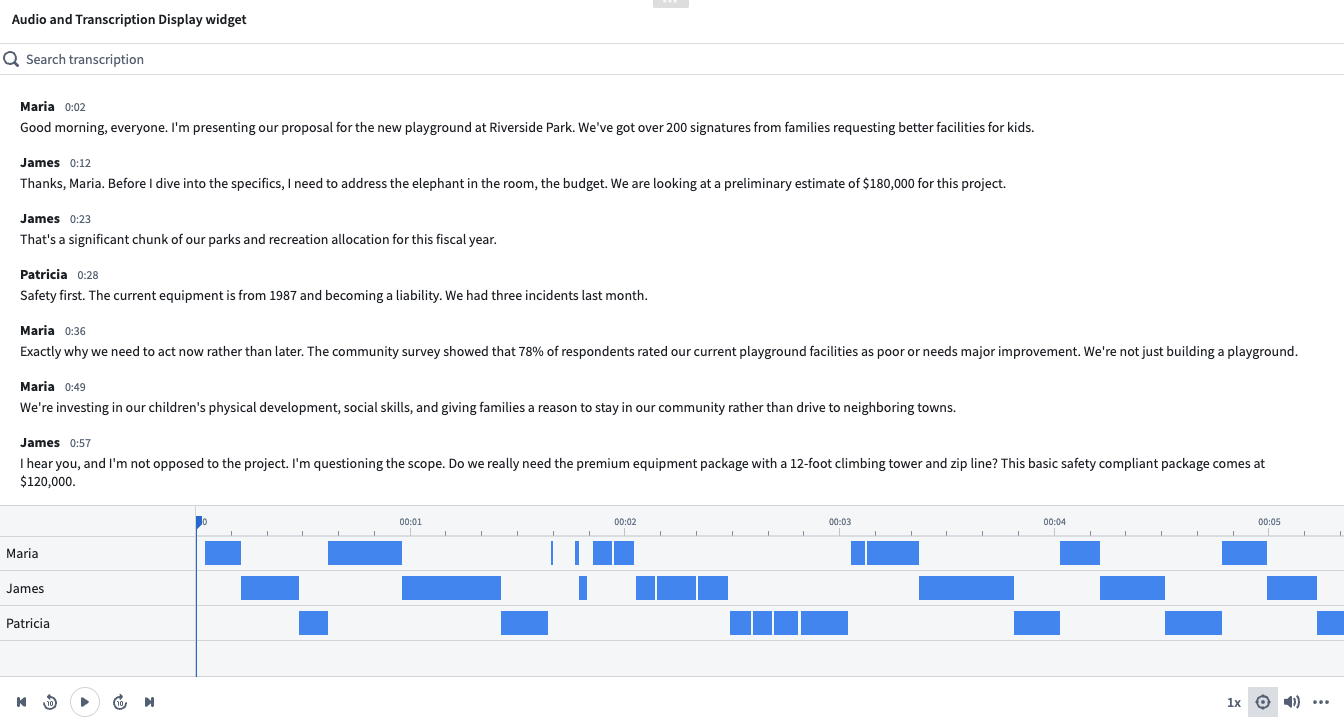
Part 1: Import audio files in Foundry as a media set
First, you should import your audio files as media sets. There are two ways to do this:
Once imported, you will be able to view your audio media set.
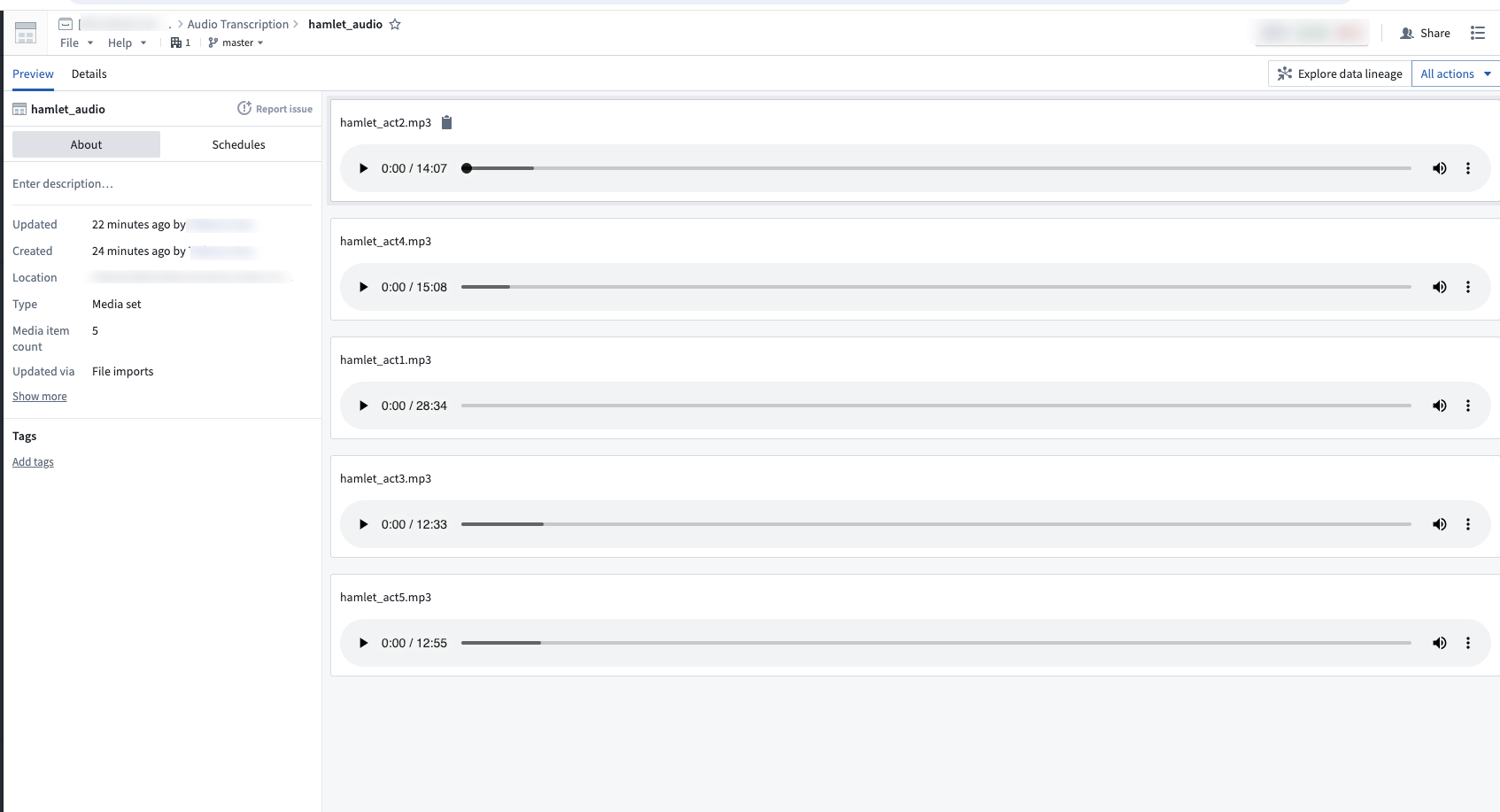
Part 2: Transcribe audio media set via Pipeline Builder
- Create a new pipeline in Pipeline Builder and add your audio media set to the pipeline. Detailed steps can be found in the initial set up section of the Pipeline Builder documentation.
Your imported audio media set should look like this:
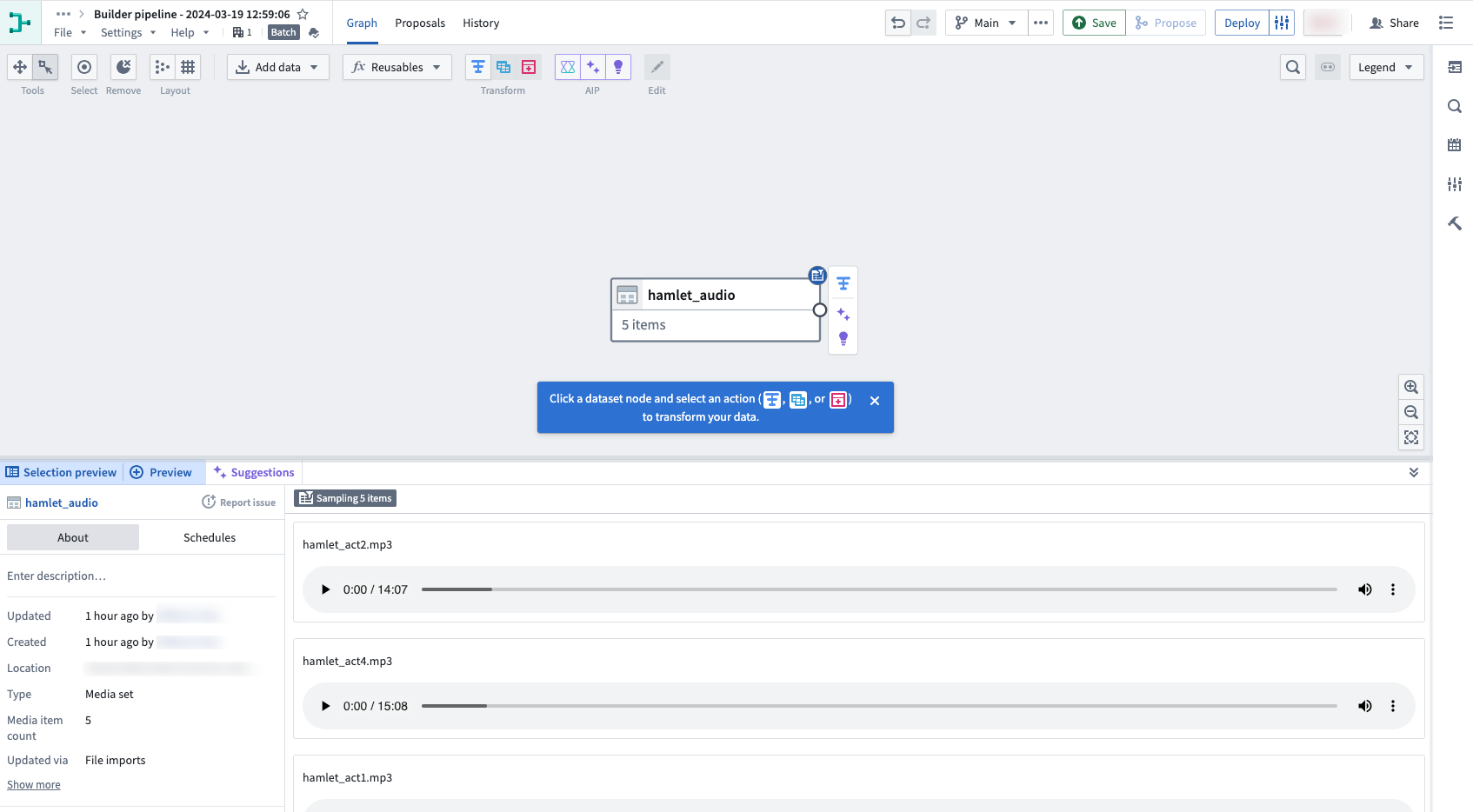
-
Next, select the Transcribe audio transformation using Transforms.
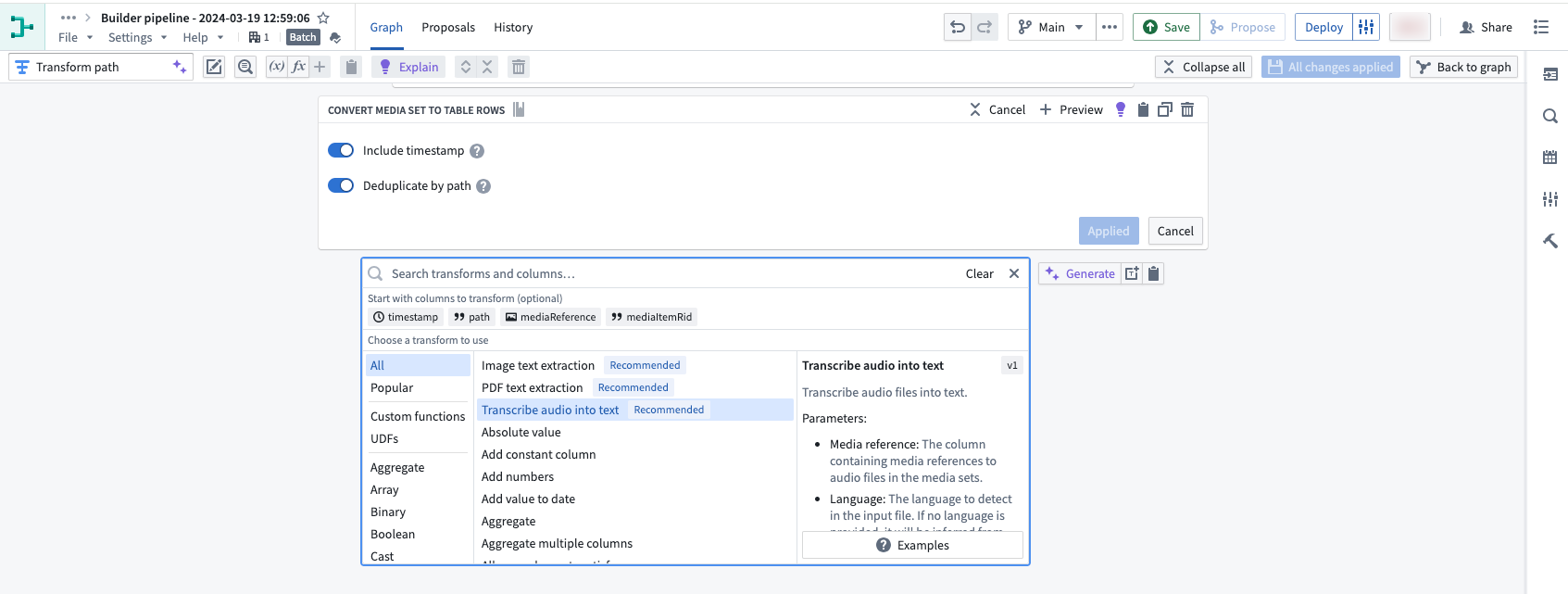
-
Specify the inputs for the Transcribe audio transformation and select Apply.
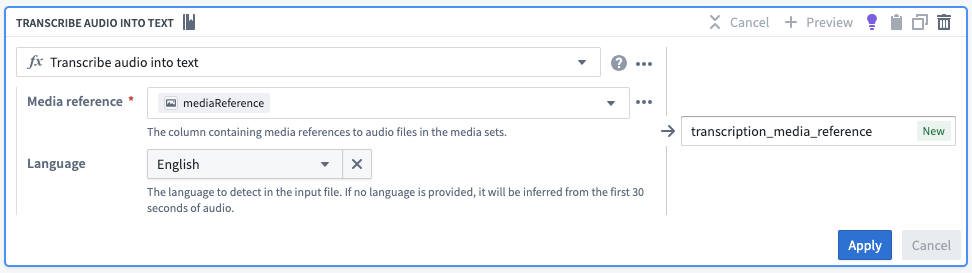
Use the media_reference column from the media set input, and select the desired language. If no language is provided, it will be inferred from the first 30 seconds of audio. There are several configuration options available. In this example, we want to include speaker diarization details in the output, so we will select the More performant mode, the Segment details output type, and toggle on Speaker recognition.
- You can preview the outputs from the transcription in the table.
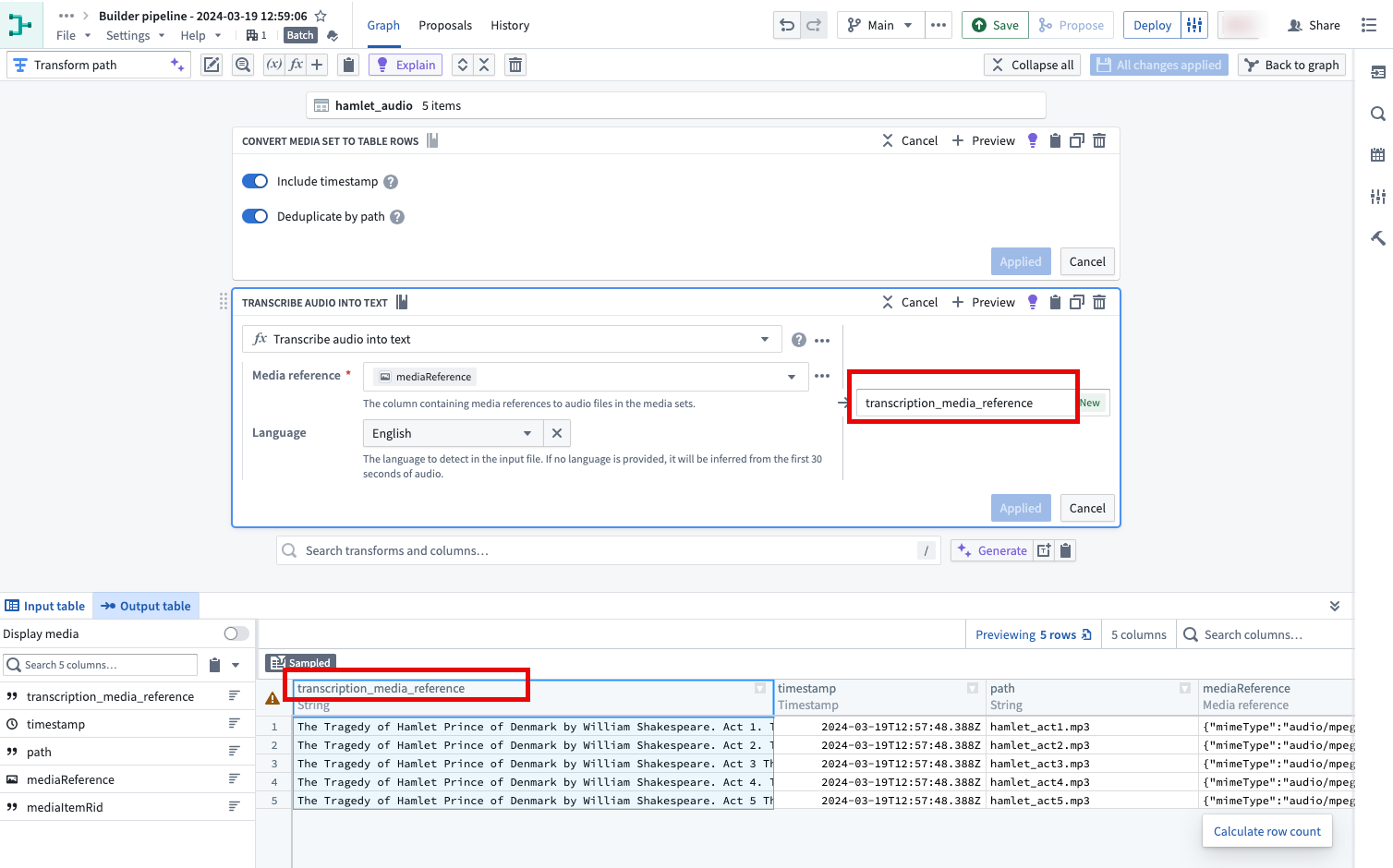
If you do not wish to use the transcription widget, you may decide to continue transforming your audio transcription string output as necessary.
Once you have finished transforming the transcription as desired, you can output it as a Dataset or choose to ontologize the output by selecting an Object type output. At this point, you can stop following the guide here.
If you wish to use the transcription widget, continue reading part 3 below to create transcription segments for the widget.
Part 3: Ontologize transcription segments to be used in Workshop widget
In this section, we will create segment objects from the transcription output that contain the necessary properties to display in the transcription widget.
-
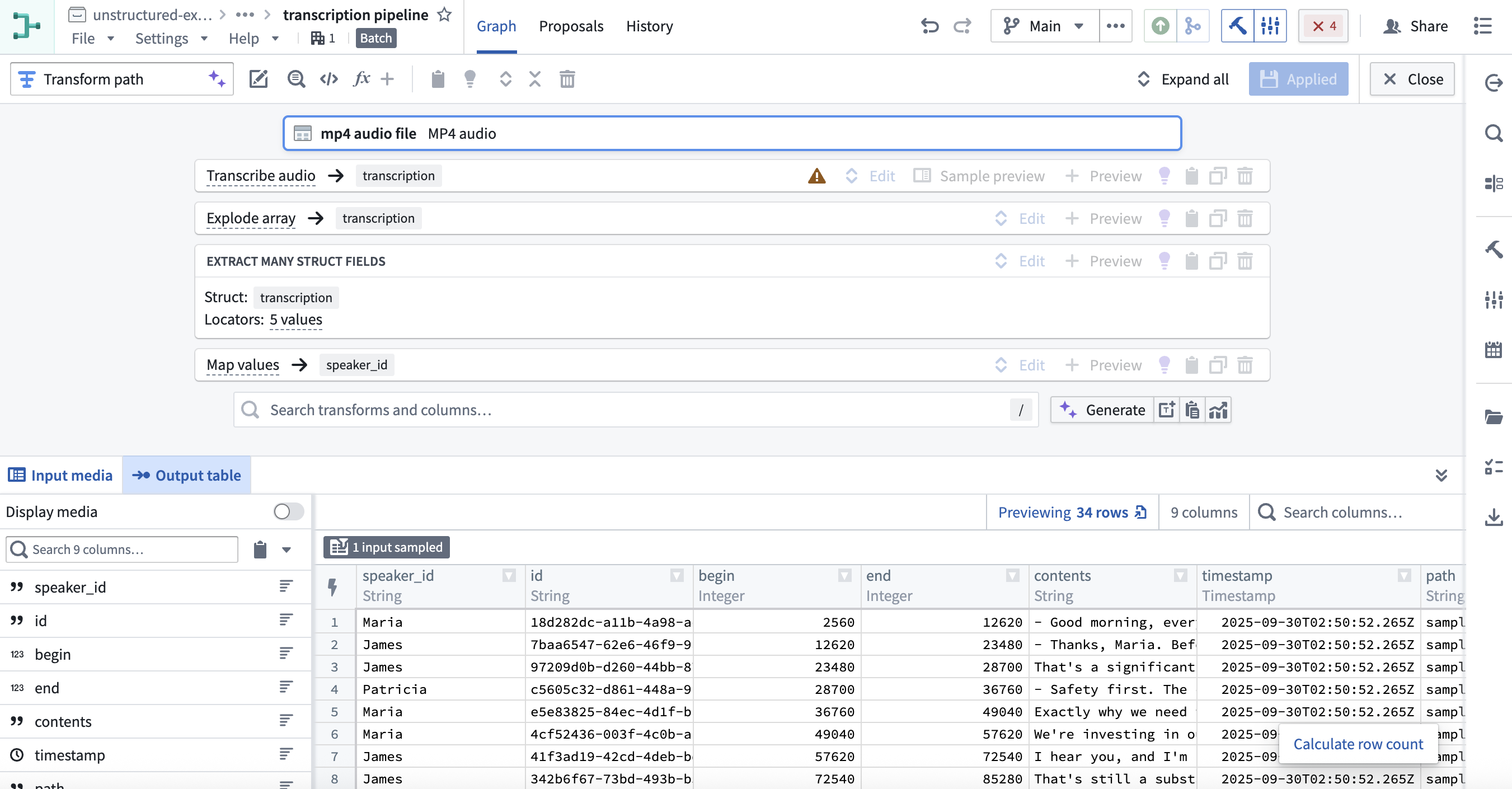
Use the Explode array transformation to convert the array of segment structs into individual rows.
-
Then, apply Extract many struct fields to extract the fields required for the widget. We will select the following fields:
id,begin,end,contents, andspeaker_id. Since we already know the names of the speakers, we will use Map values to convert the speaker ID to a speaker name.
-
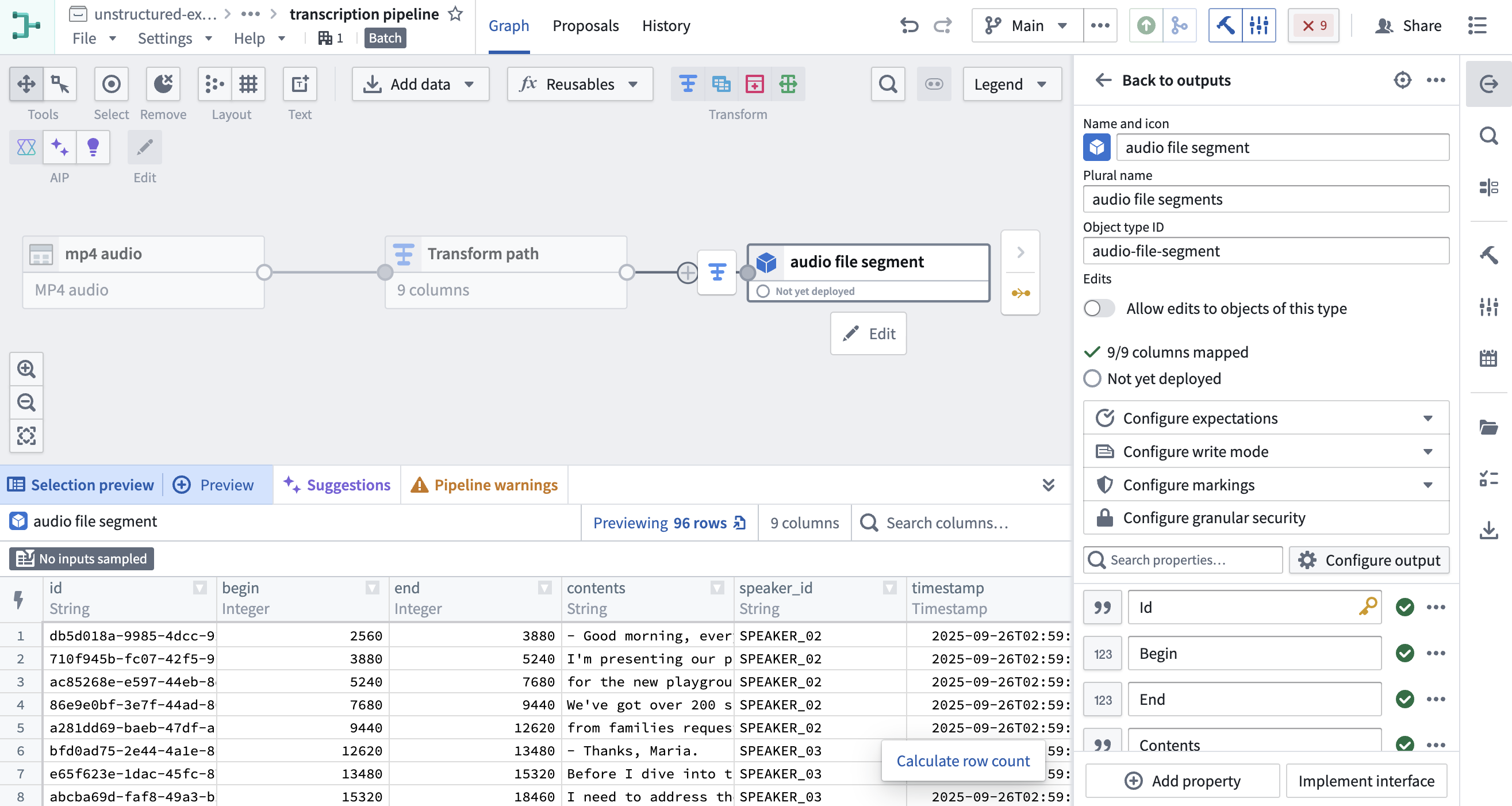
Ontologize the output by selecting an Object type output. Learn more about how to save your pipeline output. Make sure to set the Id property as the primary key so each segment object has a unique key.
Part 4: Display the transcription in Workshop
-
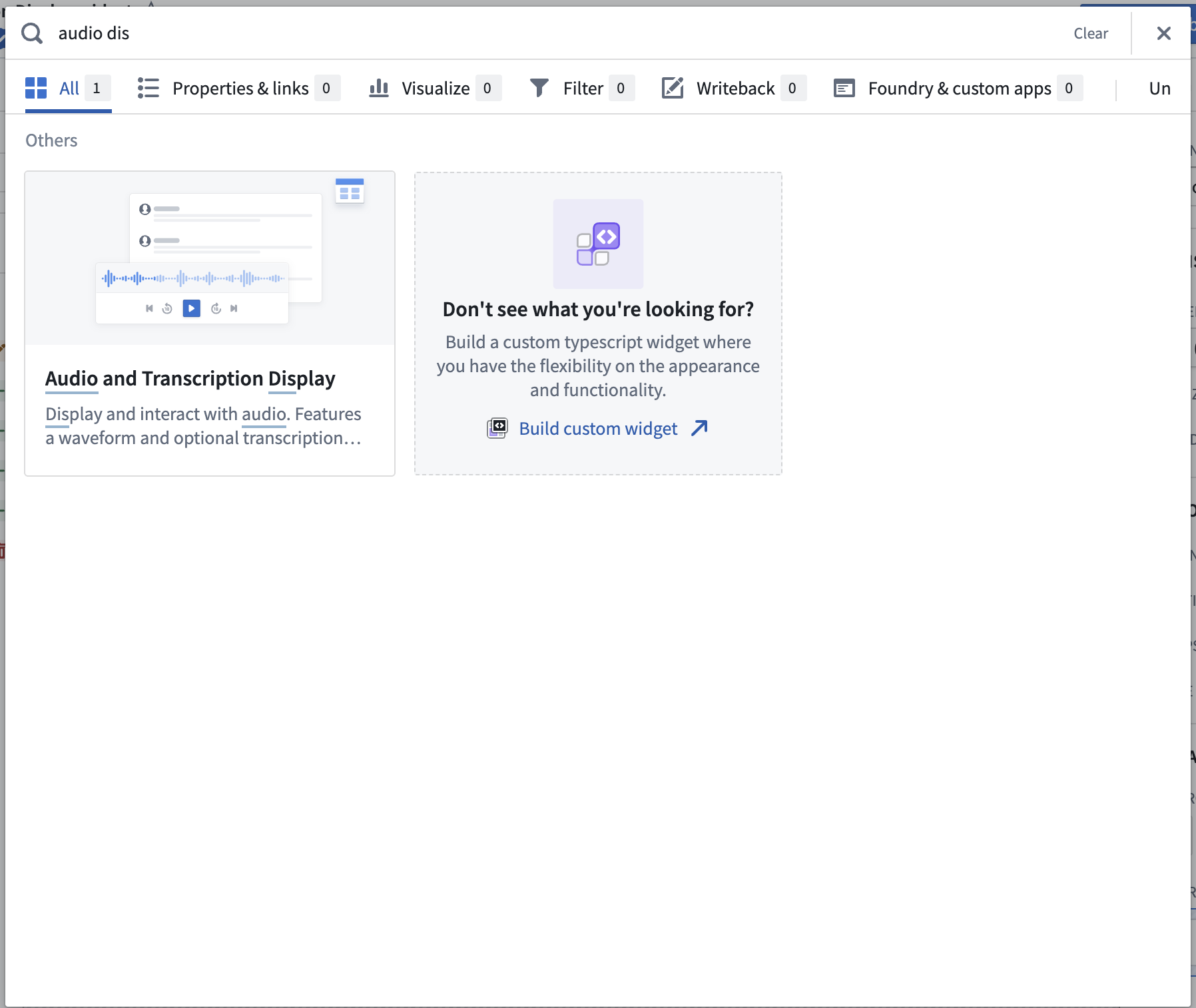
In Workshop, add the Audio and Transcription Display widget.
-
Configure the widget using the object type created in part 3 as the segments object set. See Audio and Transcription Display widget documentation for a full enumeration of the configuration options.
-
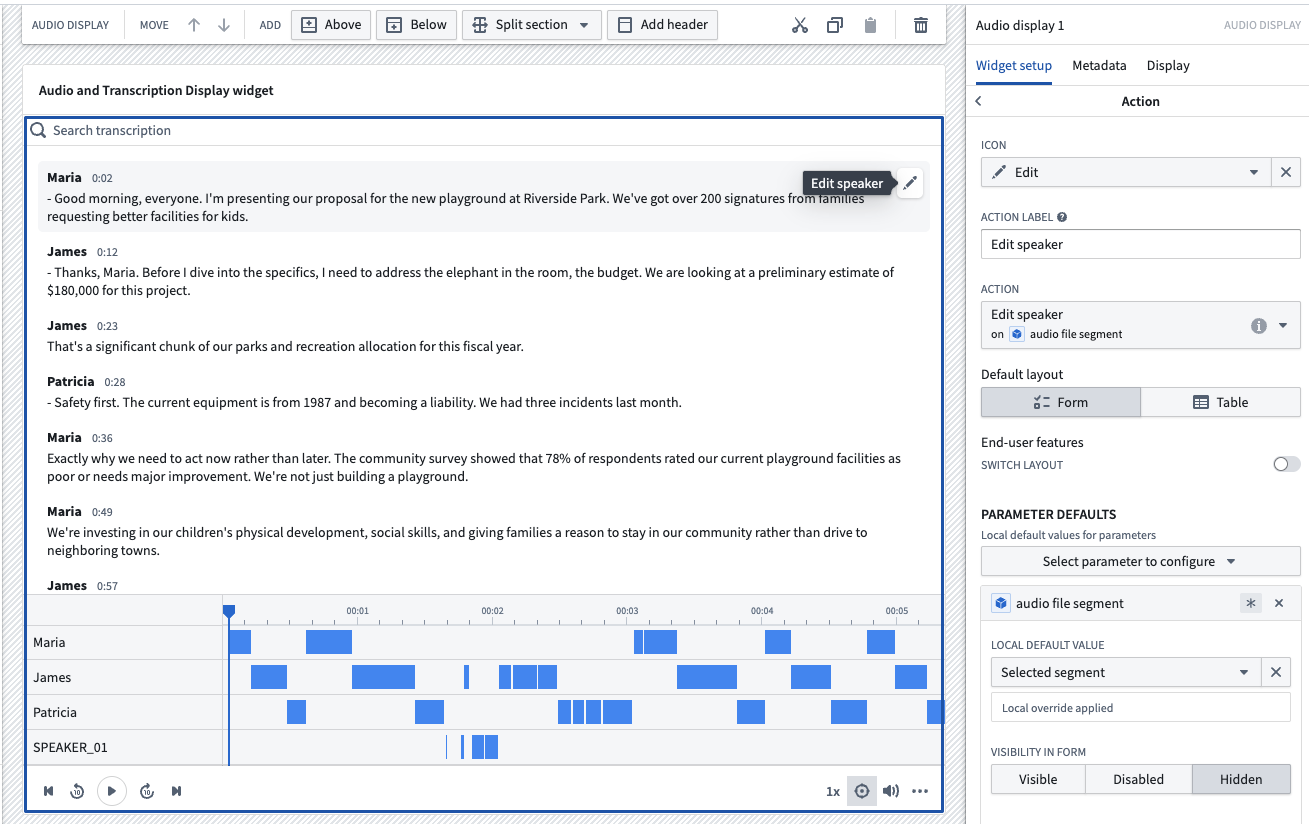
Configure an action to be used in the widget.
You can create action types on your segment objects set and surface them in the widget. For example, you may want to allow users to edit the segment contents, or correct the timestamps.
In this example, we will configure a simple action that allows users to edit the speaker property of a segment.
- Once the action type is defined, configure the action in Workshop. Select Enable actions and select the action you created on your object type. You can configure the icon and name. These will be shown in a segment toolbar when hovered over a segment.
You can also configure Parameter defaults to populate default values from the hovered segment. We will use the Selected segment parameter default for the action's object to edit.
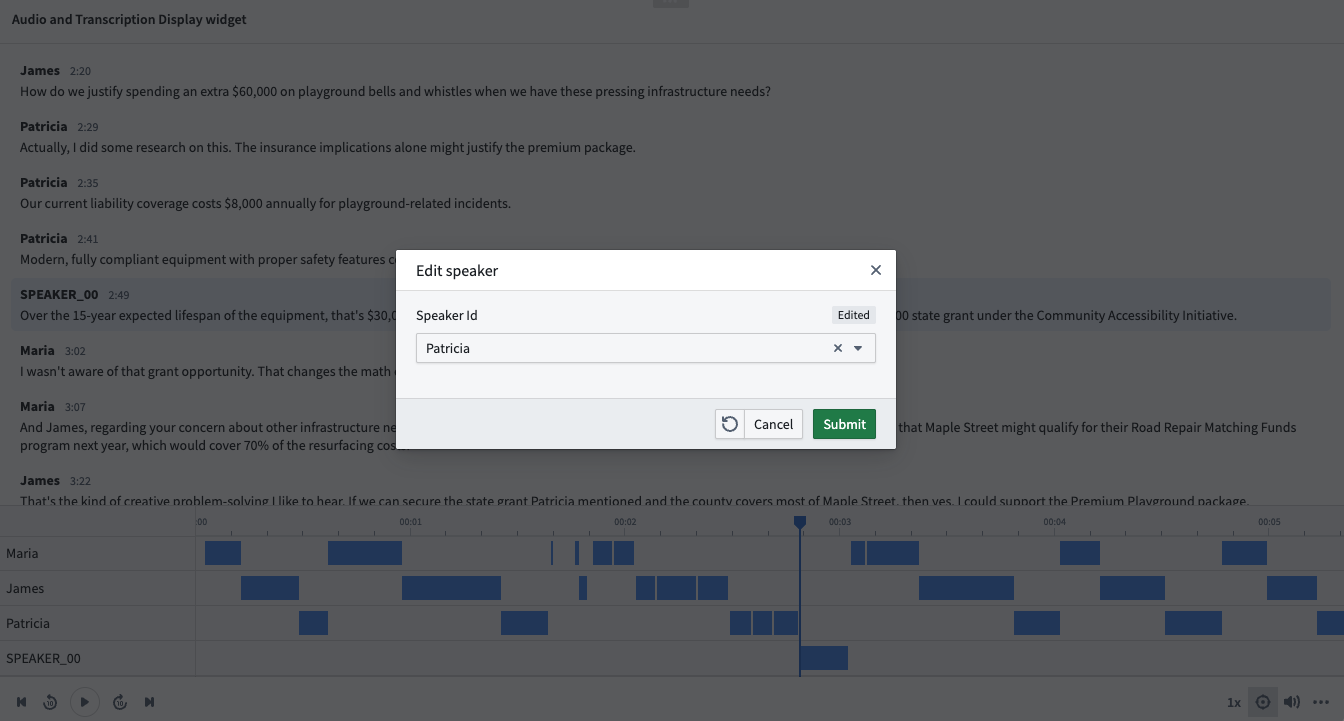
In this example workflow, we can now correct the speaker property of a segment upon inspection in the widget.
中文翻译
创建交互式音频转录应用
本指南将教你如何构建一个工作流,用于转录音频并创建交互式应用,以便使用媒体集(media sets)查看转录内容。
第一部分:在 Foundry 中将音频文件导入为媒体集
首先,你需要将音频文件导入为媒体集(media sets)。有两种方式可以实现:
导入完成后,你将能够查看你的音频媒体集。
第二部分:通过 Pipeline Builder 转录音频媒体集
- 在 Pipeline Builder 中创建一个新管道,并将你的音频媒体集添加到管道中。详细步骤可在 Pipeline Builder 文档的初始设置部分找到。
你导入的音频媒体集应如下所示:
-
接下来,使用转换(Transforms)选择转录音频(Transcribe audio)转换。
-
指定转录音频(Transcribe audio)转换的输入,然后选择应用(Apply)。
使用媒体集输入中的 media_reference 列,并选择所需的语言。如果未提供语言,则会根据音频的前30秒自动推断。有多种配置选项可供选择。在此示例中,我们希望输出中包含说话人分离(speaker diarization)详情,因此我们将选择更高性能(More performant)模式、片段详情(Segment details)输出类型,并开启说话人识别(Speaker recognition)。
- 你可以在表格中预览转录的输出。
如果你不希望使用转录小部件(transcription widget),你可以根据需要继续转换音频转录字符串输出。
完成所需的转录转换后,你可以将其输出为数据集(Dataset),或通过选择对象类型(Object type)输出来对输出进行本体化(ontologize)。此时,你可以停止跟随本指南。
如果你希望使用转录小部件,请继续阅读下面的第三部分,为小部件创建转录片段。
第三部分:对转录片段进行本体化,以便在 Workshop 小部件中使用
在本节中,我们将从转录输出中创建片段对象,这些对象包含在转录小部件中显示所需的属性。
-
使用展开数组(Explode array)转换,将片段结构体(segment structs)数组转换为单独的行。
-
然后,应用提取多个结构体字段(Extract many struct fields)来提取小部件所需的字段。我们将选择以下字段:
id、begin、end、contents和speaker_id。由于我们已经知道说话人的名称,我们将使用映射值(Map values)将说话人 ID 转换为说话人名称。
-
通过选择对象类型(Object type)输出来对输出进行本体化。了解更多关于如何保存管道输出的信息。确保将Id属性设置为主键,以便每个片段对象都有唯一的键。
第四部分:在 Workshop 中显示转录内容
-
在 Workshop 中,添加音频和转录显示(Audio and Transcription Display)小部件。
-
使用在第三部分中创建的对象类型作为片段对象集(segments object set)来配置小部件。有关配置选项的完整列表,请参阅音频和转录显示小部件文档。
-
配置要在小部件中使用的操作(action)。
你可以在片段对象集上创建操作类型(action types),并将其展示在小部件中。例如,你可能希望允许用户编辑片段内容或更正时间戳。
在此示例中,我们将配置一个简单的操作,允许用户编辑片段的说话人属性。
- 定义操作类型后,在 Workshop 中配置该操作。选择启用操作(Enable actions),然后选择你在对象类型上创建的操作。你可以配置图标和名称。当鼠标悬停在片段上时,这些内容将显示在片段工具栏中。
你还可以配置参数默认值(Parameter defaults),以从悬停的片段中填充默认值。我们将使用选定片段(Selected segment)参数默认值作为要编辑的操作对象。
在此示例工作流中,我们现在可以在小部件中检查片段时更正其说话人属性。