Importing media(导入媒体(Importing media))
There are multiple ways that you can import media into a media set, including:
- Direct upload
- Connecting to an external source system
- Transforms
- Using actions
- OSDK
Path deduplication
If a file is uploaded to a media set and has the same path (usually the filename, such as example.png) as an existing item in the media set, the new item will overwrite the existing one.
:::callout{theme="warning" title="Deduplication behavior"} You must ensure path uniqueness to avoid overwrites. No warning or confirmation will appear before an upload overwrites an existing media item. :::
An overwritten media item will still be available when using a direct media reference to that media item. Overwritten media items can also be viewed in the media item version history or listed in transforms by setting deduplicate_by_path=False.
For example:
dataset = input_media.dataframe(deduplicate_by_path=False)
Media item version history
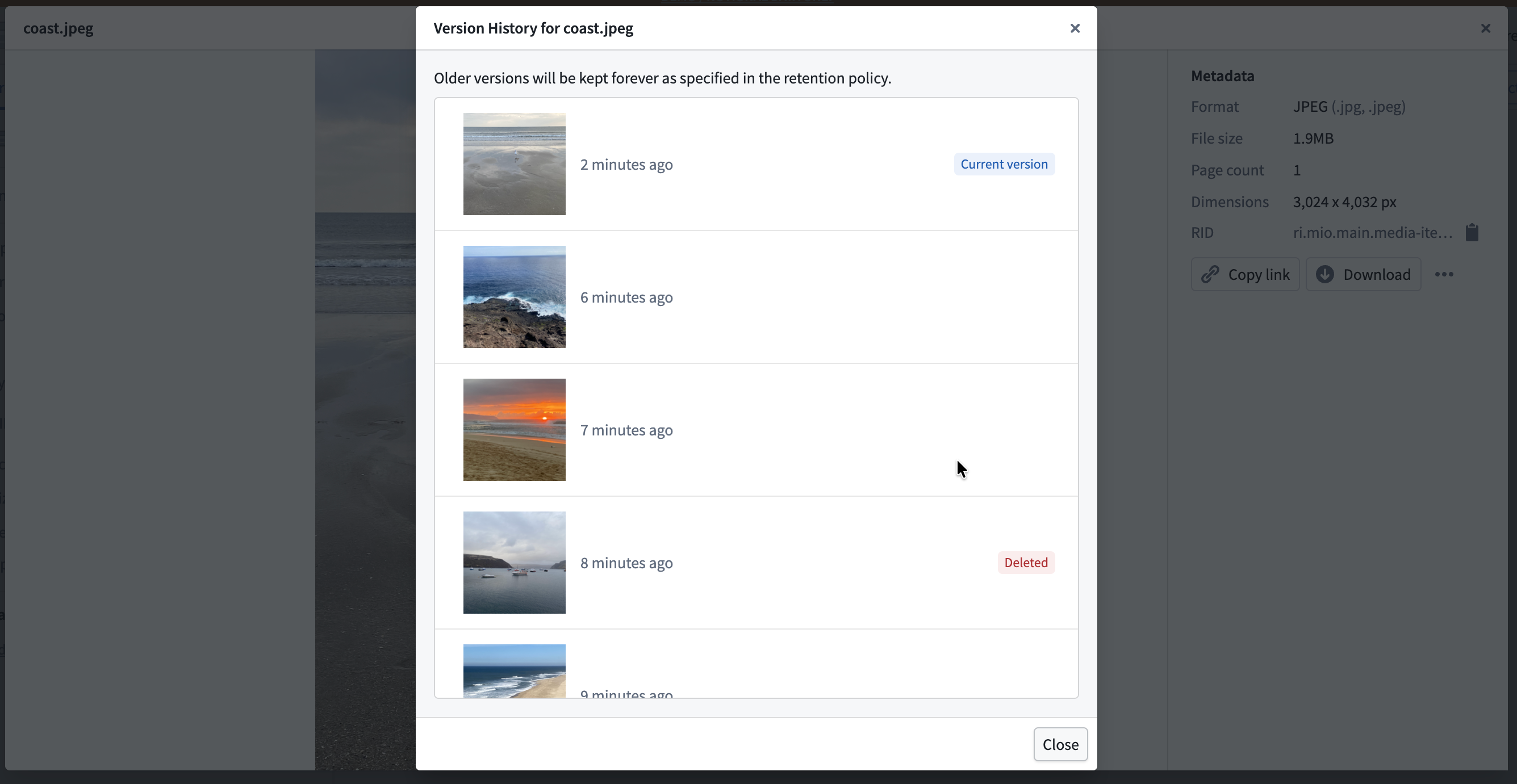
When multiple media items are uploaded with the same path, only the most recent item is displayed in the media set. However, you can view the complete version history of uploads at a specific path to see all overwritten media items.
To view the version history of a media item path:
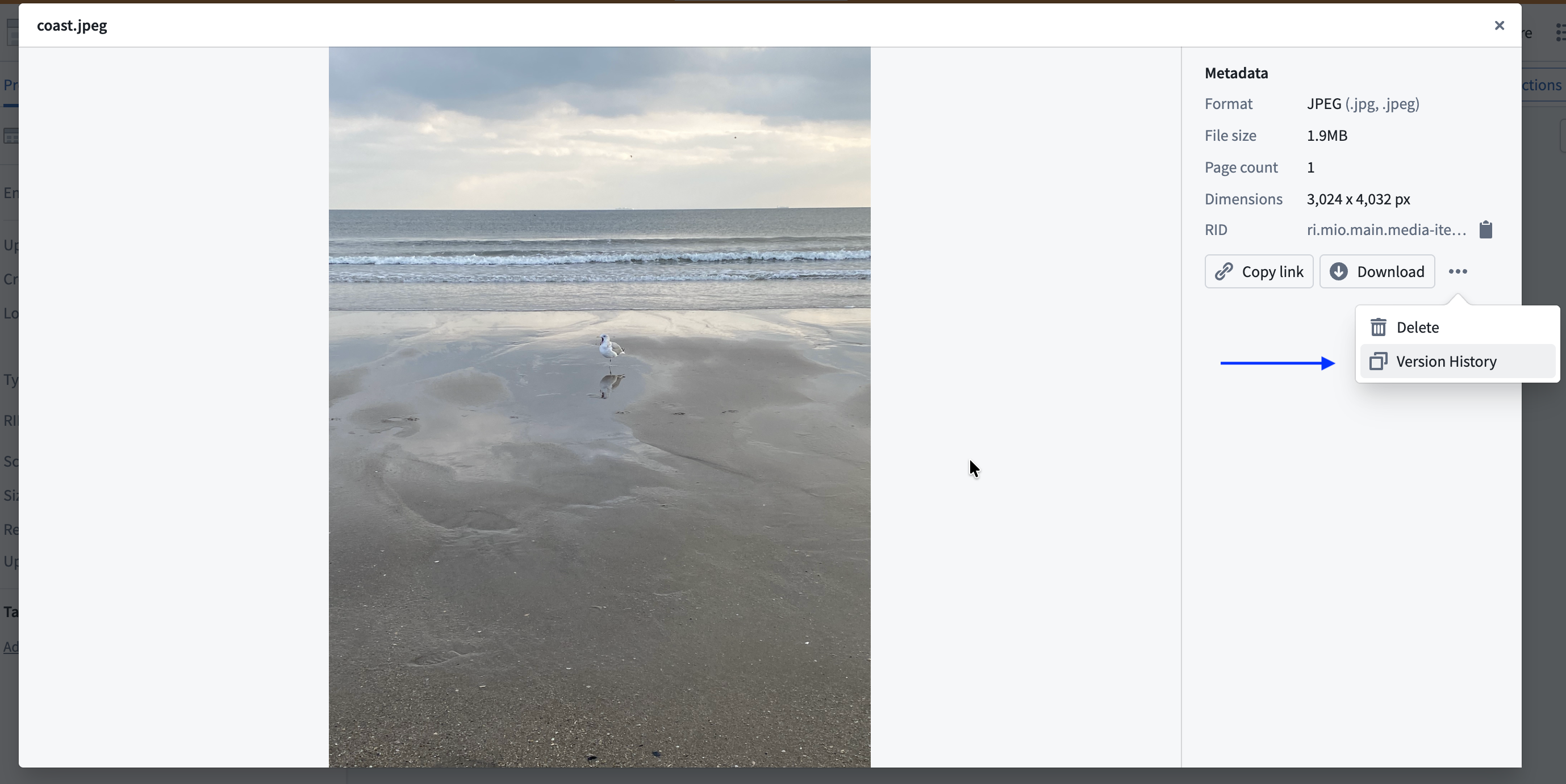
- Select a media item in the media set.
- In the Metadata panel, select Version History.
The version history displays all media items that have been uploaded to that path in chronological order, with the most recent upload listed first. Each entry shows when the media item was uploaded and allows you to preview the content.
:::callout{theme="neutral"} Overwritten media items are not permanently deleted from the media set and may still be processed in builds. To manage storage and ensure only the latest items are processed, consider configuring a retention policy for overwritten items. :::
Direct upload
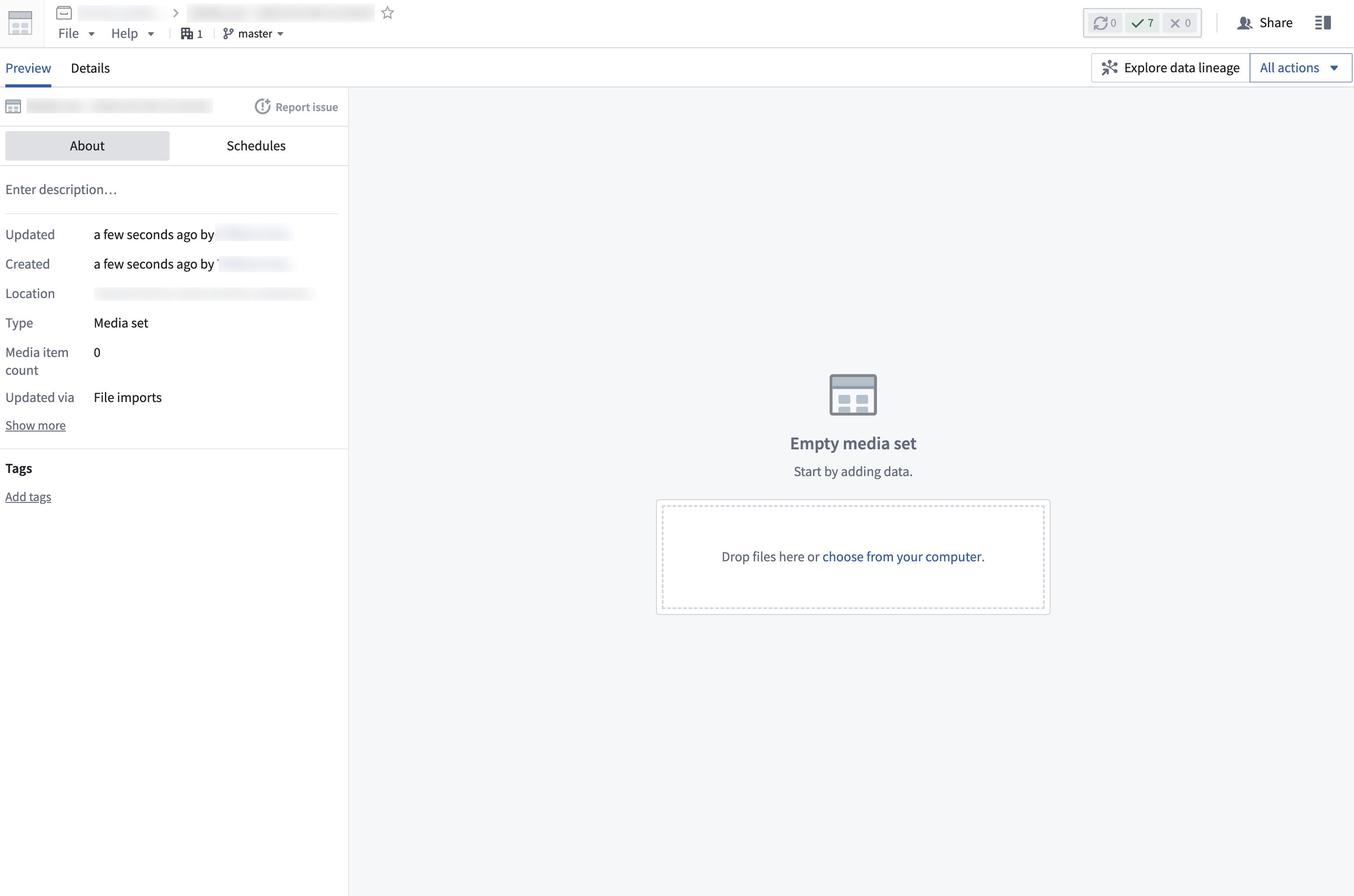
To import media files to a media set through a direct upload, drag and drop the files into your new media set. Files must match the expected file type specified upon creation of the media set to be uploaded to the media set.
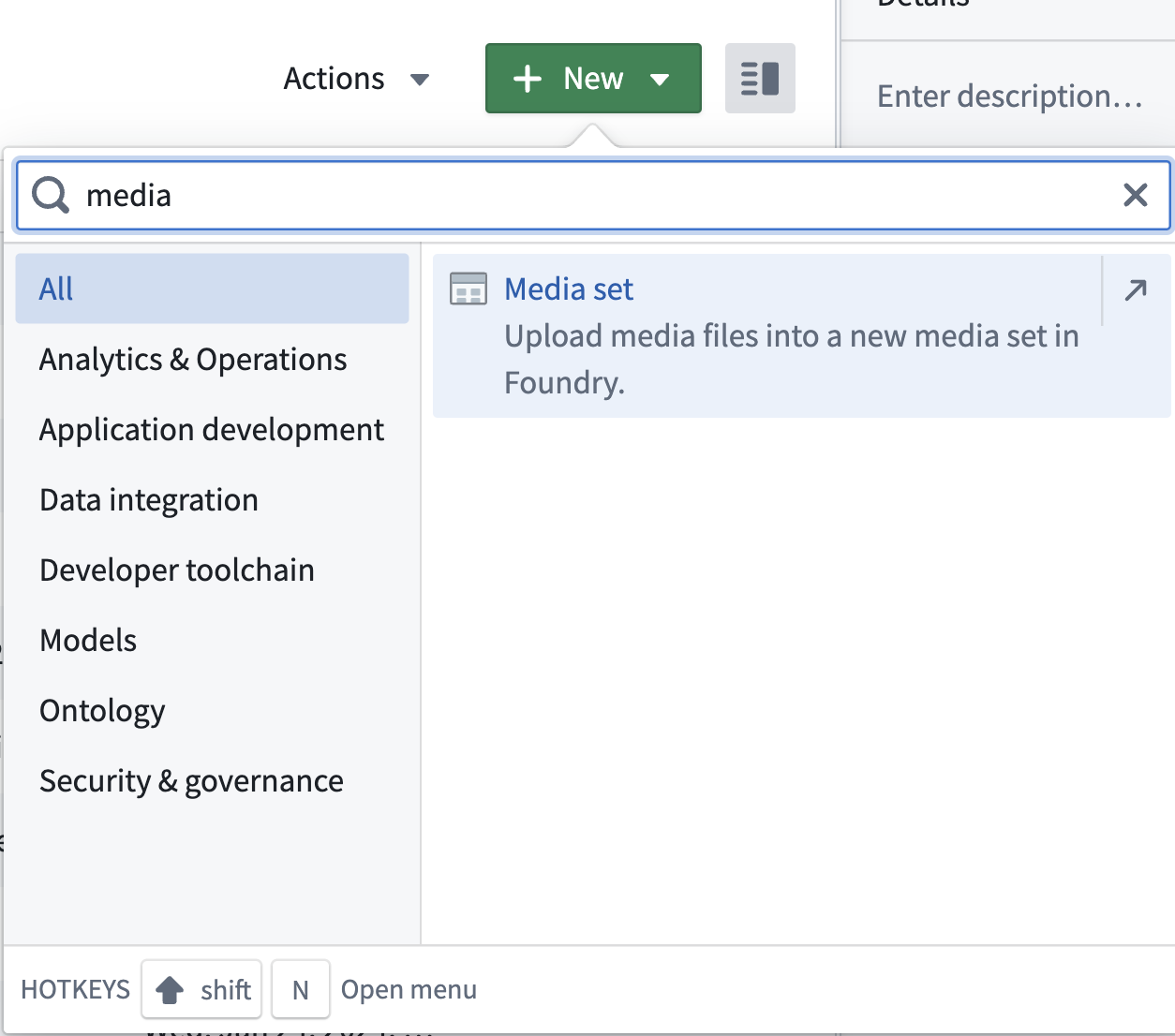
- First, create a new media set by selecting New within a Project and selecting
media setfrom the search bar as shown below.
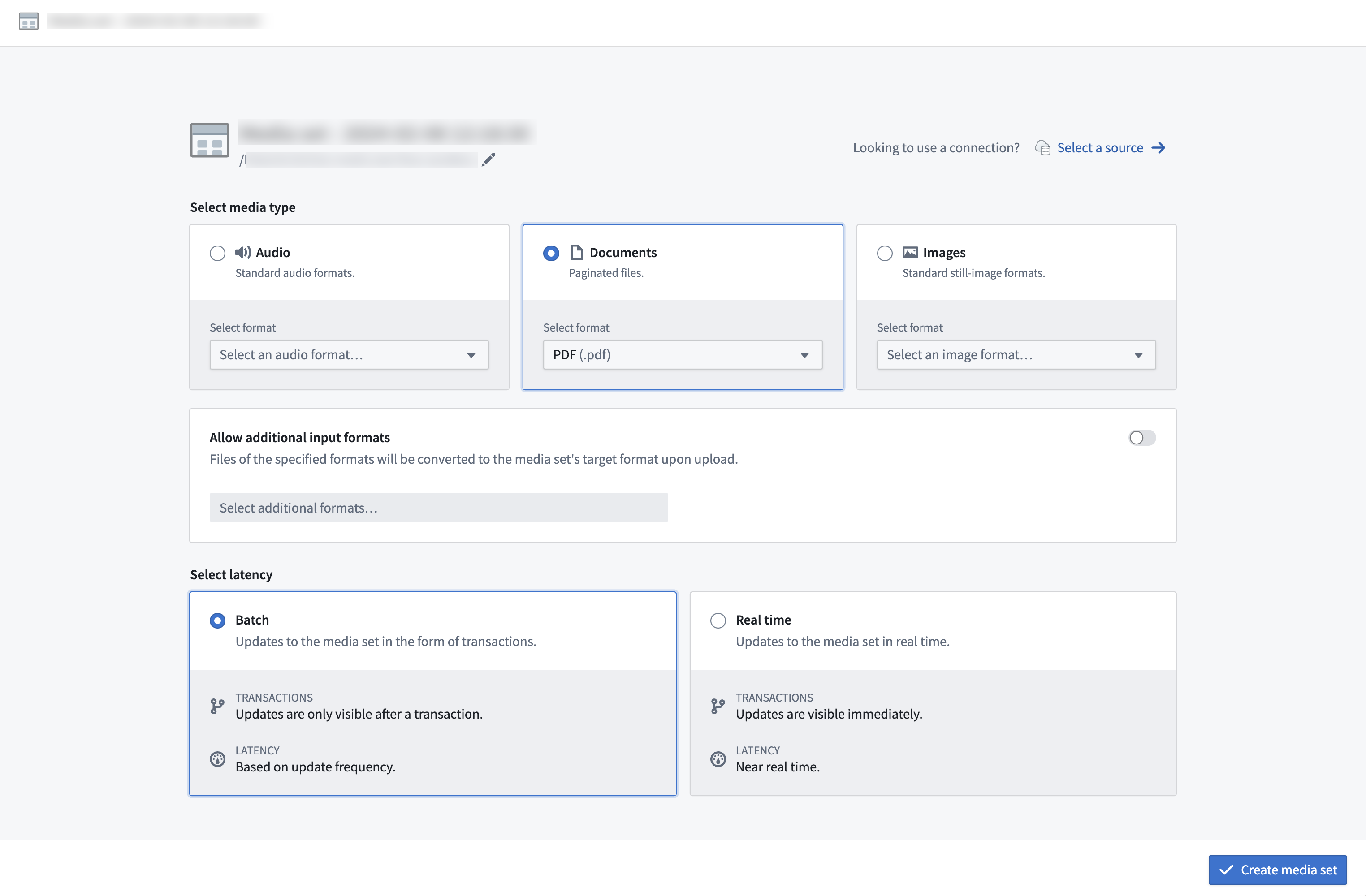
- Next, choose the desired media file type for the new media set and select Create media set.
- Once you have created a media set, you can upload media via drag-and-drop onto the empty media set or by selecting the choose from your computer prompt.
Connecting to an external source system
Data Connection
Media sets can be imported using a sync to an external source through Data Connection. A detailed walk-through can be found in the media set sync documentation.
To create a new media set sync, navigate to the Overview tab of the desired source.
After you create the sync, trigger a build in the media set view for the media to appear in your media set.
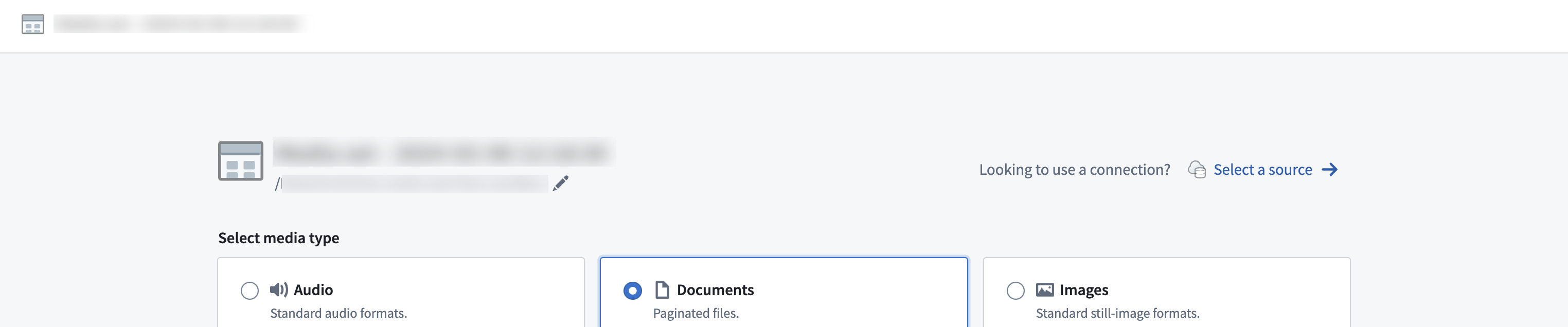
You can also connect an existing source to a new media set via the Select a source option.
Virtual media sets
For supported source types, media sets can optionally be configured to read directly from the external source system so no data is copied into Foundry's backing store. These are called virtual media sets.
External transforms
For sources with REST APIs, you can import media to a media set through external transforms.
Transforms
Pipeline Builder
Media sets can also be directly imported into Pipeline Builder. Learn more about available upload methods in Pipeline Builder.
中文翻译
导入媒体(Importing media)
您可以通过多种方式将媒体导入媒体集(media set),包括:
- 直接上传(Direct upload)
- 连接外部源系统(External source system)
- 转换(Transforms)
- 使用操作(Actions)
- OSDK
路径去重(Path deduplication)
如果上传到媒体集的文件与媒体集中现有项目具有相同路径(通常为文件名,例如 example.png),则新项目将覆盖现有项目。
:::callout{theme="warning" title="去重行为(Deduplication behavior)"} 您必须确保路径唯一性以避免覆盖。上传覆盖现有媒体项目时,不会出现任何警告或确认提示。 :::
使用直接媒体引用(Media reference)访问被覆盖的媒体项目时,该项目仍然可用。被覆盖的媒体项目也可以在媒体项目版本历史(Media item version history)中查看,或通过设置 deduplicate_by_path=False 在转换中列出。
例如:
dataset = input_media.dataframe(deduplicate_by_path=False)
媒体项目版本历史(Media item version history)
当多个媒体项目以相同路径上传时,媒体集中仅显示最新项目。但您可以查看特定路径下的完整上传版本历史,以查看所有被覆盖的媒体项目。
查看媒体项目路径的版本历史:
- 在媒体集中选择一个媒体项目。
- 在元数据(Metadata)面板中,选择版本历史(Version History)。
版本历史按时间顺序显示所有上传到该路径的媒体项目,最新上传的项目排在最前面。每个条目显示媒体项目的上传时间,并允许您预览内容。
:::callout{theme="neutral"} 被覆盖的媒体项目不会从媒体集中永久删除,并且可能仍在构建(Builds)中被处理。为管理存储并确保仅处理最新项目,请考虑配置被覆盖项目的保留策略(Retention policy)。 :::
直接上传(Direct upload)
要通过直接上传将媒体文件导入媒体集,请将文件拖放到新的媒体集中。文件必须与创建媒体集时指定的预期文件类型匹配,才能上传到该媒体集。
- 首先,在项目(Project)中选择新建(New),然后从搜索栏中选择
media set,如下所示,创建一个新的媒体集。
- 接下来,为新媒体集选择所需的媒体文件类型,然后选择创建媒体集(Create media set)。
- 创建媒体集后,您可以通过拖放文件到空媒体集,或选择从您的计算机选择(choose from your computer)提示来上传媒体。
连接外部源系统(Connecting to an external source system)
数据连接(Data Connection)
媒体集可以通过数据连接(Data Connection)同步到外部源进行导入。详细操作指南请参阅媒体集同步文档。
要创建新的媒体集同步(Sync),请导航至所需源(Source)的概览(Overview)选项卡。
创建同步后,在媒体集视图中触发构建(Build),媒体即可出现在您的媒体集中。
您还可以通过选择源(Select a source)选项将现有源连接到新媒体集。
虚拟媒体集(Virtual media sets)
对于支持的源类型,媒体集可以选择配置为直接从外部源系统读取,这样数据不会复制到 Foundry 的后端存储中。这些称为虚拟媒体集(Virtual media sets)。
外部转换(External transforms)
对于具有 REST API 的源,您可以通过外部转换(External transforms)将媒体导入媒体集。
转换(Transforms)
Pipeline Builder
媒体集也可以直接导入 Pipeline Builder。了解 Pipeline Builder 中更多可用的上传方法。